8 best AI tools for working with documents in 2026
Summary
In 2026, the best AI tools for working with documents include ONLYOFFICE Docs, AnythingLLM, Elicit, ChatGPT, Claude, Grammarly, UPDF AI, and Dropbox Dash. These tools cater to various needs, from editing and analyzing documents to managing and finding files, with features that enhance productivity and streamline workflows.
- ONLYOFFICE Docs integrates AI directly into document editing.
- AnythingLLM offers a private knowledge base for files.
- Elicit specializes in reviewing academic literature.
- ChatGPT provides versatile analysis and content generation.
- Dropbox Dash simplifies searching across multiple applications.
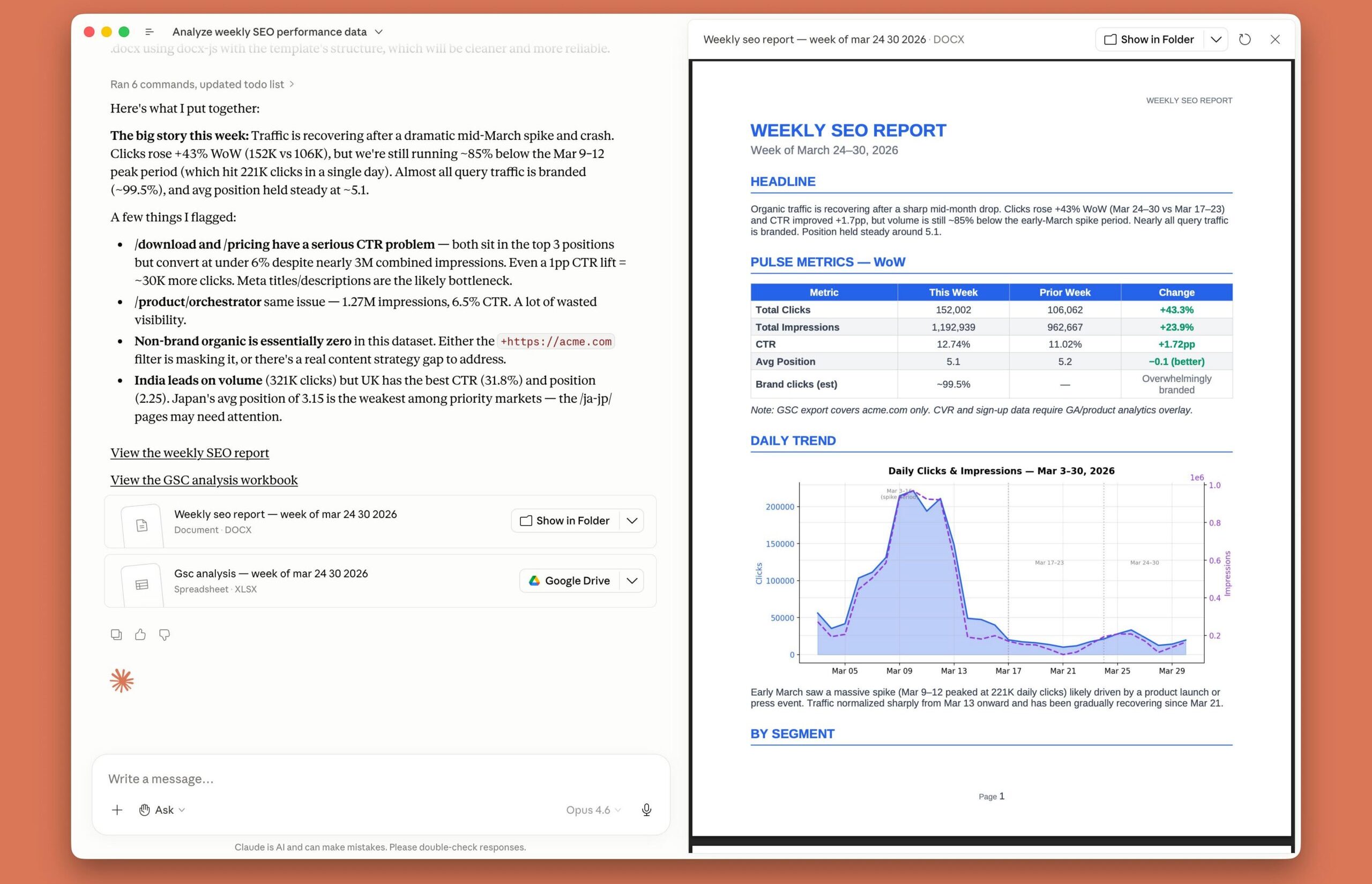
A few years ago, “AI for documents” mostly meant pasting text into a chatbot and copying the answer back. That workflow still exists, but it’s no longer the only option. In 2026, AI can read a 200-page contract, explain a spreadsheet formula, turn meeting notes into slides, or find the one clause you need across hundreds of files, often without leaving the document you’re working on.
The hard part isn’t finding an AI tool anymore; it’s picking one that fits how you actually handle documents and where you’re comfortable sending your data. This guide covers eight AI tools for working with documents in 2026, from AI built into office suites to standalone assistants and specialized PDF tools.
Why AI tools for documents matter (a lot) in 2026
Even though some things change quickly, our habits don’t. Today, most knowledge work still runs through documents: reports, contracts, budgets, proposals, presentations. And a large share of that work is repetitive: reading long files to find what matters, rewriting the same content for different audiences, checking numbers, reformatting. That’s exactly the kind of task AI handles well.
The real difference between tools is where the AI sits and who controls it. Assistants built into an editor can understand a document’s structure (headings, tables, cells, slides) and apply changes directly, while standalone chatbots can analyze uploaded files and, increasingly, create or modify them. Data control matters too: for contracts, financial records, or personal data, it makes a big difference whether files go to a vendor’s cloud, to an AI provider you chose, or to a model running on your own server.
Here below we will discover the best ways to use AI while working with documents.
Note: The tools below aren’t ranked from best to worst. Each one fits a different way of working with documents, from editing inside an office suite to querying a single PDF.
1. ONLYOFFICE Docs (AI Tools)
Unlike the examples below, ONLYOFFICE doesn’t come with its own AI model. Instead, it brings the model of your choice directly into your documents, spreadsheets, presentations, and PDFs. With version 10.0, ONLYOFFICE Docs replaced its earlier AI plugin with AI Tools, a dedicated tab available in the document, spreadsheet, presentation, and PDF editors.
The key change is context awareness: instead of treating a file as plain text, the AI recognizes headings, tables, fields, and slides, so it can work with the document’s actual structure.
- In text documents, it summarizes, rewrites, translates, proofreads, and builds tables of contents;
- In spreadsheets, it creates and explains formulas, cleans up data, spots trends, and suggests charts;
- In presentations, it drafts outlines, slides, and speaker notes;
- In PDFs, it answers questions about the file and highlights key points.
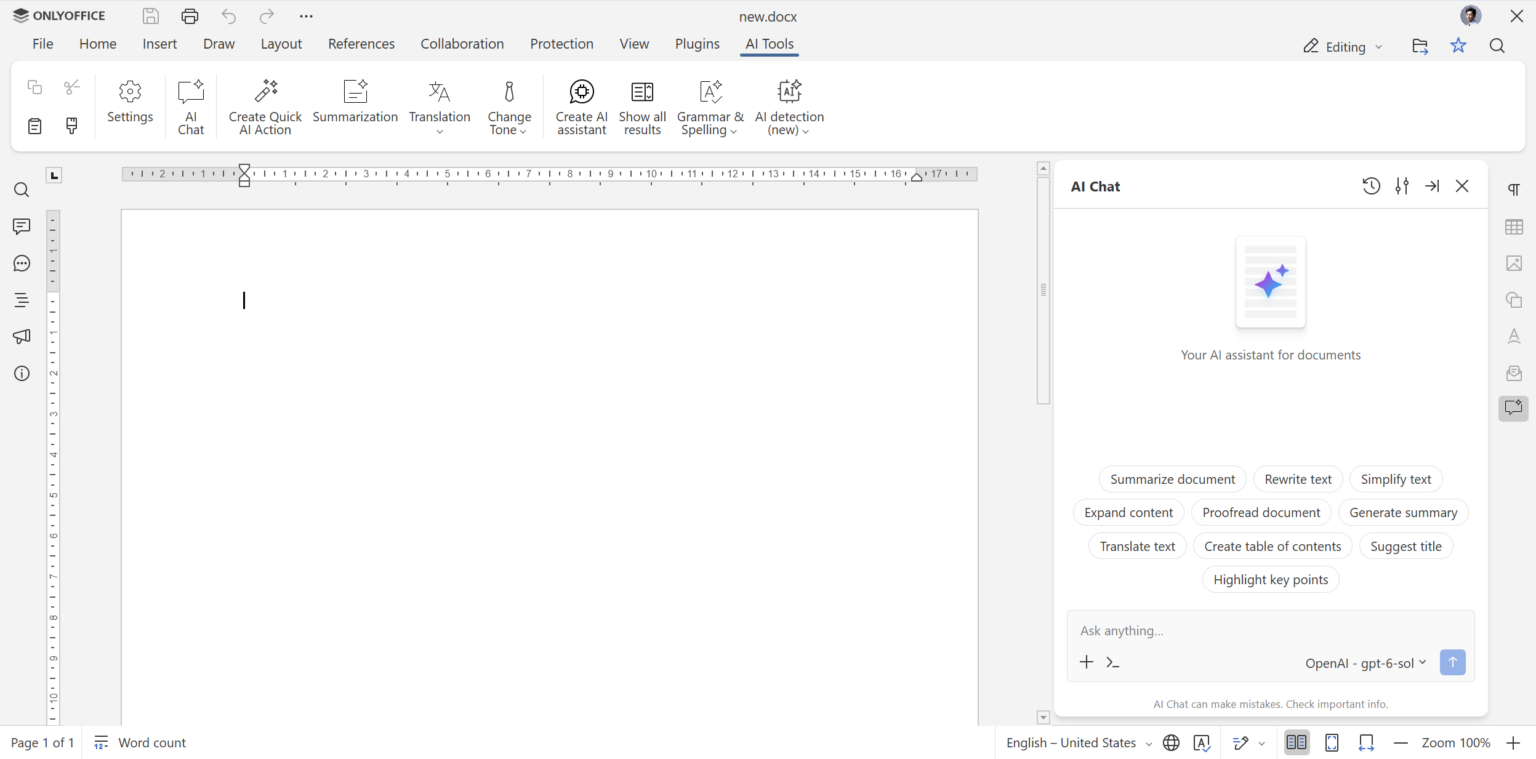
In the document editor, you can also save your own prompts, create quick AI actions for one-off tasks, or set up AI assistants that keep working in the background, for example reviewing or fact-checking text as you edit.
The desktop editors go a step further with an AI Chat that processes local files without opening them, including several files at once.
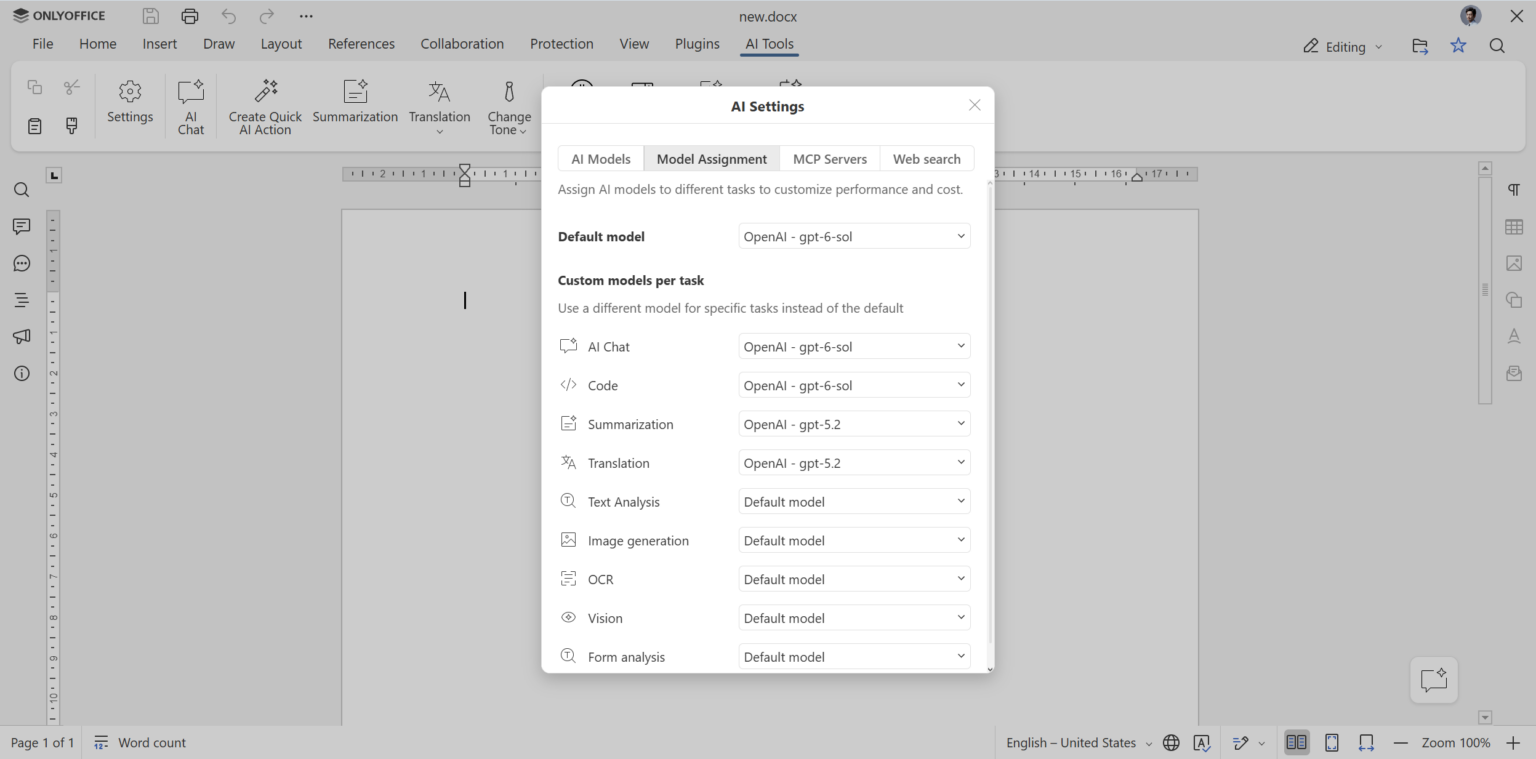
What sets ONLYOFFICE apart is control over the AI itself: it supports OpenAI, Claude, Gemini, Mistral, DeepSeek, and other providers, lets you assign different models to different tasks, and works with local models via Ollama or LM Studio. With a properly configured local setup, documents can be processed without sending their contents to an external AI provider.
Ideal for: Teams and individuals who want AI across docs, sheets, slides, and PDFs in one editor, with the freedom to choose their AI provider or run models locally.
2. AnythingLLM
AnythingLLM, developed by Mintplex Labs, is an open-source app that turns your own files into a private, searchable knowledge base you can chat with. You drop PDFs, Word documents, spreadsheets, or text files into a workspace, and the app indexes them so you can ask questions, get summaries, and pull out details across the whole collection. Each workspace keeps its own documents and context, which makes it easy to separate projects, clients, or departments.
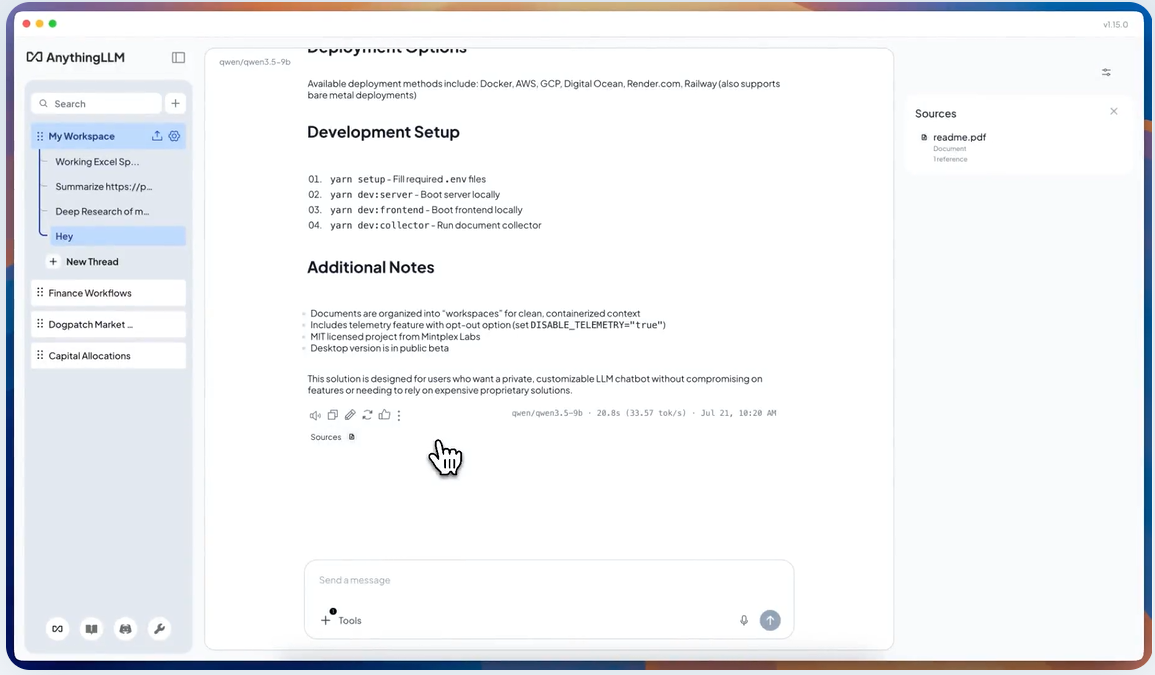
Its main appeal is privacy and flexibility. The free desktop app supports fully local processing when configured with local models and components, so documents and chats don’t need to leave your machine, while the self-hosted Docker version adds multiple users and permissions for teams. You can also connect cloud models from dozens of providers when you need more power, and build AI agents that browse the web, query databases, or work with files. The trade-off is a steeper learning curve than mainstream tools, and answers depend on the model you choose.
Ideal for: Privacy-conscious professionals and small teams who want to query confidential documents with AI, entirely on their own hardware.
3. Elicit
Elicit is an AI research assistant built for one specific kind of document: academic papers. Instead of starting from files you already have, it searches a database of well over a hundred million studies, ranks them by relevance to your question, and summarizes the key findings of each one with citations. Its standout feature is structured extraction: you define the details you care about, such as sample size, methodology, or outcomes, and Elicit fills in a comparison table across dozens of papers at once.
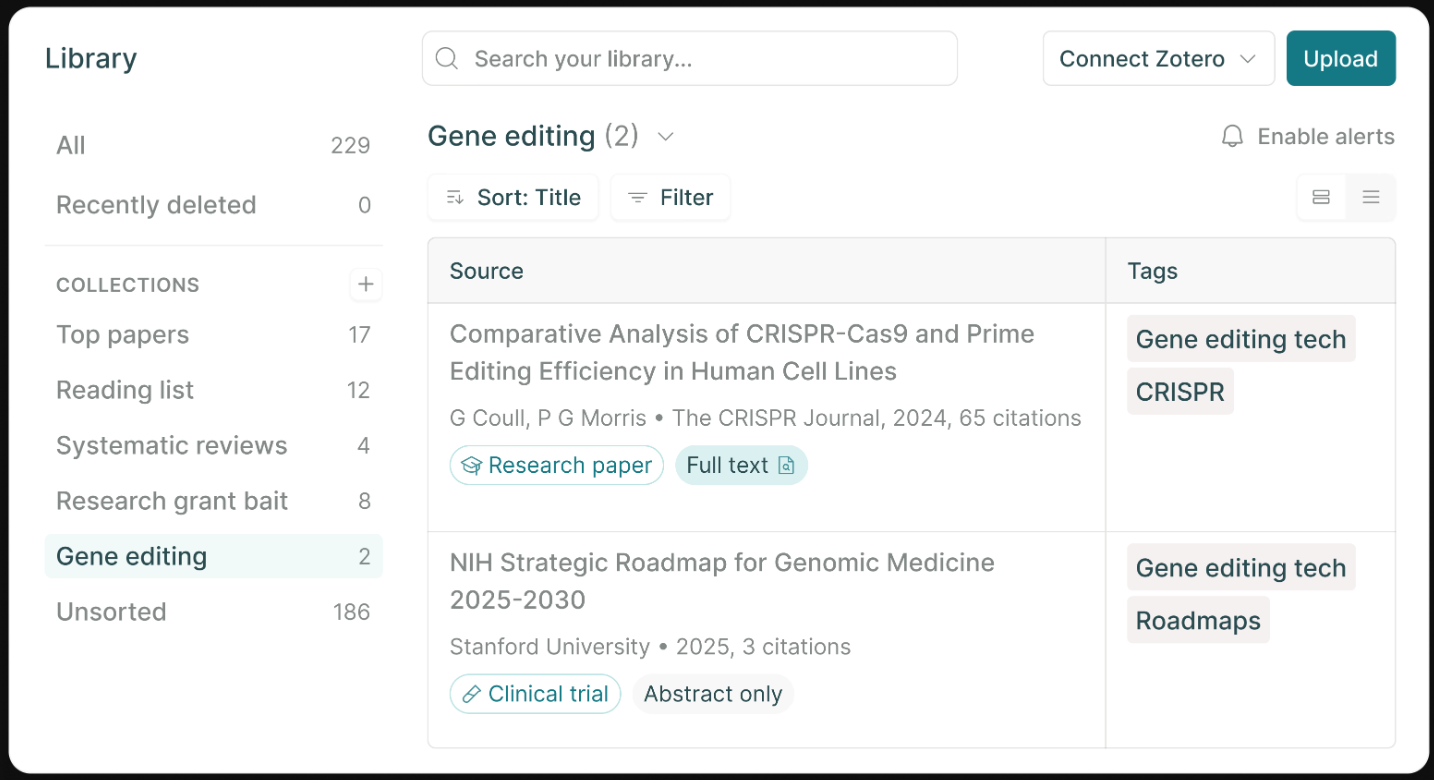
For larger projects, Elicit supports full systematic reviews, automating the screening of papers against inclusion criteria and helping researchers follow PRISMA 2020 reporting guidelines, while Notebooks keep searches, summaries, and draft syntheses on a single page. A free plan covers search and summaries, with paid tiers for heavier use. As with any AI extraction, results should be double-checked against the original papers, and it works best with empirical studies rather than general business documents.
Ideal for: Students, researchers, and analysts who need to review and compare large amounts of scientific literature.
4. ChatGPT
ChatGPT isn’t a traditional document editor, but it has become one of the most common places people bring their files. You can upload PDFs, Word documents, spreadsheets, and presentations and ask it to summarize them, compare versions, extract specific details like dates or figures, or rewrite content for a different audience. For spreadsheets and CSV files, its data analysis feature runs real Python code behind the scenes, so it can calculate, spot trends, and produce charts rather than just guessing from the text.
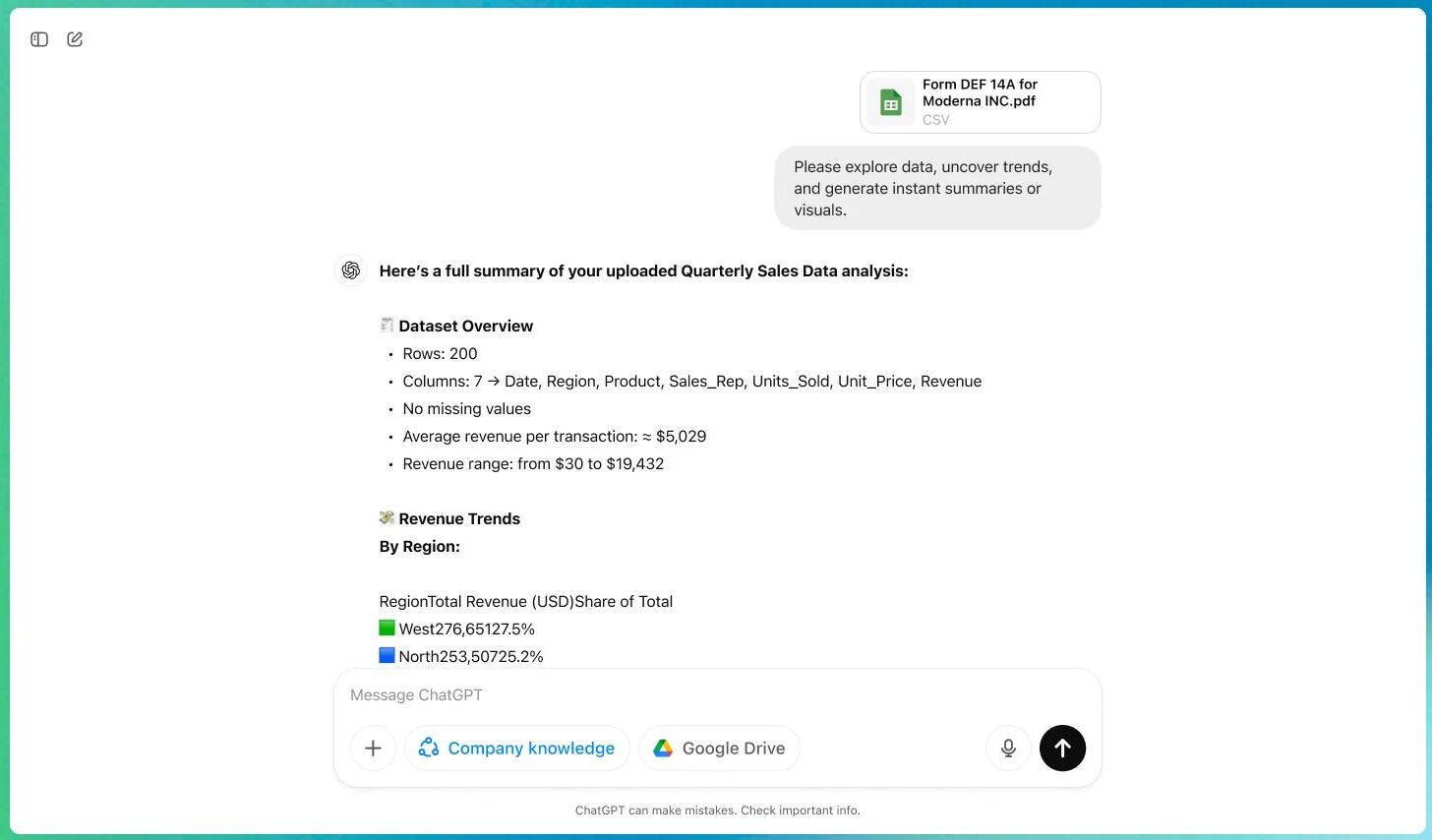
For longer writing, writing blocks let you draft and refine text directly in a conversation, while Projects keep related files and conversations together. ChatGPT can also create documents, spreadsheets, and presentations, and ChatGPT Work supports more complex workflows involving files, research, and connected applications. The trade-off is that ChatGPT isn’t primarily an office editor: depending on the workflow, you may still need to bring the result into your preferred editing environment. Access to advanced features, higher usage limits, and connected workflows depends on your plan. If you’d rather use OpenAI’s models directly inside an office suite, you can also connect them to ONLYOFFICE AI Tools.
Ideal for: Quick analysis, summaries, and rewrites of files, as well as generating new content and working across different document types.
5. Claude
Claude, developed by Anthropic, is a general-purpose AI assistant with a reputation for handling long, dense material well. You can give it lengthy reports, contracts, or research papers and ask for summaries, comparisons, or answers to specific questions, and it tends to stay close to the source text rather than drifting into generalities. That makes it a popular choice for legal, academic, and policy documents where nuance matters.
Beyond reading, Claude can create files directly: it can draft documents, build spreadsheets with working formulas, or put together slide decks. It is no longer limited to a chat window either: integrations bring it into popular office apps, and can work across your local files and applications. Projects let you keep reference files and instructions together for recurring work. The most capable models and higher usage limits require a paid plan, and some integrations depend on your plan. Claude models are also available as a provider inside other tools, including ONLYOFFICE AI Tools.
Ideal for: In-depth work with long, complex documents and for generating complete files from scratch.
6. Grammarly
Grammarly, now part of the Superhuman suite, has grown far beyond the spelling and grammar checker many people remember. It still follows you everywhere you type, through browser extensions, desktop and mobile apps, and integrations with popular editors, but the real change is a set of task-specific AI agents. A Proofreader catches errors, a Paraphraser rewrites passages, Reader Reactions predicts how your audience might respond, a Citation Finder looks for supporting sources, and AI Detector and Plagiarism Checker agents help verify originality.
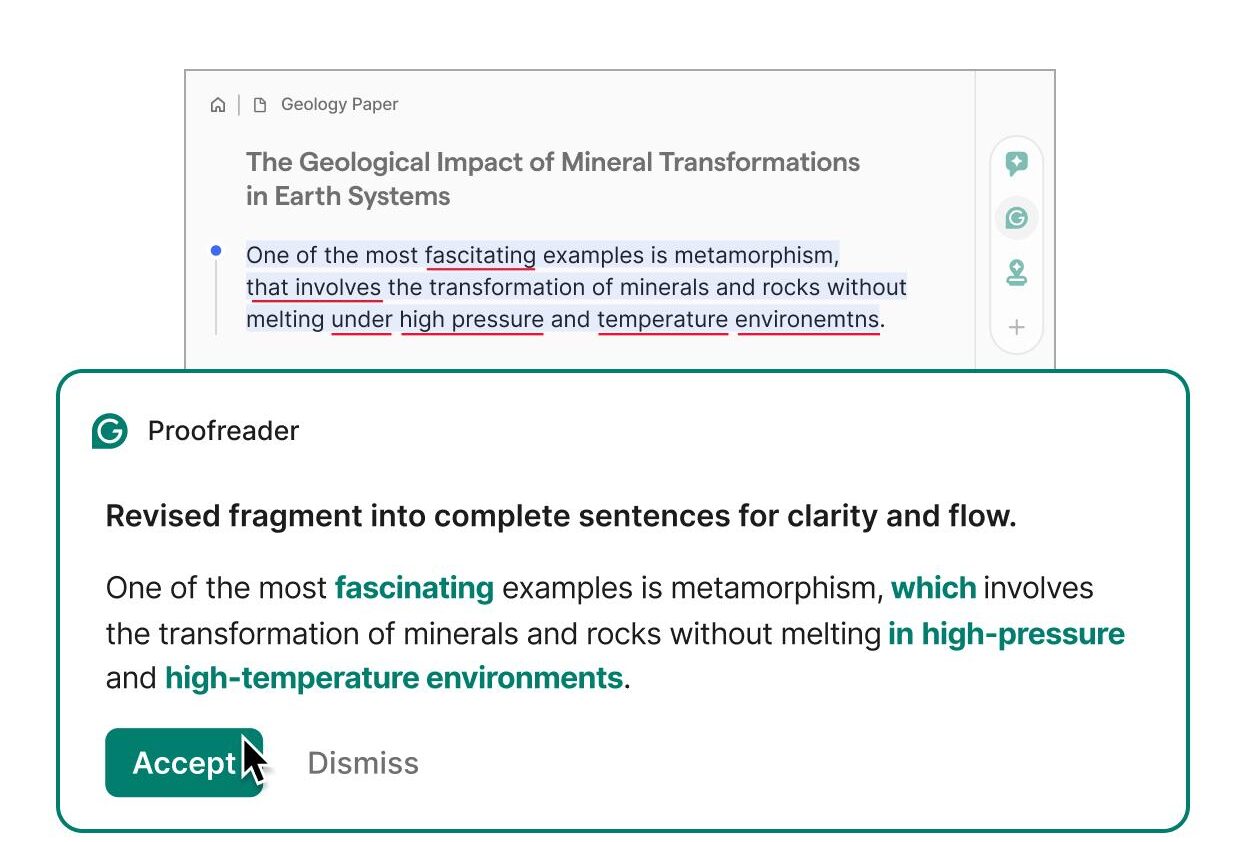
These agents are available in Grammarly’s own docs editor, a writing surface designed for longer pieces like reports and essays, where an Authorship feature can also record how much of a document was written by a human and which AI agents contributed. The free plan covers basic corrections and a limited number of AI prompts per month; full rewrites, plagiarism checks, and higher limits require a paid plan.
Ideal for: Anyone who wants consistent writing quality checks across different apps, plus specialized agents for review and originality.
7. UPDF AI
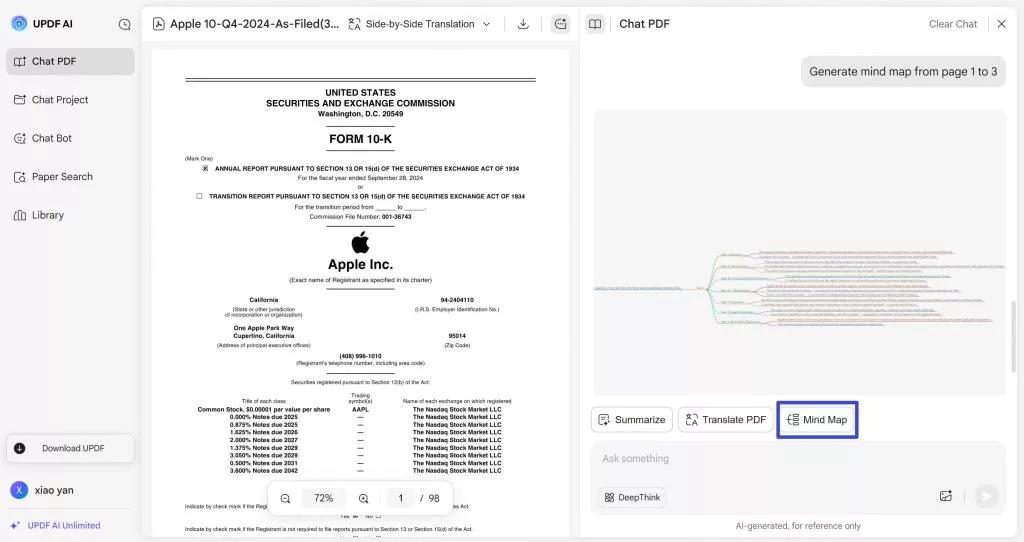
UPDF is a cross-platform PDF editor for Windows, macOS, iOS, and Android with an AI assistant built around reading and understanding PDFs. In “Ask PDF” mode, you can chat with the open document, summarize the whole file or a selected range of pages, explain unfamiliar terms, and ask about embedded images and charts. It can also translate entire PDFs while keeping the original layout, which is handy for contracts and manuals in other languages.
Its most distinctive feature is PDF-to-mind-map conversion: the AI turns a long document into a visual map of its key ideas, which you can export or insert back into the PDF. The online version also lets you chat with several PDFs at once, and newer releases add research features like paper search and literature review drafting. The AI assistant is sold as a separate subscription on top of the editor license, and it’s focused on PDFs rather than editable office files.
Ideal for: Students, researchers, and anyone who needs to digest and translate long PDFs quickly, especially in a visual way.
8. Dropbox Dash
Dropbox Dash tackles a different problem from the other tools on this list: not editing a document, but finding the right one. It’s an AI-powered universal search layer that connects to Dropbox, Google Drive, Slack, email, and other work apps, so you can look for content in natural language instead of remembering file names or where something was saved. It searches inside documents, PDFs, slides, and even images, and results respect the access permissions set in each connected app.
Once you’ve found what you need, Dash’s AI chat can summarize files, answer questions using content from across your connected tools, and help draft new text based on what it finds. Stacks let you group related files and links into shareable project collections. Dash is aimed at teams and sold as a per-user subscription; it doesn’t edit documents itself, so you’ll still pair it with an editor for the actual work.
Ideal for: Teams whose documents are scattered across many apps and who lose time searching for the right file.
How to choose the right AI tool for documents
The best choice depends less on the number of AI features a tool offers and more on how you work with your files.
If you spend most of your time creating and editing documents, spreadsheets, and presentations, ONLYOFFICE puts AI directly into that workflow. If you regularly upload different files for analysis or need to generate content from scratch, ChatGPT and Claude offer more general-purpose assistance.
For specialized tasks, the choice is simpler: Elicit is built for academic research, UPDF AI focuses on PDFs, and Grammarly helps improve writing. AnythingLLM is worth considering if you want to build a knowledge base from your own files, while Dropbox Dash makes it easier to find information across connected services.
Finally, consider where your files will be processed. If you’re working with sensitive documents, check whether a tool supports local models, self-hosting, or other data-control options before choosing it.
At a glance: how these tools compare
| Tool | Best for | Where the AI works | Standout feature |
|---|---|---|---|
| ONLYOFFICE | AI across docs, sheets, slides, and PDFs | Inside the editors, with the AI model you choose | Choice of AI providers, including local models |
| AnythingLLM | Private Q&A over your own files | Desktop app or self-hosted server | Open source, supports fully offline setups |
| Elicit | Reviewing scientific literature | Web app with its own paper database | Data extraction across many papers |
| ChatGPT | Analysis and creation of different file types | Standalone assistant and connected workflows | Code-backed data analysis and charts |
| Claude | Long, complex documents | Standalone assistant, desktop app, and integrations | Creates complete documents, spreadsheets, and decks |
| Grammarly | Writing quality everywhere you type | Browser, apps, and its own docs editor | Task-specific agents for review and originality |
| UPDF AI | Digesting and translating PDFs | Inside the UPDF editor | PDF-to-mind-map conversion |
| Dropbox Dash | Finding content across many apps | Search layer over connected apps | Permission-aware universal search |
Note: AI features, plans, and limits change quickly, so treat this table as a starting point and check each provider’s site for current details.
Get started with ONLYOFFICE
Looking for AI that works directly inside your documents, spreadsheets, presentations, and PDFs, with the freedom to choose your AI provider or keep everything on your own servers? Try ONLYOFFICE AI Tools in the cloud or in the desktop editors.
Create your free ONLYOFFICE account
View, edit and collaborate on docs, sheets, slides, forms, and PDF files online.