ONLYOFFICE AI Tools: context-aware AI inside your documents
ONLYOFFICE Docs 10.0 transforms the way you create, edit and review documents, spreadsheets, presentations and PDFs by bringing the newly-introduced ONLYOFFICE AI Tools into every editor. From drafting text and summarizing reports to translating content and analyzing complex data, they help you do routine tasks more quickly while remaining focused on the document in front of you. Read this blog post to learn how AI Tools work and how they can boost your productivity.

AI that understands the structure and context of your files
Accessible in all ONLYOFFICE editors, AI Tools bring intelligent assistance directly into your documents, spreadsheets, presentations and PDFs. Unlike its predecessor, the ONLYOFFICE AI Plugin, they go beyond simple text editing and content generation and can understand the structure of your file, recognize elements (headers, tables, fields, etc.), connect content across sections and create clickable references for better navigation. In other words, they don’t treat your document as plain text but work with its contents.
Let’s see what you can do using ONLYOFFICE AI Tools in practice.
One AI across your docs, sheets, slides and PDFs
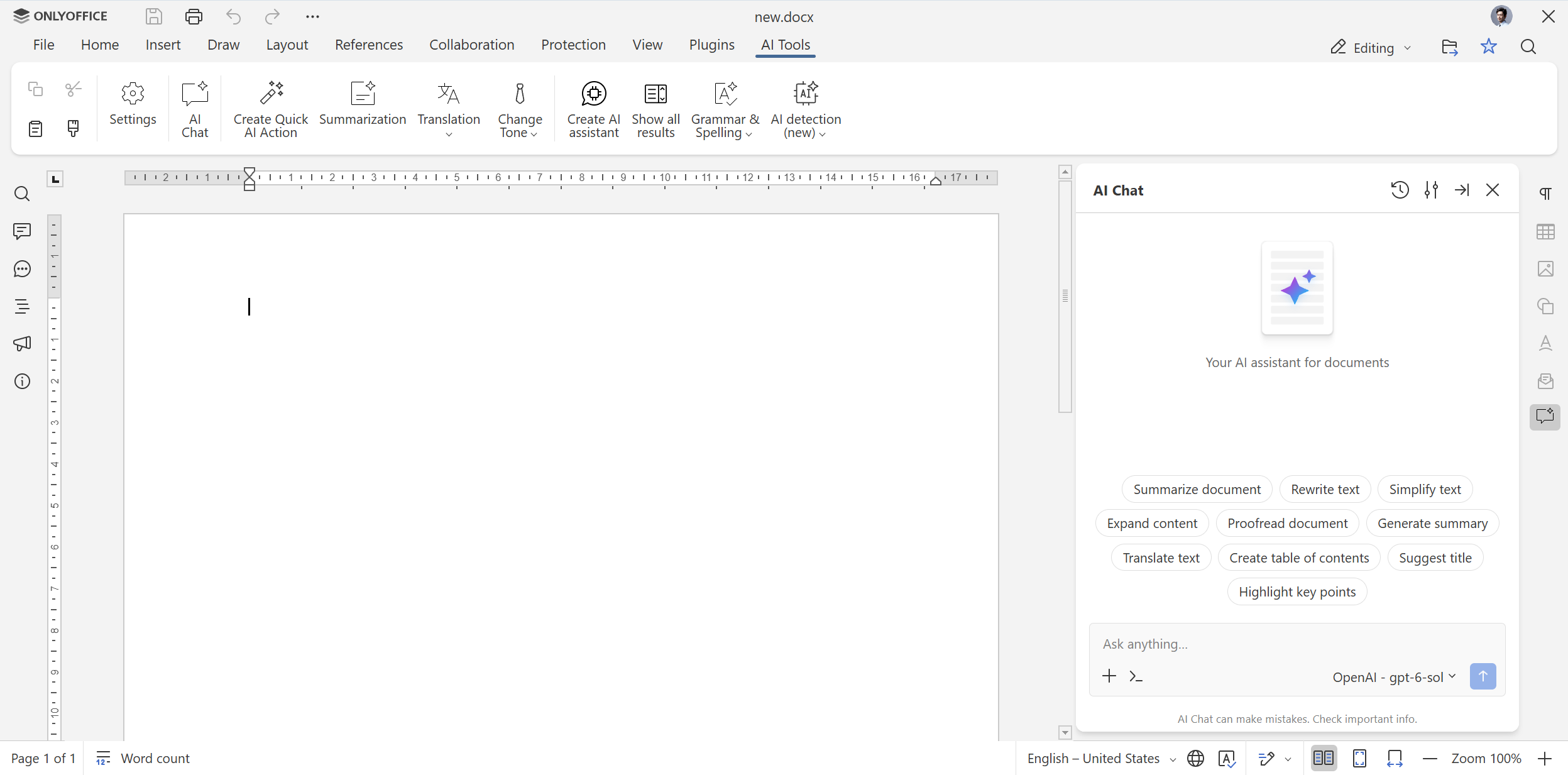
AI Tools are embedded into each editor and can be found in a dedicated tab on the top toolbar. Using this tab, you can launch the AI Chat to access all available AI capabilities. The most popular actions are provided as ready-to-use prompts, allowing you to quickly draft documents, analyze spreadsheet data, create slides and summarize PDF files.

AI Chat is a conversation interface where you interact with the Large Language models (LLM), provided by your AI provider and configured in the Settings. To get your work done, you can either use one of the default prompts or describe what you need, and the AI assistant will perform the required action. In the Chat, you can have a conversation with your virtual assistant and choose from various LLMs to get better results.
Where to find: AI Tools → AI Chat
Documents: from a blank page to a strong first draft
ONLYOFFICE AI Tools in text documents speed up writing, editing and reviewing, allowing you to turn a blank page into a ready-to-use draft. Here is what you can do:
- Summarize long pieces of text in a few sentences for better understanding;
- Simplify complex paragraphs and rewrite them for different audiences;
- Translate text from English into Spanish, French, German, Italian, Chinese, etc. and vice versa;
- Proofread your documents and correct styling, spelling and grammar mistakes;
- Create tables of contents and suggest titles;
- Apply the required formatting — headers, fonts, styles, spacing and more.
When using your own prompts, you can save them for further use. All your saved prompts are available in the AI Chat, so you can use them again with a few clicks.
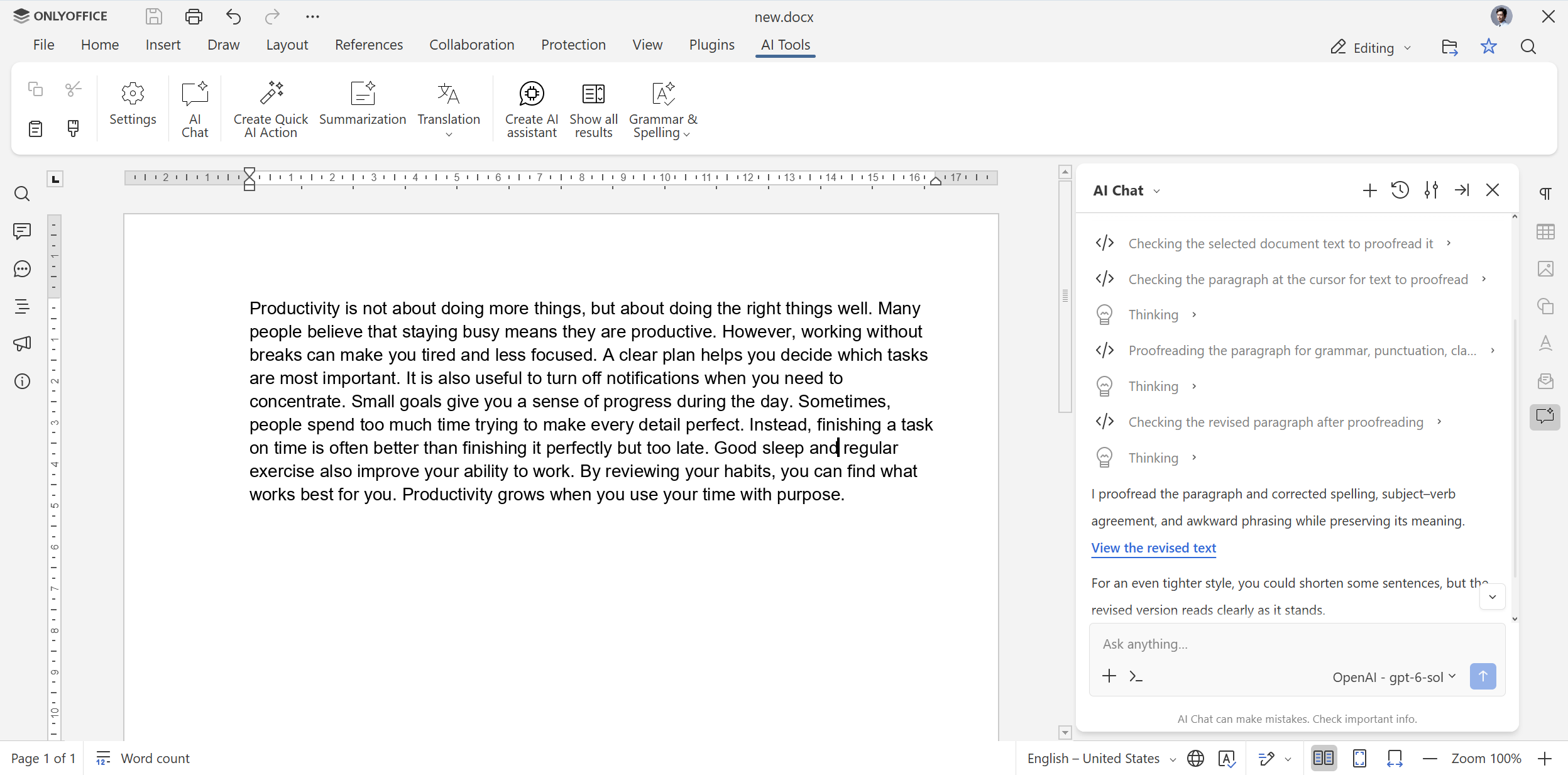
If you find the default prompts in the AI Chat insufficient, you can set up the following AI tools to enable new AI capabilities and use them whenever you need:
- Create Quick AI action option is designed for one-time tasks, like translation, key point extraction and grammar correction.
- Create AI assistant option enables smart assistants that work continuously and immediately react to all changes you make your in your document — reviewing, fact-checking, AI content detection, proofreading and more.
Your AI assistants will appear in the AI Tools tab, and your AI actions can be configured more flexibly — you can put them in the corresponding tab or make them accessible via the right-click context menu.
Where to find: AI Tools → AI Chat → Create quick AI action / Create AI assistant
Spreadsheets: data analysis made simple
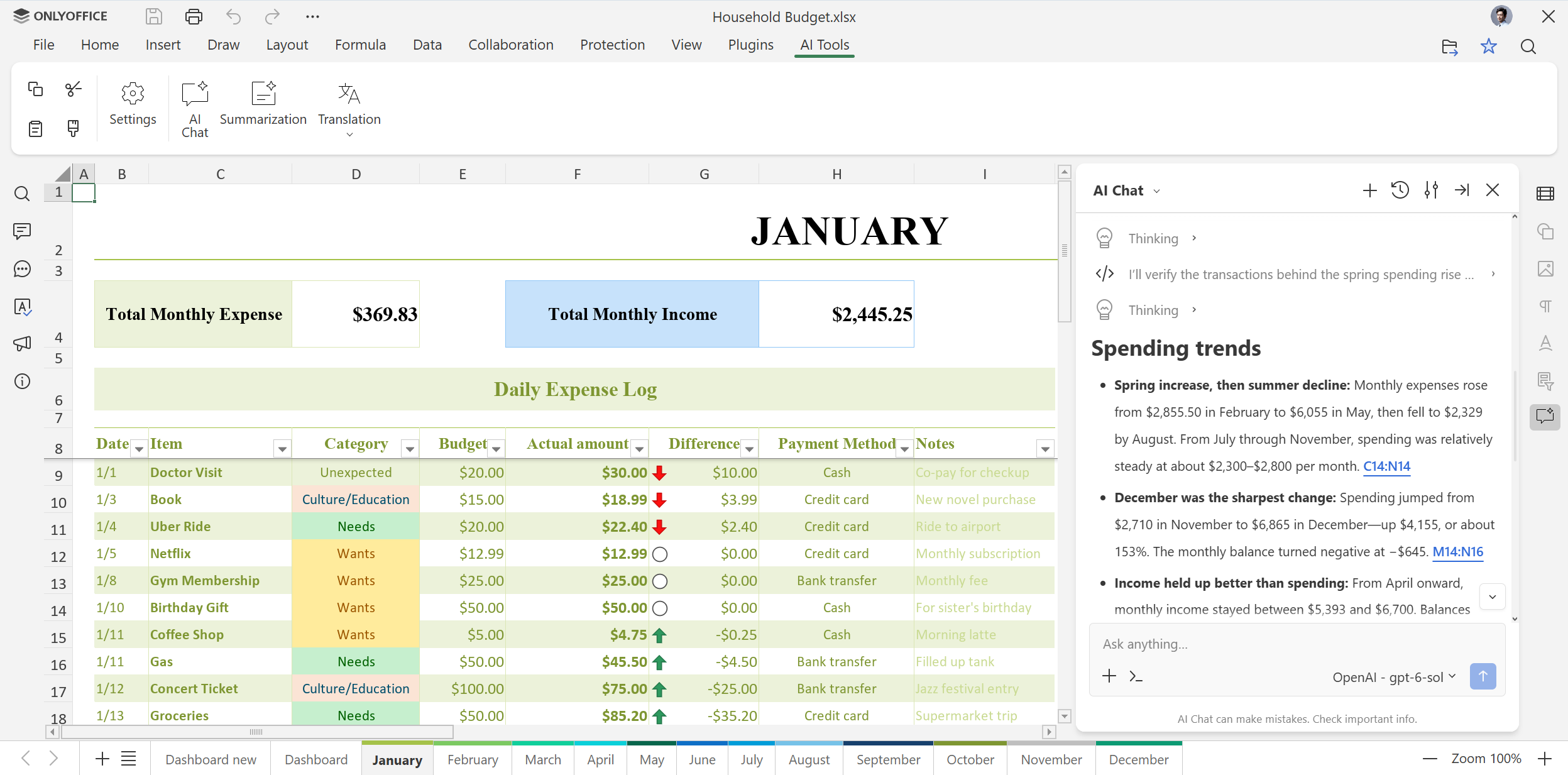
When it comes to spreadsheets, ONLYOFFICE AI tools make it easier to work with formulas and process large datasets. For example, you can:
- Create formulas and get a plain-language explanation of how they work;
- Analyze data and find trends;
- Create pivot tables and forecasts;
- Clean up inconsistent data and flag outliers;
- Suggest chart types and more.
Presentations: better slides in less time
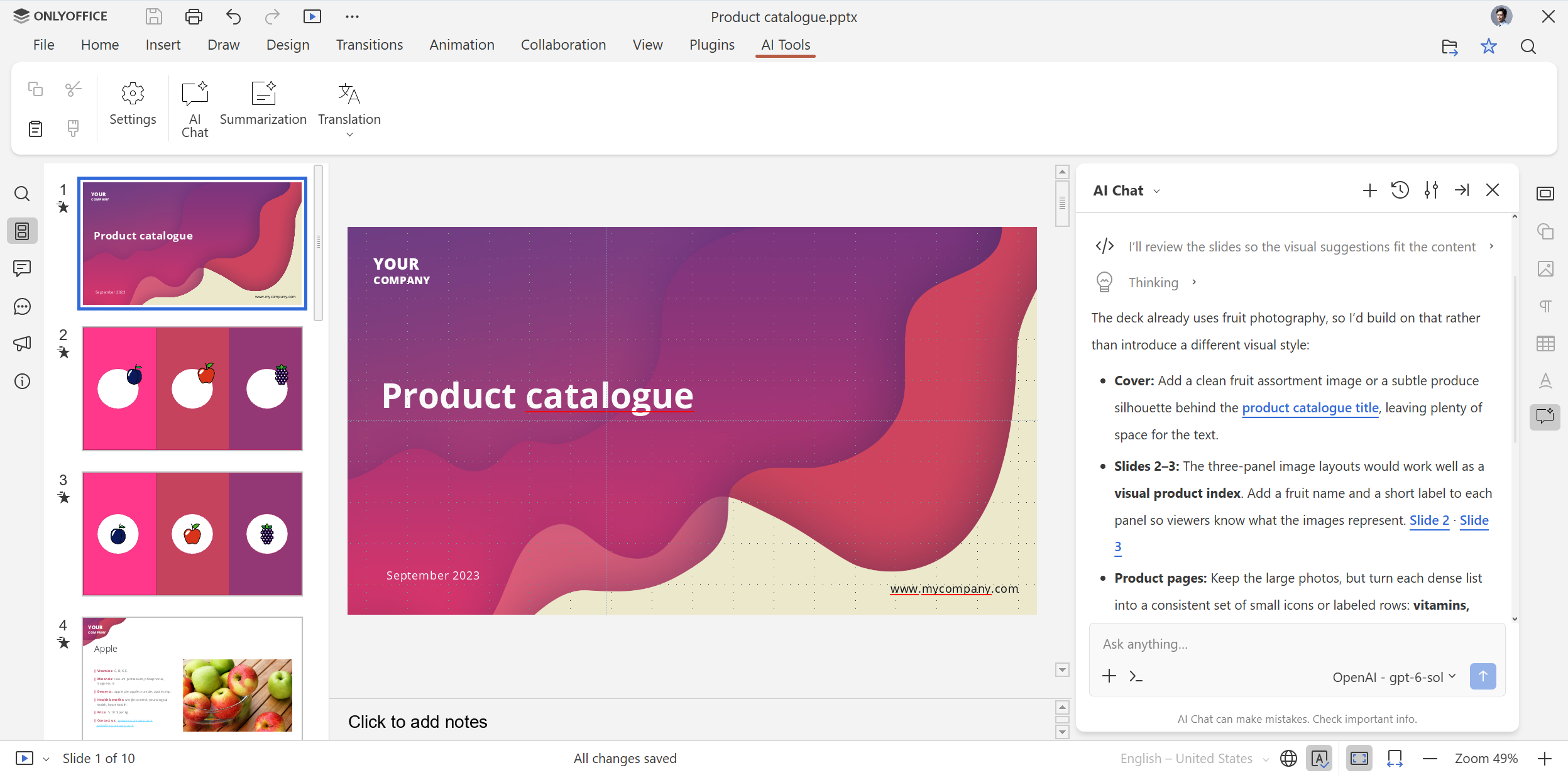
If you often work with presentations, AI Tools can help you create them from scratch, turning your ideas into well-structured slides with speaker notes. Some examples include:
- Create outlines for presentations on certain topics;
- Suggest slide titles and visual elements;
- Write bullet points and adapt the overall structure;
- Add a storytelling flow across your slides;
- Rewrite and simplify slides;
- Generate speaker notes and more.
PDF files: turn static documents into interactive content
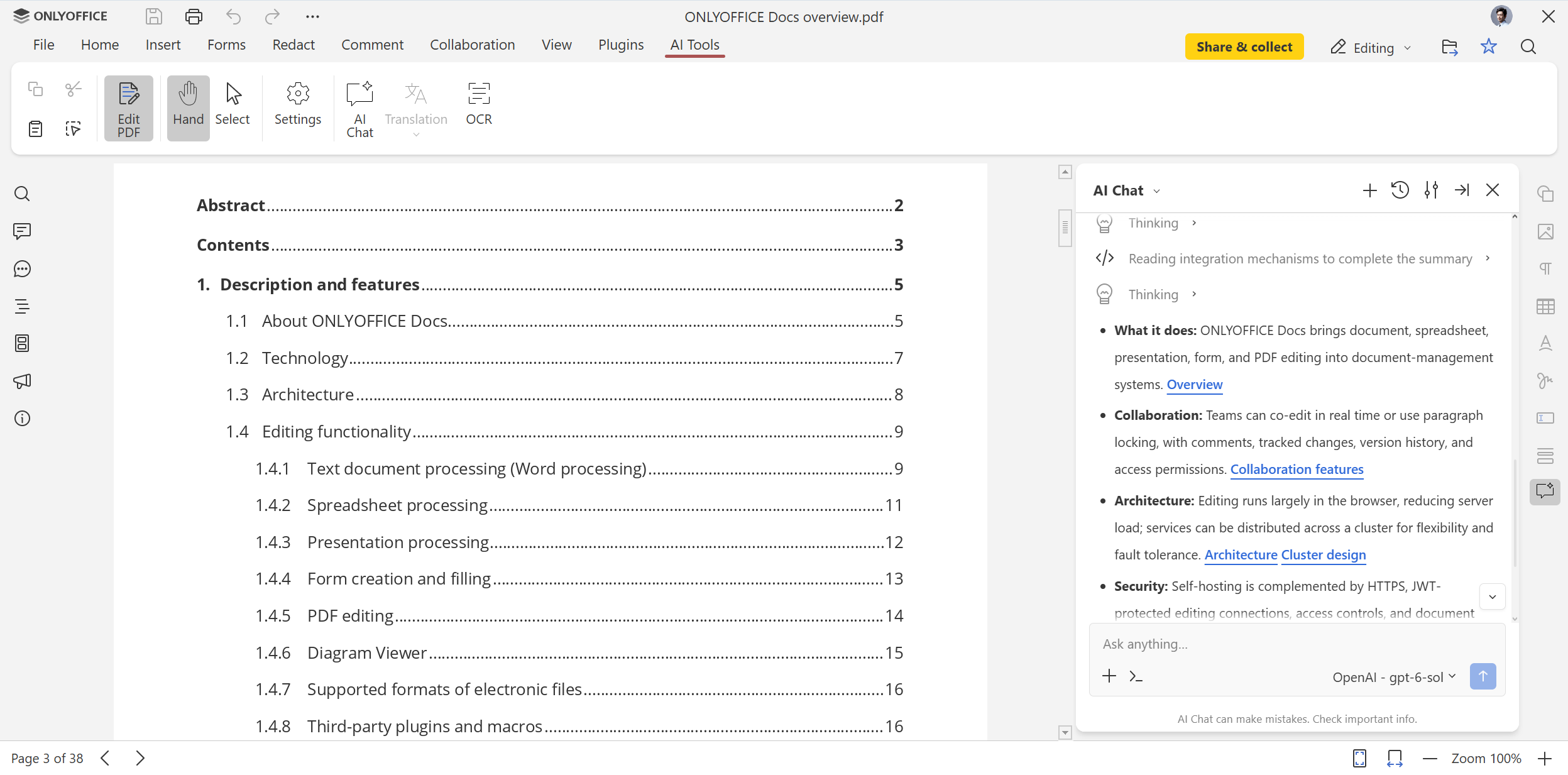
ONLYOFFICE PDF Editor is also equipped with AI Tools, allowing you to work with the contents of your PDFs:
- Ask questions about your files;
- Generate summaries and highlight key points;
- Rewrite text and simplify it;
- Proofread, translate and more.
Model assignment for better results
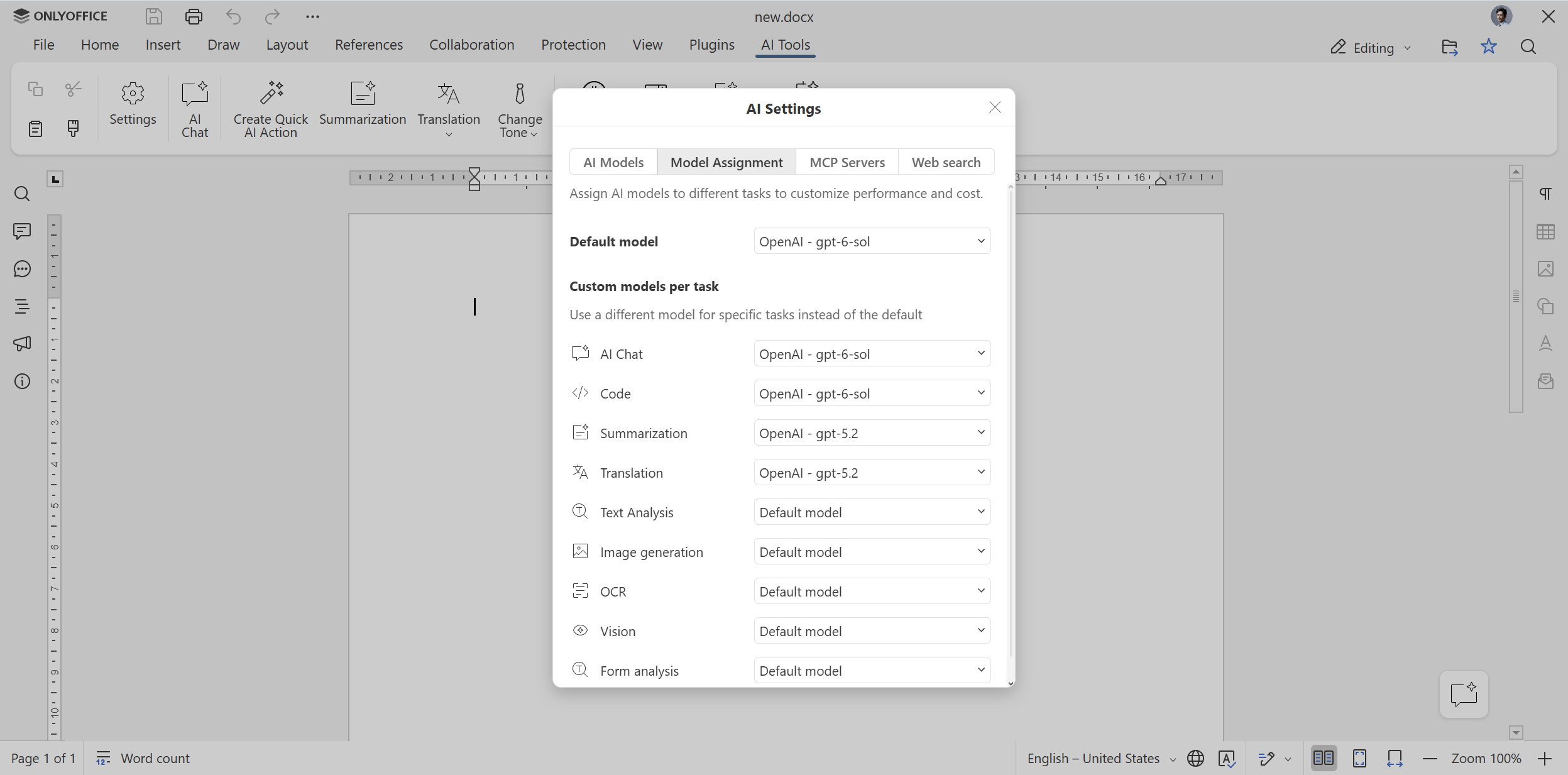
ONLYOFFICE AI Tools are compatible with various AI models, so you can configure a few LLMs and use them for all types of common tasks — where they perform better:
- AI Chat
- Code
- Summarization
- Translation
- Text analysis
- Image generation
- OCR
- Vision
- Image generation
- Form analysis
Where to find: AI Tools → Settings → Model Assignment
AI Tools in ONLYOFFICE Desktop Editors
AI Tools are not available only in the online editors; you can also make the most of them when editing documents, spreadsheets, presentations and PDFs in ONLYOFFICE Desktop Editors for Windows, Linux and macOS. You can use the same features, allowing your AI assistant to perform various tasks.
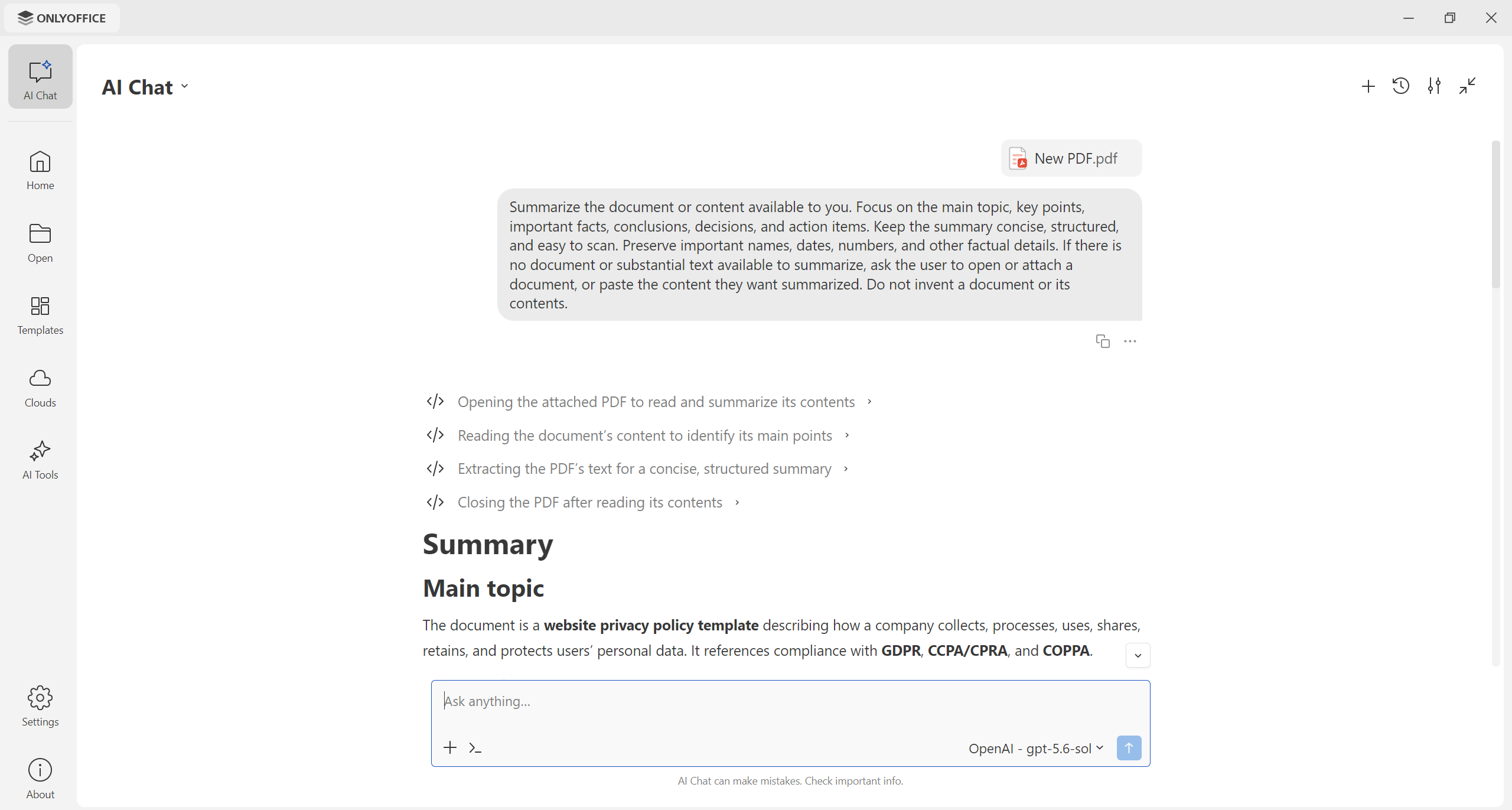
What makes AI Tools in ONLYOFFICE Desktop Editors different is that they provide access to additional options that you can find on the main window. These options are designed for working with local files, allowing you to perform different actions without opening them in the corresponding editors.
The AI Chat option lets you work with text documents, spreadsheets, presentations, fillable forms and PDFs outside the editors. You open the chat, attach a local file, and write your own prompt or use one of the predefined ones. Your AI assistant will perform the required action, whether it be content generation, proofreading, grammar and spelling correction, data analysis, summarization, translation, formatting and more.
Apart from document-related tasks, you can also use the AI Chat to look up new information, ask your questions, check facts, explain unknown concepts and communicate with your AI assistant to entertain yourself.
The desktop AI Chat can work with any local file stored on your PC or laptop and supports batch processing — you can attach several files at once. You can also describe where the required files are stored and specify where to save the output files; the AI will follow your instructions and do what you need.
Where to find: AI Chat on the left-side panel
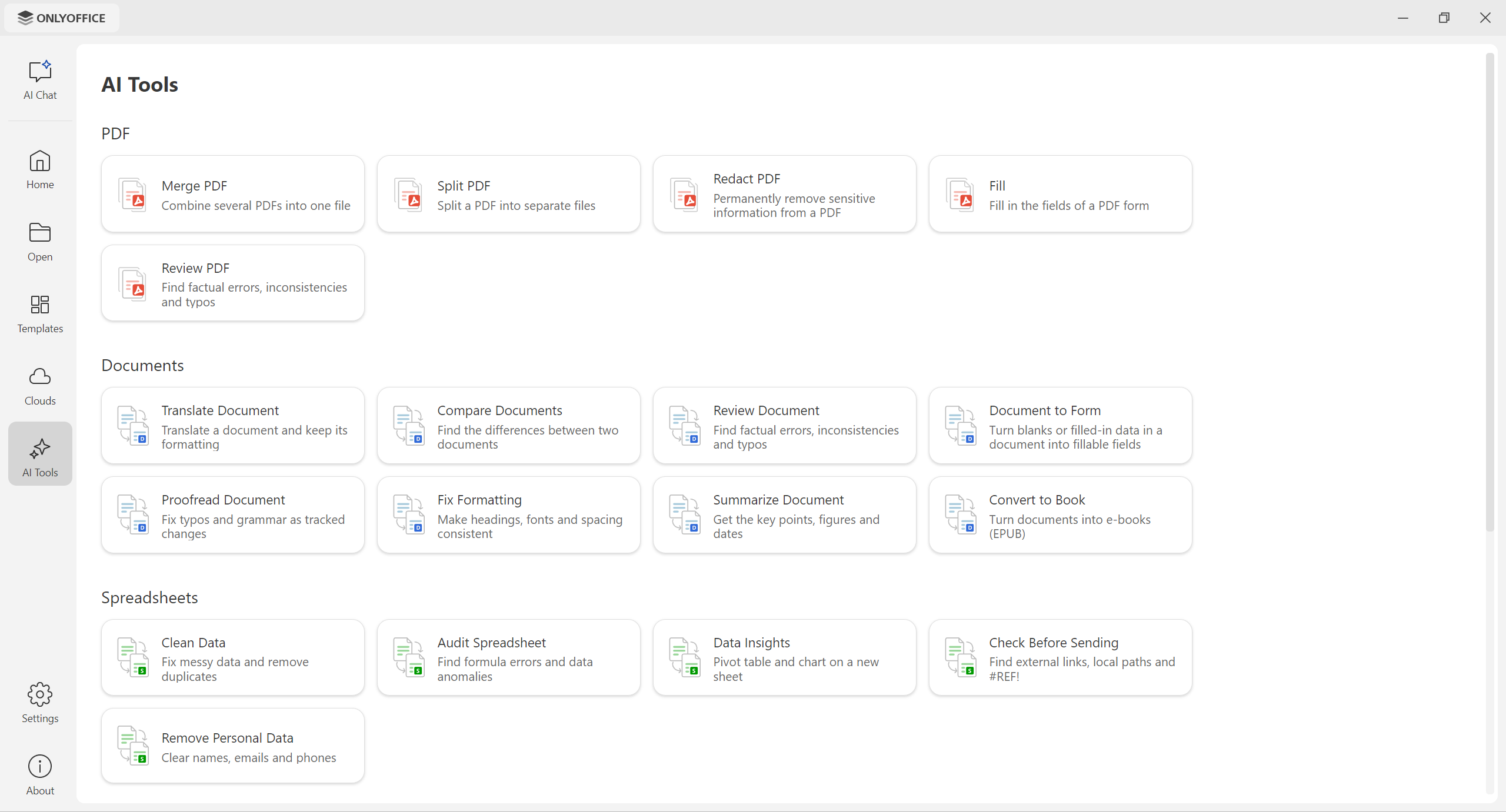
Another option, AI Tools, offers a set of ready-to-use presets for documents, spreadsheets, presentations and PDF files, allowing you to quickly perform the most common actions — document comparison, file conversion, PDF merge and split, reviewing, translation, data audit, password protection and more.
Where to find: AI Tools on the left-side panel
ONLYOFFICE AI Tools: use cases
The benefits of ONLYOFFICE AI Tools vary depending on the professional area where they are applied. Below, you will find some possible use cases across teams and departments:
Marketing teams can generate content ideas, draft materials for marketing campaigns, analyze statistics and repurpose documents for different channels.
Sales teams can draft proposals, summarize customer requirements, personalize follow-up communications and create forecasts.
Human resources departments can prepare job descriptions, onboarding documents, training materials and internal announcements.
Finance teams can explain calculations, summarize results and make reports easier for non-specialists to understand.
Legal and compliance teams can review wording, create plain-language explanations and summarize complex documents, with qualified professionals checking all critical outputs.
These use cases share a common goal: reducing low-value manual work so that you have more time for making decisions and problem-solving.
Get started with AI Tools in ONLYOFFICE
Ready to try the brand-new AI Tools* in the ONLYOFFICE editors to increase your productivity and save time? Get started online by creating a free cloud account or enable local AI-powered document editing on Windows, Linux and macOS:
CREATE FREE ACCOUNT DOWNLOAD DESKTOP APP
Note: The ONLYOFFICE team bears no responsibility for AI-generated responses, as they are provided by third-party models and may contain inaccuracies. Always double-check important information before using it.
FAQ: ONLYOFFICE AI Tools
Are AI Tools available in all ONLYOFFICE solutions?
Yes, they are available in the cloud-based and self-hosted versions of the ONLYOFFICE suite, as well as the desktop apps for Windows, Linux and macOS.
Are AI Tools free to use in ONLYOFFICE?
ONLYOFFICE AI Tools are free to use in the desktop and self-hosted editors, but your AI providers might charge you for using their AI models in our suite. In ONLYOFFICE Cloud, access to AI Tools is enabled via OpenRouter on a paid basis.
Do AI Tools need configuration before I get started with them?
In ONLYOFFICE Desktop Editors and self-hosted ONLYOFFICE Docs instances, you need to have an API key to configure AI Tools. You can get one from your favourite AI provider. In ONLYOFFICE Cloud, you can get started right away after activating AI features via OpenRouter in Settings. Read this blog post to learn more.
Do AI Tools come pre-installed?
Based on user feedback, we have removed AI Tools from the open-source versions. They come pre-installed only in the Enterprise and Developer editions of ONLYOFFICE Docs and need manual installation in ONLYOFFICE Desktop Editors. When it comes to ONLYOFFICE Docs Community, there is no way to install AI.
Do ONLYOFFICE AI Tools work in integrations enabled via official connectors?
Yes, they are available in all integrations, except for Box and Dropbox.
Can AI models be configured in a centralized way in self-hosted ONLYOFFICE instances?
Yes, integrators can configure AI models centrally for all their users and either prevent them from connecting other models or allow each user to connect any models they prefer.
Are ONLYOFFICE AI Tools compatible with local models?
Yes, they are. You can connect local LLMs in the desktop and self-hosted editors.
What providers do AI Tools in ONLYOFFICE support?
ONLYOFFICE AI Tools support multiple providers and self-hosted models, including ChatGPT, Claude, Mistral, Google Gemini, Groq, xAI, DeepSeek, local LLMs (running via Ollama, LM Studio or GPT4ALL) and more.
How do I suggest a new feature for ONLYOFFICE AI tools?
You are welcome to share your suggestions and ideas on how to improve AI Tools on our community forum.
Create your free ONLYOFFICE account
View, edit and collaborate on docs, sheets, slides, forms, and PDF files online.