Meet ONLYOFFICE Docs 10.0: AI tools and modular apps, 50+ new features, 1,000 bug fixes, 35 fixed vulnerabilities, and more
ONLYOFFICE Docs 10.0 is here with around 50 new features, more than 1,000 bug fixes, and about 35 fixed vulnerabilities. From PDFs and spreadsheets to presentations and text documents, these updates are designed to make your everyday work faster, safer, and more productive.

AI tools across the editors
ONLYOFFICE Docs 10.0 brings AI directly into every editor, supporting the full document workflow from content creation to formatting. Because AI understands the context of each file, its suggestions stay relevant and useful.
AI tools are available in a dedicated tab in the editors, where you can launch the AI chat to access them. The most popular actions are provided as default prompts, but the possibilities go far beyond these suggestions.
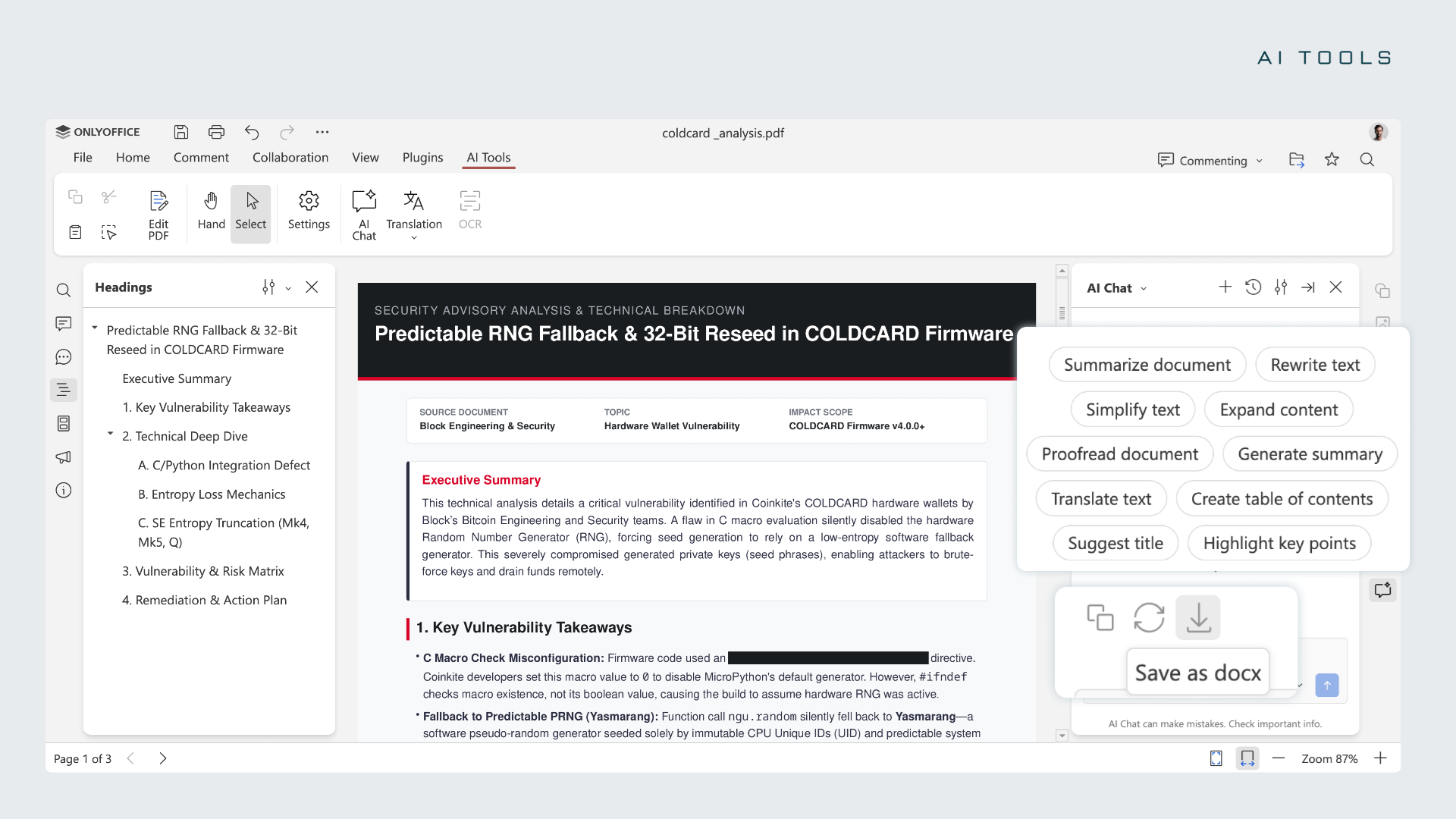
AI in the PDF Editor
AI now works inside PDF files, turning static documents into interactive resources. This is especially valuable for teams that manage long, information-heavy files at scale.
- Ask questions about the document and get direct answers
- Generate a summary in a single click
- Draft emails based on the content of the file
- Redact sensitive information to protect confidential data
- And much more
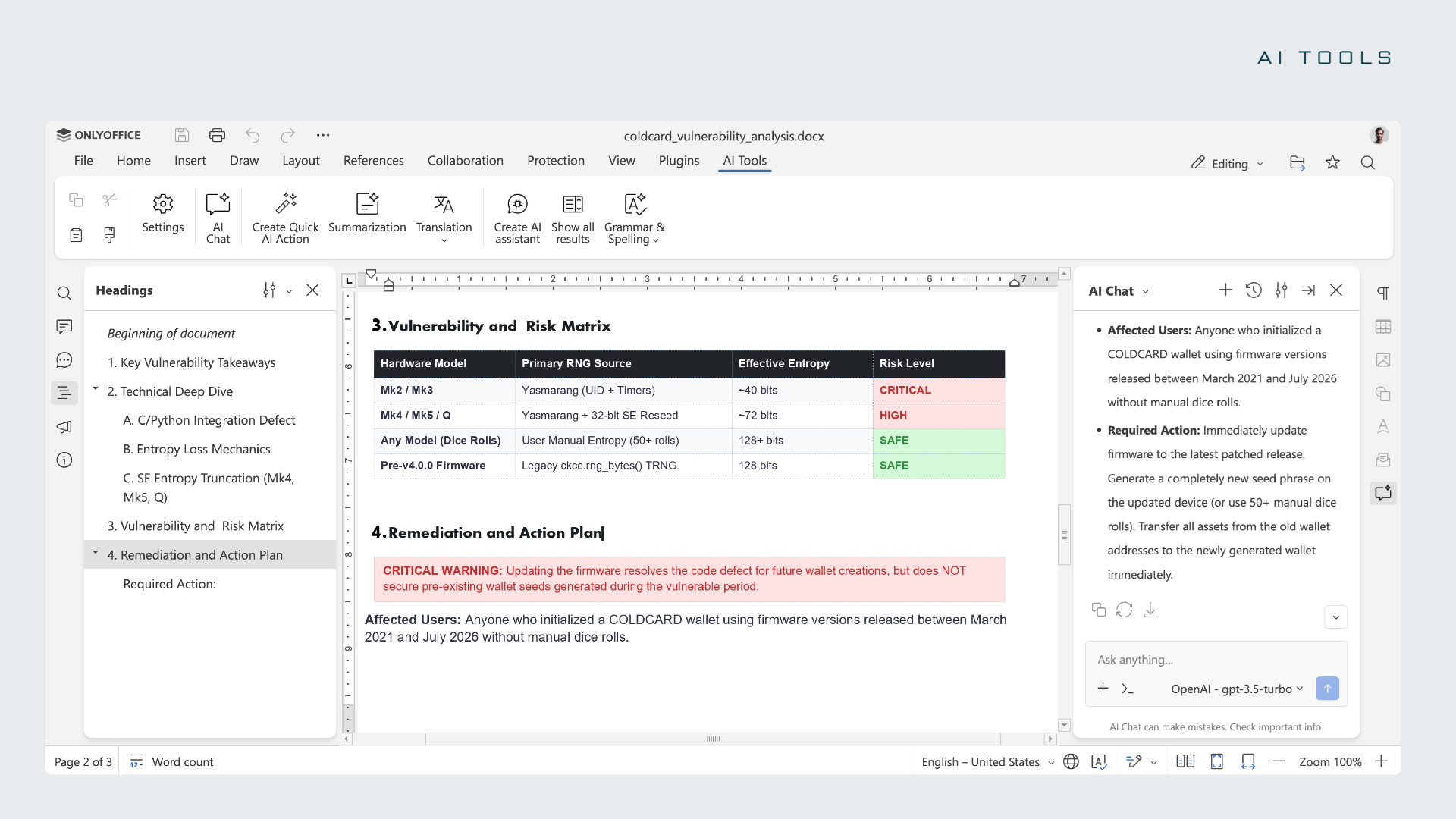
AI in the Document Editor
In text documents, AI accelerates writing, editing, and review without pulling users away from their work.
- Summarize long documents in seconds
- Rewrite or simplify complex paragraphs
- Translate text directly on the page
- Proofread content and highlight key points
- Build a table of contents and suggest a title
- Apply formatting automatically for a polished result
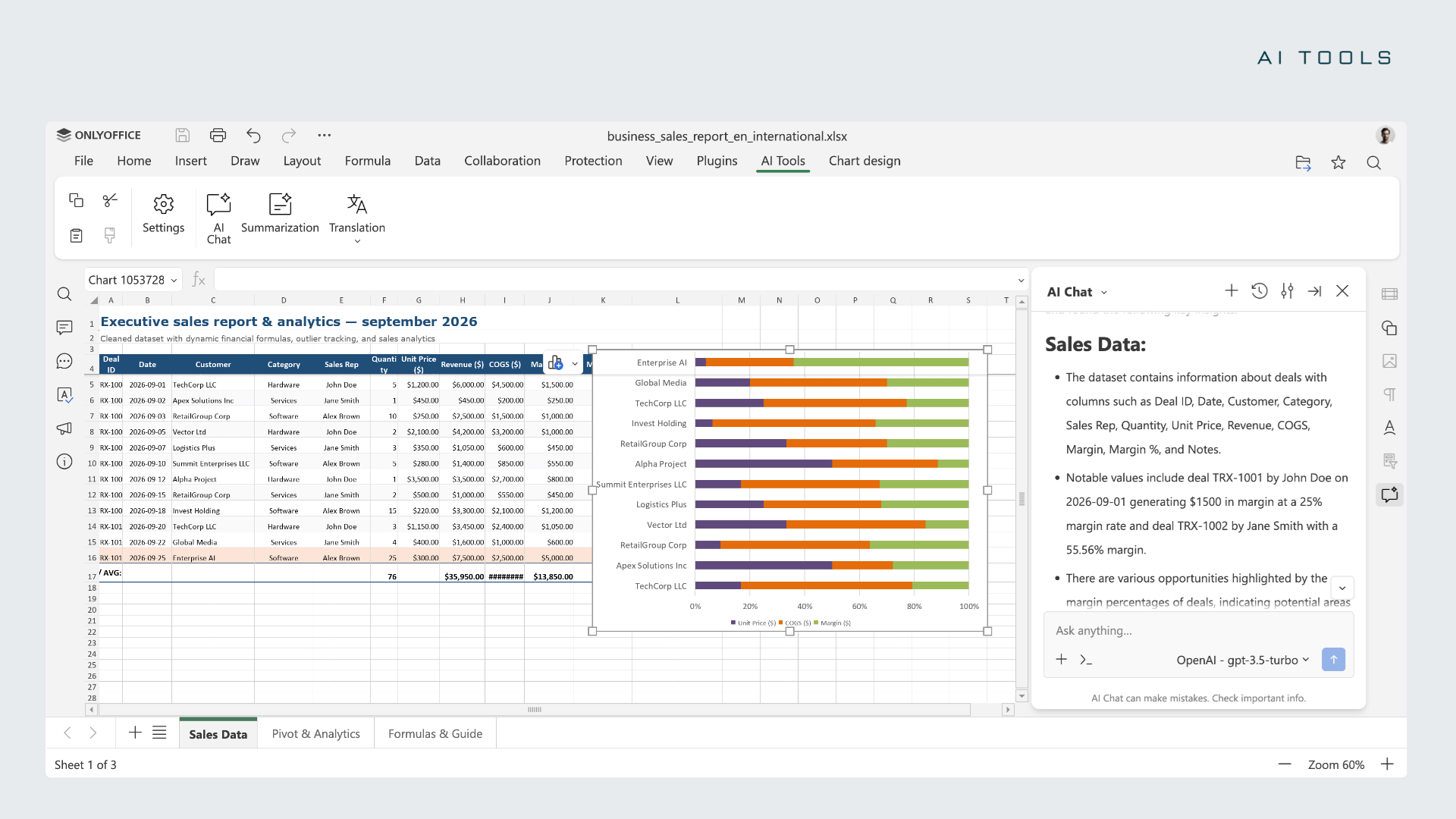
AI in the Spreadsheet Editor
For data-heavy work, AI reduces the complexity of formulas and large datasets, helping teams move from raw numbers to clear insights.
- Generate formulas and explain how they work
- Analyze datasets and identify trends
- Build forecasts and Pivot Tables
- Clean up inconsistent data and flag outliers
- Fill in missing values
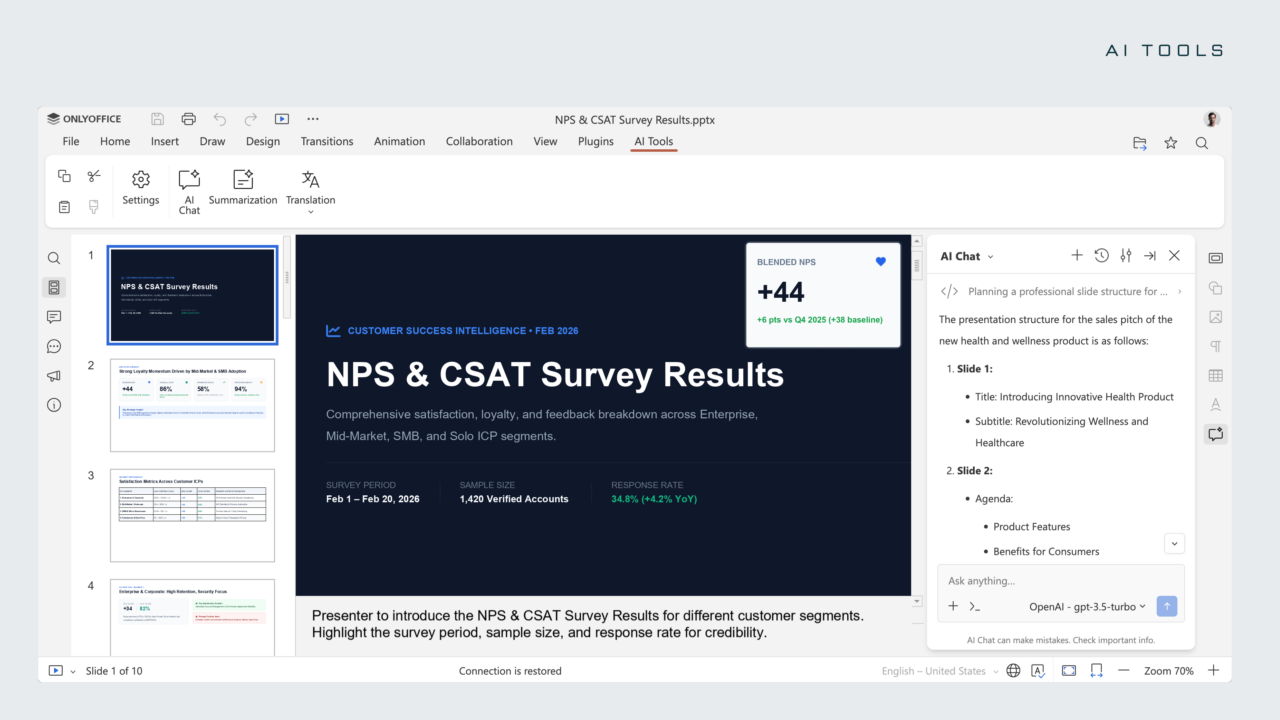
AI in the Presentation Editor
In presentations, AI helps turn a single idea into a complete, well-structured deck.
- Create outlines and suggest slide titles
- Write bullet points and shape the overall structure
- Add a storytelling flow across slides
- Generate speaker notes and visual ideas
AI actions, assistants & prompts
You can go beyond the default prompts and set up AI tools that fit the way you work:
- Quick AI actions handle one-time tasks, like changing a text’s tone.
- AI assistants work continuously and respond to changes in your document as you edit.
- Saved prompts in AI Chat let you reuse your favorite requests, so repeated tasks take just a click.
Where to find: AI Tools tab
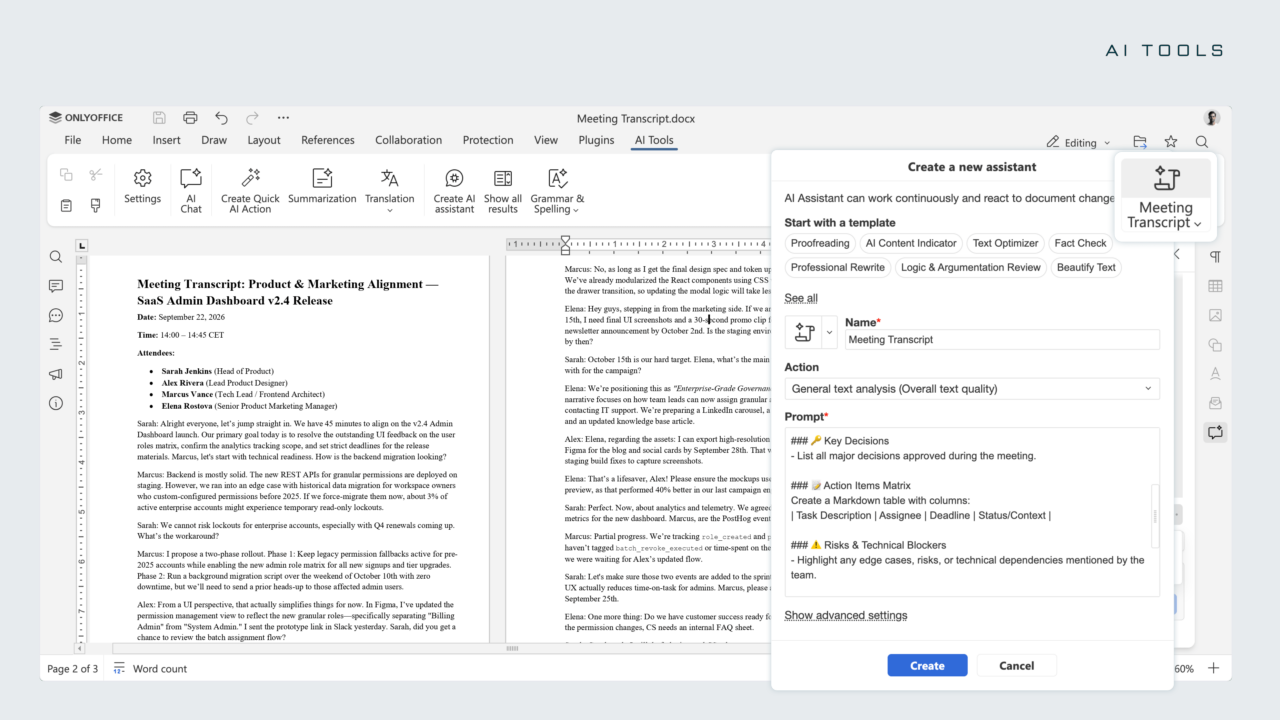
Please note: Quick AI actions and AI assistants are currently available only in the document editor.
AI tools your way
In the cloud, top up your Wallet to enable the ONLYOFFICE AI service and get started. On server builds, you can connect any AI model, including local models for privacy-sensitive use cases.
In both cloud and server environments, you can choose a default model and assign different models to specific tasks.
Availability note: In response to user feedback, we’ve removed built-in AI from the open-source versions. AI tools are installed separately.
ONLYOFFICE Docs + Apps
ONLYOFFICE Docs 10.0 gives you modular apps you can mix and match: AI agents, Forms, Rooms, and Files. Each one solves a real, everyday problem, and you only turn on what you actually need.
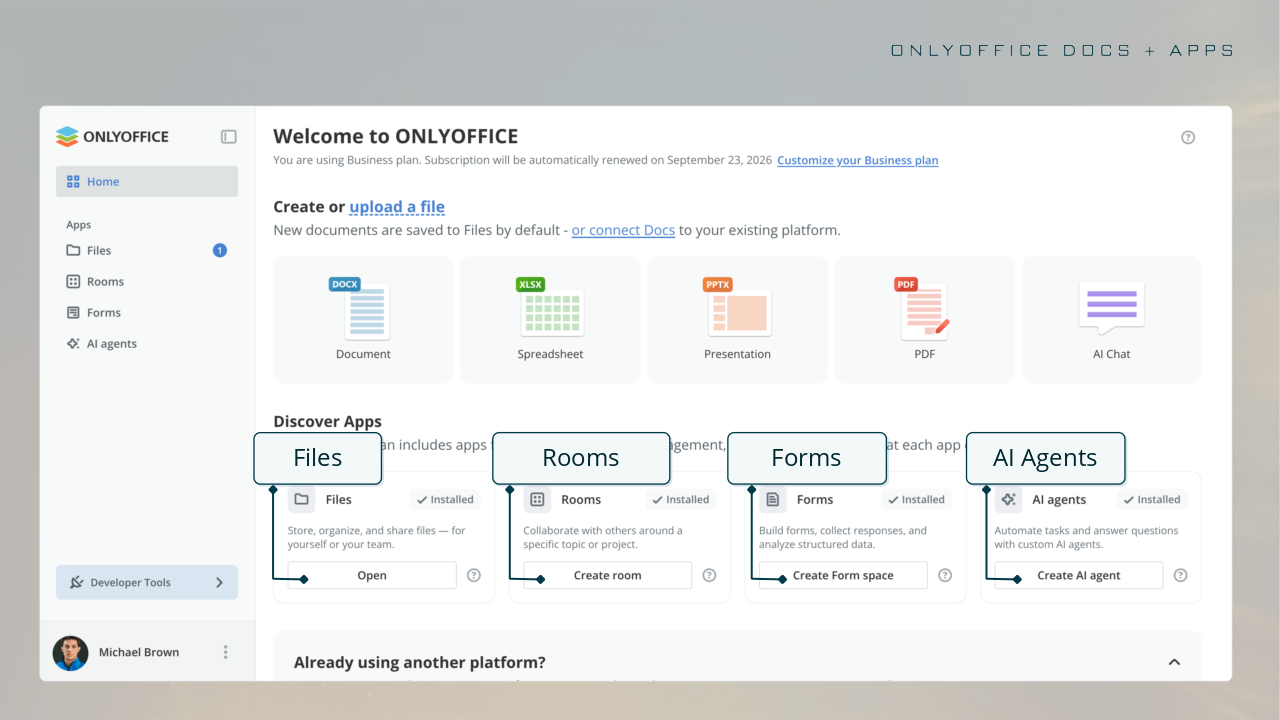
Here’s the key idea: flexibility. Instead of shaping your work around the software, you shape the software around your work. That means less clutter, a cleaner experience, and tools that feel made just for you.
So, apps and editors work as one flexible system. Install the editors, extend their capabilities with apps, and integrate the package into your solution with ease.
PDF Editor: more control and stronger privacy
ONLYOFFICE Docs 10.0 brings the PDF Editor a focused set of tools for cleaner documents, faster signing, and better data protection, which is especially important for teams handling sensitive files.
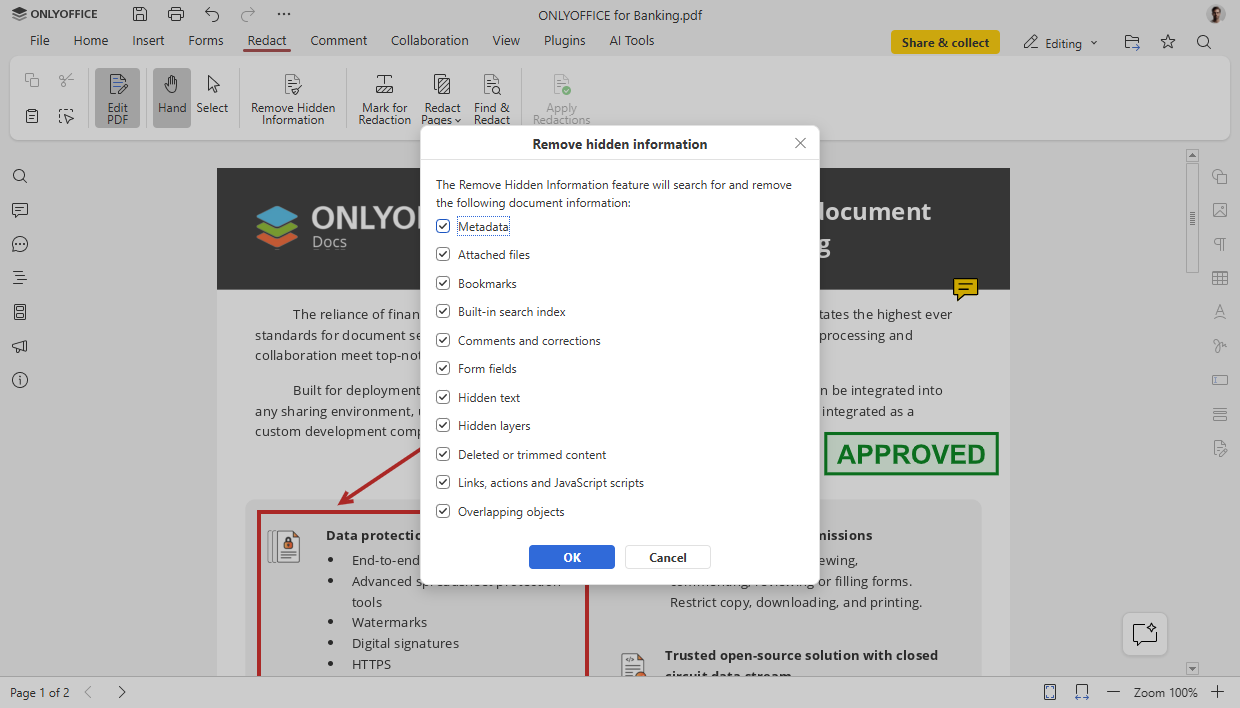
Remove metadata with Redact. Before sharing a file, strip out hidden information that may otherwise travel with the document.
Where to find: Redact tab → Remove hidden information
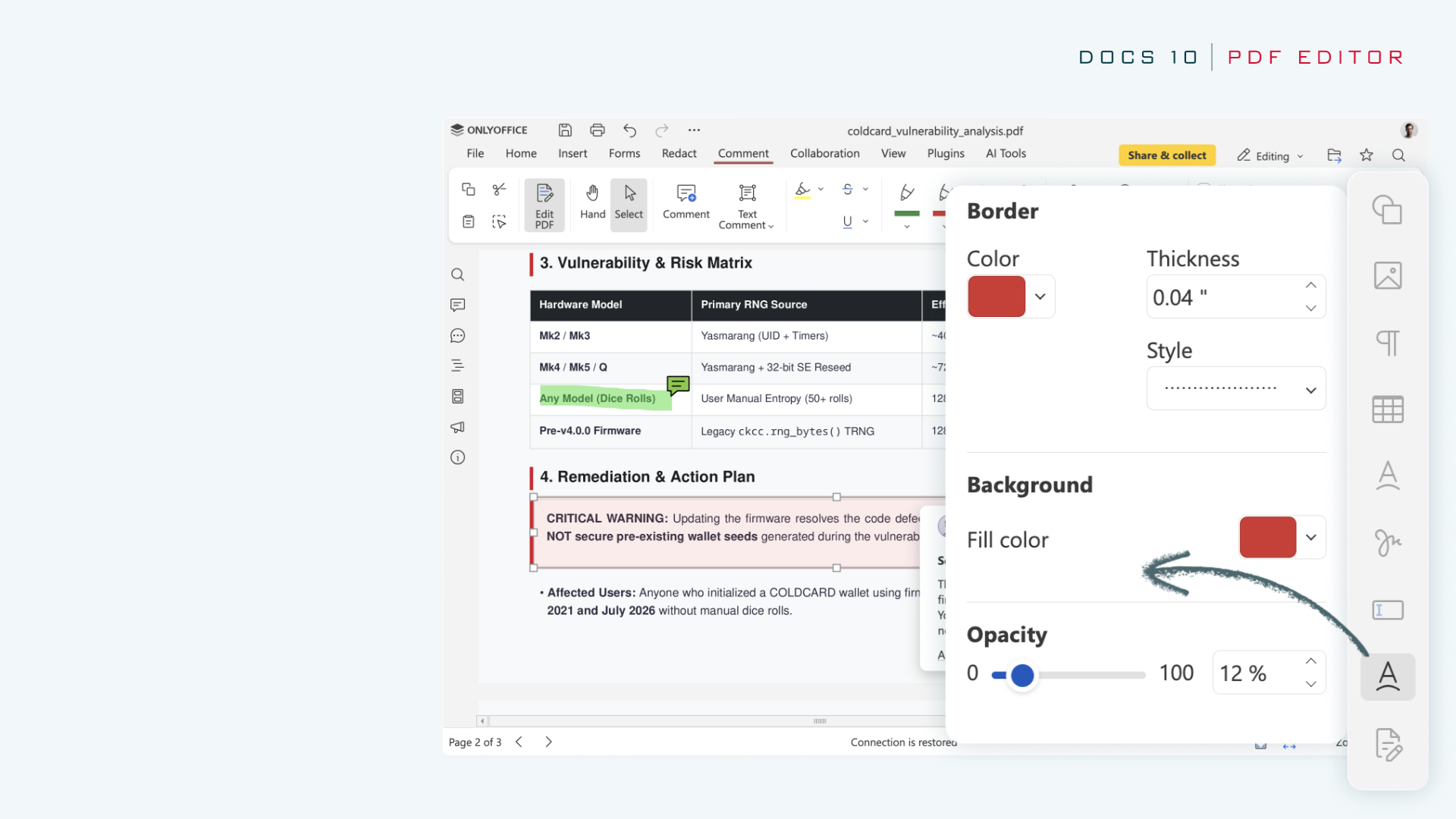
Customizable annotation settings. Adjust the border, background, and opacity of your annotations directly in the settings panel, so your notes display exactly the way you want.
Where to find: Annotation settings
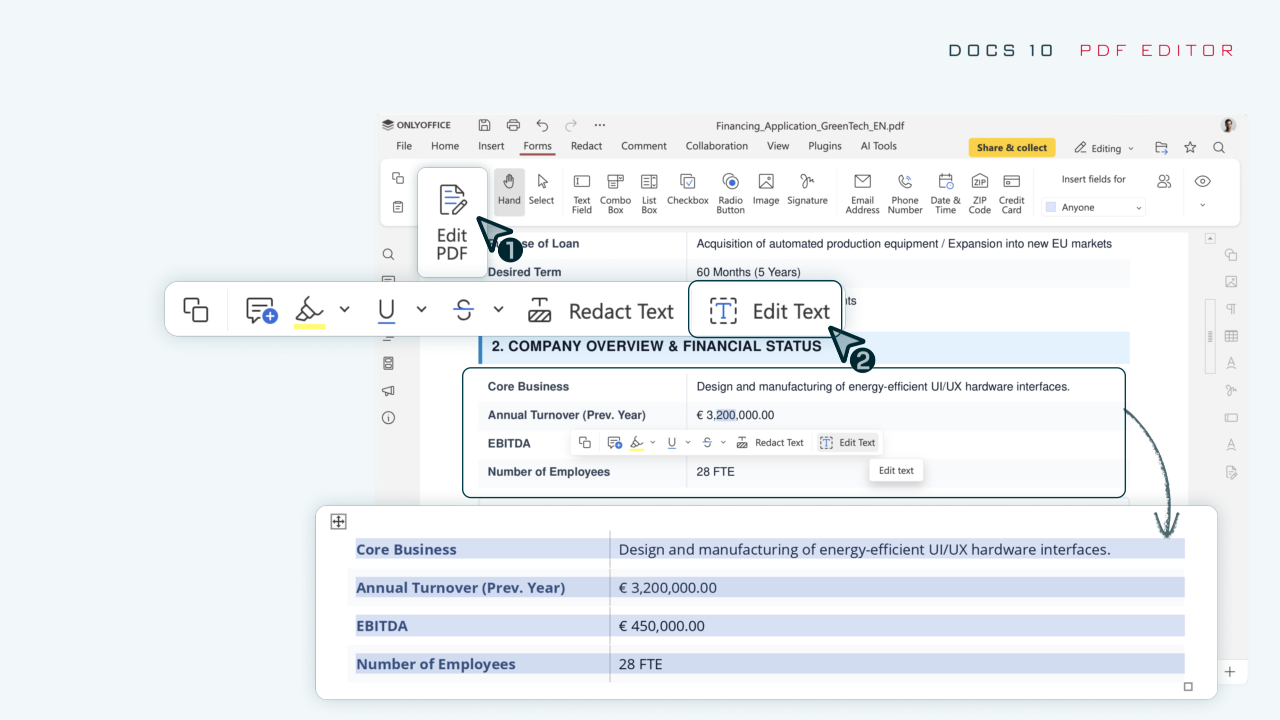
Automatic table recognition. When you use Edit Text on a PDF, tables are detected automatically. The editor recognizes the structure for you, removing the need to rebuild rows and columns manually.
Where to find: Edit PDF
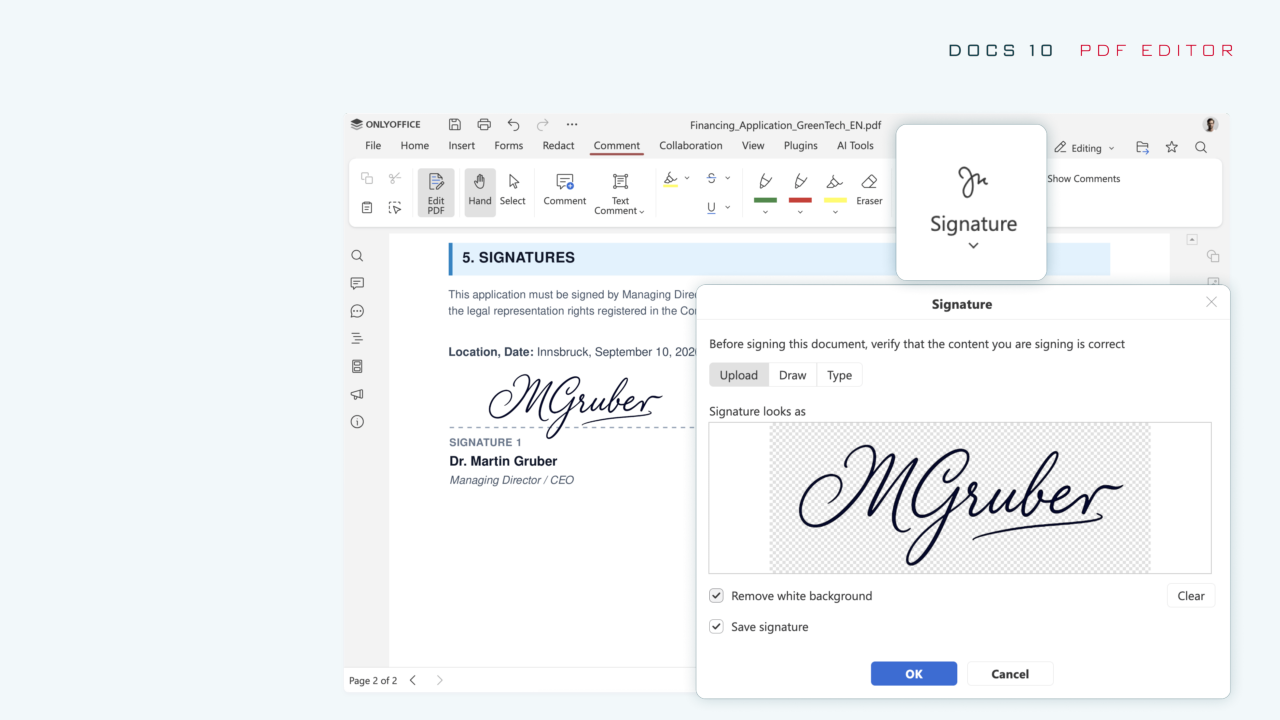
Signatures from the Comment tab. Add a signature straight from the Comment tab, right where you’re already working. It’s a small change that saves time on routine signing tasks.
Where to find: Comment tab
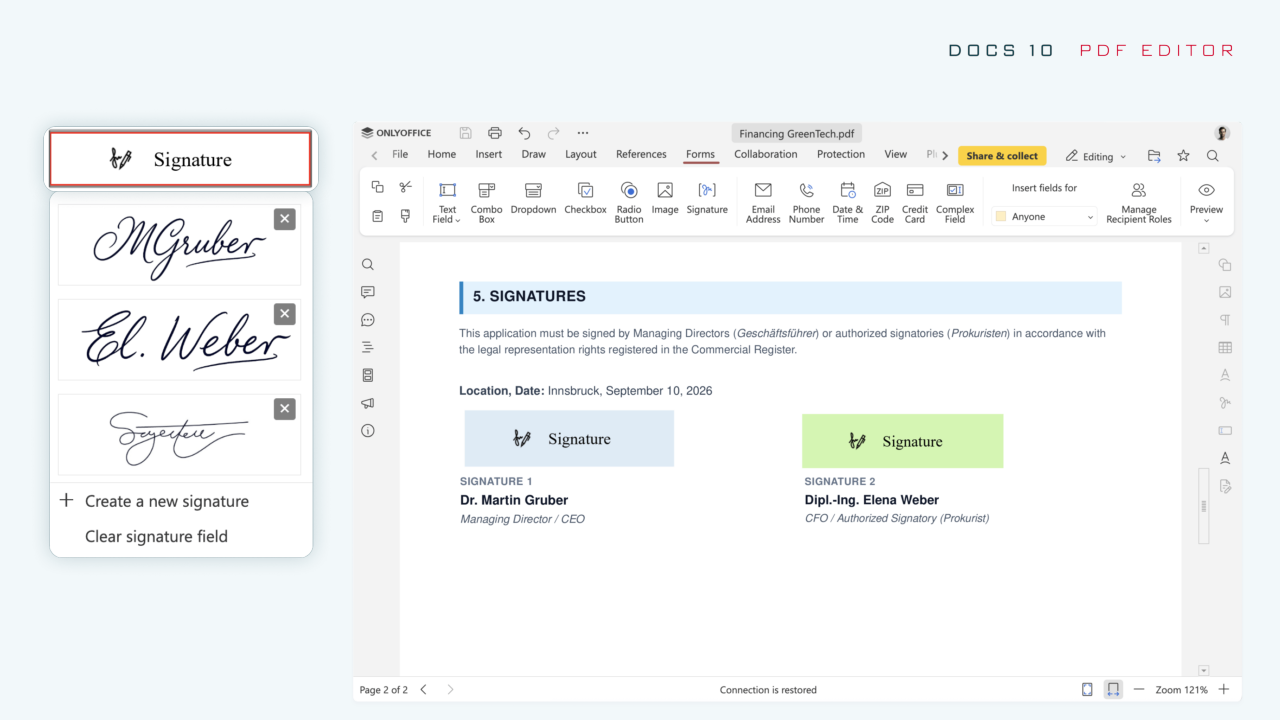
Reusable signatures in forms. Save a signature once and reuse it whenever needed. Set it up a single time, then apply it from your list to speed up repetitive signing.
Where to find: Forms → Signature fields
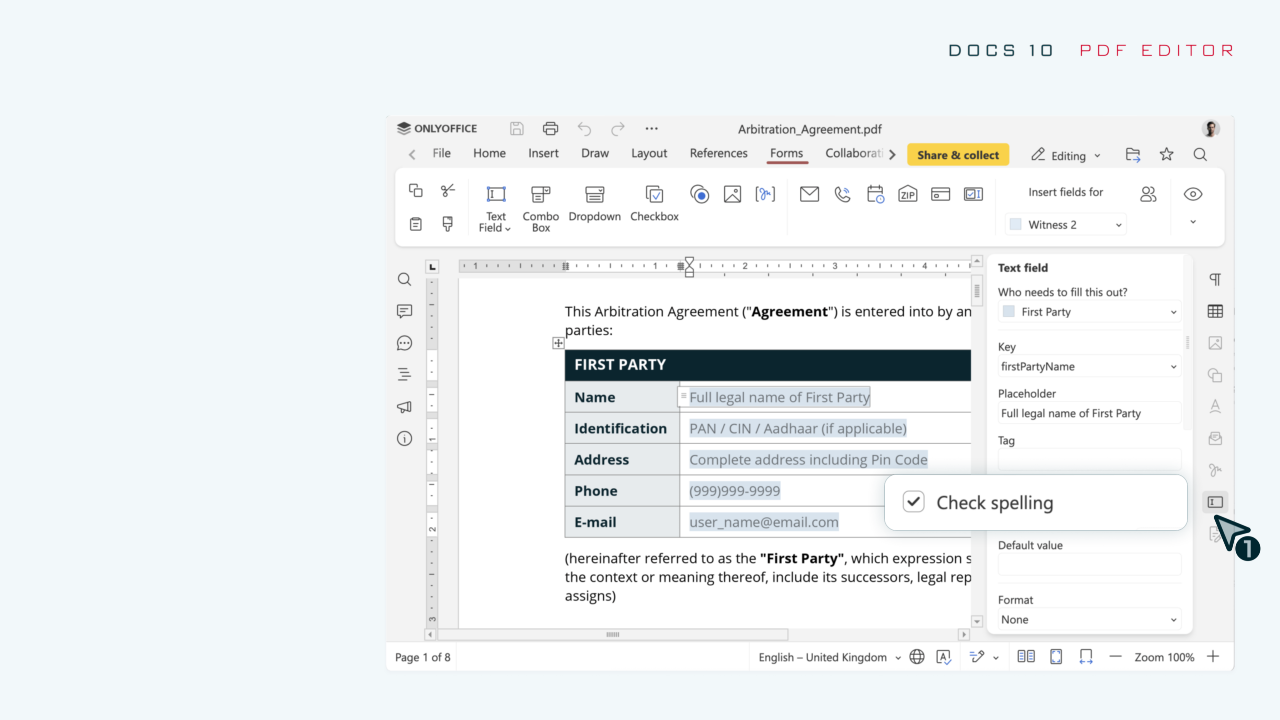
Spell-check toggle for forms. Turn spell checking on or off while filling out a specific form, giving you control over when it’s active.
Where to find: Forms → Field settings → Check spelling
Document Editor: cleaner, more professional formatting
In Docs 10.0, the Document Editor introduces refined tools that help you produce polished, professional documents with less manual effort, including important gains for international teams.
Collaboration: improved cursor behavior
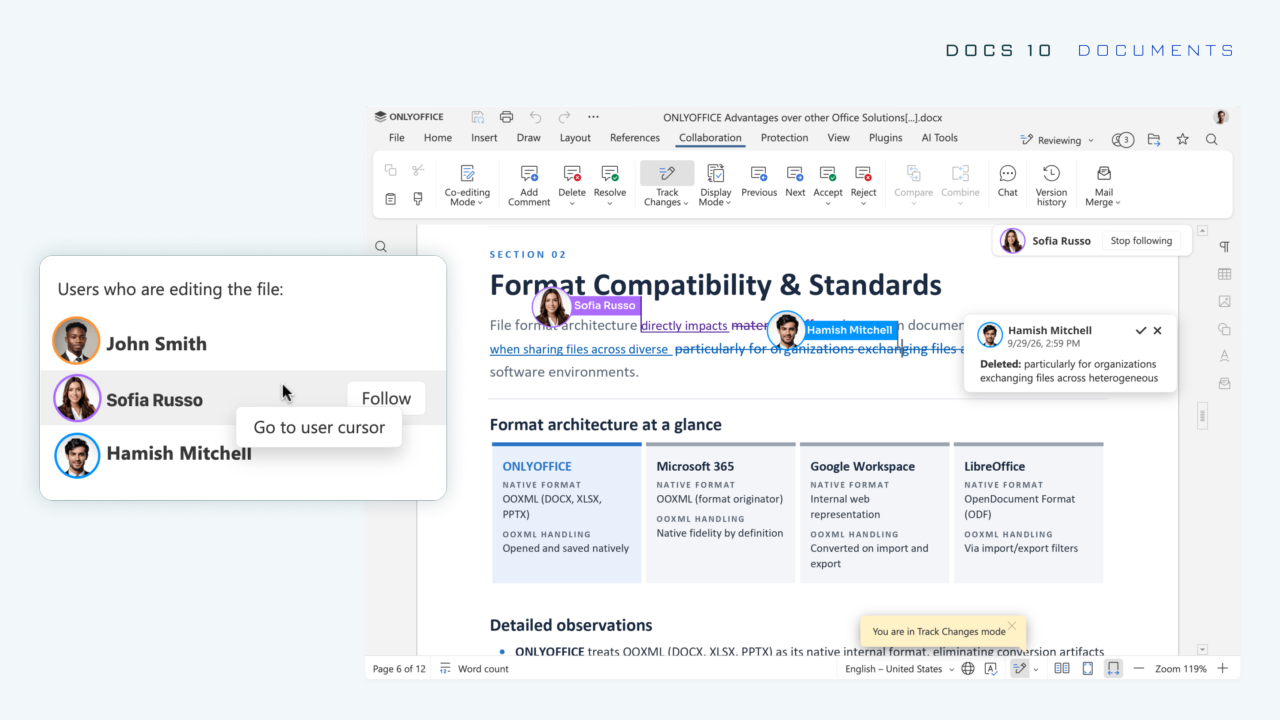
Real-time collaboration got smoother. Jump straight to another user’s cursor to see where your teammate is making changes. It’s an easy way to stay in sync during co-editing and quickly see which part of the document they’re focused on.
Where to find: Users who are editing the file → Follow / Stop following
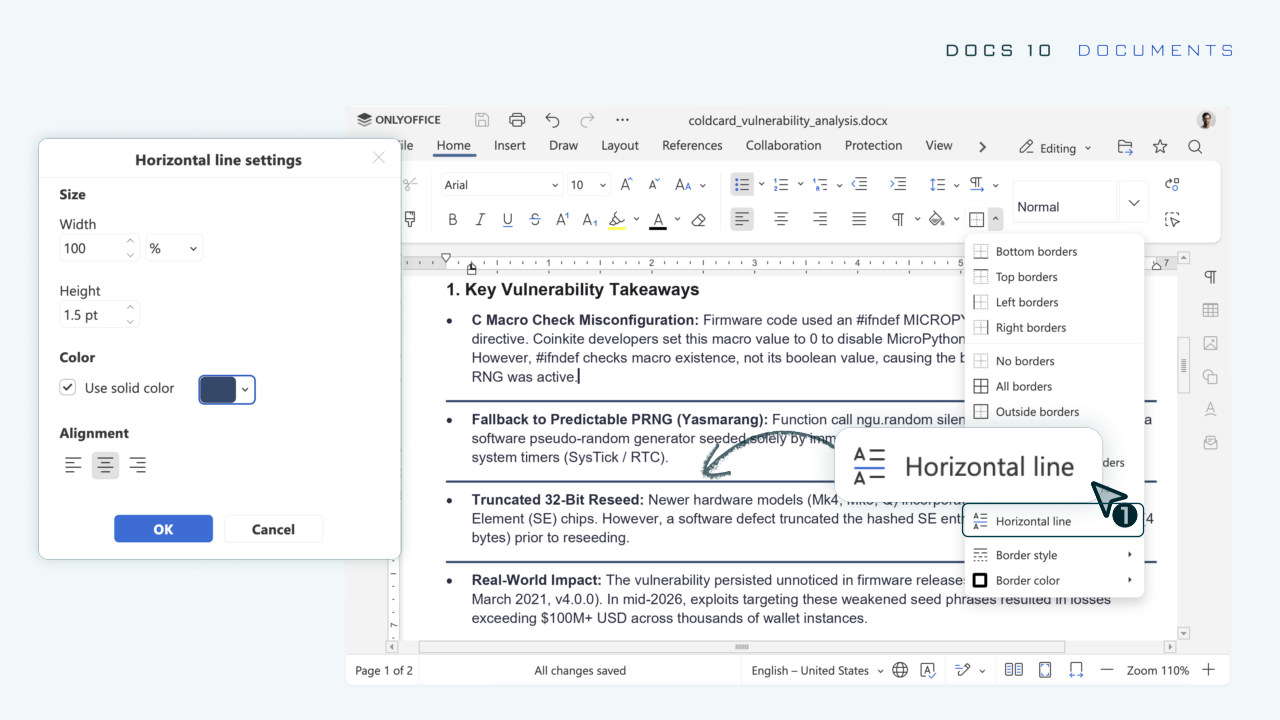
Horizontal Line settings window. A new settings window lets you adjust every horizontal line so it matches your document’s style precisely.
Where to find: Horizontal line settings
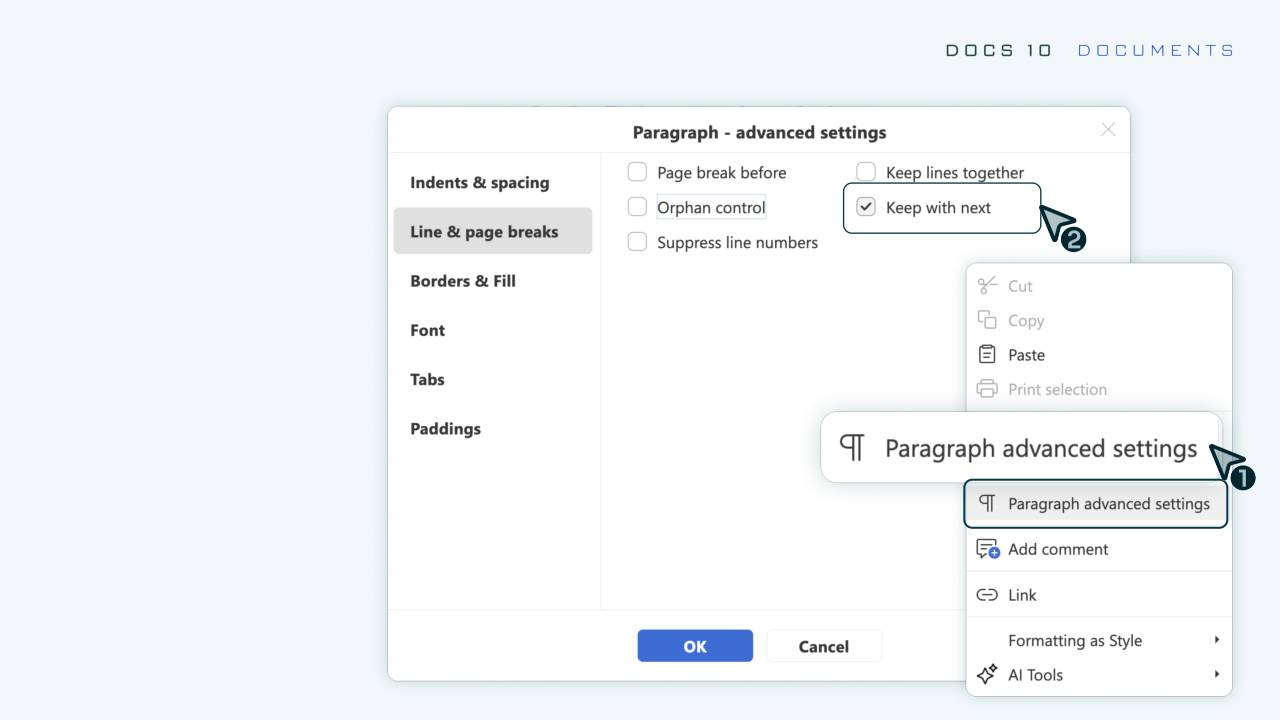
Keep with next. This feature keeps related content together on the same page. It applies to tables, as well as paragraphs and tables inside block content controls, preventing awkward splits where a heading is separated from its content.
Where to find: Paragraph advanced settings
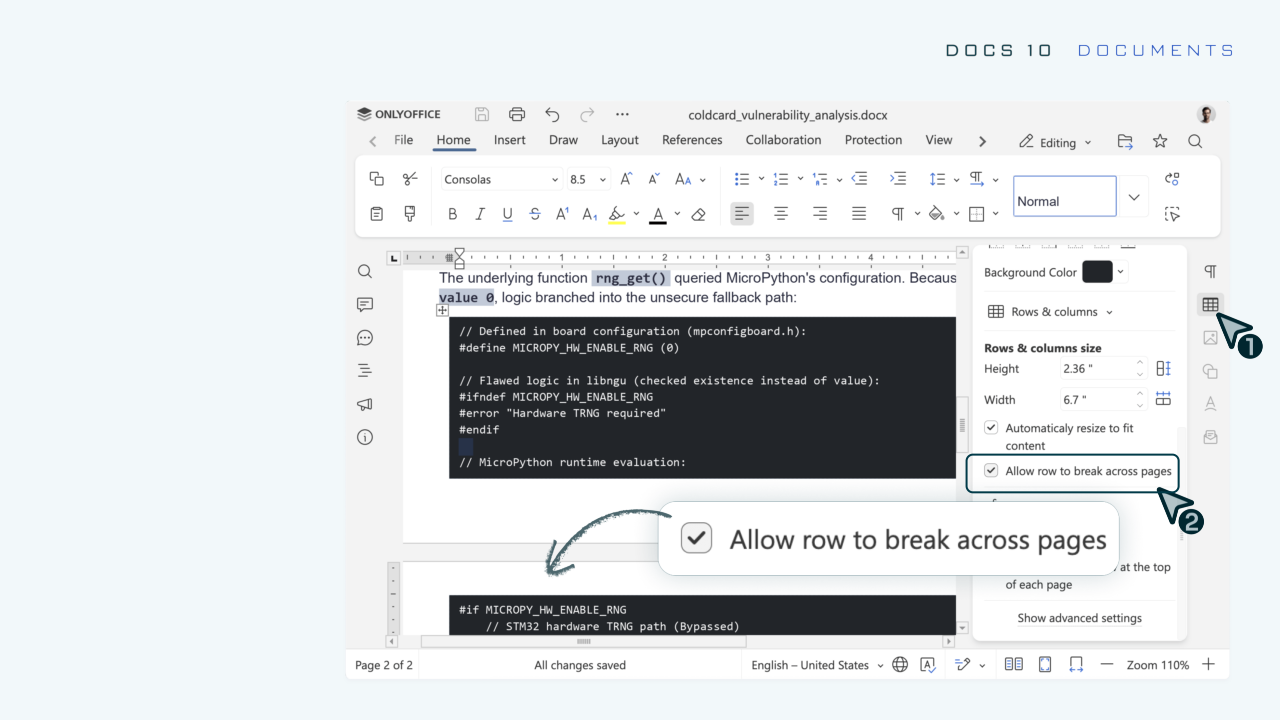
Row breaking across pages. Enable long tables to flow naturally across multiple pages instead of being cut off, making large data sets easier to read.
Where to find: Table settings
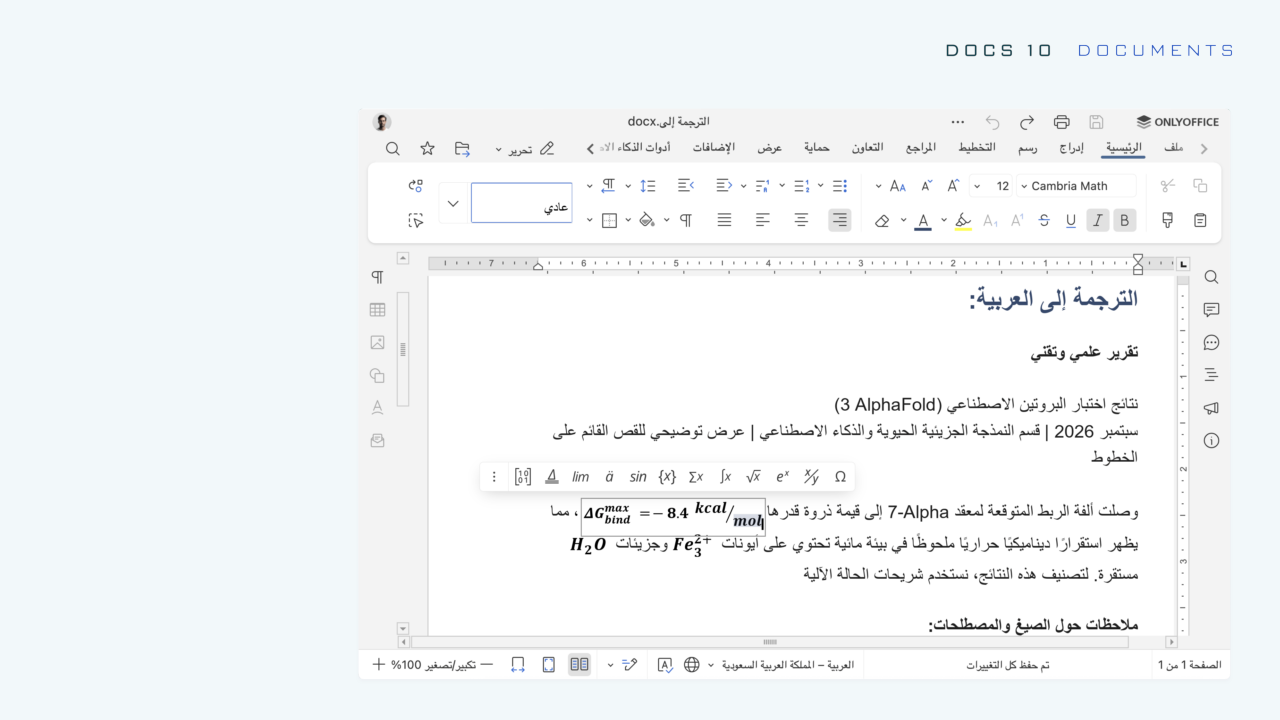
Improved right-to-left (RTL) support. Graphical formulas and other inline objects now behave far more reliably in RTL documents. It’s part of our ongoing commitment to supporting every language.
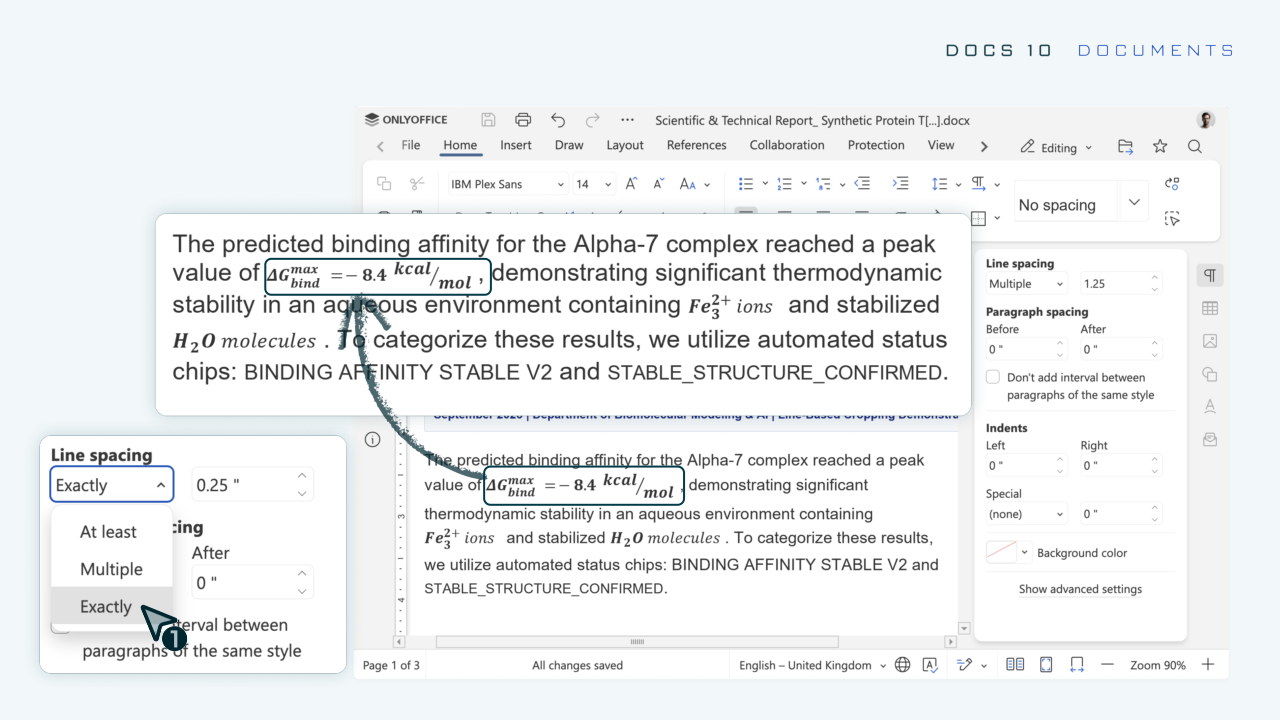
Line-based cropping. When content extends beyond the line height, it crops cleanly for a tidier, more professional appearance.
Spreadsheet Editor: faster, smarter, and easier to use
Performance is the headline for spreadsheets in ONLYOFFICE Docs 10.0, alongside several usability upgrades that make working with data more intuitive.
Performance improvements
Spreadsheets run faster thanks to focused engineering work, including separated style and data storage and limited cell traversal that processes only what each operation requires. In practice, this means less waiting and smoother handling of large workbooks.
The functions teams rely on most, including SUMIF, AVERAGEIF, COUNTIFS, SUMIFS, AVERAGEIFS, MAXIFS, and MINIFS have also been optimized to run more quickly, so demanding calculations complete faster.
Usability enhancements
Function constant hints. As you type, clear guidance shows which constants belong where, taking the guesswork out of building formulas.
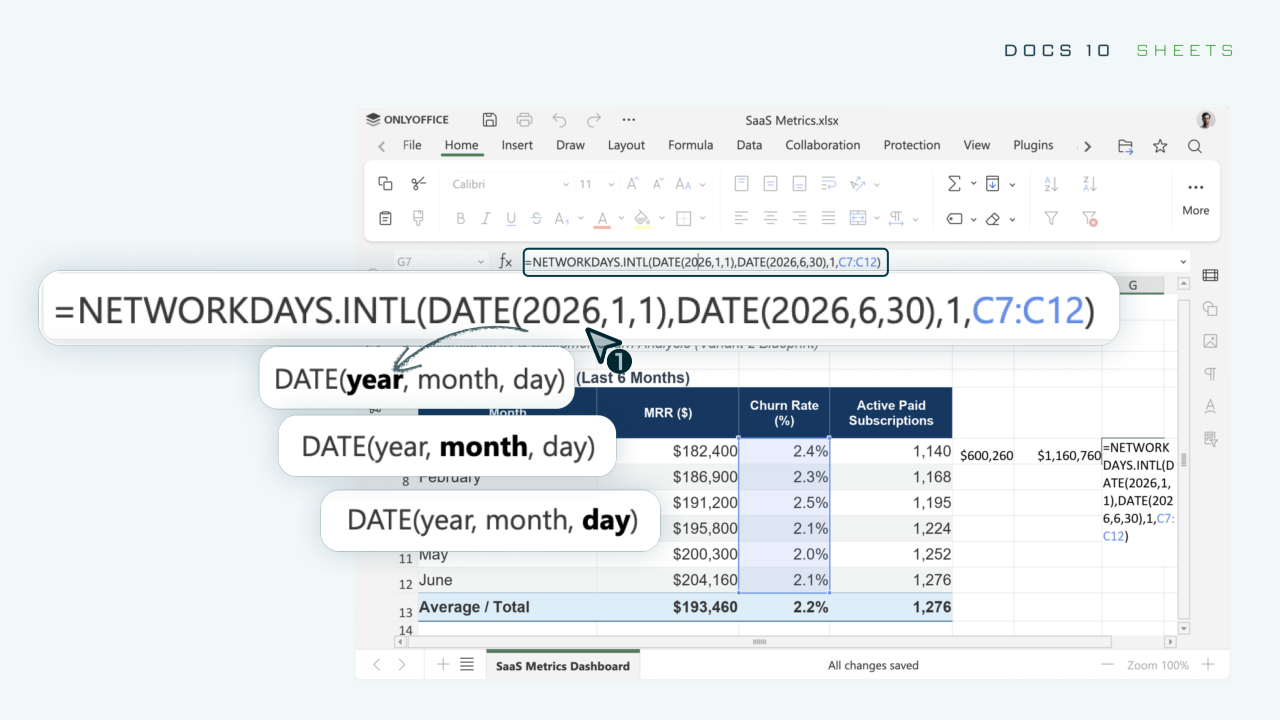
Formula range highlights. When you work with a formula, the referenced ranges are highlighted, making complex formulas easier to read and verify at a glance.
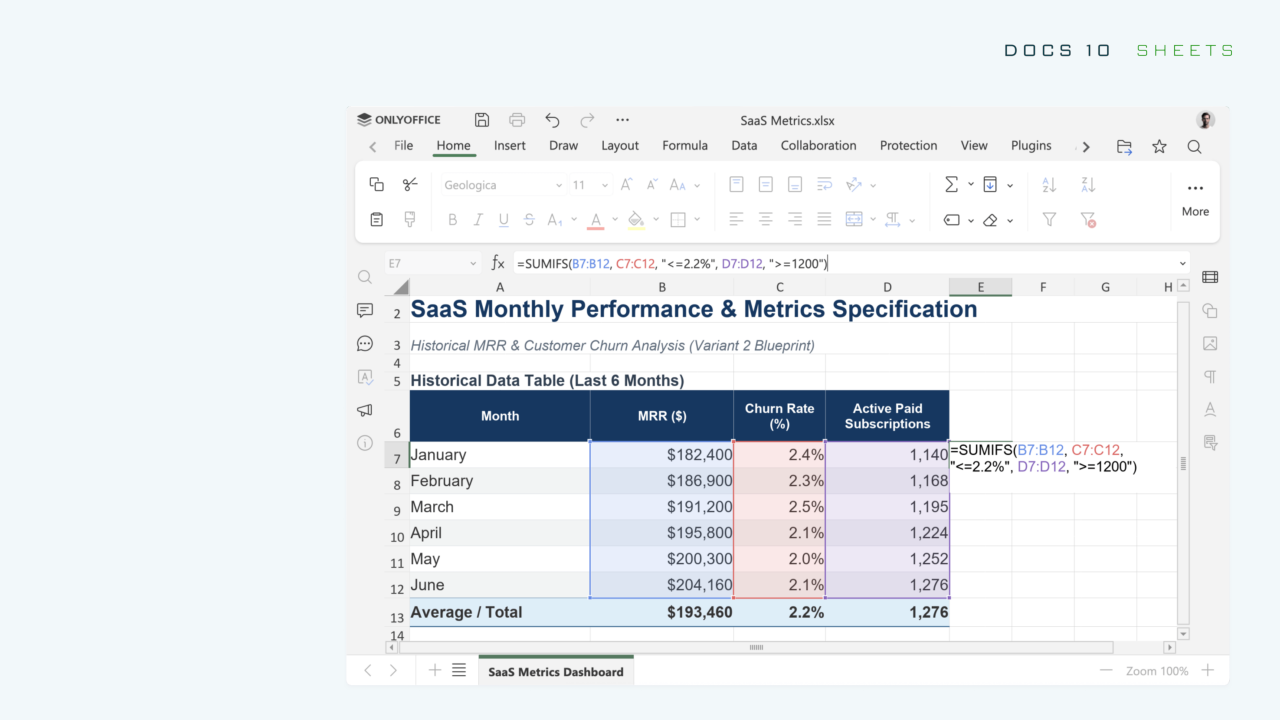
Animated selection marquee. After you copy or cut, a moving outline clearly shows your selection, so there’s no doubt about what you’re about to paste.
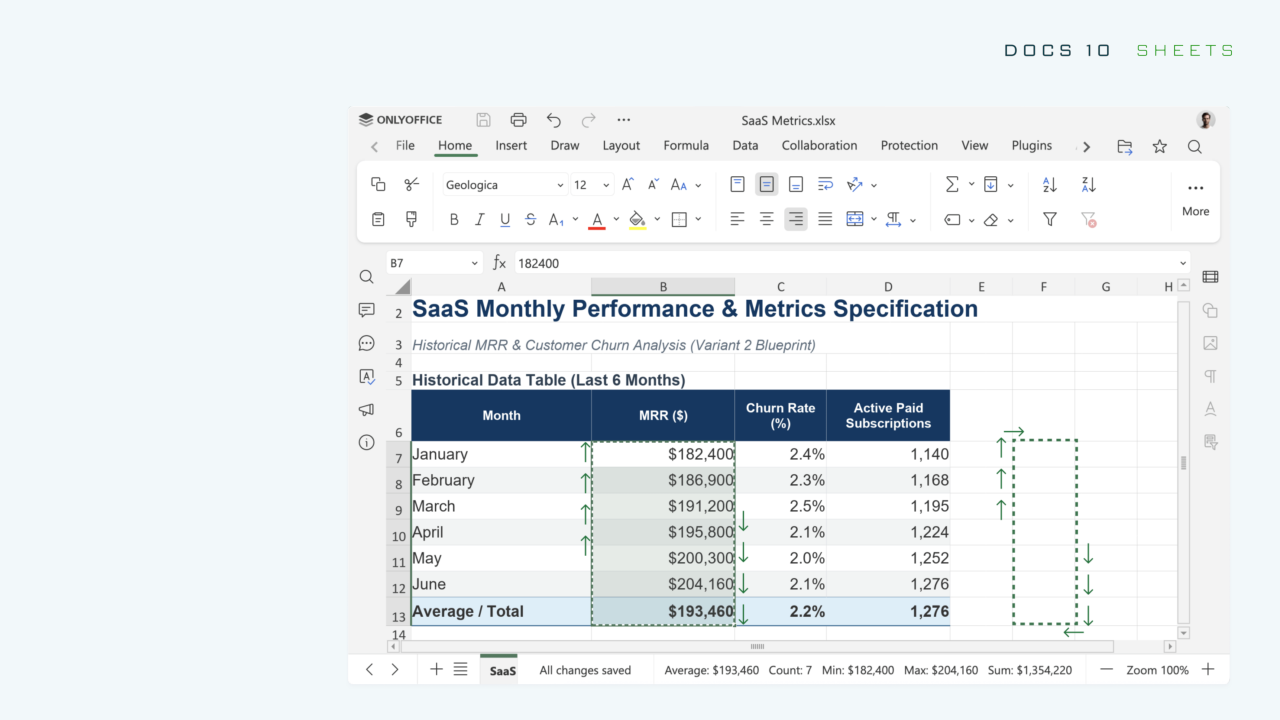
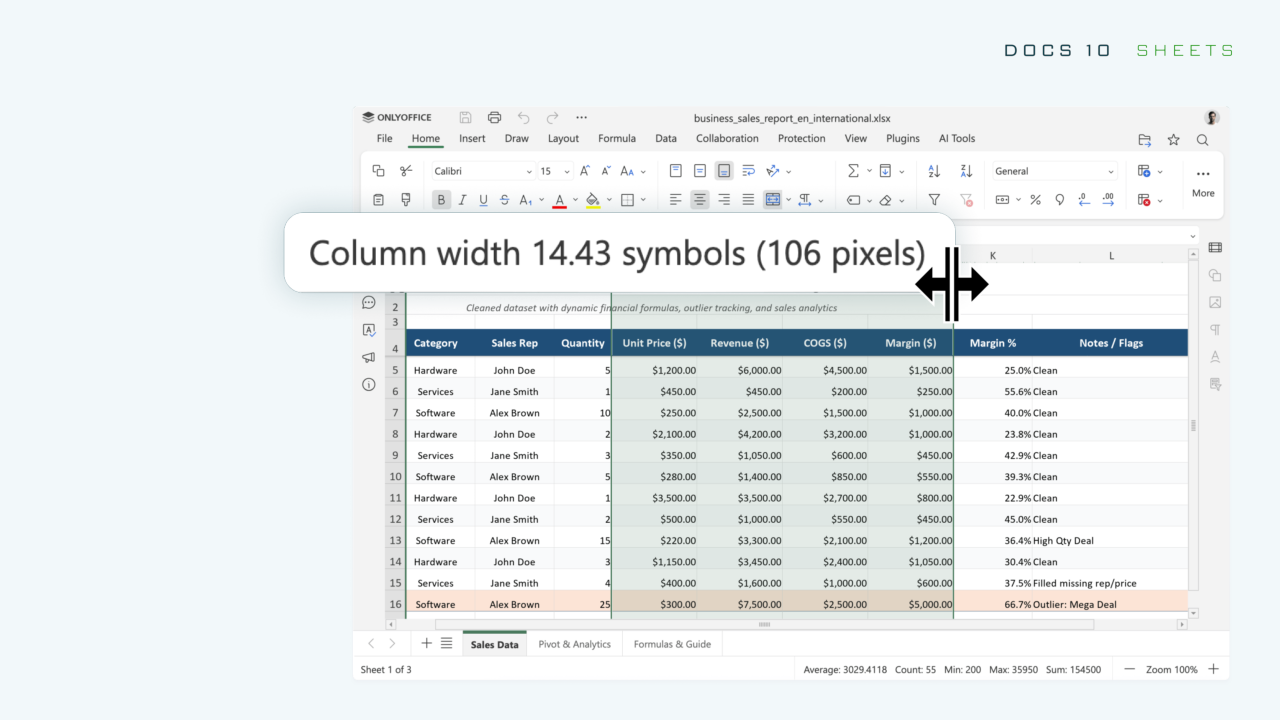
Resizing all cells with your mouse. Adjust the height and width of all cells at once using the mouse to create a clean, even layout without resizing each cell by hand.
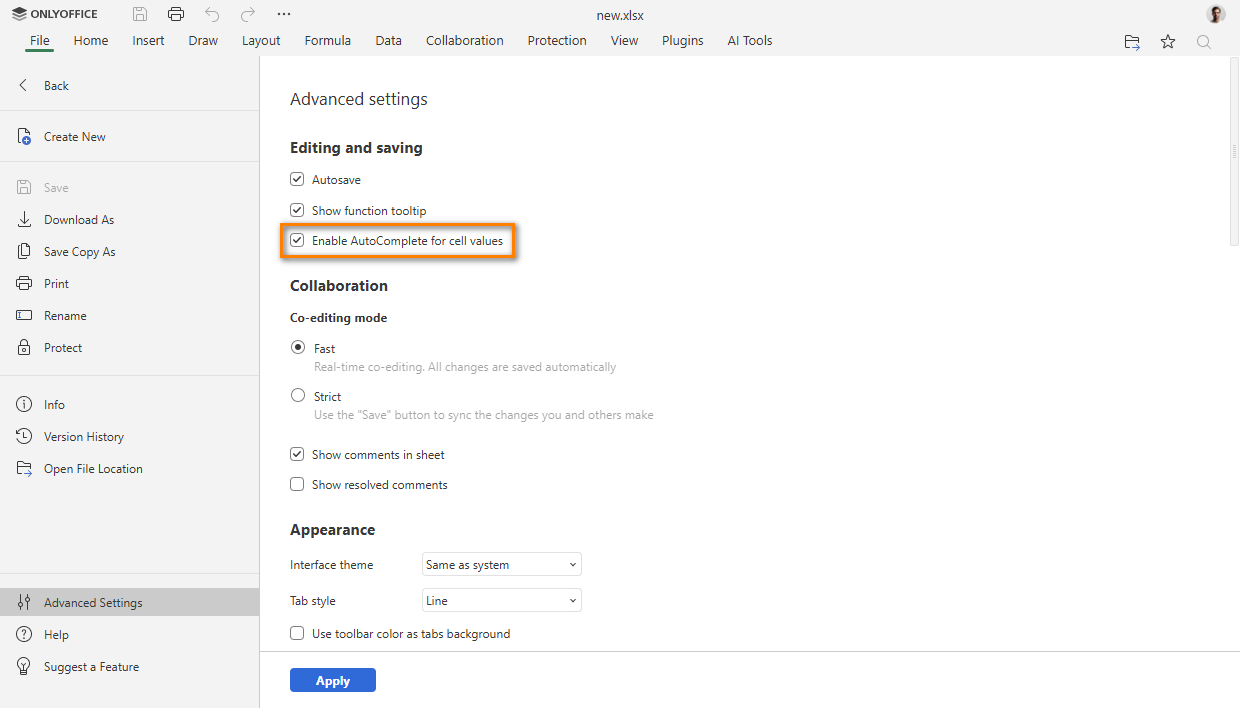
AutoComplete toggle for cell values. Keep AutoComplete on or turn it off, depending on your preference.
Where to find: File tab → Advanced Settings
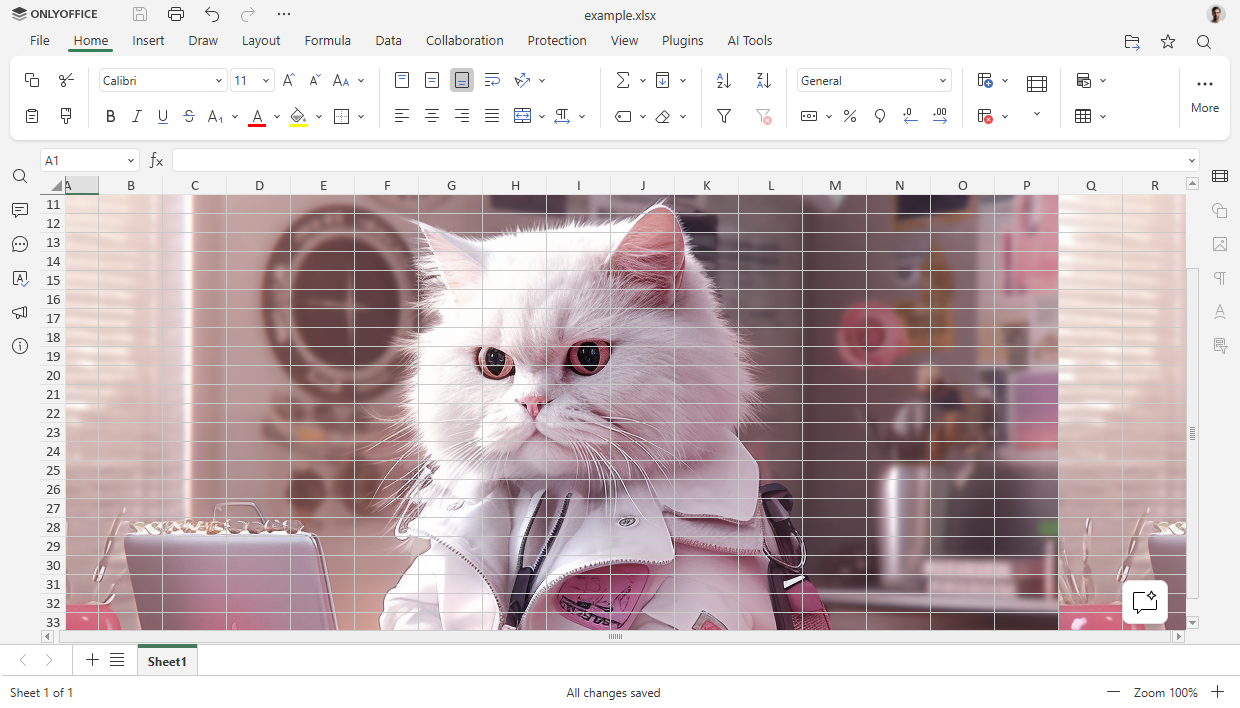
Sheet background support. Sheet backgrounds now stay intact when you open and save your files.
Presentation Editor: new ways to view, print, and share
Docs 10.0 adds meaningful flexibility to the Presentation Editor across the full workflow – from drafting to sharing finished slides.
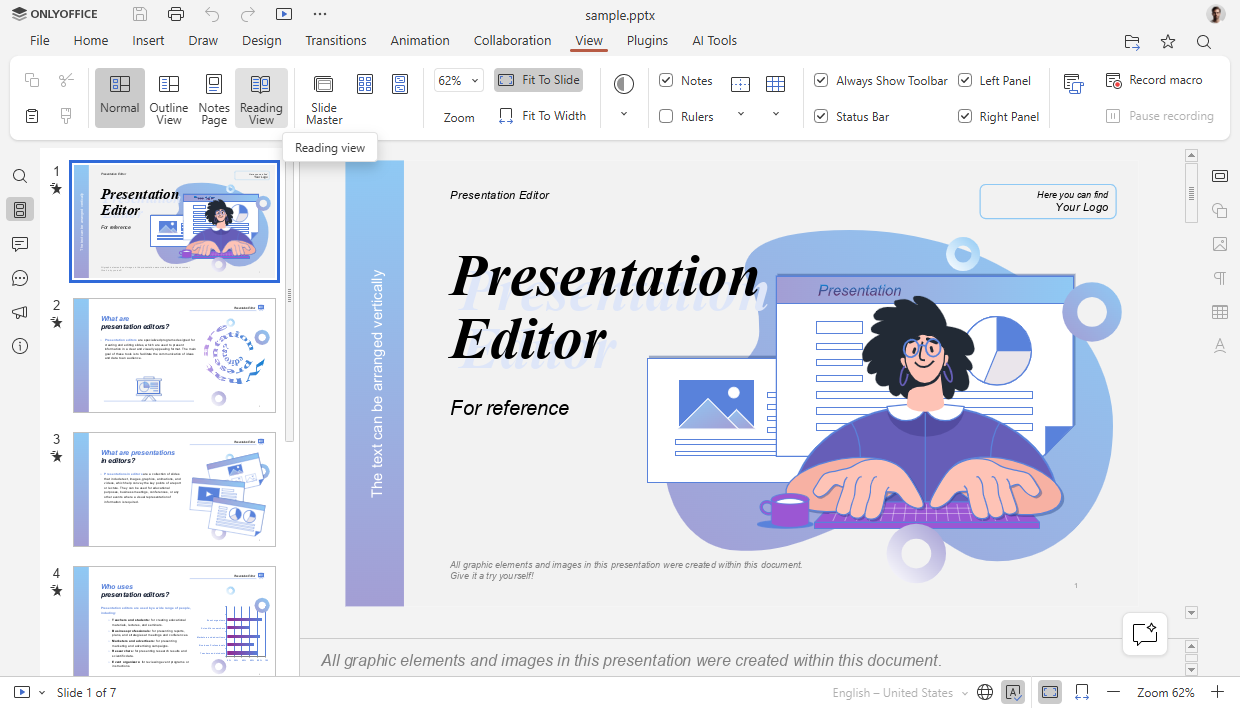
New display modes.Choose the view that fits your task. Each mode supports a different stage of preparing and reviewing a presentation.
- Outline View
- Reading View
- Notes Page
- Notes Master
- Handout Master
Where to find: View tab
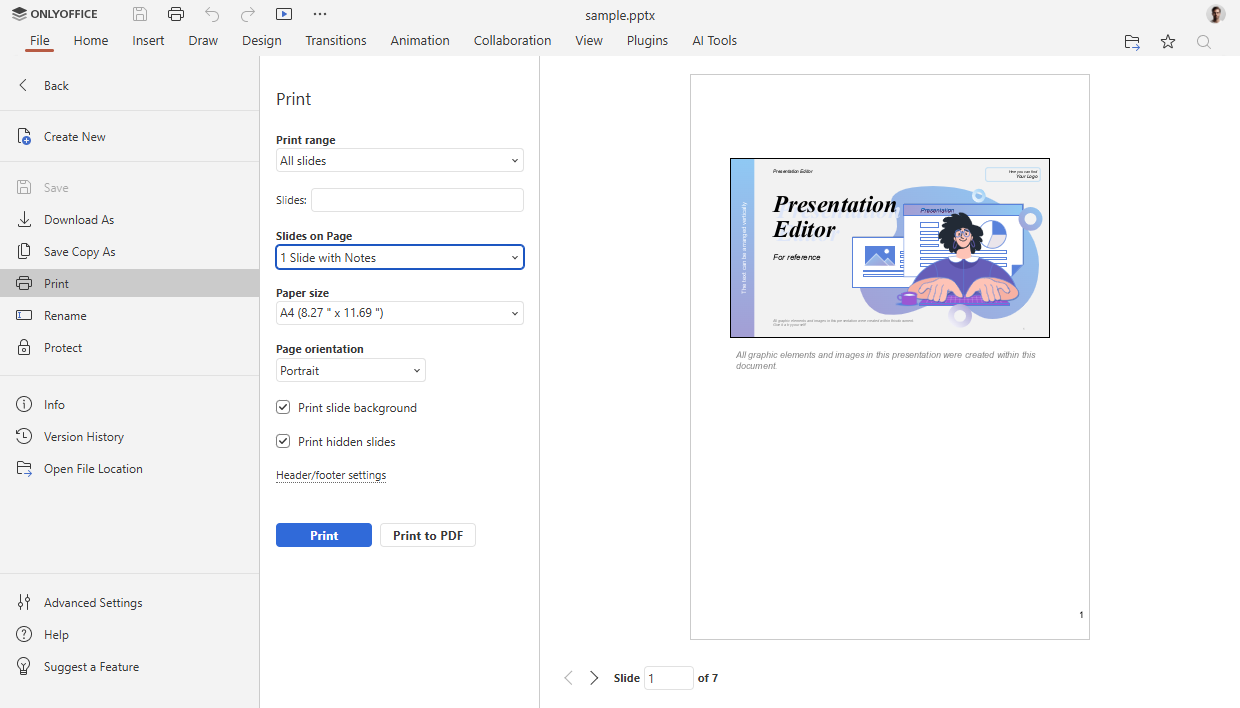
Extended print settings. Gain far more control over printed output. You can print notes, handouts, and outlines; include hidden slides, backgrounds, borders, comments, and slide numbers on handouts; and scale content to fit the page size.
Where to find: File tab → Print
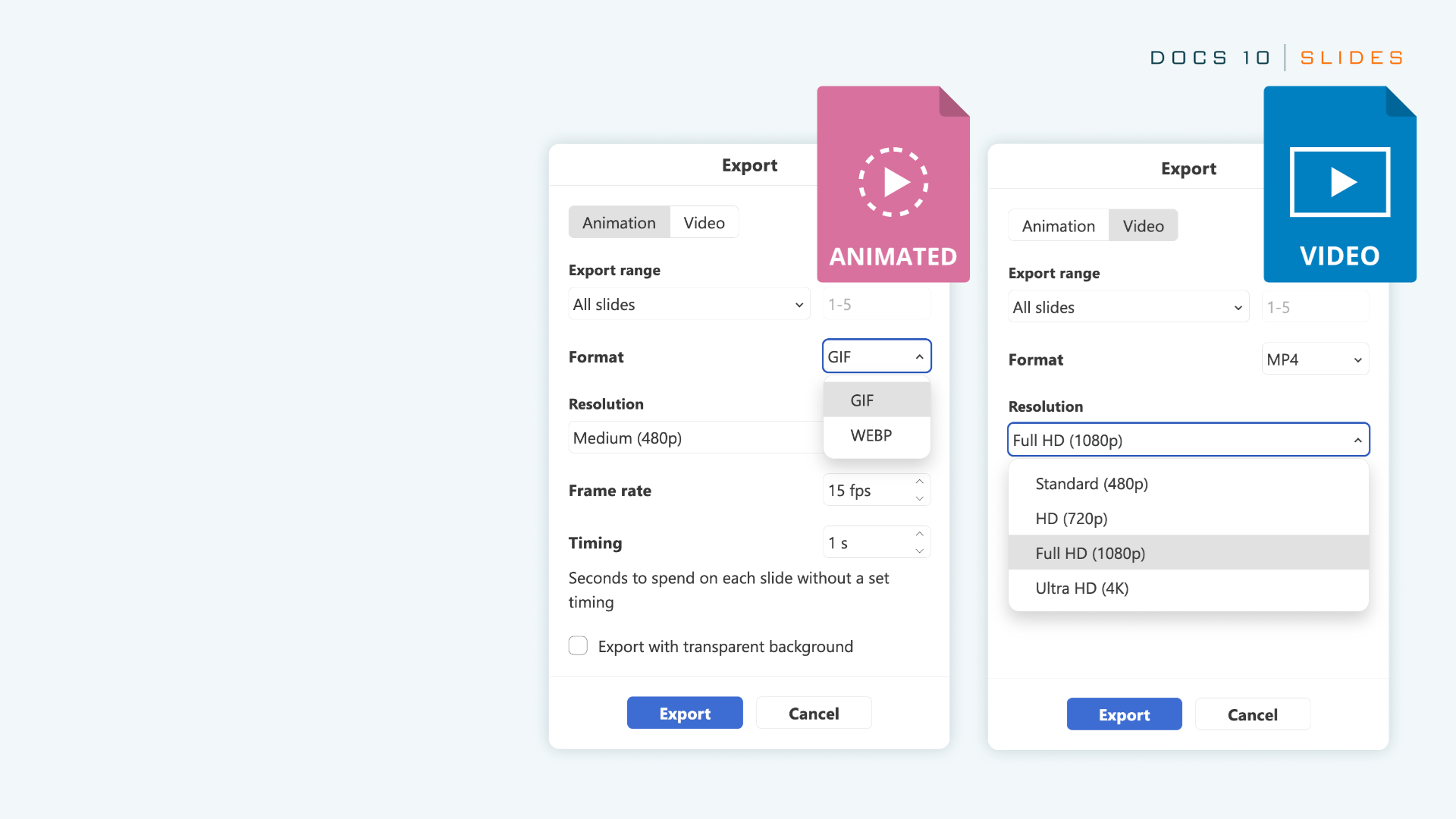
Export as GIF or video. Save a presentation as a GIF or video. This makes it easy to share slides across social media, email, and other channels.
Where to find: File tab → Download as
Additional improvements
Beyond the core editors, ONLYOFFICE Docs 10.0 introduces broader compatibility and extensibility improvements that benefit day-to-day work across diverse environments.
Expanded format support. Wider compatibility means fewer obstacles when sharing files with people using different tools.
- Open and convert .ofd files to other formats
- Save spreadsheets in the classic .xls format
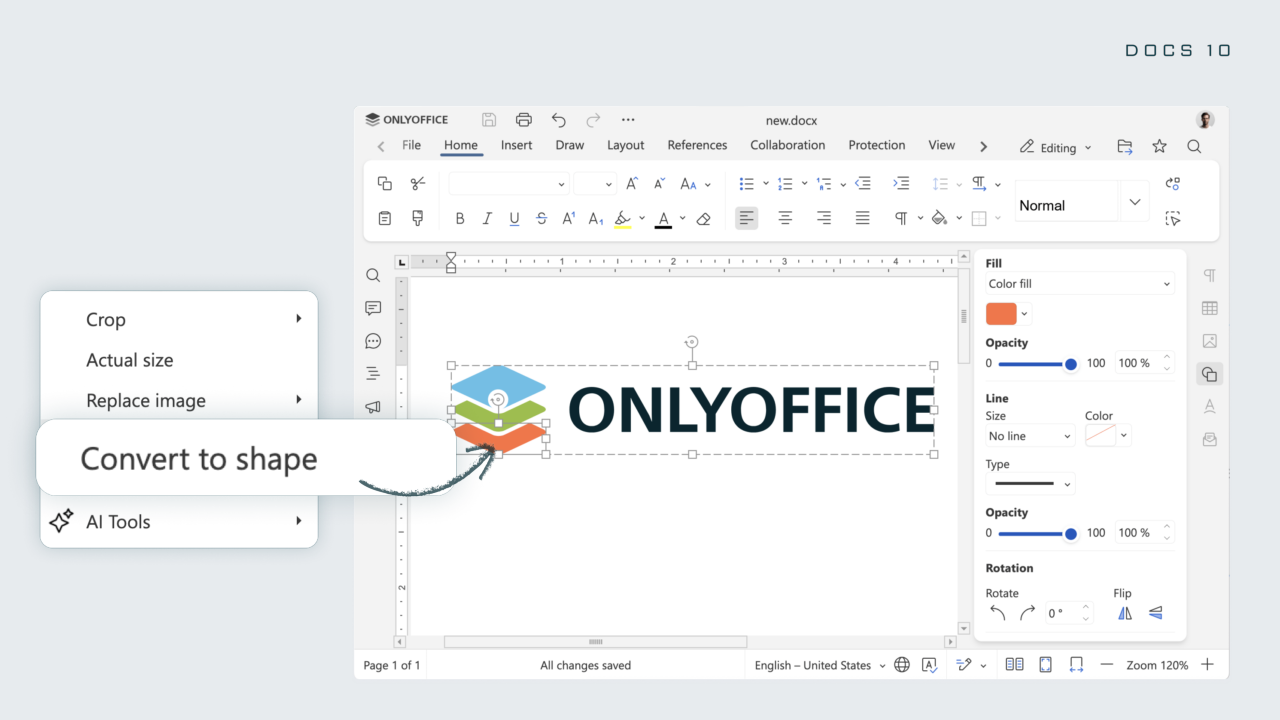
SVG to shape conversion. Convert an SVG image into an editable shape you can adjust freely.
Where to find: Convert to shape
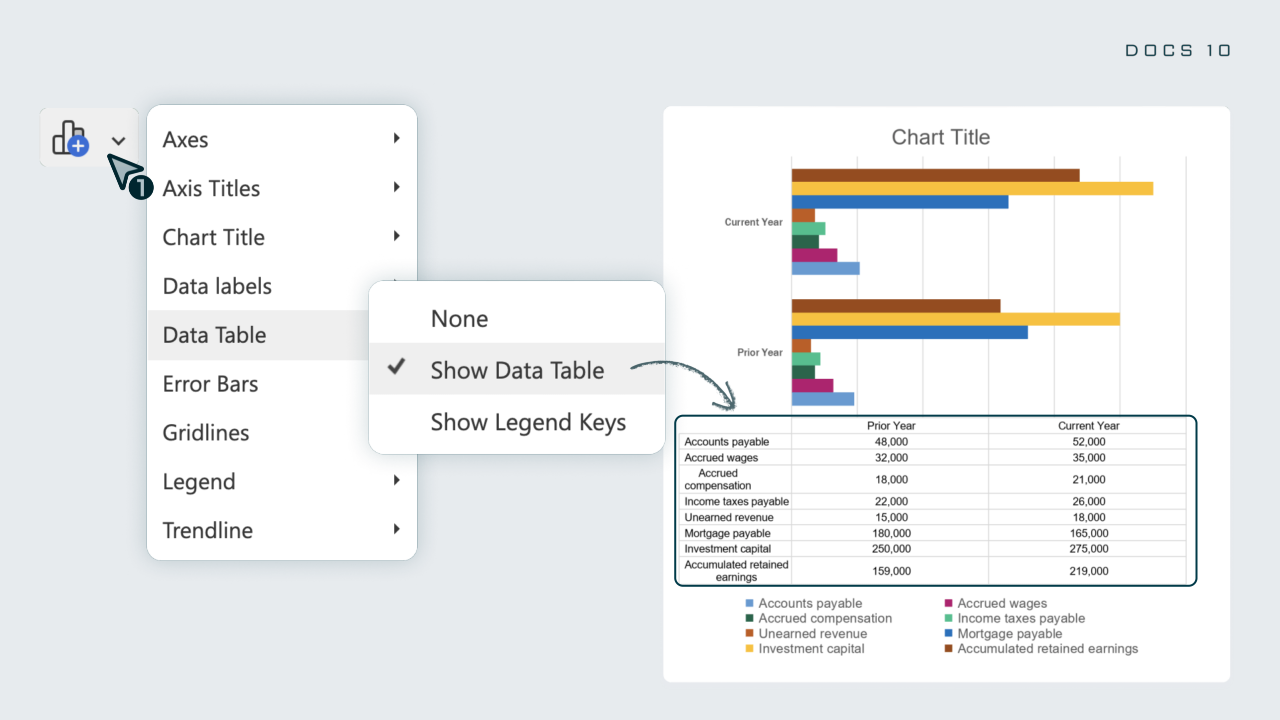
Data Table support. Display a chart’s underlying data alongside the visual, so audiences can see both the picture and the numbers behind it.
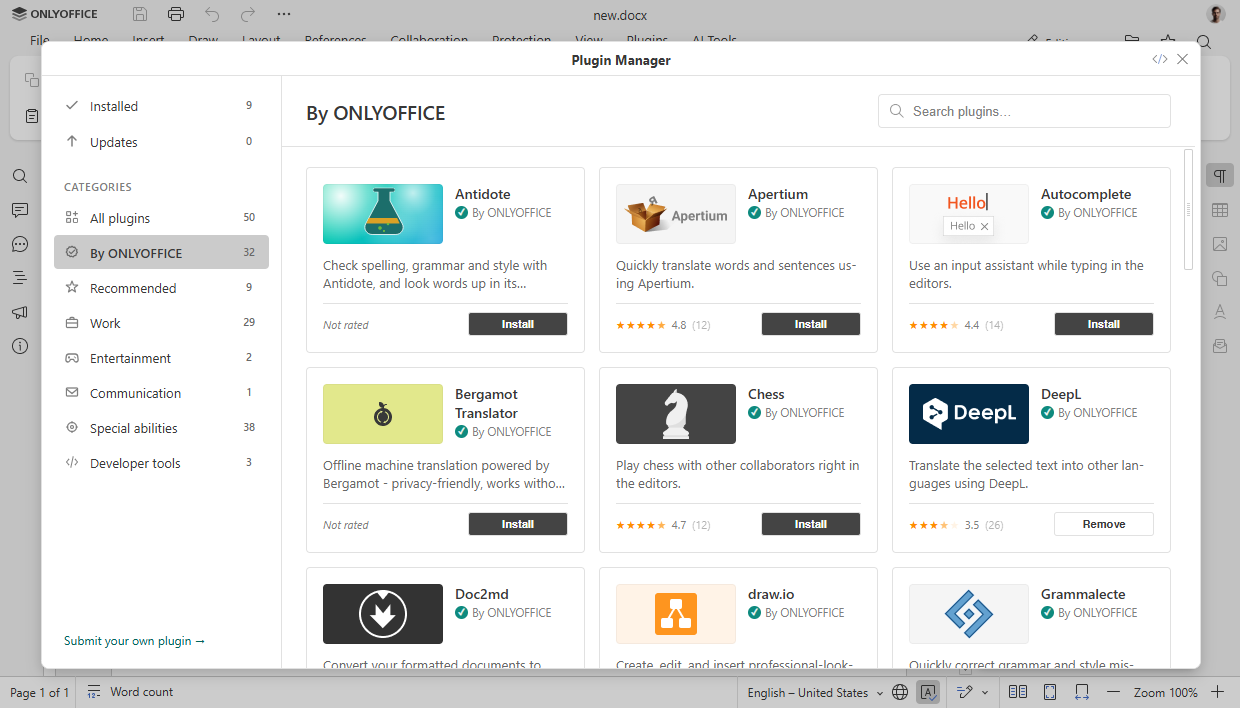
New plugins. Thanks to the ONLYOFFICE community, new plugins extend what you can do, including:
- Antidote for spelling and grammar checks;
- Curly for reusable templates;
- Chinese Converter and Chinese Formatter;
- Salesforce plugin for importing and exporting data between Salesforce and spreadsheets.
Redesigned Plugin Manager. A cleaner layout with a left-side panel for switching between categories makes finding and organizing add-ons more straightforward.
Security: stronger protection built in
Powerful features only matter if your data stays safe. That’s why ONLYOFFICE Docs 10.0 places security at the core of this release, with a set of improvements designed to protect sensitive documents and give your teams greater confidence. Especially now, as the rise of AI is also giving bad actors new ways to identify and exploit vulnerabilities.
This version addresses around 35 vulnerabilities, making the suite more resilient for organizations that handle confidential information at scale.
The key security improvements will be highlighted in a separate post on our blog, so stay tuned!
Shape the future of ONLYOFFICE with your ideas!
Share your thoughts, suggestions, and ideas on how we can improve our solutions and make your experience even better. Your input matters, so don’t hesitate to visit our community forum and leave your suggestions today!
How to use new features
Check out our video to see the latest updates in action:
Create your free ONLYOFFICE account
View, edit and collaborate on docs, sheets, slides, forms, and PDF files online.