10 things to know about AI in ONLYOFFICE Cloud 10.0
ONLYOFFICE 10.0 brings a new AI Chat to the cloud. It sits right next to your files in any room or folder, knows which project you’re working on, and helps you draft, analyze, and create documents without leaving your workspace. It is completely optional: you decide whether to turn it on and how to use it.
In this article we share 10 things about AI in ONLYOFFICE Cloud, from settings and pricing to agents and tools. Plus, a bonus: how to unlock even more AI features with ONLYOFFICE Desktop Editors.

1. AI Chat is now available everywhere
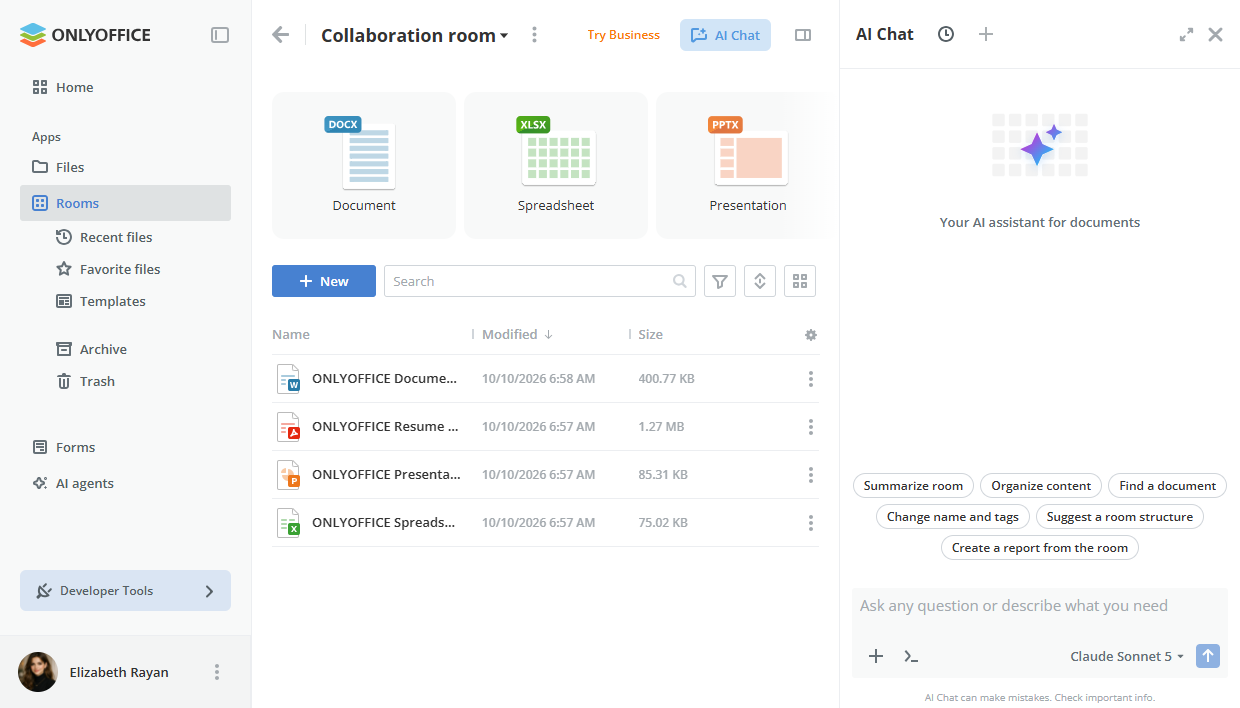
Chat with AI right next to your files. Previously, you could talk to AI only inside AI agent rooms. Now, AI Chat opens as a side panel in any room, folder or document in your workspace.
Your conversations follow you. Chat history and the selected model are shared across your workspace: the AI Chat in room A, room B or in My documents shows the same threads, so you can start a conversation in one place and continue it in another. AI agents are the only exception: each agent keeps its own chat history and model, so conversations with it stay separate from the rest of your work.
The AI Chat is available to all workspace users in rooms, folders and documents. Guests will not have access to it.
2. Getting started takes just a few clicks
In ONLYOFFICE Cloud, there’s no need to sign up with an AI provider, generate API keys or paste endpoint URLs. Once AI is activated, it’s ready to go.
Activate AI in one click. If AI isn’t enabled in your workspace yet, the chat panel shows an activation screen instead of an empty conversation. You’ll see the same screen when you try to create an AI agent. Just click Activate, or Top up and activate if your Wallet needs funds first.
Turn AI off when you need to. Workspace admins can enable or disable AI services for the whole workspace at any time. Your chat history is kept even when AI is off.
Where to find: Settings → Customizations → AI Services
3. Pricing is simple: pay only for what you use
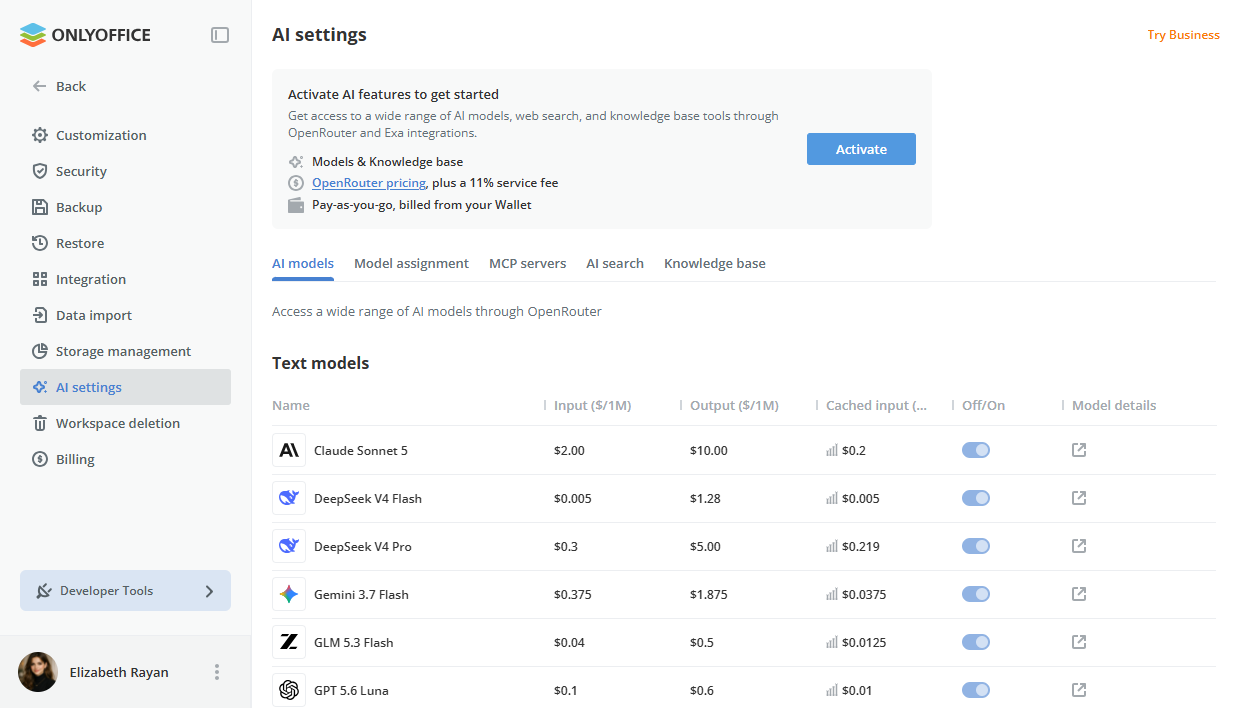
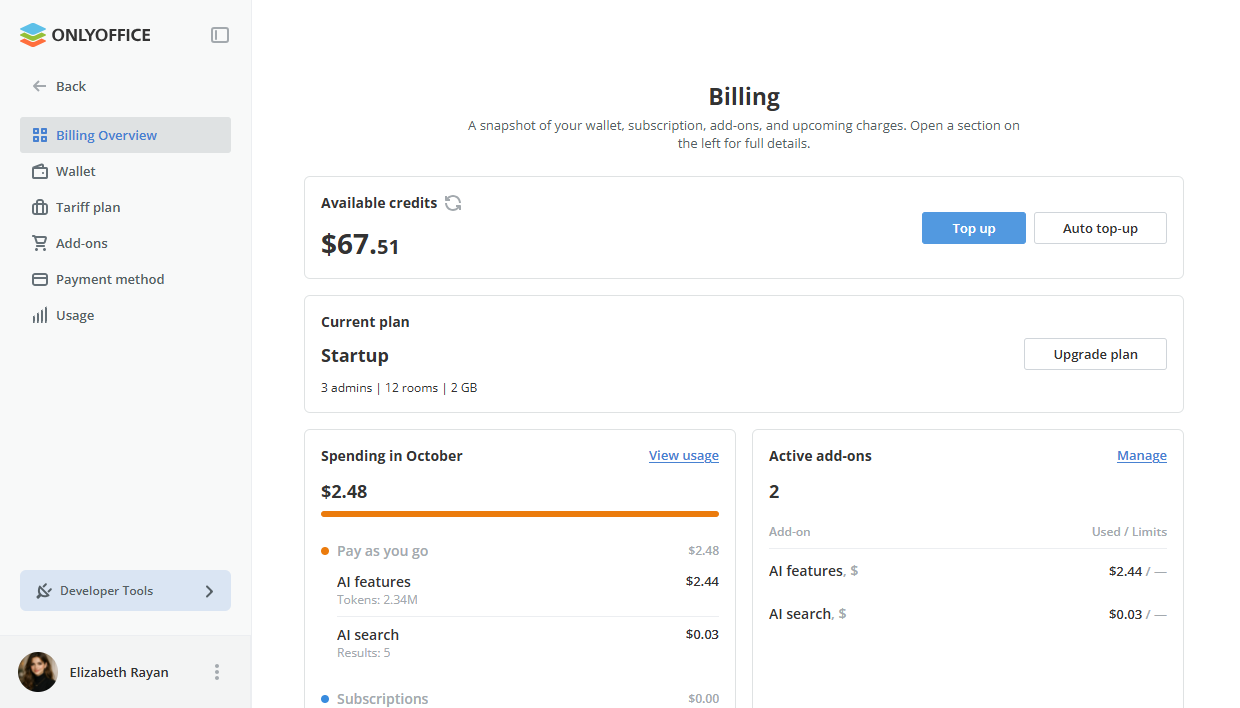
There’s no AI subscription and no fixed monthly fee. AI in ONLYOFFICE Cloud is provided through OpenRouter: you pay the model’s standard OpenRouter rate plus an 11% service fee. For example, if a request costs $1.00 on OpenRouter, you pay $1.11.
Pay from your Wallet. All AI costs are covered by your workspace Wallet. Top it up manually or turn on automatic top-up so your balance never runs out in the middle of a task. Every transaction is listed in your Wallet history, so you always know what you spend.
Web search is billed separately. To give your AI chats and agents access to real-time information, you can use ONLYOFFICE Web Search, powered by Exa. You can activate it in the workspace settings. Web Search has its own section on the Billing page, so you can keep track of all services in one place.
Note: All custom API keys previously configured for AI features in ONLYOFFICE Cloud will no longer be available after the update to version 10.0. AI in ONLYOFFICE Cloud is now managed through the central Billing page, while your own API keys can still be used in ONLYOFFICE Desktop Editors.
Where to find: Settings → Billing → Services → AI features
4. Hundreds of models in one place
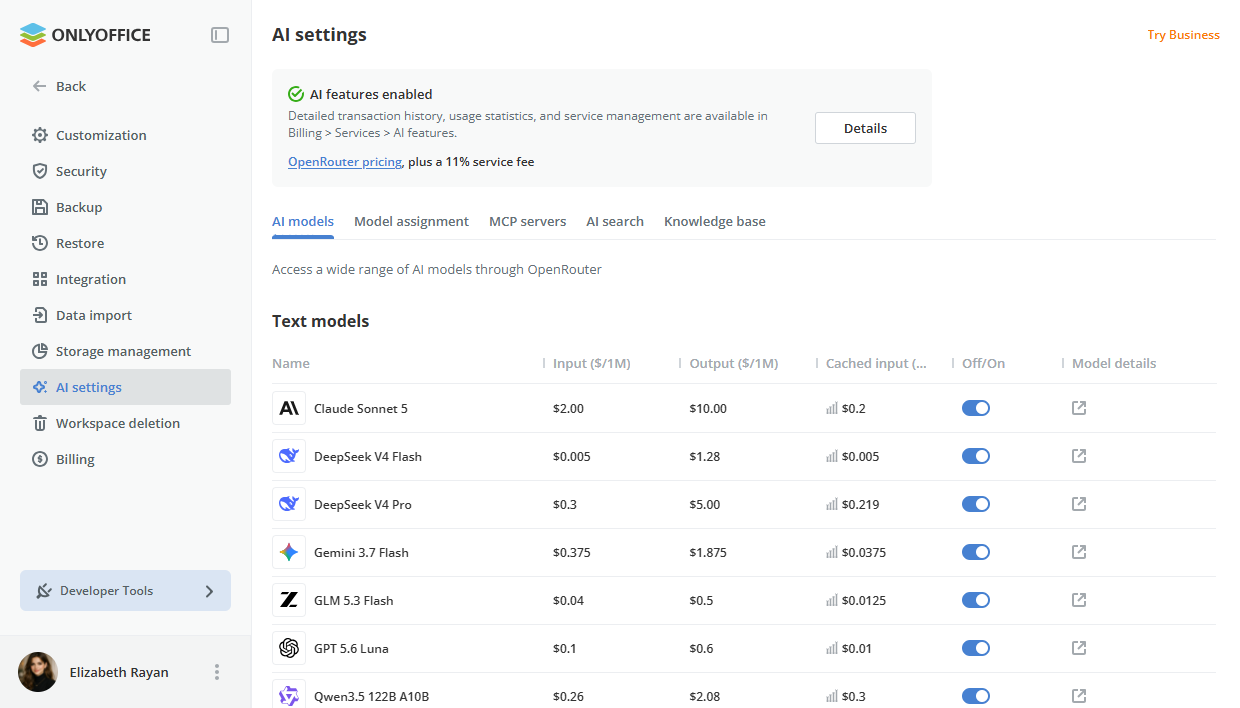
ONLYOFFICE Cloud offers a hand-picked selection of leading models from OpenAI, Anthropic, Google, xAI, DeepSeek, Alibaba, Z.ai and Moonshot AI. All chat models support tools and reasoning, and most of them can also work with images. Use a fast, budget-friendly model for everyday tasks and switch to a more powerful one when you need deeper analysis:
| Best for | Models | |
|---|---|---|
| Flagship | Complex analysis, long documents, demanding tasks | GPT 6.1 Sol, Claude Opus 5.5 |
| Standard | Everyday work that needs high-quality results | Claude Sonnet 5.5, GPT 5.6 Terra, Grok 4.7, Qwen3.8 Max, GLM 5.3, DeepSeek V4 Pro, Kimi K3 |
| Light | Quick, budget-friendly tasks | GPT 6 Luna, Gemini 3.8 Flash, DeepSeek V4.1 Flash, Qwen3.8 Flash, GLM 5.3 Flash |
| Image generation | Creating pictures and visuals | GPT 5.4 Image 2, Nano Banana 2, Nano Banana 2 Lite |
The list of available models may change as new versions are released.
See what each model can do. Each model in the list has a Model details section where you can check all of its capabilities, such as working with text, understanding images, generating images, using tools, and reasoning.
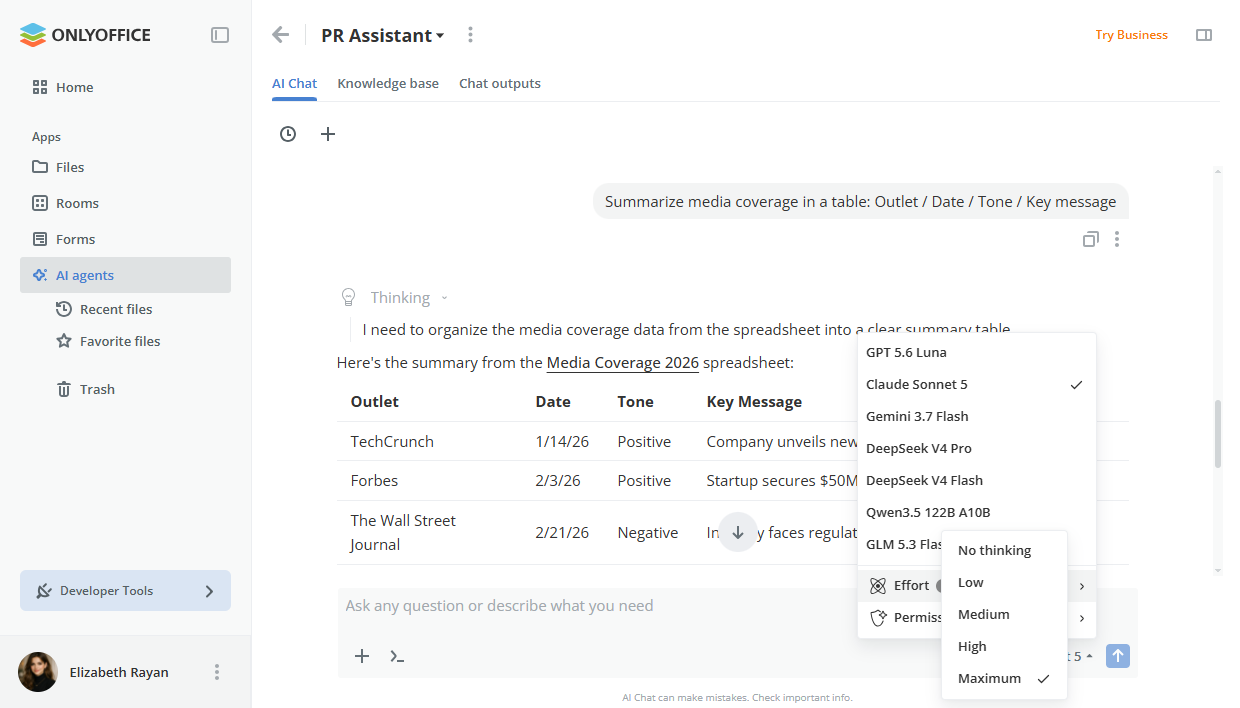
Switch models on the fly. The model picker sits right in the chat input field, so you can choose a different model for each conversation. Every thread remembers its model and restores it when you come back.
5. The right model for every task
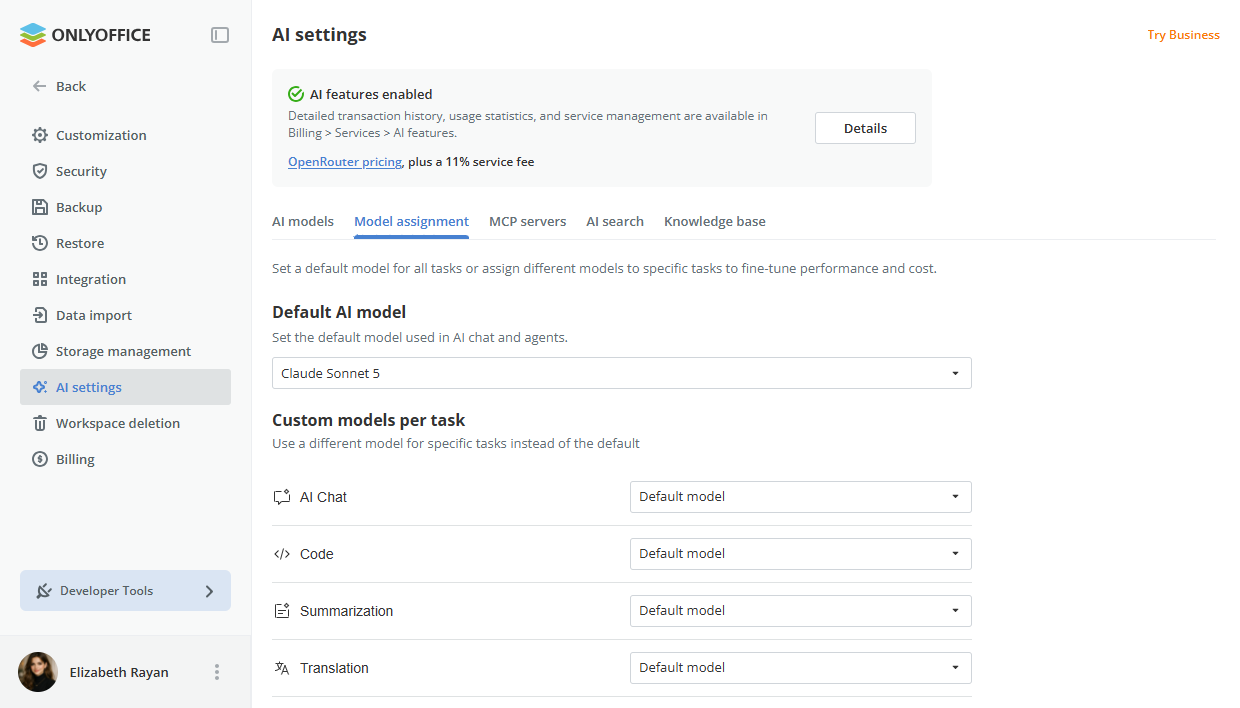
Not every task needs the same model. In the Model Assignment settings, choose a separate model for each type of task:
- Chat
- Code
- Summarization
- Translation
- Text analysis
- OCR
- Vision
- Image generation
- Form analysis
Only models with the right capabilities are offered for each task. For example, the image generation list includes only image models. This way, you can use a cheaper model for quick summaries and keep a top-tier one for complex analysis, balancing quality and cost.
Where to find: Settings → AI settings → Model Assignment
6. A chat that’s comfortable to work in
The AI Chat has been rebuilt with everything you need to steer, refine and reuse AI answers, so you spend less time rephrasing requests and copying text around.
Stay in control of answers. If the answer is going in the wrong direction, click Stop. The text already written is kept, and you can send a new message right away. Not happy with the result? Click Regenerate to get a new answer from the same model.
Let AI think deeper. For complex questions, turn on extended thinking. If the model supports it, a collapsible block shows how it reasoned before answering.
Read and reuse answers easily. Responses are neatly formatted and ready to work with:
- headings, lists, tables, quotes and links are displayed properly;
- code blocks come with syntax highlighting and a copy button;
- math formulas are rendered correctly instead of raw LaTeX;
- any response can be copied as Markdown, saved as a DOCX file or saved straight to your workspace.
Keep conversations organized. Threads are named automatically after your first question and grouped by date: Today, Yesterday, Last 7 days and so on. You can search, rename, delete or clear them, or export a whole thread to a file.
Save your favorite prompts. Reuse them with one click and organize them into folders. A set of built-in prompts helps you get started.
7. Work with your files and images
AI is most useful when it knows what you’re working on. Click + in the chat to attach files:
- Add files opens the file picker, so you can add any document, spreadsheet or PDF stored in your workspace.
- Upload from device uploads a file to the current folder and attaches it to your message.
You can also drag and drop images and text files straight into the chat. Each message can include up to 5 files and 5 images.
Let AI see your images. Screenshots, photos and scans become part of the conversation, as long as the selected model supports images. Here are a few ways to use it in your daily work:
- Digitize paper documents. Attach a scanned contract or a photo of a signed form and ask: “Extract the text and save it as a document”.
- Process receipts and invoices. Upload a photo of a receipt and ask AI to pull out the date, vendor and total for your expense report.
- Understand charts at a glance. Share a screenshot of a dashboard and ask: “What are the three main trends here?”
- Turn whiteboard notes into text. Snap a photo after a meeting and get a clean list of action items.
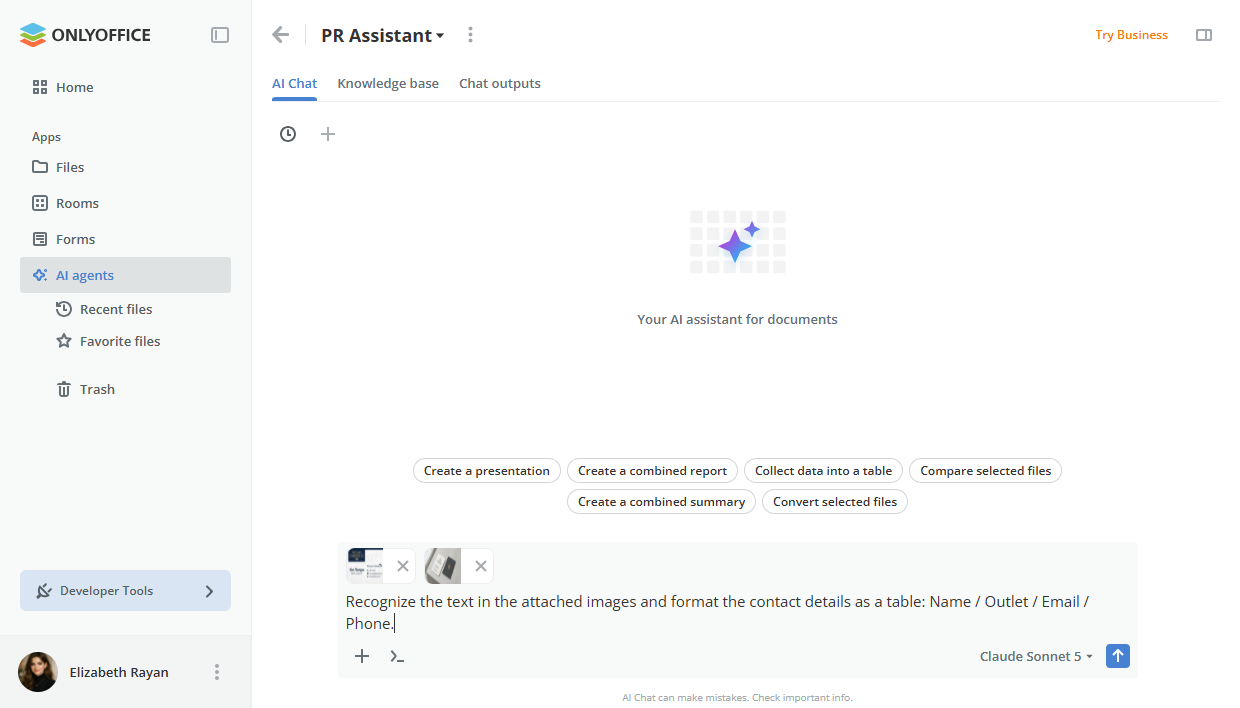
8. Create documents, forms, presentations and images
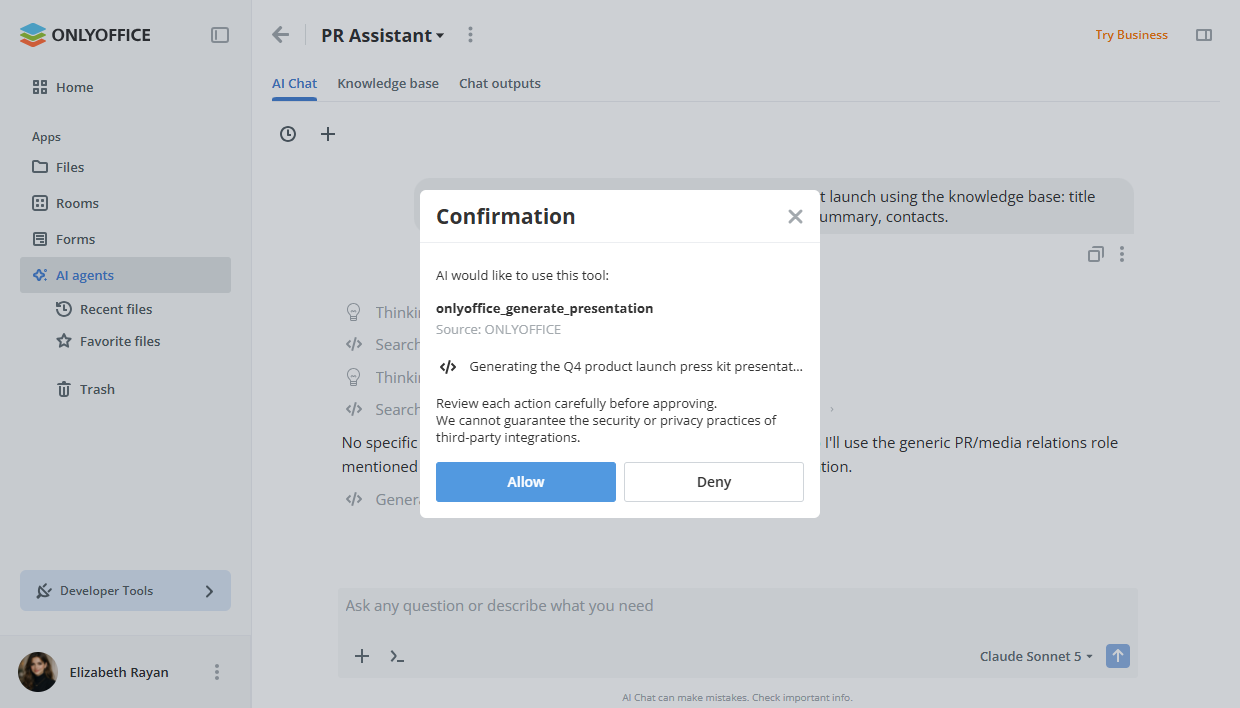
The AI Chat doesn’t just answer questions, it creates ready-to-use files. Try requests like these:
- “Draft a quarterly report based on these notes”
- “Create an NDA form template”
- “Build a 10-slide presentation about our new product”
The AI generates a DOCX document, a PDF form or a PPTX presentation. Once you confirm the action, the finished file opens in ONLYOFFICE editors, where you can review and polish it.
Generate images. If an image model is selected in Model Assignment, the chat can create images too. They’re saved automatically to the current room or folder, or to My documents if you don’t have permission to add files there.
Get ready-to-fill PDF forms. Describe the form you need, for example, “Create a job application form with fields for full name, contact details, start date and signature”, and AI builds a PDF form with fillable fields instead of a static document. Fine-tune the layout in the ONLYOFFICE PDF editor, then share the form via Forms app to collect responses from colleagues, clients or partners. Contracts, surveys, onboarding checklists and order forms can all be prepared in minutes.
9. AI agents that go wherever you need them
AI agents in ONLYOFFICE are assistants that live in their own rooms, right next to your team’s files.
Give an agent instructions, upload documents to its knowledge base and invite colleagues with different roles: Agent managers set it up, Content creators add knowledge, and Viewers see the results.
Everything the agent generates is saved to the room’s Result Storage folder, ready to open and edit in ONLYOFFICE editors. For example, an HR agent can answer questions based on your company policies, while a sales agent drafts proposals from your price lists and templates.
Set up agents faster. In ONLYOFFICE 10.0, you choose the AI model right in the agent creation dialog, and each agent can have its own set of MCP servers. Inside an agent room, the model is defined by the agent’s settings, so everyone in the room gets consistent results.
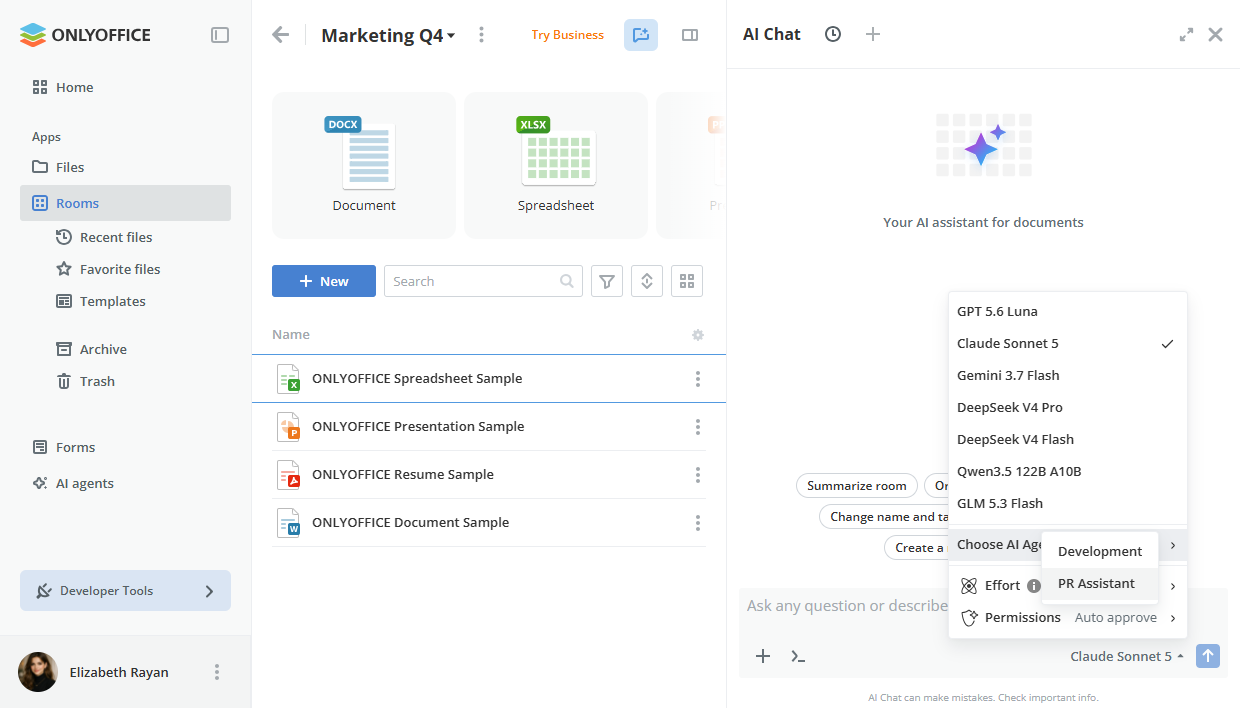
Call your agent from any chat. Previously, you had to open the agent’s room to work with it. Now you can select an agent from the model picker in the AI Chat of any room or folder. The response comes from the agent, with its model, tools and room context. The selected agent is remembered when you reopen the thread.
Give agents a knowledge base. Upload your company documents, such as policies, product specs, price lists or past proposals, to an agent’s knowledge base. The documents are indexed so the agent can search them and answer questions based on your own data rather than general knowledge.
Note: Knowledge base is built for finding relevant information, not for generating summaries or broader analysis.
Where to find: Settings → AI settings → Knowledge base (indexing), or in the settings of each AI agent
10. Extend AI with tools and web search
Connect MCP servers. With the built-in ONLYOFFICE MCP Server, AI can create rooms, organize files and manage users right from the chat. Just ask: “Move all PDFs from this folder to the Contracts room”. You can also connect external MCP servers with a JSON config. Their tools are added to the shared list, and you can enable or disable individual tools or entire servers.
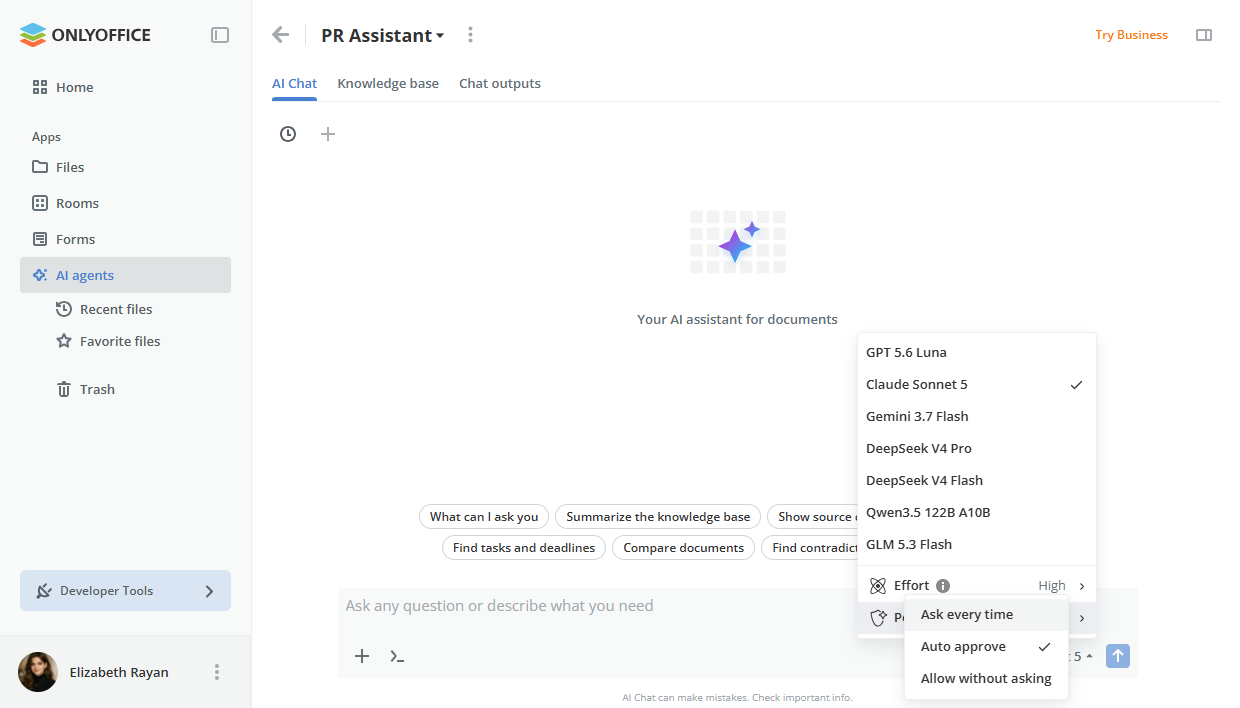
Choose a tool approval mode. You decide how much freedom the AI gets:
- Ask every time: every tool call needs your confirmation.
- Auto approve: confirmation is required for all tools except those marked as safe.
- Allow without asking: all tools run automatically.
Use the ONLYOFFICE MCP Server in other AI tools. The same server lets external AI assistants and clients work with your workspace files and rooms. Its new version 3.3.0 brings:
- safety annotations for all tools, with archiving rooms, copying, moving and uploading files marked as non-destructive. This helps AI clients, including the Auto approve mode above, decide which actions need your confirmation;
- the new ONLYOFFICE Apps name in the documentation and metadata, while your existing configurations keep working;
- fixes to the authorization metadata for smoother connection with AI clients;
- updated dependencies.
You can get it on GitHub, npm or Docker Hub. The full list of changes is available in the changelog.
Search the web. With the built-in ONLYOFFICE web search, the AI can find up-to-date information online. Answers include a clickable list of sources, so you can always check where the information comes from. Web search can be turned on or off at any time.
Bonus: get even more AI with ONLYOFFICE Desktop Editors
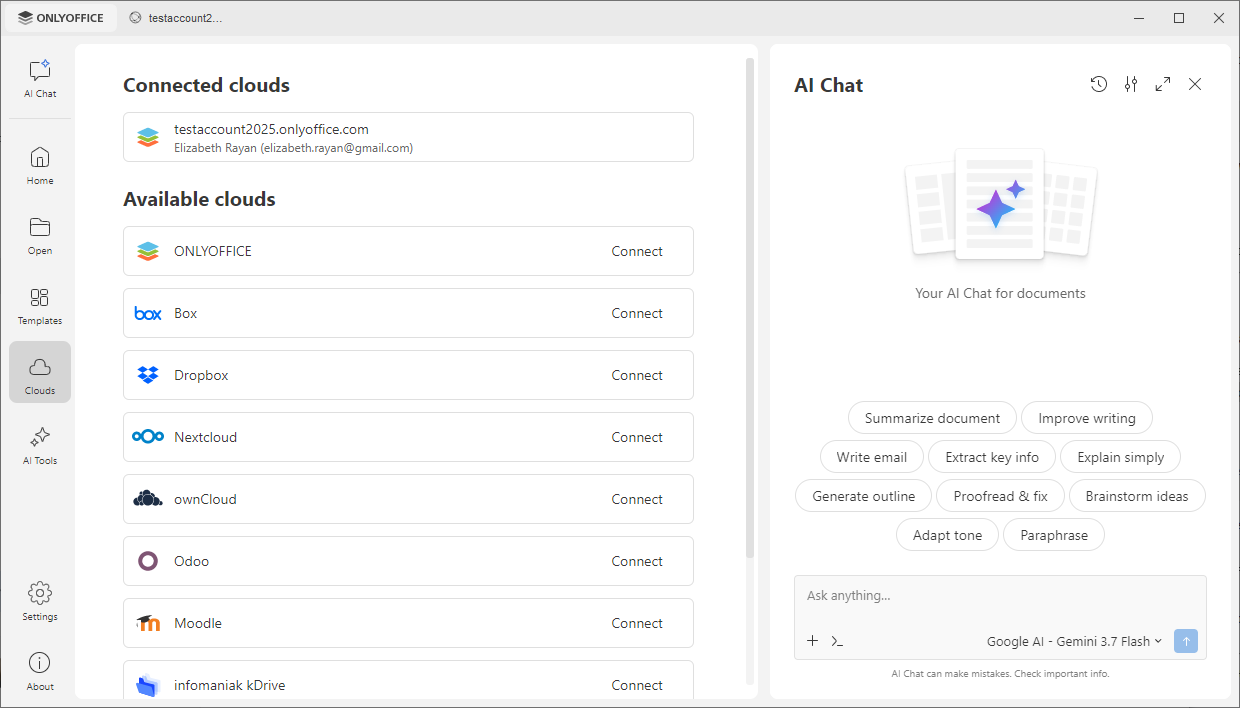
Want to go further? Connect your ONLYOFFICE Cloud to the free ONLYOFFICE Desktop Editors for Windows, macOS and Linux. You keep working with your cloud files and unlock a much wider set of AI features:
- Your own API keys. Connect any provider you like, such as OpenAI, Anthropic, Google, DeepSeek, xAI, Mistral or Together AI, and pay them directly.
- Local models. Run AI on your own computer with Ollama or LM Studio. Your data never leaves your device, and there are no per-request fees.
- Smart forms. Let AI analyze a form and fill it out for you.
- Local file tools. Ask AI to read files and folders on your computer or open your recent documents.
| ONLYOFFICE Cloud | Cloud + Desktop Editors | |
|---|---|---|
| AI models | Hundreds of models via OpenRouter | OpenRouter plus your own API keys for any provider |
| Local models (Ollama, LM Studio) | No | Yes |
| Access to local files | No | Yes |
Try AI in ONLYOFFICE Cloud
AI in ONLYOFFICE 10.0 is already waiting in your workspace. Activate it, choose a model and start working with your documents in a new way. Don’t have an account yet? Create a free account and see what AI can do for your team.
CREATE FREE ACCOUNT GET DESKTOP APP
Your input matters, so don’t hesitate to share your ideas and feedback on our community forum. Shape the future of ONLYOFFICE with us!
Please note that AI responses are generated by third-party models and may contain inaccuracies. Always review important information before using it. The cost of AI requests depends on the model you choose.
Create your free ONLYOFFICE account
View, edit and collaborate on docs, sheets, slides, forms, and PDF files online.