What is an XLS file and how to open one
Summary
An XLS file is a spreadsheet format used by Microsoft Excel up to Office 2003, known as the Microsoft Excel Binary File Format. It is a single binary file that contains various data elements such as cell values, formulas, and embedded objects. To open an XLS file, you can use ONLYOFFICE Spreadsheet Editor, which allows you to edit and convert it to modern formats like XLSX for better compatibility and functionality.
- XLS files are compatible with many spreadsheet applications.
- ONLYOFFICE can open and convert XLS files easily.
- The format supports built-in macros for automation.
- XLS has limitations like fewer rows and columns.
- Converting to XLSX improves scalability and reduces file size.
Even though modern spreadsheets have long moved to XML-based formats, files with the .xls extension are still everywhere: in old accounting archives, legacy business systems, government data portals, and email attachments from partners who never upgraded. If you’ve ever received one and wondered what exactly it is and whether it’s safe to keep using, this article is for you.
Below, we’ll look at what the XLS format is, how it works under the hood, how it differs from XLSX, its strengths and limitations, and how to open, edit, and convert XLS files.
Technical overview
XLS (Microsoft Excel Binary File Format) is the spreadsheet format that Microsoft Excel used by default up to and including Office 2003. Its internal structure is known as BIFF (Binary Interchange File Format). The format evolved over several Excel releases, from BIFF2 in Excel 2.x to BIFF5 in Excel 5.0/95, but today “XLS” almost always means BIFF8, the version used by Excel 97, 2000, XP, and 2003. That’s why the format is also known as Excel 97–2003 Workbook.
Unlike modern XLSX files, which are ZIP archives full of readable XML, an XLS file is a single binary file. Since Excel 5.0, it has been built on Microsoft’s Compound File Binary Format (also called OLE2 structured storage), a kind of “file system inside a file”. The main Workbook stream holds a long sequence of binary records that describe everything in the spreadsheet:
- Cell values, strings, and number formats
- Formulas, stored in a compiled (tokenized) form
- Sheet structure, styles, and fonts
- Charts, images, and other embedded objects
- VBA macros, stored in a separate stream
The format is proprietary, but it’s no longer a black box. Microsoft published the specification in 2008 under its Open Specification Promise and still maintains it as MS-XLS. Thanks to this, many applications beyond Excel can read and write XLS files reliably.
XLS also comes with hard limits inherited from its era: a worksheet can hold at most 65,536 rows and 256 columns (up to column IV). For the data volumes of the late 1990s that was plenty; for today’s datasets, it often isn’t.
XLS vs XLSX
With Excel 2007, Microsoft replaced XLS with XLSX, an XML-based format from the Office Open XML (OOXML) standard, later approved as ISO/IEC 29500. Here’s how the two compare at a glance; for a detailed look at when to choose each one, see our article XLS vs XLSX: differences and ways to convert between.
| XLS | XLSX | |
| Default in | Excel 97–2003 | Excel 2007 and later |
| Structure | Binary records (BIFF8) in a compound file | ZIP archive of XML files |
| Standard | Proprietary, openly documented (MS-XLS) | Open standard (ECMA-376, ISO/IEC 29500) |
| Max rows × columns | 65,536 × 256 | 1,048,576 × 16,384 |
| Macros | Supported in the same file | Not allowed (XLSM is used instead) |
| Recovery and inspection | Requires specialized tools | Can be unzipped and inspected |
| File size | Usually larger | Usually smaller thanks to ZIP compression |
In short, XLSX is more scalable, more compact, and easier to integrate with other tools, while XLS remains the format for maximum backward compatibility.
Where XLS files are still used
More than twenty years after XLSX arrived, XLS is far from extinct. Many legacy business systems, such as older ERP, banking, and accounting software, still export reports in XLS because that’s what they were built for. Public institutions and statistical offices often keep historical datasets in their original format, so archives from the 1990s and 2000s are full of .xls files.
XLS is also common in data exchange with partners who use older versions of Excel or tools that only understand the binary format. Finally, some macro-driven workbooks created years ago keep circulating as XLS simply because nobody wants to risk breaking the VBA code by migrating them.
Pros and cons of XLS files
Pros
- Maximum compatibility: Practically every spreadsheet application, old or new, can open XLS files.
- Built-in macro support: VBA code can be stored in a regular .xls file without switching to a separate format.
- Well documented: The published specification makes the format predictable for developers and converters.
Cons
- Size limits: 65,536 rows and 256 columns are often not enough for modern data.
- Outdated features: Newer functions, formatting options, and table features can’t be saved in XLS.
- Security risks: Legacy binary formats with macros are a common vector for malware, so many organizations block or flag them.
- Hard to recover: If a binary file gets corrupted, its content can’t be inspected or repaired manually.
How to open XLS files
Microsoft stopped using XLS as its default format years ago, but that doesn’t mean you need an outdated version of Excel to deal with these files. ONLYOFFICE Spreadsheet Editor, included in the ONLYOFFICE Docs suite, opens XLS workbooks alongside dozens of other spreadsheet formats, and lets you work on them securely and together with your team.
Opening XLS files with ONLYOFFICE
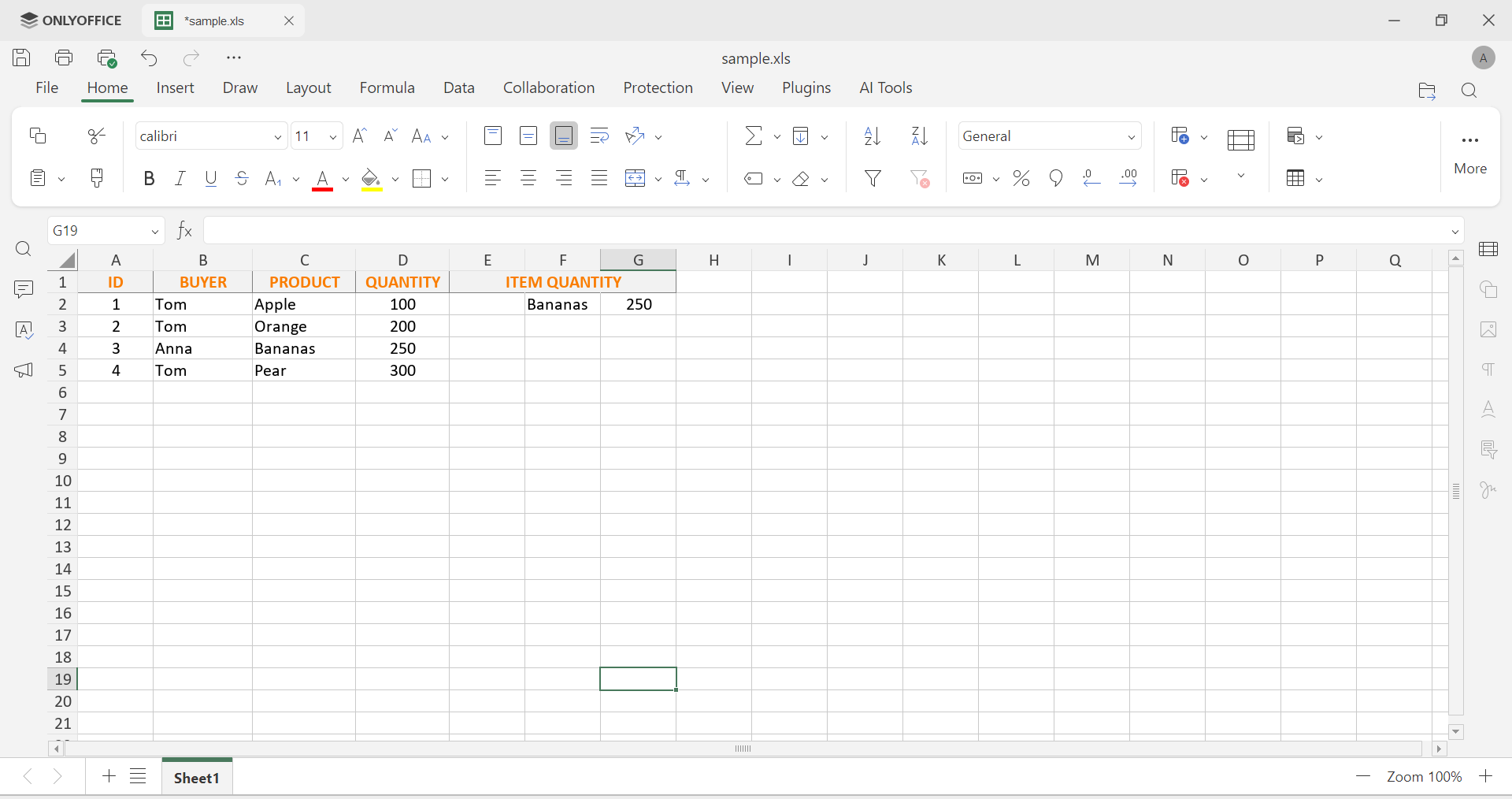
To open an XLS file, simply double-click it from your computer or connected storage. When the file is opened for editing, ONLYOFFICE automatically converts it to XLSX. This speeds up processing and unlocks all the features of the modern format, while your data, formulas, and formatting stay in place.
Once the file is open, you get a familiar spreadsheet environment with formulas, functions, pivot tables, charts, conditional formatting, and real-time co-editing, so you can review legacy data together with your colleagues.
Converting XLS files
If you want to move away from the legacy format for good, ONLYOFFICE makes it easy. Open your XLS file, go to File → Download as, and pick the format you need:
- XLSX for everyday work with modern spreadsheet software
- XLSM if the workbook needs to keep macros
- ODS for an open, vendor-neutral standard
- PDF or PDF/A for sharing and long-term archiving
- CSV for importing data into databases and other tools
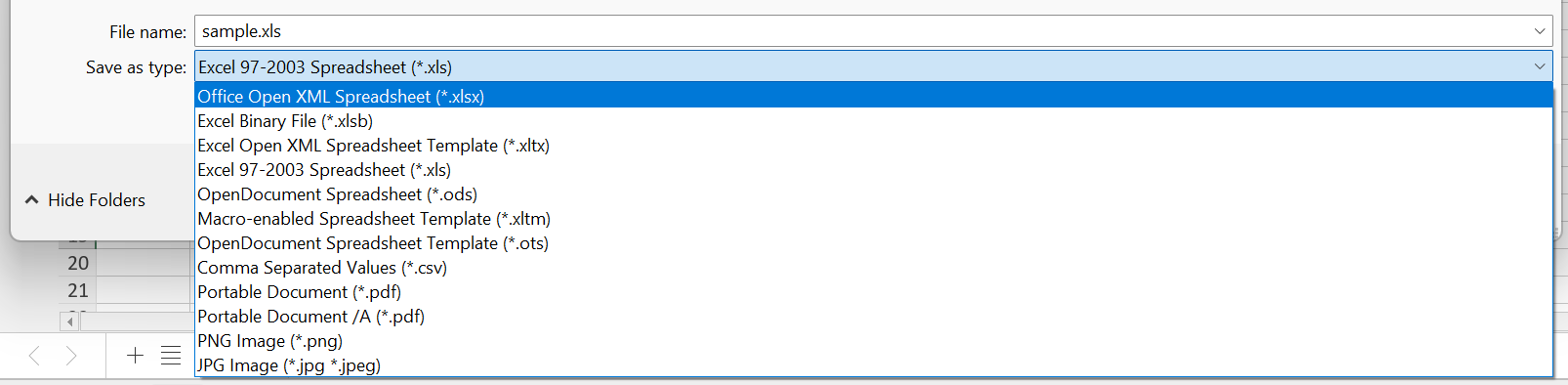
ONLYOFFICE Spreadsheet Editor can also export to XLSB, XLTX, XLTM, OTS, JPG, and PNG. And if your partners or legacy systems still require the old format, ONLYOFFICE Docs 10.0 lets you save spreadsheets in the classic XLS format as well. Converting old XLS files to XLSX is generally a good idea: you’ll get rid of the row and column limits and reduce file size.
Converting XLS files online
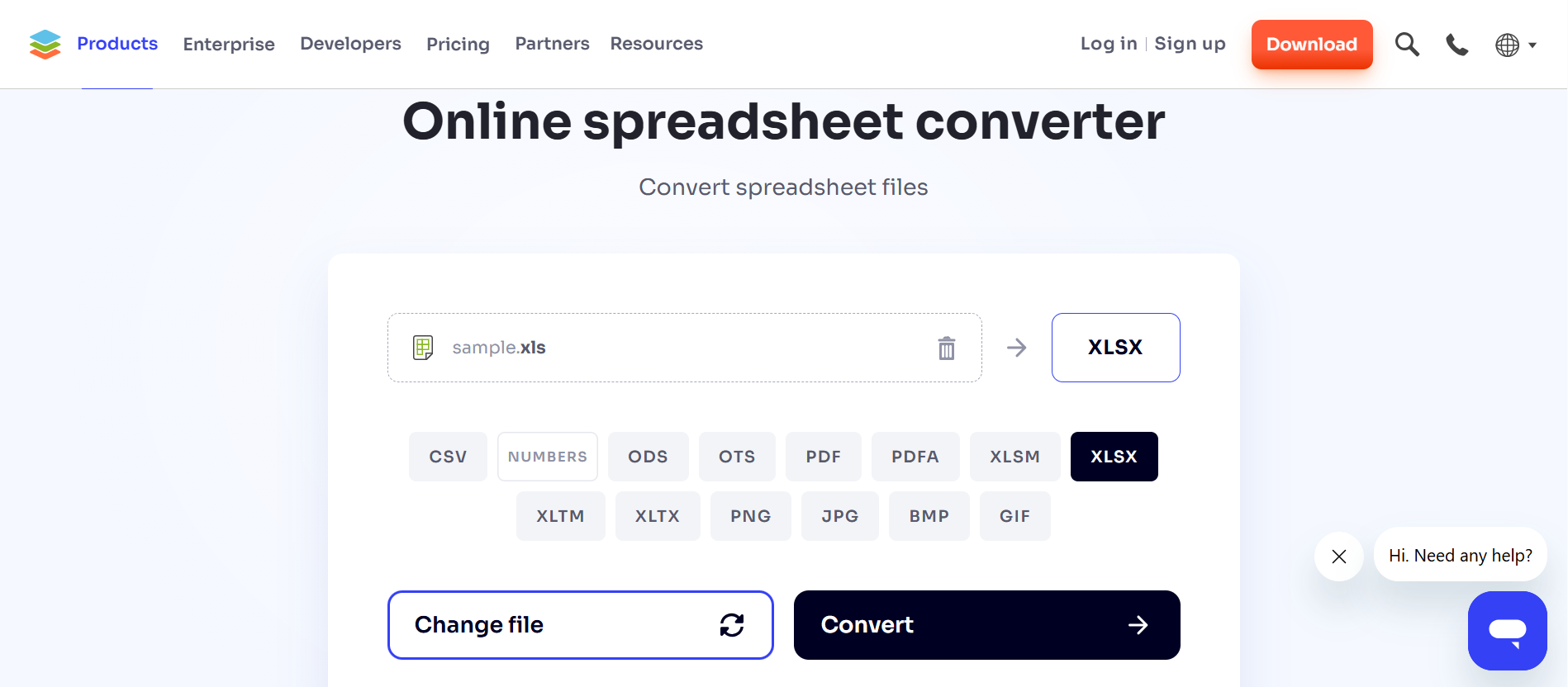
For a one-off conversion, you don’t even need to open an editor: the free ONLYOFFICE online document converter turns XLS files into XLSX, ODS, CSV, PDF, and other formats right in your browser, without registration. It handles files up to 5 MB and deletes them from the server after conversion.
Give your old XLS files a new life with ONLYOFFICE
Bring your XLS files into a modern workspace where you can view, edit, co-author, and convert them in just a few clicks. Work in the browser with a free cloud account, or install the free desktop editors on Windows, Linux, or macOS and keep everything on your own computer.
Create your free ONLYOFFICE account
View, edit and collaborate on docs, sheets, slides, forms, and PDF files online.