New Antidote plugin for ONLYOFFICE: check and improve your texts in English and French
Summary
The new Antidote plugin for ONLYOFFICE allows users to check and improve their texts in English and French directly within the ONLYOFFICE editors. This integration eliminates the need to switch between applications, enabling users to proofread, reformulate, and access language resources seamlessly while maintaining document formatting.
- The plugin connects ONLYOFFICE with Antidote software.
- It checks grammar, spelling, punctuation, and style.
- Users can access dictionaries and guides for language support.
- The plugin is free to install but requires an Antidote account.
- It works with Document Editor and Spreadsheet Editor.
Proofreading a document often means switching between your editor and a separate language tool. You copy text, check it, go back to the document, make changes, and repeat the process. At our users’ request, the new Antidote plugin brings this part of the workflow into ONLYOFFICE.
Discover what the plugin offers and how to install and use it in our article from the back to school series.

About the Antidote plugin
The new Antidote plugin connects ONLYOFFICE with Antidote, a linguistic software package for English and French.
Antidote can be used to review and improve your text eight in the editors beyond basic spell-checking. Its Corrector checks grammar, spelling, punctuation, and style, and its Dictionaries and Guides give more information about words and language use.
With the plugin, you can:
- Verify the whole document or a part of it;
- Correct spelling, grammar, punctuation, and other language issues;
- Detect hidden repetitions and style problems;
- Get suggestions for clearer and more precise wording;
- Find suitable synonyms;
- Look up words in Antidote’s Dictionaries and Guides.
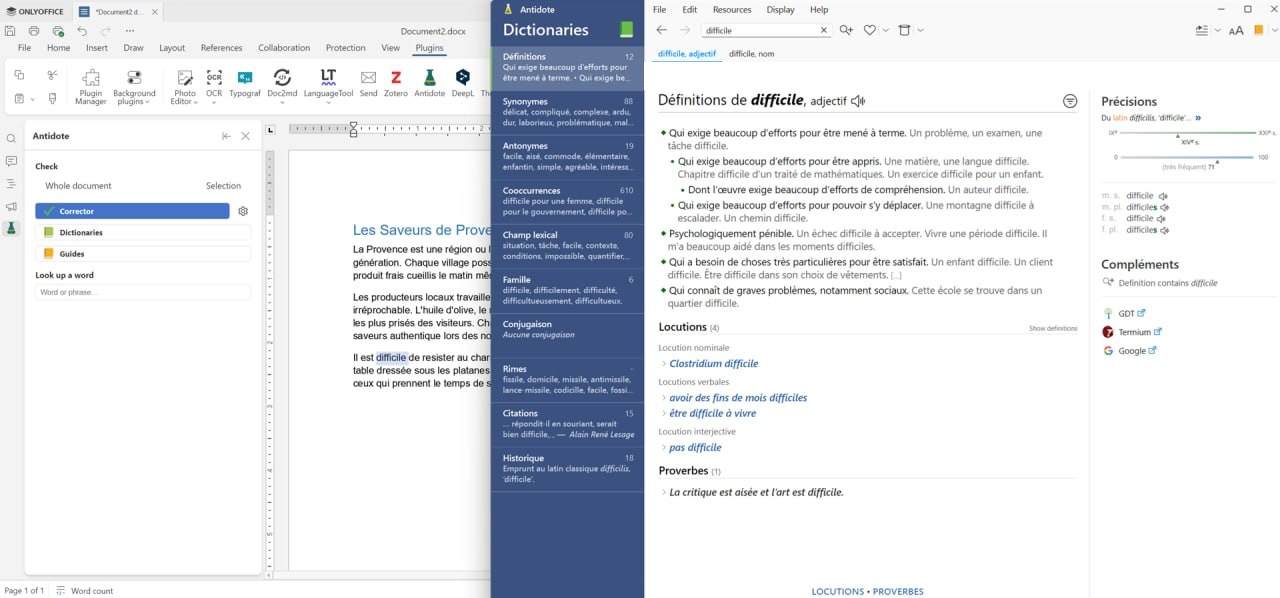
How to use the Antidote plugin for ONLYOFFICE
The Antidote plugin adds three basic tools directly in ONLYOFFICE:
- Corrector – to proofread your text;
- Dictionaries – to check individual words;
- Guides – to get additional information about language and writing.
How to check and correct your text
Use Corrector to verify your text for spelling, grammar, punctuation, and style mistakes. It can also detect repetitions and give you tips on how to improve your language.
1. Open the Antidote plugin in the Plugins tab.
2. Select the part of the text you want to check. To check the entire document, make sure the Whole document option is selected in the left-side panel.
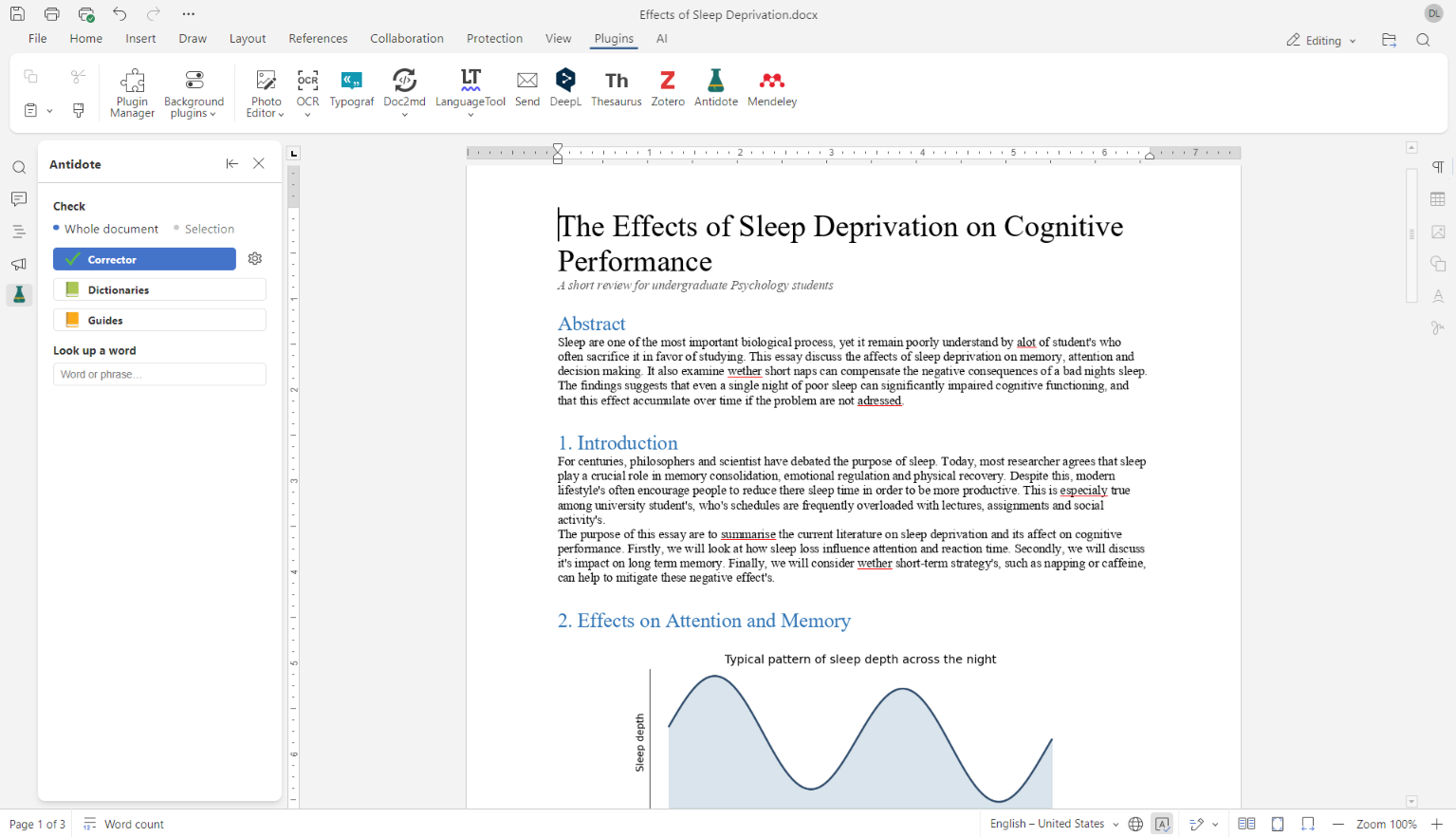
3. Click Corrector to launch the analysis. The Antidote window will open with the analysis of your text.
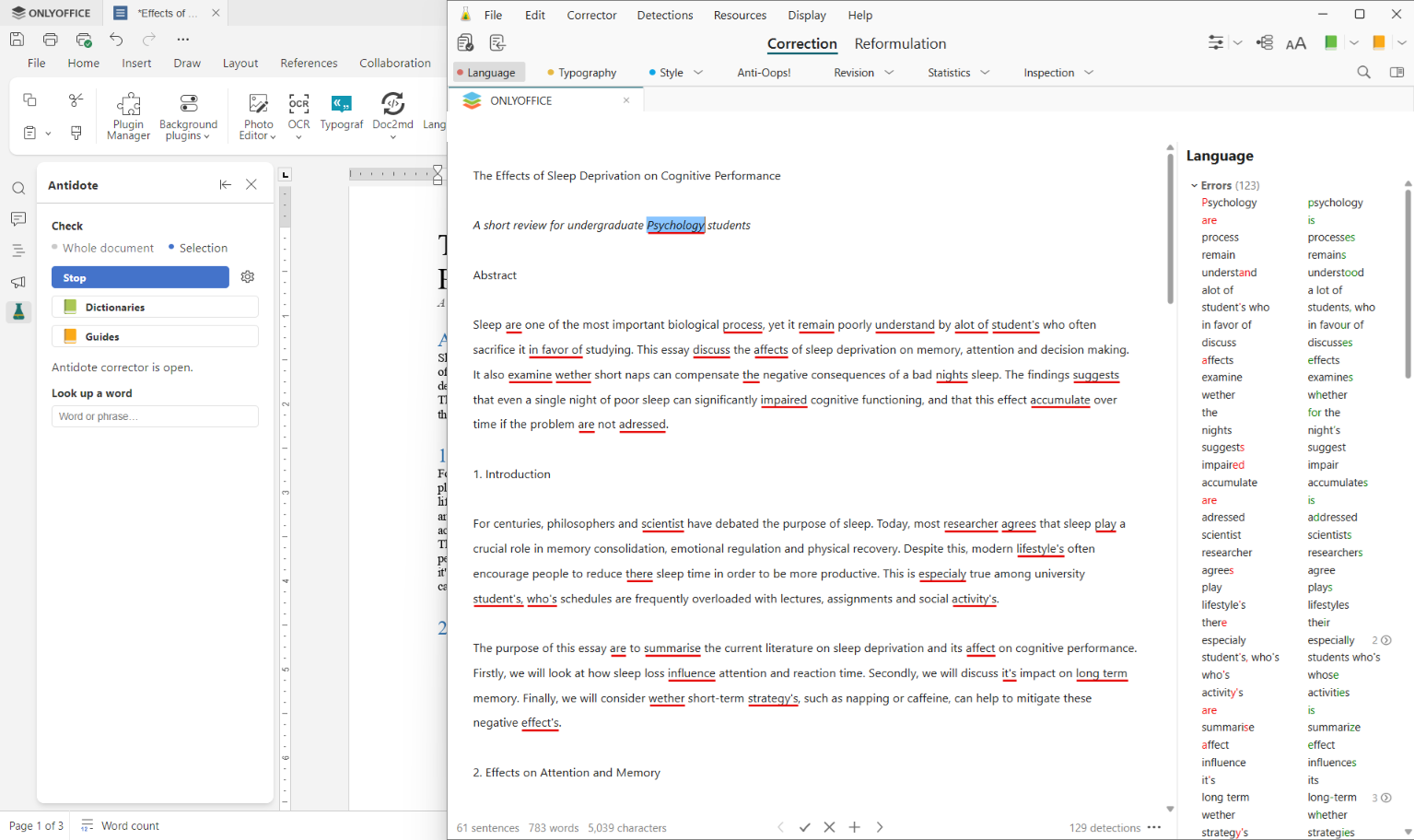
4. Review the issues detected by Antidote and apply the suggested corrections where needed. Accepted changes will be automatically applied to your document in ONLYOFFICE editor.
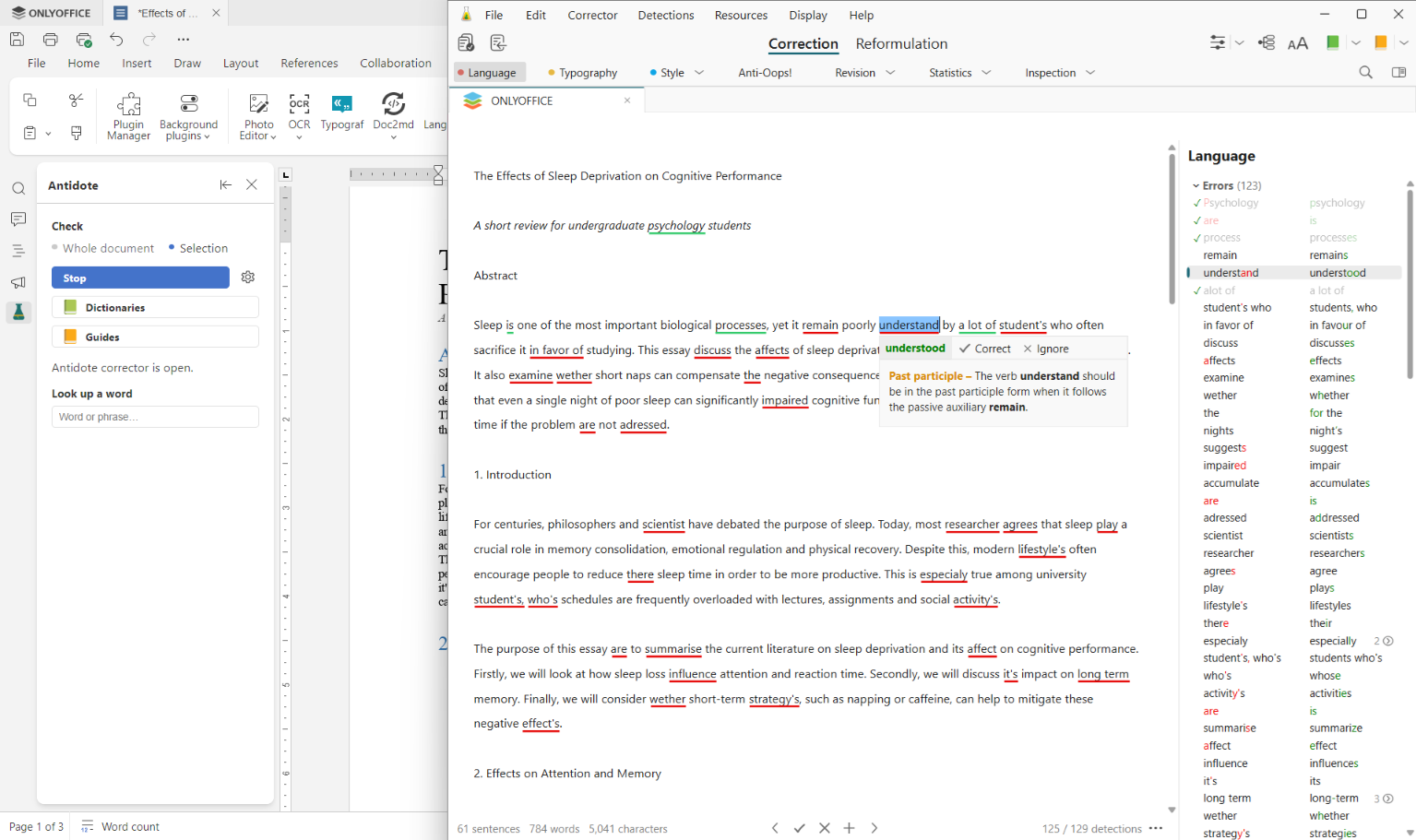
You can also switch between the Antidote tabs to review different aspects of your text:
- Typography checks quotation marks, spacing, capitalization and other typographic details;
- Style deals with word choice and style issues that may affect how clear your writing is;
- Anti-Oups catches small mistakes and oversights that are easy to miss during proofreading;
- Spelling detects and suggests corrections for misspelled words;
- Grammar finds grammar errors and suggest corrections;
- Punctuation checks commas, periods, and other punctuation marks;
- Repetitions identifies repeated words and phrases;
- Vocabulary spots imprecise or inappropriate word choices.
With the Antidote plugin, you don’t need to switch between applications, copy your text into a separate tool, and paste it back into ONLYOFFICE. There is no need to restore the formatting afterwards either. When you accept a correction in the Antidote window, the change is automatically applied to the document in the ONLYOFFICE editor.
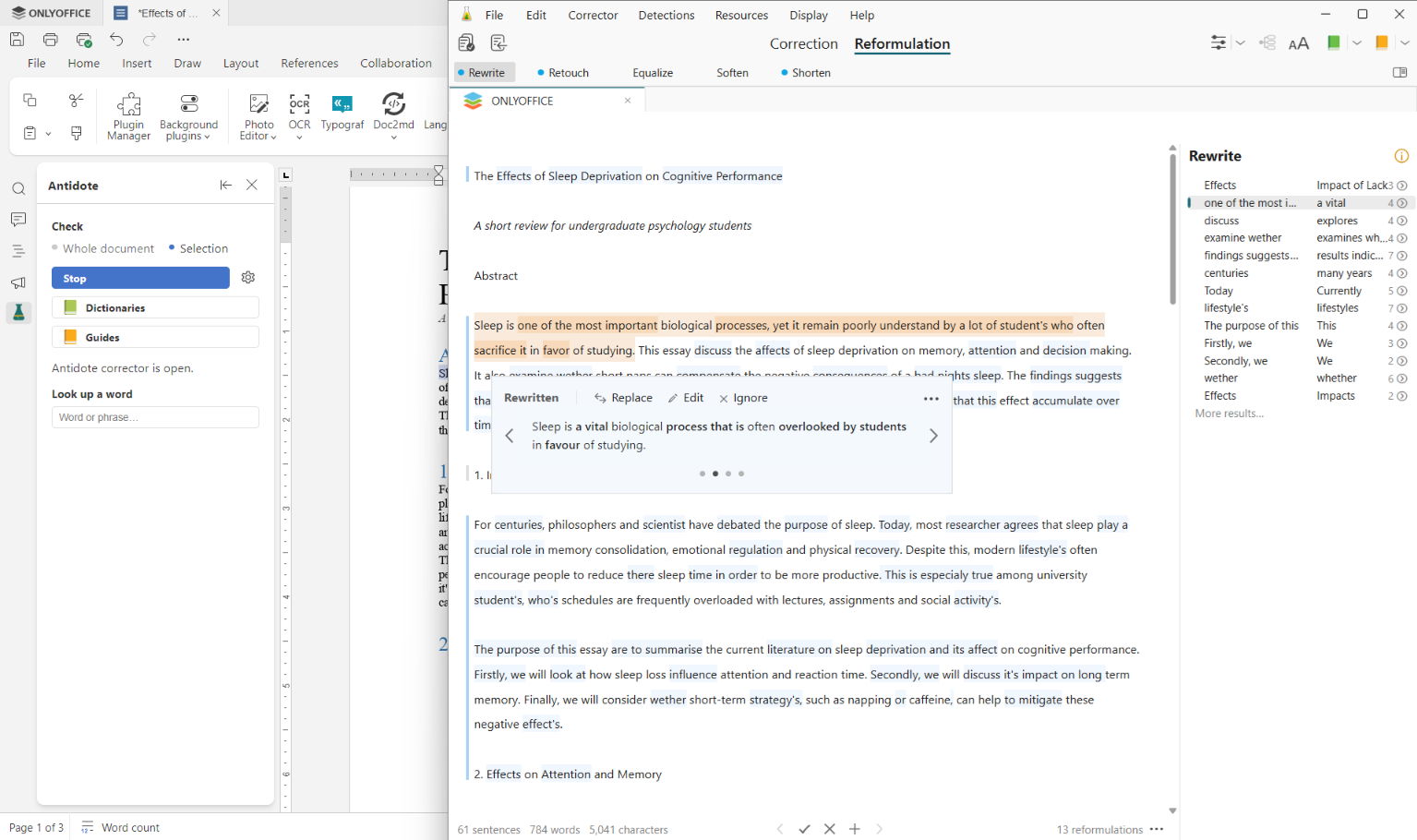
How to reformulate your text with Antidote
In the same way, you can reformulate and find precise wording with Antidote.
1. Select the word or phrase you want to reformulate. Or, do not use the selection to reformulate the whole text.
2. Click Corrector, switch to the Reformulation tab, and explore the available alternatives for your phrases.
3. Accept the options that fit your context.
The selected phrases are replaced directly in the ONLYOFFICE editor, while the rest of your document formatting remains unchanged.
How to use Dictionaries with Antidote
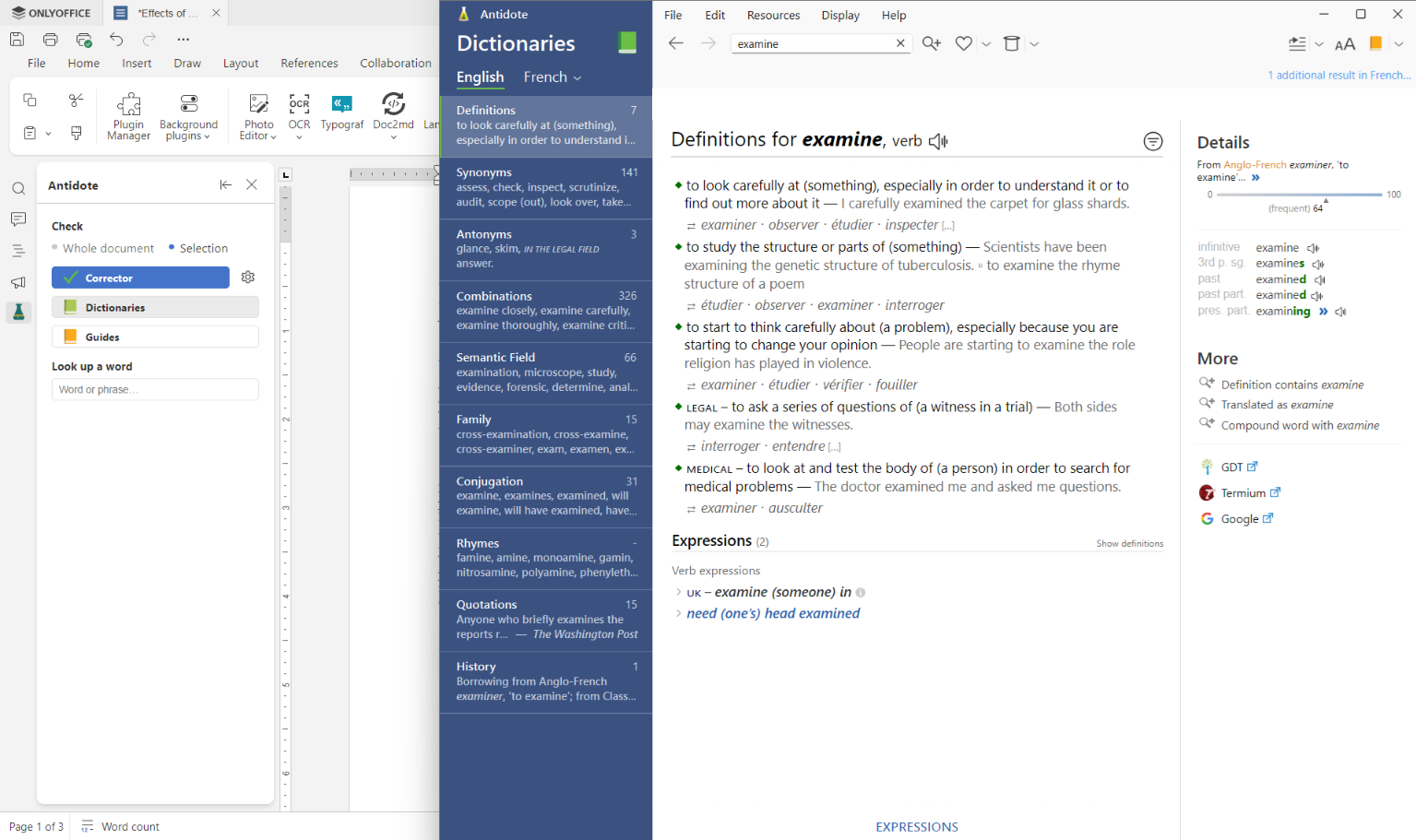
Use Dictionaries to check definitions, find synonyms, and explore different meanings of words directly from your document.
1. Select the word you want to look up.
2. Click Dictionaries and explore the available definitions, synonyms, and other information about the selected word.
How to use Guides with Antidote
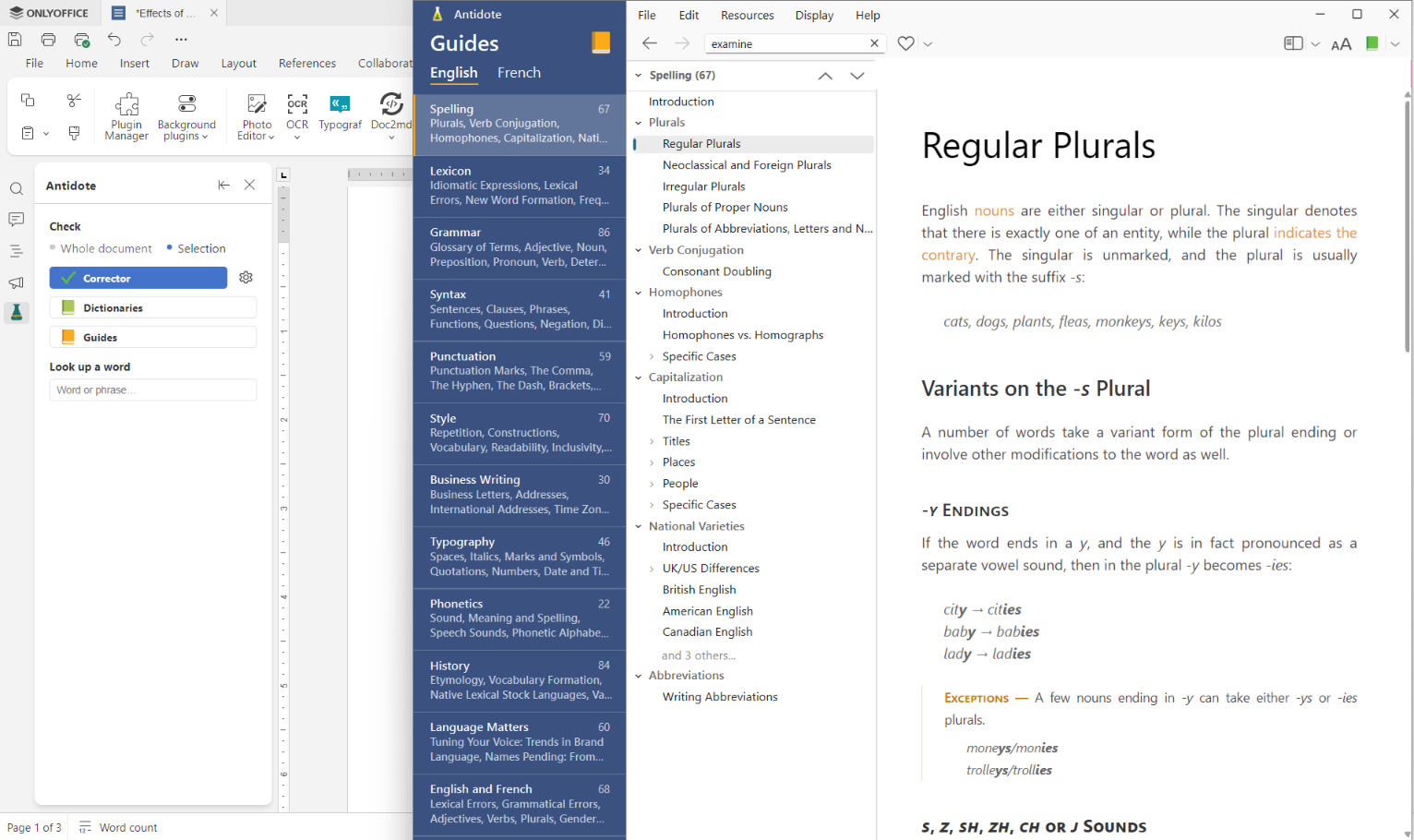
Guides provide detailed information about grammar, spelling, punctuation, style, and other aspects of English and French writing. They can help you better understand language rules, compare different ways of expressing an idea, and make more informed editing decisions.
Use Guides to clarify a language question, check whether a construction is appropriate, or improve the accuracy and style of your text. The relevant information is displayed directly in the Antidote window, so you can consult it without leaving the ONLYOFFICE editor.
How to install and configure the plugin
Before installing the plugin, make sure you meet the following requirements:
- ONLYOFFICE 9.3.0 or later (cloud, self-hosted, or desktop versions);
- Antidote 12;
- Connectix, a local service provided by Antidote.
Install the plugin in ONLYOFFICE
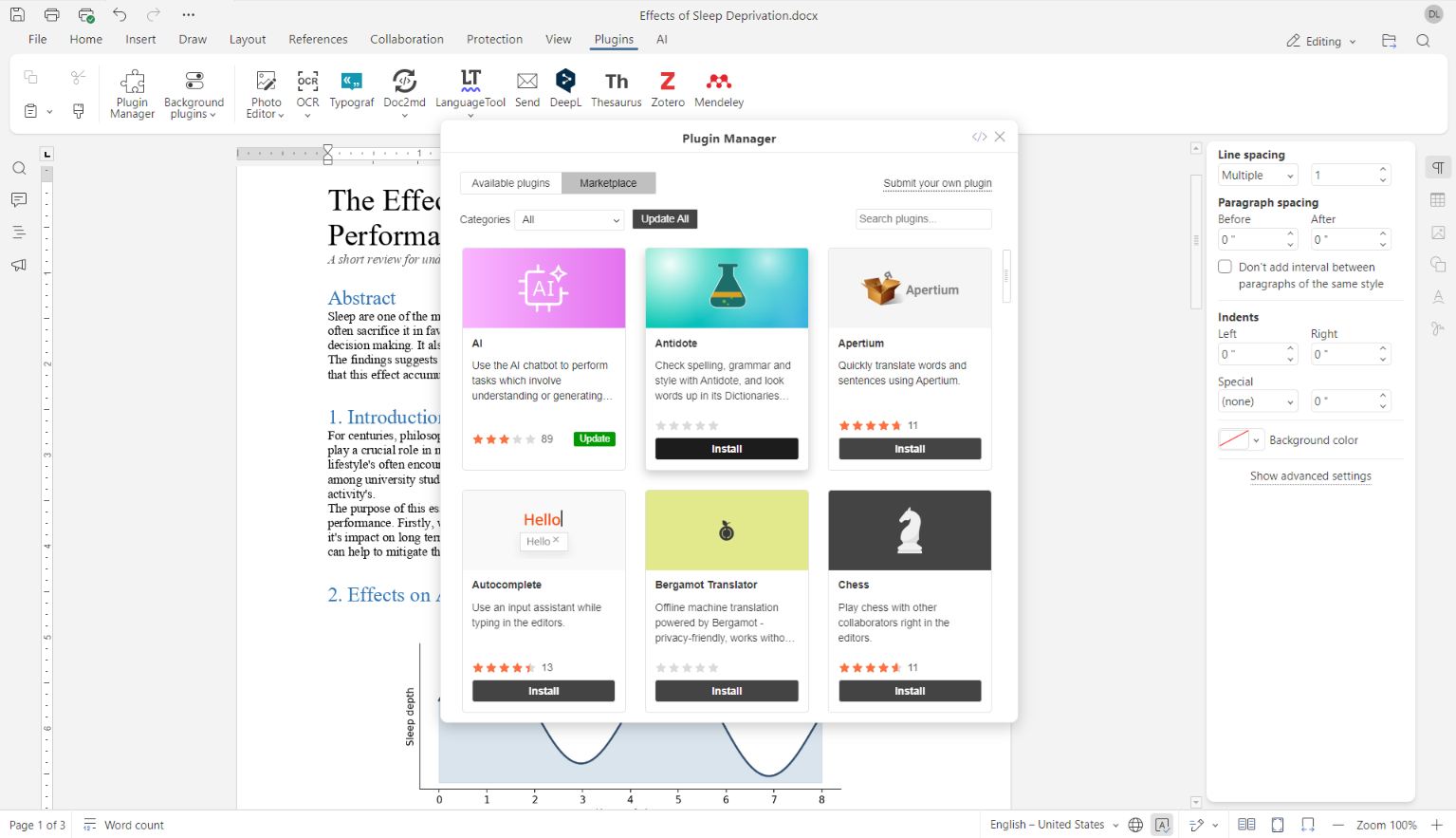
The Antidote plugin can be installed in ONLYOFFICE.
1. Open an ONLYOFFICE editor and go to the Plugins tab.
2. Click the Plugin Manager.
3. Find Antidote in the list and click Install.
Once installed, the plugin will be available from the Plugins tab.
Connect the plugin to Antidote
The setup depends on where the editors and Antidote are running:
- Desktop Editors: Antidote 12 on the same computer as ONLYOFFICE Desktop Editors. When you open the plugin, it automatically detects the local Antidote service and connects to it.
- Server: For self-hosted ONLYOFFICE Docs, install the plugin on the same server that hosts the editors and Antidote. When the plugin starts, it automatically connects to the local Antidote service.
- Browser: In some browsers, notably Chrome 142 and later, access to the page may be restricted. If this happens, install the plugin on the server hosting ONLYOFFICE Docs or use ONLYOFFICE Desktop Editors with Antidote installed locally.
If the port cannot be detected automatically, enter it manually in the plugin’s Settings.
Once the connection is established, you can check your text with Corrector or look up words in Dictionaries and Guides.
Start improving your texts with Antidote
The Antidote plugin brings advanced language checking directly into ONLYOFFICE. You can review your English and French texts, correct grammar and spelling issues, improve style, and look up words without copying your text to another application.
GET DESKTOP APPS INSTALL ON-PREMISE
FAQ: Antidote plugin for ONLYOFFICE
Which ONLYOFFICE editors are compatible with the Antidote plugin?
The Antidote plugin works with Document Editor and Spreadsheet Editor.
Do I need an account to use the Antidote plugin?
Yes. You need an Antidote account and the Antidote 12 application installed and running locally.
Is the Antidote plugin free?
Yes, the Antidote plugin for ONLYOFFICE is free to install and use. However, Antidote is a paid linguistic software package. If you want to try it before purchasing, you can use the 30-day free trial offered by Antidote.
Where can I share feedback about the Antidote plugin?
You can share your feedback or suggest improvements in the ONLYOFFICE community. Your feedback helps us improve the plugin and the ONLYOFFICE solutions.
Useful links
Antidote plugin: Marketplace / GitHub
Create your free ONLYOFFICE account
View, edit and collaborate on docs, sheets, slides, forms, and PDF files online.