Table recognition in ONLYOFFICE PDF Editor: stop rebuilding PDF tables by hand
PDF files are commonly used for sharing invoices, reports, price lists, and product catalogs. But when you need to update information in one of these documents, editing a table can become a separate task. Instead of simply changing the information, you may have to recreate the table in another application.
Since version 10, ONLYOFFICE PDF Editor offers a more direct way to handle these changes. It automatically recognizes tables and makes them editable directly in the PDF. You can work with the recognized table instead of manually rebuilding its rows and columns.
Let’s see how to edit an existing PDF table.

Why PDF tables are difficult to edit
A table in a PDF may look just like one in a spreadsheet or text document, but it does not necessarily retain the same editable structure. Depending on how the PDF was created, the content may be stored as separate text elements or as an image.
This becomes a problem when you need to make even a small correction. For example, updating a product price might involve more than replacing a number. You may have to recreate the table, adjust column widths, align text with the correct cells, and restore the borders.
The same applies to invoices, financial reports, schedules, and other documents where tables contain information that changes over time. Rebuilding the layout just to correct a few details takes unnecessary time.
Automatic table recognition in ONLYOFFICE PDF Editor
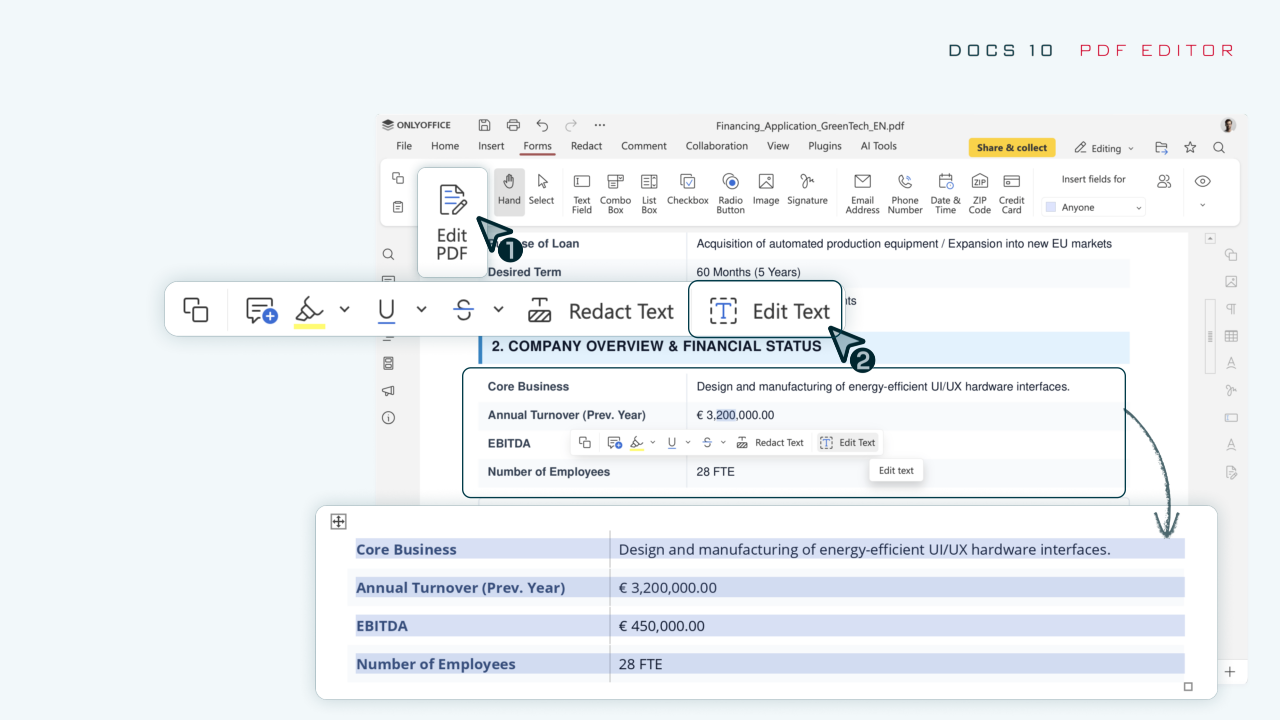
In ONLYOFFICE PDF Editor 10.0, you no longer have to recreate a bordered table before editing its content. The editor detects rows and columns and makes the table structure available for editing.
The feature can be useful for:
- Price lists and product catalogs: update prices, quantities, or product descriptions.
- Invoices and financial documents: correct figures, dates, or other details.
- Reports and schedules: replace outdated information without recreating the table.
Let’s see how to make changes to an existing table.
How to edit a table in a PDF
Step 1. Open the PDF in editing mode
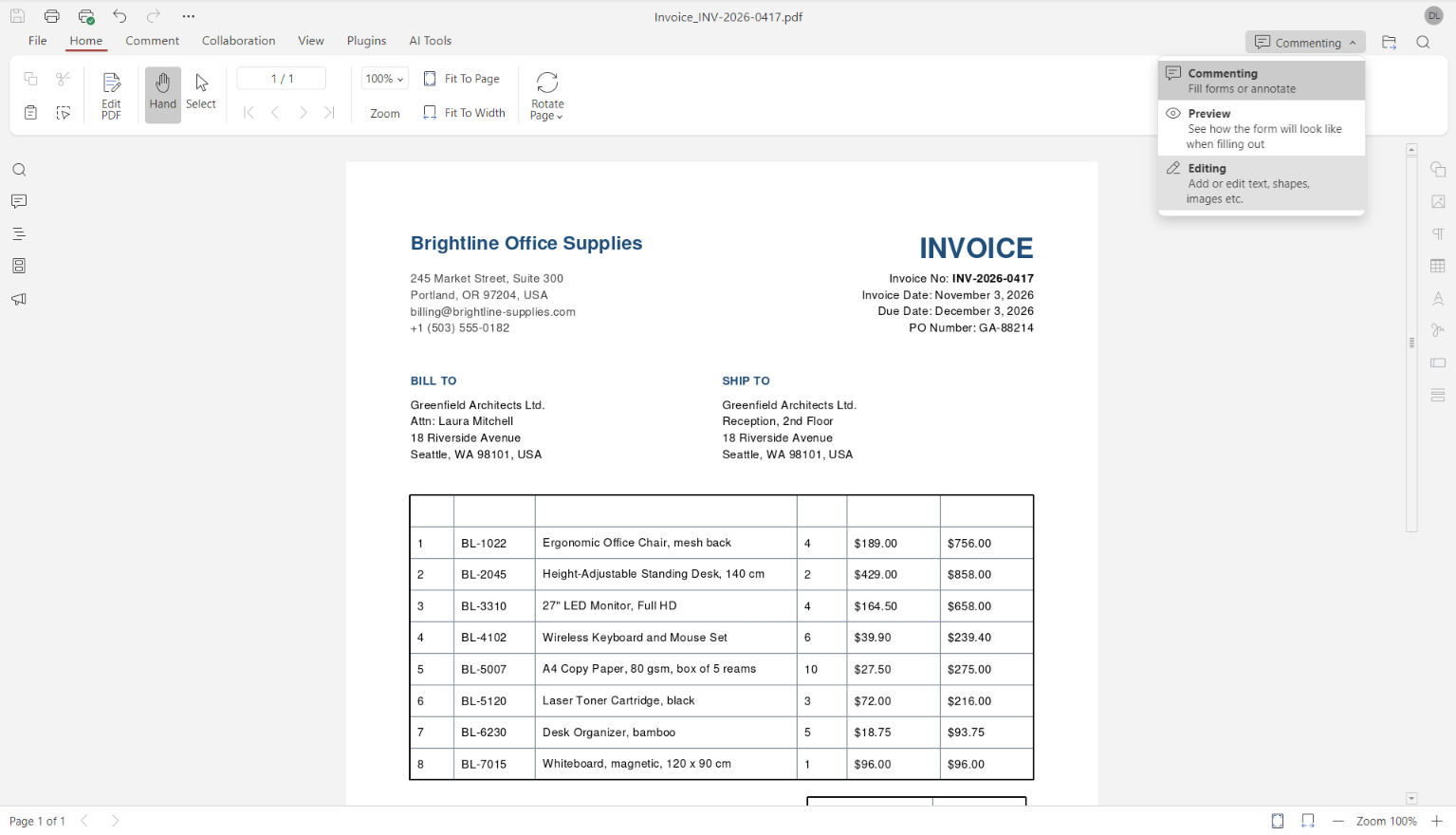
Open your PDF file in PDF Editor and switch to editing mode. Click Edit PDF on the top toolbar or use the drop-down list in the upper-right corner to access the editing tools.
Step 2. Select edit text
Go to the Home tab and click Edit Text. The editor will automatically detect tables with visible borders and recognize their structure.
Step 3. Edit the table content
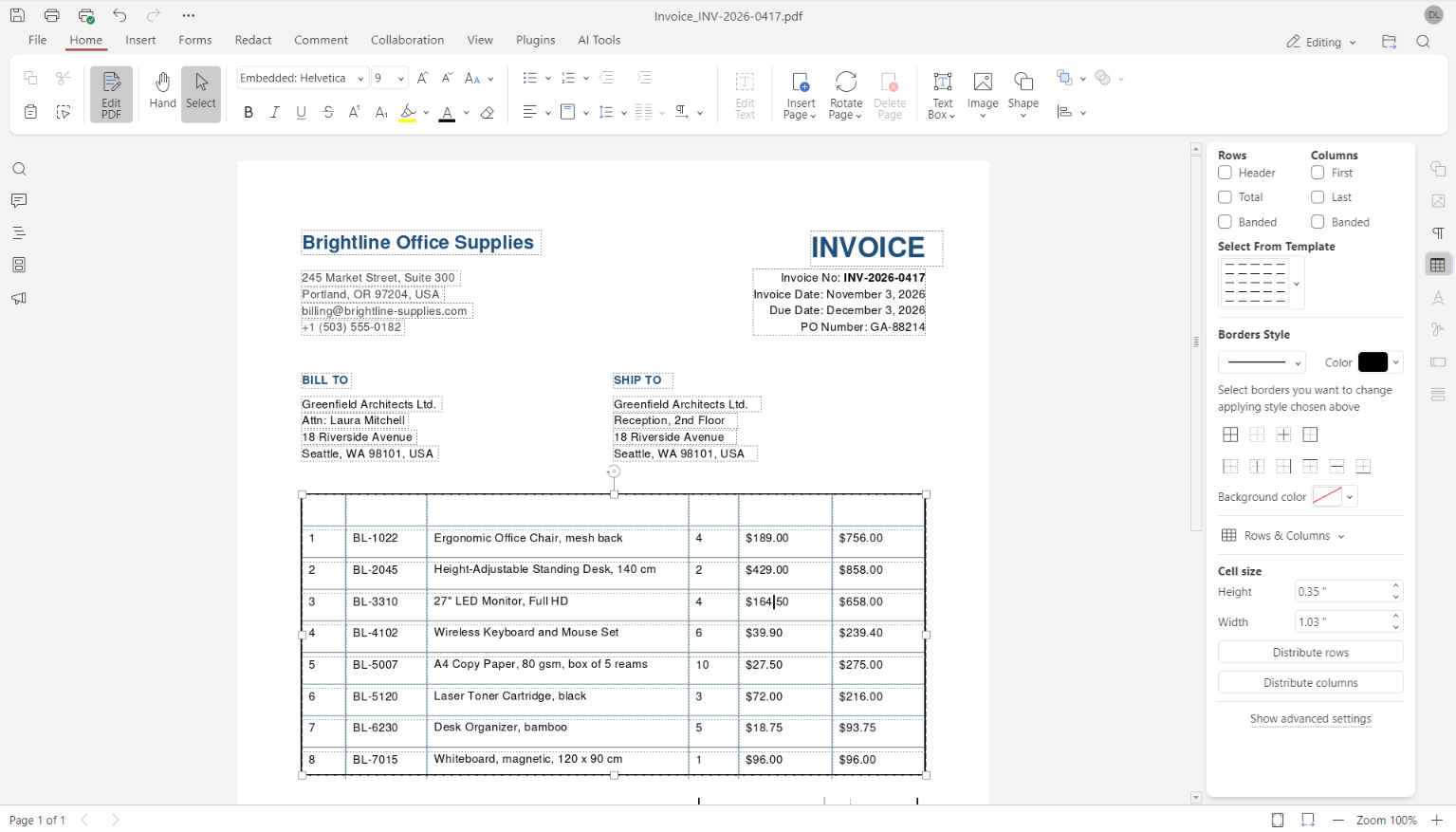
Edit the table content. Click the text you want to change and enter the new information. You can update individual values or descriptions directly in the recognized table without recreating its rows and columns.
Step 4 (optional). Format the table
To adjust the table’s appearance, open the table settings in the right-hand sidebar. There, you can change table template, border style and color, background color, cell size, etc.
Step 5. Save the PDF
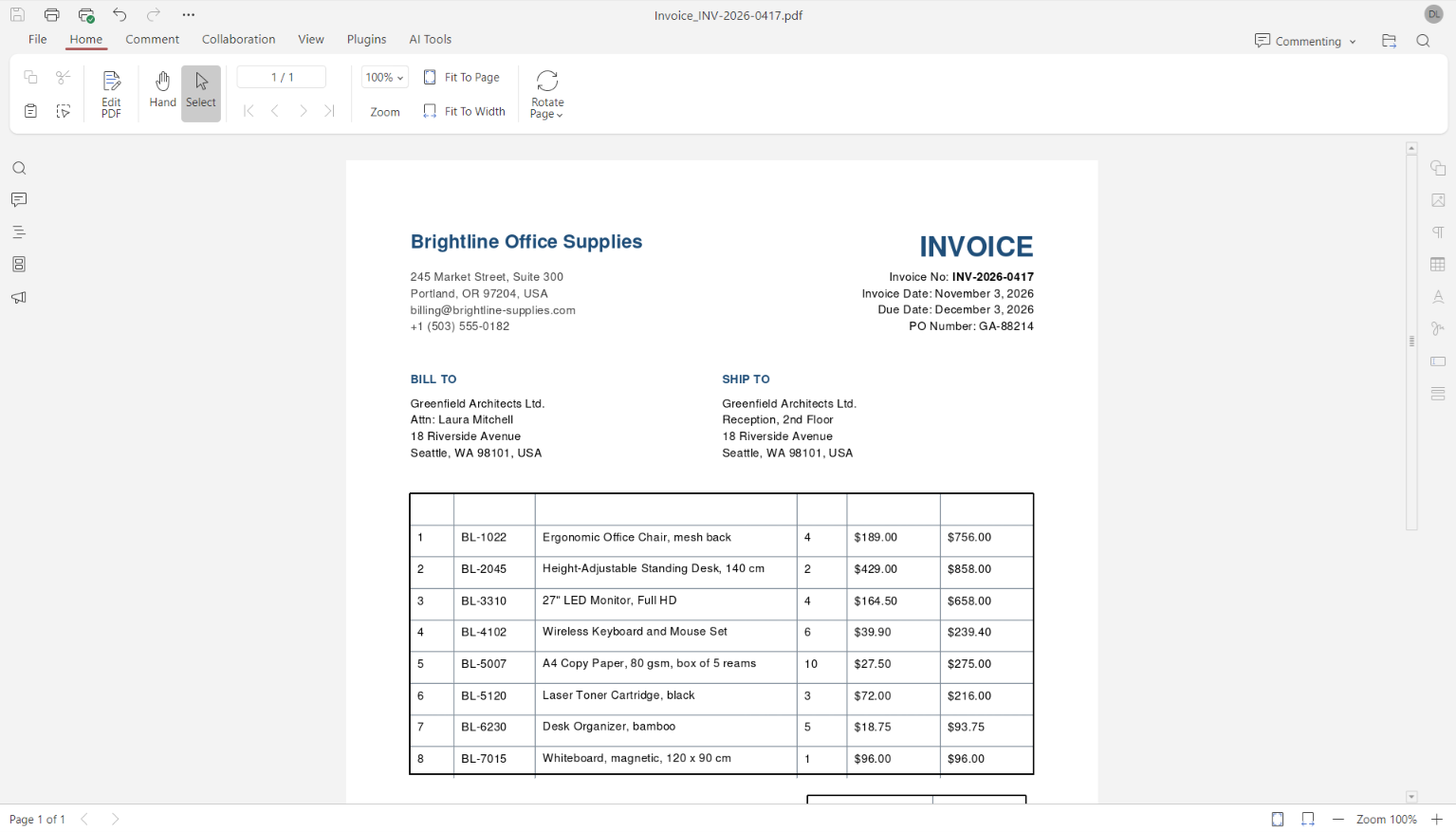
Once you’ve finished editing and formatting the table, switch to Commenting mode to preview how it looks in the document. If everything is correct, save the PDF with your changes.
Edit tables in PDF with ONLYOFFICE
Use ONLYOFFICE PDF Editor to edit your PDFs and work with other document types in the desktop app for Windows, Linux, and macOS, or create a free cloud account.
Create your free ONLYOFFICE account
View, edit and collaborate on docs, sheets, slides, forms, and PDF files online.