How to redact PDF correctly
PDF documents are often shared outside a company. They are sent to partners, clients, or public platforms. At the same time, many PDF files contain information that should not be disclosed.
This can be personal data, financial details, or internal notes. If such information is not removed correctly, it can still be extracted from the file. That is why PDF redaction matters.
In this article, we explain how to redact PDF files correctly, what mistakes to avoid, and how to make sure sensitive data is really removed.
What PDF redaction means
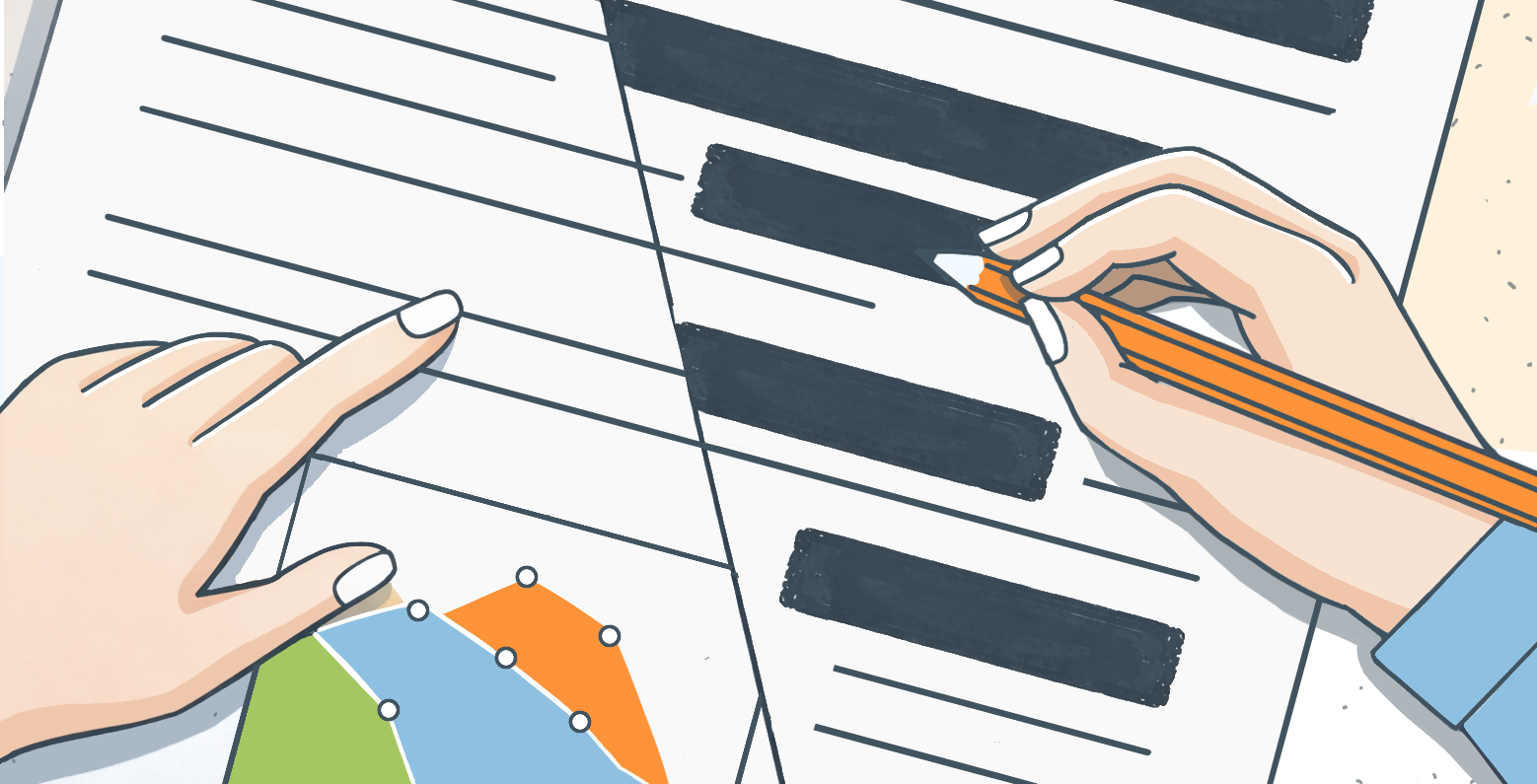
Redacting a PDF means permanently deleting information from the document. Once the data is redacted, it cannot be recovered by copying, searching, or opening the file in another editor.
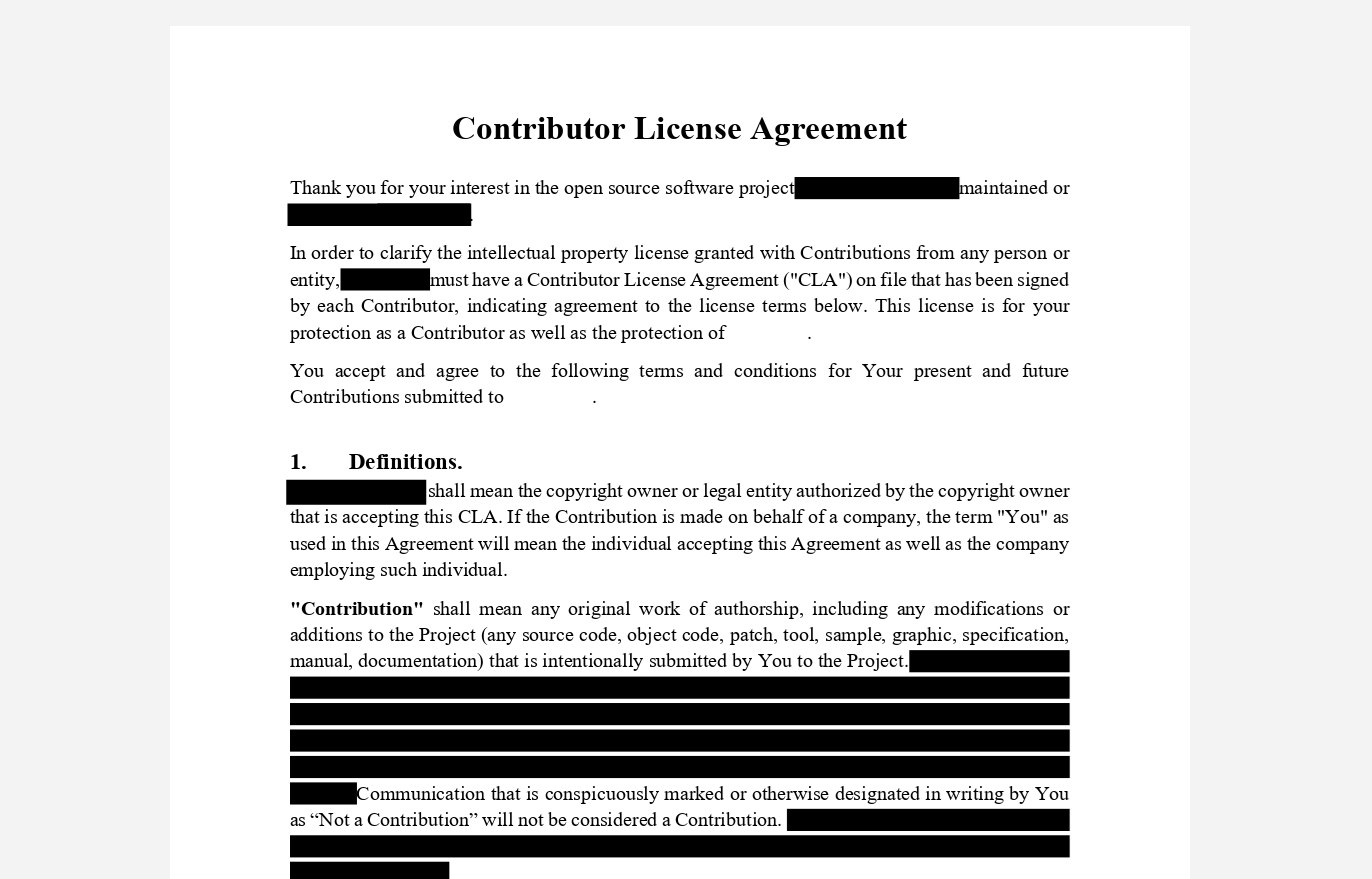
This is different from simply hiding text. Many users draw black rectangles over words or cover text with images. Visually, this looks like redaction. In reality, the original content often remains inside the file.
Anyone who knows how to work with PDFs can remove these visual elements and read the hidden text. Proper PDF redaction removes the data itself, not just its appearance.
Why incorrect PDF redaction is a risk
Incorrect redaction is a common cause of data leaks. Documents that appear safe may still contain searchable or extractable information.
This can lead to serious problems. Exposure of personal data may result in GDPR violations. Unauthorized users can access financial or legal details. In some cases, companies only discover the issue after the document has already been shared.
PDF files often include sensitive information such as names, phone numbers, addresses, bank details, contract clauses, or medical data. If even part of this information remains in the file, the document is not safe to share.
Common PDF redaction mistakes
Even cautious users often edit PDF files incorrectly. Most problems come from tools and methods that were never meant for secure redaction.
Using tools that were not designed for this task. One of the most common mistakes is using image editors or simple PDF viewers to hide text. Users draw black rectangles, blur text, or place images over sensitive information.
These tools only change the appearance of the document. They do not remove the data from the PDF structure. The original text often remains in the file and can be extracted with the right tools. In such cases, the document only appears redacted but is not secure.
Here is the example of hiding text with shapes:
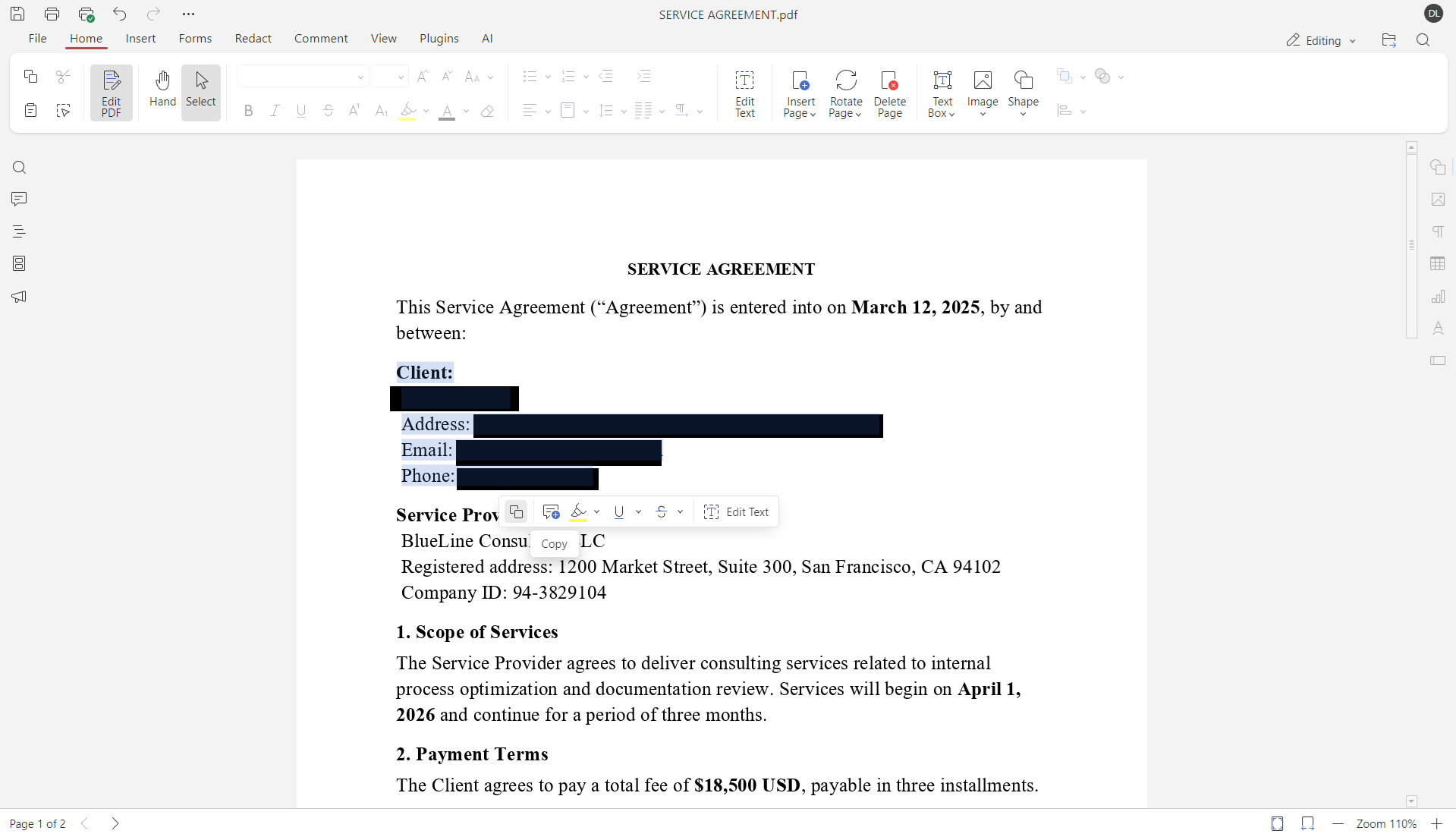
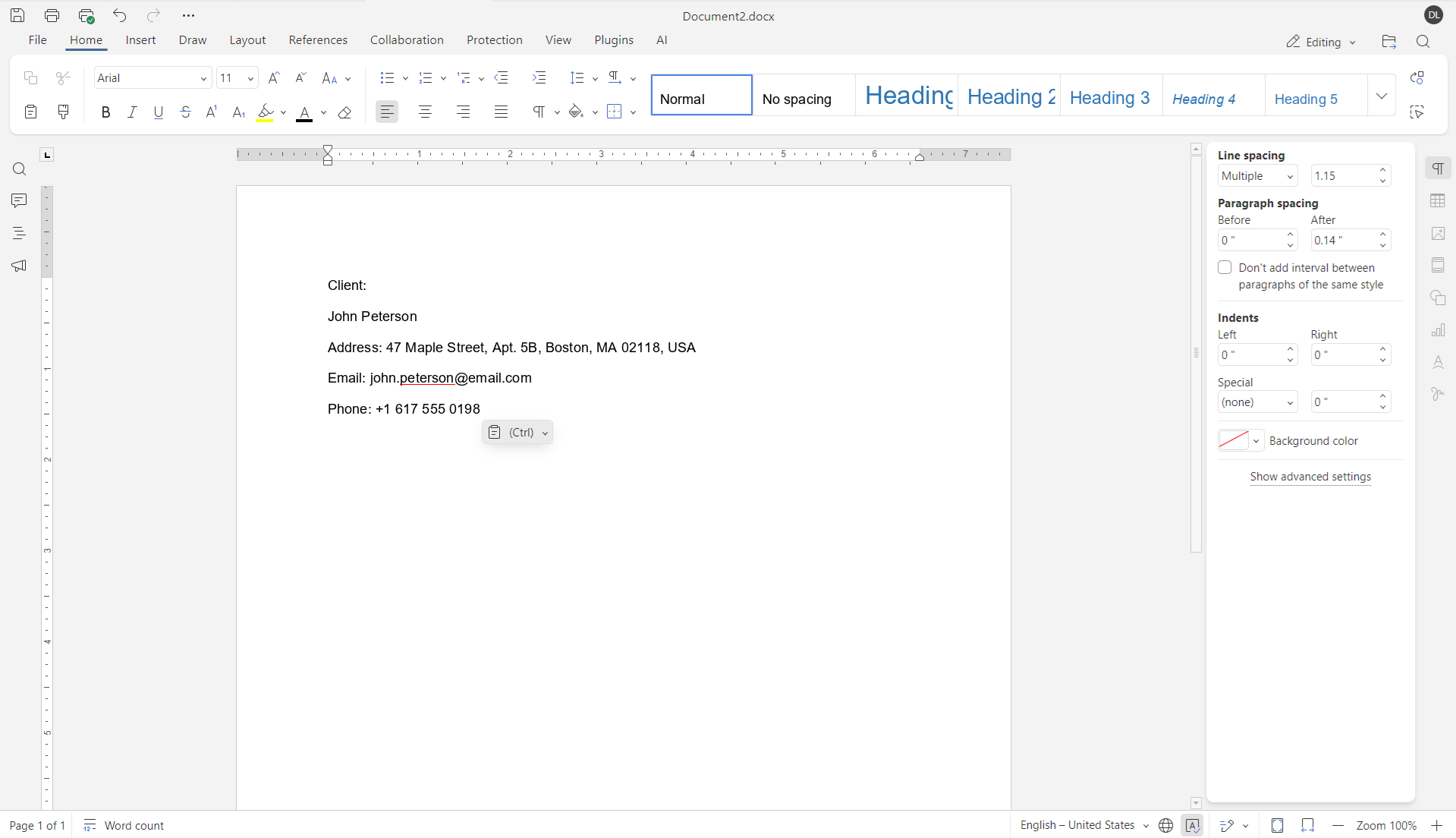
Redacting only visible content. Another frequent issue is focusing only on what can be seen on the page. PDFs may contain comments, annotations, metadata, or hidden text layers.
This information is not visible in the document view, but it remains accessible via the document properties or search functions.
Sharing editable files after redaction. Sharing an editable PDF after redaction is also risky. If the document structure remains intact, redacted content may be restored or uncovered. In some cases, recipients can undo changes or access earlier versions of the content.
How to redact a PDF correctly
Correct PDF redaction is not complicated, but it does require the right approach. The goal is to remove sensitive information, not just hide it. To do this safely, follow a few clear rules.
Use a PDF editor that supports real redaction
The first rule is simple. Use a PDF editor that includes dedicated redaction tools. Not all PDF editors can remove content from the document structure. Basic viewers and image-based tools only change the appearance of the file.
A proper editor deletes the selected data so it cannot be copied, searched, or restored later.
Select all sensitive content carefully
Once the document is open, select the content that must be removed. This may include text, images, or entire sections of a page.
It is important to review the document carefully. Sensitive information is not always limited to the main text. Tables, headers, footers, and scanned elements may also contain data that should be redacted.
Apply redaction permanently
After selecting the content, apply redaction using the editor’s redaction function. This step confirms that the selected information is removed from the file, not just hidden.
At this point, the data should no longer exist inside the document.
Check and remove hidden information
Redaction should not stop with visible content. PDF files often include metadata, comments, annotations, or hidden text layers. These elements may contain names, dates, or internal notes.
Before sharing a document, check it and remove the hidden information if it contains confidential data.
Save the redacted file correctly
Always save the redacted document as a new file. Keep the original version stored securely and limit access to it.
The final file should contain only the information that is safe to share. Once saved, it is a good practice to reopen the document and check that no redacted content can be copied or found through search.
How to redact a PDF: a practical example
To make PDF redaction clearer, let’s look at how this process works in practice using ONLYOFFICE PDF Editor.
Imagine you need to share a contract that contains personal details and internal notes. These parts must be removed before the document is sent to a third party.
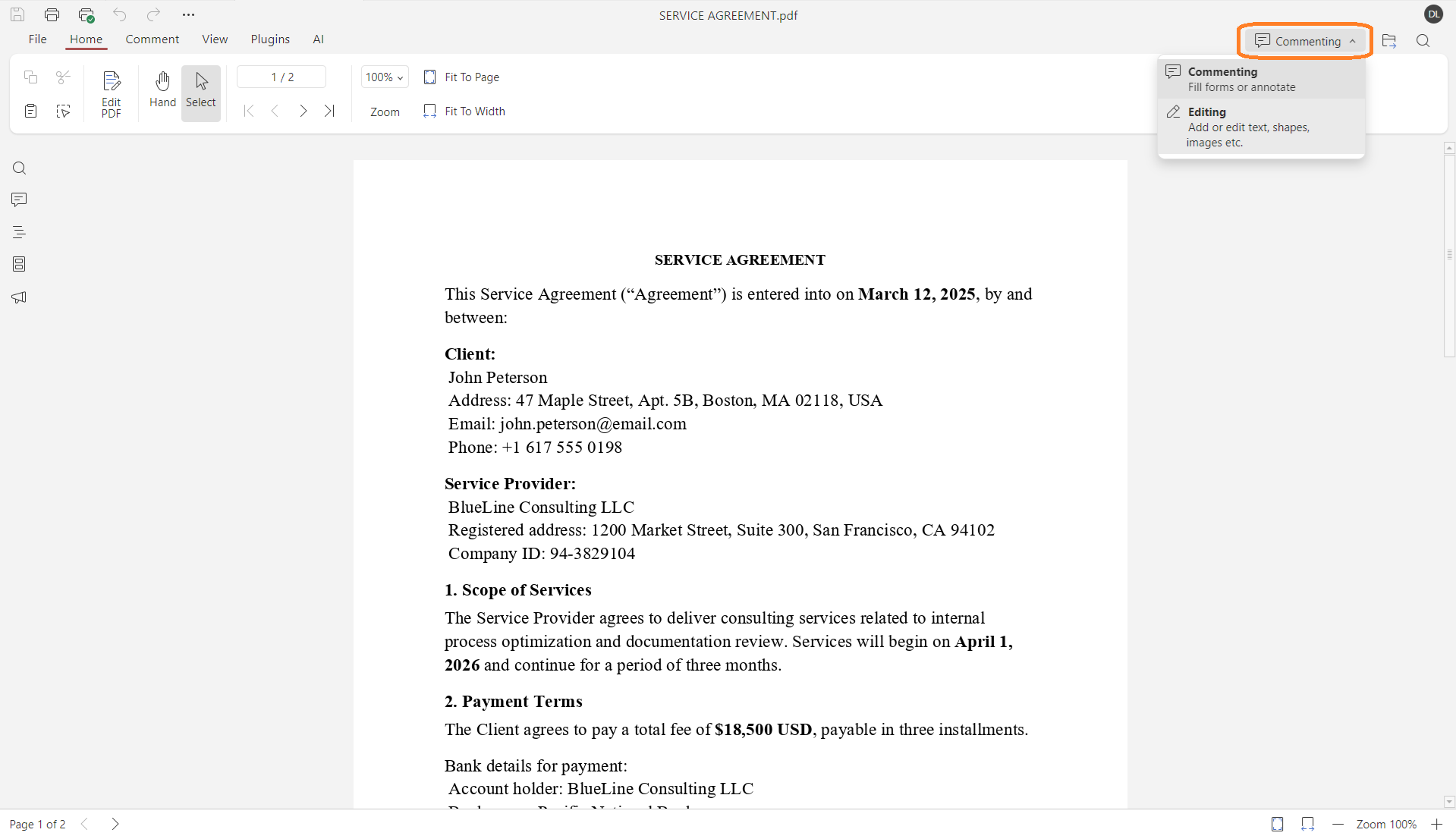
Step 1. Open the PDF file and switch to edit mode using the switcher in the upper right corner of the interface.
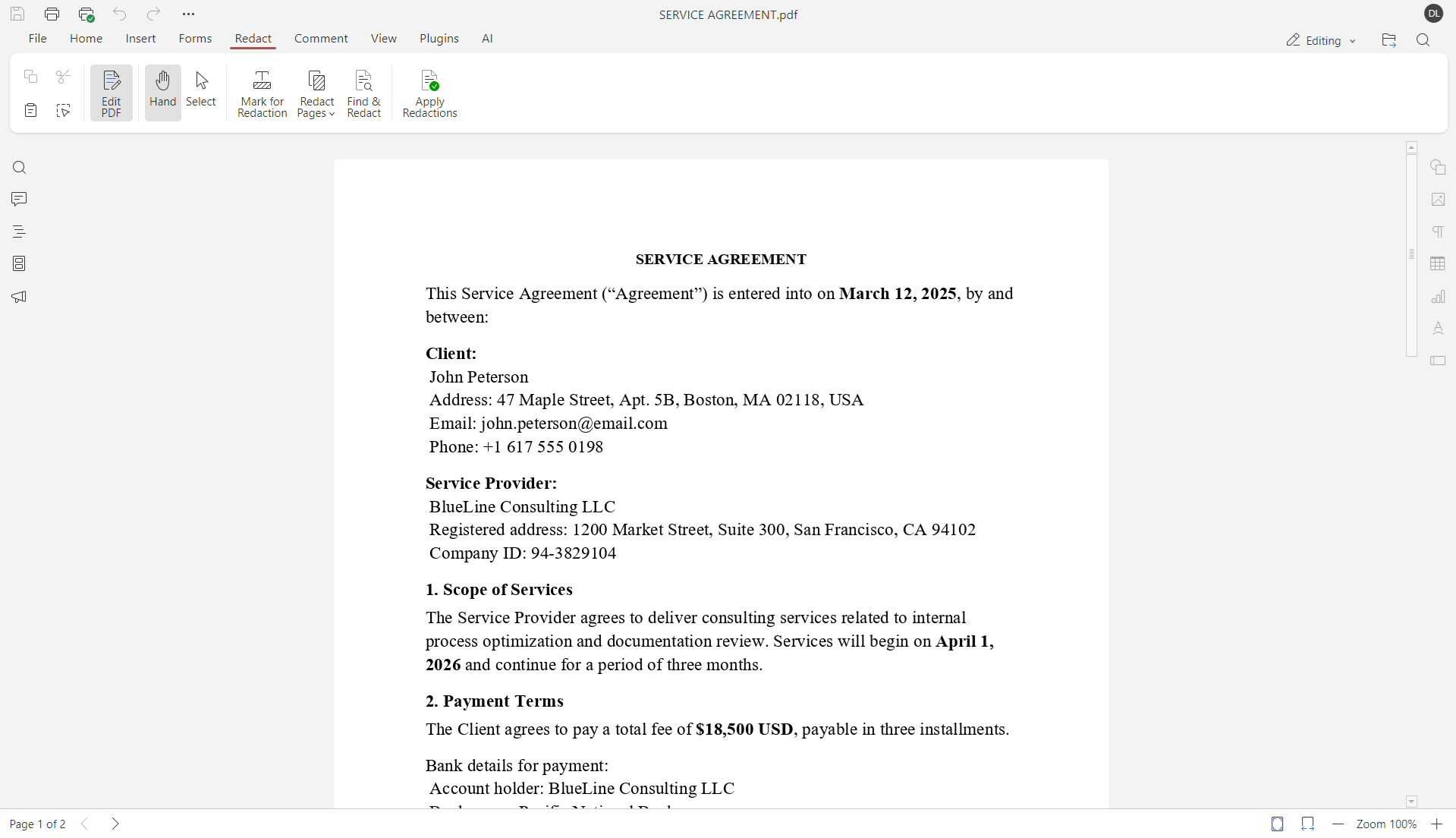
Step 2. Go to the Redact tab in the top toolbar. This section contains all tools related to secure content removal.
Here you can choose how you want to redact information: manually, by page, or by searching for specific words.
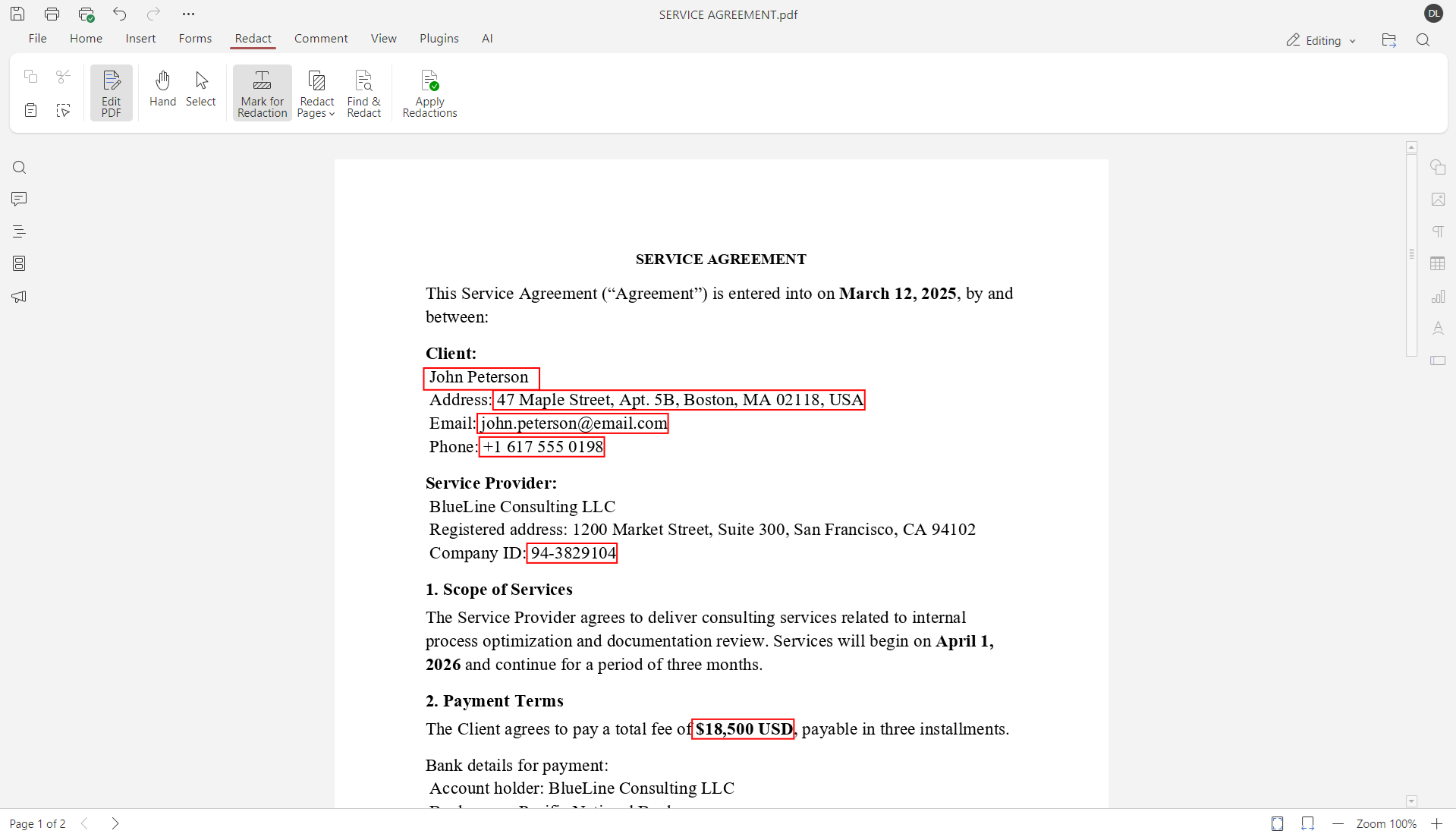
Step 3. To remove individual pieces of information, click Mark for Redaction. Then, select the text, image, or area that contains sensitive data.
You can mark multiple elements across the document before applying redaction. This makes it easier to review everything at once before making permanent changes.
If an entire page contains confidential information, you do not need to mark it manually. Use Redact Page to select the current page or define a range of pages that should be removed.
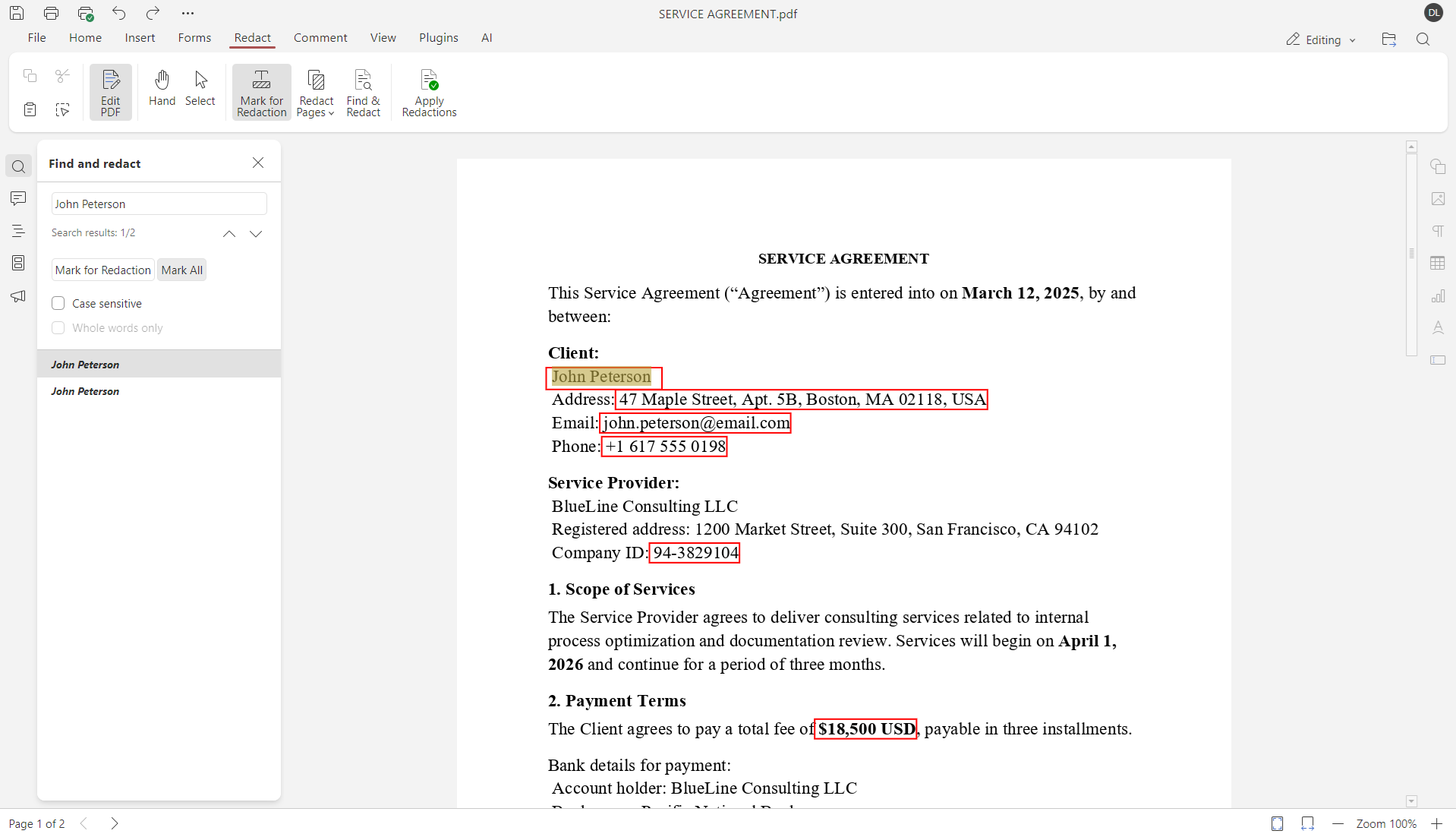
For long or complex files, manual selection may take too much time. In this case, use the Find & Redact feature.
Enter a word or phrase, such as a name or ID number. ONLYOFFICE will find all occurrences in the document. You can then choose whether to mark selected results or apply redaction to all matches at once.
Step 4. Once all content is marked, click Apply Redactions and confirm the action.
ONLYOFFICE PDF Editor permanently removes the selected text, images, or pages from the document. This step cannot be undone, so it is important to review all marked areas before confirming.
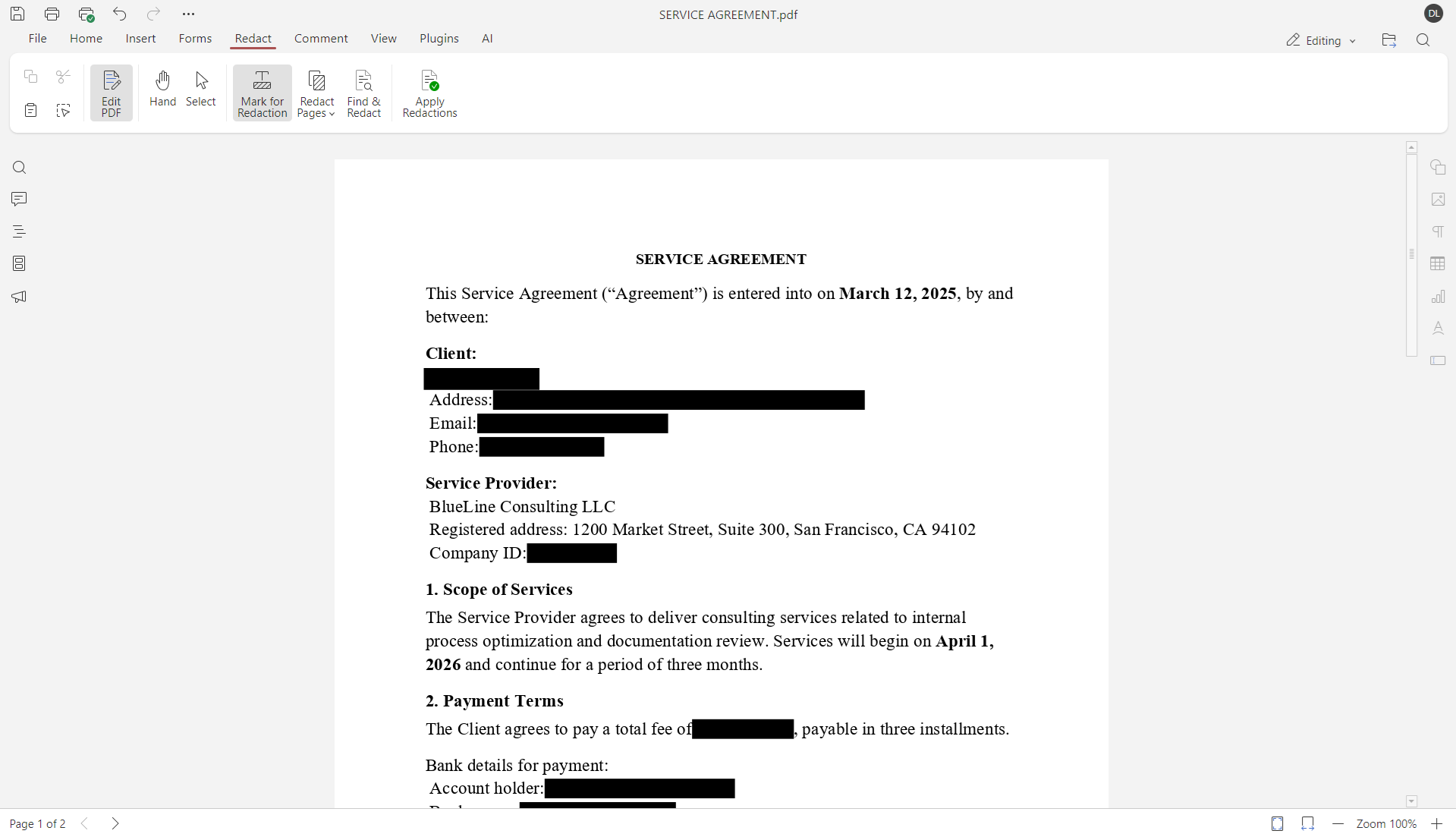
Step 5. Finally, save the document to finalize the changes. If you are using ONLYOFFICE Desktop Editors, saving the file ensures the redaction is applied and stored correctly.
Try redacting PDFs online with a free DocSpace account or download ONLYOFFICE Desktop Editors for Windows, Linux, and macOS:
How to check if a PDF is properly redacted
A correctly redacted PDF does not just look clean. It behaves in a specific way. You can use the points below to confirm that the document was redacted properly.
✔ Text cannot be copied from redacted areas. If you try to select or copy the removed content, nothing happens.
✔ Redacted words do not appear in search results. Searching the document returns no matches for removed names, numbers, or phrases.
✔ Redacted content stays hidden in other PDF viewers. When the file is opened in a different PDF viewer, the removed information does not appear.
✔ Document properties contain no sensitive data. Metadata, comments, and internal notes are clean or removed.
✔ The file opens as a final version. The redacted content cannot be restored, edited, or undone.
Conclusion
Redacting a PDF correctly is not about hiding information, but removing it. Visual tricks are not enough and can create a false sense of security.
Using the right tools to redact PDF files and checking the final file helps reduce the risk of data leaks. Today, this can be done using a variety of reliable solutions. Well-known examples include Adobe Acrobat, Foxit PDF Editor, and ONLYOFFICE PDF Editor for redaction scenarios.
Create your free ONLYOFFICE account
View, edit and collaborate on docs, sheets, slides, forms, and PDF files online.