Strip hidden metadata before you share a PDF
Summary
To strip hidden metadata before sharing a PDF, you can use the Remove hidden information tool in ONLYOFFICE PDF Editor. This feature allows you to easily eliminate metadata, comments, and other sensitive data that may be embedded in the document, ensuring that only the intended content is shared with recipients.
- The tool is available in ONLYOFFICE PDF Editor 10.0.
- It allows for a one-click cleanup of hidden data.
- You can review and select which data to keep or remove.
- Always verify the final document before sharing.
- Consider protecting sensitive documents with passwords.
When you send a PDF, you probably think you’re sharing exactly what’s on the page. In reality, a PDF can carry a lot more: the author’s name, the software used to create it, old comments, attached files, form data, and even text that’s been covered up but never actually deleted. Much of this information isn’t immediately visible, but recipients may be able to access it using standard PDF tools or specialized software.
With version 10.0, the ONLYOFFICE PDF Editor gets a dedicated tool to deal with this: Remove hidden information. In this article, we’ll look at what hidden data a PDF can contain, why it matters, and how to clean up your files before you share them.
What hidden information can a PDF contain?
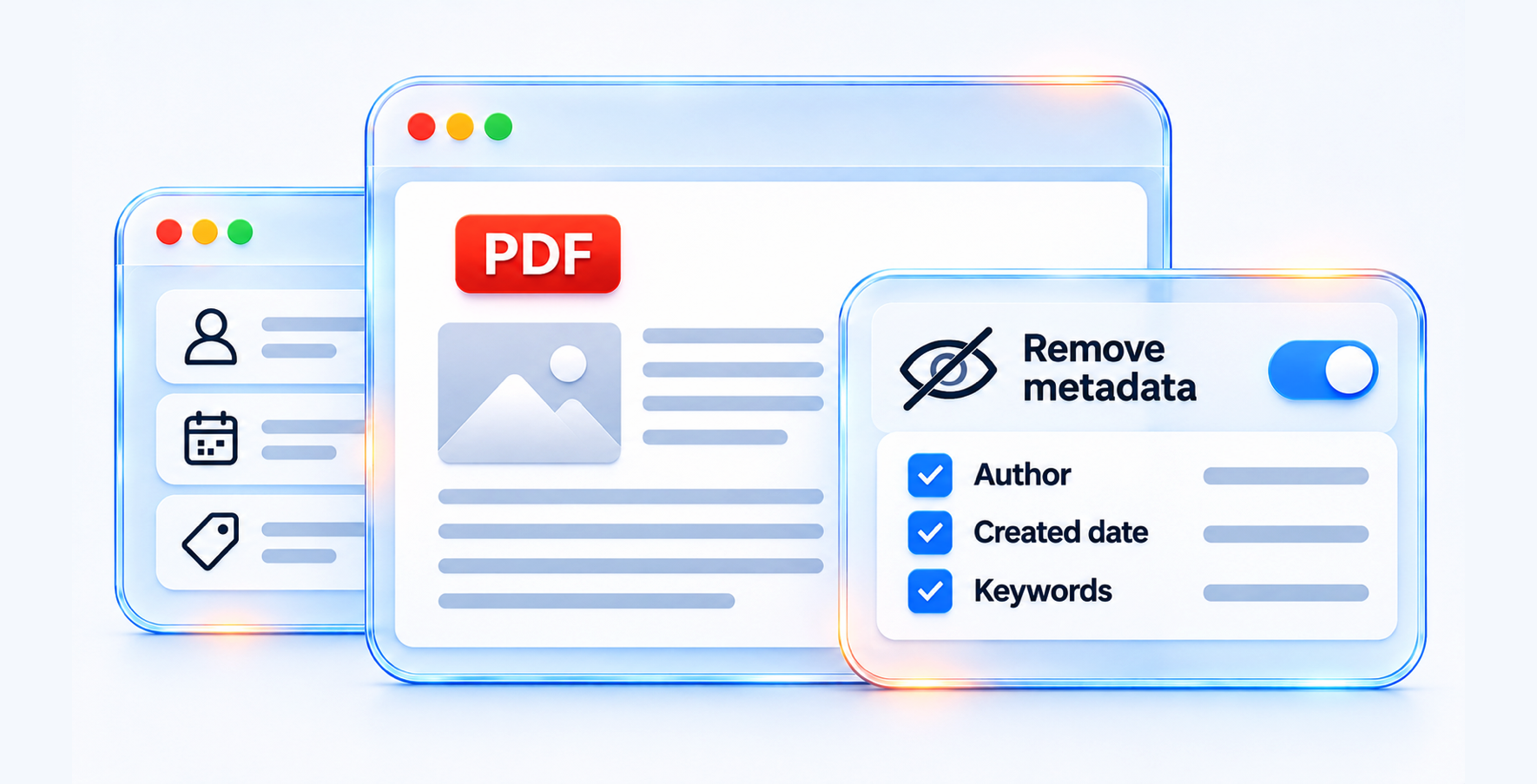
Metadata is “data about data”: information that describes a file rather than forming part of its visible content. In a PDF, it tells you who created the document, when, and with which software, and it’s added automatically by the application that saves the file. Metadata, though, is only one part of what a PDF can hide. Here are the main kinds of hidden information you may find in a PDF:”
- Document properties: The author’s name, title, subject, keywords, creation and modification dates, and the application that produced the file. These are filled in automatically, often with your account name or your company’s software details.
- Comments and corrections: Review notes, sticky notes, and markup from earlier versions that may no longer be visible on screen.
- Attached files: Spreadsheets, images, or other documents embedded inside the PDF.
- Hidden text and layers: Content placed on hidden layers or formatted to be invisible, which still exists in the file.
- Deleted, trimmed, or overlapping content: Text or images that were cropped out or covered by other objects but remain stored underneath.
- Form fields, bookmarks, and search indexes: Leftover data that can reveal a document’s structure or previous contents.
- Links, actions, and scripts: JavaScript and automatic actions that can run when the file is opened.
Why hidden data is a real risk
Most of the time, leftover metadata is just harmless clutter, but in the wrong context, it can reveal far more than you intended.
Some leftovers are even harder to spot because they’re not part of the page you see at all. An image cropped in a layout tool may still contain the full original picture. A layer switched off before export can hold an earlier draft or internal notes. A chart pasted from a spreadsheet may carry the underlying data. To the eye, the document looks clean; to anyone who opens it with the right tool, it’s an open book.
For organizations, this is also a compliance issue. Regulations like the GDPR require personal data to be protected, and a name or email address hidden in a file’s properties is still personal data. Cleaning documents before they leave the organization is a simple habit that reduces both privacy and legal risks.
Meet Remove hidden information in ONLYOFFICE 10.0
The ONLYOFFICE PDF Editor already lets you redact visible content: you can black out selected text, whole pages, or every occurrence of a word or phrase. ONLYOFFICE Docs 10.0 completes this toolkit with Remove hidden information, a new option in the same Redact tab that lets you remove metadata and other potentially sensitive information stored within the PDF.
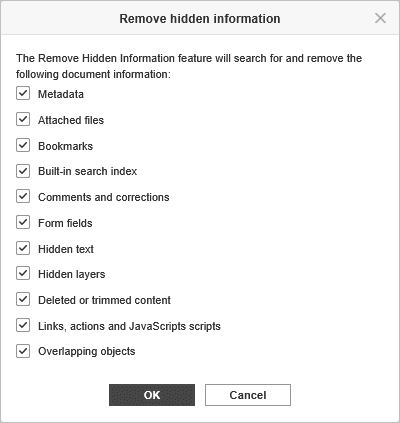
Instead of hunting through document properties and panels one by one, you get a single checklist covering all the hidden data types described above: metadata, attached files, bookmarks, the built-in search index, comments and corrections, form fields, hidden text and layers, deleted or trimmed content, links, actions and JavaScript, and overlapping objects. Everything is selected by default, so a full cleanup takes just one click, but you can keep anything you still need, for example bookmarks in a long manual or form fields in a document that recipients have to fill in.
How to strip hidden metadata from a PDF
Cleaning up a PDF in ONLYOFFICE takes less than a minute:
1. Open your PDF in the ONLYOFFICE PDF Editor.
2. Go to the Redact tab on the top toolbar.

3. Click Remove hidden information.
4. Review the list of options. All of them are selected by default; clear the checkboxes for anything you want to keep.
5. Confirm and save the file. The hidden data is removed when the file is saved.
6. Reload the file to see the changes reflected in the editor.
Tip: if the document also contains visible sensitive content, such as names, account numbers, or confidential clauses, redact it first using Mark for Redaction, Redact Pages, or Find & Redact, apply the redactions, and then run Remove hidden information as the final step before sharing.
A quick checklist before you share a PDF
Removing hidden information is one part of a good sharing routine. Before a PDF leaves your hands, it’s worth running through a few extra checks:
- Read it once more as the recipient. Automated tools remove hidden data, but they can’t judge whether the visible text itself is appropriate to share.
- Redact, don’t cover. Never hide sensitive content with a black shape or white box; use proper redaction instead.
- Check the file name. Names like “contract_final_internal_notes.pdf” can reveal more than the document does.
- Verify the result. After saving, open the file again and try selecting or searching for text you removed to make sure it’s really gone.
- Keep the original. Save the cleaned version as a new file, so you keep a full copy with comments and history for internal use.
- Protect what’s left. For confidential documents, consider adding a password or sharing the file through a secure room with access permissions instead of email.
Share PDFs with confidence
Hidden metadata is easy to forget and just as easy to remove. Try the new Remove hidden information tool in the ONLYOFFICE PDF Editor online with a free account, or download the free desktop app for Windows, Linux, or macOS.
Create your free ONLYOFFICE account
View, edit and collaborate on docs, sheets, slides, forms, and PDF files online.