How to export Notion pages to Word (DOCX) and keep collaborating afterward
Summary
To export Notion pages to Word (DOCX) while maintaining collaboration, you can use several methods since Notion does not offer a direct export option. The most effective approaches include using a Notion AI agent to create a DOCX file, connecting an AI client through Notion MCP, or exporting the page as a PDF or Markdown and converting it to Word. After exporting, you can utilize ONLYOFFICE Document Editor for real-time collaboration on the resulting document.
- Use Notion AI agent for high fidelity DOCX.
- Connect AI clients via Notion MCP for flexibility.
- Export as PDF/Markdown and convert to Word.
- ONLYOFFICE enables collaborative editing of DOCX files.
- Keep original Notion page editable and shareable.
Notion doesn’t currently offer a native “Export to Word” option, but there are several ways to turn a Notion page into an editable DOCX file. Here’s how each method works, and how to keep collaborating on the resulting document afterward.

Exporting a Notion page usually comes up for a reason: a client wants a Word file, a reviewer only works in Word’s track changes, or content needs to leave Notion entirely and live as a standalone document from here on. Notion wasn’t built for that kind of handoff, but there are now several ways to get the content into an editable DOCX file, depending on the tools you have available.
Why Notion doesn’t export straight to DOCX
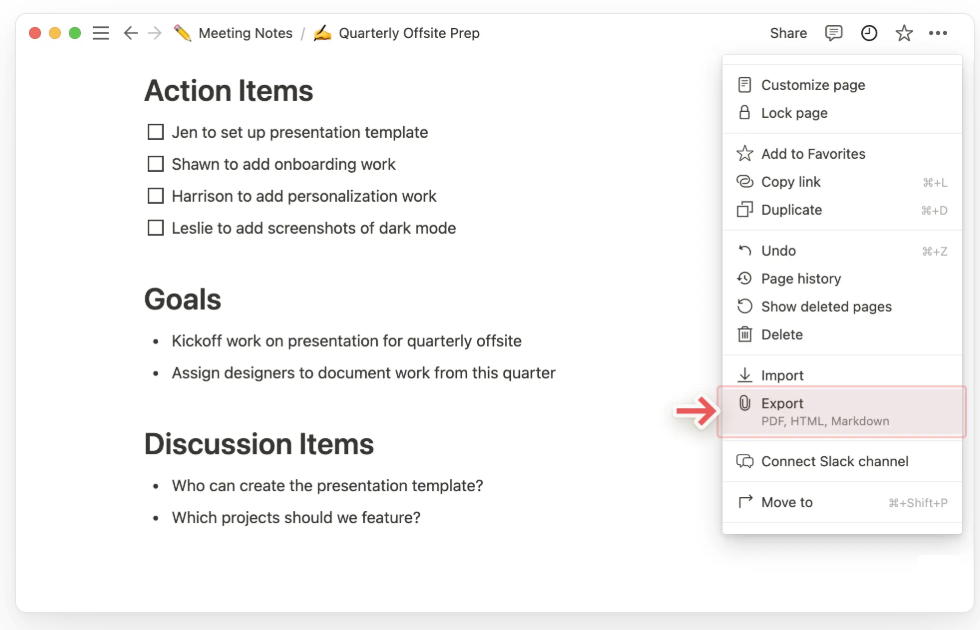
Notion’s native export, available from the ••• menu on a page, currently offers PDF, HTML, and Markdown & CSV. DOCX isn’t one of the native export formats. Notion pages use a block-based structure, while DOCX follows a different document model, so turning a complex page into a Word document isn’t always a straightforward format conversion.
For more complex pages, an AI agent can take the page content and rebuild it as a structured document rather than simply converting the underlying blocks.
Three ways to get a Notion page into Word format
Let’s have a look at the available options we have today.
1. Ask a Notion AI agent to build the file
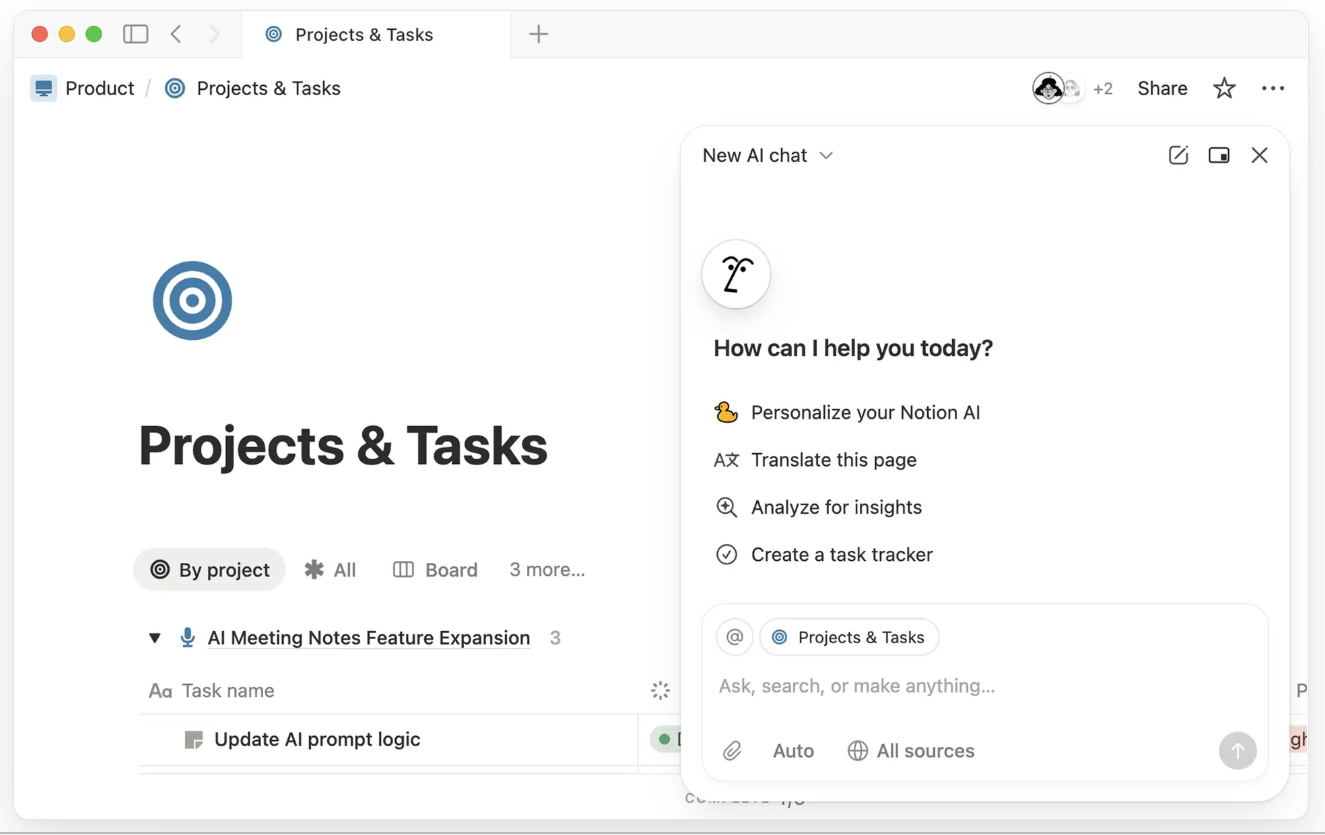
Since the Notion 3.6 update on July 1, 2026, Notion Agents can create downloadable files, including DOCX documents, based on instructions you give them. To use it, ask the agent to turn the page into a Word document and specify how you want the content structured. For example:
“Turn this page into a formatted Word document (.docx). Keep the headings, tables, bullet lists, and overall structure.”
The agent uses the page content to build a downloadable document. For pages with headings, tables, lists, and other structured content, this can be more convenient than exporting to PDF and converting the result afterward. Notion Agent is available on Business and Enterprise plans.
2. Connect an AI client through Notion MCP
Notion MCP lets compatible AI clients, including Claude and other supported tools, access content in your Notion workspace. You can use a Notion page as context and ask the AI client to create a DOCX outside Notion.
The exact workflow, available features, and plan requirements depend on the AI client and your Notion workspace settings.
3. Export to PDF/Markdown and convert it to Word
The simplest option doesn’t require AI: export the page as a PDF or Markdown from the ••• menu, then open the document using a converter. Word converts the PDF into an editable document and attempts to preserve its original layout, although complex tables, graphics, and other elements may not convert perfectly.
For a short, simple page, copying the content directly into Word may be just as quick.
Once you have the DOCX, keep it editable and collaborative
Whichever method you use, the resulting DOCX is a separate file from the original Notion page, and changes made to it won’t automatically sync back to Notion. The original page can still be edited and shared in real time, but the exported Word document follows its own editing workflow from that point on.
If the Word file itself now needs to be reviewed, edited, or updated by a team, you’ll need a collaborative document editor that works with DOCX files. That’s where ONLYOFFICE Document Editor comes in: the exported file opens exactly as a DOCX, with formatting intact, and from there it works like a normal collaborative document: real-time co-editing so a team can work on the same file at once, comments for feedback, track changes for review, and version history to see what changed and roll it back if needed.
The suite is open source and free to self-host on your own server, and it also connects to over 40 platforms, including Moodle, ownCloud, and WordPress, so the file can be opened and edited online inside whatever system a team already uses, without a separate app in the loop.
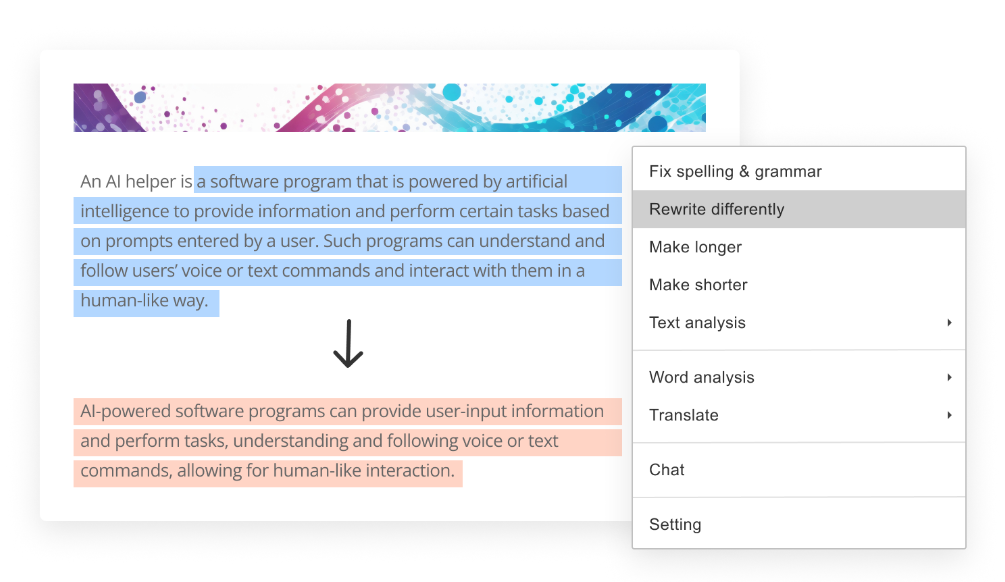
If the export left behind rough edges, an orphaned heading, inconsistent list formatting, a paragraph that reads like it was translated twice, ONLYOFFICE’s AI Tools can clean that up inside the same window: rewriting a paragraph, fixing tone, or reformatting a section, with support for OpenAI, Anthropic Claude, Google Gemini, Mistral, DeepSeek, and other providers, so the choice of model isn’t locked in.
Comparing the three export methods
| Method | Needs | Output fidelity | Effort |
| Notion AI agent | Business or Enterprise plan | High — headings, tables, lists rebuilt | Low, just a prompt |
| Your own AI via MCP | Any Notion plan + an AI client | High — comparable to the native agent | Medium, one-time setup |
| PDF-then-convert | Any Notion plan | Variable — inherits PDF layout quirks | Low, but may need cleanup |
Final thoughts
Getting a Notion page into Word format is no longer the awkward copy-paste job it used to be, but the export is still just the starting point. Whichever method produces the DOCX, what happens after matters just as much: opening it in ONLYOFFICE Document Editor turns a static export back into a document a team can actually keep working on together.
Get started with ONLYOFFICE
Open your exported Word file in ONLYOFFICE Document Editor, explore the self-hosted suite for free on your own server, or download the desktop app to start editing and collaborating.
Create your free ONLYOFFICE account
View, edit and collaborate on docs, sheets, slides, forms, and PDF files online.