How to migrate from Quip before its 2027 retirement
Summary
To migrate from Quip before its 2027 retirement, organizations should act promptly to avoid losing access to their content. With Quip transitioning to a read-only mode and ultimately deleting data, it's crucial to plan a migration strategy that includes inventorying existing content, utilizing the Quip API for exports, and choosing a suitable replacement like ONLYOFFICE, which offers robust document and collaboration tools.
- Inventory all spaces, folders, and threads before exporting.
- Use the Quip API to export in native formats.
- Set up your ONLYOFFICE workspace structure beforehand.
- Migrate in phases, starting with a pilot team.
- Establish a clear internal cutover date.
If your organization still runs documents, spreadsheets, or team chats through Quip, this is the moment to plan an exit rather than wait for the read-only banner to appear.
Why migration?
Salesforce has confirmed that Quip, the collaborative app it acquired in 2016, is being retired. No subscription renewals will be accepted after March 1, 2027, and existing sites will stay live only until each customer’s current subscription term ends. Once that term is up, Quip doesn’t disappear overnight: the workspace enters a 90-day read-only window, then a 30-day period during which logins are blocked, followed by roughly 30 days of data deletion. In practice, that gives most teams a runway of months rather than years, and the safest assumption is that your real deadline is your renewal date, not the headline one.
Why you shouldn’t wait for the read-only phase
It’s tempting to treat “still works” as “no rush.” But two things make that risky:
- Salesforce has already retired some Quip features, including several Third Party Live Apps, and has now announced the full retirement of Quip.
- Once read-only mode begins, you can no longer edit or collaborate on your content. That means you lose the ability to correct broken formatting, restore missing content, or run a proper test migration and compare it against a live source.
What actually happens to your content
Quip currently doesn’t offer a single one-click export for an entire workspace: there’s no single ZIP download or admin panel toggle that pulls out the whole company archive in one click. Documents and spreadsheets can also contain conversation history, comments, and edit history, all of which need to be considered separately during migration. Folders, on the other hand, can contain the same thread in more than one place, so your destination structure may not map neatly to a traditional folder tree.
For a one-off document, the built-in Export menu (PDF, Word, HTML, Markdown, Excel, or CSV, depending on the content) is fine.
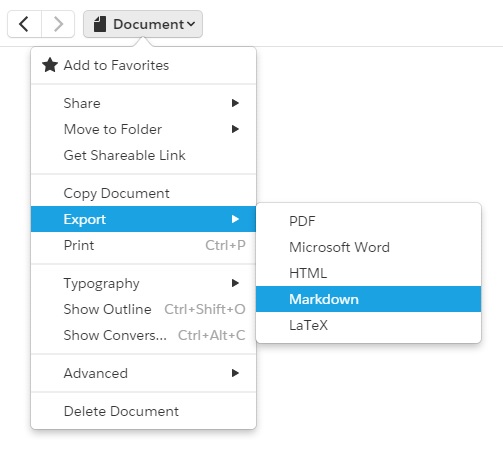
For anything at company scale, you’re looking at the Quip Automation or Admin API, which comes with its own limitations worth planning around:
- Commentsand conversation history need to be handled explicitly. The Bulk Export API can include conversation history in DOCX and XLSX exports, while the API also provides methods for retrieving comments separately when needed.
- Salesforce Data Mentions are dynamic elements tied to Salesforce records and need to be considered separately when exporting and rebuilding your content, since some elements linked to Salesforce may not carry over cleanly during export.
- The API is rate-limited, so a full export of a large workspace needs to be planned in batches rather than run as a single job.
None of this is a reason to panic, but it is a reason to inventory what you have before you start moving it, rather than discovering the gaps mid-migration.
Choosing where your content goes next
Before touching the API, it’s worth deciding what you actually need from a replacement, because Quip was really three tools stitched together: a document editor, a lightweight spreadsheet, and a team chat layered with Salesforce data. Very few teams need to replace all three with a single new product, and trying to force that fit is where migrations tend to stall.
The more useful question is: what were you actually doing in Quip day to day?
Why ONLYOFFICE is worth putting on the shortlist
ONLYOFFICE covers many of the core document, spreadsheet, and collaboration workflows that Quip teams relied on:
- Real document and spreadsheet compatibility. ONLYOFFICE works natively with DOCX and XLSX, making these formats a practical choice when exporting Quip documents and spreadsheets for migration.
- Real-time co-editing, with the same kind of simultaneous, in-document collaboration teams built habits around in Quip.
- Rooms and flexible permissions, so you can rebuild the structure by team or project, with access controlled at the room level.
- Self-hosting as an option, if keeping full control of where company data lives is part of why you’re leaving a platform with a hard shutdown date in the first place.
- Built-in AI features and integrations that extend the functionality available for document collaboration, without waiting on a vendor roadmap that’s actively winding down.
There’s also a direct answer for teams that leaned on Quip’s Salesforce Data Mentions inside spreadsheets, since that’s usually the piece people worry most about losing.
Connect using ONLYOFFICE’S Salesforce plugin
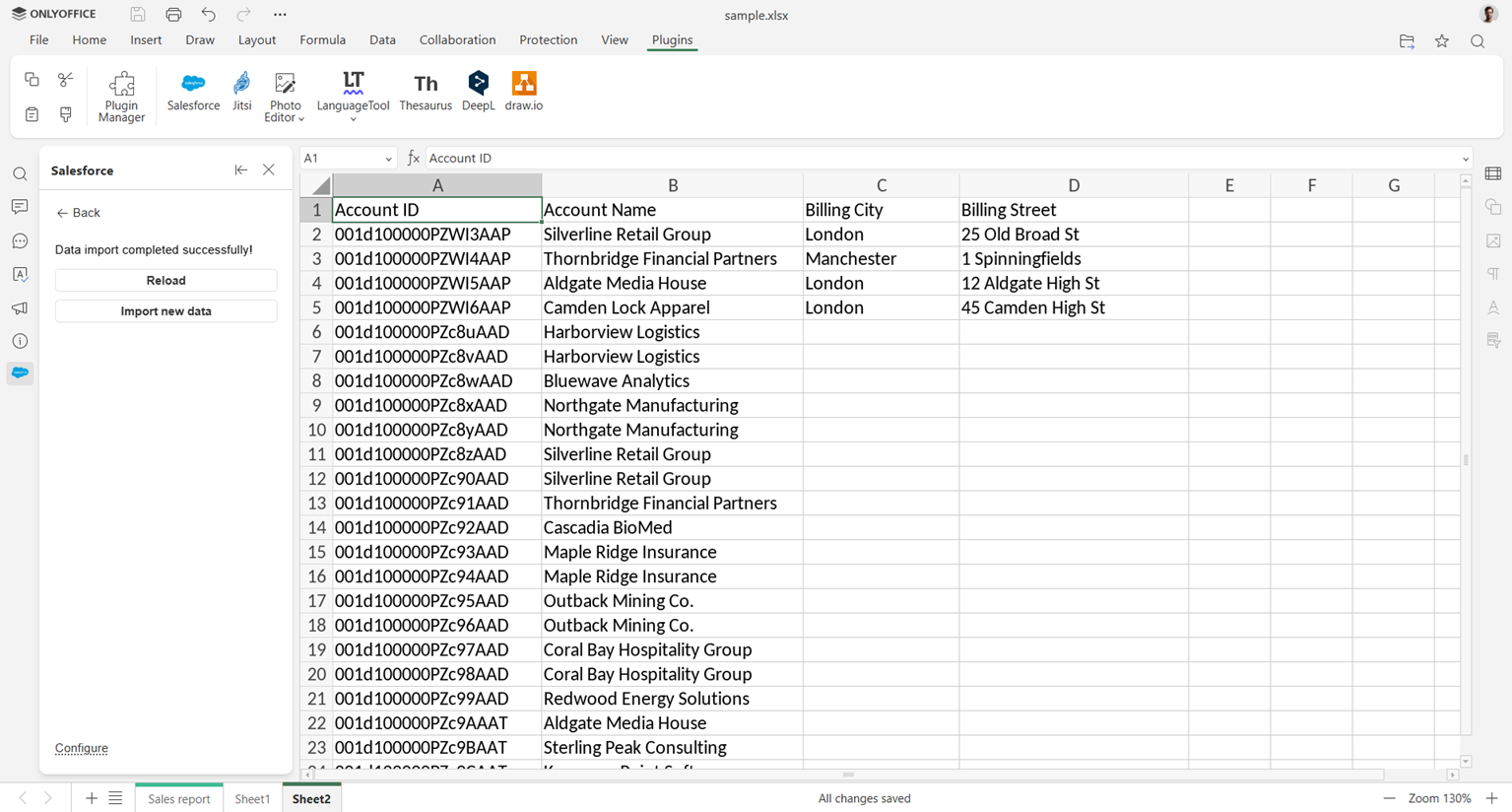
ONLYOFFICE’s Salesforce plugin, available on self-hosted ONLYOFFICE editors, lets you import Salesforce reports, including their filters and groupings, as well as data from standard and custom Salesforce objects directly into Spreadsheet Editor:
- Import existing reports and object data, with filters, groupings, and field selection
- Export new or updated records straight back to Salesforce
- Available on self-hosted versions of the ONLYOFFICE editors
Setup requires creating an External Client App in Salesforce to get a Client ID, then installing and authorizing the plugin from the Plugin Manager in Spreadsheet Editor. The full walkthrough covers every step in detail.
Want to learn more about the Spreadsheet Editor? Have a look!
Connect using Zapier
If you need something more customized than the plugin covers, Zapier is a no-code option. Zapier is an automation platform that connects thousands of apps and services, letting you set up “if this happens, then do that” workflows, called Zaps, without writing any code: an event in one app (a trigger) automatically sets off an action in another.
ONLYOFFICE has an official Zapier integration with its own set of triggers and actions:
- Triggers: a file is created, a file is deleted, a folder is created, a folder is deleted, a user is added
- Actions: create a file, create a folder, delete a folder, invite a user, get a downloadable link to a file
There isn’t a ready-made Salesforce-to-ONLYOFFICE template yet, but since Zapier separately supports Salesforce among its thousands of connected apps, you can combine a Salesforce trigger (a new record, for example) with one of these ONLYOFFICE actions, or the other way around, all through Zapier’s visual editor and without writing any code.
Connect using n8n
For teams with development resources who want more control, or who want to self-host the automation layer as well, n8n is the third option. It’s an open-source workflow automation tool built around a visual, node-based editor: each node represents a trigger, an action, or a piece of logic, and you connect them to build a workflow, with the option to drop in custom JavaScript for anything the built-in nodes don’t cover. Unlike Zapier, n8n can be self-hosted on your own infrastructure, or used as a managed cloud service. ONLYOFFICE provides an official node for it with its own set of operations:
- Files: create, update, list, get, delete, download
- Folders: create, update, list, get, delete
- Users: invite, search, disable, enable, delete
As with Zapier, there’s no pre-built Salesforce-ONLYOFFICE workflow out of the box, but n8n’s visual editor lets you connect a Salesforce node to these ONLYOFFICE operations and build the specific automation your team needs, whether that’s a simple one-step sync or a more complex multi-app pipeline.
A practical migration path
Here is a step-by-step approach that keeps the process manageable:
- Inventory before you export. List every space, folder, and thread, note who owns it, and flag anything tied to Salesforce Data Mentions, since those need manual reattachment or rebuilding on the other side.
- Export in batches through the Quip API, keeping documents and spreadsheets in their native formats (DOCX/XLSX) rather than PDF, so nothing is flattened before it reaches its destination.
- Set up your ONLYOFFICE workspace structure first, mapping Quip’s folders before content arrives, so nothing lands in the wrong place and needs to be re-sorted later.
- Migrate in phases, starting with a pilot team, so you can compare the source and destination side by side while Quip is still fully editable and any fix is still possible.
- Rebuild Data Mentions manually where they matter, since they don’t retain their live connection to Salesforce once exported; comments and conversation history, on the other hand, can be preserved through the API if requested at export time.
- Set a hard internal cutover date, well ahead of your Quip subscription’s actual term end, and communicate it clearly so teams stop creating new content in a workspace that’s being retired.
Ready to see what a Quip migration looks like in practice?
Try ONLYOFFICE and real-time co-editing, complete editors, and self-hosting options.
Create your free ONLYOFFICE account
View, edit and collaborate on docs, sheets, slides, forms, and PDF files online.