Enhance your documents: Introducing the Chinese Converter and Chinese Formatter plugins
Working with multi-regional Chinese documents or creating materials for language learners often requires switching between multiple tools. To simplify this process, ONLYOFFICE offers two lightweight plugins for Chinese writing: Chinese Converter for instant text and pronunciation transformation, and CAF Tool (Chinese Auto-Formatting Tool) for clean and consistent typography.

About the Chinese Converter plugin
The Chinese Converter plugin allows you to effortlessly bridge the gap between different Chinese writing systems. Compatible with ONLYOFFICE Document, Spreadsheet, and PDF editors, this plugin adds a seamless way to transform your text and generate inline pronunciation guides without ever leaving your workspace.
With this plugin, you can:
- Convert Simplified to Traditional: Instantly convert selected Simplified Chinese text into Traditional Chinese.
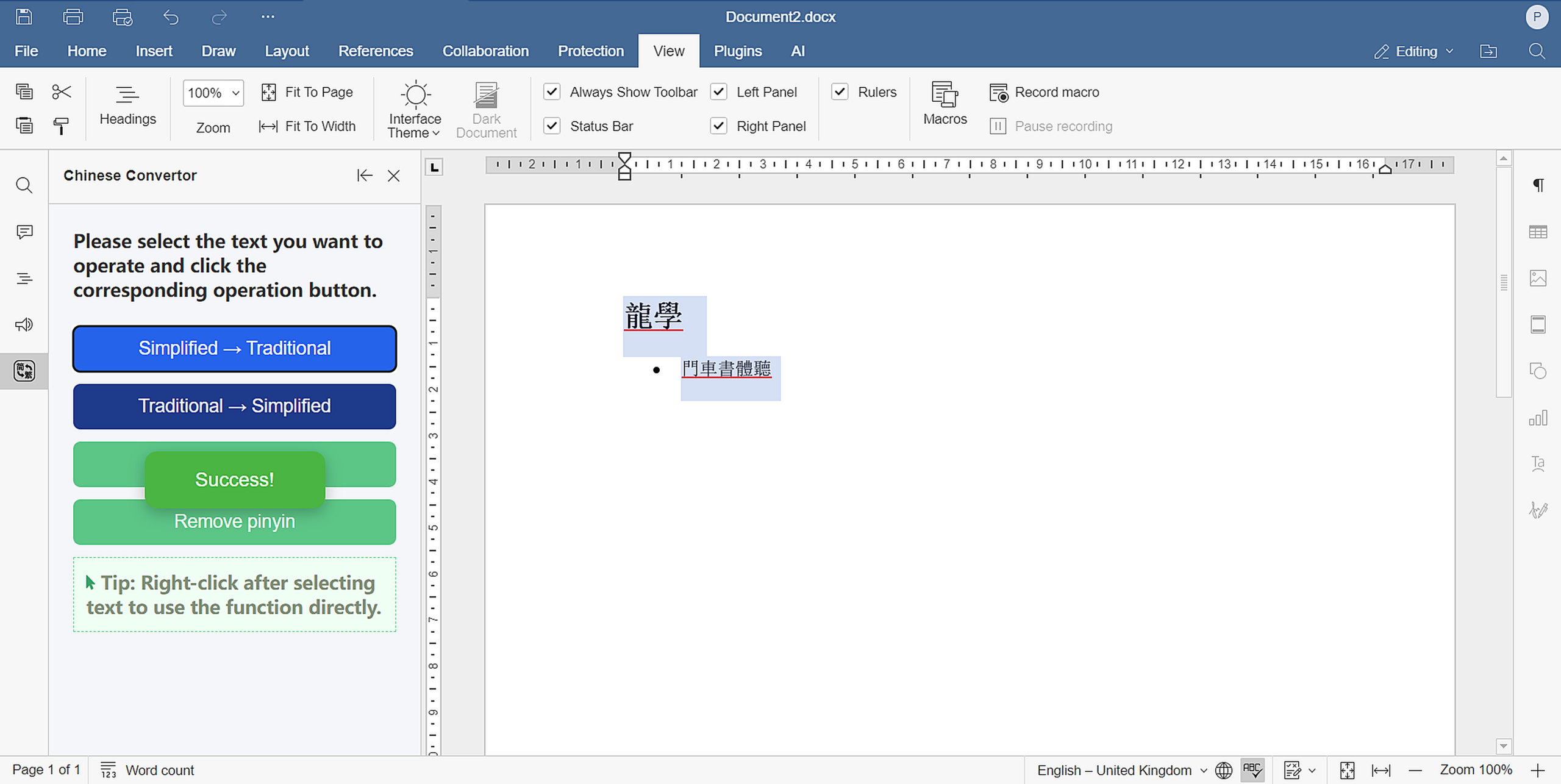
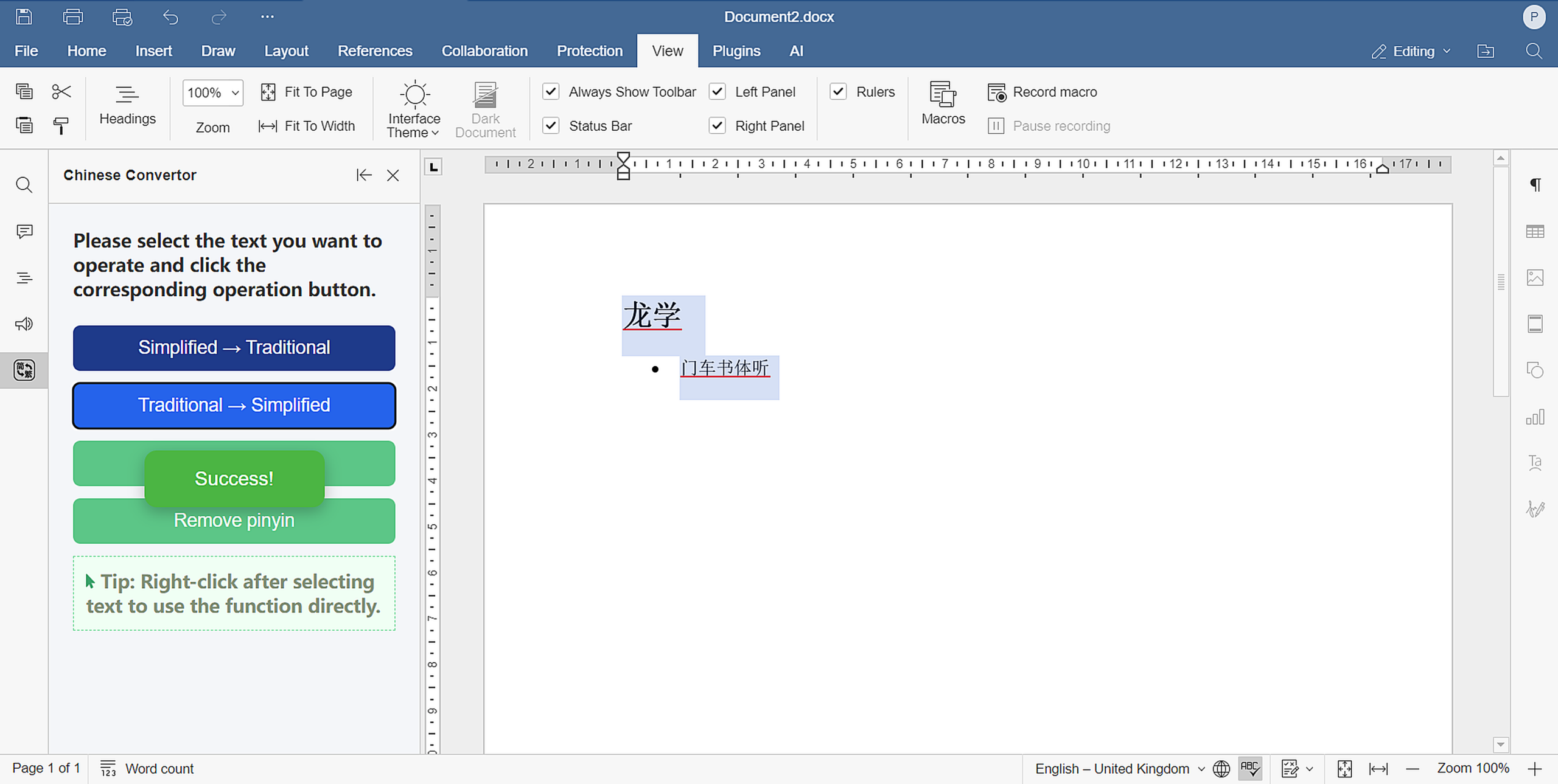
- Convert Traditional to Simplified: Easily switch selected Traditional Chinese text back to Simplified Chinese.
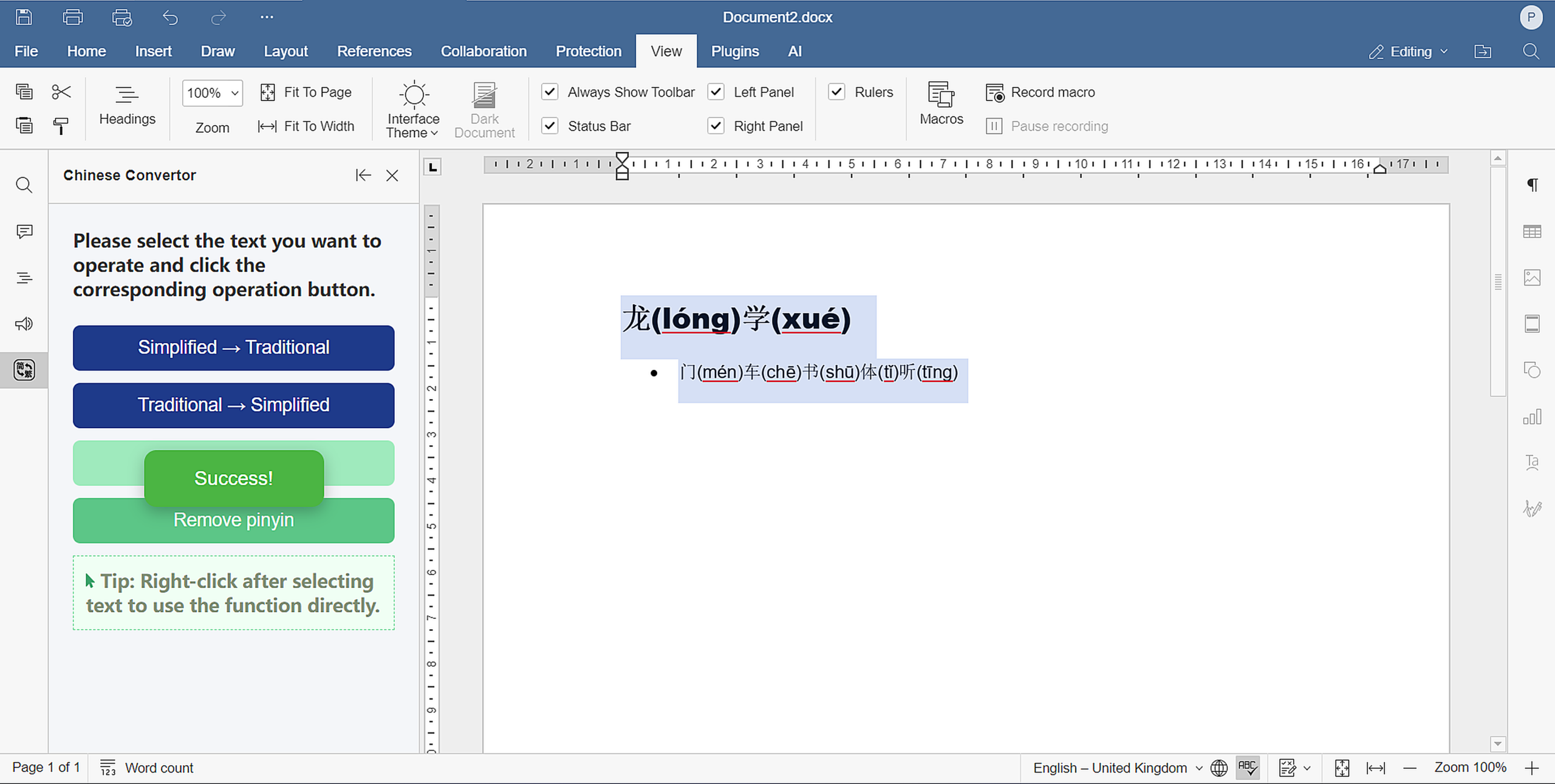
- Add Pinyin: Automatically generate Pinyin for each Chinese character in your selected text. The Pinyin is inserted inline immediately after each character in parentheses (e.g., 你好 → 你(nǐ)好(hǎo)). This is incredibly useful for language learners, teaching materials, and pronunciation guidance.
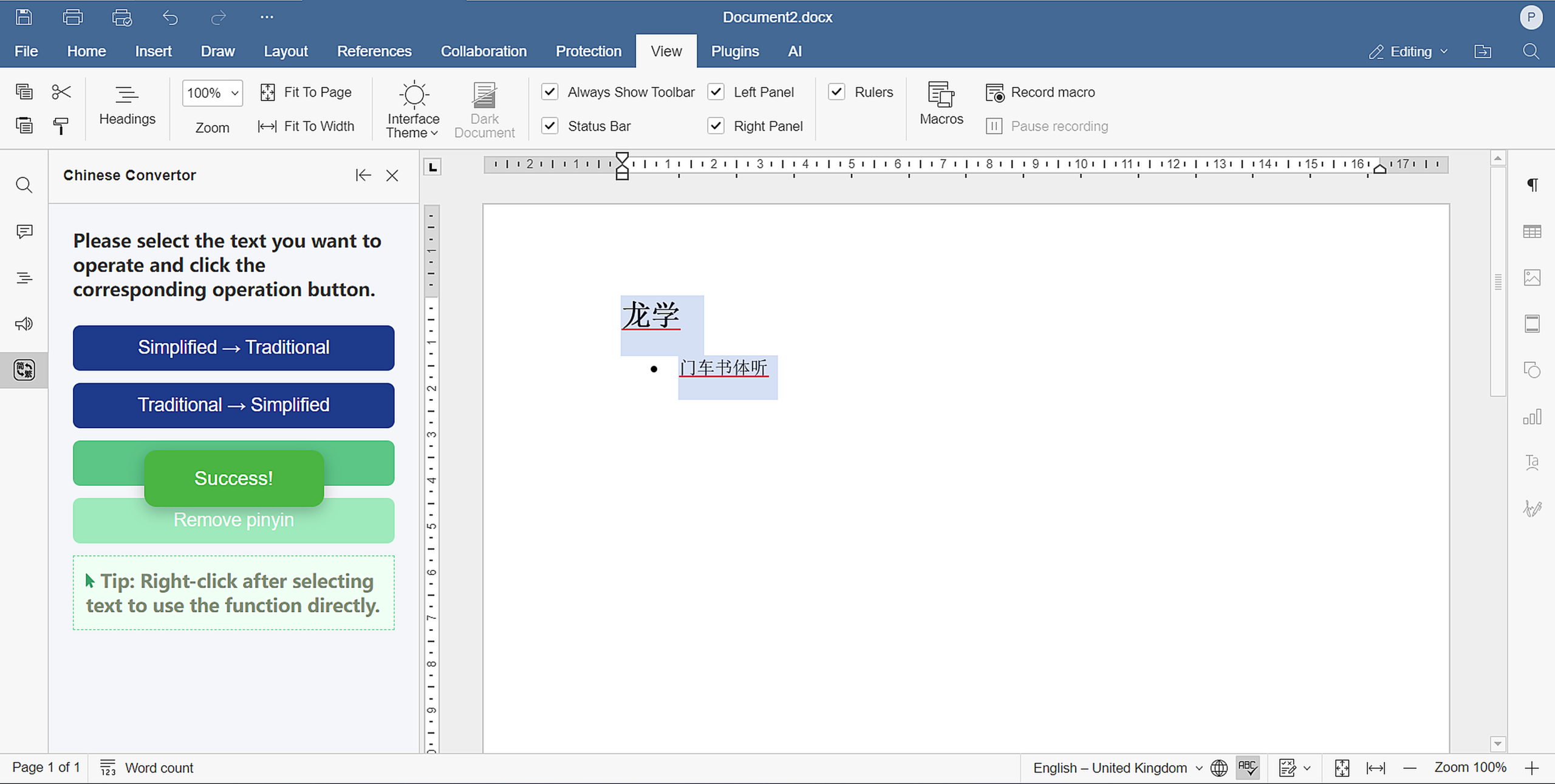
- Remove Pinyin: Remove previously added inline Pinyin annotations to restore your clean Chinese text formatting.
- Enjoy multi-editor support: Utilize these features seamlessly across the Document Editor, Spreadsheet Editor, and PDF Editor.
Unlike manually translating text or looking up Pinyin character by character, the Chinese Converter plugin provides a dedicated left-side panel and a quick-access context menu to streamline the process and save time.
Usage
- Open a document, spreadsheet, or PDF file.
- Select the Chinese text you want to modify.
- You can access the tool in two ways:
- Open Chinese Converter from the toolbar (left side panel).
- Right-click the selected text to access the context window.
- Choose your desired action: Simplified → Traditional, Traditional → Simplified, Add Pinyin, or Remove Pinyin.
About the CAF Tool
While the Converter handles translation and pronunciation, the CAF Tool is your go-to solution for typography. It automatically checks and fixes common formatting issues in Chinese writing, ensuring your documents look highly professional and adhere to standard typesetting rules.
With this plugin, you can achieve perfect document consistency through:
- Smart conversion: Automatically detect and fix spacing issues. You can configure it to add missing spaces between Chinese and Latin text/numbers, fix spacing before percent signs (e.g., “30%” → “30 %”), or add spaces between numbers and units (e.g., “10kg” → “10 kg”).
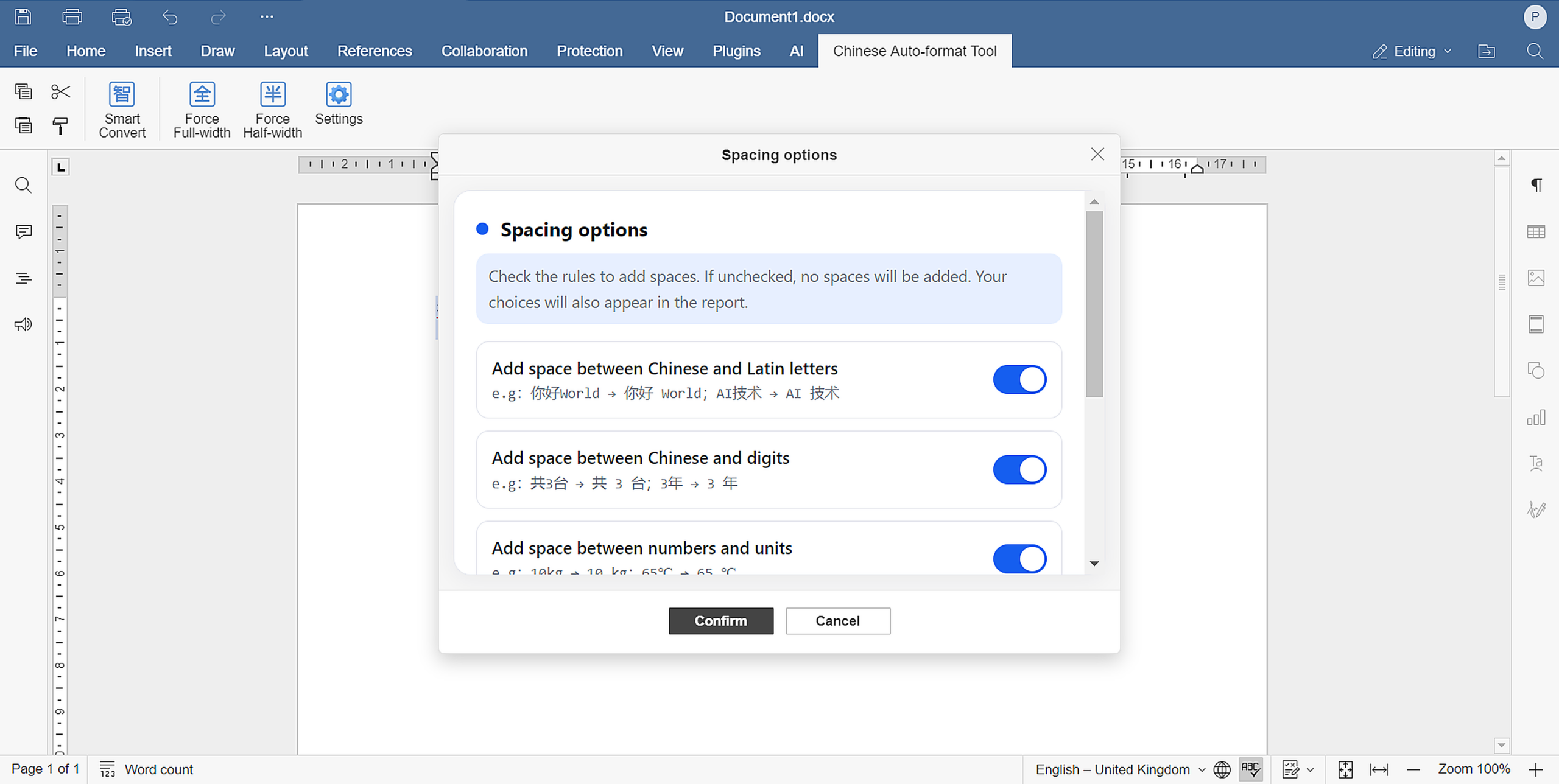
- Full-width & Half-width unification: Normalize non-standard half-width punctuation to standard Chinese full-width (e.g., “,” → “,”), or force text to half-width where necessary. You can also toggle numbers and Latin letters between full-width and half-width with one click.

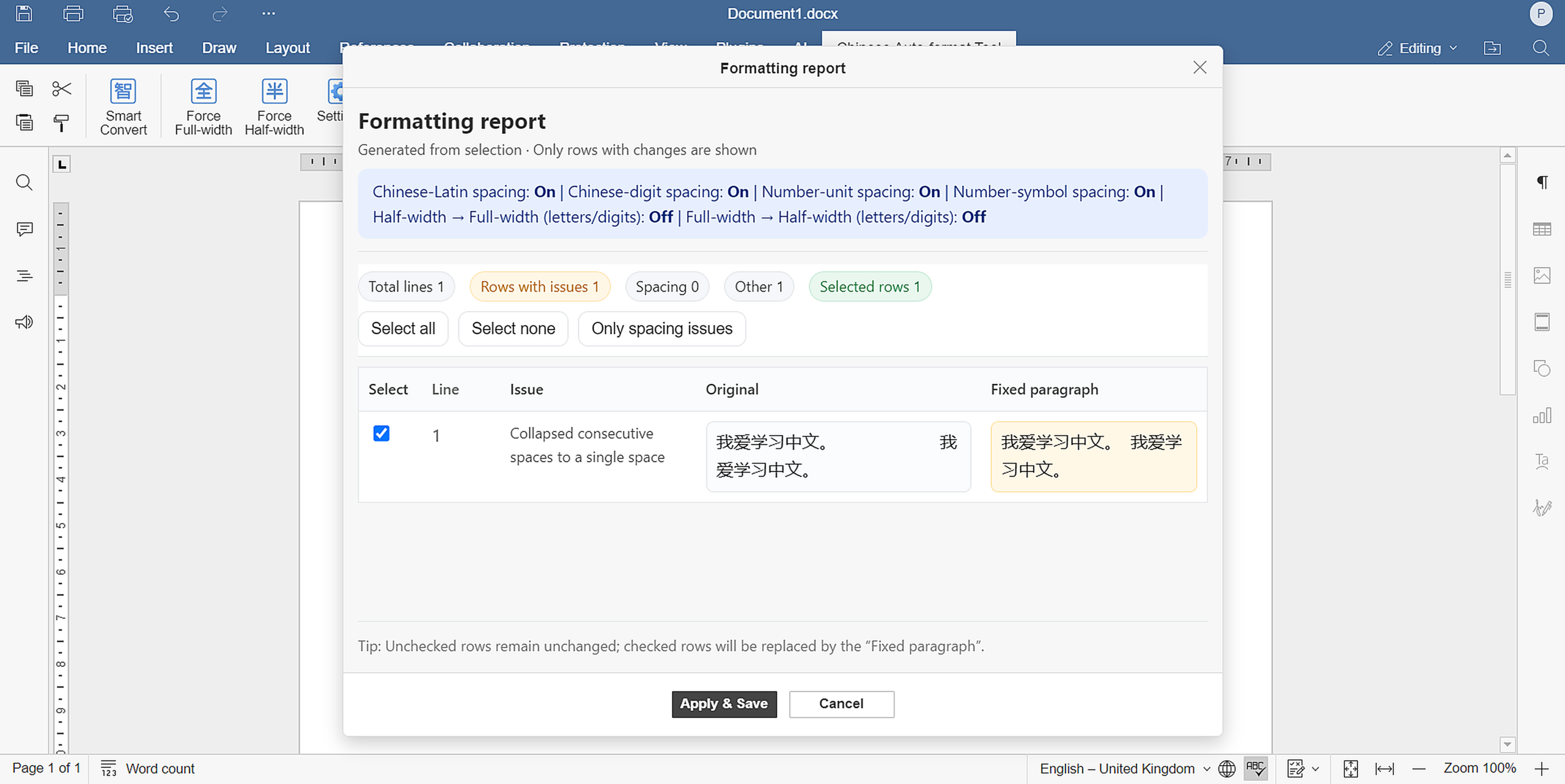
- Typography clean-up: Easily collapse consecutive extra spaces and normalize non-standard ellipses (… or …) into the standard Chinese format (……).
- Format reports: Generate a visual list of identified formatting issues, giving you full control over which replacements to apply.
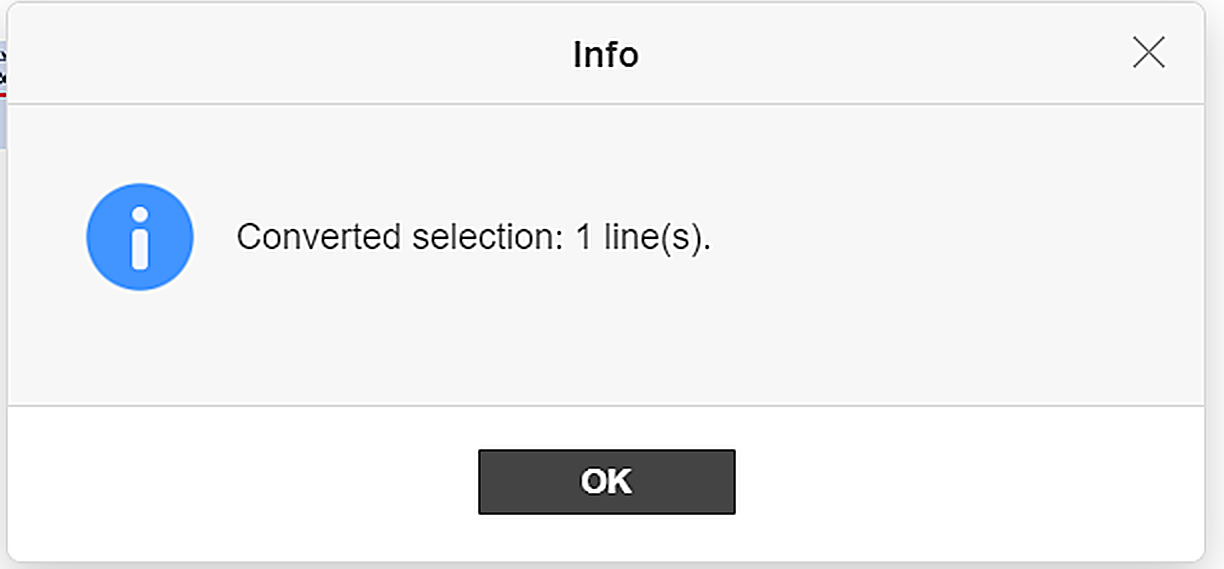
- Clear operational feedback: Stay fully informed during your formatting operations. The plugin features a custom-built notification system—that displays sleek Info, Warning, and Error dialogue boxes to provide real-time feedback on your actions.
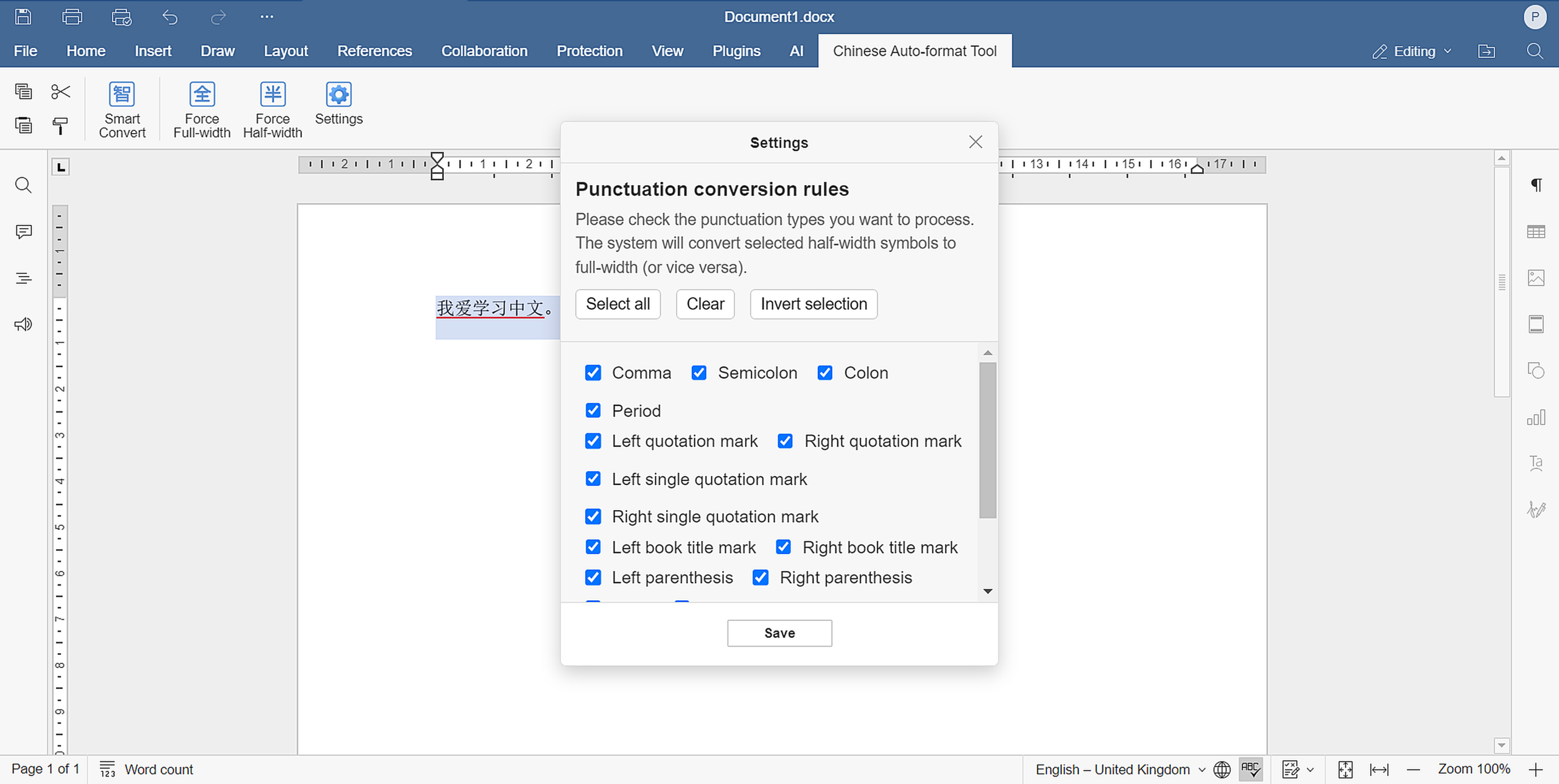
- Customizable rules: Tailor the plugin’s behaviour by choosing exactly which punctuation types or spacing rules to apply via the Settings menu.
Usage
- Open an ONLYOFFICE document (Text document editor).
- Navigate to the Plugins tab and click on Chinese Auto-Formatting Tool in the toolbar.
- A responsive panel will open, allowing you to choose from the following actions:
- Smart Conversion: Run the automated formatting checks based on your active rules.
- Force Full-Width / Force Half-Width: Quickly convert all punctuation in your current selection.
- Settings: Configure exactly which rules (like Comma, Semicolon, Left quotation mark, Right book title mark, Question mark, Yuan sign or Em dash) the plugin should check for.
- Format Report: Review a visual summary of found issues before applying changes.
How to Install
Via the Plugin Manager:
- Go to the Plugins tab and open the Plugin Manager.
- Go to the Marketplace tab.
- Search for either the Chinese Converter or the Chinese Auto-Formatting Tool via the search bar on the right.
- Click Install.
Manual installation:
- Find and download your desired plugin from the ONLYOFFICE plugin repository (or clone the repository).
- Archive the plugin files and change the file extension to .plugin.
- Go to the Plugins tab, click Plugin Manager >> Available plugins >> Install plugin manually, and browse for the .plugin file.
What’s next
Our commitment to open-source innovation continues to shape the evolution of ONLYOFFICE. Through a variety of projects, we strive to improve functionality, increase accessibility, and foster meaningful collaboration within the global open-source community.
Useful links
How to get started with ONLYOFFICE plugins
Get ONLYOFFICE for free: desktop apps/ cloud
Create your free ONLYOFFICE account
View, edit and collaborate on docs, sheets, slides, forms, and PDF files online.