New in ONLYOFFICE AI plugin: create your own assistants
The ONLYOFFICE AI plugin has become even more flexible. With the latest update, you can now create your own AI assistant functions with custom prompts and add them to the document editor toolbar for instant access.
Instead of typing the same instructions over and over, you can build personalized AI tools tailored to your workflow, whether you’re editing documents, analyzing text, or formatting content.

About personalized assistants
The new assistant feature allows you to create custom AI-powered actions inside ONLYOFFICE Document Editor. Each assistant function can be fully personalized.
You can assign a custom name to clearly identify what the function does, write your own prompt to define exactly how the AI should process the text, and choose the result display mode to control how the output appears in the document.
You can select one of the following display options:
- Hint – the AI result appears as a suggestion without changing the original text.
- Replace – the selected text is replaced with the AI-generated result.
- Hint and replace – you see a hint indicating an edit, and the original text is edited.
This makes it easy to create assistants for tasks related to text analysis, editing, or formatting. This way, your AI tab turns into a personalized toolkit tailored exactly to your workflow.
How to add an assistant
Before creating your own assistant, make sure the AI plugin is installed and that AI models are already connected. Find the detailed instructions on how to install and configure the plugin in our Help Center.
Ensure that you have assigned a model to Chatbot. Personal assistants will use this model for actions.
Once everything is set up, follow the steps below.
Step 1. Open any text document in ONLYOFFICE.
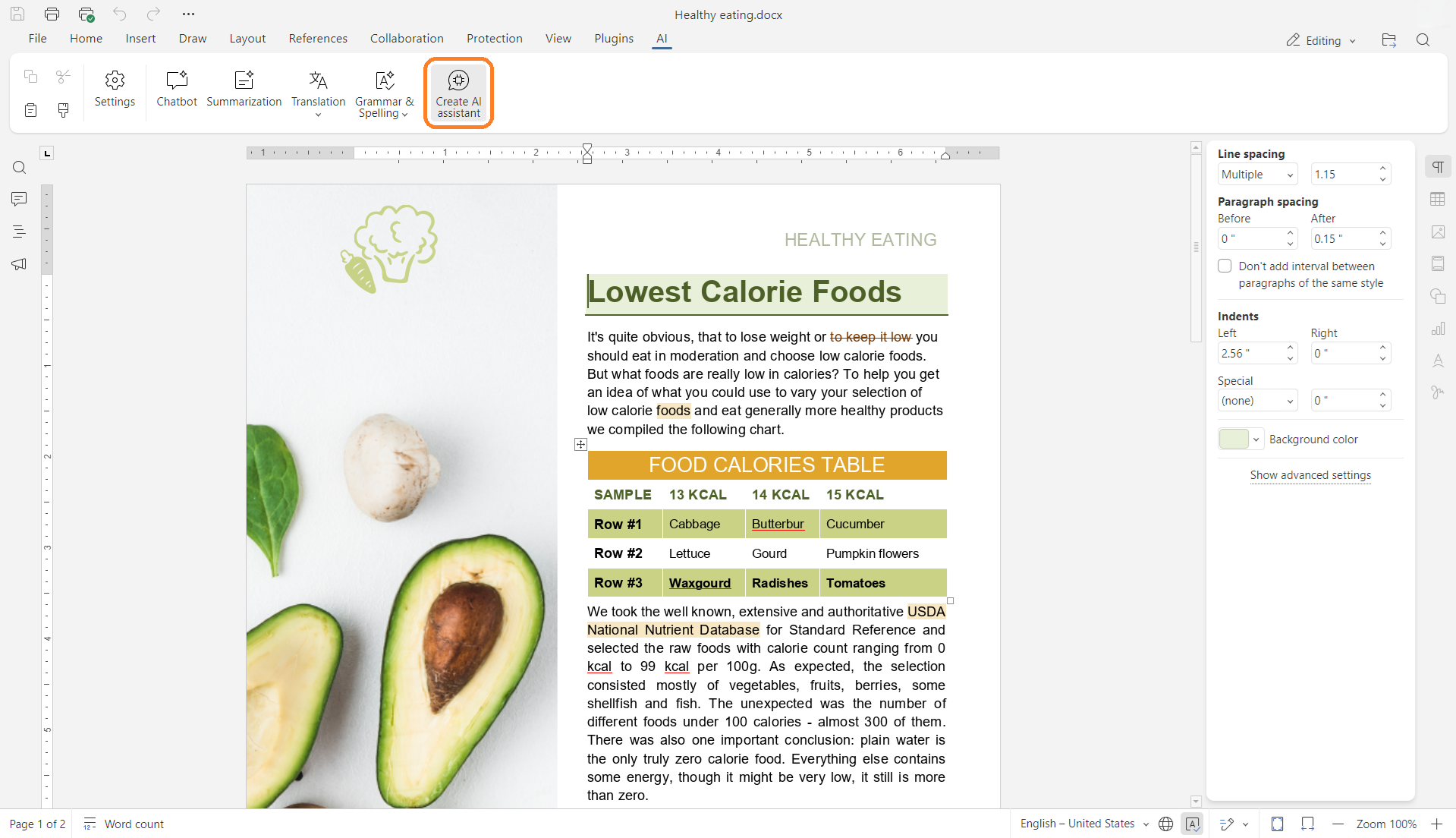
Step 2. Go to the AI tab in the top toolbar. Click Create AI assistant.
Step 3. In the window that appears, enter the Assistant’s name.
Enter your custom prompt — this is the instruction the AI will follow when the assistant is used.
Then, choose how the result should be displayed: Hint, Replace, or Hint and replace.
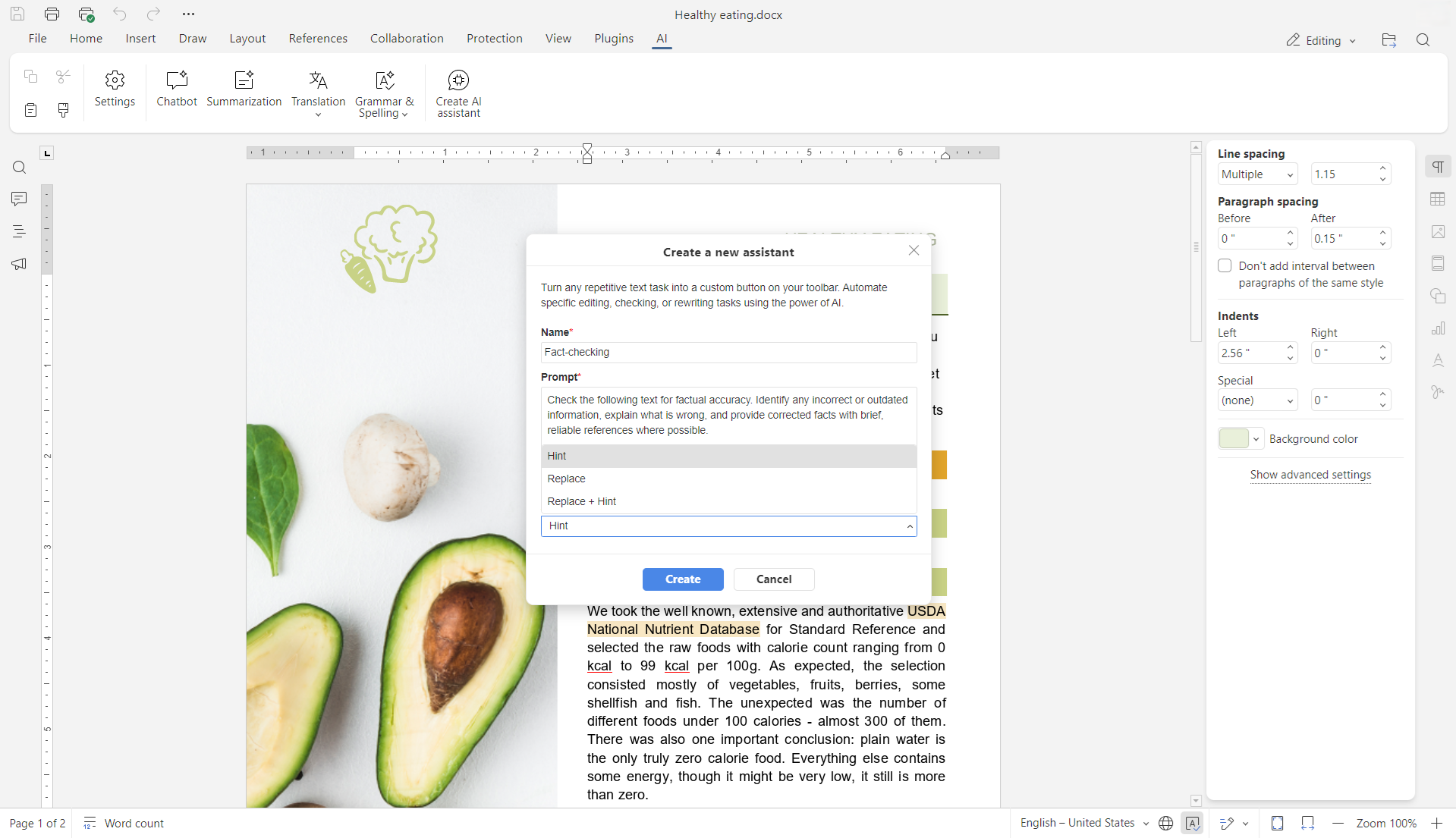
Step 4. Click Create. Your new assistant will now appear in the top toolbar, ready to be used anytime with just one click.

How to use your custom assistants
Once you’ve created your assistant functions, using them is simple:
- Select the text you want the AI to process.
- Open the AI tab in the top toolbar.
- Click the assistant you need from the list.
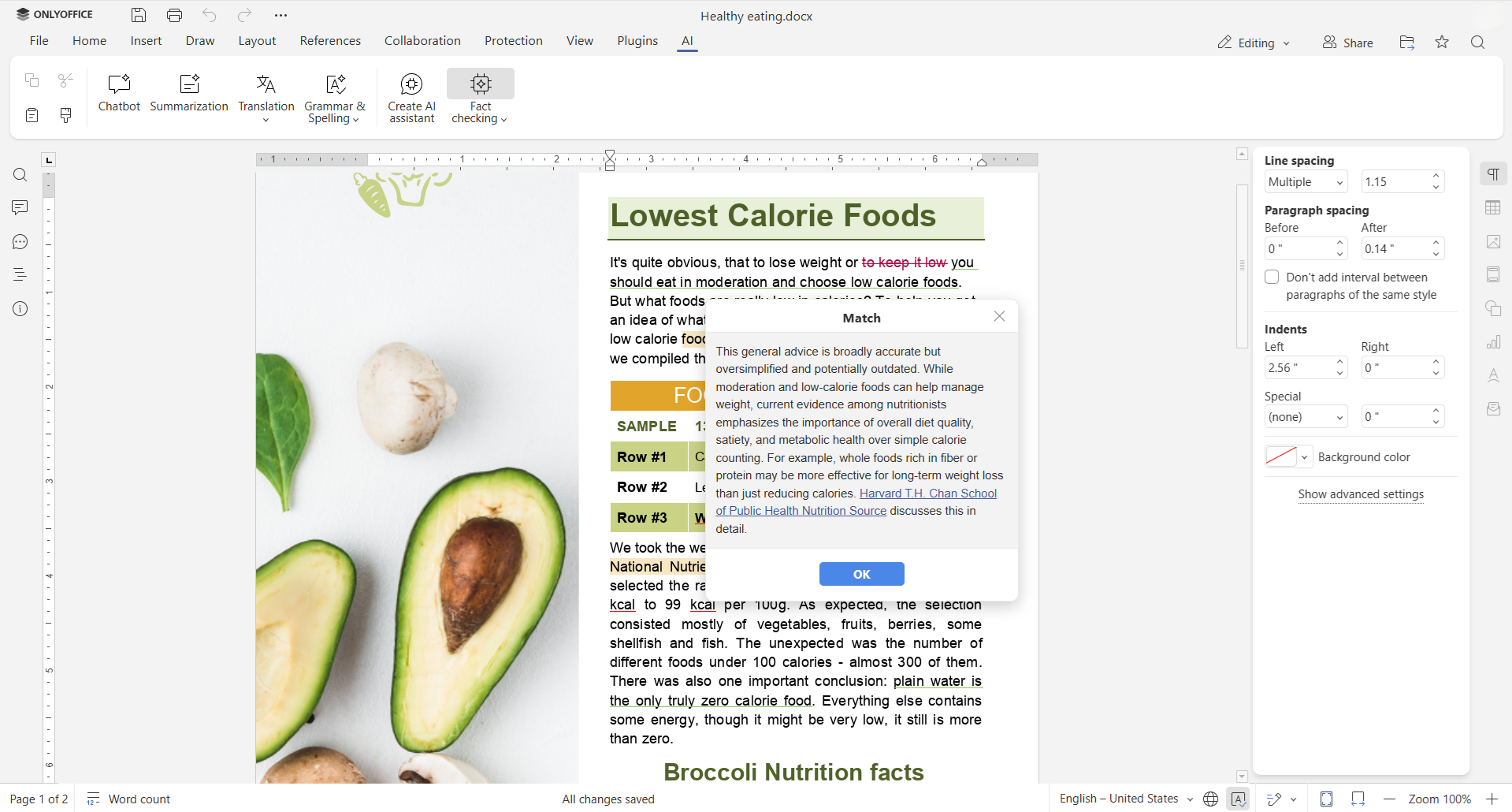
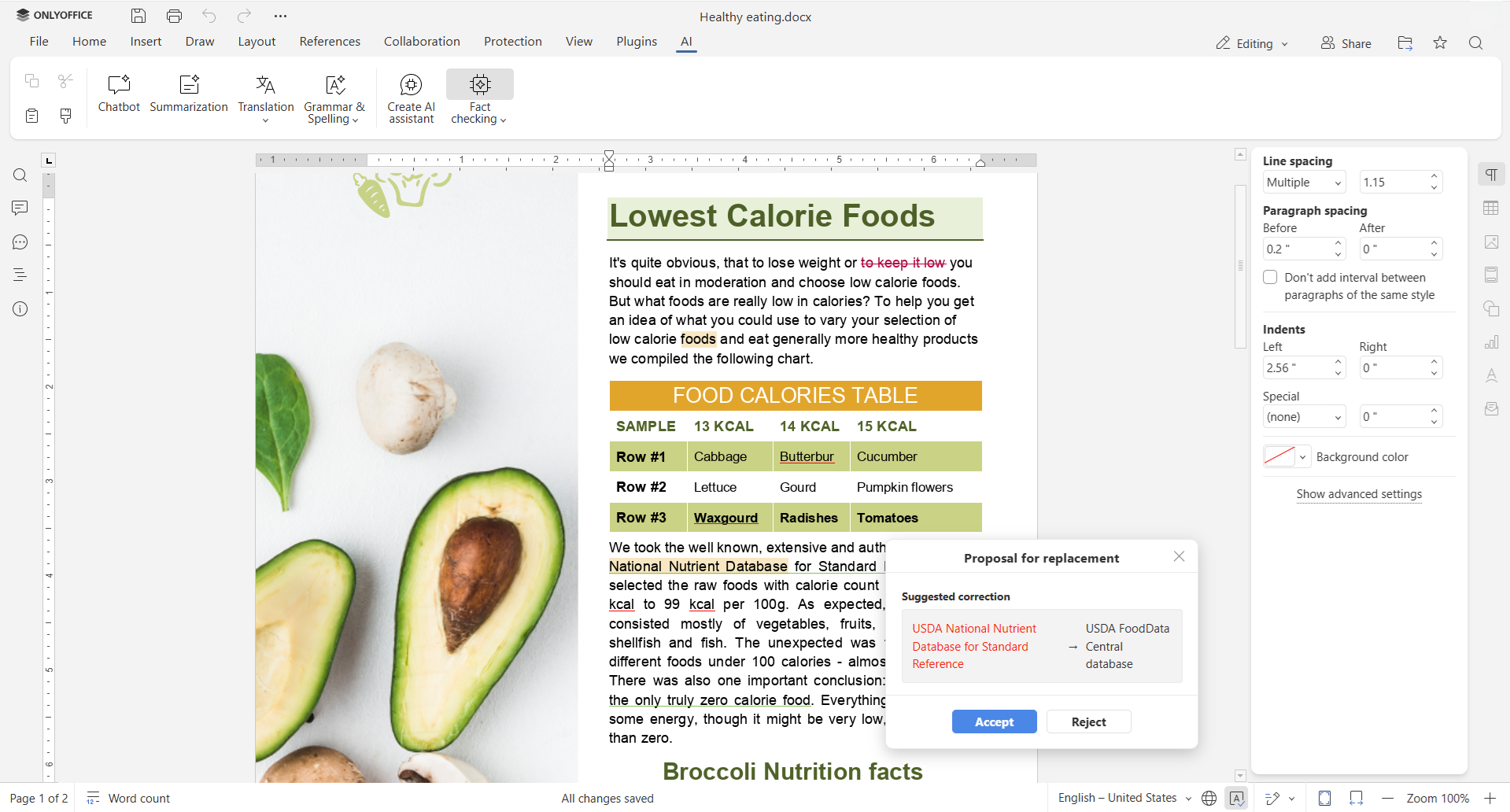
The assistant will run the prompt you configured and display the result highlighted in green based on the selected mode.
- Hint
- Replace
- Hint and replace
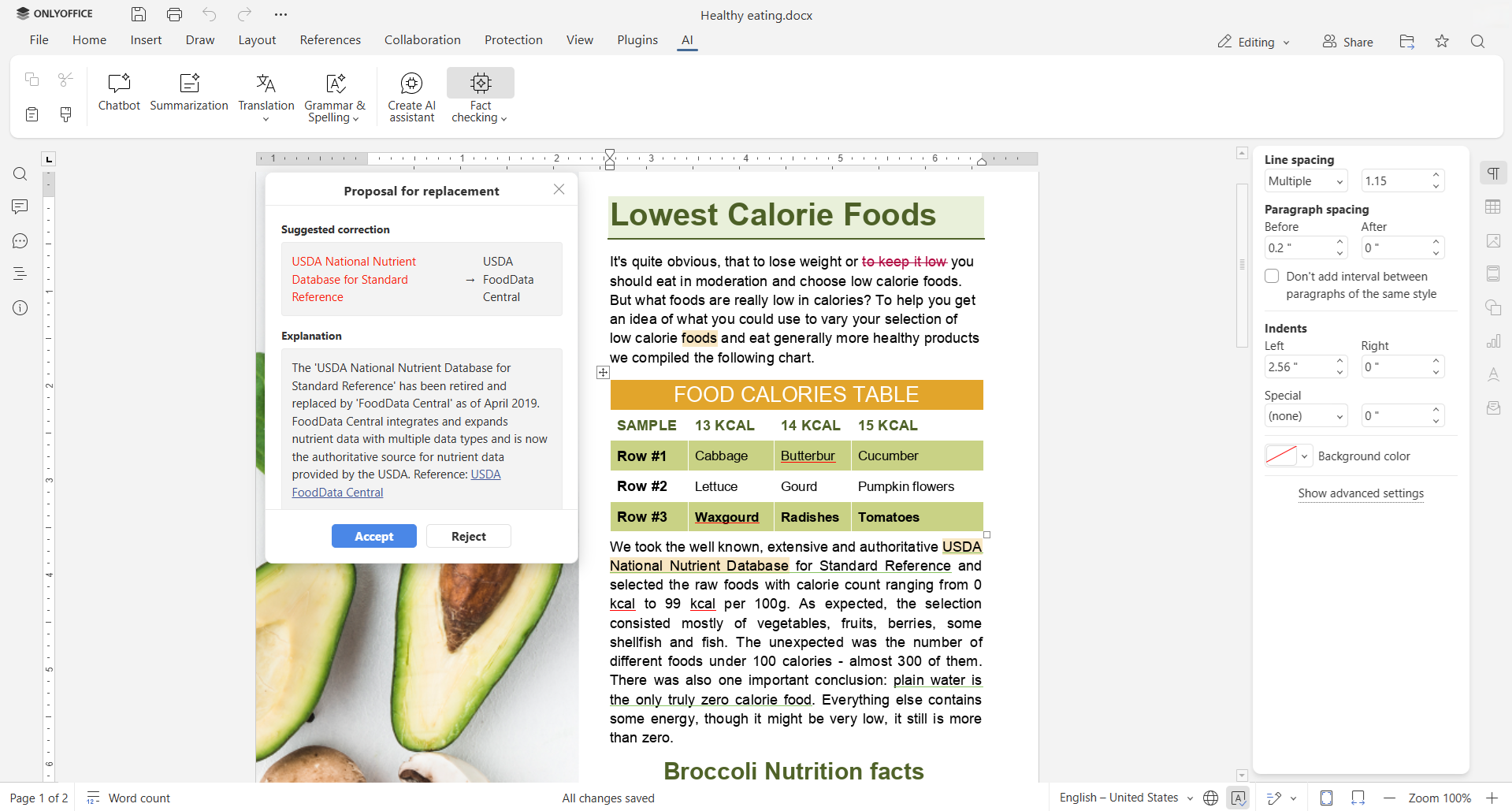
You can open the hint and accept or reject the suggestions automatically.
To turn off hints and changes, just click the assistant button.
Ideas for assistant functions you can create
Custom assistants are perfect for recurring writing and editing tasks. For example, you can create assistants that:
- Replace complicated terms with simple explanations.
- Adapt a report or email for different audiences.
- Make sentences concise, correct errors, and polish wording.
- Extract key points from a long text – highlight dates, statistics, or main arguments.
- Create short social media snippets from longer content – generate posts with a specific character limit.
- Rewrite instructions for beginners or summaries for experts.
- Verify dates, numbers, or references.
- Create attention-grabbing headings for articles, blog posts, or presentations.
Try the updated AI plugin
Try the updated AI plugin and create new assistants, and right now in ONLYOFFICE Desktop Editors, or create a free DocSpace account:
*Please note that the ONLYOFFICE team is not responsible for the accuracy or reliability of the information and content provided by third-party AI models and assistants.
FAQ: create your own assistants
Is the AI plugin free to use?
Yes, the ONLYOFFICE AI plugin itself is completely free. However, AI models may be paid depending on the provider you choose and their pricing policies.
In which ONLYOFFICE solutions is the AI plugin available?
The AI plugin is available in the Document Editor in ONLYOFFICE DocSpace, in ONLYOFFICE Docs, and in ONLYOFFICE Desktop Editors for Windows, Linux, and macOS.
Which AI providers can I use with the plugin?
You can connect different AI providers and choose which model to use. The plugin supports both local and online AI services: OpenAI, OpenRouter, Anthropic, DeepSeek, Groq, Mistral AI, Together AI, and Ollama.
You decide which provider and model to connect and use for your assistants.
Can I create multiple assistants?
Yes. You can create as many personalized assistants as you need, each with its own name, prompt, and result display mode.
How do I report issues or suggest improvements?
We welcome feedback. Visit our feedback platform to report issues, suggest new features, or share ideas on how we can improve the AI plugin.
Create your free ONLYOFFICE account
View, edit and collaborate on docs, sheets, slides, forms, and PDF files online.