ONLYOFFICE Desktop Editors 9.2 released: AI agent, customizable hotkeys, macro recording, ARM64 support for Windows and more
Ready to meet the newest version of our desktop app for Windows, Linux and macOS? ONLYOFFICE Desktop Editors 9.2 is already available with most new features of its online version and several unique improvements, including a brand-new AI agent. Read this blog post to learn more about this release.

Enable your own AI agent and improve your productivity
ONLYOFFICE Desktop Editors is now equipped with the AI agent functionality, allowing you to simplify your document workflows by letting the artificial intelligence perform a wide variety of routine tasks. This feature is designed to help you do your work faster with minimum manual operations: you just type what you need to do, and your AI agent will take care of it.
When connected to ONLYOFFICE Desktop Editors 9.2, your AI agent can automate a lot of operations. This is a brief overview of what it can assist you with:
- General assistance. The AI agent answers your questions, explains concepts, provides additional information, comes up with solutions to your problems, and offers writing assistance and suggestions.
- File and document management. The AI agent generates new files (documents, presentations and fillable PDF forms), finds and opens files stored on your PC or laptop, lists the contents of your folders (Documents, Downloads, Desktop, etc.) and allows you to view recently used files.
- File contents interaction. The AI agent extracts and displays content from files in text or HTML format without opening them in the ONLYOFFICE editors.
- Document analysis. The AI agent identifies fillable fields in PDF forms and documents and understands document structure.
- Form-filling. The AI agent automatically populates fillable forms with provided information and converts date ranges to specific start and end dates.
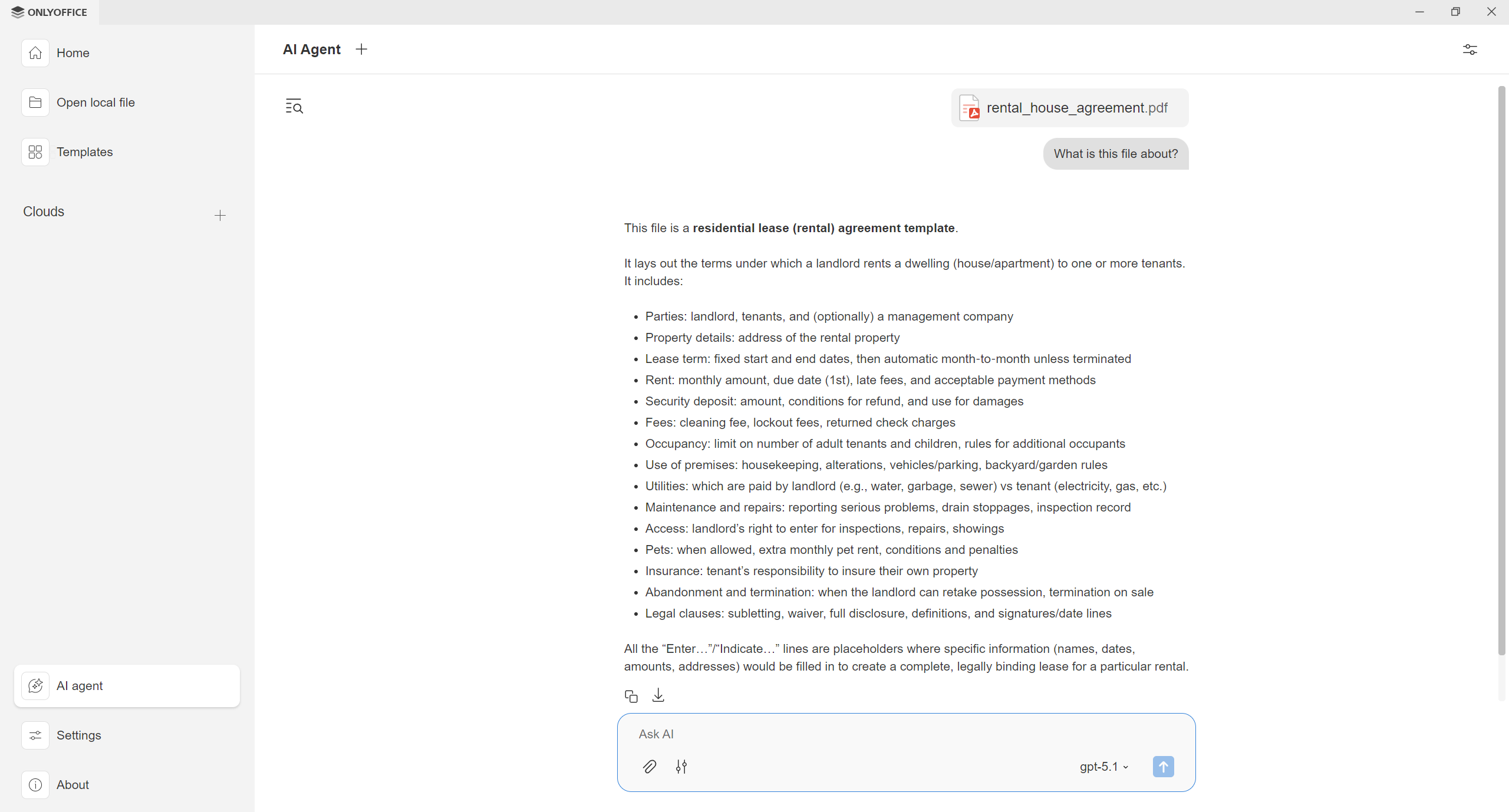
In the AI agent settings, you can also find the MCP Servers option, allowing you to configure MCP servers and use them within the agent for a more personalized user experience tailored for your common tasks.
If you want to get started with AI agents in ONLYOFFICE Desktop Editors, you can choose among Anthropic, Ollama, OpenAI, TogetherAI and OpenRouter as predefined AI providers. This means that not only can you use cloud-based AI models, but you can also opt for local AI models deployed on your machine with Ollama for better security and data privacy.
To set up your personal AI agent, follow these steps:
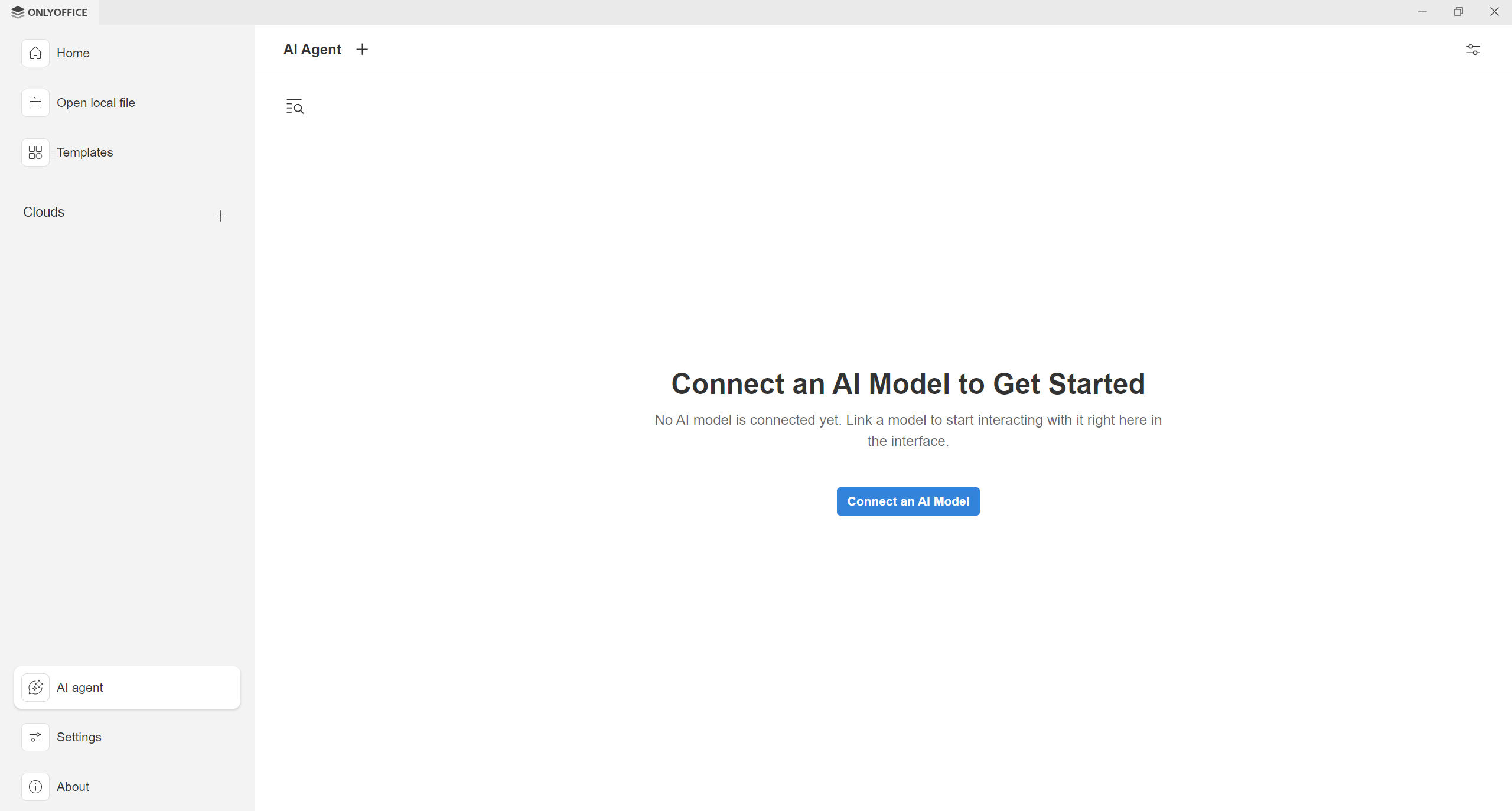
- Launch the ONLYOFFICE desktop app and switch to the AI Agent section in the bottom left corner of the start window.
- Click the Connect an AI model button to access the corresponding settings.
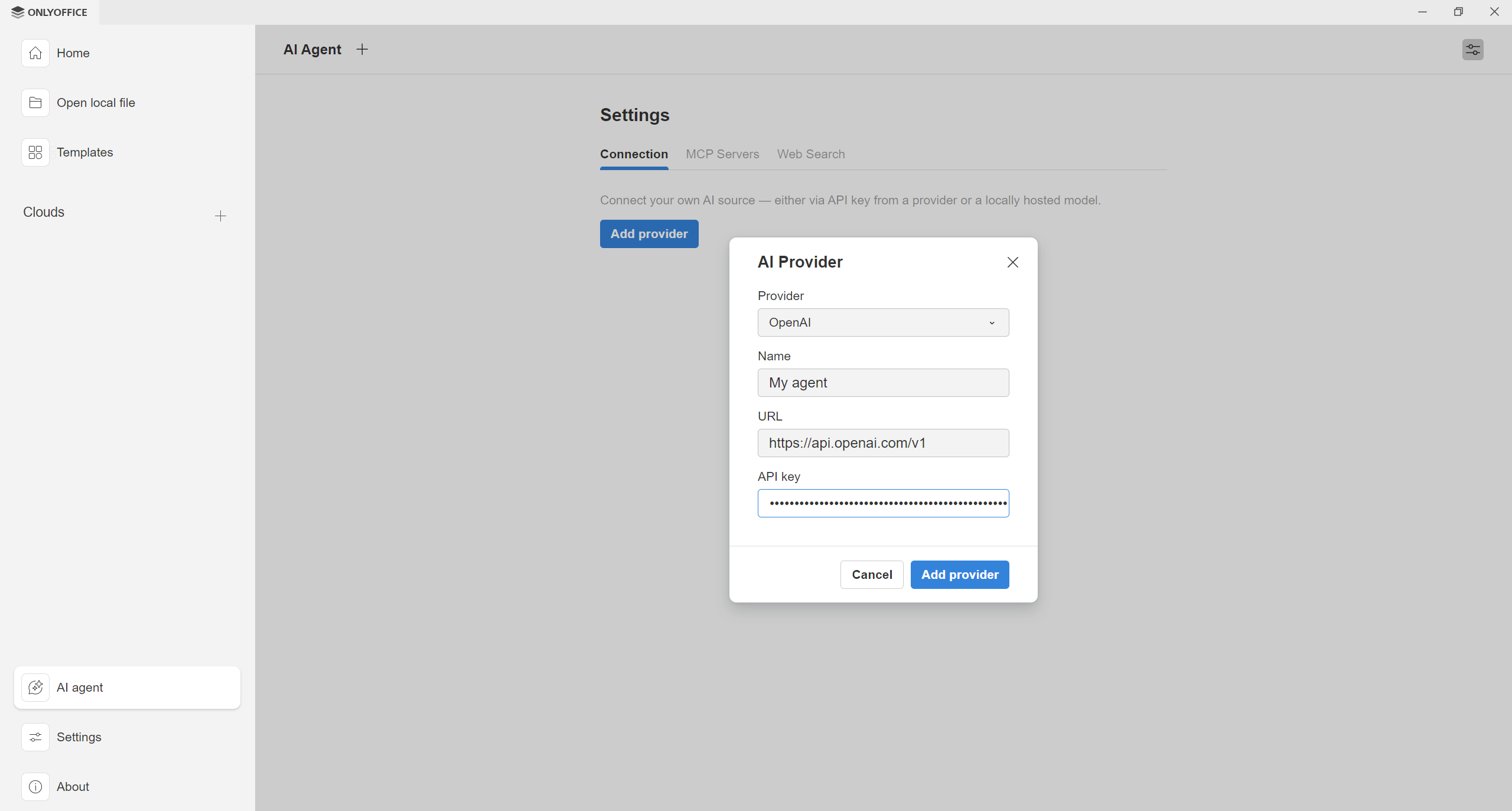
- Click the Add provider button and complete all the required fields. The URL field is configured automatically depending on the selected provider. In the API key field, you need to enter a valid API key issued by your AI provider. Please note that ONLYOFFICE doesn’t provide any API keys, and you should get one from the website of your provider.
- To finish the process, hit the Add provider button.
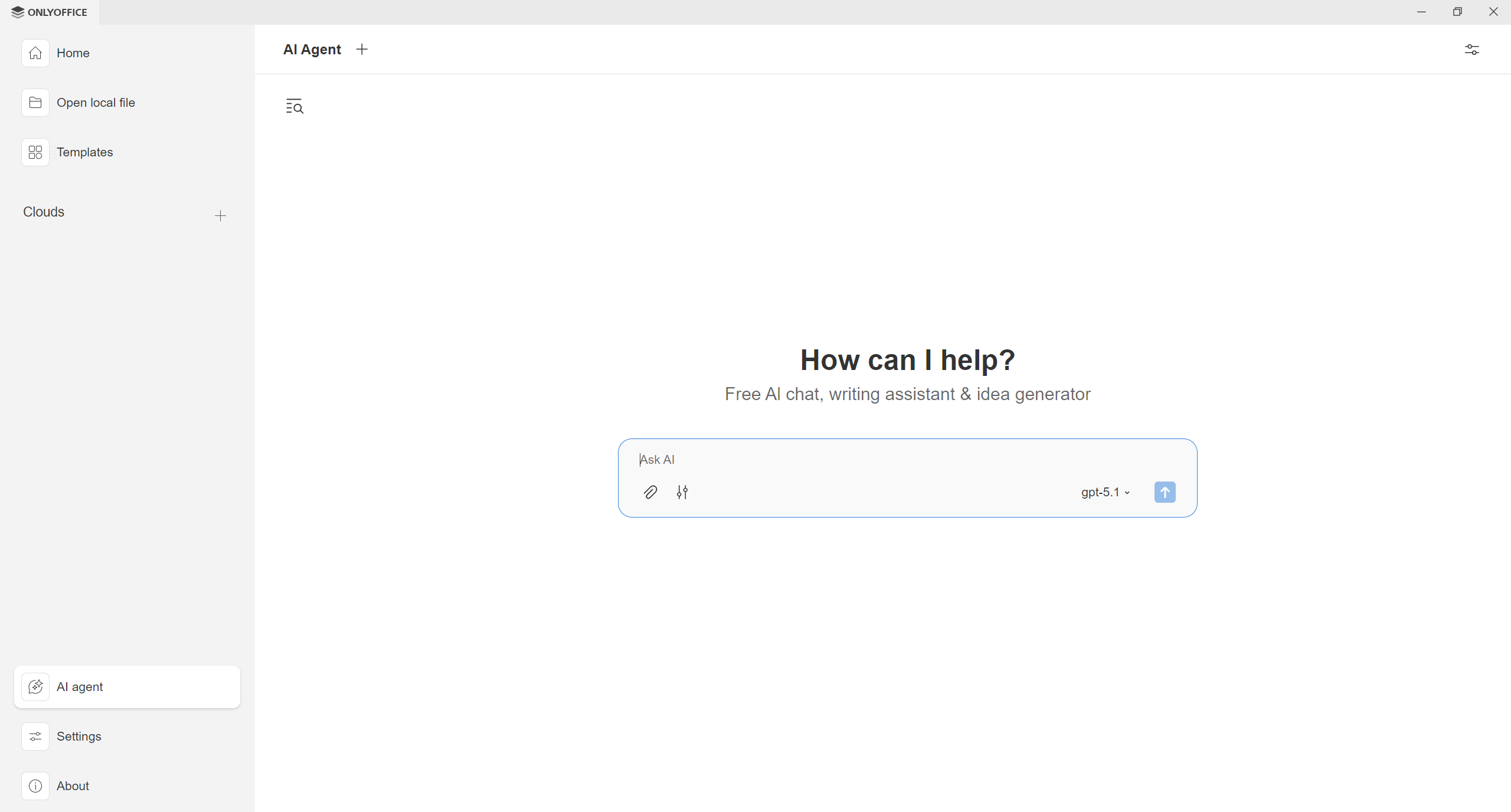
Congratulations! If done correctly, now you can access the AI agent chat and enter your prompts in the chat field.
AI agent FAQ: all you need to know
If you still have questions about how AI agents work in ONLYOFFICE Desktop Editors, here are our answers to the most popular questions:
Q: Is the AI agent option obligatory? How do I disable it?
The AI agent feature is optional. It’s up to you to decide if you want to use it or not. When configured, your AI provider can be easily deleted via the agent settings.
Q: Is the AI agent free to use?
Yes, it’s available at no cost. However, your AI provider might charge you for using its AI models in ONLYOFFICE Desktop Editors. To learn more, visit the website of your provider.
Q: Is it compatible with any AI provider?
At the moment, only Anthropic, Ollama, OpenAI, TogetherAI and OpenRouter are available as predefined options.
Q: Can any AI model serve as an AI agent?
AI models are designed for various purposes, so you need to choose them carefully. Some models are excellent at coding while others shine if you need to create an image. You can try different models offered by your AI provider to find out what works best for your needs.
Q: How do I get an API key for my AI agent?
ONLYOFFICE doesn’t provide API keys. You should get them from your AI provider.
Q: Do I need to configure the AI plugin to be able to use the AI agent?
No, you don’t. You can set up your AI agent and start using it without configuring the AI plugin in the editors.
Q: What’s the difference between the AI agent and the AI plugin?
The AI agent performs operations in a separate window, and you can interact with it without having to launch the ONLYOFFICE editors. On the contrary, the AI plugin works only inside the editors and has its own settings. You can combine them to guarantee the best editing experience.
Q: When I use the AI agent, it asks me to provide some permissions. What do they mean?
Your configured AI agent can use various tools to get its work done, so it might ask you to provide the required permissions. For example, the file_opener tool is used to open local files on your PC or laptop, and the generate_form tool is designed to generate a fillable form based on your description. If you don’t allow the requested permissions, your AI won’t perform some operations.
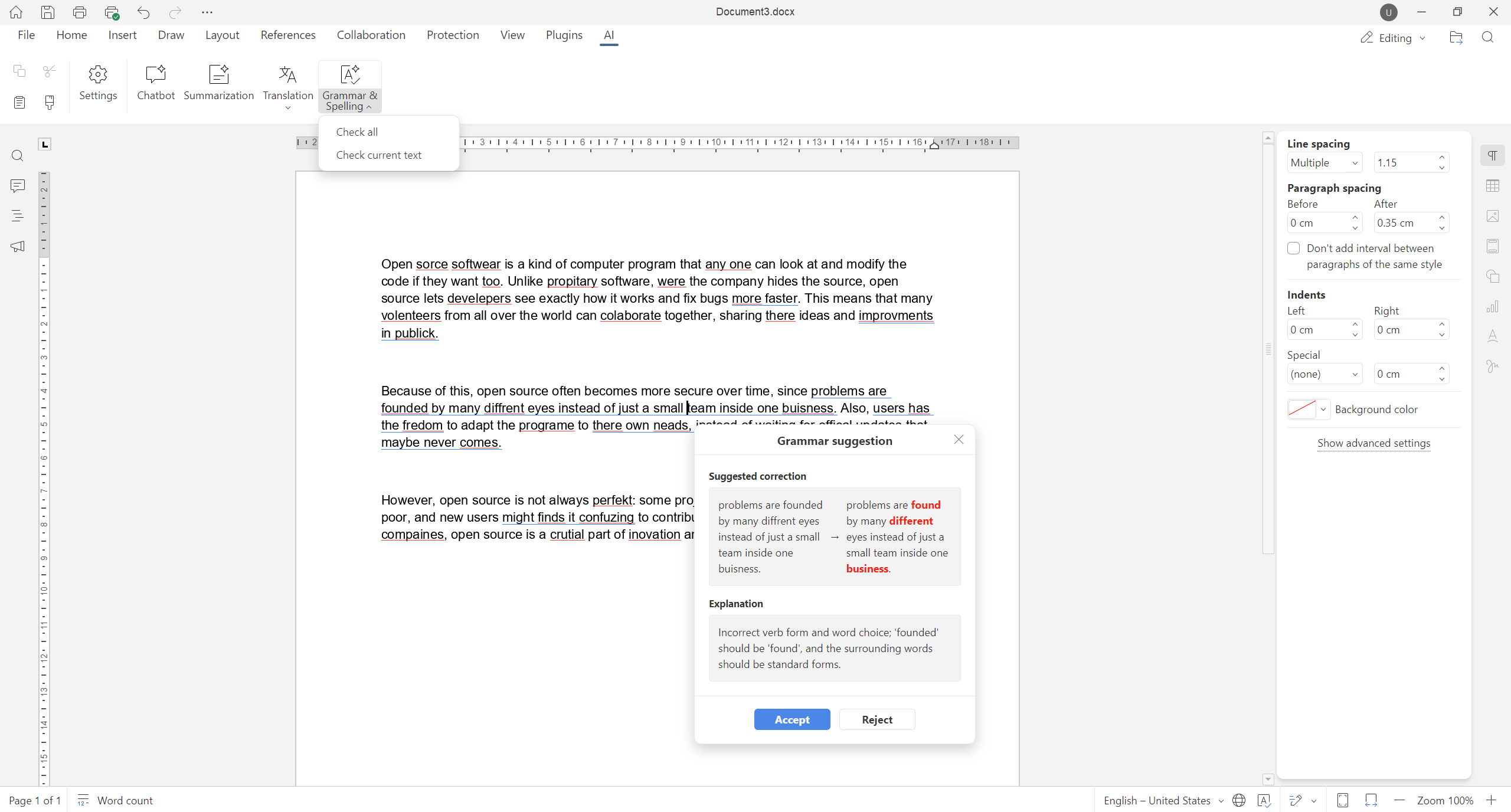
Correct grammar and spelling mistakes with AI
The built-in AI agent is not the only improvement in ONLYOFFICE Desktop Editors 9.2. Another update includes AI-powered grammar correction and spell-checking, available via the AI plugin in the editors. With this feature, you can easily polish your texts and make them look correct with a few clicks. The AI will spot and suggest correcting all the grammar and spelling mistakes.
If you have the AI plugin enabled and properly configured, you just need to select your text and either access the grammar correction and spell-checking tool via the AI tab on the top toolbar or via the context menu.
Customize keyboard shortcuts the way you like
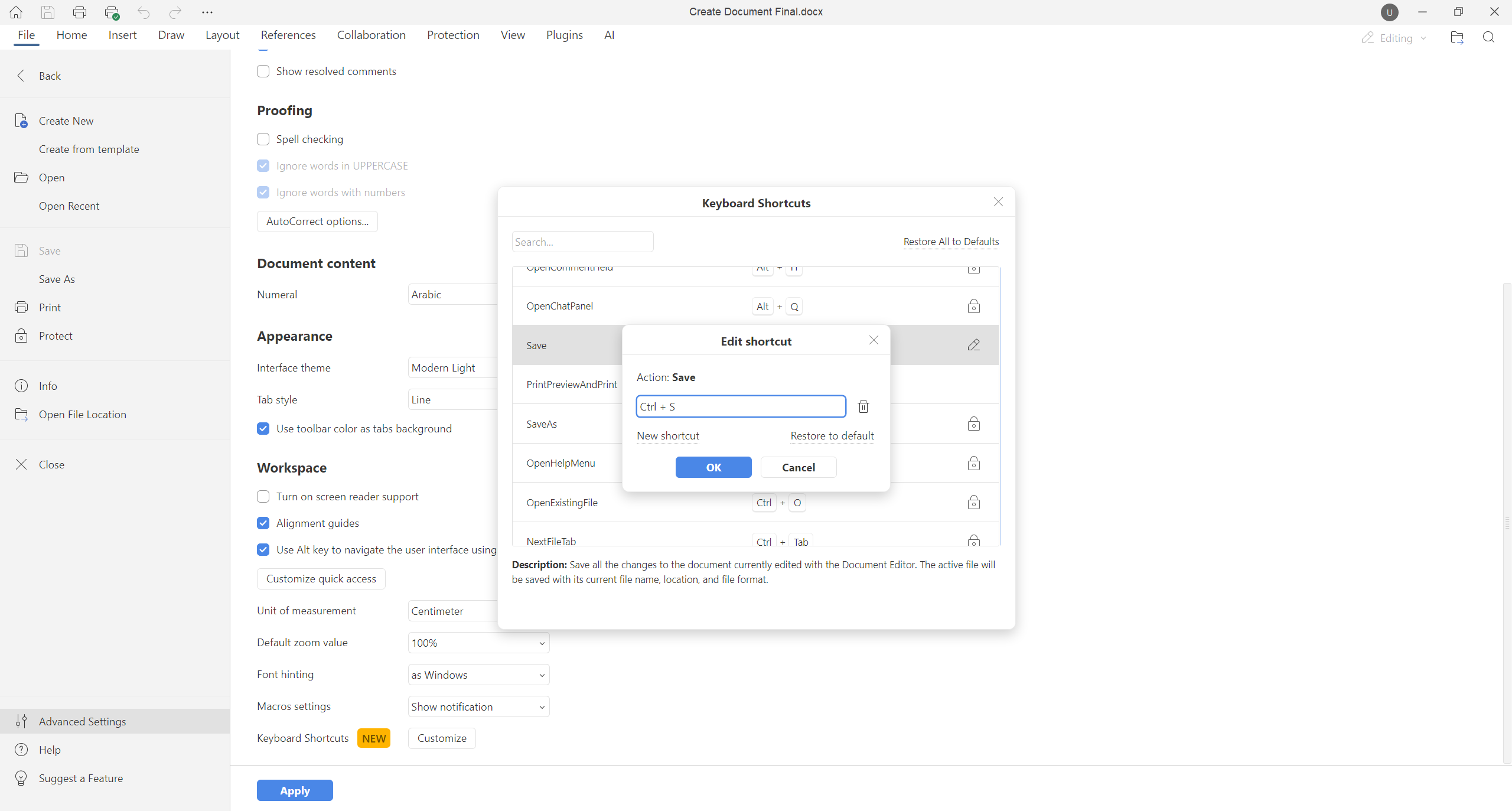
ONLYOFFICE Desktop Editors 9.2 is not only about AI improvements. It also makes your editing experience more comfortable, allowing you to customize keyboard shortcuts to suit your habits and preferences.
Where to find: File tab ➙ Advanced settings ➙ Keyboard Shortcuts ➙ Customize
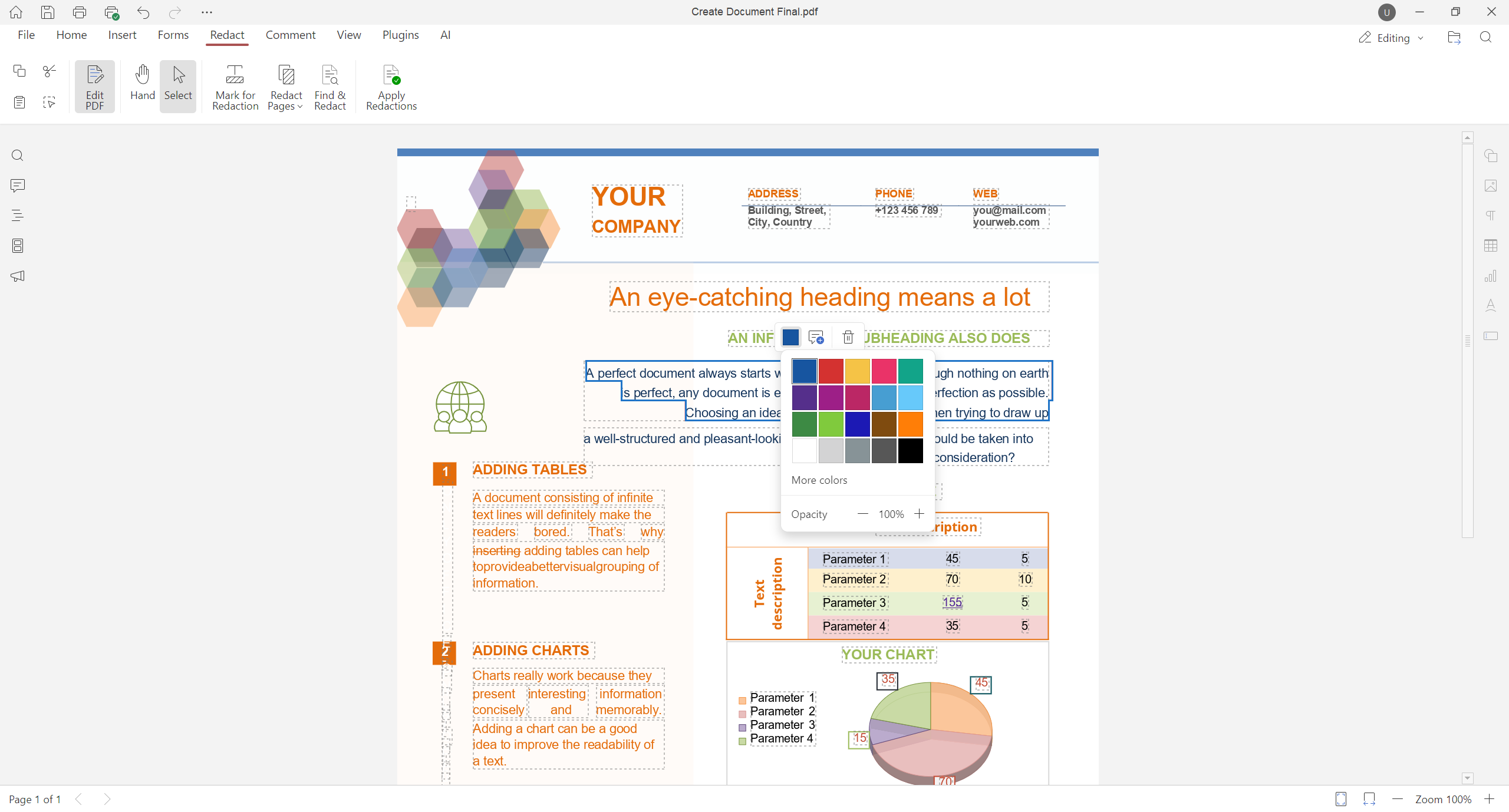
Choose your favourite colour for the Redact option
The Redact feature, available in ONLYOFFICE PDF Editor since version 9.1, is now more powerful since you can customize the colour used for this option. This gives you better visual control and flexibility when preparing confidential documents for sharing.
Where to find: Redact tab
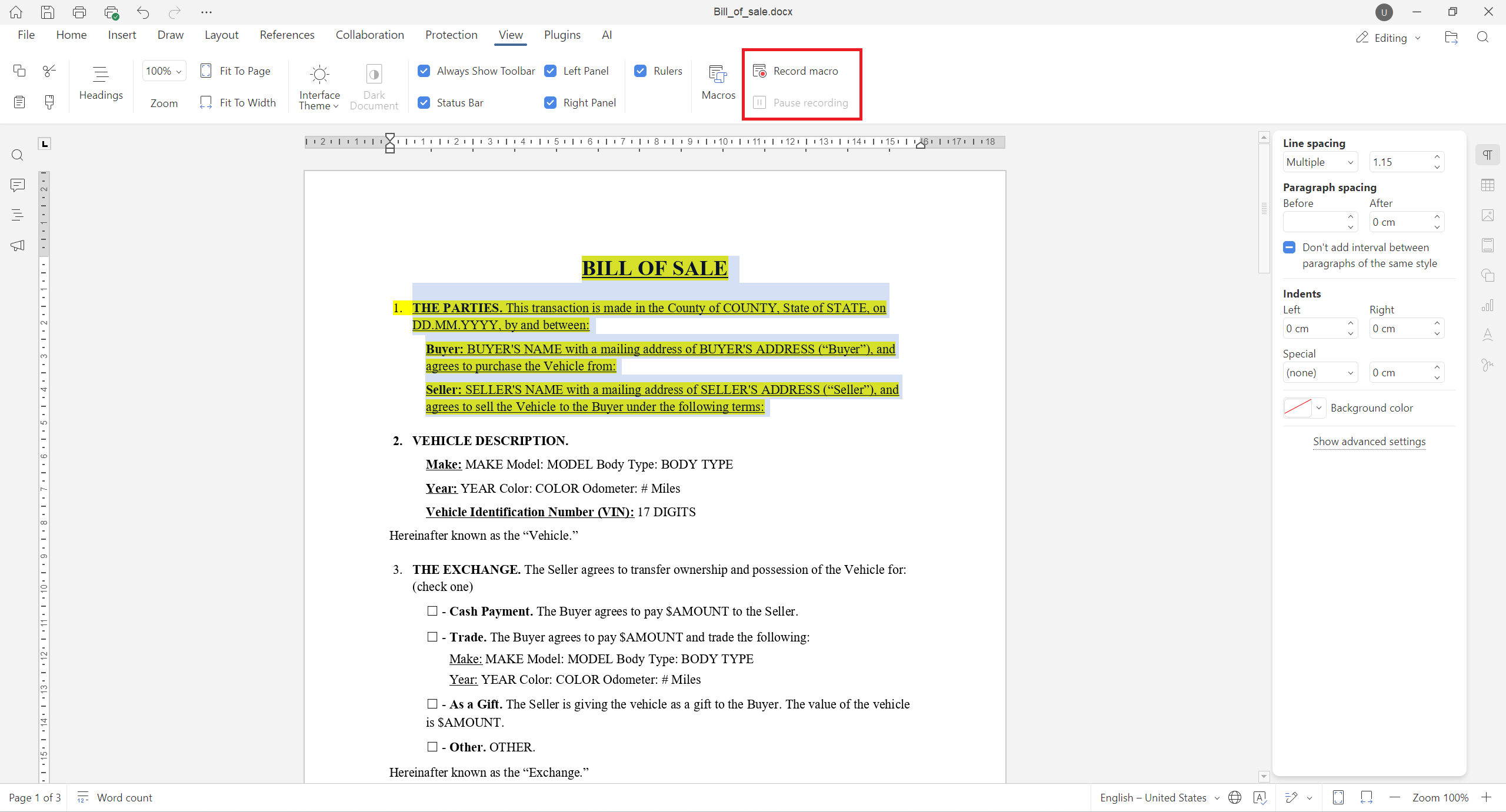
Record your actions as macros
If you often perform repetitive actions, the new macro recording feature will come in handy. With this tool, you can automate your actions by recording them as ONLYOFFICE macros. Just record a sequence of specific actions, save it as a macro, and run it whenever you need to perform this task again.
Where to find: View tab ➙ Record macro
Create fillable forms more easily
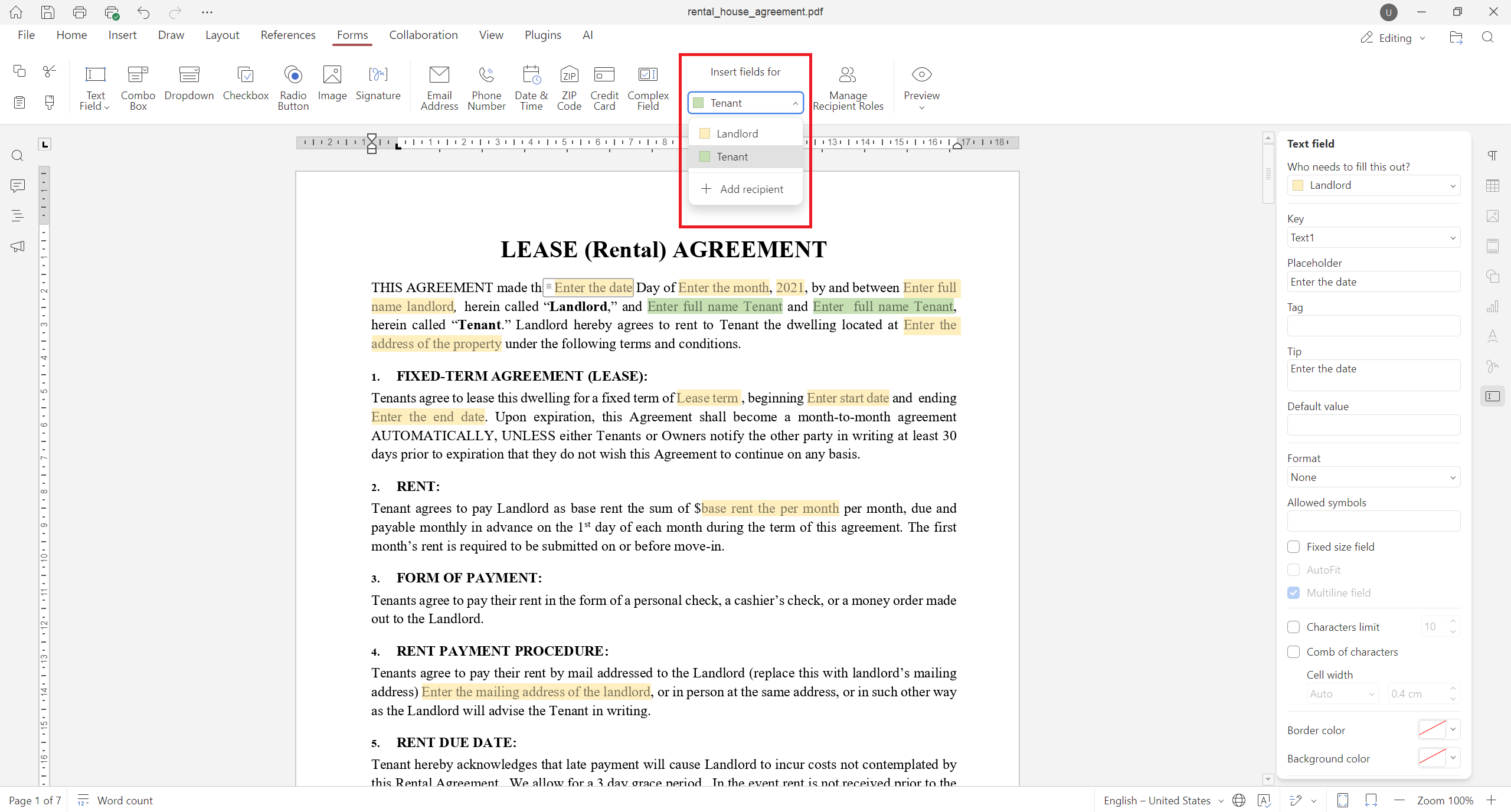
Version 9.2 makes form creation easier due to the ability to add descriptive text labels to checkboxes and radio buttons. Additionally, you can assign specific roles to new fields when inserting them into your form.
Learn more about version 9.2
If you want to learn more about the AI updates in ONLYOFFICE Desktop Editors 9.2 and how they work in practice, watch our YouTube webinar below:
ARM64 support for Windows 11
Last but not least, ONLYOFFICE Desktop Editors 9.2 for Windows 11 can be installed on devices with the ARM architecture. The ARM-compatible version of the desktop client for Windows 11 is available as a separate build and provides several installation options. You can download it from GitHub or our official website.
ARM64 support for Linux will be available in further releases.
Get ONLYOFFICE Desktop Editors 9.2
As usual, the updated version of ONLYOFFICE Desktop Editors for Windows, Linux and macOS is already available as deb, rpm, exe and dmg packages on our website. If you prefer Snap, Flatpak and AppImage packages, they will be available later. Stay tuned!
Share your feedback
Have suggestions and ideas on how to make ONLYOFFICE better? Don’t hesitate to request new features, share comments and propose new ideas on our feedback platform:
Create your free ONLYOFFICE account
View, edit and collaborate on docs, sheets, slides, forms, and PDF files online.