How to move on from Microsoft 365 without a full migration
Microsoft is ending support for key on-premises products this year, including Office Online Server, SharePoint Server 2016 and 2019, and Exchange Server, while standalone SharePoint plans are also being phased out. For many organizations, that sounds like a forced and disruptive migration, but in most cases, there’s a simpler path: keep your files and systems where they are, and just change the editing tool without disrupting daily work.
The Microsoft 365 end-of-support situation
The deadlines are fixed, and they arrive quickly. Office Online Server, the product that powers browser-based document editing on your own infrastructure, retires in December with no on-premises successor. SharePoint Server 2016 and 2019 lost support in July. Exchange Server support has also lapsed.
The pattern is clear: the only path Microsoft is offering leads to its cloud. For organizations in finance, healthcare, government, and other regulated sectors, that’s not always a viable option. Data sovereignty rules, compliance mandates, and internal governance policies often require documents to stay on infrastructure you control.
So the question isn’t whether to act, the timeline decides that for you. The question is how to act without triggering the disruption everyone dreads.
Why full migration is often unnecessary
Most of the fear around leaving Microsoft 365 rests on a single assumption: that moving on means a complete migration. Files relocated. Folder structures rebuilt. Permissions reconfigured. Workflows redesigned from scratch.
That assumption is wrong for the majority of teams.
Instead of moving anything, you connect a new editing suite to the platform you already use. Your files stay put. Your folder hierarchy, access controls, and permissions remain untouched. Your team keeps working with the same DOCX, XLSX, and PPTX files they’ve always used. The only thing that changes is the editing layer.
Think of it as a connection plan, not a migration plan. There’s no single moment where everything stops while IT relocates files. This distinction matters most right now, because it gives you a way to keep operating on your own infrastructure, on your own terms, and on your own timeline.
What ONLYOFFICE is and how it connects
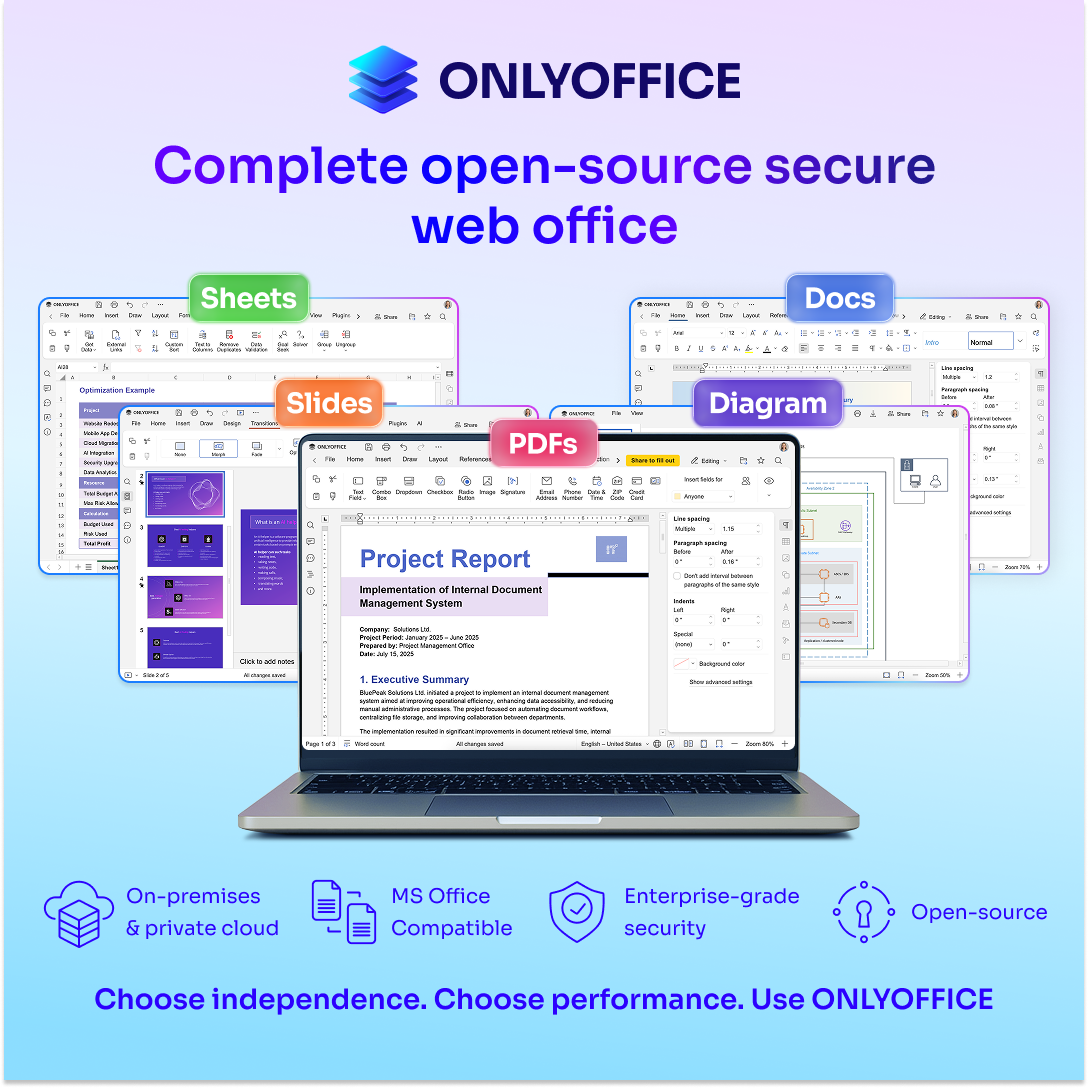
ONLYOFFICE is a comprehensive office suite covering documents, spreadsheets, presentations, and PDFs, all built around the Office Open XML standard. DOCX, XLSX, and PPTX are its native working formats, not imports that get converted behind the scenes.
The source code is published under an open-source license, so anyone can inspect and audit exactly what the software does with their data. For organizations with strict data governance requirements, that transparency is a meaningful advantage.
You deploy ONLYOFFICE on your own servers or in the cloud – whichever fits your situation – and connect it to your existing storage or collaboration platform. Ready-made connectors are available for dozens of platforms, including SharePoint, Confluence, ownCloud, Odoo, etc., with an open API for everything else.
Here’s how it works in practice with SharePoint:
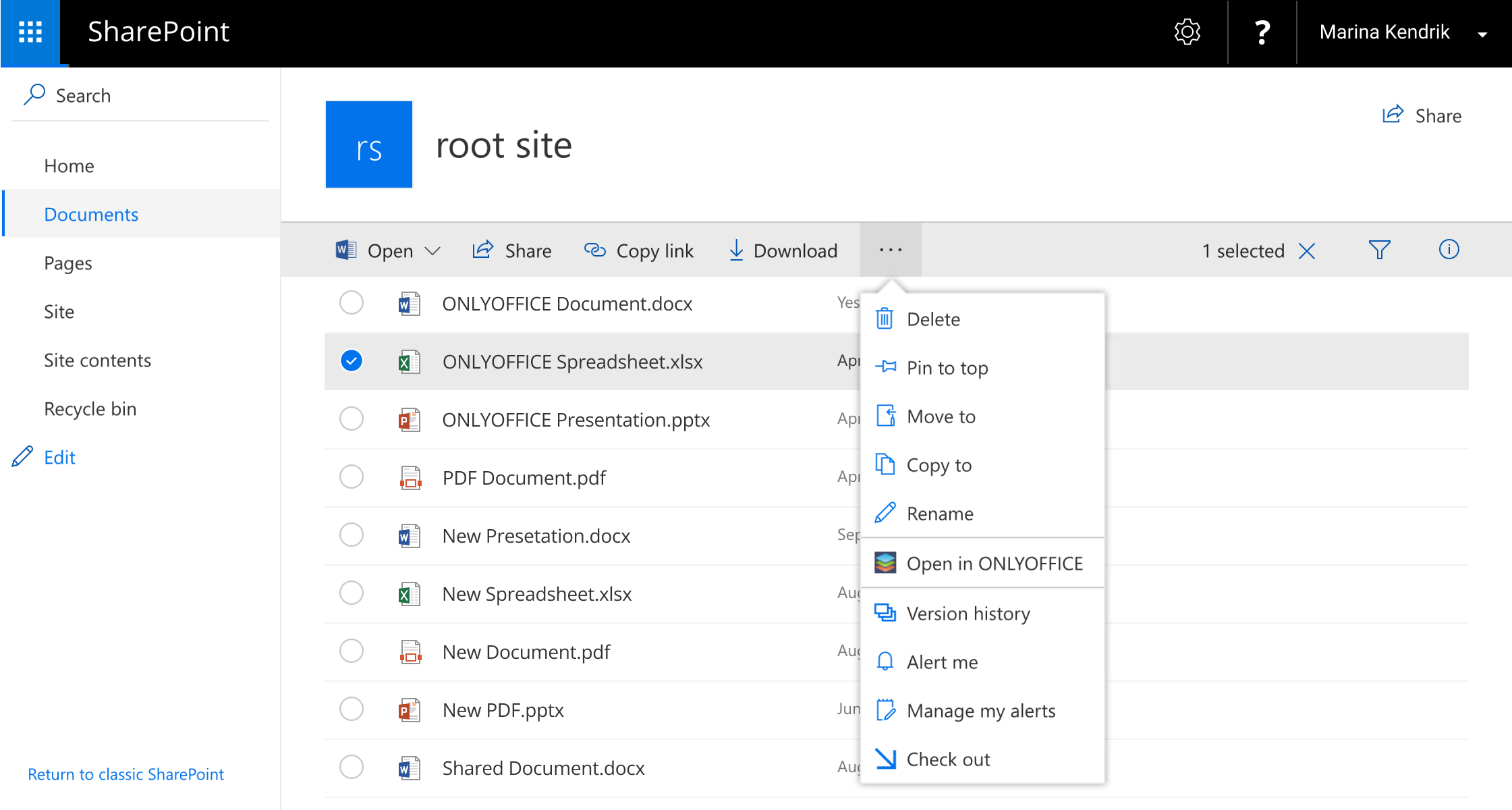
Install the connector, and a new “Edit in ONLYOFFICE” option appears in your document library. Click it, and the file opens in the ONLYOFFICE editor right in your browser. Edit, save, and the file returns to SharePoint. No file transfer, no background format conversion. Your IT team configures the connection once, and after that, it’s invisible to the people using it. For teams currently running Office Online Server on SharePoint, this is a direct replacement.
Key features your team will use every day
Once connected, the first thing people notice is how familiar the interface feels. The toolbar layout, tab structure, and formatting options follow the conventions your team already knows from Word, Excel, and PowerPoint. There’s no steep learning curve.
These are full-featured editors, not stripped-down viewers:
- Document editor: styles, tables, headers and footers, table of contents, mail merge, and document comparison.
- Spreadsheet editor: over 400 functions, pivot tables, charts, conditional formatting, and named ranges.
- Presentation editor: transitions, animations, speaker notes, and presenter mode.
Real-time collaboration works out of the box. Two people can open the same document and see each other’s changes as they happen. ONLYOFFICE offers two co-editing modes: a real-time mode where every change appears instantly, and a paragraph-locking mode where your section stays private until you save. Track changes, comments, mentions, built-in chat, and version history are all included. Access is cross-platform, with browser editing plus native apps for Windows, Linux, macOS, iOS, and Android.
Built-in PDF tools cover workflows that usually require a separate subscription. You can edit text and images, add annotations, fill form fields, convert PDFs to editable documents, and redact sensitive content. Redaction is a dedicated tool with search-and-redact for specific words, phrases, or page ranges, and redacted content is permanently removed from the file.
A form creator lets you build fillable PDF forms with text fields, dropdowns, checkboxes, radio buttons, signature fields, date pickers, and input masks. Assign roles so different people complete different sections, share via link, and collect responses into a spreadsheet automatically.
A flexible AI assistant is available as a plugin supporting OpenAI, Google Gemini, Anthropic, DeepSeek, Mistral, and local models through Ollama or GPT4All. You choose which provider processes your data, and you can assign different models to different tasks. If your data policy changes, you switch providers without touching your editing setup.
Where things differ
Let’s be direct about the edge cases. With unusual font substitutions or heavily customized templates, you may notice minor visual differences. That’s true of any cross-platform document workflow. For the documents teams handle day to day, such as reports, contracts, project plans, data sheets, compatibility is high and consistent.
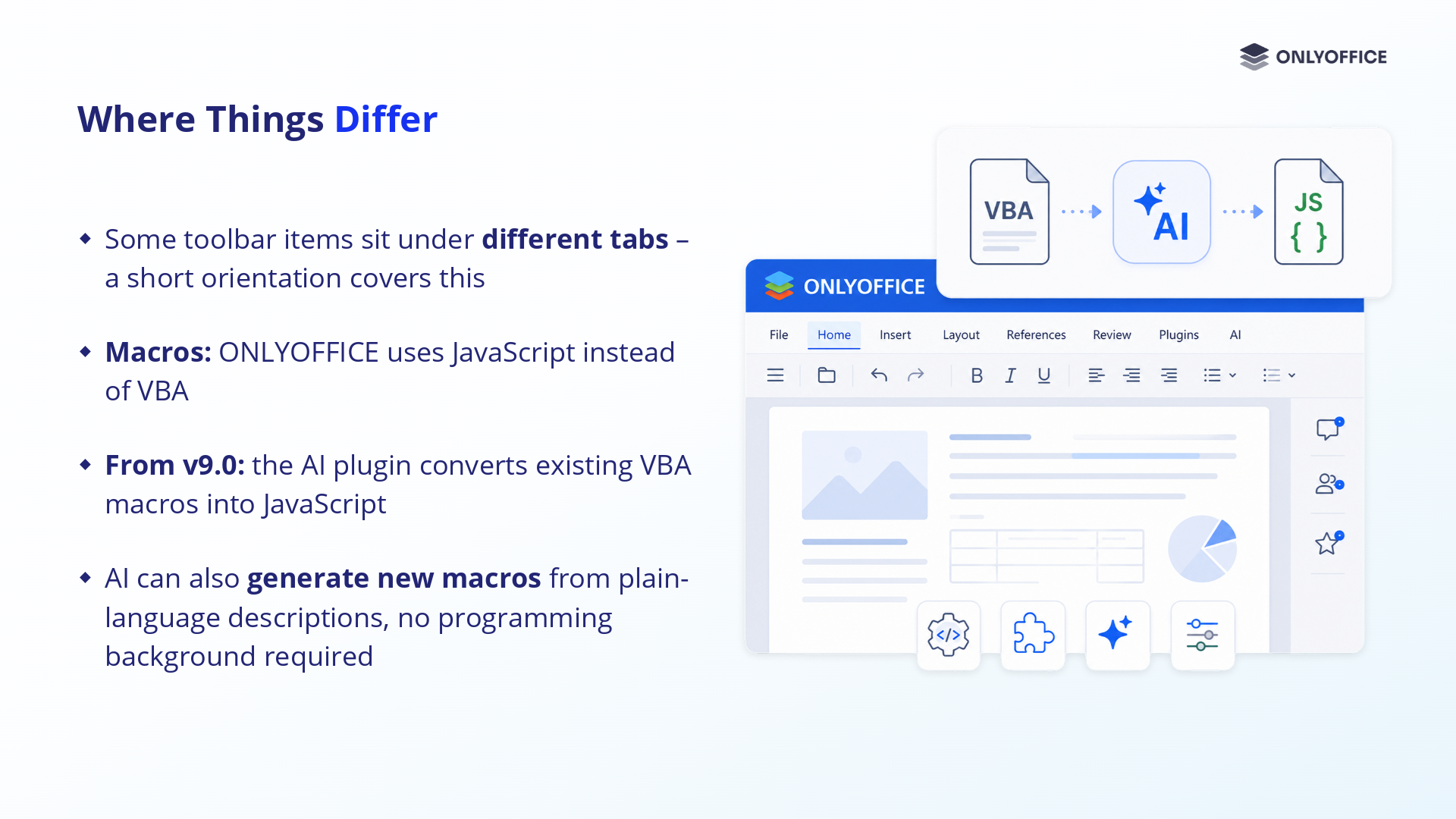
Two other differences are worth naming. Some toolbar items sit under different tabs, which a brief orientation session resolves. And ONLYOFFICE uses JavaScript-based macros instead of VBA. It’s a more portable, sandboxed approach.
The good news: the AI plugin can convert VBA into ONLYOFFICE-compatible JavaScript. You paste the VBA, and the AI maps its logic to the ONLYOFFICE API. Standard macros convert directly; heavily customized scripts may need review, but AI handles the bulk of the work. You can even generate new macros from plain-language descriptions.
A practical transition framework
Because this is a connection plan rather than a migration, the rollout stays low-risk. Here’s a five-step framework for a smooth transition:
- Assess. Document where your files live: SharePoint, Confluence, a NAS, or cloud storage. Identify the formats and workflows that matter most, and note any macros, templates, or automations your teams depend on.
- Connect a pilot. Link ONLYOFFICE to your existing system for one team or project. No files move, you’re adding an editing layer, not replacing storage. Let the pilot group work with real files on the real platform for a defined period.
- Prepare your people. Share short visual guides and a quick reference sheet showing where interface elements have moved. Point everyone to support. The goal is smooth reorientation, not retraining.
- Roll out in waves. Extend the connection to more teams gradually. Daily work continues throughout, because the underlying system hasn’t changed, only the editing tool is new.
- Review and refine. Collect feedback after each wave and resolve small issues before expanding to the next group.
Before extending beyond the pilot, validate four things: your key documents open and display correctly from their current location, spreadsheets keep their formulas and formatting intact, teams can co-edit and comment as expected, and everyone knows where to get help. If those check out, you’re ready to expand.
Watch the free webinar to learn more:
Ready to explore your options?
Microsoft is ending support for key on-premises products this year, and the deadlines won’t move. But a full migration is often unnecessary. By connecting ONLYOFFICE to the platform you already use, you keep your files, folders, and workflows in place while gaining a modern editing suite, powerful PDF and forms tools, and the freedom to choose your own AI provider.
To see what this looks like for your specific setup, email us at sales@onlyoffice.com for a free consultation. It’s short, there’s no commitment, and you’ll get a clear picture of how ONLYOFFICE connects to whatever you’re running today.
The deadlines are real, but the disruption doesn’t have to be.
Create your free ONLYOFFICE account
View, edit and collaborate on docs, sheets, slides, forms, and PDF files online.