Meet the ONLYOFFICE connector v1.0.0 for Volto: seamless document editing for Plone’s modern frontend
Summary
The ONLYOFFICE connector v1.0.0 for Volto enhances document editing within Plone’s modern frontend by allowing users to create, view, edit, and convert office files seamlessly. This integration streamlines workflows and improves collaboration by providing a unified editing experience directly in the Plone environment, making it easier for teams to manage their documents without switching between different tools.
- Create new office files directly in Plone.
- Open files for viewing, editing, or reviewing.
- Edit PDFs and fill out forms easily.
- Convert files to different formats for download.
- Configure settings for a personalized integration experience.
The release of the ONLYOFFICE connector for Volto brings a new level of productivity to teams working with Plone’s modern frontend. With the document editing functionality of ONLYOFFICE Docs and the flexibility of Volto, this integration makes it easier to view, edit and convert office files directly within the modern content management platform. Read this blog post to learn all the details.

What is the ONLYOFFICE connector for Volto?
The ONLYOFFICE connector for Volto is an integration app designed for Volto, the React-based frontend for the open-source Plone CMS. It allows users to work with office documents in a more familiar and convenient way inside the Plone environment.
By integrating ONLYOFFICE Docs into Volto, the solution lets teams manage office files where their content is already stored, providing a more unified editing experience.
For organizations that rely on Plone for content management and collaboration, the ONLYOFFICE and Volto integration opens the door to smoother document workflows, without switching between multiple tools.
Key features of the new integration
Using the first version of the ONLYOFFICE integration app, you can:
1. Create new office files
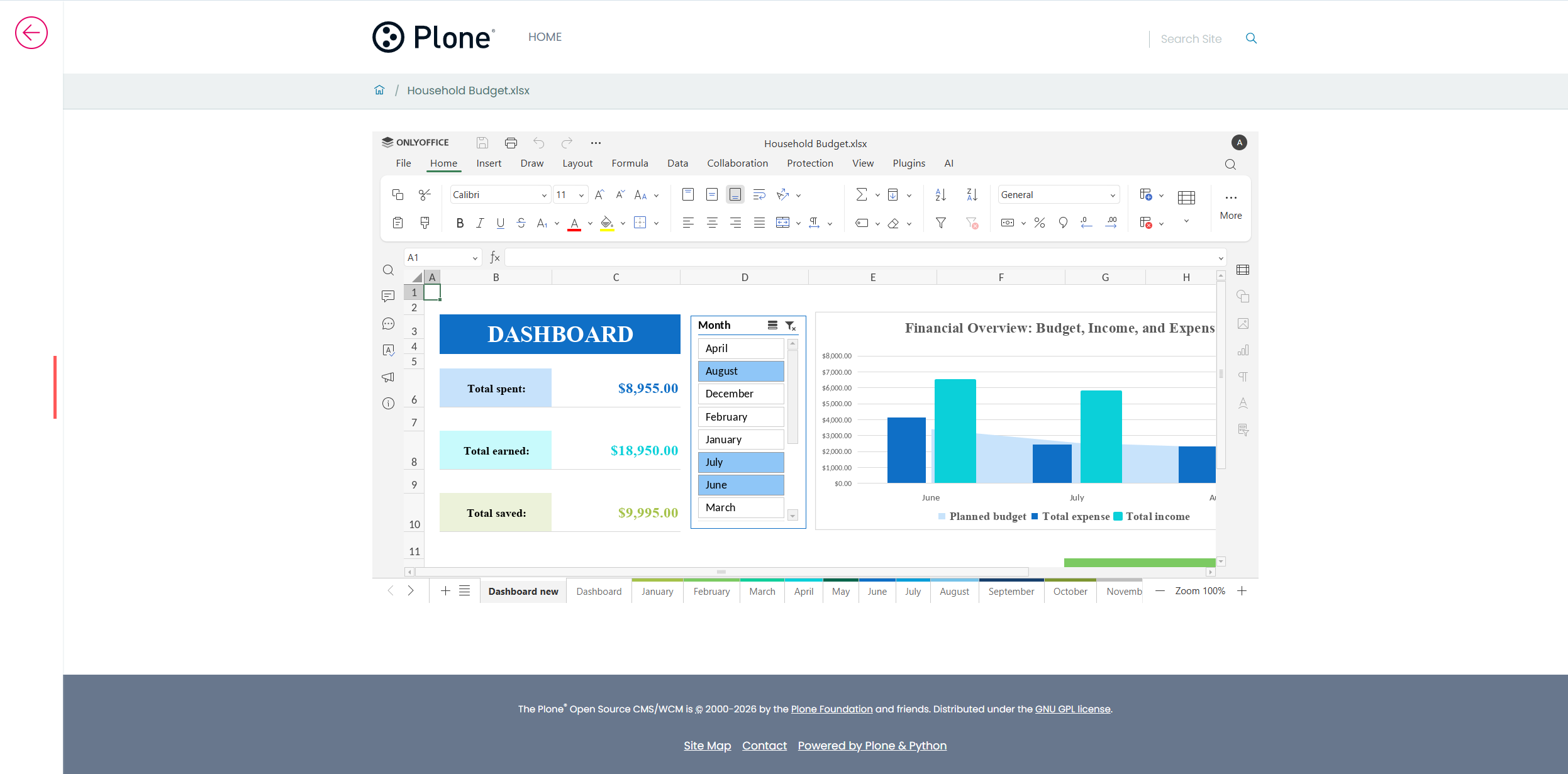
The connector makes it possible to create new files directly within your Plone platform with the Volto frontend enabled. To create one, go to the Contents section and click the ONLYOFFICE icon on the left-side panel. You will see the following options:
- DOCUMENT
- SPREADSHEET
- PRESENTATION
- PDF FORM
Choose the required option, and a new file will open immediately in the same tab.
2. Open office files for viewing, reviewing and editing
When working with office files within the Volto interface, you are allowed to open them for viewing, reviewing and editing purposes, which is great for team collaboration.
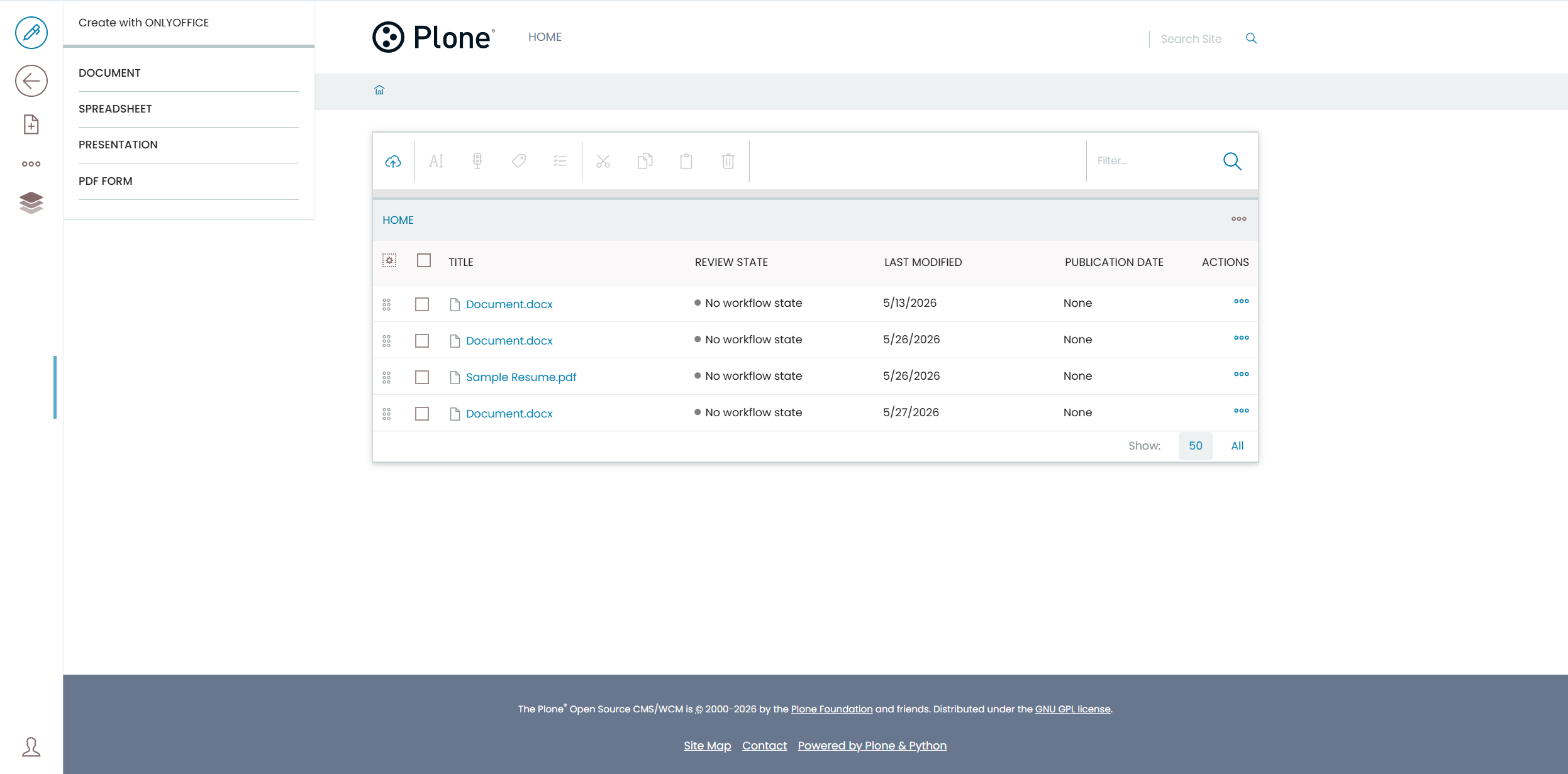
Go to the Contents section and click the file you need. After that, click the ONLYOFFICE icon, and you will see the following options:
- VIEW WITH ONLYOFFICE
- EDIT WITH ONLYOFFICE
- REVIEW WITH ONLYOFFICE
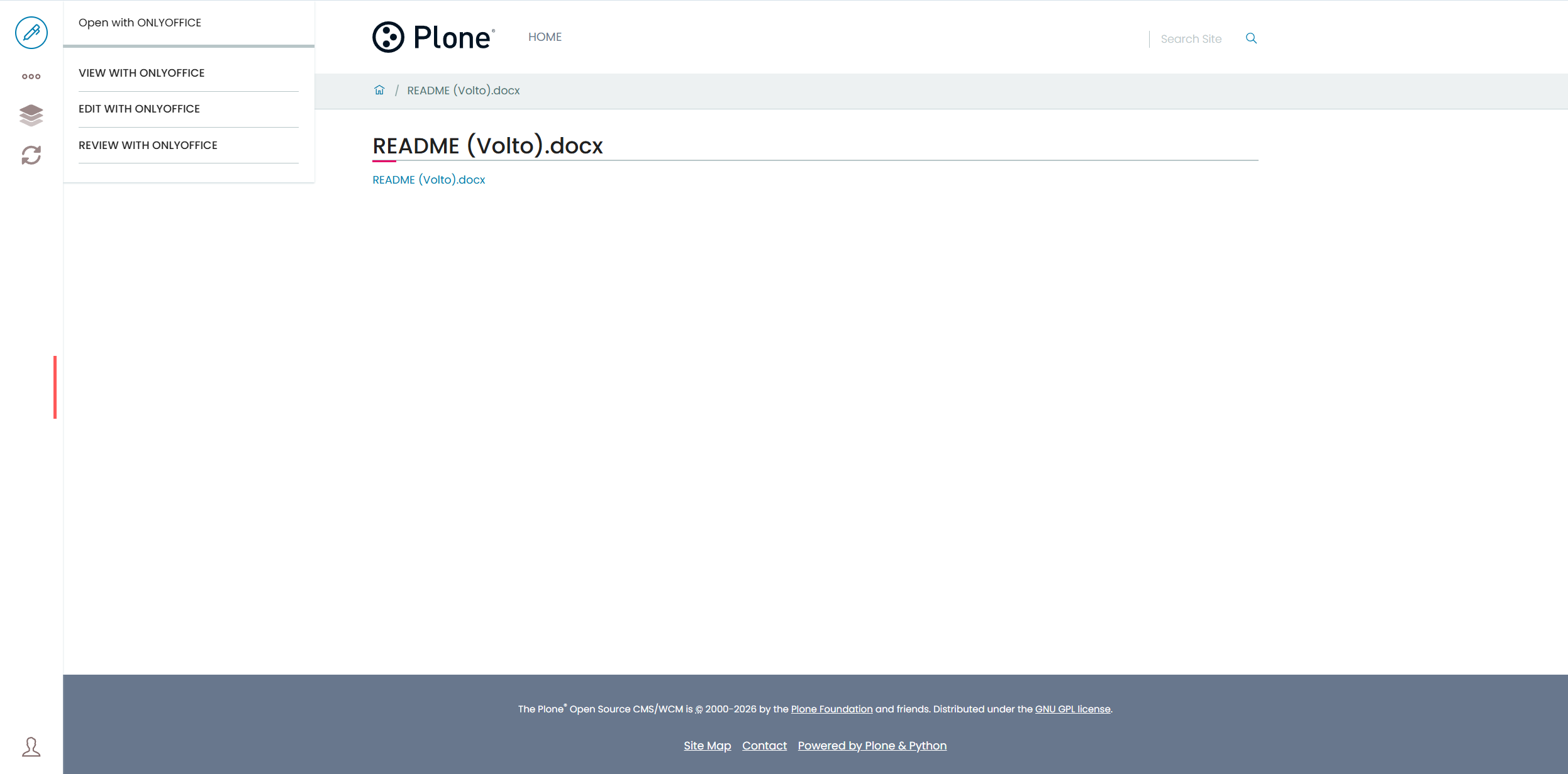
The first option on the list allows you to open the file for viewing only, which prevents accidental edits. In this mode, you can navigate through the document contents, download it to your device or print it with a few clicks.
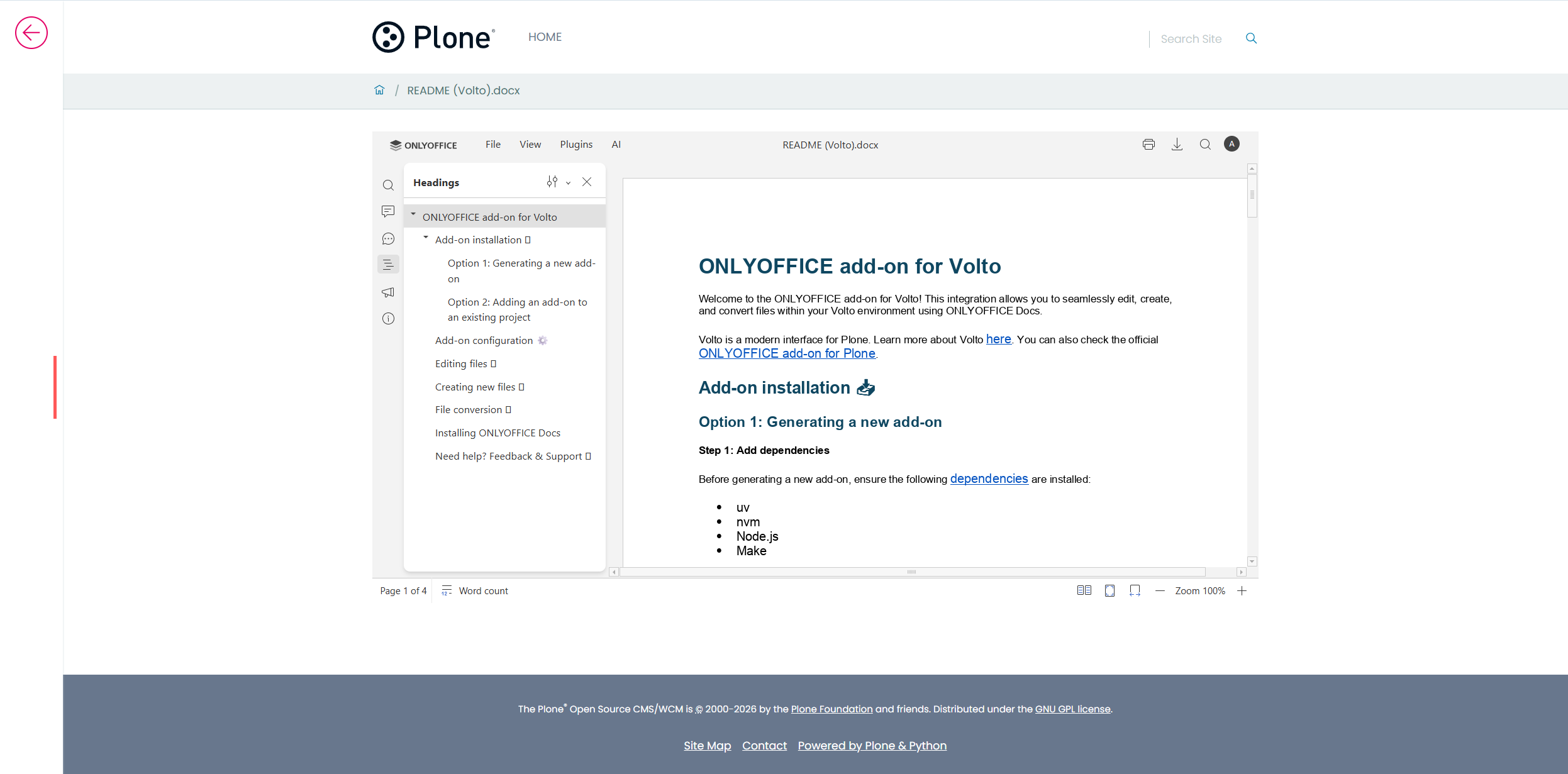
If you opt for the EDIT WITH ONLYOFFICE option, the file will open in the same tab. Now you can edit your file the way you like, using the formatting and styling tools of the ONLYOFFICE editors, as well as plugins that bring new features — online translation, grammar correction, image editing, diagram creation and more.
Please note that only DOCX, XLSX and PPTX files can be edited within the ONLYOFFICE and Volto integration.
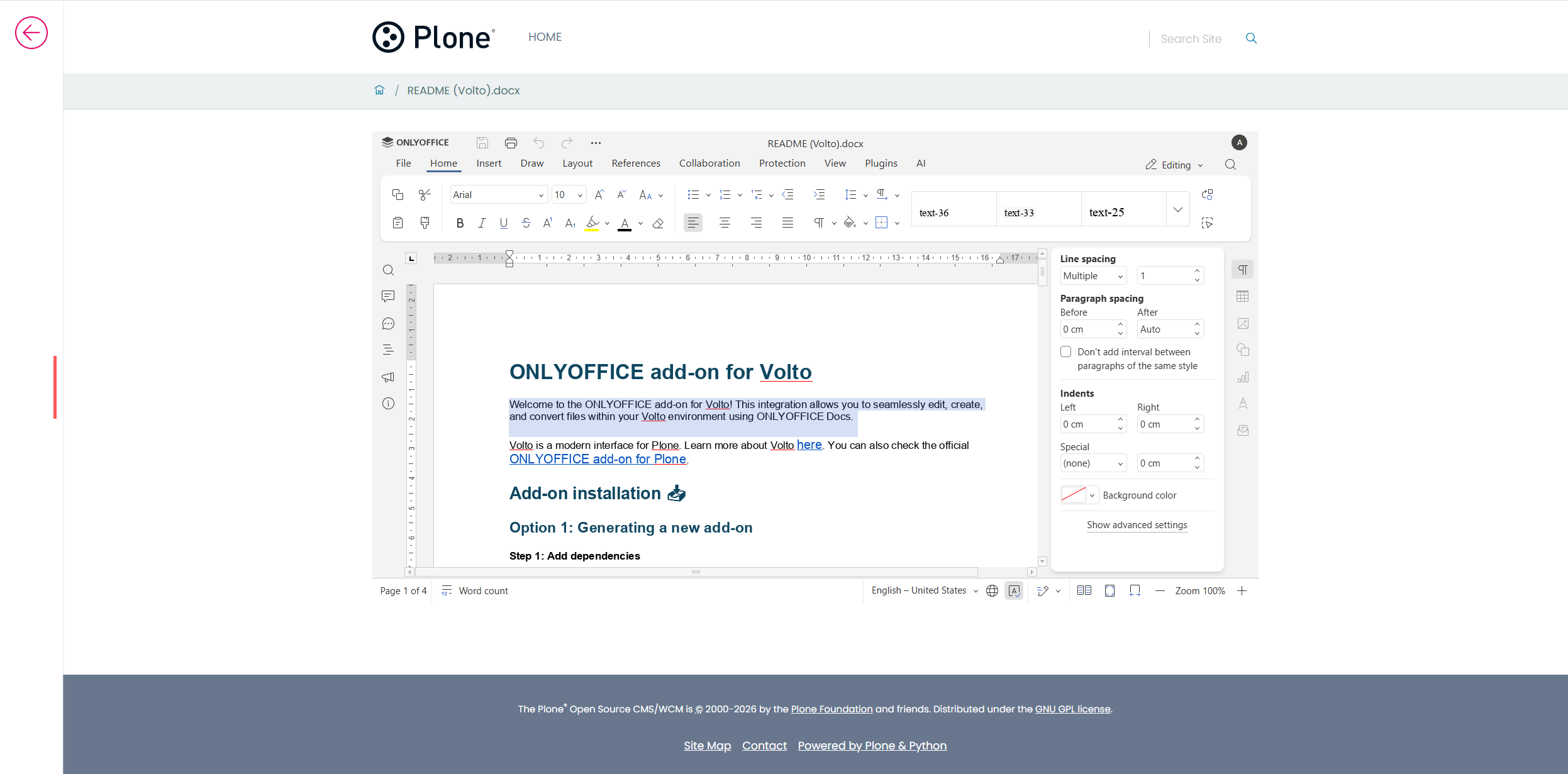
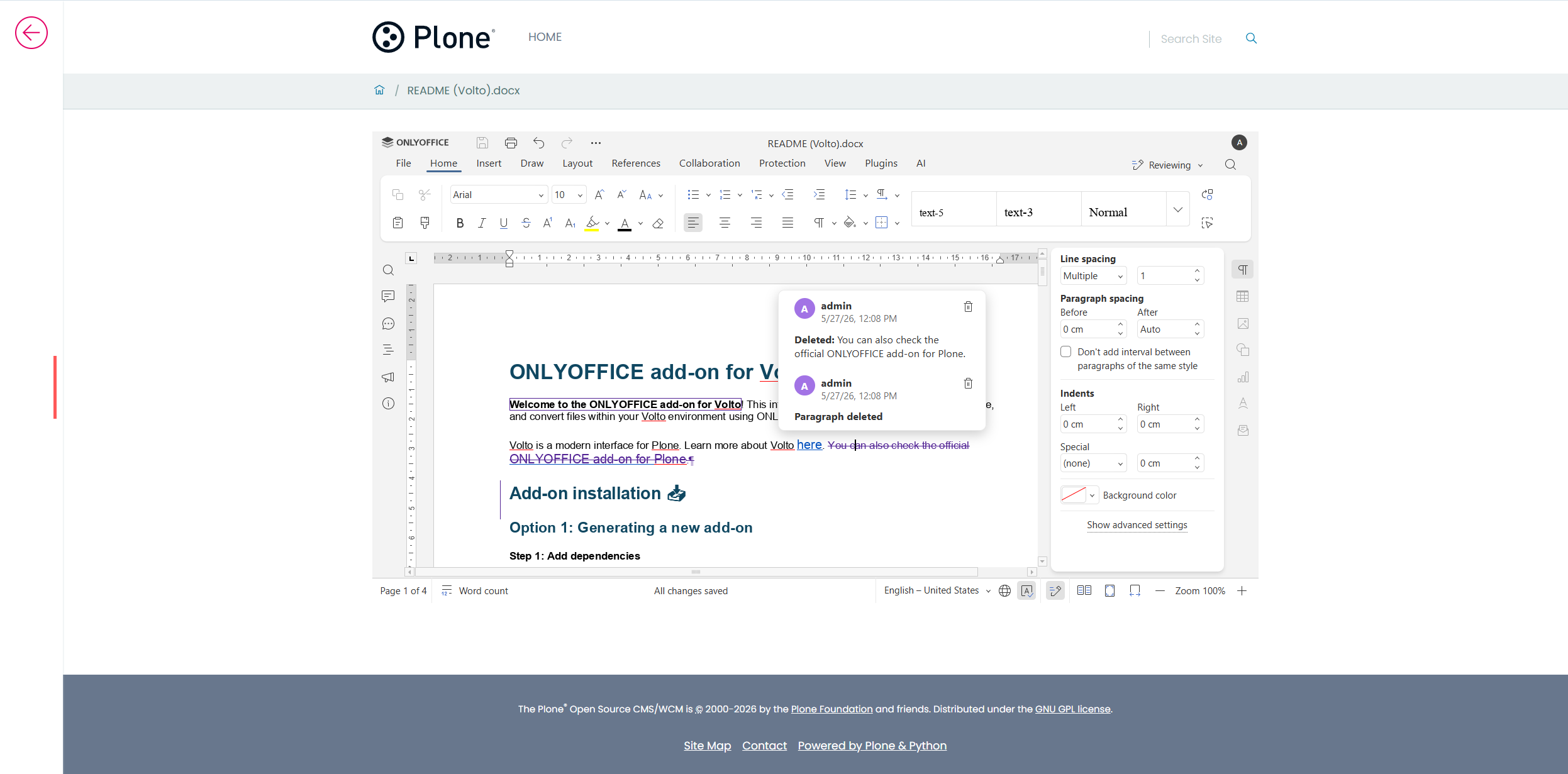
Finally, the review option lets you suggest edits to your document without permanently altering the original text. In this mode, the file is opened with the Track Changes mode enabled. You can change sentences, phrases and other elements, correct spelling and grammar mistakes, apply different formatting, etc., but the original text will remain intact.
3. Edit PDFs and fill out forms
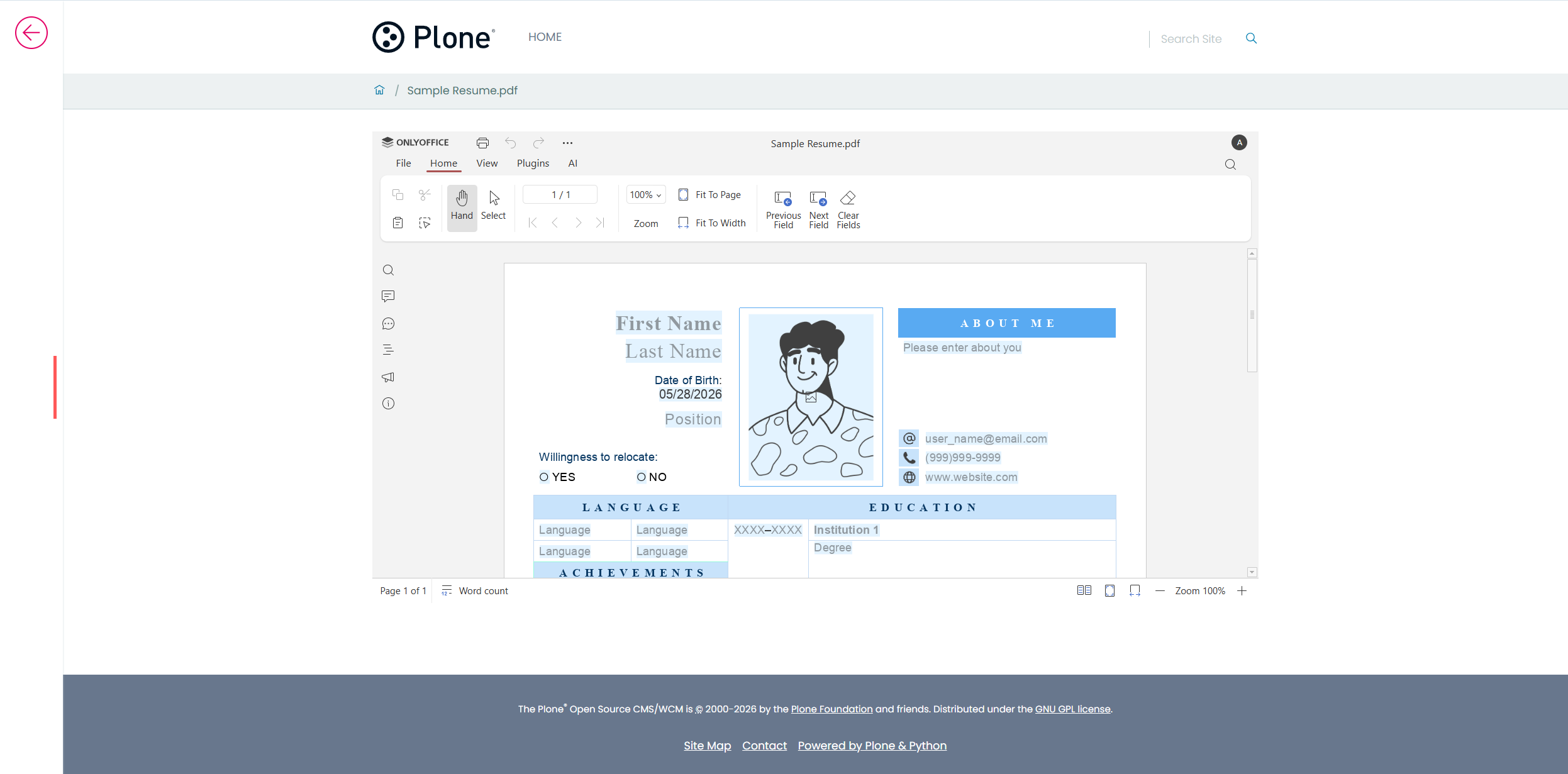
The integration also provides tools to deal with PDF files. For example, you can edit PDFs, using a set of must-have-features — text editing, redaction, page management, object insertion, annotation, AI-powered OCR and more.
Besides, you can open and fill out PDF forms with text fields, drop-down lists, radio buttons, checkboxes, combo boxes, images, email addresses, etc., which is ideal for contracts, agreements, questionnaires, CVs and other types of business documentation.
When you open a PDF file by clicking it in the Contents section and accessing the ONLYOFFICE icon on the left-side panel, you can choose the desired option, e.g. viewing editing or form-filling.
4. Convert files and save them to your device
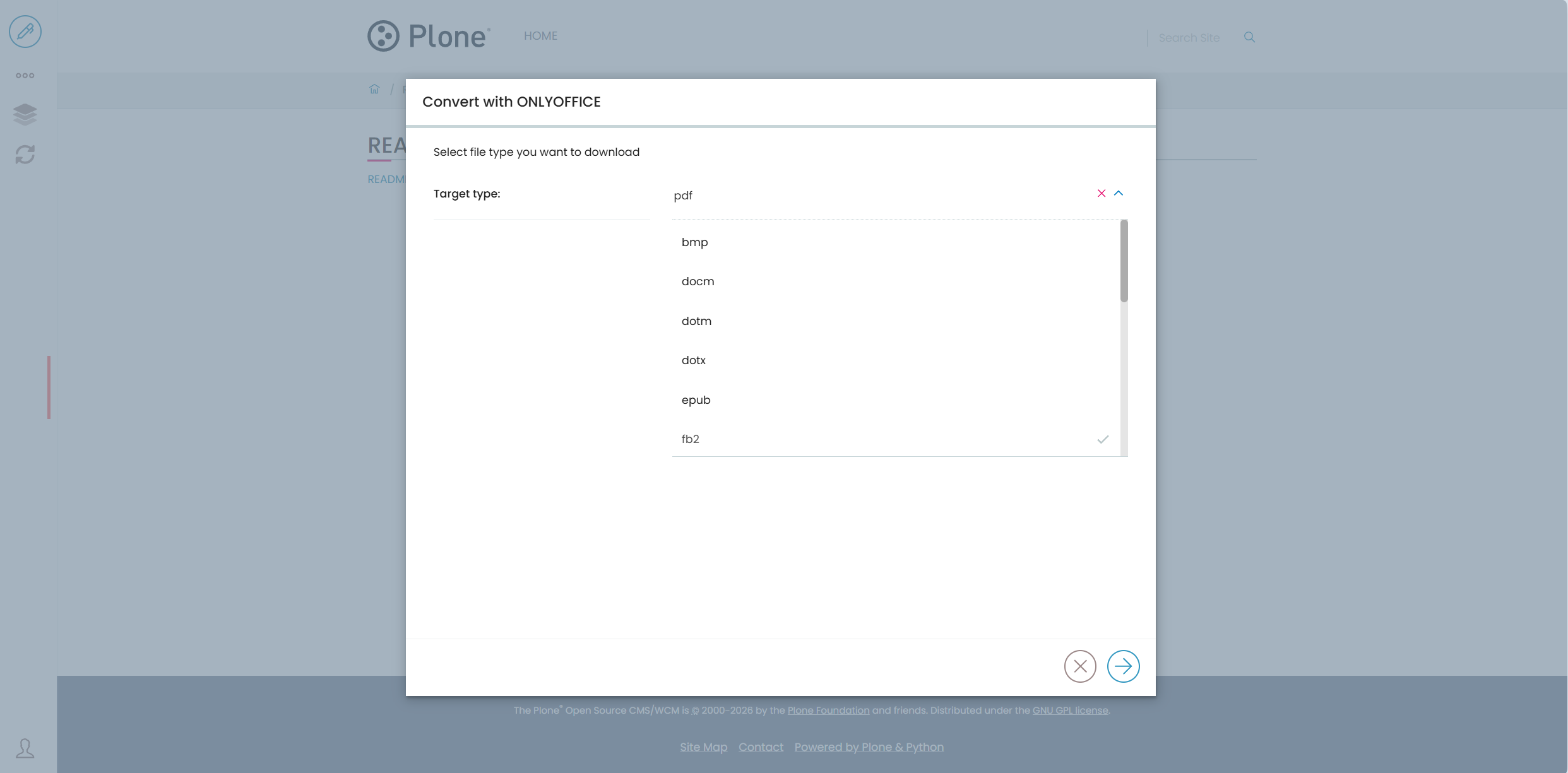
In addition to document viewing and editing features, the ONLYOFFICE and Volto integration allows Plone users to convert office files to different formats and save them to their devices.
To convert a file, follow these steps:
- Find the file in the Contents section;
- Click the file and choose the Convert with ONLYOFFICE option (the arrow icon) on the left-side panel;
- In the pop-up window, select the desired file format from the drop-down list;
- Click the arrow button in the lower-right corner to start the conversion process.
The converted file will be downloaded to your device.
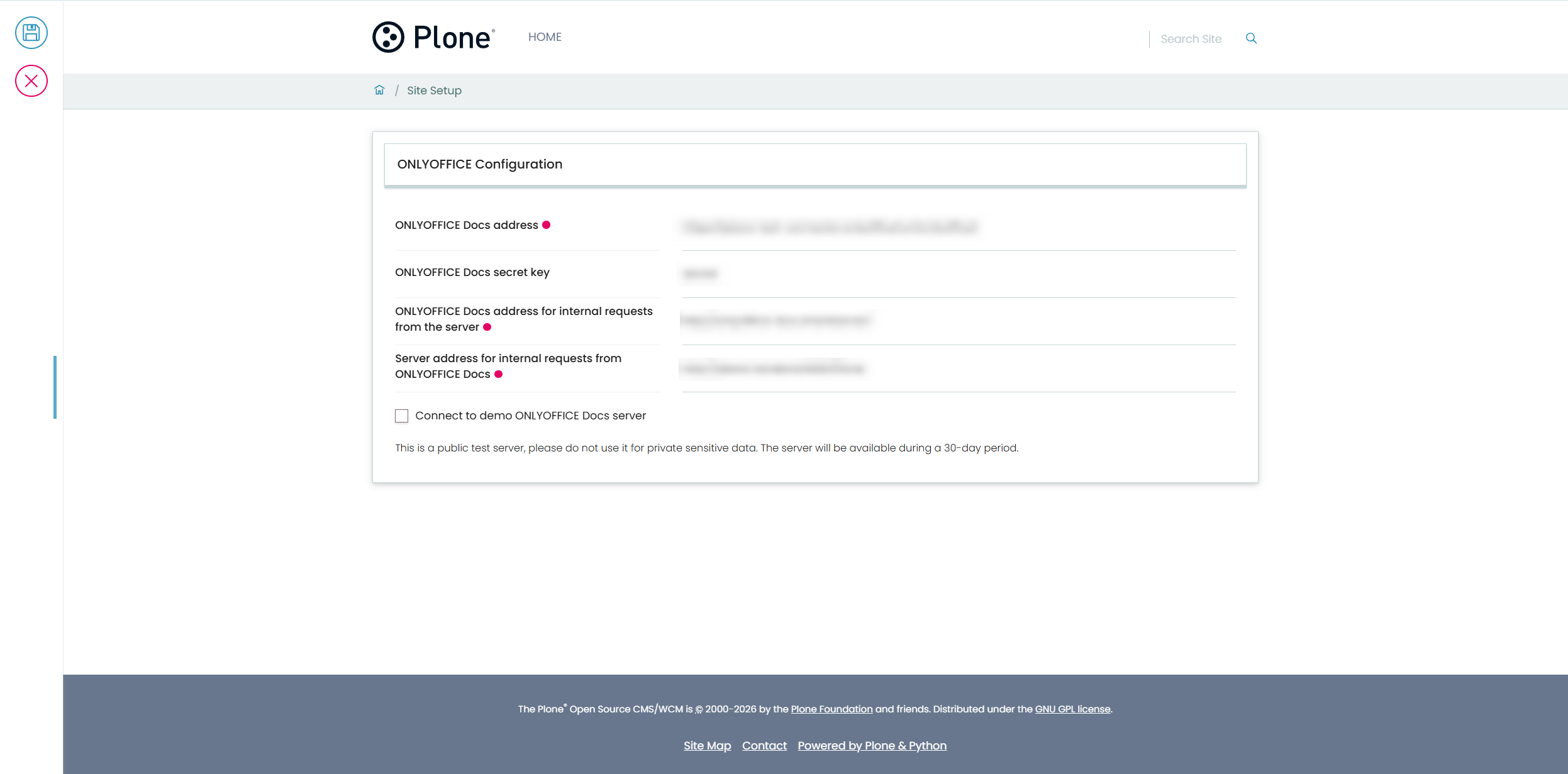
5. Configure your integration
The ONLYOFFICE integration app for Volto comes with a configuration page where you can easily adjust the required settings, e.g. enter the URL address of your ONLYOFFICE Docs instance and URL addresses for internal requests.
Importantly, the configuration page lets you quickly connect to an ONLYOFFICE Docs demo server. This means that you can try the ONLYOFFICE and Volto integration without having to set up your own ONLYOFFICE instance. Please note that the public server is available for 30 days, and you shouldn’t share your personal data or confidential information there.
Where to find: Profile icon in the lower-left corner -> Site Setup -> Add-on Configuration -> ONLYOFFICE Configuration
Get started with ONLYOFFICE Docs and Volto
If you are using Volto or planning a modern Plone project, the ONLYOFFICE connector is worth exploring its features. It brings document collaboration closer to your content workflows and helps create a more convenient user experience.
Check out the official page on the npm Registry and see how it can fit into your Volto setup:
FAQ: ONLYOFFICE Docs and Volto integration
Is the ONLYOFFICE connector for Volto free?
Yes. It’s completely free and open-source. You can check it out on GitHub or the npm Registry.
Do I need ONLYOFFICE Docs to get this integration running?
Yes. To get started with the ONLYOFFICE and Volto integration, you need to have an instance of ONLYOFFICE Docs connected to your CMS platform. You can deploy Docs on your own server or use a cloud-based version.
What formats does this integration support for editing?
Currently, you can edit DOCX, XLSX and PPTX, as well as PDFs.
Does this integration come with AI features?
Yes. The ONLYOFFICE Docs and Volto integration allows you to configure various AI providers and use their LLMs for tasks, such as writing and improving text, summarizing content, translating, generating ideas and building your personalized AI assistants directly in the editors. Learn more here.
Where do I find installation and configuration instructions?
Detailed setup and configuration guides can be found on the official GitHub page and the npm Registry.
Where can I share feedback or suggest improvements?
You can share whatever you find appropriate through the ONLYOFFICE community.
Useful links
ONLYOFFICE and Volto integration: GitHub / npm
Get ONLYOFFICE Docs for Volto: Enterprise / Community / cloud
Create your free ONLYOFFICE account
View, edit and collaborate on docs, sheets, slides, forms, and PDF files online.