New in ONLYOFFICE AI plugin: interact with your documents via chat and use voice input
The latest update to the ONLYOFFICE AI plugin introduces a more natural way to work with documents, spreadsheets, and presentations: an integrated AI chat that lets you communicate directly with your content and voice input for AI prompts. These additions reduce the need to search through menus, streamline everyday editing, and make interacting with AI faster, especially when multitasking.

Perform document tasks via chatbot
The AI chat in ONLYOFFICE now does more than just generate responses in a side panel. It can apply changes directly to your document based on your request.
Instead of copying results from the chat, you simply describe what needs to be done, and the editor updates the content for you.
For example, you can ask the AI to:
- Rewrite or refine selected text
- Summarize long sections
- Adjust tone or style for a specific audience
- Format content into lists or headings
- Highlight key information
- Generate new content based on context
The AI analyzes your request and performs the action directly in the document, saving time on repetitive tasks and reducing manual editing.
Please note: Available actions depend on the selected AI provider and model.
How to interact with document via chat
- Open a document in ONLYOFFICE.
- Go to the AI tab and open the chatbot window or panel.
- Type your request in natural language, describing what you want to do.
- The AI processes the command and updates the file accordingly.
- Review the result and continue refining it through follow-up prompts if needed.
This feature is useful for teams that regularly create standardized documents and want a faster starting point.
Practical scenarios: what you can do with the AI chat
Drafting content from scratch
Start a document faster by asking the AI to generate an initial version.
Example: “Create a project proposal outline with sections for objectives, timeline, and budget.”
Structuring unformatted information
Turn raw text into a clean, readable layout.
Example: “Convert this text into a numbered list with clear headings.”
Applying formatting without searching menus
Let the AI handle layout changes instantly.
Example: “Format all headings consistently and highlight key terms in bold.”
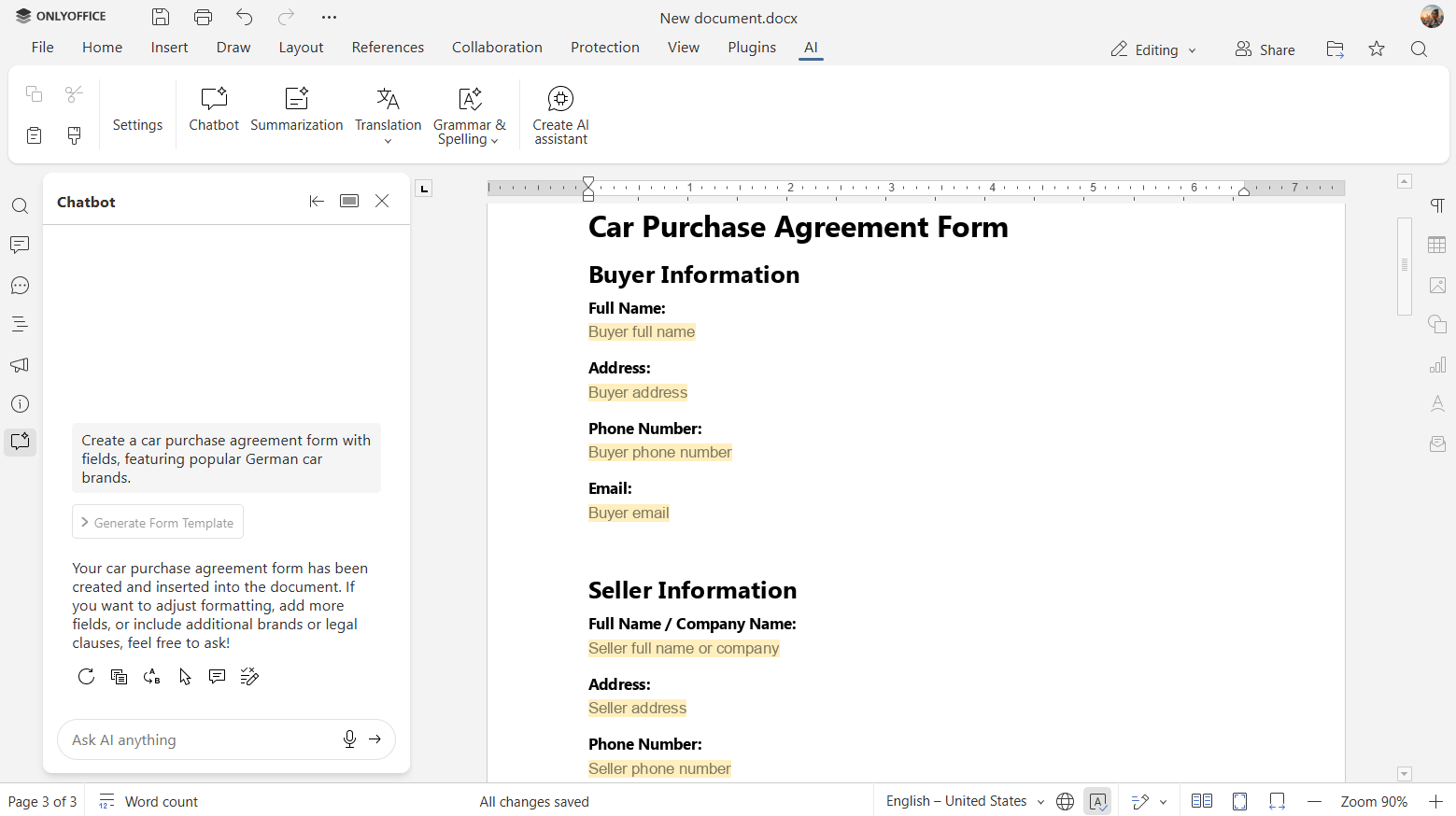
Generating forms
Create form fields or entire fillable forms using the chatbot interface by describing the form structure in your prompt.
Example: “Create a car purchase agreement form with fields, featuring popular German car brands.”
Voice input
The update also adds voice input support for interacting with the AI plugin (currently available in the web version only).
You can now speak your request instead of typing it.
This makes it easier to:
- Enter prompts while reviewing documents
- Provide AI with edits or formatting instructions
- Work hands-free when using a touchscreen or mobile setup
- Speed up repetitive AI interactions
How to use voice input
- Open the AI tab in the editor.
- Click the microphone icon in the chatbot interface.
- Speak your instruction clearly.
- The plugin converts speech to text and processes the request as a normal AI prompt.
Voice input works for content generation, rewriting, formatting, summarizing, creating forms, etc.
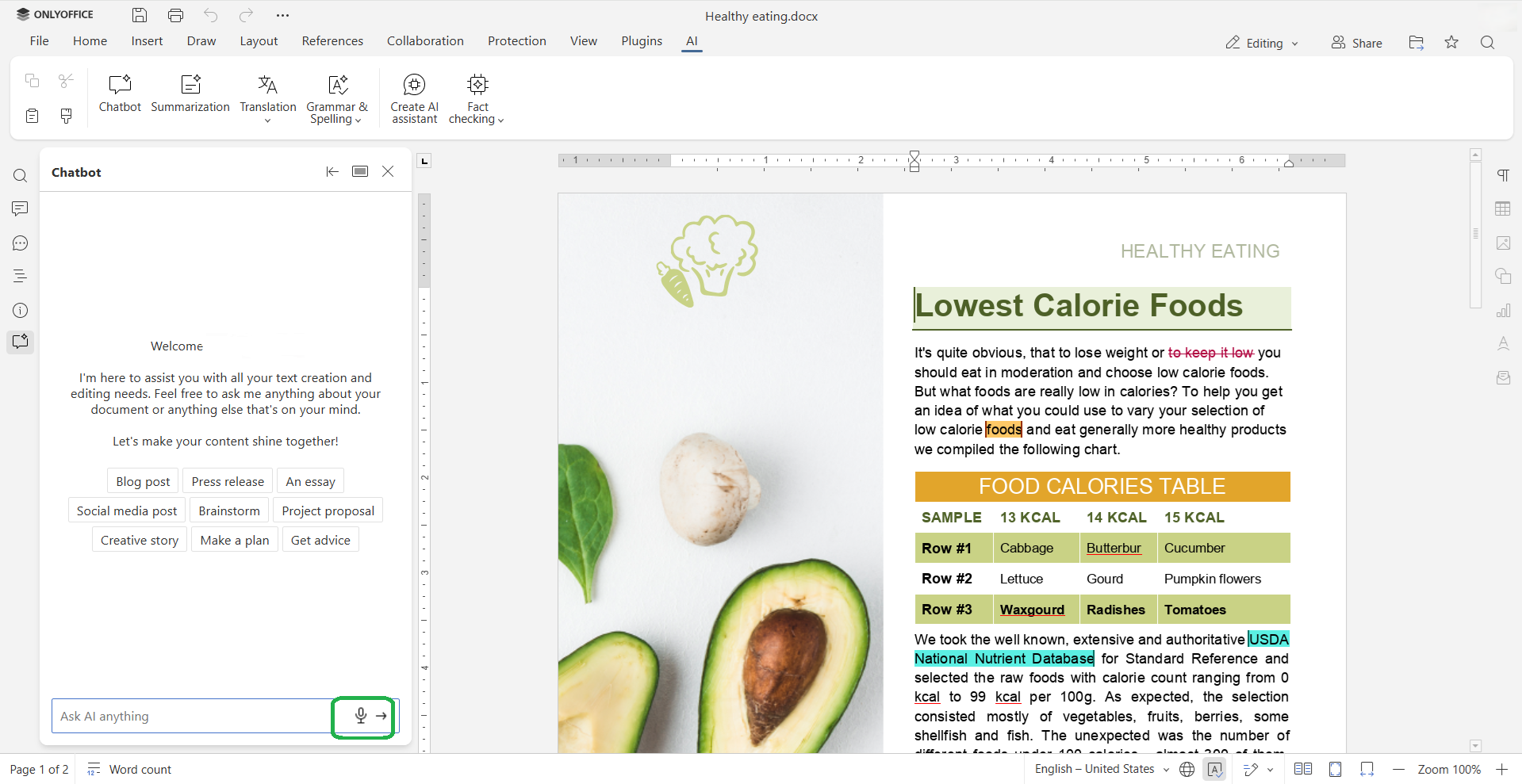
Please note: To use voice input in the AI plugin, you need to give the application permission to access your microphone. In a web browser, you must allow microphone access in the browser’s permission dialog. If you previously denied access, you can enable it again in the browser settings for the site.
Further improvements
- Updated design for a refreshed look. Plus, the chat menu has been moved to the right.
- User-friendly tool names. Clear tool names with translations enhance the user experience.
- Improved error messages. Errors are now more understandable, replacing cryptic code with user-friendly explanations.
Try the updated AI plugin
Update the ONLYOFFICE AI plugin to start using form generation and voice input in your editors.
Please note: ONLYOFFICE is not responsible for the accuracy of content generated by third-party AI models. Always review AI-produced results before finalizing documents.
FAQ: ONLYOFFICE AI Plugin
Is the AI plugin free to use?
Yes, the plugin itself is free. However, some AI models may require a paid subscription depending on the provider you choose.
Which ONLYOFFICE solutions support the updated AI plugin?
The plugin is available in ONLYOFFICE DocSpace, ONLYOFFICE Docs, and ONLYOFFICE Desktop Editors on Windows, Linux, and macOS.
Which AI providers can I connect to the plugin?
You can use both local and online AI providers. Supported providers include OpenAI, OpenRouter, Anthropic, DeepSeek, GroqAI, Mistral AI, Together AI, and Ollama. You can choose which provider and model.
How does voice input work?
Voice input lets you give prompts to the AI plugin by speaking. To use this feature, you need to grant microphone access to the application in your browser. Without permission, voice input won’t work. Please note that voice input is currently unavailable for the AI plugin in the desktop editors.
How can I report issues or suggest improvements?
We welcome feedback. Visit our feedback platform to report bugs, suggest new features, or share ideas to improve the AI plugin.
Create your free ONLYOFFICE account
View, edit and collaborate on docs, sheets, slides, forms, and PDF files online.