How to sign PDF form
Adding a signature to a document is often the final and most important step in completing paperwork, whether it’s a contract, agreement, or internal form. Starting from version 9.3, PDF forms in ONLYOFFICE can be signed using two new methods, making the process more flexible depending on your device and workflow.
Let’s take a look at how to sign a PDF form and how to add a signature field when creating your own templates.
Why signatures matter in PDF
Signatures in PDF files help confirm that a document has been reviewed and accepted by the person who signed it.
Signing PDF forms electronically helps:
- Complete documents faster
- Reduce manual handling of paperwork
- Make it clear which fields require approval
- Keep signed copies stored digitally
- Work with documents from any location
Most modern PDF editors support several ways to sign documents. You can upload an image of your handwritten signature, draw it on the screen, or type your name using a styled font. This enables people to sign documents quickly from almost any device without requiring additional steps.
How to sign a PDF form
Filling out and signing PDF forms is a routine task for contracts, applications, and internal documents. In ONLYOFFICE, you can complete and sign forms directly in the editor without printing or scanning. Here’s how to add your signature in just a few steps.
Step 1. Open the form in ONLYOFFICE
Launch the editor and open the fillable PDF form you need to complete.
Step 2. Fill in all required fields
Enter the necessary information and double-check everything for accuracy.
Once you add a signature, it confirms that you approve the document content.
Step 3. Navigate to the signature field
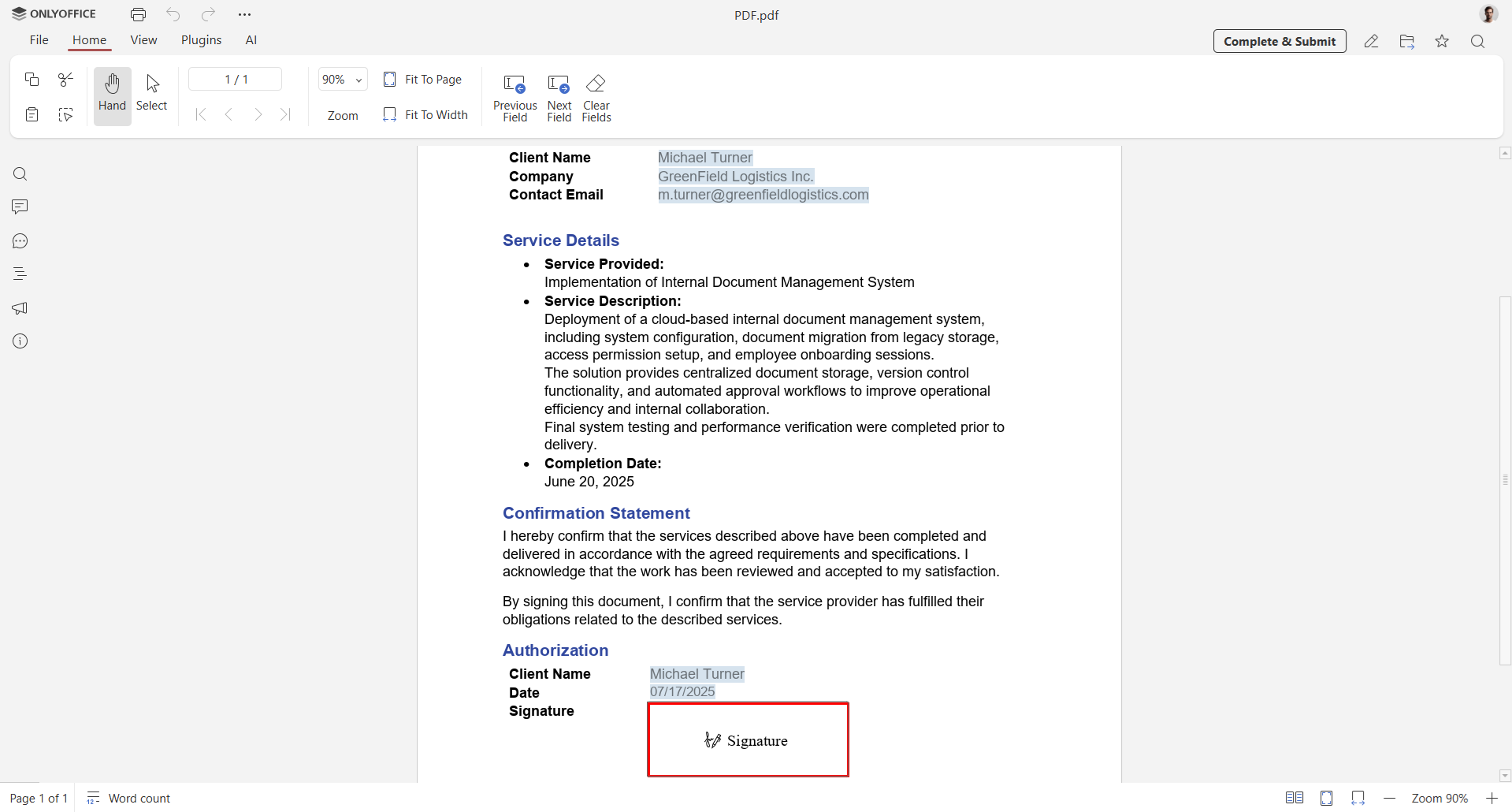
The signature field is usually located at the end of the form. Click the field and choose how to add your signature. ONLYOFFICE provides three different ways to sign a PDF form.
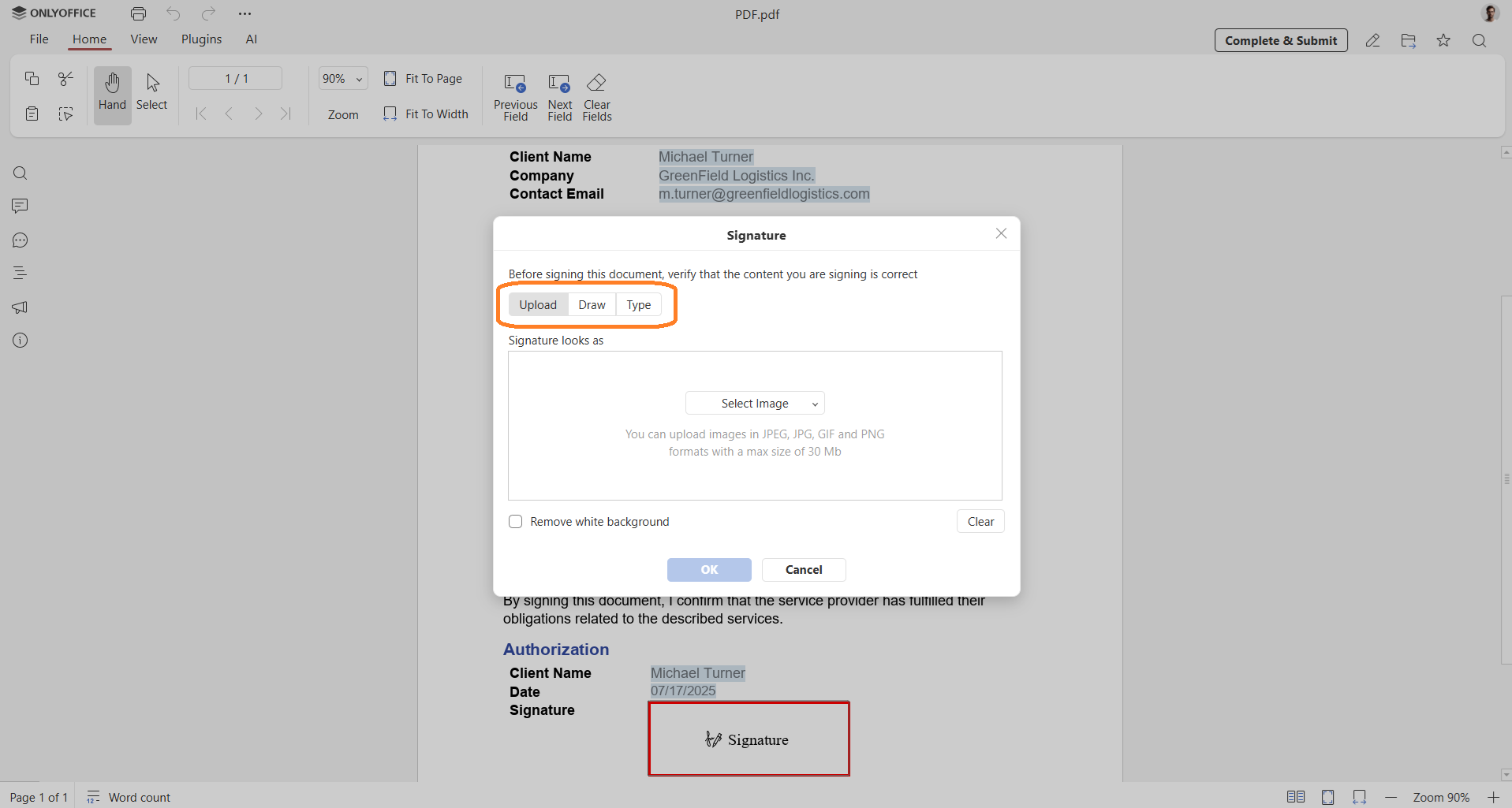
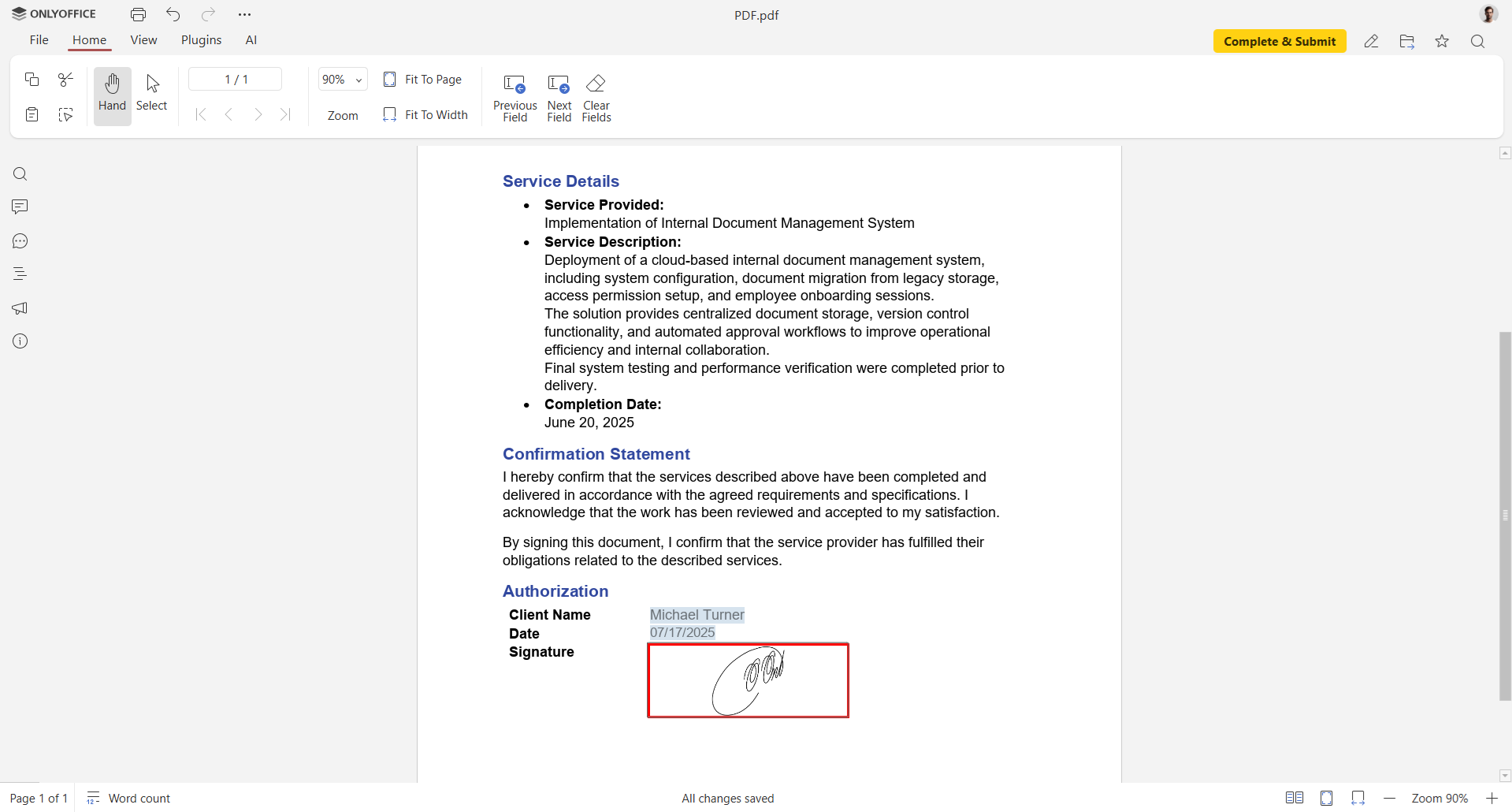
Option 1. Upload an image of your signature
You can insert a scanned or previously saved signature image.
Select one of the available sources:
- Image from file
- Image from URL
- Image from storage
Additionally, you can remove the background by checking the box. Click OK to insert the image.
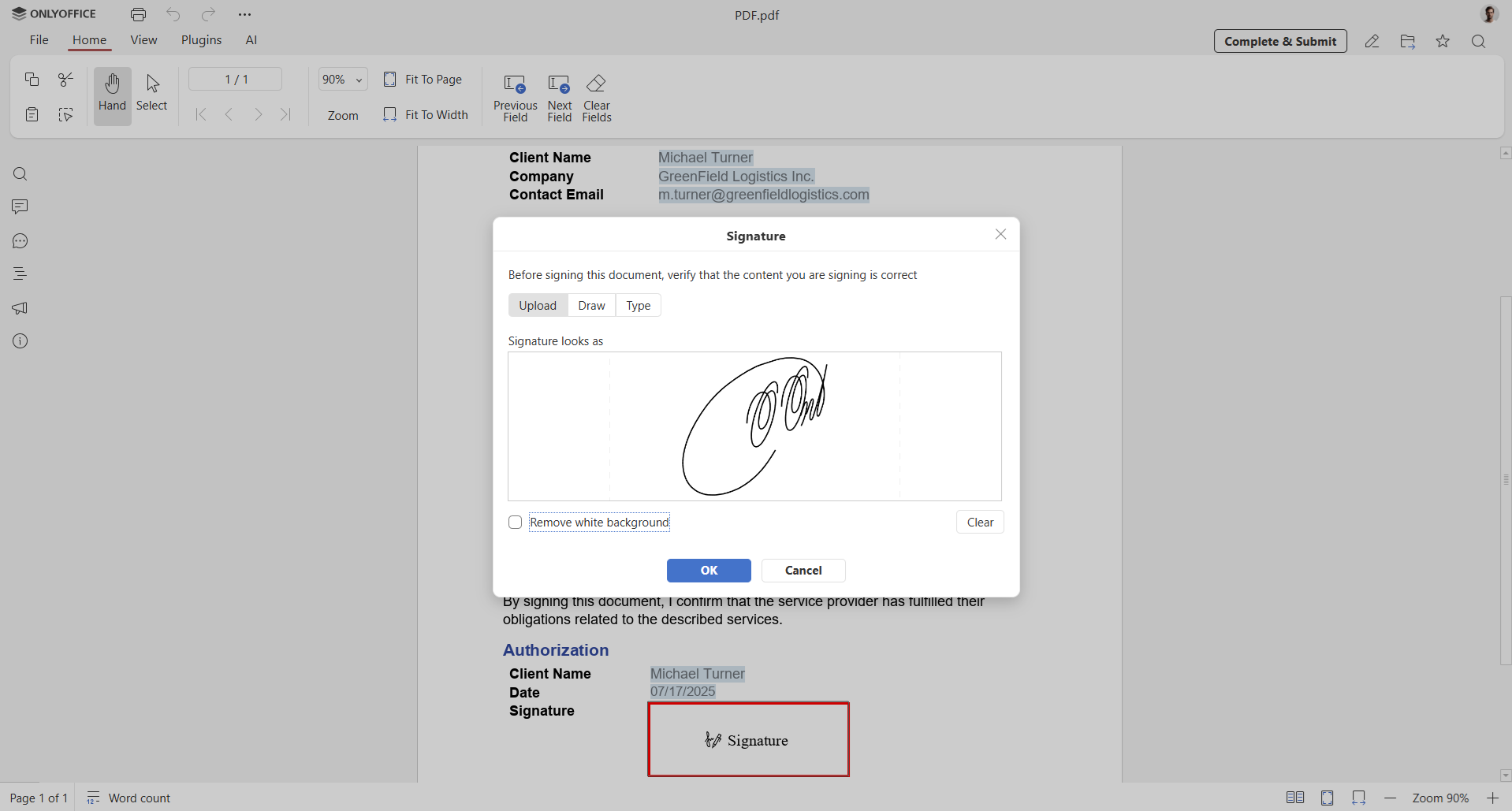
The signature field supports common formats such as PNG and JPEG, with a maximum file size of 25 MB.
The image is automatically adjusted to fit the field.
Option 2. Draw your signature
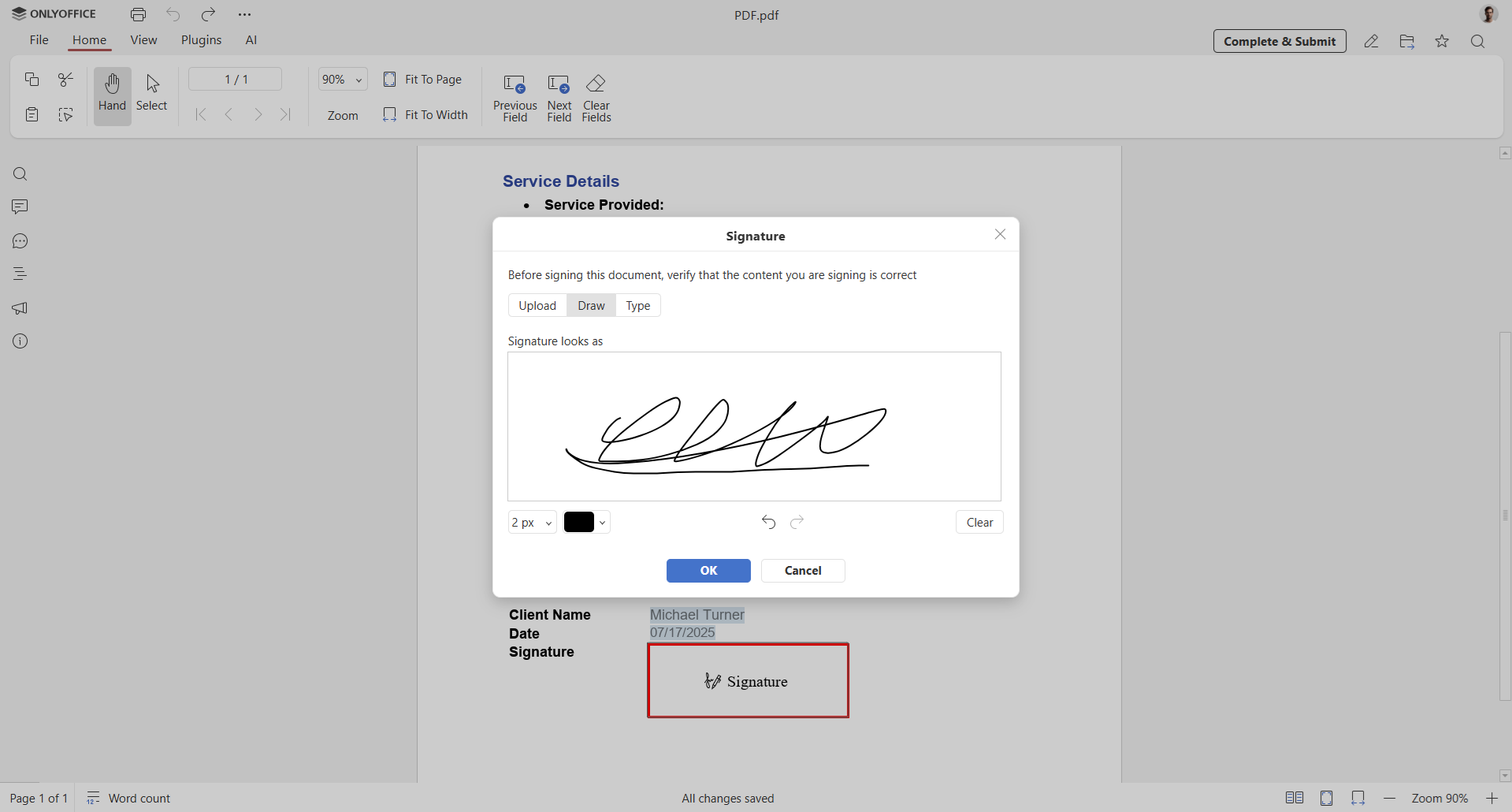
You can draw your signature directly on the screen using a mouse, touchpad, or touchscreen device.
This option is ideal when you want a more natural, handwritten look without uploading files.
Select the line width and color, and draw the signature. Then, click OK.
Option 3. Use custom text
You can type your name and apply a clean, professional signature-style font. This is especially useful when you don’t have access to a stylus or an image of your signature.
Switch to the Type option. Type the caption text in the field in the lower left corner, then select the font and size.
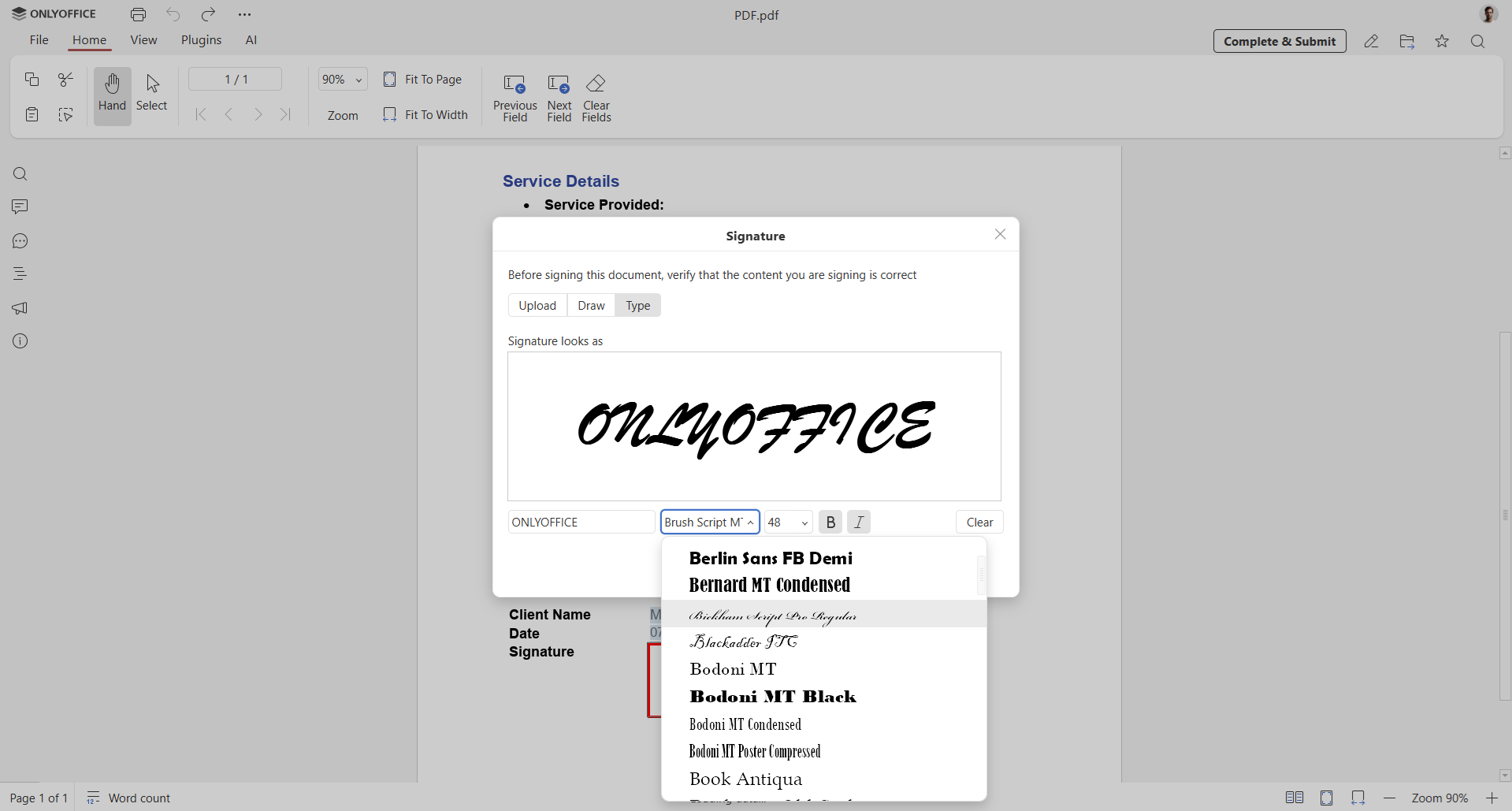
If you like the preview, add a caption in the field by clicking OK.
Step 4. Save the signed document
Once the signature is added, save the file to finalize the process.
If you are working inside a form-filling room in ONLYOFFICE DocSpace, simply click Complete & Submit.
Using a signing certificate for trusted digital signatures
In addition to adding a visual signature, you can strengthen document security by uploading a signing certificate. This feature is available for ONLYOFFICE Docs Enterprise and allows you to apply trusted digital signatures to PDF forms.
A digital signature verifies the identity of the signer and ensures that the document has not been altered after signing. If any changes are made later, the signature is automatically invalidated, making unauthorized modifications easy to detect. This is especially useful for contracts, HR documents, and other sensitive files.
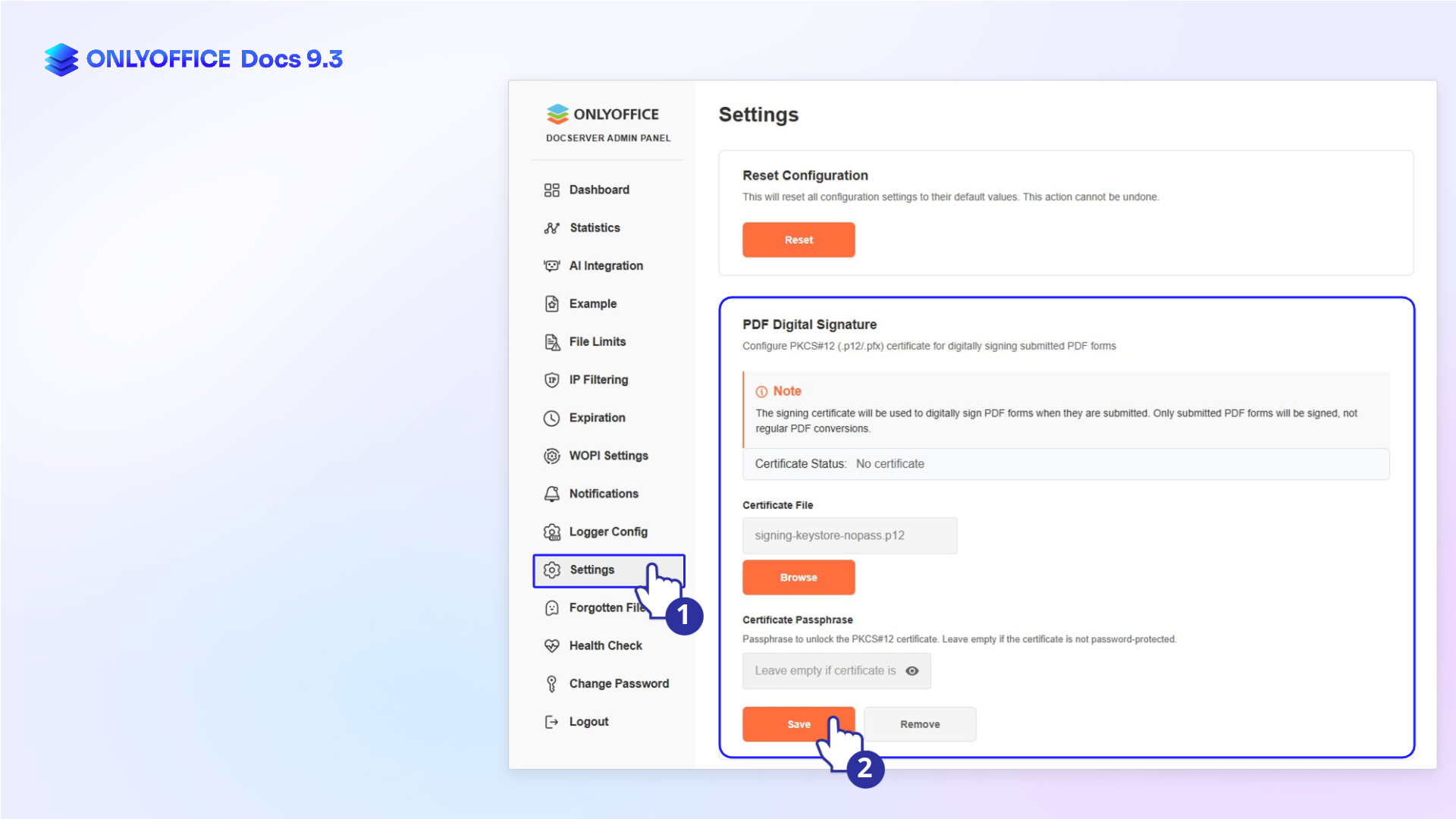
To upload a signing certificate:
- Open the Admin Panel.
- Go to Settings → PDF Digital Signature.
- Upload your signing certificate and configure it for use in PDF form signing.
Get started with ONLYOFFICE
If you don’t have an account yet, you can create a free account in ONLYOFFICE DocSpace to work with forms online. Prefer working locally? Install the desktop apps and manage documents offline with the same features.
Discover all new features in ONLYOFFICE editors v9.3:
Create your free ONLYOFFICE account
View, edit and collaborate on docs, sheets, slides, forms, and PDF files online.