New Icons plugin for ONLYOFFICE: insert customizable icons into your documents with ease
With the newly added Icons plugin, you can choose from thousands of customizable icons and insert them into your documents, spreadsheets, presentations and PDF forms. Read this post to find out more.

Key features of the plugin
The Icons plugin gives you access to a wide variety of customizable vector graphics which you can insert into your documents to reduce text clutter and add visual appeal by changing colours, resizing and even converting inserted icons to shapes for further editing. The plugin is based on Font Awesome library, allowing you choose from thousands of free icons that can be inserted into documents, spreadsheets, presentations and PDF forms.
Here is what you can do if you install the plugin in the ONLYOFFICE editors:
- Search icons from the Font Awesome library, navigating through various categories or using the search field;
- Quickly insert icons with a couple of clicks;
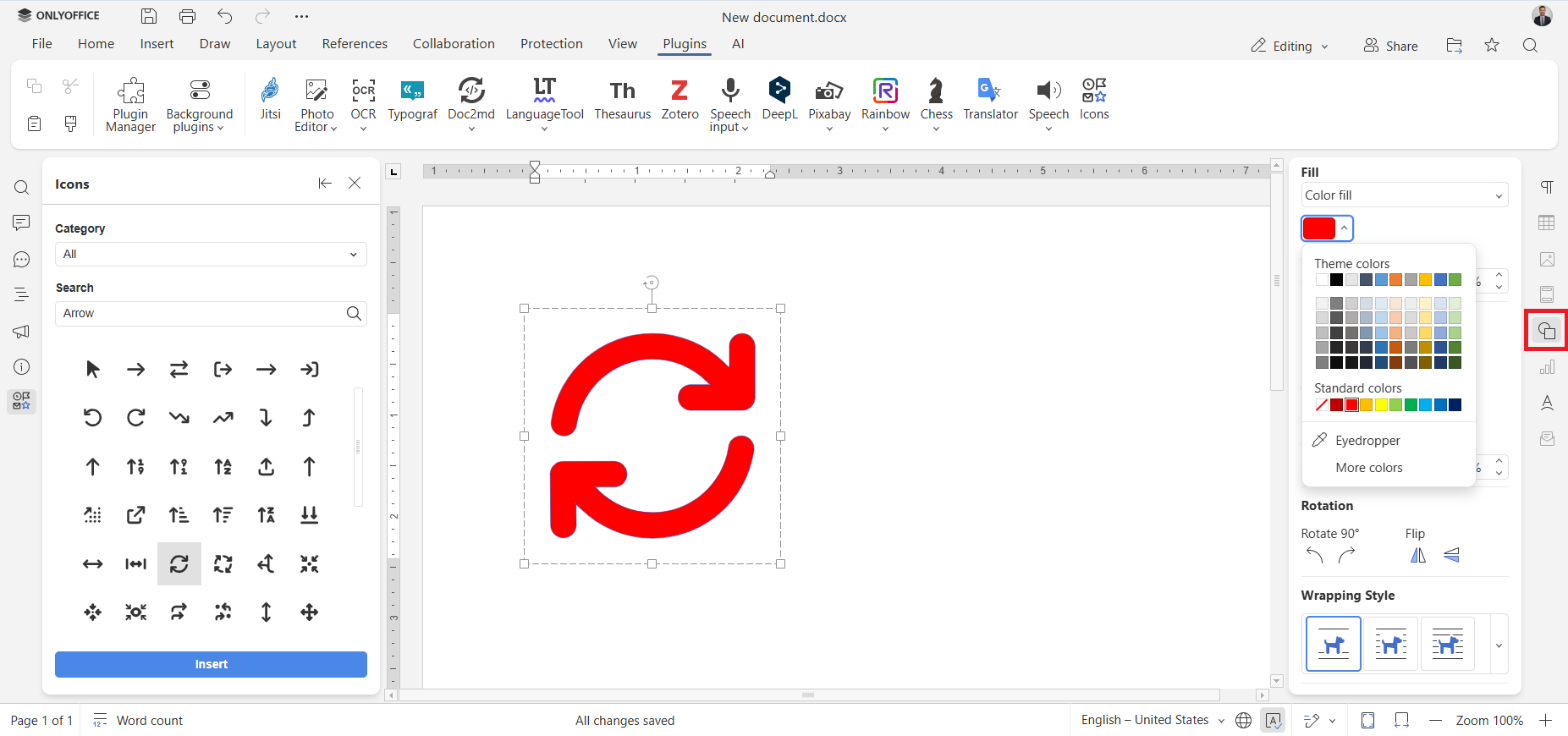
- Customize the size, colour and style of the inserted icons;
- Choose among the Regular, Solid and Brands icon styles, supported by the plugin.
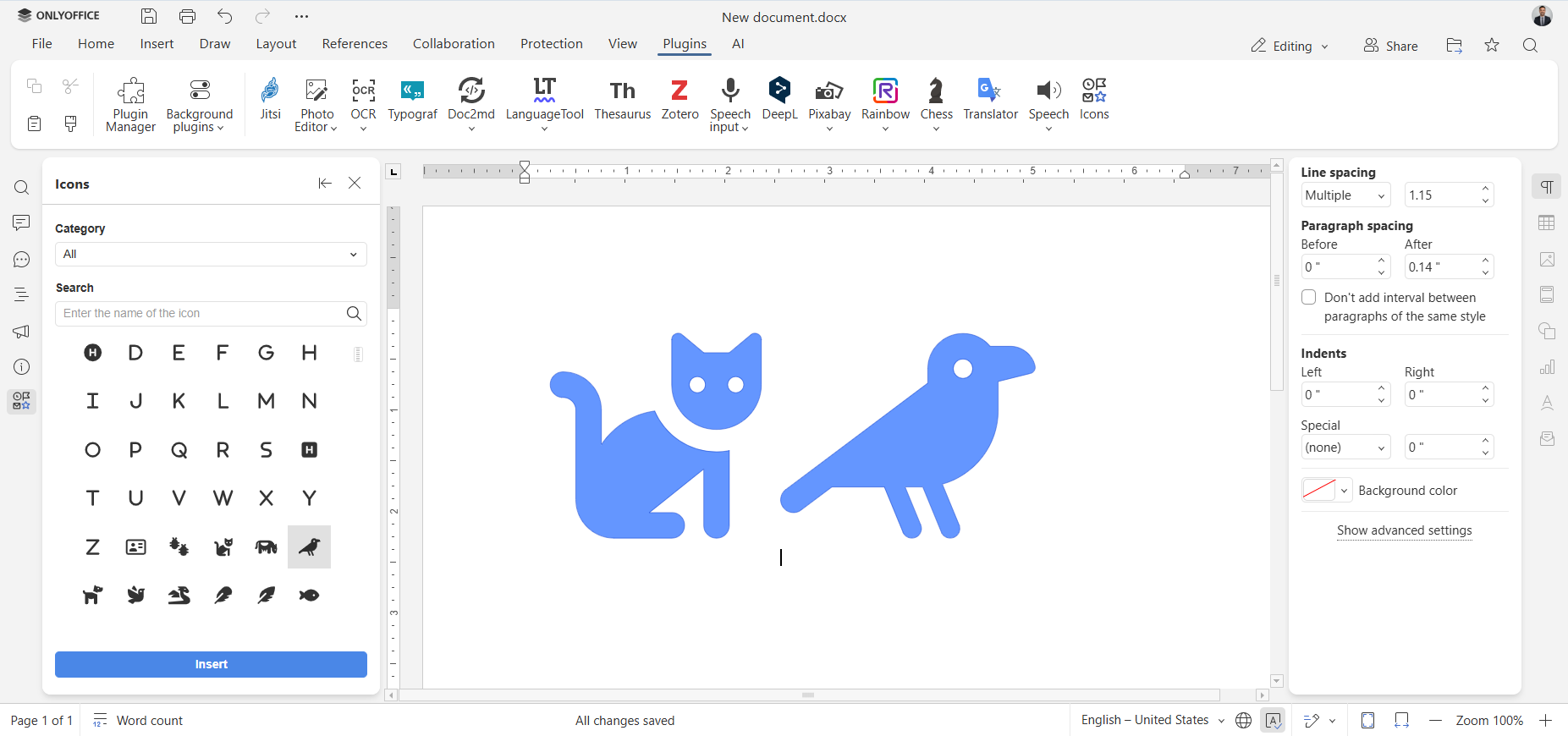
How to add and customize an icon
Adding a vector graphic via the Icons plugin is simple and requires a few steps:
Step 1. Open your document and switch to the Plugins tab on the top toolbar.
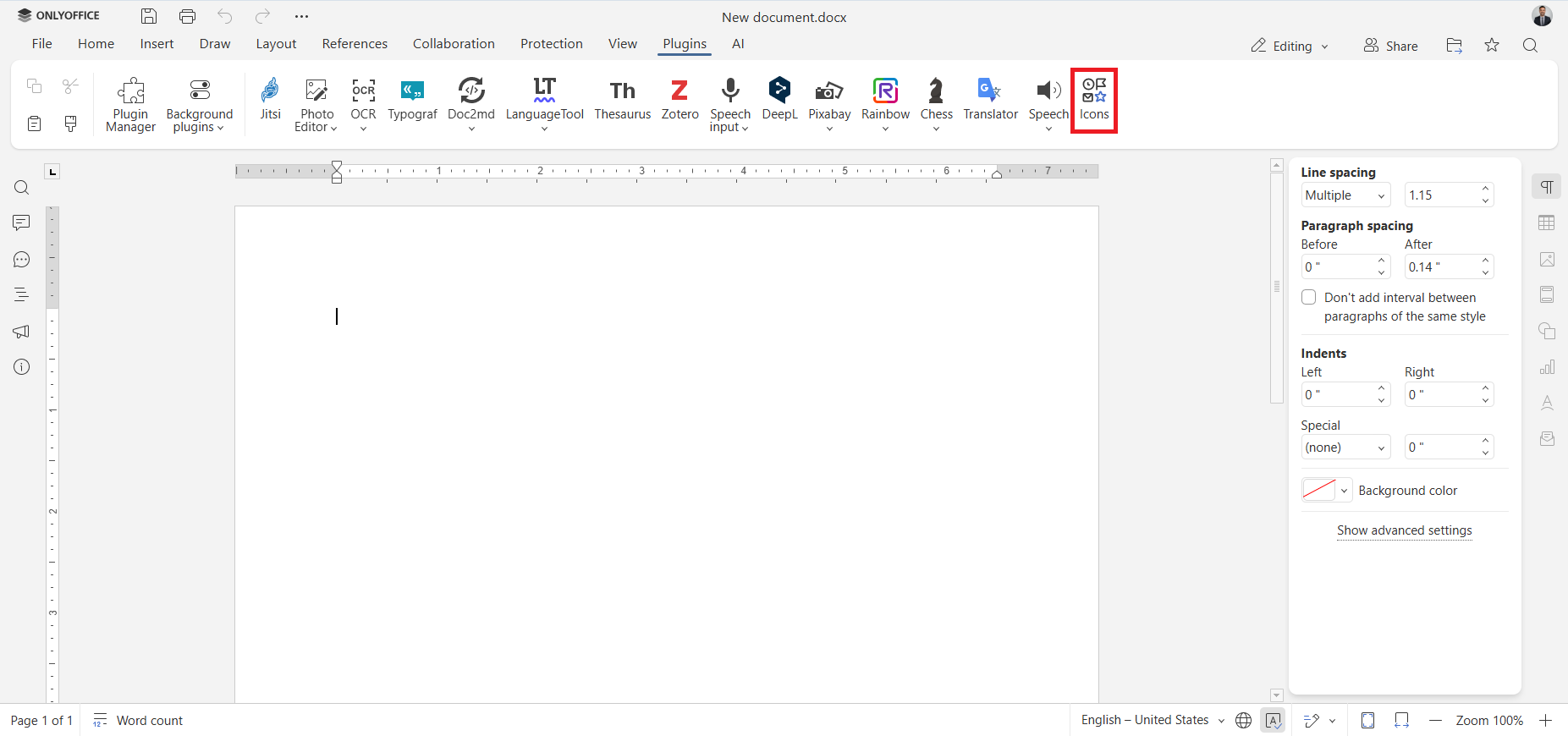
Step 2. Click Icons on the Plugins tab.
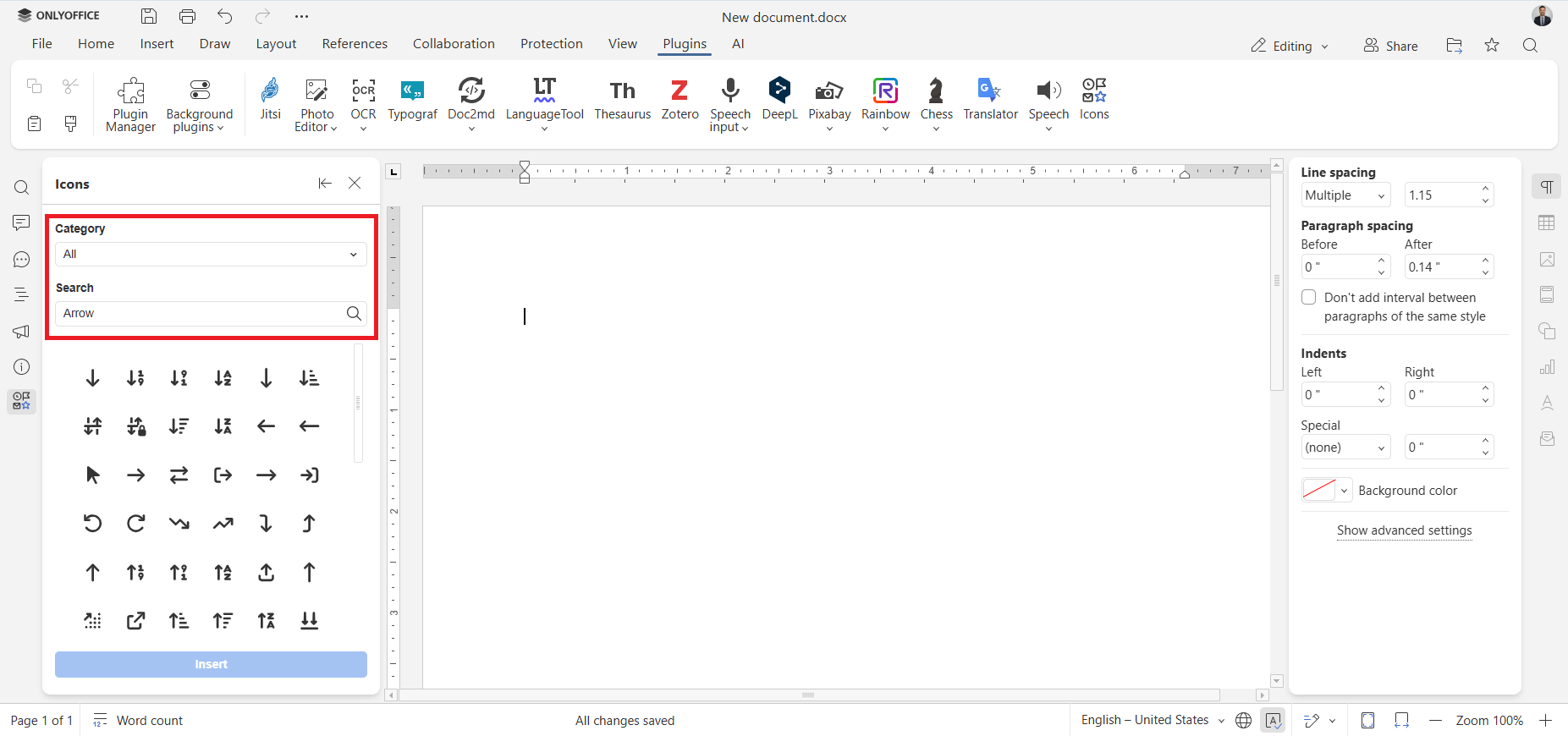
Step 3. Find the icon you want to insert either via the Category drop-down menu or using the Search field.
Step 4. Select the desired icon and click Insert.
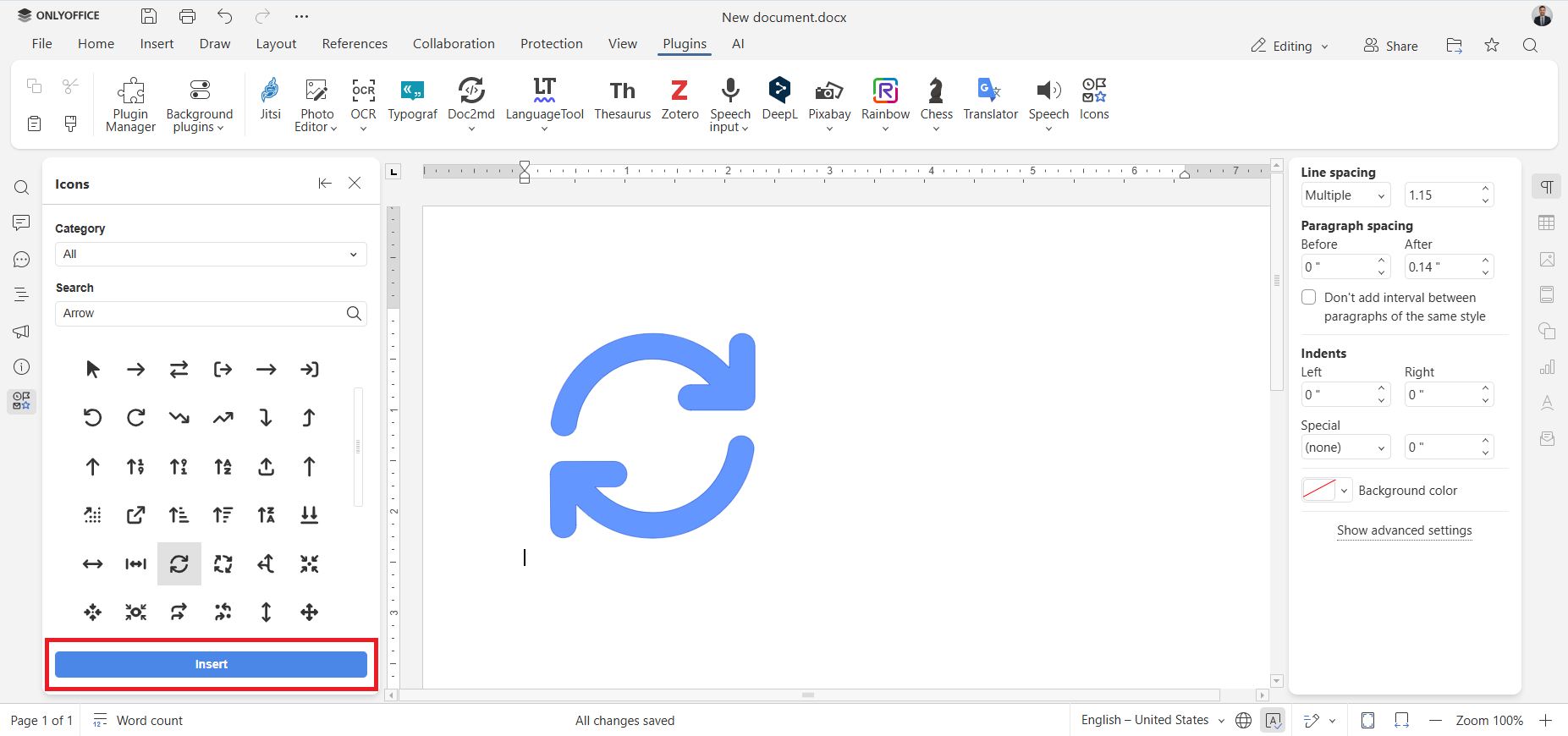
That’s it. The vector graphic will appear in your document.
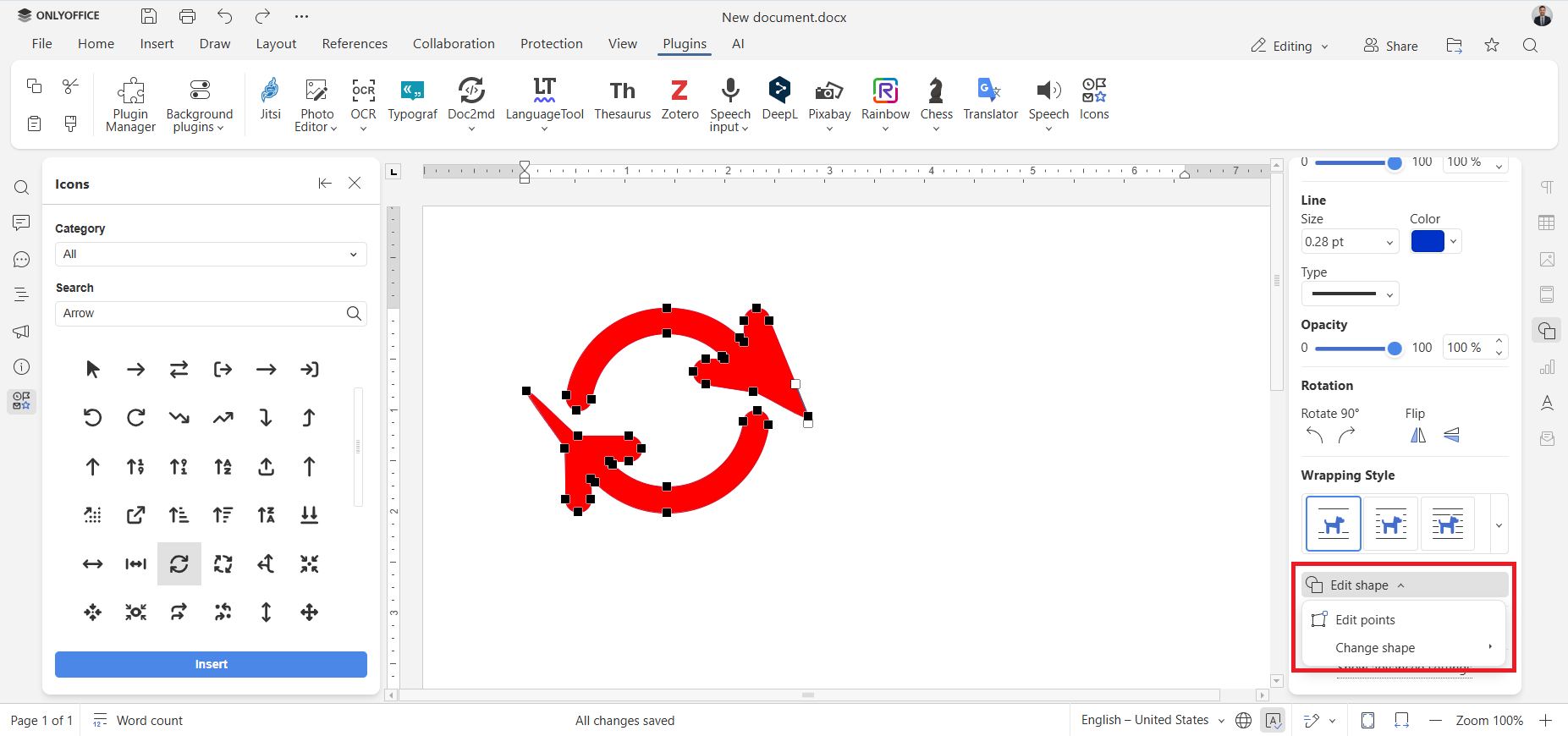
If you want to customize the inserted icon, select it and open the Shape settings menu on the right-side panel. Now you can customize the size, colour, style and shape of your icon.
How to install the Icons plugin
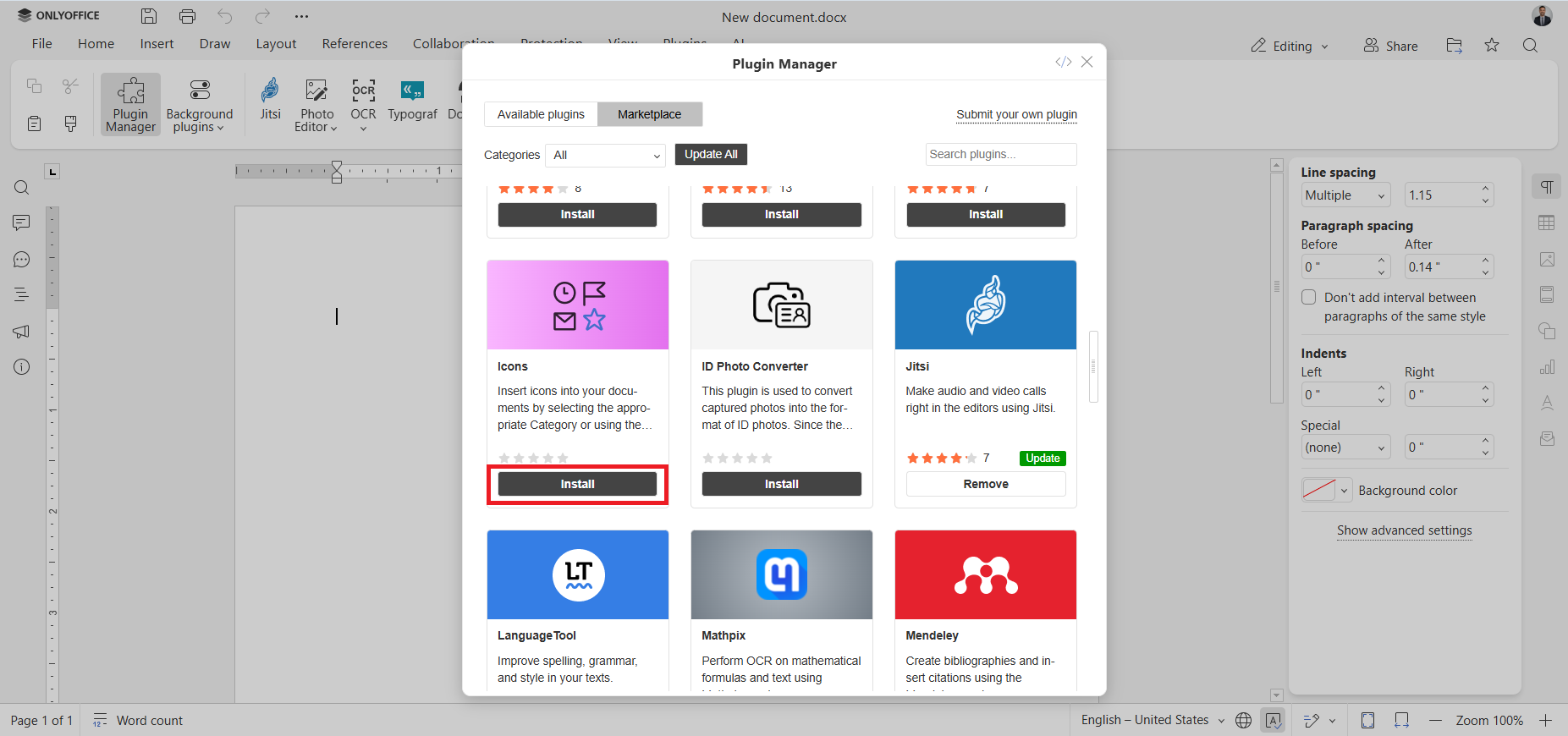
Like any other ONLYOFFICE plugin, the Icons plugin is available in the ONLYOFFICE marketplace and can be installed via the Plugin Manager. To get the plugin installed, follow these steps:
- Open your document;
- Launch the Plugin Manager by clicking its icon on the Plugins tab;
- Find the Icons plugin;
- Click the Install button.
Now you can access the plugin anytime on the Plugins tab.
Get ONLYOFFICE and insert icons with ease
Insert and customize various icons in your documents online by creating a free ONLYOFFICE DocSpace account or offline by downloading the free desktop client for Windows, Linux and macOS:
FAQ: Icons plugin and its features
Q: Is the Icons plugin free?
Yes, the plugin is free.
Q: Does the plugin only work in documents?
In addition to documents, the plugin allows you to insert icons into spreadsheets, presentations and PDF forms.
Q: How do I customize my icons?
You can easily customize the size, colour, style and shape of your icons via the Shape settings menu on the right-side panel.
Q: How do I delete the plugin?
You can delete the Icons plugin via the Plugins Manager on the top toolbar.
Useful links
Icons plugin: GitHub / Marketplace
How to search, install, and manage plugins
What’s new: Docs 9.2 / Desktop Editors 9.2
Create your free ONLYOFFICE account
View, edit and collaborate on docs, sheets, slides, forms, and PDF files online.