Introducing the Text Highlighter plugin: Easily emphasize and organize important text in your documents
In modern document editing, clarity and emphasis play a vital role in communication. ONLYOFFICE continues to enhance productivity by offering versatile tools that make editing smoother and more efficient. The new Text Highlighter plugin is one such tool, designed to help you quickly highlight, organize, and visually emphasize important parts of your documents.

About the plugin
The Text Highlighter plugin, available in both cloud and desktop versions, enables you to highlight any selected text in your documents with just a click. Compatible with Document, Spreadsheet, and Presentation editors, this plugin adds a simple yet powerful way to structure your content, making important details easy to find.
With this plugin, you can:
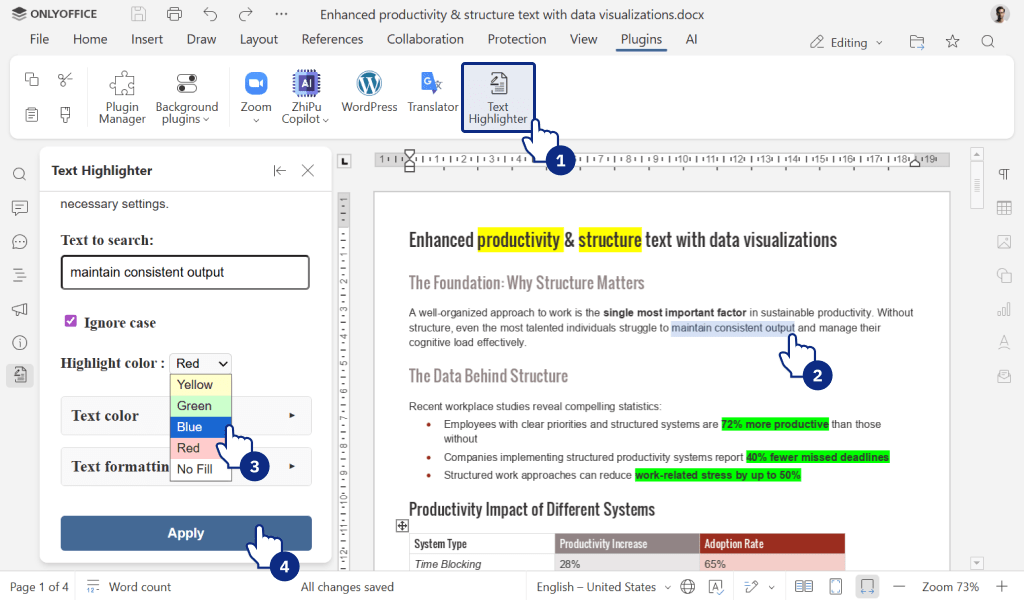
- Apply multiple colours to highlighted text for better organization.
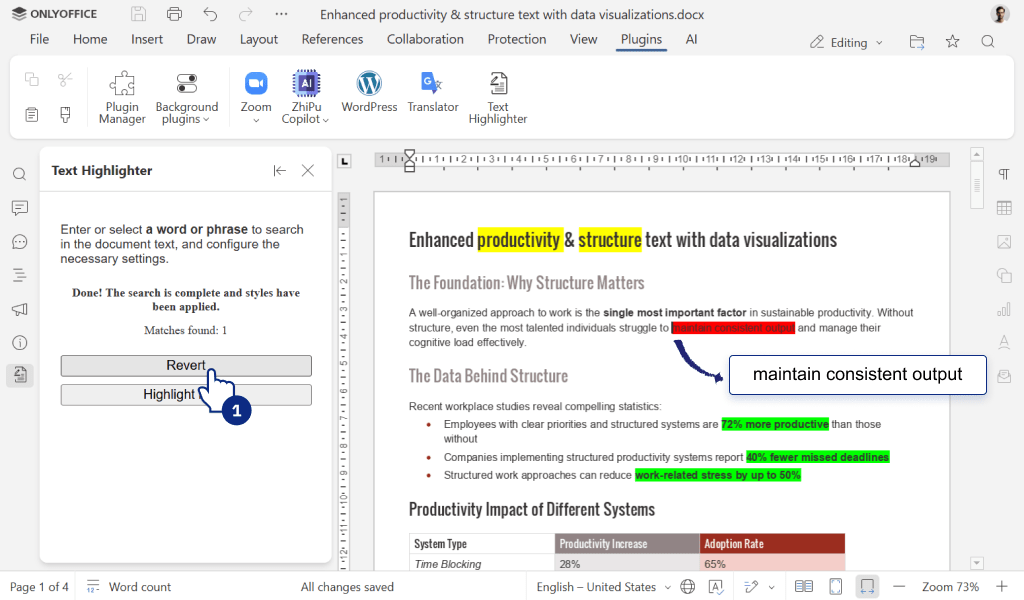
- Easily revert the applied highlights.
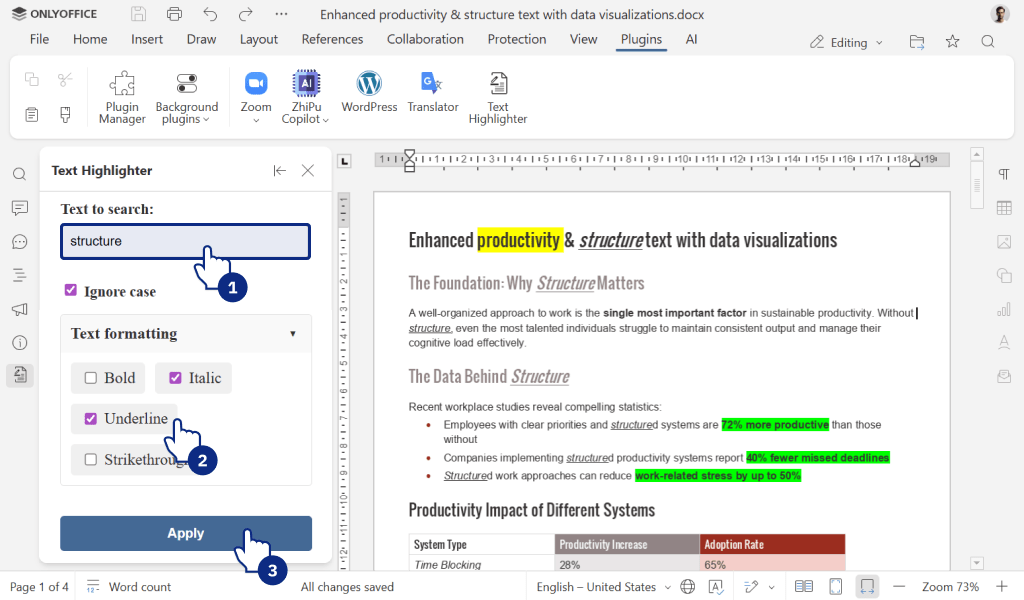
- Apply basic text styling such as bold and italic for better emphasis.
- Keep your documents visually structured and reader-friendly.
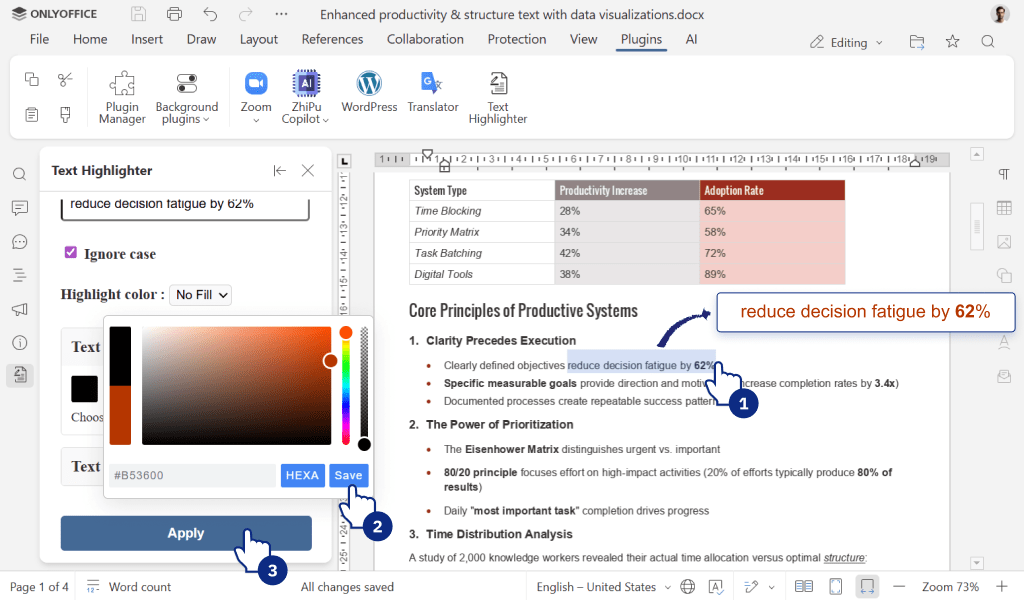
Unlike manually applying text formatting each time, the Text Highlighter plugin provides a dedicated, user-friendly interface to streamline the process and save time.
How to install and use
Installation via Plugin Manager
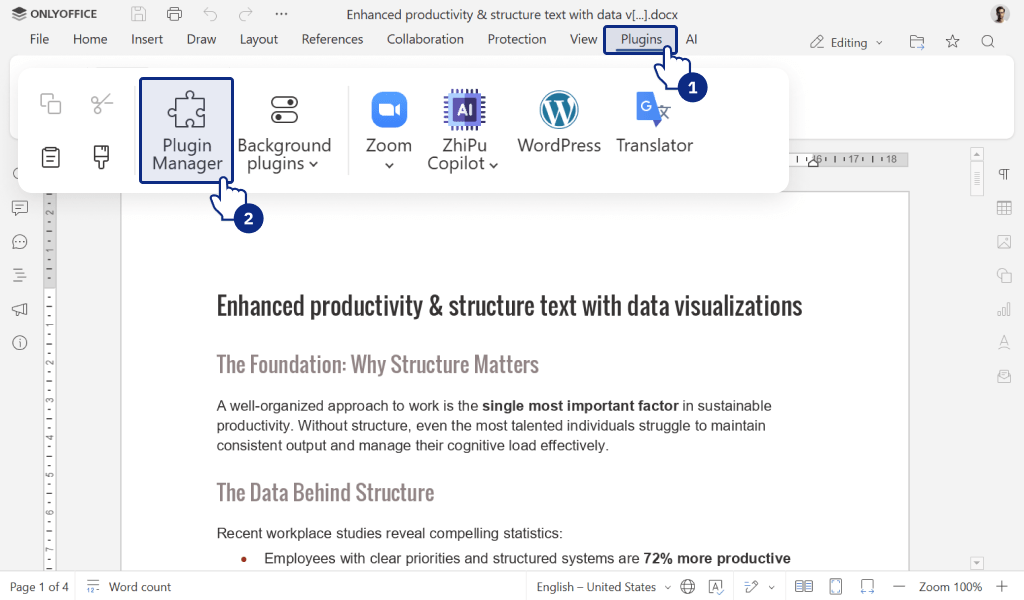
- Go to the Plugins tab and open the Plugin Manager.
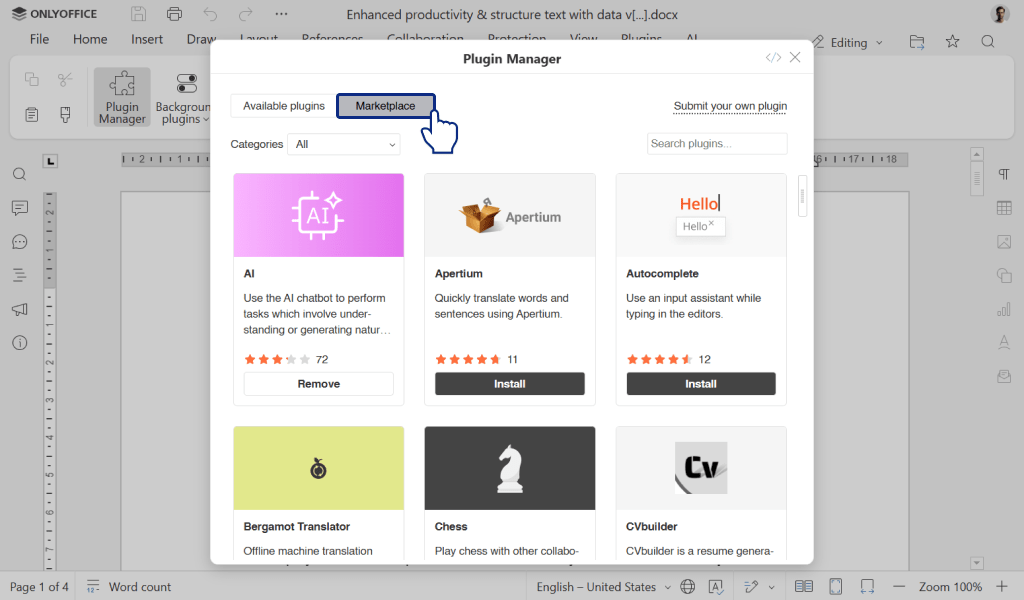
- Go to the Marketplace tab.
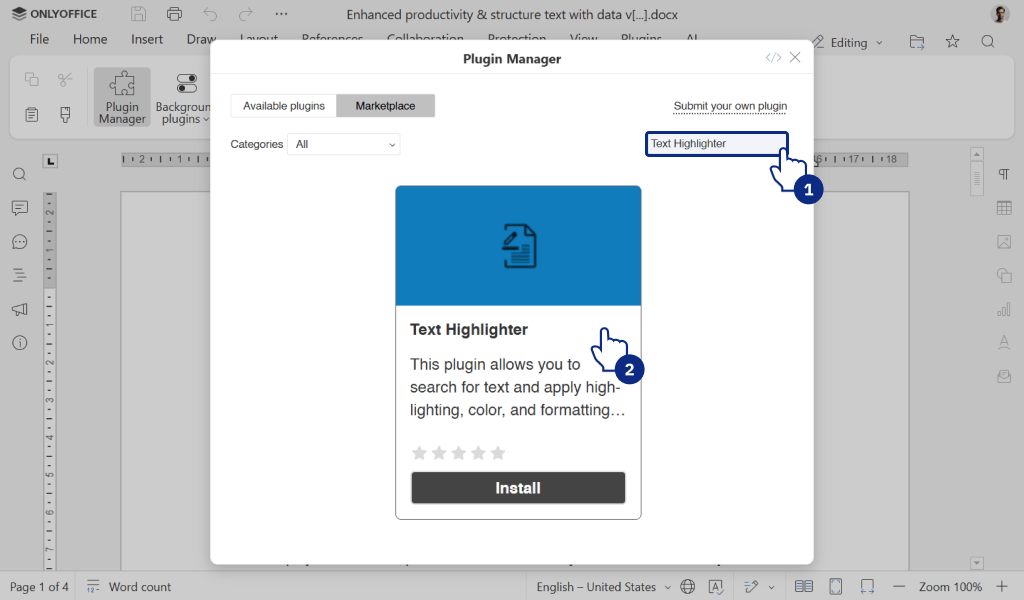
- Search for the Text Highlighter plugin via the Search bar on the right.
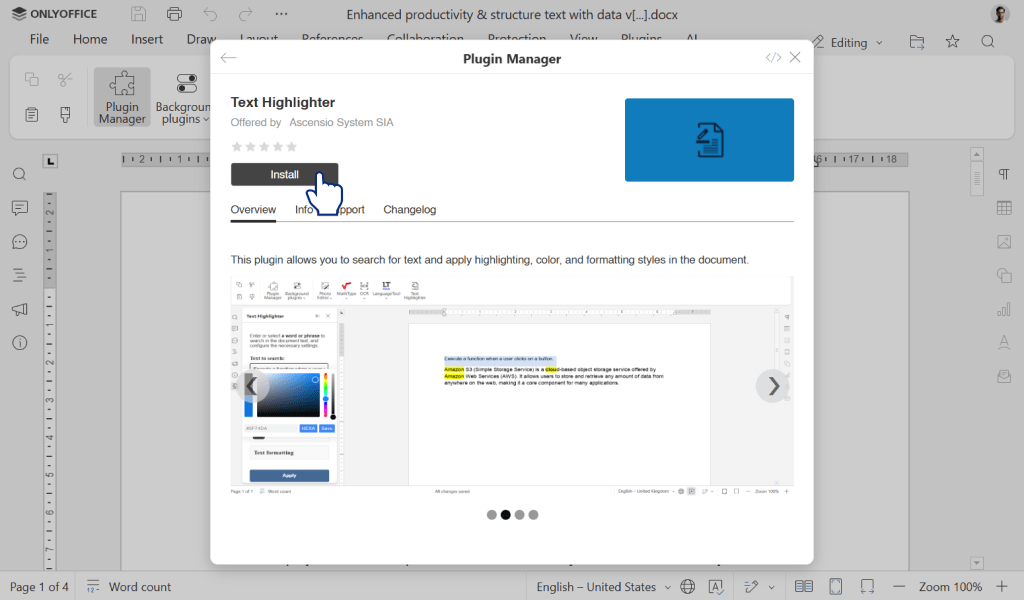
- Click Install.
Manual installation
- Find and download the Text Highlighter plugin from the ONLYOFFICE plugin repository.
- Archive the plugin files.
- Change the file extension to .plugin.
- Go to the Plugins tab, click Settings >> Add plugin, and browse for the .plugin file.
Usage
- Select the text you want to highlight.
- Go to the Plugins tab >> Text Highlighter.
- Choose your desired highlight colour from the available options.
- Additionally, you can apply bold or italic styling directly within the plugin for clearer emphasis.
- Click Apply Highlight to emphasize the selected text.
- You can also revert the highlighted text by clicking Revert to Original Button.
The Text Highlighter plugin is a simple but effective addition to ONLYOFFICE editors. Whether you’re preparing reports, studying notes, or collaborating on team projects, it helps ensure that your key points are always clear and stand out.
Create your free ONLYOFFICE account
View, edit and collaborate on docs, sheets, slides, forms, and PDF files online.