What are Excel function arguments
When you work in Excel, functions act as tools that perform specific tasks, adding numbers, finding values, cleaning text, comparing cells, and more. However, they don’t work on their own. They require instructions, and those instructions are called arguments.
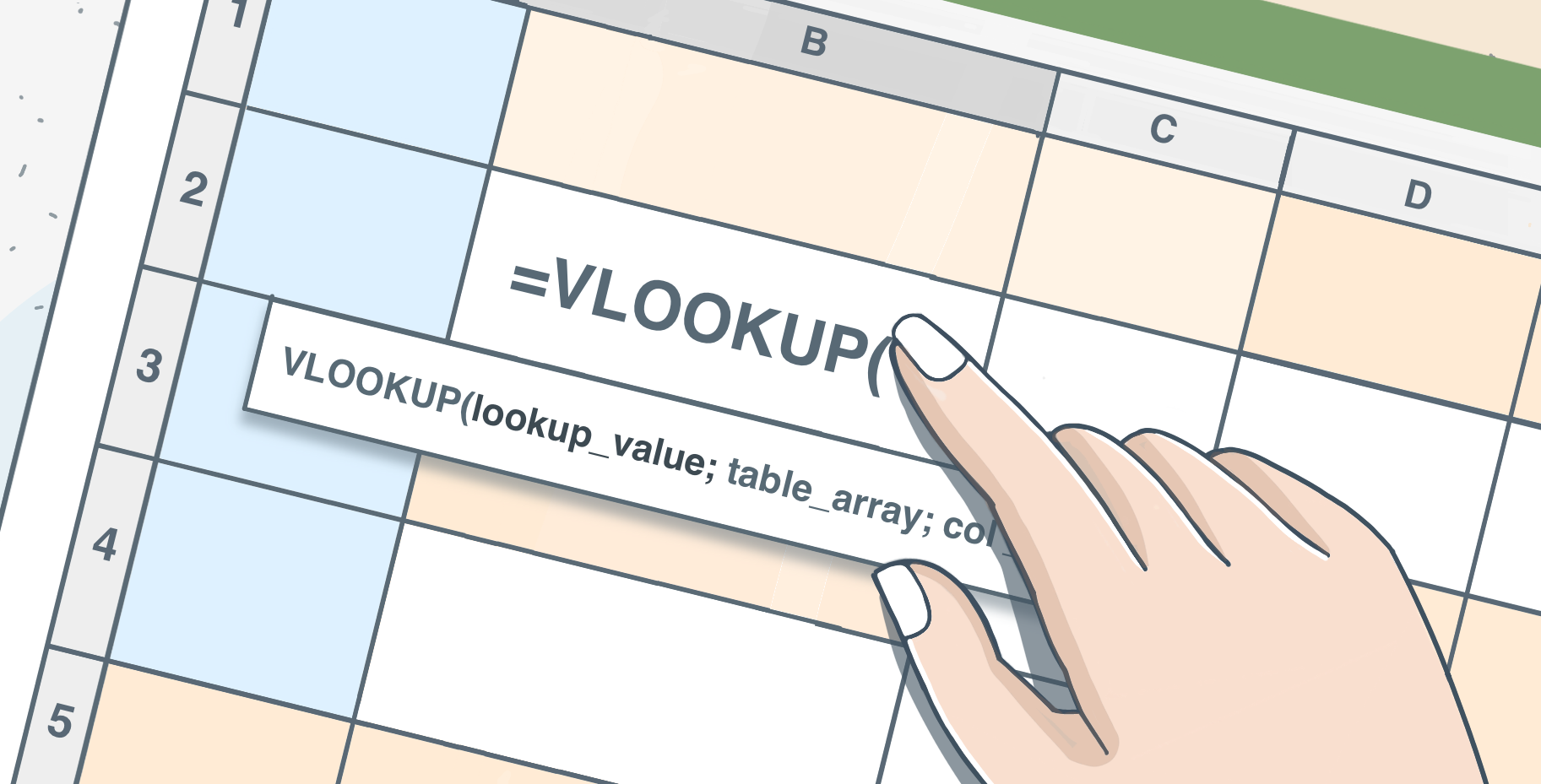
Understanding arguments
Arguments are the specific pieces of information you give to a function so it knows what to calculate, where to look, and how to behave. Without arguments, a function is just an empty shell with no idea what it’s supposed to do.
Think of it this way:
A function is the verb.
Arguments are the nouns that complete the sentence.
For example, the function SUM means “add”, but unless you tell Excel what to add — like SUM(A1:A10) — it can’t do anything.
Why arguments matter so much
Arguments define everything:
- They tell Excel which cells to work on.
- They specify conditions, limits, and options.
- They change how the result is calculated.
- They make the same function behave differently depending on what you feed it.
One function can do multiple jobs just by changing its arguments. For instance, IF(A1>10, "Yes", "No") checks whether something is greater than 10. But tweak the arguments and it can check dates, text, blanks, or even other formulas.
Let’s see the formula in action using ONLYOFFICE Spreadsheet Editor.
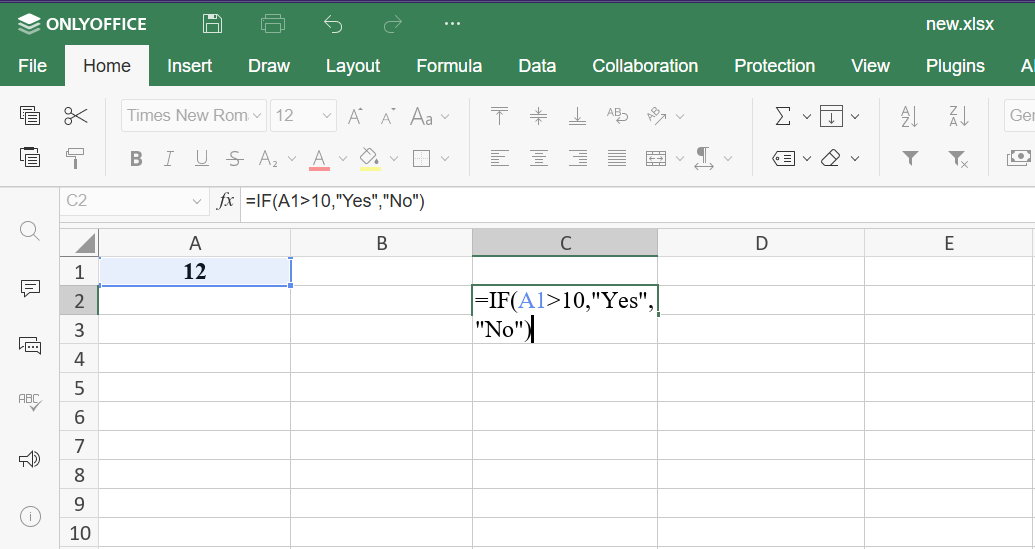
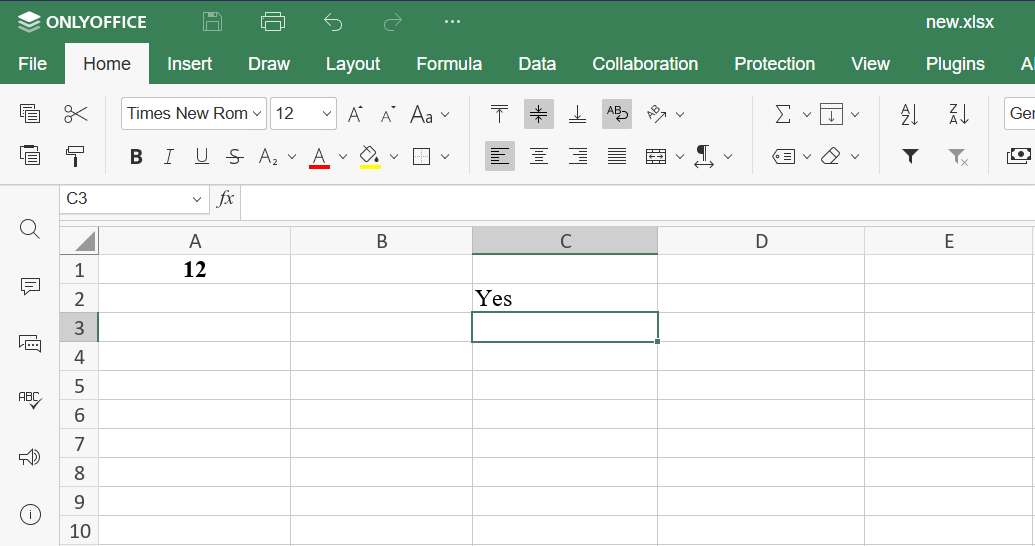
That flexibility is why arguments are the real power behind functions. The function name is only the starting point.
Have a look at this video to better understand how IF function works:
What arguments look like
Excel sheets accepts several kinds of arguments, often in any combination:
- Numbers — 25, 0.5, 2000
- Text strings — “Done”, “Error”
- Cell references — A1, B2:C8
- Ranges — Sheet1!A1:A100
- Booleans — TRUE, FALSE
- Nested formulas — SUM(A1, IF(B1>10, 5, 0))
The challenge begins when you mix these. Excel sheets processe arguments from left to right, and the order matters. If you place the wrong argument in the wrong position, the spreadsheet editor won’t think twice — it will simply give you a result based on what you wrote, even if it’s completely wrong.
That’s why knowing the purpose of each argument is essential.
Required and optional arguments
Some functions require a fixed number of arguments. If one is missing, the function returns an error.
Example:
LEFT(text, number_of_characters)
You must tell Excel sheets what text to work with. Leave out a required argument and the formula breaks.
Other functions include optional arguments, usually shown in [brackets]:
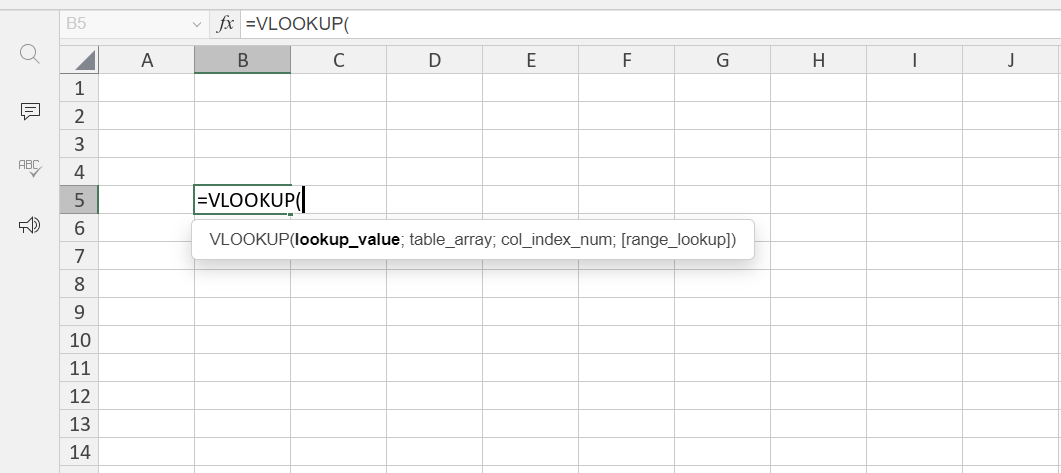
If you omit the optional argument, sheets use its default behavior. Adding it lets you fine-tune how the function works. Optional doesn’t mean unimportant — it means configurable.
How many arguments can a function have
It varies. Some functions use just one argument. Others accept many. You can also use a function as an argument inside another function. This is called nesting.
Example:
SUM(A1, IF(B1>10, 5, 0))
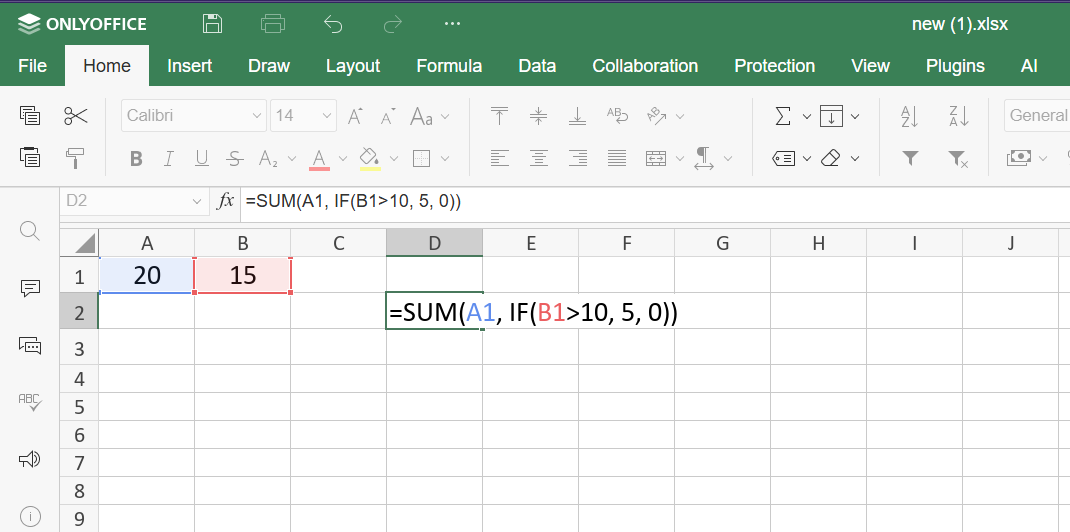
Here, IF runs first and its result becomes an argument for SUM. This is how spreadsheets move from simple calculations to advanced logic.
Why understanding arguments makes formulas easier
When you understand what each argument does, formulas stop looking like code and start reading like instructions. You can build formulas intentionally instead of relying on trial and error.
It also makes troubleshooting easier. Most formula errors come from incorrect arguments: wrong data type, wrong reference, missing commas, or incorrect order.
Get ONLYOFFICE Spreadsheet Editor
Want to apply what you’ve just learned about function arguments? Open ONLYOFFICE Spreadsheet Editor and practice building formulas yourself — see how different arguments change the result and spot errors more easily.
If you don’t have an ONLYOFFICE DocSpace account yet, create one for free and practice using function arguments in real spreadsheets. Use it online or download the desktop apps to work locally.
Conclusion
Arguments are the core of every sheet function. They tell the editor what to do, how to do it, and under which conditions. Once you master arguments, formulas become easier to read, easier to modify, and easier to fix. At that point, spreadsheet editors stop being a grid of cells and become a tool you can control with precision.
Create your free ONLYOFFICE account
View, edit and collaborate on docs, sheets, slides, forms, and PDF files online.