Instantly create macros in ONLYOFFICE using the record macro feature
Repetitive actions can slow down your workflow, especially when you need to perform the same steps over and over again across documents. ONLYOFFICE introduced macros to help automate such tasks, but writing them manually wasn’t always convenient for everyone.
In this blog-post, we’ll show you how the new Record Macro feature lets you automatically capture your actions and turn them into a ready-to-use macros, making automation easier and more accessible than ever.

What does recording a macro mean?
Macro recording is an automation process that allows you to capture your actions in the editor, including mouse clicks, keystrokes, text-styling toggles, etc. and turns them into a ready-to-use script. Instead of having to write the macro code, you simply perform the task once, and the editor generates a macro you can reuse anytime. This makes automation more accessible, especially for users who want to create their own macros without having to learn how to code.
How to record macros in ONLYOFFICE?
Preparing to record
Before you start recording, it’s important to clearly outline the steps you want the macro to capture. Think of it as planning a small workflow: the goal is to define a sequence of actions that can be repeated automatically whenever needed. This means identifying exactly where your task begins, what actions must occur in between, and where it should end. Once you know the sequence, you’re ready to record.
Recording the macro
To begin, open the ONLYOFFICE editor of your choice and launch the recorder by heading to the View Tab and selecting Record Macro at the end of the toolbar. From this moment on, the editor will track your clicks, selections and keystrokes.
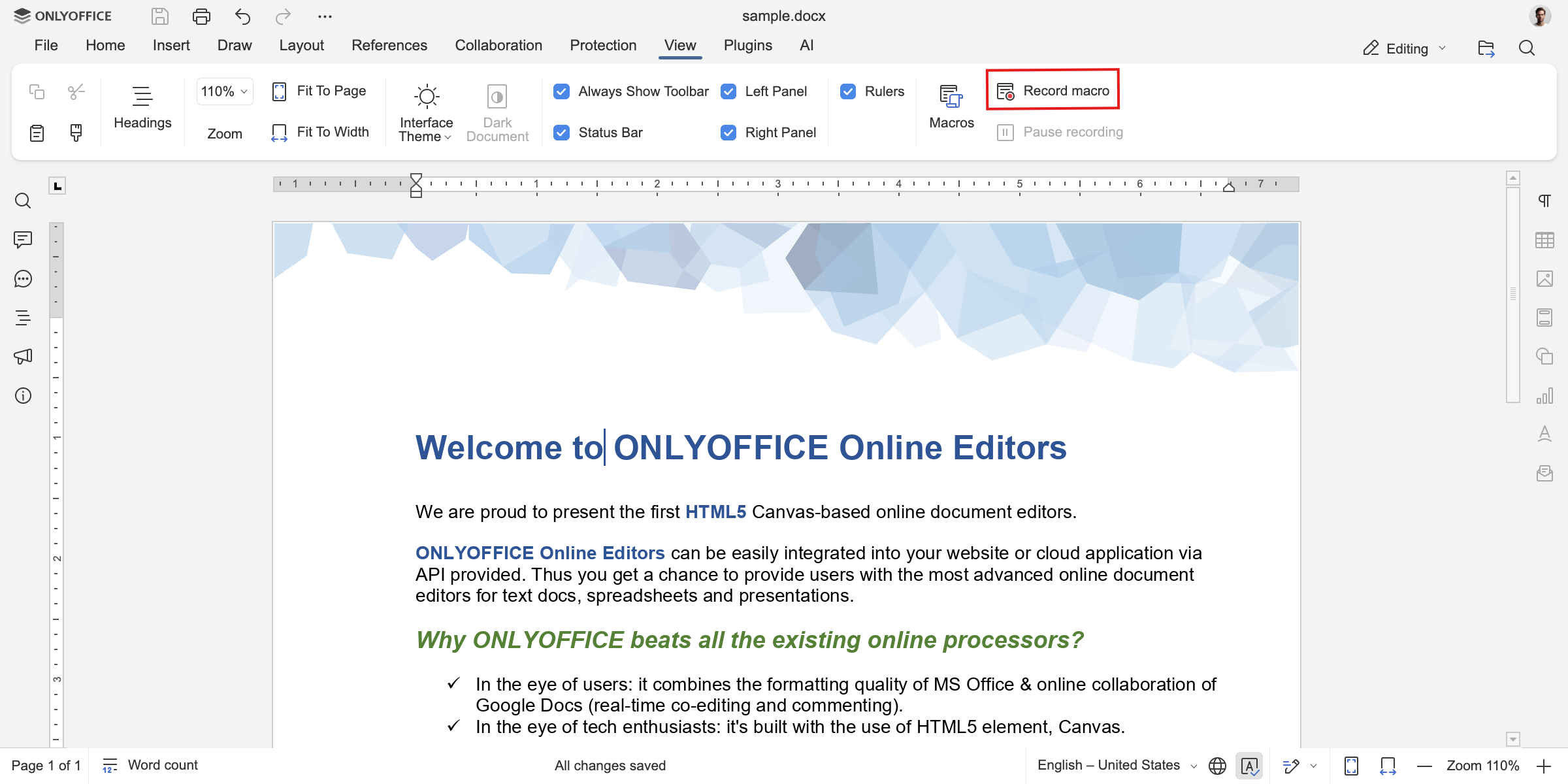
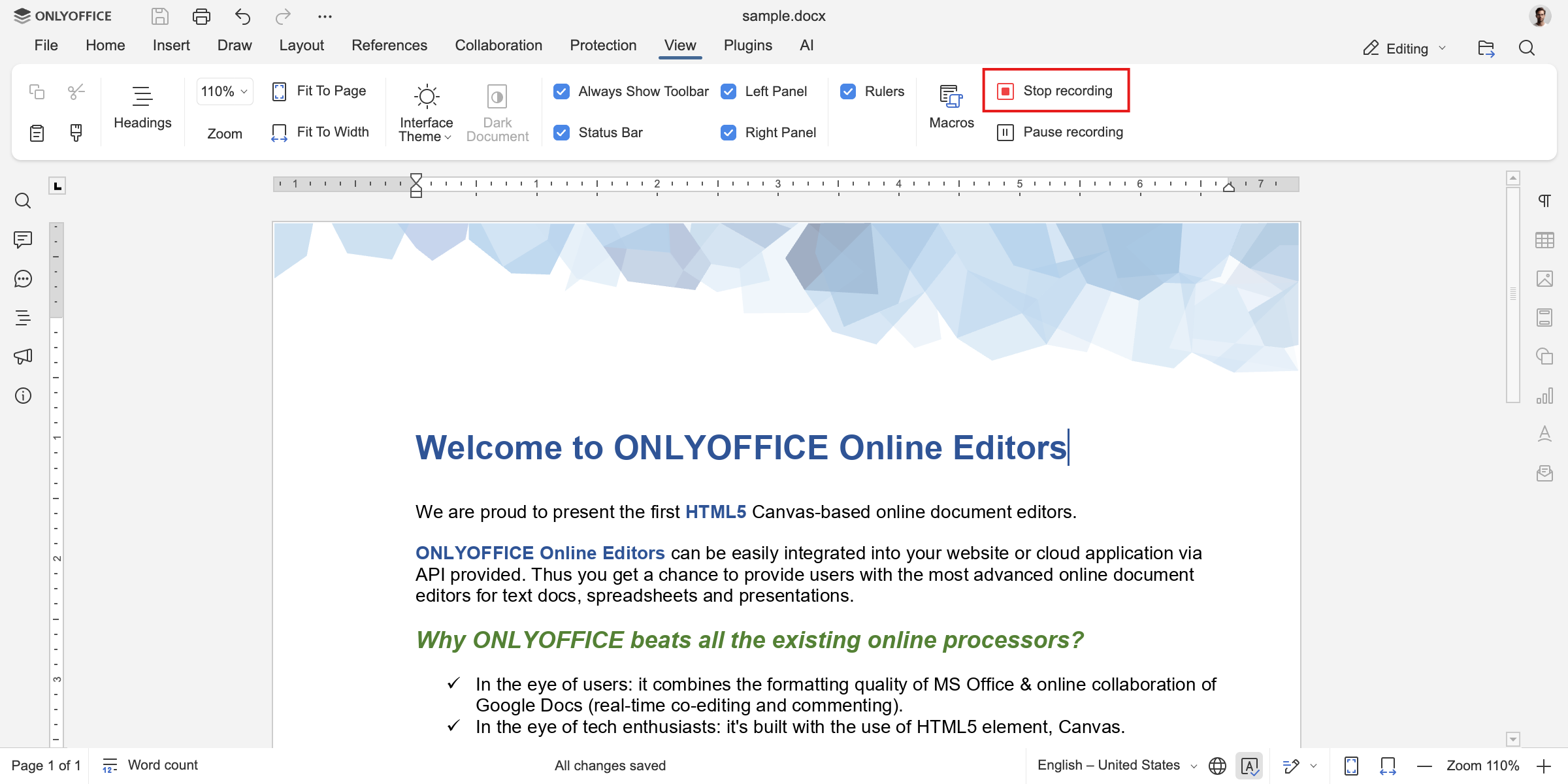
Perform the steps that you want the macro to capture. If you need a moment to think or adjust something, you can pause the recording at any time by clicking on the Pause Recording button. While the recorder is paused, none of your actions will be captured, allowing you to prepare without affecting the final macro. When you’re ready to continue, you can click on Resume Recording and proceed with the remaining steps. Once you have performed all the desired steps, stop and save the recording by clicking on Stop Recording button.
If you performed all the above steps correctly, you should have a macro that mirrors the actions you performed in the recording. To view, edit, or run your macro, go to the View tab and select Macros. This will open the Macro Editor, where all your recorded macros will listed.
To run the macro, select the macro you created, and click on Run from the toolbar at the top.
Note: At the moment, the Record Macro feature supports only a limited set of basic actions. More capabilities will be added in future updates, so expect the feature to become more powerful over time.
That was it! You just created your own macro without having to write any code. Have any questions, suggestions or innovative concepts? We encourage you to share them with us. We value your input and look forward to collaborating with you. Best of luck in your exploratory endeavors!
Create your free ONLYOFFICE account
View, edit and collaborate on docs, sheets, slides, forms, and PDF files online.