Get started with document editing in your web app using ONLYOFFICE Create App
Want to see how online document editing could work in your own application? A working example makes the first steps easier. ONLYOFFICE Create App gives you that starting point. It generates a small web application with a file manager and the code needed to connect ONLYOFFICE Docs. Once you configure access to a running Docs instance, you can try the editor in your browser and explore the project at your own pace.
Meet ONLYOFFICE Create App
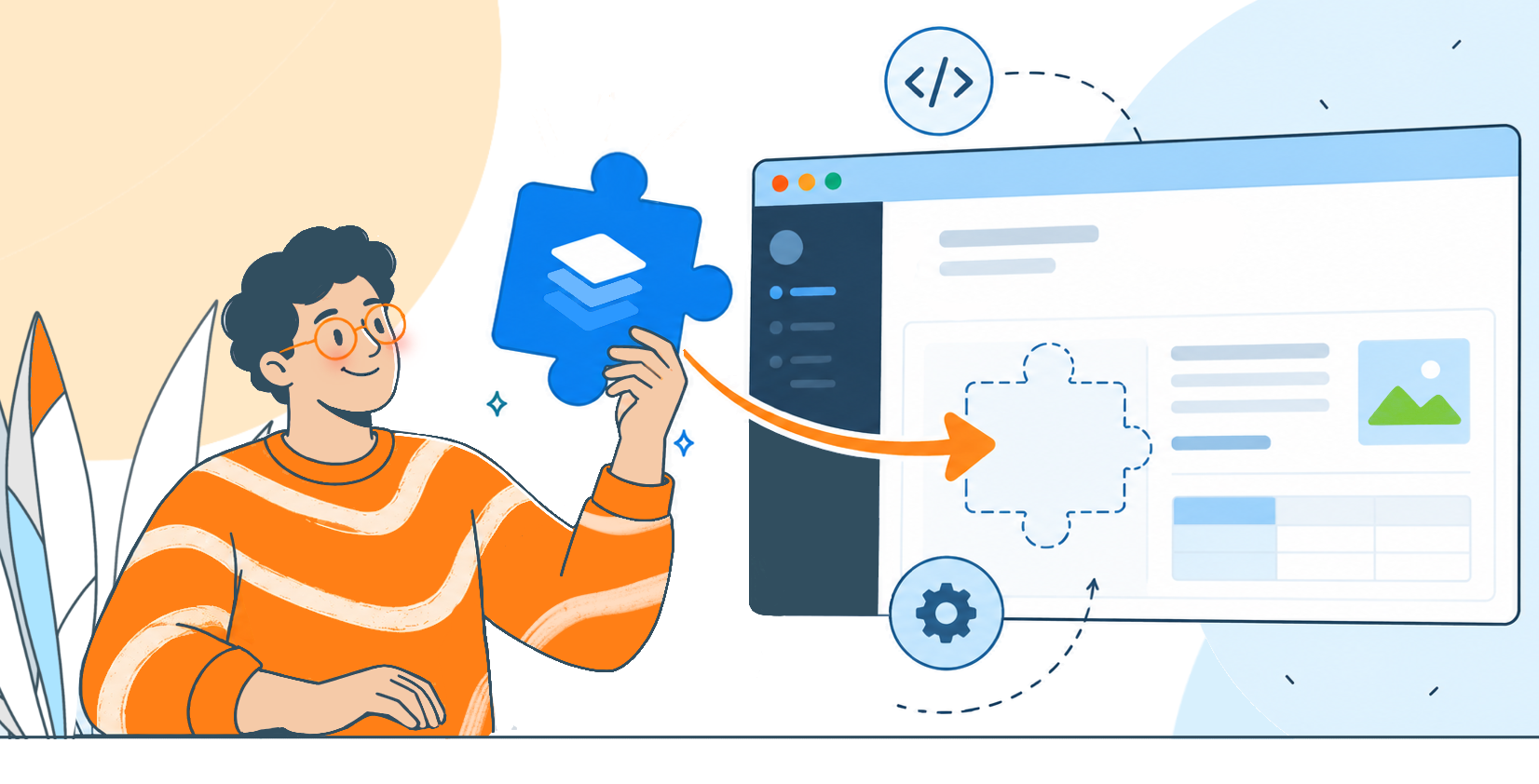
Available on npm, ONLYOFFICE Create App is a command-line tool that creates a sample integration project.
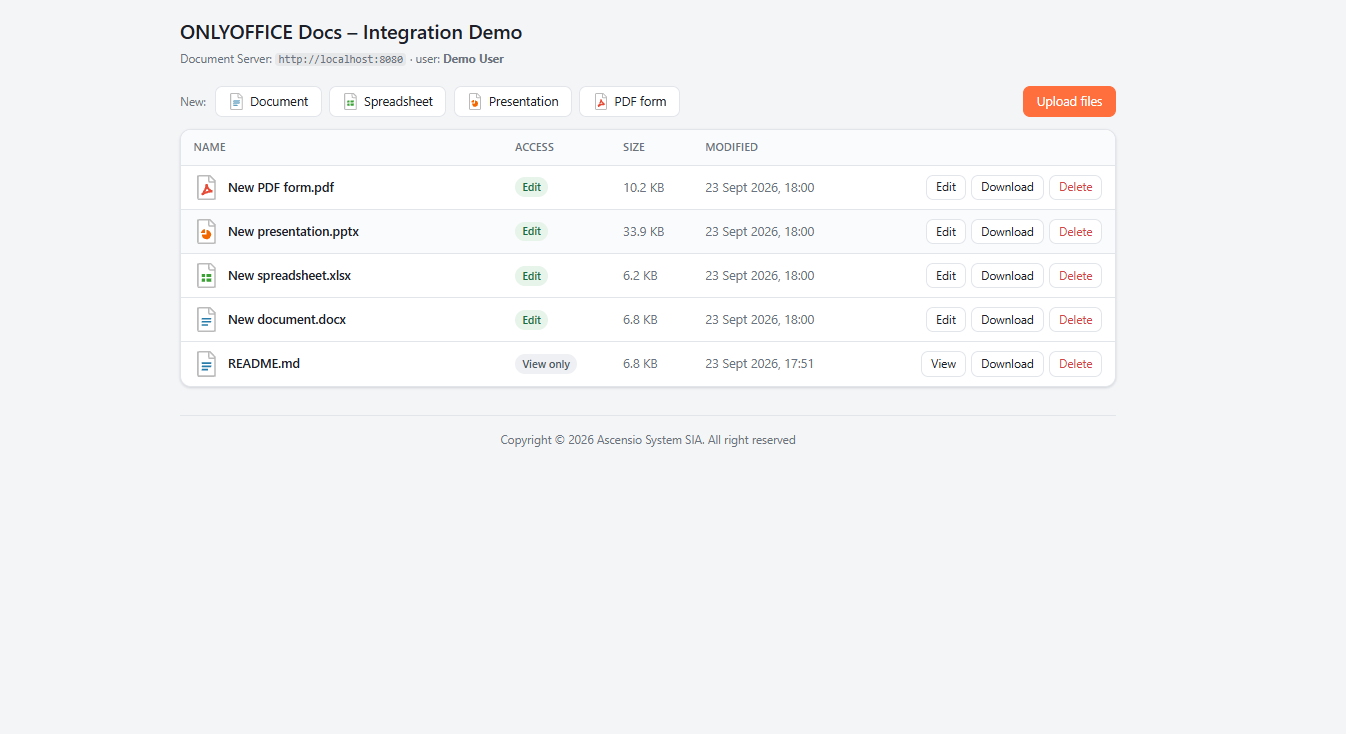
The generated app uses Next.js and React. It includes a file manager where you can upload files or create new documents, spreadsheets, presentations and PDF forms. It also provides an editor page and the server code that handles document downloads and saving.
There are two crucial components of the app:
- Create App prepares the website.
- ONLYOFFICE Docs provides the document editors.
Note! ONLYOFFICE Docs are installed and connected separately. The npm command does not install Document Server or launch Docker for you.
Prerequisites
- Node.js 20.12 or later
- ONLYOFFICE Docs 8.2 or later
- npm package manager and stable internet connection
For the walkthrough below, we use Windows PowerShell and assume that ONLYOFFICE Docs is already running in Docker Desktop on port 80. If you have not installed Docs yet, follow the Docker installation guide first.
Docker is one way to run Docs locally. It is not required on your computer when you connect to an existing server elsewhere.
Create your first application
- Open PowerShell in the folder where you want to keep the project. Then run:
npx @onlyoffice/create-app my-docs-appIf npm asks whether to install the generator, confirm with y. The command creates a folder called my-docs-app and installs the application’s dependencies.
- Wait for the installation to finish, then move into the new folder:
cd my-docs-appNote! Commands that start the app must run in its project folder, where package.json is located. Running npm install in an unrelated empty folder will not create an ONLYOFFICE integration.
Connect the app to ONLYOFFICE Docs
For this local Docker Desktop setup, edit these entries in env .and leave the other generated settings in place:
DOCUMENT_SERVER_URL=http://localhost:80
DOCUMENT_SERVER_JWT_SECRET=your_actual_docs_secret
APP_URL=http://your_local_ip_adress:3000
DOCUMENT_SERVER_URL tells the browser where to find the editors. APP_URL tells Docs where to download your files and send saved changes. Here, host.docker.internal lets the container reach the application running on Windows. We use port 3000 for the app so it can run alongside another example on port 3000.
DOCUMENT_SERVER_JWT_SECRET is a shared secret used to verify requests between the two components. Replace the example text with the actual secret configured for your Docs instance. When editing .env manually, paste the value itself. For Docker installations, set the secret with the container environment variable JWT_SECRET and use the same value for DOCUMENT_SERVER_JWT_SECRET in the app.
APP_URL: Replace your_local_ip_adress with your computer’s local IP address, reachable from the Docs container.
For this Docker setup, Docs must also be allowed to request files from the host’s private address. Our test container used ALLOW_PRIVATE_IP_ADDRESS=true, an option described in the official Docker image documentation.
Open the app in your browser
Save .env and start the application:
npm start
In this template, the start command downloads the blank document templates, builds the application and launches the web server. You do not need a separate build command for this first run.
Once the server is ready, open http:///your_local_ip_adress:3000. Keep the terminal running while you use the app.
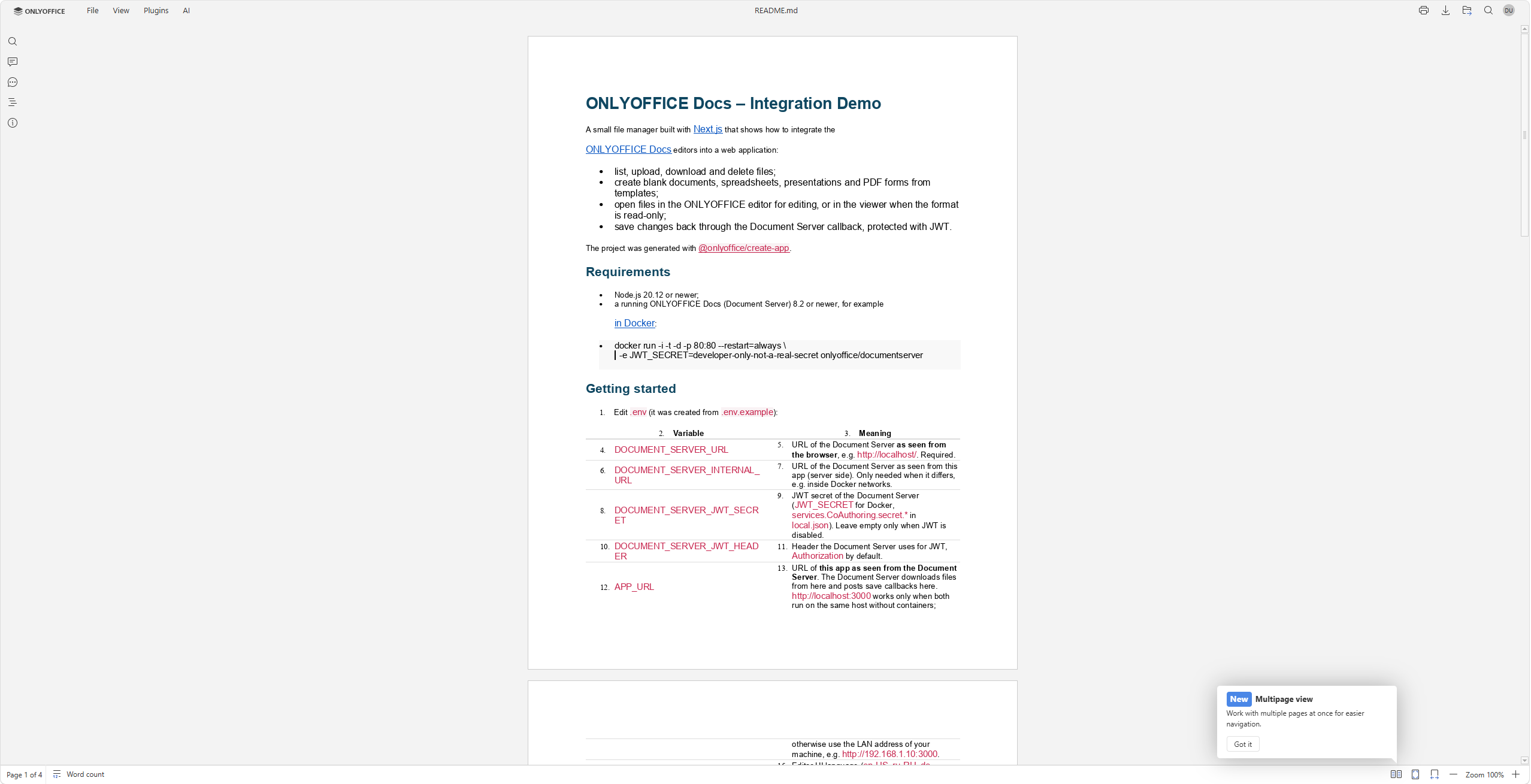
You will see a file manager with a README sample. You can create other documents. ONLYOFFICE Docs will load inside the application, ready for you to try editing.
Try your own integration
Create App gives you a practical way to get familiar with ONLYOFFICE Docs integration. You can start with a small working example, see how a document moves through the editing and saving process, and use that understanding when building your own application.
Explore the Create App repository on GitHub, generate your first project and open a document in your browser. For a closer look at the integration options, continue with the ONLYOFFICE Docs API documentation. Have an idea or suggestion? Open an issue on GitHub or email us.
FAQ: ONLYOFFICE Create App
Does Create App install ONLYOFFICE Docs?
No. It creates a small web application with a file manager and the code that facilitates the connection to ONLYOFFICE Docs. Install ONLYOFFICE Docs separately or connect an existing instance.
Is Docker required?
Only if you choose to run Docs in Docker. There are several options for deploying ONLYOFFICE Docs, including Ubuntu, CentOS, Windows Server, and Amazon Machine Images. You can also use an existing Docs server.
Can I adapt the app for my own project?
Yes. You can modify the generated code. See the ONLYOFFICE Docs API documentation for integration details.
Create your free ONLYOFFICE account
View, edit and collaborate on docs, sheets, slides, forms, and PDF files online.