How to export Airtable to Excel and keep editing from there
Summary
To export Airtable to Excel and continue editing, you need to download your data as a CSV file first, since Airtable does not provide a direct Excel export option. After downloading the CSV, you can open it in ONLYOFFICE Spreadsheet Editor, save it as an XLSX file, and then edit the data, including formulas and formatting, as needed.
- Export one table at a time from Airtable.
- Use ONLYOFFICE to convert CSV to XLSX.
- Rebuild relationships manually after export.
- Attachments must be downloaded separately.
- Real-time co-editing is available in ONLYOFFICE.
Plenty of teams that build their workflows in Airtable eventually need that same data in a plain spreadsheet, whether it’s to share with someone outside the team, run a deeper analysis, or simply keep working offline. The move isn’t as direct as it sounds, so here’s what actually happens when you export, and how to pick up the work from there.
What is Airtable?
Airtable is a cloud-based platform that combines a spreadsheet-style grid with the structure of a database: bases hold tables, tables hold records and fields, and fields can go beyond plain text to include attachments, checkboxes, formulas, and links to records in other tables. The same data can be viewed as a grid, a calendar, a kanban board, or a gallery, and built-in automations can trigger actions whenever a record changes. That combination is why teams reach for it for project tracking, content calendars, and lightweight CRMs, without needing to write SQL.
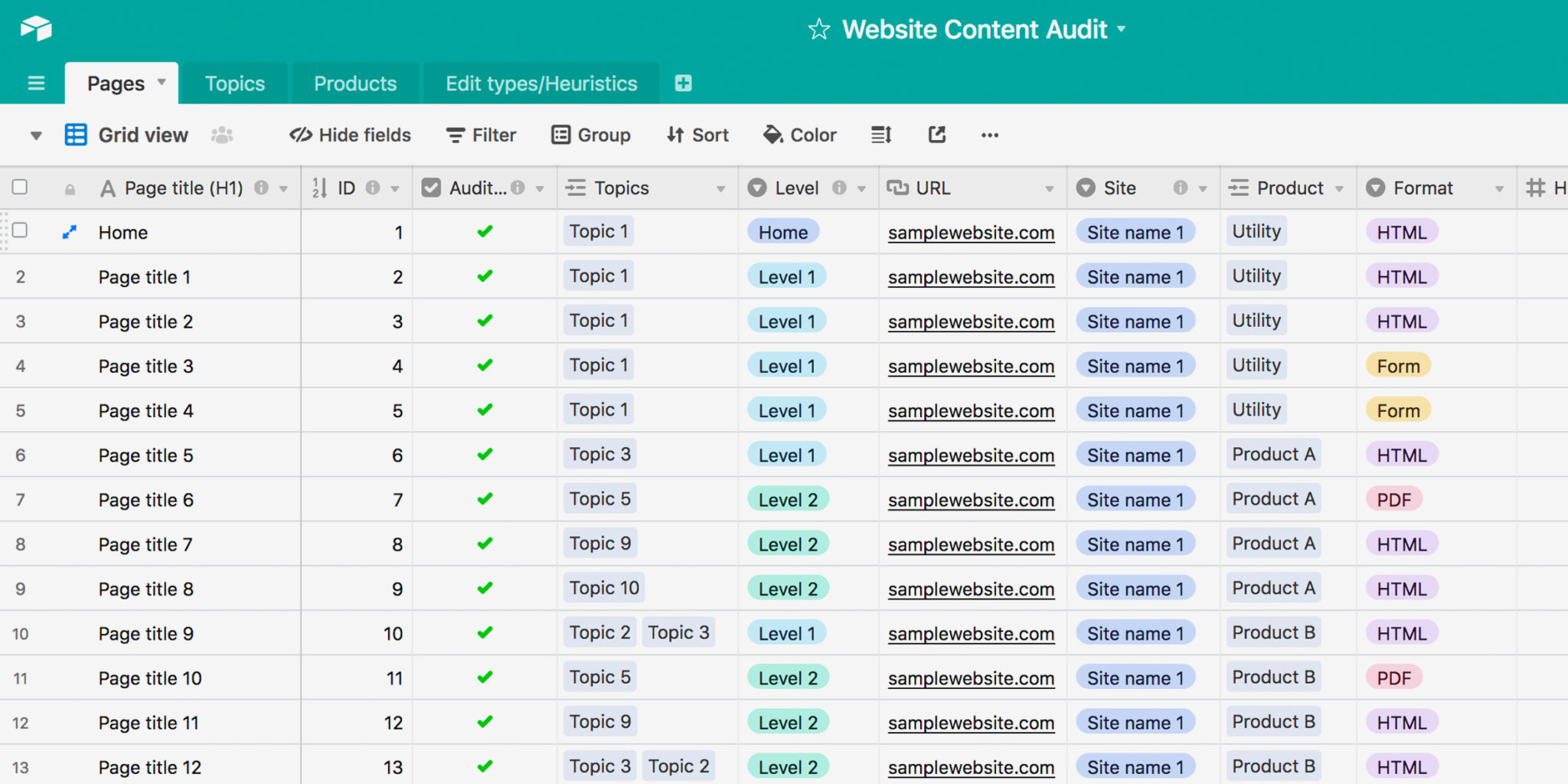 Image source: thinkcompany.com
That flexibility comes with some limits, though. Because everything, links, formulas, views, only fully works inside Airtable’s own model, sharing data with people outside the team, or with tools that expect a plain spreadsheet, means taking it out of that model at some point.
None of this makes Airtable a bad fit for what it’s built for, but it does explain why exporting comes up so often.
Airtable has no native “Export to Excel” button
When it comes to actually getting the data out, though, Airtable doesn’t make it a one-click job. There’s no direct .xlsx export in Airtable, only CSV. The path is always two steps: download a CSV from a view, then open or convert it in a spreadsheet editor.
A few things to know before you export:
- You export one table at a time, not the whole base. Airtable doesn’t offer a single export for an entire base, so a base with several linked tables means several separate exports.
- Hidden fields don’t come along for the ride. Only the fields visible in the view you’re exporting from get included, so it’s worth creating a dedicated view with every field visible and no filters applied if you want a complete export.
- Formulas, lookups, and rollups are exported as their current values, not as editable Airtable fields. Once you open the CSV outside Airtable, they no longer update automatically.
- Linked records are exported as values rather than as Airtable relationships. If multiple records are linked, their values may appear together as a list in the exported CSV, so the original relationship isn’t preserved.
- Attachments export as links, not files. Attachment fields turn into filenames and URLs, and those URLs expire after a few hours, so they’re not a real backup of the files themselves — anything you need to keep has to be downloaded separately, right away.
- Cell colors and other Airtable view formatting aren’t preserved. CSV contains data rather than the visual formatting of your Airtable view, so you’ll need to recreate that formatting in your spreadsheet editor.
The Airtable community has also built unofficial, third-party plugins that offer a more direct XLSX export than the native CSV route. These aren’t built or maintained by Airtable itself, so how well they work, and whether they keep working over time, depends on the developer behind each one.
None of this is a reason to avoid exporting, but it does mean you should treat the export as a snapshot of the data, not a live mirror of your base.
How to export a table to Excel
Now let’s see how to do this in practice, using ONLYOFFICE Spreadsheet Editor as an example for the last step.
- Open the Airtable base and switch to the view you want to export, ideally one with every field visible and no filters applied.
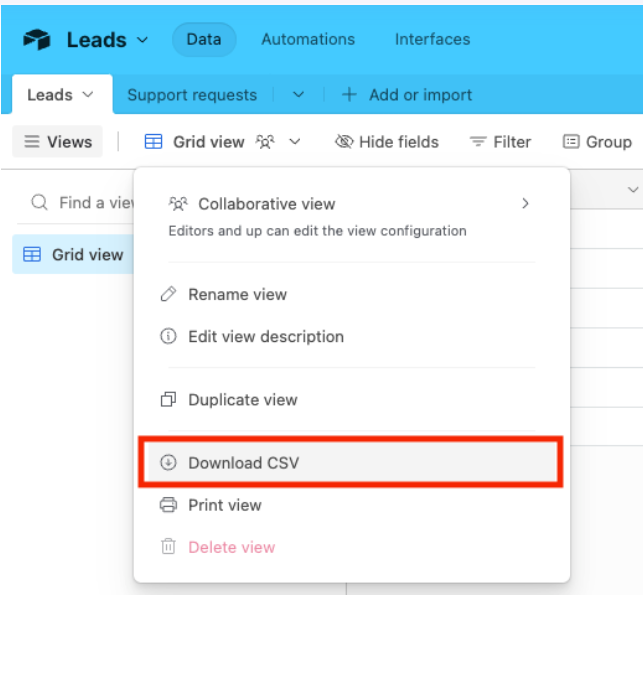
- Click the dropdown arrow next to the view name, or the three-dot menu, and select Download CSV.
- If any records include attachments you want to keep, open each attachment and save it before the download link expires.
- Open the downloaded CSV file in ONLYOFFICE Spreadsheet Editor
- Go to File > Save As, and choose XLSX as the format.
For a base with several linked tables, repeat this for each table, and expect to rebuild the relationships manually once everything is in spreadsheet form, since the links themselves don’t survive the export.
If you need to move Airtable data on a regular basis, Airtable Automations can trigger actions when records change, but they don’t turn the standard CSV export into an automatic scheduled XLSX export. For more advanced workflows, third-party automation platforms such as Zapier can connect Airtable with other services.
For something closer to true automation, no-code tools like Zapier or Make can connect Airtable directly to editors, though setting might take more work than a manual export.
Keep editing from ONLYOFFICE
With the file exported, the next step is putting it back into shape: rebuilding the relationships the export flattened, cleaning up the formulas, and getting it ready to share. ONLYOFFICE Spreadsheet Editor covers that:
- XLSX compatibility, allowing you to continue working with formulas, formatting, and other spreadsheet features after converting your CSV to XLSX.
- Real-time co-editing, useful when several people need to clean up the exported data, add formulas, or continue working on the spreadsheet together.
- Familiar spreadsheet formulas and pivot tables, giving you more flexibility to analyze and reorganize the exported data in a traditional spreadsheet environment.
- Self-hosting as an option, if the data leaving Airtable includes anything sensitive enough that you’d rather not route it through another cloud vendor.
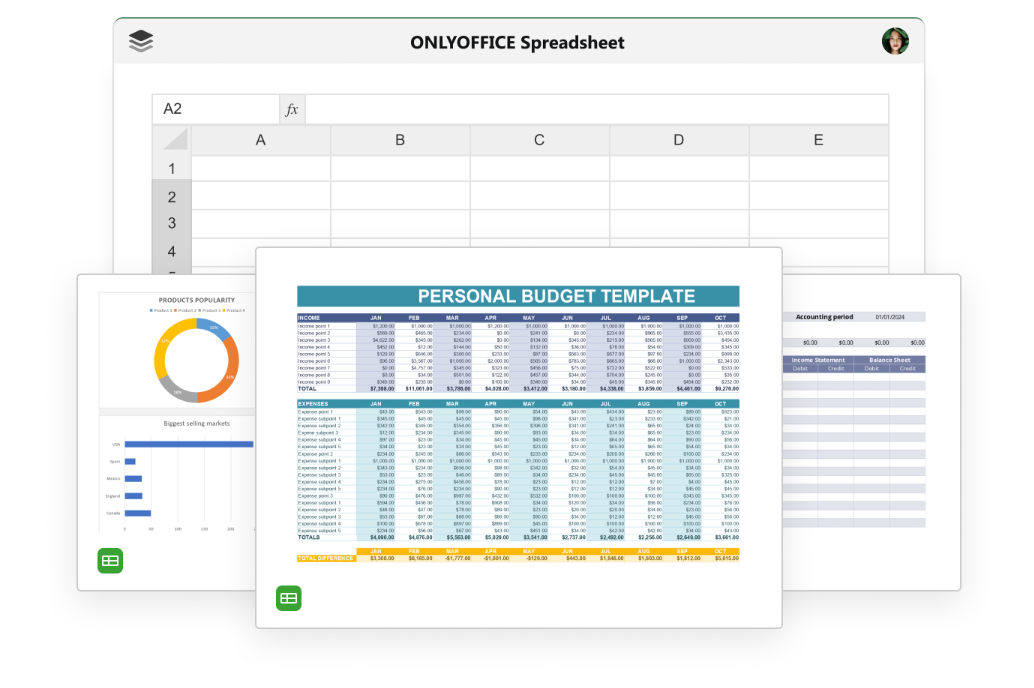
Open your file in ONLYOFFICE Spreadsheet Editor to pick up exactly where the export left off.
Have a look at this video to learn more about spreadsheets in ONLYOFFICE:
FAQ about export
Will my formulas still work after I export to Excel? No. Airtable formulas, lookups, and rollups don’t remain as live Airtable fields after the CSV export. Their exported values are no longer connected to the original Airtable logic, so they won’t update automatically outside Airtable.
What happens to attachments when I export? They export as a filename and a URL rather than the actual file, and that URL expires after a few hours. If you need to keep the attachments, download them separately before the link goes stale.
Do linked records survive the export? Not as links. A linked record field exports as a comma-separated list of the linked record’s primary field values, as plain text, so the relationship itself needs to be rebuilt manually if you still need it.
Ready to pick up where the export left off?
Your Airtable data doesn’t have to stay locked in a one-time snapshot. See what ONLYOFFICE can offer your team once that data is in a spreadsheet.
Create your free ONLYOFFICE account
View, edit and collaborate on docs, sheets, slides, forms, and PDF files online.