20 best cloud-based productivity apps for teams
Summary
Cloud-based productivity apps are essential tools that help teams manage documents, deadlines, and communication efficiently across various projects. These applications enable real-time collaboration and shared access to files and tasks, making them ideal for both office-based and remote teams. The guide highlights 20 of the best cloud-based productivity apps, covering their features, pricing, and suitability for different team needs.
Managing documents, deadlines, and team communication across several projects can quickly become complicated. Cloud-based productivity apps help keep everything organized, giving colleagues shared access to files, tasks, and conversations wherever they work.
This guide covers 20 productivity tools for document editing, project management, communication, scheduling, and more. Explore their key features, pricing, advantages, and limitations to find the right fit for your team.

What are cloud-based productivity apps?
Cloud-based productivity apps let people create documents, manage tasks, and share information online. Unlike traditional desktop software that relies mainly on locally stored files, these tools make shared content accessible across devices and allow colleagues to work together in real time.
They are used by both office-based and remote teams, with features ranging from collaborative editing and file storage to project tracking and online meetings.
Types of cloud-based productivity apps
Different applications serve different purposes. The table below provides an overview of the main categories and the tools covered in this guide.
| Category | Apps |
|---|---|
| Cloud office suites | ONLYOFFICE, Google Workspace, Microsoft 365 |
| Project and task management | Asana, Trello, ClickUp |
| Team communication | Slack, Microsoft Teams, Mattermost |
| Video conferencing | Zoom, Google Meet, Webex |
| Cloud storage | Google Drive, Dropbox, OneDrive |
| Time management | Toggl Track, Clockify, Calendly |
| AI productivity tools | ChatGPT, Notion AI |
Cloud office suites and document collaboration
Cloud office suites let colleagues create and review documents together, with shared editing, comments, and file management features.
1. ONLYOFFICE
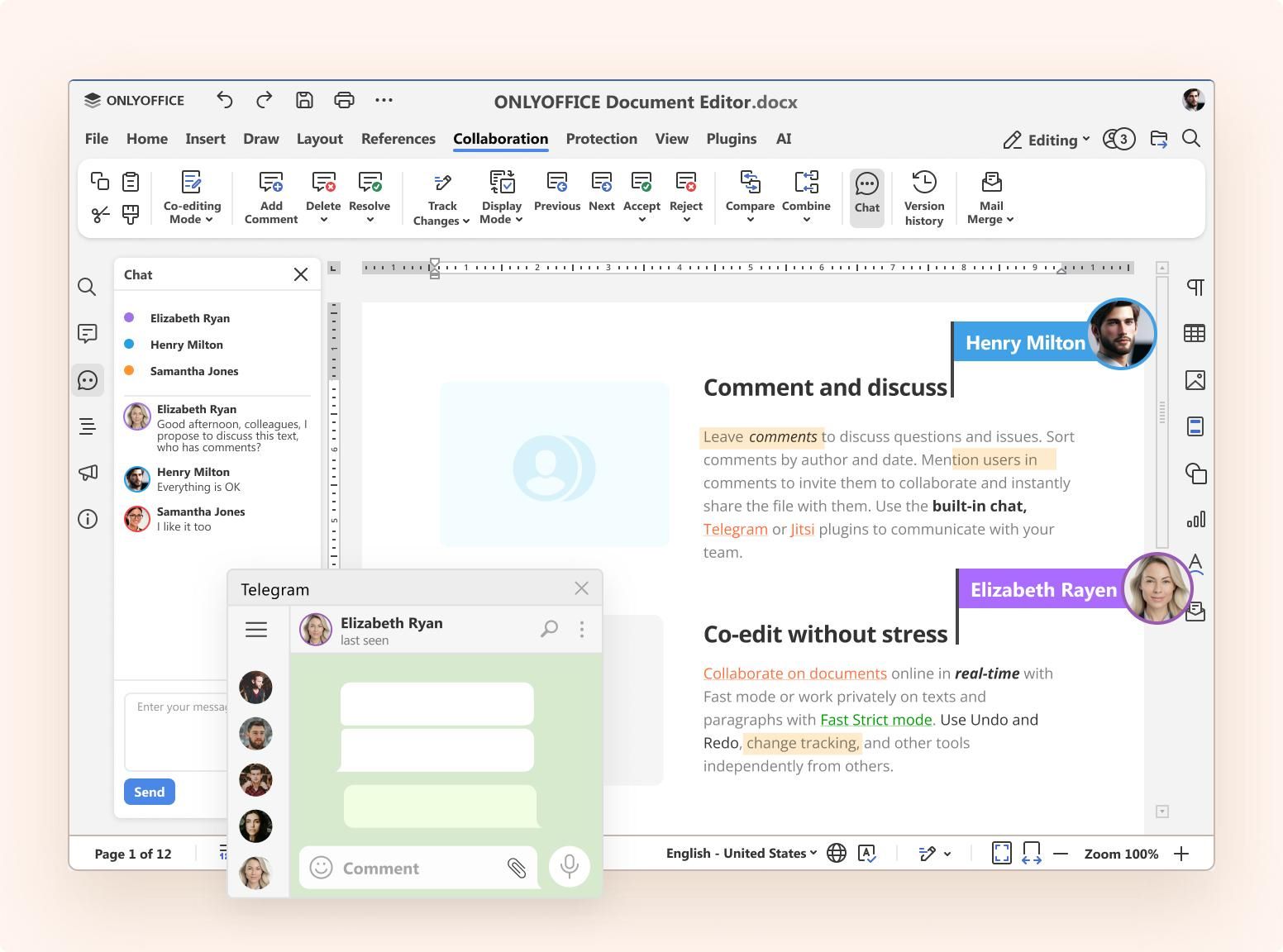
ONLYOFFICE provides a full set of editors for documents, spreadsheets, presentations, PDFs, and fillable forms, giving teams everything they need to work with office files in one place. Users can co-edit documents in real time, leave comments, and track changes, making collaboration easier and more transparent. In addition to editing tools, ONLYOFFICE offers a shared workspace where teams can organize documents into rooms and manage access permissions securely.
Support for popular Microsoft Office formats makes it easier to exchange files with clients, partners, and other external stakeholders without compatibility concerns. The World Food Travel Association, for example, uses ONLYOFFICE to collaborate effectively across multiple time zones and engage volunteers in its projects.
Pros: Collaborative editing, Office format compatibility, flexible sharing permissions, cloud or self-hosted deployment.
Cons: Project scheduling and team messaging require separate tools.
Pricing: The Cloud Startup plan is free. The Business plan is currently available at a rate of $20 per admin per month.
Best for: Teams working with Office documents and businesses regularly collaborating with external partners.
2. Google Workspace
Google Workspace brings Docs, Sheets, Slides, Gmail, Drive, and Calendar into one connected environment. Several colleagues can edit the same document, discuss changes in comments, and access the latest version without exchanging email attachments.
The applications work primarily in a browser, although complex Microsoft Office files may need formatting adjustments when opened in Google’s editors.
Pros: Real-time collaboration, simple file sharing, and integration across Google services.
Cons: Advanced spreadsheet features and complex Office formatting may not transfer perfectly between applications.
Pricing: Business Starter costs $7 per user per month with annual commitment; Business Standard costs $14.
Best for: Teams that regularly collaborate on documents and already use Google’s business applications.
3. Microsoft 365
Microsoft 365 combines Word, Excel, PowerPoint, and Outlook with online storage and collaboration services. Its desktop applications remain useful for detailed spreadsheets, complex documents, and presentations requiring precise formatting.
Employees can work locally or online and share files through Microsoft cloud services. Businesses should review the available subscriptions carefully, as desktop applications, Teams, and other services are not included in every package.
Pros: Advanced Office applications, desktop and online editing, and integrated business services.
Cons: Multiple subscription options and additional administration for larger deployments.
Pricing: Business Basic with Teams starts at $7 per user per month with annual billing. Business Standard, which includes desktop Office applications, starts at $14.
Best for: Businesses already using Microsoft products and teams working extensively with Office documents.
Project and task management
A task manager gives everyone a clearer picture of their responsibilities, upcoming deadlines, and the progress of shared projects.
4. Asana
Asana helps teams coordinate assignments through lists, boards, calendars, and timelines. Tasks can include deadlines, comments, attachments, and dependencies, making it easier to follow work involving several contributors.
Marketing and operations teams can use Asana to keep projects moving between departments, with additional reporting and resource management features available on higher-tier plans.
Pros: Clear task ownership, multiple project views, and cross-team coordination.
Cons: Portfolio and workload management require more expensive subscriptions.
Pricing: Personal is free for up to two users. Starter costs $10.99 per user per month with annual billing.
Best for: Teams managing projects with multiple contributors and approval stages.
5. Trello
Trello uses visual boards to organize work into lists and cards. An editorial team, for example, can move articles from writing to editing and publication, with deadlines, checklists, and supporting files attached to each card.
The interface is easy to learn and works particularly well for projects with clearly defined stages. More complicated schedules and task dependencies may call for additional project management features.
Pros: Easy setup, customizable boards, and visual progress tracking.
Cons: Limited advanced scheduling and reporting compared with more comprehensive project management platforms.
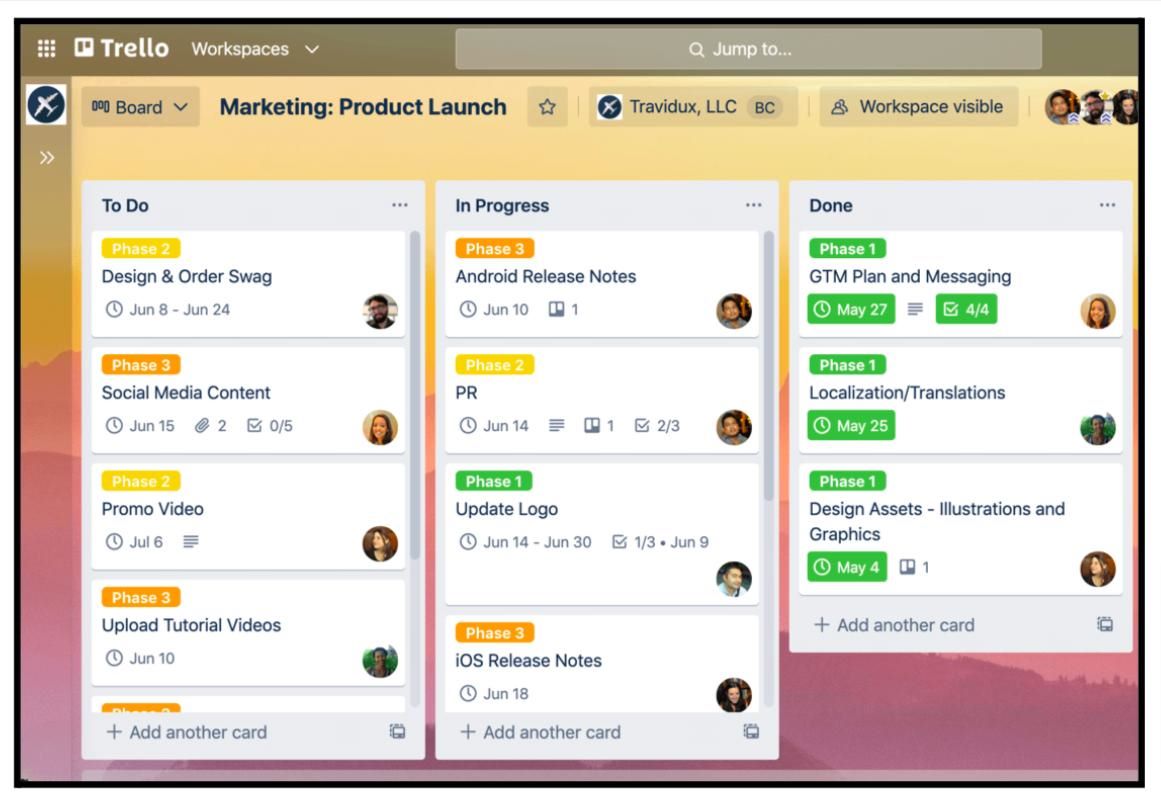 Image source: Trello
Pricing: A free plan is available. Standard costs $5 per user per month with annual billing; Premium costs $10.
Best for: Small teams, editorial calendars, and straightforward project workflows.
6. ClickUp
ClickUp combines task management with documents, dashboards, time tracking, and workflow automation. Agencies can use it to organize several client projects, keeping assignments and supporting materials in the same workspace.
Teams can customize project views and task statuses, but that flexibility also requires some planning. An overly complicated workspace may become difficult to maintain as more people and projects are added.
Pros: Customizable workflows, multiple project views, and integrated documents.
Cons: More configuration is needed than with a simple task management app.
Pricing: Free Forever is available. Unlimited starts at $7 per user per month with annual billing.
Best for: Agencies and growing teams managing several projects simultaneously.
Team communication
Team communication apps provide a shared space for everyday discussions, project updates, and quick questions that do not require a formal meeting.
7. Slack
Slack keeps conversations organized in channels dedicated to projects, departments, or specific topics. Employees can share files, exchange messages, and receive updates from connected business applications.
Its extensive integrations make it convenient for teams working across several platforms. However, important decisions can get lost when discussions are spread across too many channels.
Pros: Organized messaging, integrations with other tools, and collaboration with external partners.
Cons: Excessive notifications and lengthy message threads can make information harder to follow.
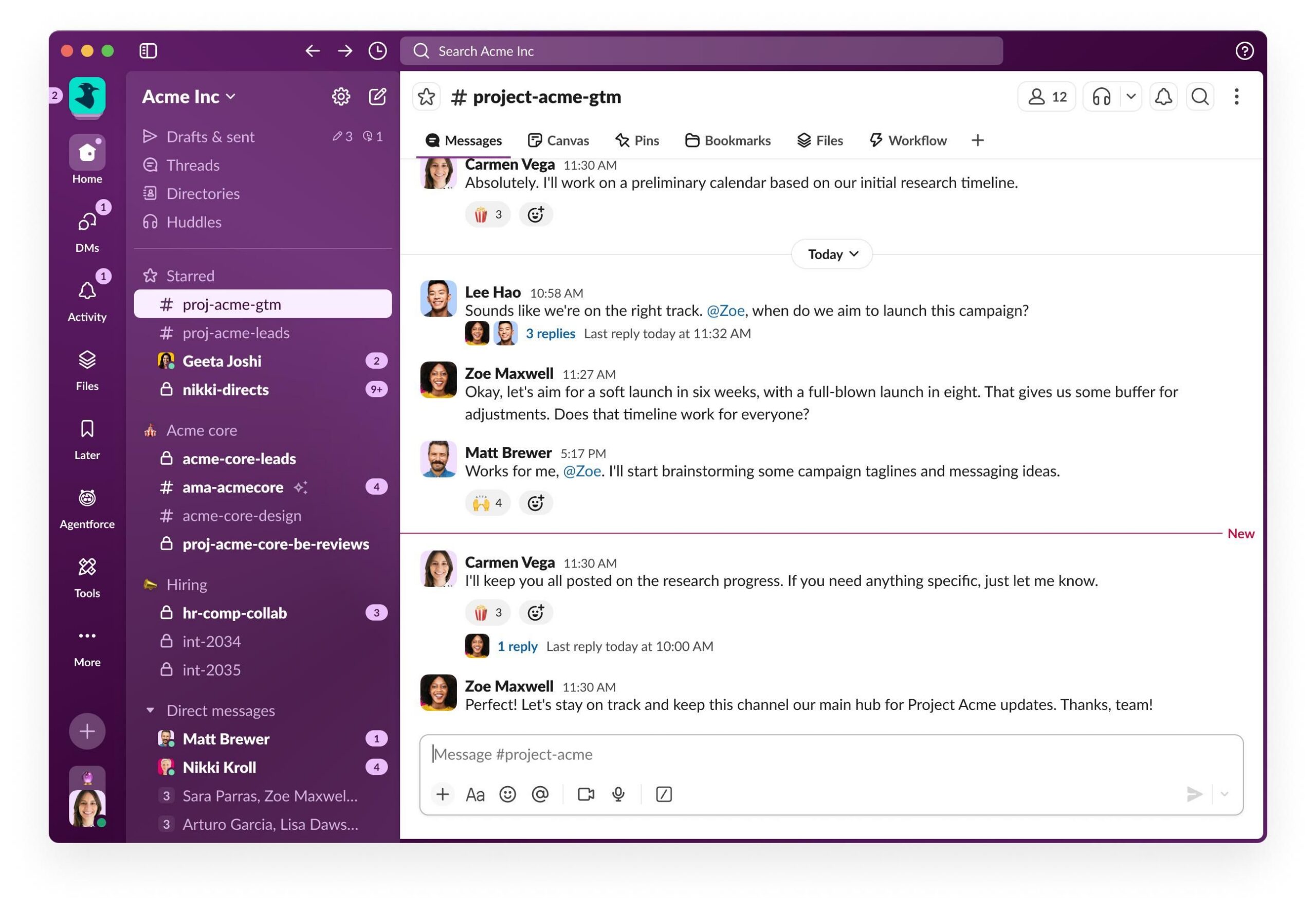 Image source: Slack
Pricing: A free plan is available. Pro costs $7.25 per active user per month with annual billing.
Best for: Remote teams and businesses using several specialized applications.
8. Microsoft Teams
Microsoft Teams brings messaging, meetings, and file sharing together. Employees using Microsoft 365 can discuss projects in dedicated channels and open shared Office documents directly from their workspace.
Teams is a convenient choice for organizations already working within Microsoft’s ecosystem. As the number of projects grows, consistent channel organization becomes important for keeping conversations and documents easy to find.
Pros: Integrated messaging, meetings, and document collaboration.
Cons: Conversations and files can become scattered across chats and channels.
Pricing: Teams Essentials starts at $4 per user per month with annual billing. Teams is also included in eligible Microsoft 365 subscriptions.
Best for: Organizations using Microsoft 365 and teams combining office-based and remote work.
9. Mattermost
Mattermost provides channel-based messaging and file sharing, with the option to run the platform on an organization’s own infrastructure.
Its deployment flexibility appeals to development teams and IT departments that need greater control over their communication environment. Self-hosting, however, requires technical resources for installation, updates, and maintenance.
Pros: Flexible hosting, organized communication, and support for technical workflows.
Cons: Self-hosted deployments require ongoing administration.
Pricing: A free, open-source Team Edition is available for self-hosting. Commercial Professional and Enterprise plans require a sales quotation.
Best for: Development teams, IT departments, and organizations with specific hosting requirements.
Video conferencing and online meetings
Video conferencing tools are used for everything from short team calls to training sessions and virtual events. Meeting duration, participant limits, and compatibility with existing calendars are worth checking before choosing a platform.
10. Zoom
Zoom supports video meetings, webinars, and virtual workshops. Screen sharing and breakout rooms let participants present information, hold smaller discussions, and return to the main meeting afterward.
Zoom Workplace also includes messaging and collaborative features. Businesses planning longer sessions should consider a paid plan, as free group meetings have a time limit.
Pros: Flexible meeting formats, breakout rooms, and screen sharing.
Cons: Free group meetings are limited to 40 minutes.
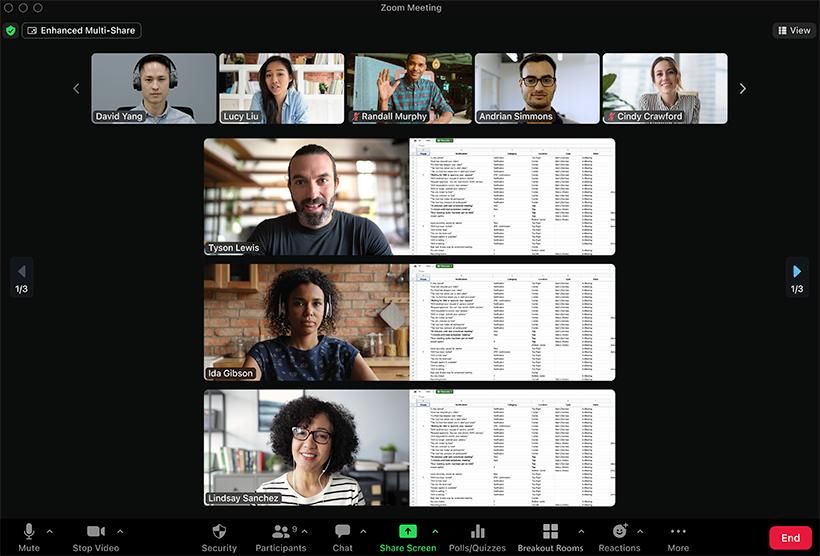 Image source: Zoom
Pricing: Zoom Workplace Basic is free. Pro is listed at $15.99 per user per month with monthly billing.
Best for: Client meetings, online training, and virtual workshops.
11. Google Meet
Google Meet works with Google Calendar and other Workspace applications, making it easy to schedule and join meetings directly from a browser. Participants can share their screens and join calls without installing additional desktop software.
The free version covers basic meetings, while recording and other advanced features are available through eligible Google Workspace subscriptions.
Pros: Browser-based access and integration with Google Calendar.
Cons: Free group meetings are limited to 60 minutes.
Pricing: A free version is available. Additional business features are included in eligible Google Workspace plans, starting at $7 per user per month with annual commitment.
Best for: Small businesses and teams already using Google Workspace.
12. Webex
Webex by Cisco offers video meetings, messaging, and screen sharing. Businesses with compatible Cisco meeting room equipment can connect employees attending from the office with colleagues joining remotely.
The platform also supports more extensive communication requirements, although its different meeting and calling products have separate licensing options.
Pros: Hybrid meeting support and integration with Cisco equipment.
Cons: Selecting the appropriate plan requires comparing different communication and meeting products.
Pricing: Webex Free supports meetings lasting up to 40 minutes. Webex Meet starts at $12 per user per month with annual billing.
Best for: Hybrid organizations and businesses using Cisco collaboration systems.
Cloud storage and file sharing
Cloud storage keeps documents and other business files accessible across devices. When comparing services, consider how files are synchronized, who can access them, and whether storage is already included in your office software.
13. Google Drive
Google Drive stores documents, spreadsheets, images, and other files online. Employees can share folders, manage access permissions, and open compatible files directly in Google Workspace.
Business subscriptions also provide shared drives, allowing project files to remain available to the team rather than being stored exclusively in an individual employee’s account.
Pros: Easy sharing, collaborative editing, and shared team storage.
Cons: Storage is shared across Google services, and external sharing permissions need careful management.
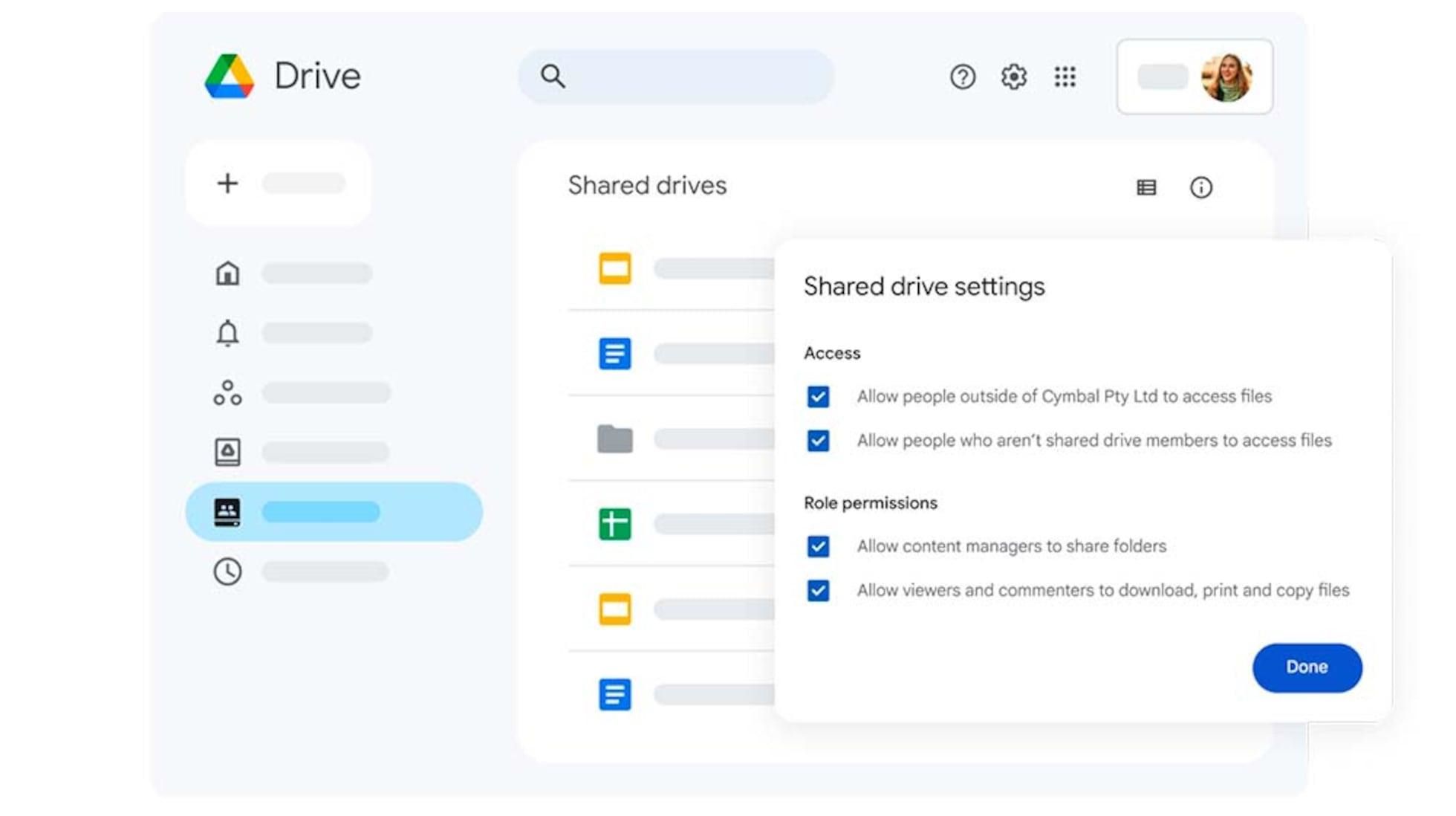
Pricing: Personal accounts include 15 GB of free storage. Workspace Business Starter provides 30 GB of pooled storage per user for $7 per user per month with annual commitment.
Best for: Teams working extensively with Google documents.
14. Dropbox
Dropbox synchronizes files across devices and makes it easy to share materials with colleagues or clients. Its desktop application works with familiar folders, so employees can continue managing files without changing how they normally navigate their computers.
Creative agencies can use Dropbox to exchange large design files and media assets, although editing Office documents and managing complex projects may require separate applications.
Pros: Cross-device synchronization, convenient file sharing, and large file transfers.
Cons: Limited free storage and fewer native office editing features than dedicated office suites.
Pricing: Dropbox Basic is free with 2 GB of storage. Standard costs $15 per user per month.
Best for: Creative agencies and businesses regularly exchanging large files.
15. OneDrive
OneDrive integrates cloud storage with Windows and Microsoft 365. Employees can synchronize files across devices, share documents, and open compatible files in Office applications.
OneDrive is generally used for files associated with individual employees, while SharePoint provides shared document libraries for departments and project teams.
Pros: Windows integration, file synchronization, and Office collaboration.
Cons: Teams need clear guidelines for organizing files between OneDrive and SharePoint.
Pricing: OneDrive is included in Microsoft 365 Business Basic, starting at $7 per user per month with annual billing and providing 1 TB of cloud storage per user.
Best for: Businesses already using Microsoft 365.
Time management, scheduling and time tracking
Time management apps help businesses record working hours, review project costs, and arrange appointments. The tools below cover two distinct needs: tracking time spent on work and finding suitable meeting times.
16. Toggl Track
Toggl Track records time spent on tasks, projects, and client assignments. Employees can start a timer or enter hours manually, while reports help businesses review billable work and prepare more accurate project estimates.
Pros: Simple time recording, project reports, and billable time tracking.
Cons: Advanced reporting and team management features require paid subscriptions.
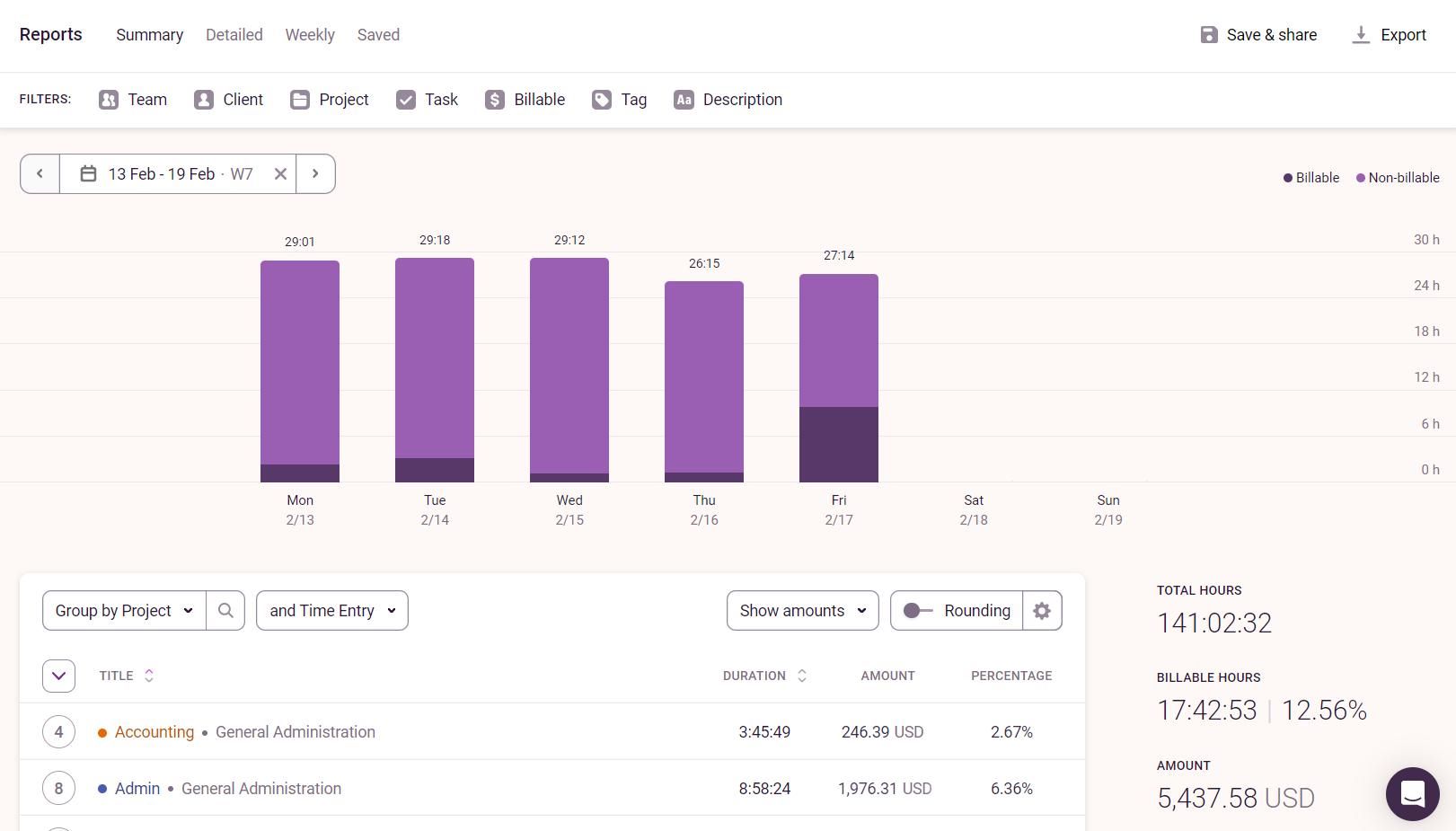 Image source: Toggle Track
Pricing: A free plan is available. Starter costs $9 per user per month with annual billing.
Best for: Freelancers, consultants, and agencies tracking billable hours.
17. Clockify
Clockify combines time tracking with timesheets and project reporting. Employees record their hours against individual activities, giving managers a clearer picture of the time spent on different assignments.
Paid plans extend these features with invoicing, timesheet approvals, and additional administration options.
Pros: Free time tracking, timesheets, and project reports.
Cons: Invoicing and timesheet approvals require paid plans.
Pricing: A free plan is available. Basic starts at $3.99 per seat per month with annual billing.
Best for: Small businesses and teams that need detailed timesheets.
18. Calendly
Calendly takes the back-and-forth out of appointment scheduling. Users share a booking link, and clients or colleagues select a time based on their availability and connected calendars.
Recruiters, consultants, and sales teams can use it to arrange interviews, consultations, and product demonstrations. Paid subscriptions add more advanced scheduling options for teams.
Pros: Automated booking, calendar integrations, and meeting reminders.
Cons: Multiple event types and advanced team scheduling require a paid plan.
Pricing: A free plan is available. Standard starts at $10 per seat per month with annual billing.
Best for: Recruiters, consultants, and sales teams arranging frequent appointments.
AI productivity tools
AI tools can assist with writing, research, and information retrieval. Some work as standalone assistants, while others use content already stored in an organization’s collaborative workspace.
19. ChatGPT
ChatGPT can help employees prepare content outlines, summarize reports, analyze data, and draft internal documents. Its range of capabilities makes it useful across different departments, from marketing and research to software development.
AI-generated information should still be checked before being used in professional materials. Businesses also need appropriate privacy settings when working with confidential information.
Pros: Assistance with writing, research, analysis, and document preparation.
Cons: Generated information requires verification, and confidential data needs appropriate privacy controls.
Pricing: A free plan is available. ChatGPT Business Standard seats start at $20 per user per month with annual billing.
Best for: Marketing teams, researchers, analysts, and other knowledge workers.
20. Notion AI
Notion AI adds AI-assisted writing, summarization, and search to Notion’s collaborative workspace. Teams can retrieve information from their existing project plans, meeting notes, and internal documentation without switching to another application.
Its value depends on the quality of the material stored in Notion, making consistent documentation important for reliable information retrieval.
Pros: Document summarization, knowledge retrieval, and AI assistance within an existing workspace.
Cons: An organized knowledge base and an eligible subscription are needed to make full use of its capabilities.
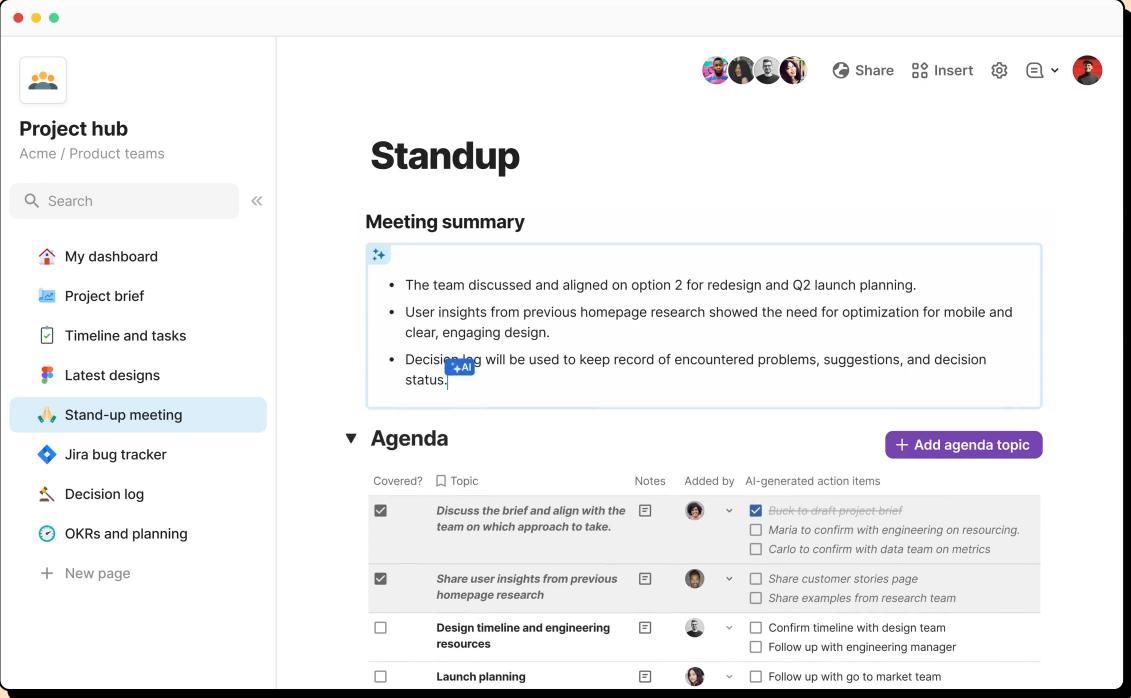 Image source: Notion
Pricing: Notion offers a free plan with limited AI access. Its Business subscription includes expanded AI capabilities, with pricing depending on the billing option and region.
Best for: Teams managing internal documentation and shared knowledge in Notion.
How to choose a cloud-based productivity app
Begin with the tasks that take up most of your team’s time. A business handling contracts and reports may need an office suite with reliable document compatibility, while an agency managing several client projects may benefit more from dedicated task management software.
Check your existing subscriptions before adding new applications. Google Workspace and Microsoft 365, for example, already include document editing, storage, and video conferencing. You may not need a separate tool for every activity.
Costs should be assessed across the whole team, including storage, administration features, and access for external collaborators. Review security and sharing permissions as well, particularly when employees work with confidential documents.
Before committing to a platform, test it with a real project. Involve the employees who will use it regularly and see how easily they can find information, complete assignments, and work together.
Conclusion
Cloud-based productivity apps help teams manage documents, projects, communication, and other everyday activities. Choosing the right combination starts with understanding your team’s needs and making use of the software you already have.
A few well-chosen tools can provide everything a team needs without adding unnecessary complexity or extra subscriptions.
Create your free ONLYOFFICE account
View, edit and collaborate on docs, sheets, slides, forms, and PDF files online.