How to add Zotero to a Word document with a plugin
Summary
To add Zotero to a Word document using a plugin, first install the Zotero plugin through the Plugin Manager in ONLYOFFICE Document Editor. After installation, connect your Zotero library by signing in and entering the API key. Once set up, you can easily insert citations and generate a bibliography directly within your document.
- Install the Zotero plugin from the Plugin Manager.
- Connect your Zotero library using the API key.
- Insert citations directly into your document.
- Generate and update the bibliography automatically.
- Use custom citation styles as needed.
Anyone who has written a thesis, a research paper, or a long academic report knows how much time citations can eat up. Formatting each reference by hand, keeping the in-text citations and the bibliography in sync, and switching between citation styles for different journals is tedious and easy to get wrong.
This is exactly the problem the Zotero Word plugin solves. In this guide, we’ll cover what Zotero is, why the Word plugin is worth using, and how to add it to a Word document step by step, including how to insert citations and export a bibliography once everything is set up.

What is Zotero? A powerful reference management tool
Zotero is a free, open-source reference manager that helps you collect, organize, and cite research sources. You can save articles, books, web pages, and PDFs directly from your browser into a personal library, tag and group them into collections, and attach notes and full-text files to each entry.
What makes Zotero especially useful for writers is its word processor integration. Rather than copying citations manually from your library into a document, Zotero connects directly to document editors through dedicated plugins, so you can cite sources as you write and generate an accurate, style-compliant bibliography automatically.
Why use the Zotero plugin with Word documents?
The Zotero plugin, often described as “cite while you write,” adds a dedicated toolbar to your document editor. From there you can:
- Search your entire Zotero library without leaving the document and insert a citation in the correct format instantly.
- Switch citation styles, such as APA, MLA, Chicago, or a journal-specific CSL style, and have every citation and the bibliography reformat automatically.
- Keep the bibliography dynamic: as you add, remove, or edit citations, the reference list updates itself instead of requiring manual corrections.
- Add locators, prefixes, and suffixes, like page numbers or a “see” note, without breaking the citation formatting.
- Work with citations offline, since the plugin can read from a local Zotero library once it’s set up.
In short, the plugin removes the manual bookkeeping around citations, which matters most in long documents with dozens or hundreds of references, such as theses, dissertations, and journal submissions.
How to add Zotero plugin to Word documents: step-by-step guide
Zotero’s word processor integrations are available for several editors, and the setup steps are similar across them: install the plugin, then link it to your Zotero library.
Below is a step-by-step walkthrough using ONLYOFFICE Document Editor as an example, since it lets you install the Zotero plugin directly from the built-in Plugin Manager, without touching any files on your computer.
Step 1. Open the Plugins tab. Launch ONLYOFFICE Document Editor, either online or in the desktop app, open a document, and go to the Plugins tab in the top toolbar.
Step 2. Open the Plugin Manager. Click the Plugin Manager icon. This opens a window with two tabs: Available plugins, for the plugins already installed, and Marketplace, where you can browse and add new ones.
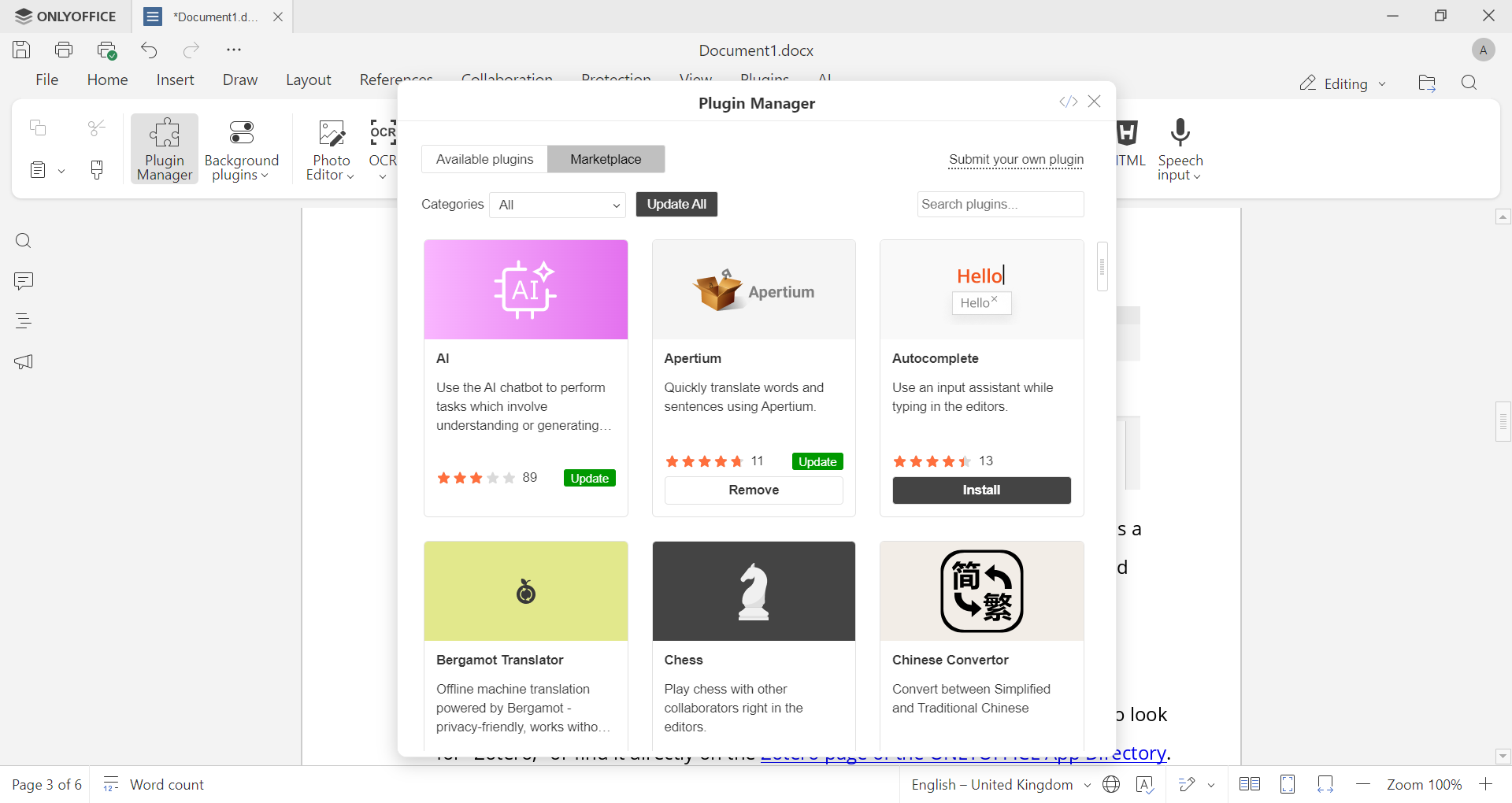
Step 3. Find the Zotero plugin. In the Marketplace tab, use the search field to look for “Zotero,” or find it directly on the Zotero page of the ONLYOFFICE App Directory.
Once you find it, click Install. The plugin downloads and adds itself automatically; no manual archive extraction or file placement is needed.
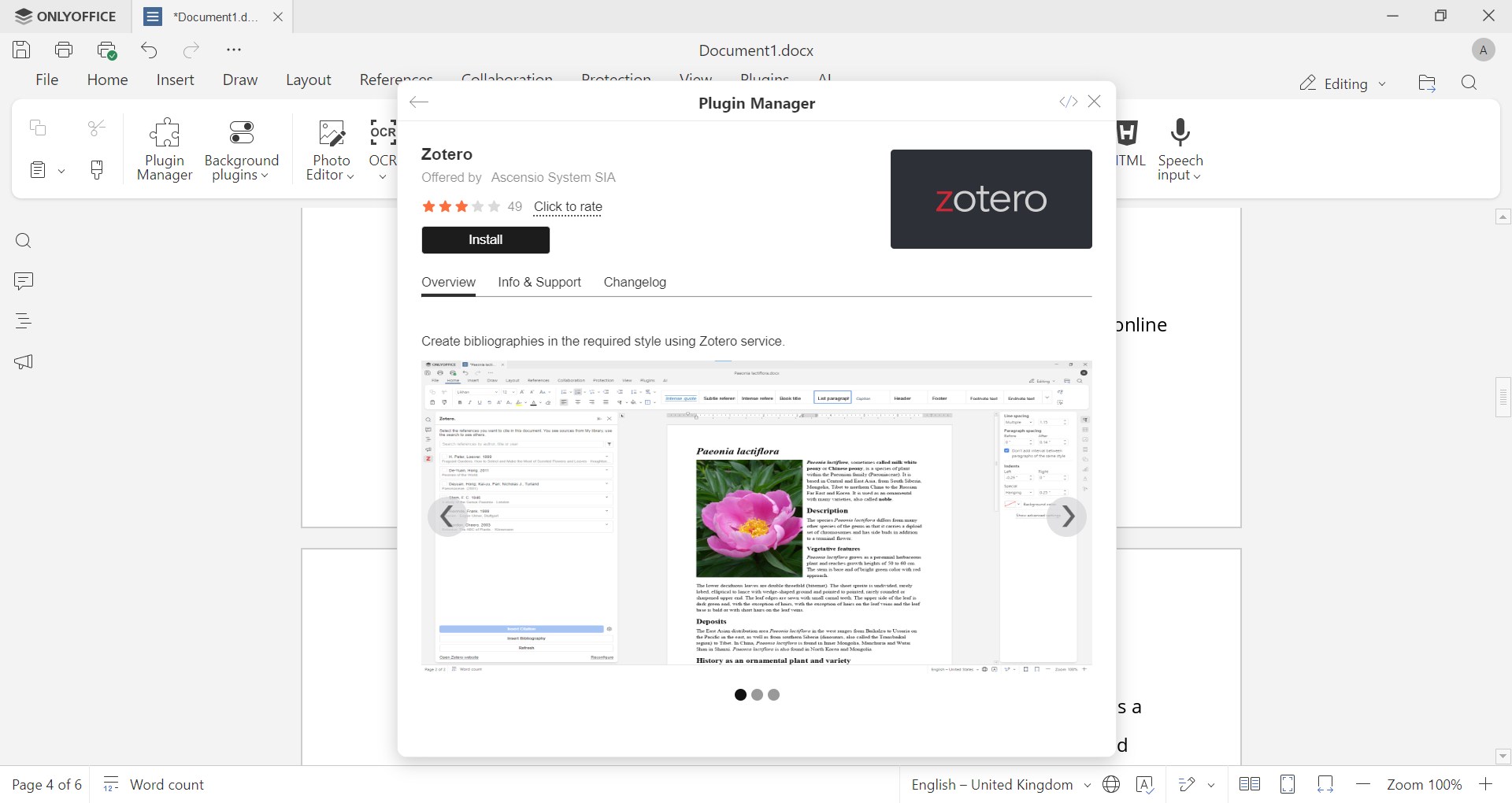
Step 4. Connect your Zotero library. Find Zotero on the Plugins tab and open it, then sign in to your Zotero account. To do this:
- Find Zotero on the Plugins tab and open the plugin window.
- Follow the Zotero API settings link inside.
- If you’re logged in to Zotero, you’ll be able to proceed; if not, you’ll see an error message. In that case, click Log in in the top right corner of the screen.
- Press Create new private key.
- Fill in the Key Description, make sure the Allow library access box is checked, and press Save Key.
- Copy the newly created key, paste it into the API Key field in the plugin’s interface, and save it.
Once connected, you can search your library or browse it directly from the plugin panel and insert citations into the document, exactly what we’ll cover next. Bibliographies can then be generated and updated automatically as you work.
Offline mode: in ONLYOFFICE Desktop Editors, you can work with a local Zotero library instead. Just make sure the Zotero application is installed and running on your device. Find all the details here.
Custom citation styles: you can add custom citation styles by importing CSL files, to match specific journal or institutional requirements.
For a closer look at the installation and interface, this short video walks through the process:
How to add citations in Word using Zotero
Once the plugin is installed and linked to your library, inserting a citation takes just a few clicks:
- Place your cursor where the citation should appear in the text.
- Open the Zotero plugin panel and select Add/Edit Citation.
- Start typing a title, author name, or year. Matching items from your library appear as you type.
- Select the source, add a page number or locator if needed, and confirm.
- The citation is inserted in the format defined by your current citation style, and it’s automatically added to the bibliography.
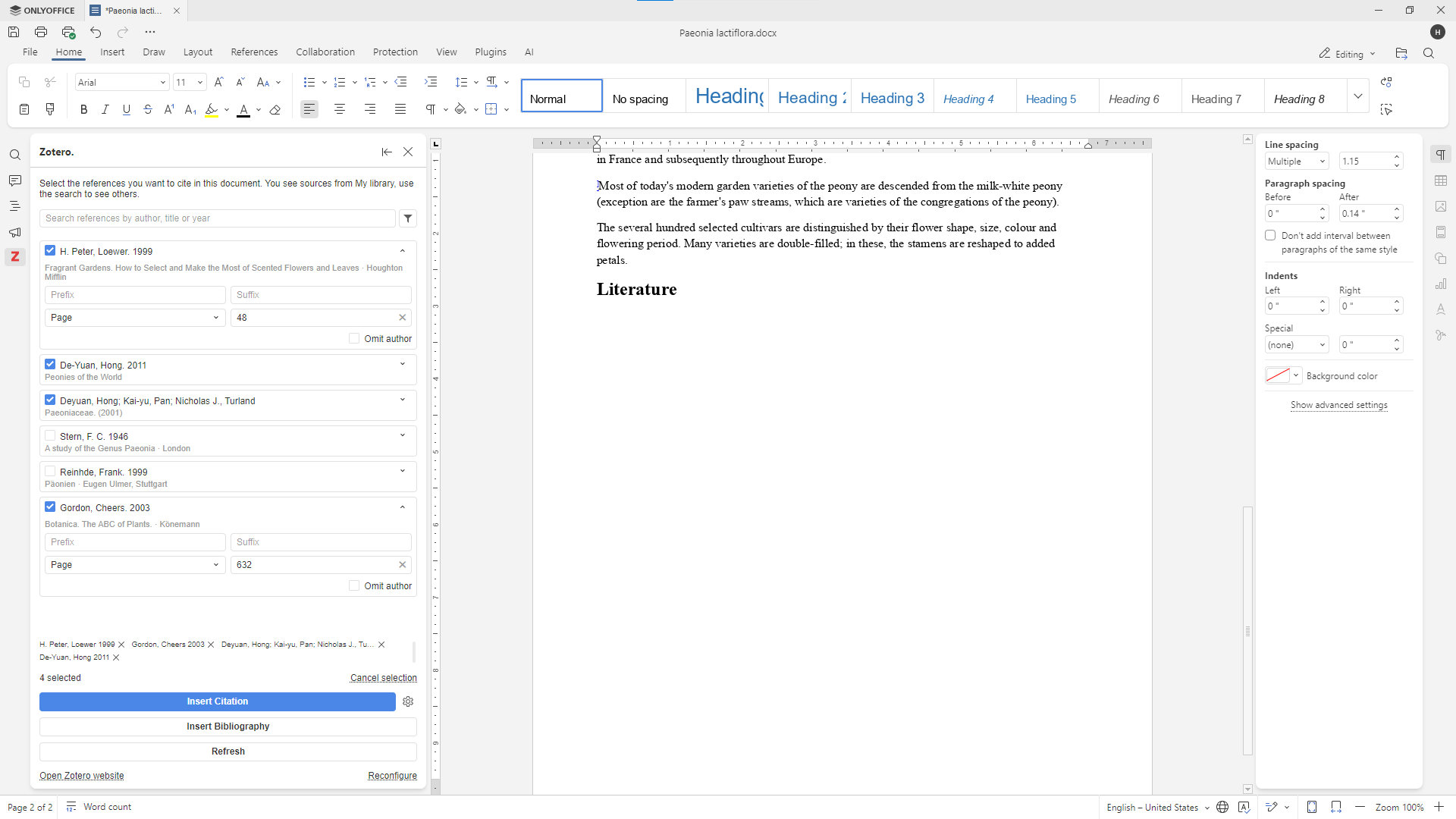
You can set or change the citation style, such as APA 7th edition or Chicago Manual of Style, from the plugin’s document preferences before or during writing. If you need a style that isn’t loaded by default, Zotero supports importing custom CSL files, so you can match a specific journal’s requirements.
How to export Zotero bibliography to Word document
The bibliography doesn’t need to be built separately: it’s generated from the citations already in your document.
- Place your cursor where you want the reference list to appear, typically at the end of the document.
- In the Zotero plugin panel, select Add/Edit Bibliography.
- Zotero compiles every source you’ve cited into a formatted bibliography, following the citation style you selected earlier.
- If you add, remove, or edit citations later, refresh the bibliography from the same menu, and it updates to match, without you having to reformat anything by hand.
Keep in mind that manual edits made directly to the bibliography text in the document will be overwritten the next time Zotero refreshes it. If you need a permanent change, it’s best to update the source entry in your Zotero library instead.
FAQ
Does the Zotero Word plugin work on Mac?
Yes. Zotero’s word processor plugins are supported on both Windows and Mac. If you’re using ONLYOFFICE, the Zotero plugin works the same way across Windows, Linux, and macOS, since it’s installed and run through the editor’s Plugin Manager rather than as a separate Word add-in.
Zotero Word plugin not working — how to fix?
If the Zotero tab or plugin panel doesn’t appear, the most common causes are a Zotero application that isn’t running (for desktop, offline use), a plugin that wasn’t fully installed, or an outdated version of the editor or plugin. Try reinstalling the plugin from the Plugin Manager, confirm that Zotero is open in the background if you’re working offline, and check that you’re on a recent version of your document editor.
How to update Zotero Word plugin to the latest version?
In ONLYOFFICE, open the Plugin Manager from the Plugins tab, find Zotero under your installed plugins, and click Update if a new version is flagged. Developers can also track releases and configuration details on the Zotero plugin’s GitHub page and in the Zotero configuration guide.
Get ONLYOFFICE and start citing with Zotero today
Stop formatting references by hand. Get ONLYOFFICE Document Editor, install the Zotero plugin from the Marketplace, and insert citations and bibliographies without leaving your document, online or offline.
Create your free ONLYOFFICE account
View, edit and collaborate on docs, sheets, slides, forms, and PDF files online.