Wrap cell text with dashes using an ONLYOFFICE macro
Formatting cell values by hand, one by one, can be tedious — especially when you need to apply the same pattern to dozens or hundreds of cells. In this post, we’ll show you a simple ONLYOFFICE Spreadsheet Editor macro that automatically wraps every character in the selected cells with dashes.

Why use this macro
Wrapping characters with a separator like this can be useful for generating decorative labels, creating visually distinct placeholder values, or preparing data for import into systems that expect delimiter-padded strings. Doing this manually for a large range of cells is slow and error-prone — a macro handles it instantly, and it’s smart enough to skip empty cells and cells that are already wrapped, so you can safely re-run it without doubling up the dashes.
Building the macro
Here’s a closer look at each piece of the script and the role it plays.
Getting the current selection
The macro starts by grabbing specified range of cells the user currently has selected:
let selection = Api.GetSelection();
selection.ForEach(function (cell) {
    // ... processing happens here for each cell
});
Api.GetSelection() returns the range of cells currently selected on the sheet, and ForEach() loops through every individual cell in that range, running the callback function once per call.
Skipping empty cells
Before doing any processing, the macro checks whether the cell actually has value:
let cellValue = cell.GetValue();

if (cellValue === null || cellValue === undefined || cellValue === "") {
  return;
}
GetValue() reads the current content of the cell. If the cell is empty (null, undefined, or an empty string), the function simply returns early and moves on to the next cell, leaving blank cells untouched.
Skipping cells that are already wrapped
Since we want the macro to be safe to run more than once, it also checks whether a cell has already been processed:
cellValue = String(cellValue);

if (/^---(?:.---)+$/.test(cellValue)) {
  return;
}
The value is first converted to a string with String() method so it can be safely tested and iterated character by character.The regular expression /^—(?:.—)+$/ matches strings that already follow the pattern — if it matches, the macro skips the cell instead of wrapping it in a second time.
Wrapping each character with dashes
This is the core of the macro, building the new string character by character:
let sTemp = "---";

for (let c = 0; c < cellValue.length; c++) {
  sTemp += cellValue.charAt(c) + "---";
}
Each iteration of the loop appends the next character from the original value, followed by “- – -“, gradually rebuilding the string with dashes inserted between every character.
Writing the result back to the cell
Finally, the newly built string is saved back into the cell:
cell.SetValue(sTemp);Complete Macro code
(function () {
  // Get the currently selected cell(s) in the spreadsheet
  let selection = Api.GetSelection();

  // Loop through each selected cell
  selection.ForEach(function (cell) {
    // Get the current value of the cell
    let cellValue = cell.GetValue();

    // Skip empty, null, or undefined cells — nothing to process
    if (cellValue === null || cellValue === undefined || cellValue === "") {
      return;
    }

    // Ensure the value is treated as a string (in case it's a number, etc.)
    cellValue = String(cellValue);

    // Skip cells that already match the pattern
    if (/^---(?:.---)+$/.test(cellValue)) {
      return;
    }

    // Start building the new value with a leading "---"
    let sTemp = "---";

    // Wrap each character of the original value with "---" separators
    for (let c = 0; c < cellValue.length; c++) {
      sTemp += cellValue.charAt(c) + "---";
    }

    // Write the transformed value back into the cell
    cell.SetValue(sTemp);
  });
})();
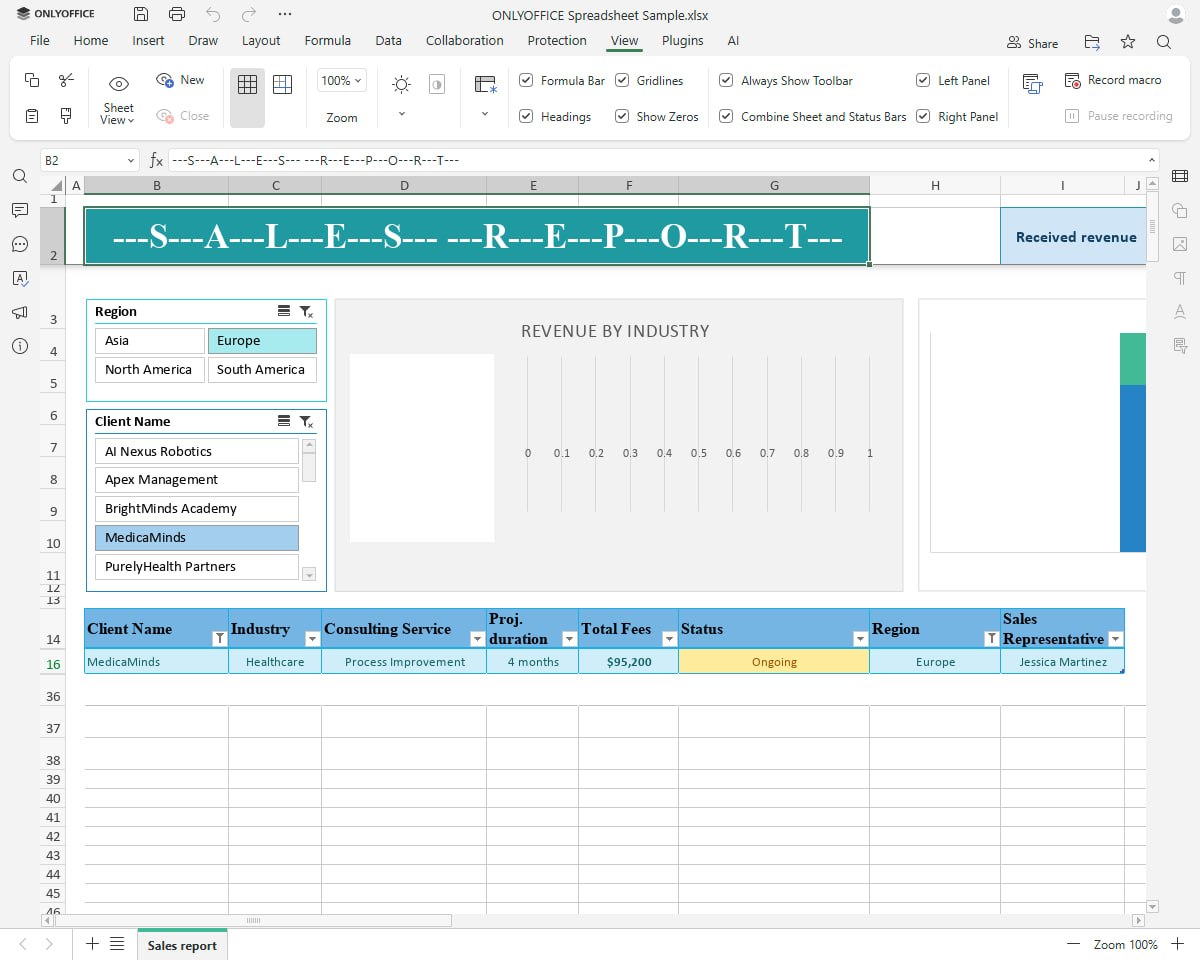
Now, let’s run the macro and see how it works!
How to use it
- Open a spreadsheet in ONLYOFFICE Spreadsheet Editor.
- Select the range of cells you want to format.
- Go to View → Macros, create a new macro, and paste the code above.
- Click Run.
Every non-empty cell in you selection will instantly be wrapped in dashes, empty cells and already wrapped cells are left untouched.
This macro is a practical example of how few lines of code can take over a repetitive formatting task that would otherwise mean editing cells on by one — and it’s just as easy to adapt for other separators or patterns beyond dashes.
If you have an idea for a macro you’d like to see covered, or a way this one could be improved? Head over to the Macro category on the ONLYOFFICE Community forum and share your suggestion — it’s the best place to request new macro examples or discuss ideas with the ONLYOFFICE team and other developers.
Create your free ONLYOFFICE account
View, edit and collaborate on docs, sheets, slides, forms, and PDF files online.