How to add Mendeley plugin to a Word document
Summary
To add the Mendeley plugin to a Word document, you need to use ONLYOFFICE Document Editor. First, open the Plugins tab and access the Plugin Manager to find and install the Mendeley plugin. After installation, connect your Mendeley library by following the registration steps provided in the plugin panel, allowing you to insert citations and generate bibliographies directly within your document.
- Open ONLYOFFICE Document Editor and go to Plugins.
- Use the Plugin Manager to find Mendeley.
- Install the plugin without manual file handling.
- Connect your Mendeley library through the plugin panel.
- Start inserting citations and generating bibliographies easily.
If you have ever cited the same source in two different styles for two different professors, or spent an evening realigning a bibliography after adding one late footnote, a citation manager is the fix. Mendeley is one of the more established ones, and pairing it with a Word plugin means the formatting work happens automatically instead of by hand.
This guide covers what Mendeley actually does, why a plugin is worth the ten minutes it takes to set up, and the full workflow inside a Word document.

What is Mendeley? A free all-in-one reference manager
Mendeley is a free reference management service that lets you store, organize, and search your research library, then pull citations from it directly into your writing. It combines a few things researchers usually juggle separately: a place to keep PDFs and metadata, a way to annotate and tag sources, and a citation engine that can format references in thousands of styles, from APA and MLA to journal-specific formats.
Because Mendeley is cloud-based, your library stays in sync wherever you sign in, and a Word plugin can pull references from that same library straight into your document. You search by author, title, or year, select what you need, and the plugin inserts a properly formatted citation and, later, a matching bibliography entry.
Why use the Mendeley plugin with Word documents?
The Mendeley plugin adds a dedicated citation panel to your document editor, so you never have to leave the document to look something up. From there you can:
- Search your entire Mendeley library without leaving the document and insert a citation in the correct format instantly.
- Switch citation styles, such as APA, MLA, Chicago, or a journal-specific style, and have every citation and the bibliography reformat automatically.
- Keep the bibliography dynamic: as you add or remove citations, the reference list can be regenerated instead of edited by hand.
- Work from a cloud library, so the same references are available whichever device you sign in from.
In short, the plugin removes the manual bookkeeping around citations, which matters most in long documents with dozens or hundreds of references, such as theses, dissertations, and journal submissions.
How to install Mendeley plugin in Word document: step-by-step guide
Below is a step-by-step walkthrough using ONLYOFFICE Document Editor as an example, since it lets you install the Mendeley plugin directly from the built-in Plugin Manager, without touching any files on your computer.
Step 1. Open the Plugins tab. Launch ONLYOFFICE Document Editor, either online or in the desktop app, open a document, and go to the Plugins tab in the top toolbar.
Step 2. Open the Plugin Manager. Click the Plugin Manager icon. This opens a window with two tabs: Available plugins, for the plugins already installed, and Marketplace, where you can browse and add new ones.
Step 3. Find the Mendeley plugin. In the Marketplace tab, use the search field to look for “Mendeley,” or find it directly on the Mendeley page of the ONLYOFFICE App Directory.
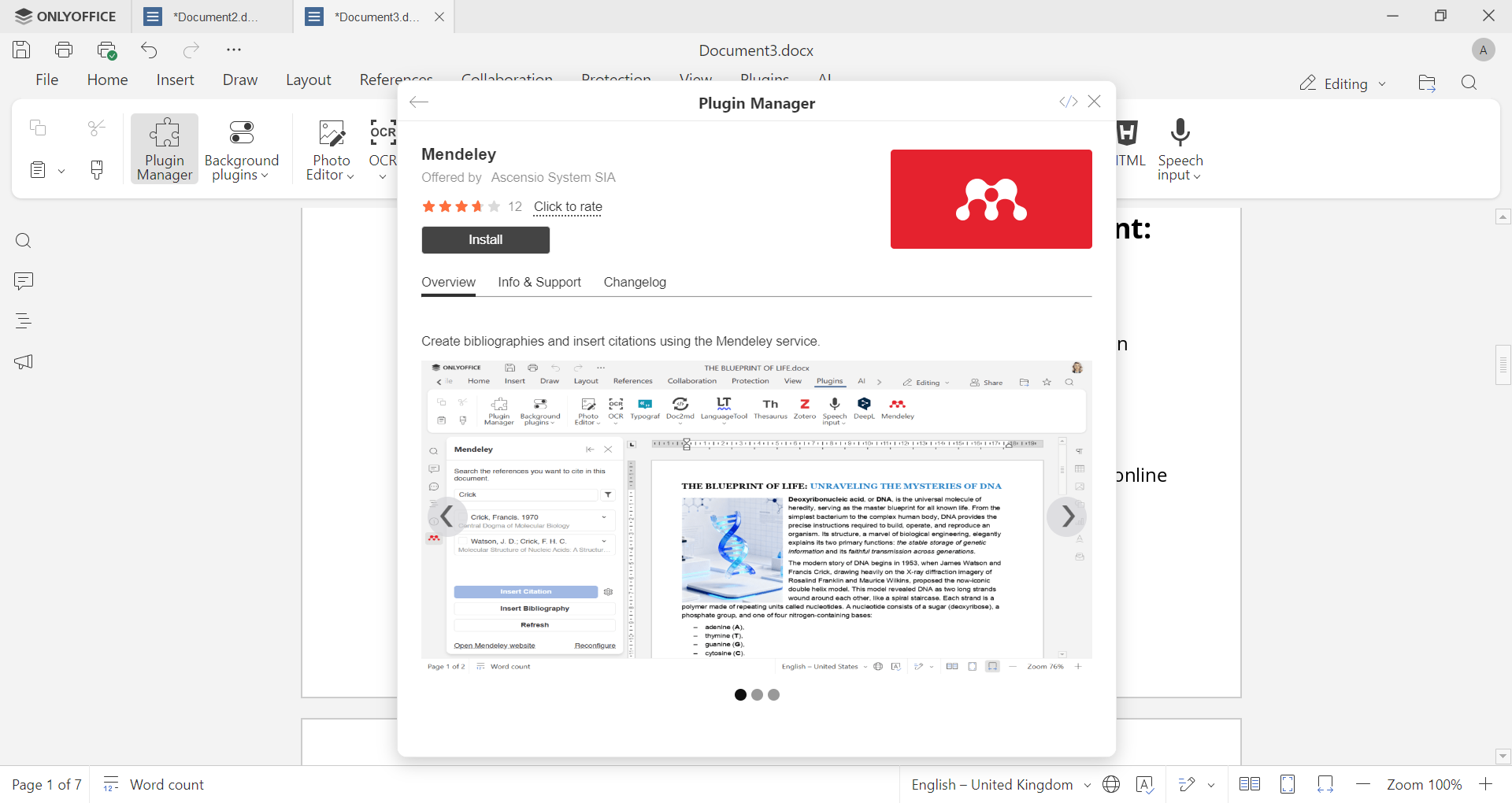
Once you find it, click Install. The plugin downloads and adds itself automatically; no manual archive extraction or file placement is needed.
Step 4. Connect your Mendeley library. Find Mendeley on the Plugins tab and open the plugin panel. To register the plugin with your account:
1. Open the Mendeley plugin panel and copy the registration link it provides.
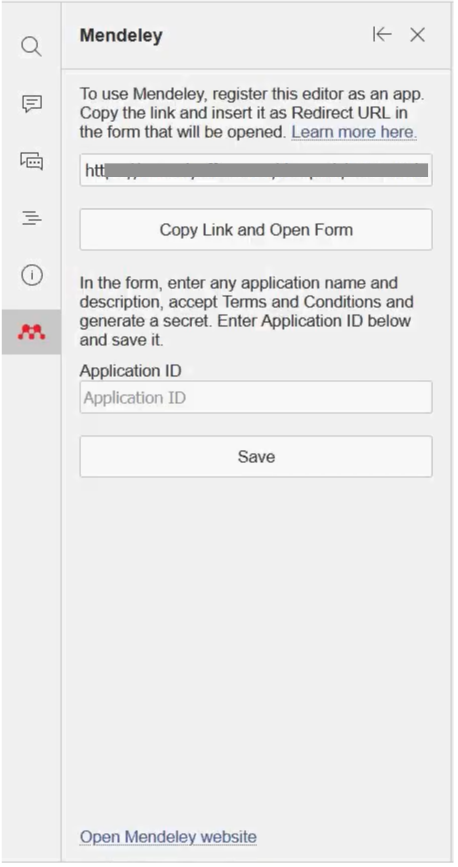
2. Go to the Mendeley website and sign in, or create a free account if you don’t have one yet.
3. Register a new application using the link from the plugin, filling in an application name and description.
4. Copy the Application ID that Mendeley generates and paste it into the plugin panel.
5. Sign in when prompted to complete the connection.
Once connected, you can search your library or browse it directly from the plugin panel and insert citations into the document, exactly what we’ll cover next. Bibliographies can then be generated and updated automatically as you work.
For a closer look at the installation and interface, this short video walks through the process:
First launch and sign in to Mendeley
The first time you open the Mendeley plugin after completing the registration above, it loads your Mendeley library inside the document editor. You will see a search field where you can look up sources by author, title, or publication year, plus any groups or collections you have already organized in your account. From here the plugin behaves the same way every time you open it: search, select, insert.
How to insert a citation from Mendeley into a Word document
Inserting a citation takes only a few steps once the plugin is connected:
- Place your cursor in the document exactly where the citation should appear.
- Open the Mendeley panel from the Plugins tab.
- Type an author name, title, or keyword into the search field and press Enter.
- Select one or more references from the results.
- Click Insert Citation.
The plugin drops a correctly formatted in-text citation at the cursor and quietly keeps track of the source for the bibliography step later. If you need to cite two or three sources at once, for example a common in-text citation with multiple studies, you can select them together before inserting.
How to change citation style
Different fields, journals, and universities expect different citation formats, and Mendeley’s plugin supports thousands of them, from the common APA, MLA, and Chicago styles to highly specific journal templates. To change the style:
- Open the Mendeley panel.
- Find the citation style selector, usually near the top of the panel or in the search results view.
- Type to search for the style you need, or pick one from the list, then select it.
Existing citations and the bibliography update automatically to match the new style, which is the real time-saver here. Instead of manually reformatting every reference, you can experiment with different styles until you find the one your publisher or professor requires.
How to generate a bibliography at the end of your document
Once you have inserted at least one citation, generating the bibliography is straightforward:
- Place your cursor where the bibliography should start, typically at the end of the document.
- Open the Mendeley panel and click Insert Bibliography.
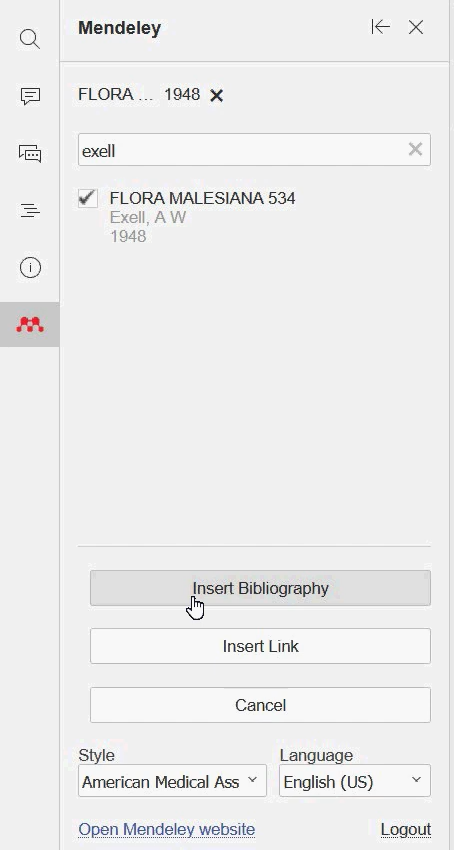
The plugin compiles every reference you cited in the document into a properly formatted list, sorted and styled according to the citation style you selected. If you add more citations later, you can regenerate the bibliography to include them, so there is no need to build the reference list by hand or worry about missing an entry.
FAQ: Installation & setup
How to download Mendeley plugin for Word?
If you work in ONLYOFFICE Document Editor, the Mendeley plugin is available directly through the Plugin Manager in the Plugins tab, so there is nothing to download separately. You can also find the plugin’s page and source files on its GitHub repository, or check its listing in the ONLYOFFICE App Directory.
How to update the plugin to the latest version?
In ONLYOFFICE, open the Plugin Manager from the Plugins tab, find Mendeley under your installed plugins, and click Update if a new version is flagged. Plugins installed this way generally update alongside the editor, so in most cases there is nothing manual to do.
How to uninstall the plugin?
Open the Plugins tab, go to the Plugin Manager, find Mendeley in the list of active plugins, and disable or remove it from there. This does not affect your Mendeley account or your existing library online.
Does the Mendeley Word plugin work on Mac?
Yes. Since the ONLYOFFICE Mendeley plugin runs inside the editor itself rather than as a separate Word add-in, it works the same way across Windows, macOS, and Linux, as long as you are using ONLYOFFICE Document Editor on that platform.
Get ONLYOFFICE and start citing with Mendeley today
Stop formatting references by hand. Get ONLYOFFICE, install the Mendeley plugin from the Marketplace, and insert citations and bibliographies without leaving your document.
Create your free ONLYOFFICE account
View, edit and collaborate on docs, sheets, slides, forms, and PDF files online.