How ONLYOFFICE works for every user: visual, motor, cognitive, and language accessibility
At ONLYOFFICE, we build editors that get out of the way and let people work. For most users, that means clean design and fast performance. For users with visual, motor, cognitive, or language-related needs, it means something more specific: tools that respond to how they actually work, not how an average user is assumed to work.
This post walks through the accessibility features built into ONLYOFFICE today, and what we are working on next.

For users with visual impairments
Zoom and scaling that fits your screen
ONLYOFFICE gives you real control over how large the editing area appears, not just the text, but the entire workspace. Scaling presets run from 50% to 500%, and you can fit the view to page width or to your screen width. This works independently of your browser’s own zoom setting, so the two never conflict.
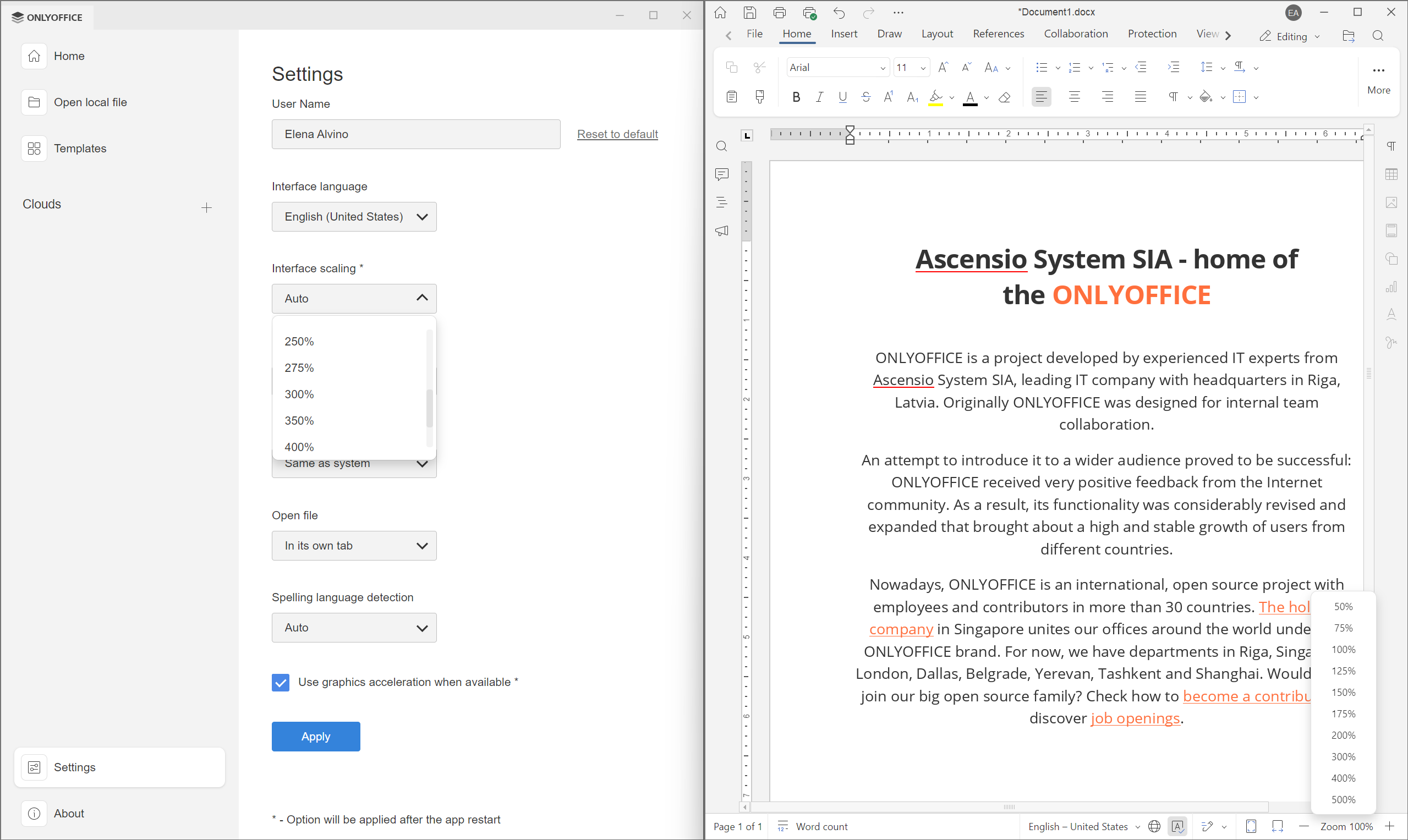
If you want more visual space, the toolbar, status bar, and rulers can all be hidden independently. The interface steps aside and leaves you with the document.
Dark mode and color-aware charts
Light and dark interface themes are available across all editors. For users with light sensitivity or visual fatigue, dark mode for extended sessions is a meaningful difference, not just a style option.
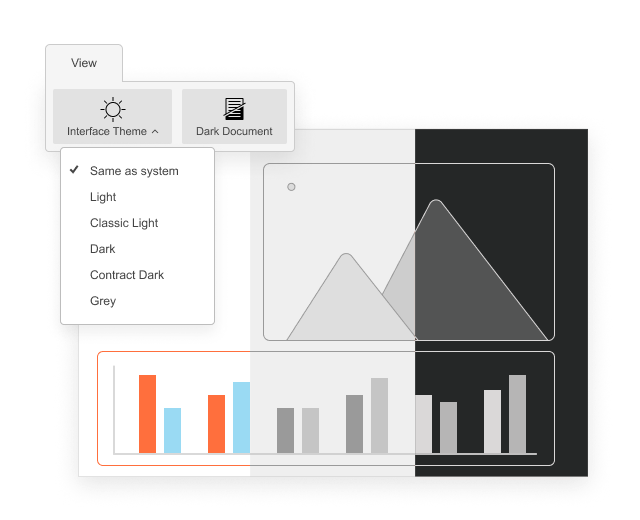
For charts, ONLYOFFICE goes further: chart elements can be displayed using geometric patterns and borders rather than colour alone. A pie chart where every segment is indistinguishable in greyscale is not accessible. ONLYOFFICE solves this directly, without requiring manual configuration from the user.
Readable on any screen size
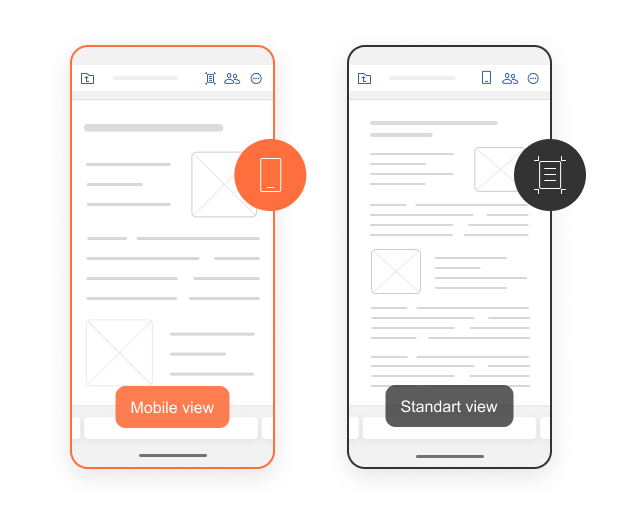
When you open a document on a mobile device in reading mode, font size can be increased or decreased without triggering horizontal scrolling. The content reflows to fit the screen. For users accessing documents on a phone with low vision or in difficult lighting, this matters.
For users with motor differences
Keyboard navigation
Keyboard navigation in ONLYOFFICE covers the core workflows: tab and arrow keys move through menus, toolbars, and document elements; the Menu key and Shift+F10 open context menus; Ctrl+/ brings up the full shortcut reference from within any editor. We’re actively expanding this coverage; it’s an ongoing area of development, and user feedback directly shapes what we prioritize.
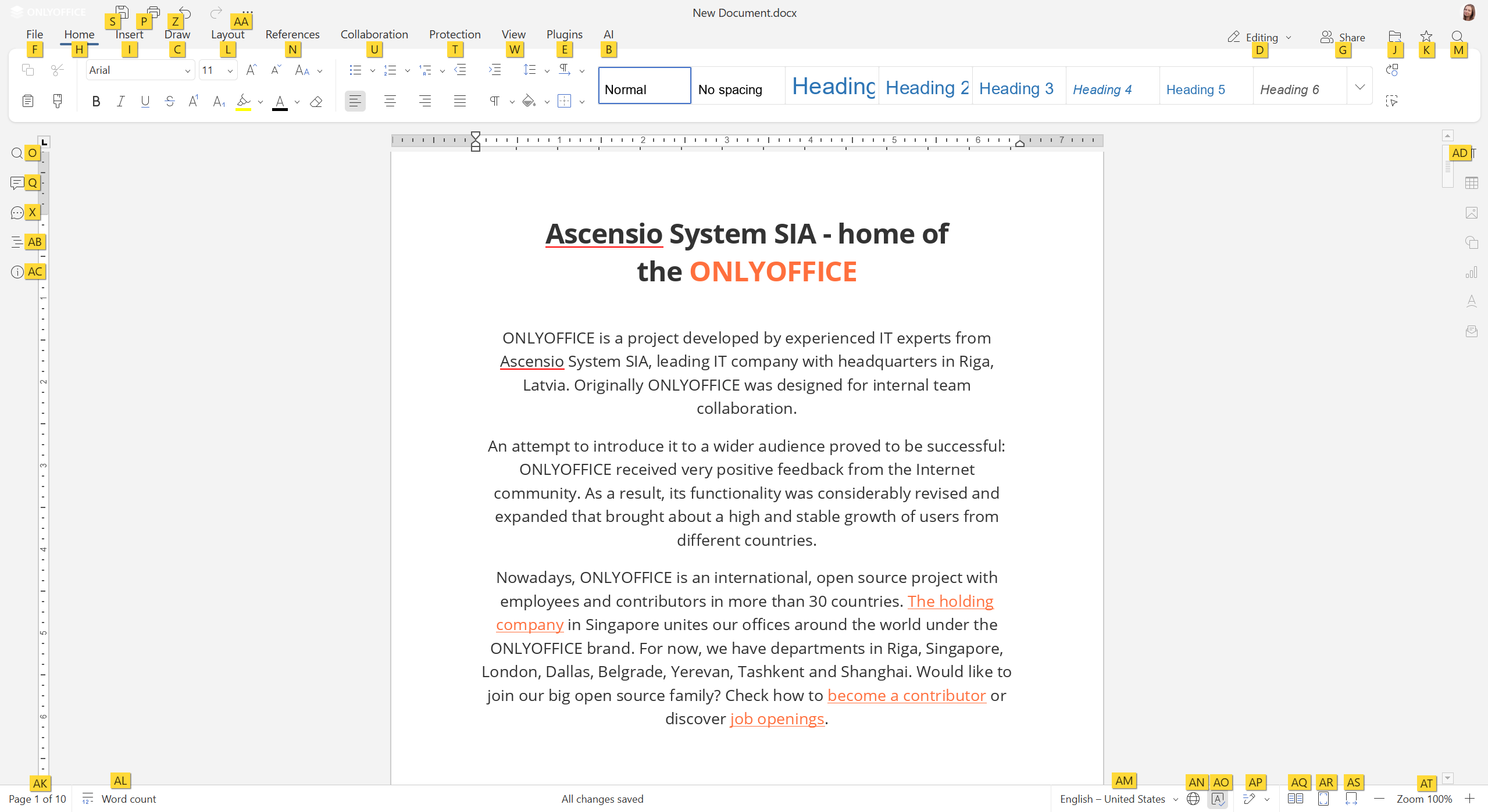
The shortcut set covers the most-used workflows: formatting operations (bold, italic, underline, headings, lists), navigation (between cells, slides, and document sections), and collaboration features (comments, tracked changes, version history). The conventions follow familiar office suite patterns, so users coming from other tools will find much of it already intuitive. Coverage is expanding with each release.
Voice input via the AI plugin
The ONLYOFFICE AI plugin, available in the web version of the editors, supports voice input. Instead of typing a prompt, you speak it. The plugin converts speech to text and processes the request: drafting a paragraph, rewriting a section, correcting grammar, or restructuring content.
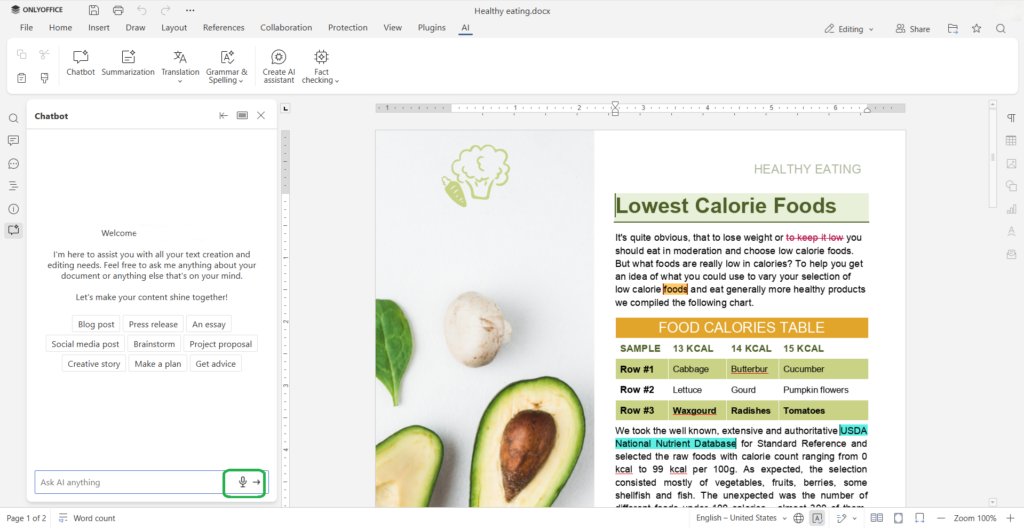
For users who find keyboard input physically difficult or fatiguing, this shifts the heavy lifting. You still review and refine the AI’s output, the editorial judgment stays with you, but the physical effort of initiating and directing the work is significantly reduced.
Speech-to-text for document input
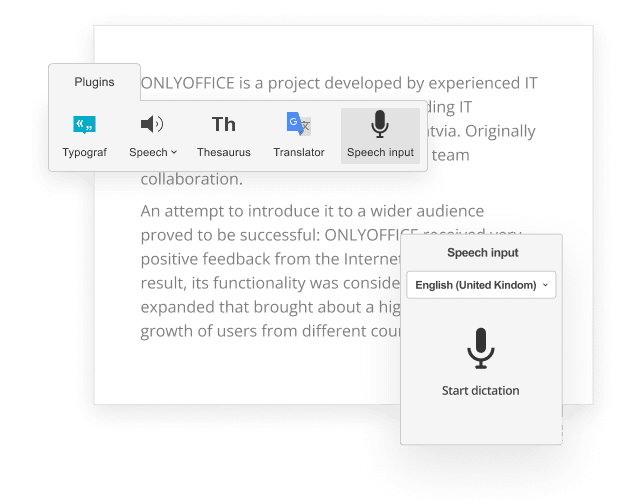
Beyond AI-assisted prompts, ONLYOFFICE supports a dedicated Speech Input plugin, installable from the Plugin Manager. Once enabled, it converts spoken words directly into text inside the document, useful for users who prefer to dictate content rather than type it.
Mobile: touch-optimised with platform accessibility
ONLYOFFICE mobile apps for iOS and Android are built for touch. On iOS, VoiceOver and Dynamic Type are both supported. On Android, the editors are compatible with TalkBack. Pinch-to-zoom and swipe navigation are available throughout both apps, and we continue to improve the navigation experience.
For users with cognitive differences
Reducing visual noise
A busy interface makes focused work harder for users with ADHD, dyslexia, or other cognitive processing differences. In ONLYOFFICE, the interface can be stripped back considerably:
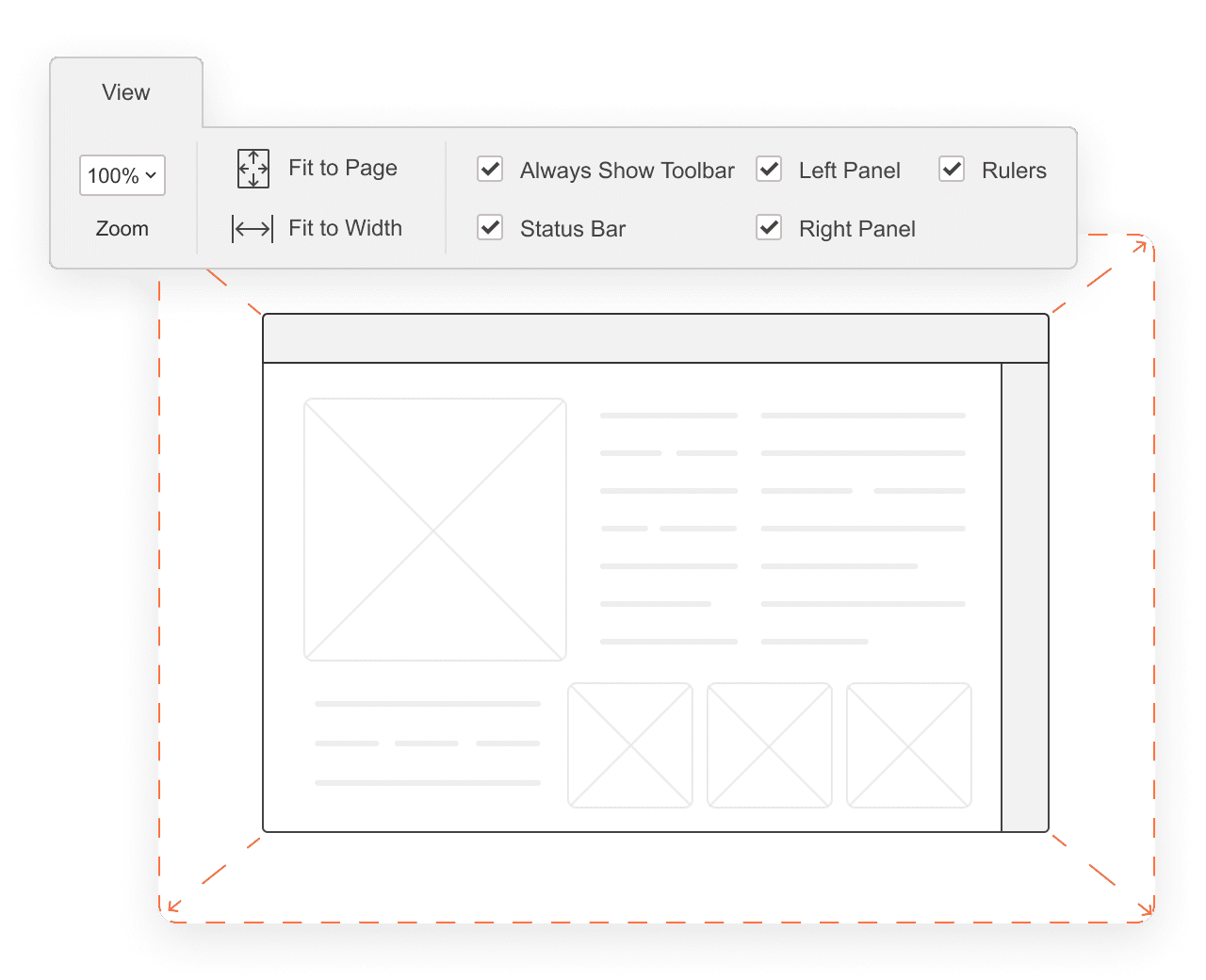
- The toolbar can be hidden entirely, leaving just the document.
- The status bar and rulers can be switched off independently.
- Compact toolbar mode further reduces the interface footprint.
- Full-screen editing mode removes everything except the content itself.
Dark mode, beyond being a visual preference, reduces contrast intensity that some users find fatiguing over long sessions.
Consistent interface across editors
ONLYOFFICE’s document, spreadsheet, presentation, and PDF editors share a common interface logic. Learning one editor means you can navigate the others without relearning the layout. That consistency reduces the cognitive overhead of switching between file types.
Spelling and grammar support in 80+ languages
Built-in spell checking covers more than 80 languages. Grammar checking is available for supported languages. AutoCorrect and AutoFormat can be configured or disabled entirely, useful for users who find automatic corrections disruptive or who work in technical writing where standard rules do not apply.
For users with dyslexia, having errors caught in the background reduces the self-monitoring burden that makes sustained writing effortful. It is not a substitute for proper reading support tools, but it is a meaningful layer of assistance.
AI-assisted writing
The ONLYOFFICE AI plugin, available for cloud and self-hosted deployments, with support for local models that keep content entirely within your infrastructure, reduces the friction between thinking and producing a document.
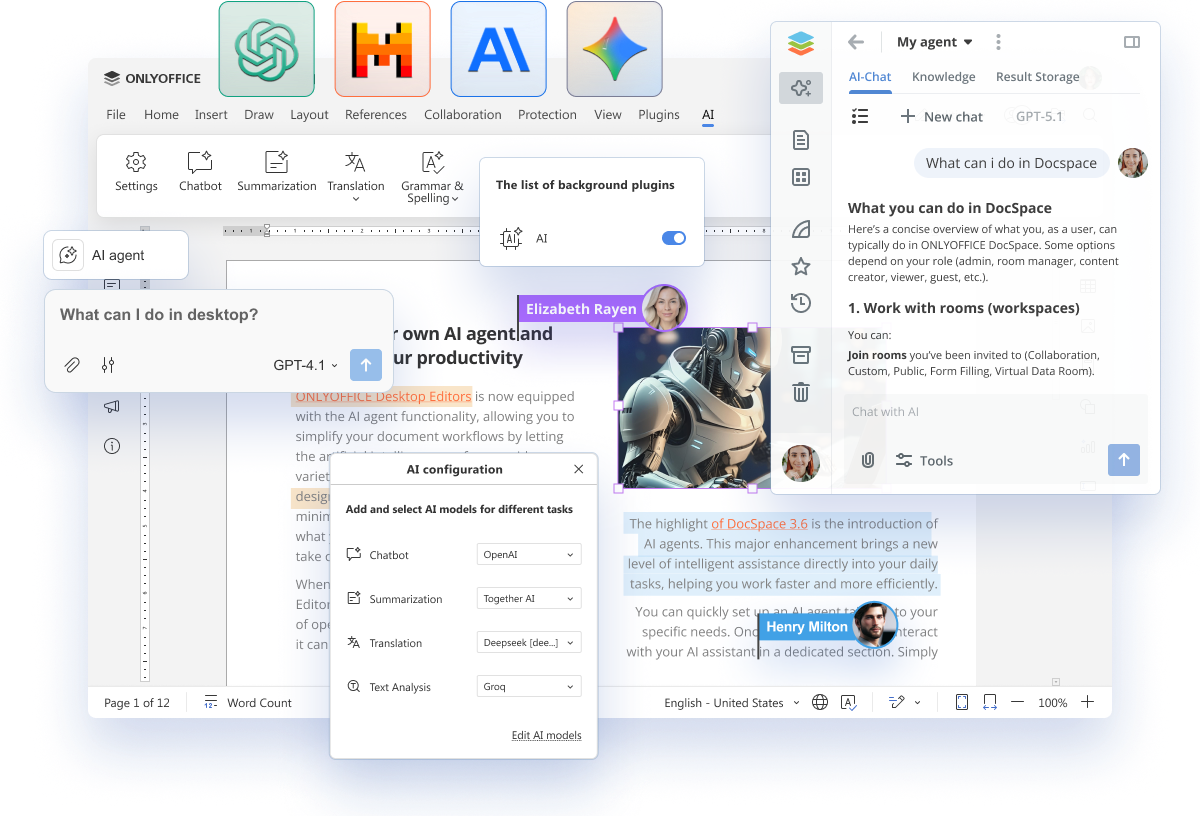
For users who find writing cognitively demanding, the plugin offers:
- Text generation: describe what you need and get a draft paragraph or section to work from.
- Rewriting: simplify complex language, adjust reading level, or change tone with a single prompt.
- Summarization: condense a long document or section into key points.
- Grammar and spelling correction: fix errors in selected text without interrupting the writing flow.
For users working in other languages and writing systems
25+ interface languages
ONLYOFFICE is fully localized in more than 25 languages, covering the interface, menus, tooltips, and error messages. Document language can be set independently of the interface language, so you can work in an English interface while your document is in French, and spell check applies the right dictionary automatically.
RTL and bidirectional text, built into the engine
Right-to-left language support in document editors is often an afterthought. In ONLYOFFICE, it is built into the editing engine, not bolted on.
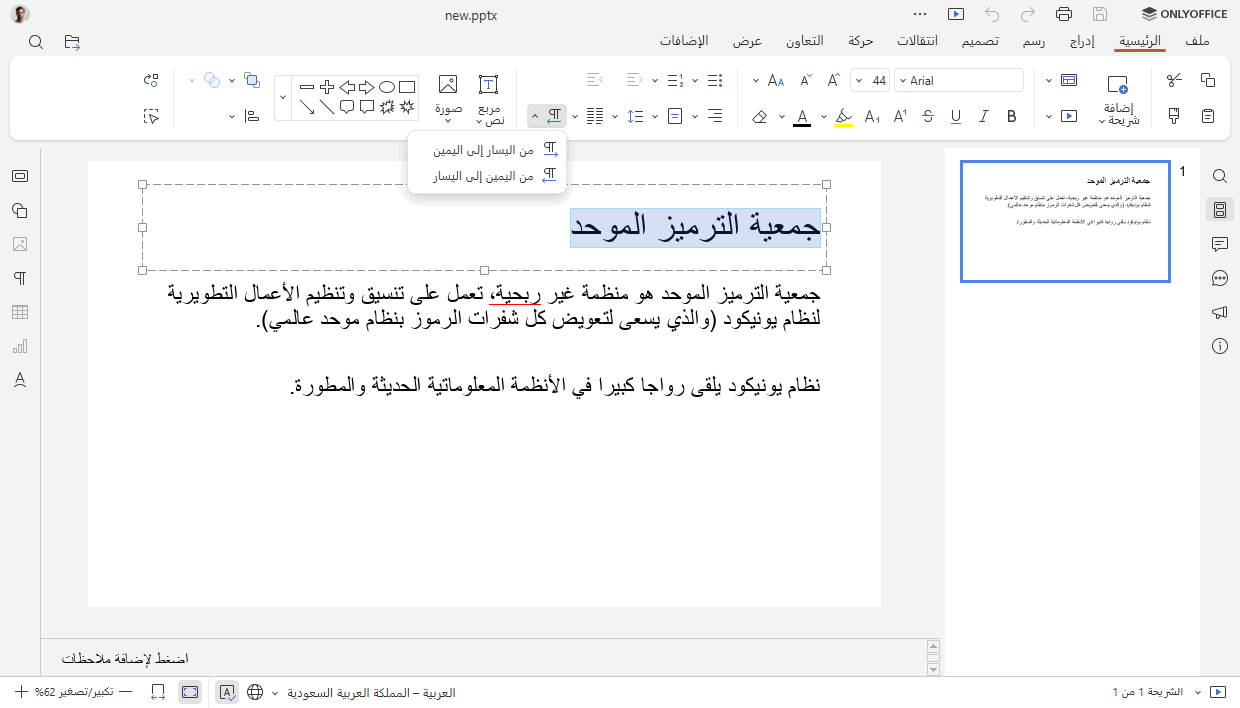
Arabic, Hebrew, Persian, Urdu, and other RTL languages display and print correctly without manual workarounds. RTL paragraph direction can be set per paragraph, and mixed LTR/RTL content within a single document is supported. This extends to the spreadsheet editor and the presentation editor, not just documents.
What we are working on next
Accessibility is not a feature to ship and move on from. The work is ongoing, and several capabilities are in active development or planned.
Screen reader support
Screen reader support is a priority area for ONLYOFFICE. We are actively working toward robust support for NVDA and JAWS on Windows and VoiceOver on macOS across the document, spreadsheet, presentation, and PDF editors, including voice notifications for text input, formatting actions, navigation, and document structure. An activation mode is expected to be easy via the editor Plugins tab.
Expanded keyboard navigation
Keyboard navigation coverage is being extended to the PDF editor and the form-filling interfaces, which currently have more limited keyboard accessibility than the text and spreadsheet editors. This is one of the concrete items on our development roadmap.
Dyslexia-friendly font support
We are evaluating support for dyslexia-friendly typefaces (such as OpenDyslexic) as a user-selectable option within the editor interface.
Reduced motion settings
For users sensitive to animation and motion effects in the interface, we are working on a reduced motion setting that minimizes or eliminates non-essential transitions.
WCAG 2.1 AA conformance audit and VPAT
We are working toward a formal WCAG 2.1 Level AA conformance audit across all ONLYOFFICE editors. A Voluntary Product Accessibility Template (VPAT / Accessibility Conformance Report) for procurement purposes is in preparation.
Get started
If you are new to ONLYOFFICE and would like to try the editors, including the accessibility features described in this post, create a free account and start working with documents, spreadsheets, presentations, forms, and PDFs online.
For organizations looking to deploy ONLYOFFICE with specific accessibility requirements, including self-hosted options and enterprise support:
Get in touch
If you have a specific requirement, need documentation for a procurement process, or want to report an issue, contact us at marketing@onlyoffice.com.
You can also raise topics on the ONLYOFFICE Community Forum or open an issue on GitHub.
If ONLYOFFICE is not yet available in your language and you would like to help with a translation, details are available in the ONLYOFFICE Help Center.
Create your free ONLYOFFICE account
View, edit and collaborate on docs, sheets, slides, forms, and PDF files online.