How to edit Dropbox files with ONLYOFFICE Desktop Editors
Many of us work on documents stored in the cloud. If you use Dropbox to keep your files organized, switching between apps to download, edit, and upload files can be tedious.
The latest version of ONLYOFFICE Desktop Editors 9.3 makes this process seamless. You can easily connect your Dropbox account directly to the desktop editor and work on your files without needing to leave the app.
Introducing the Dropbox integration
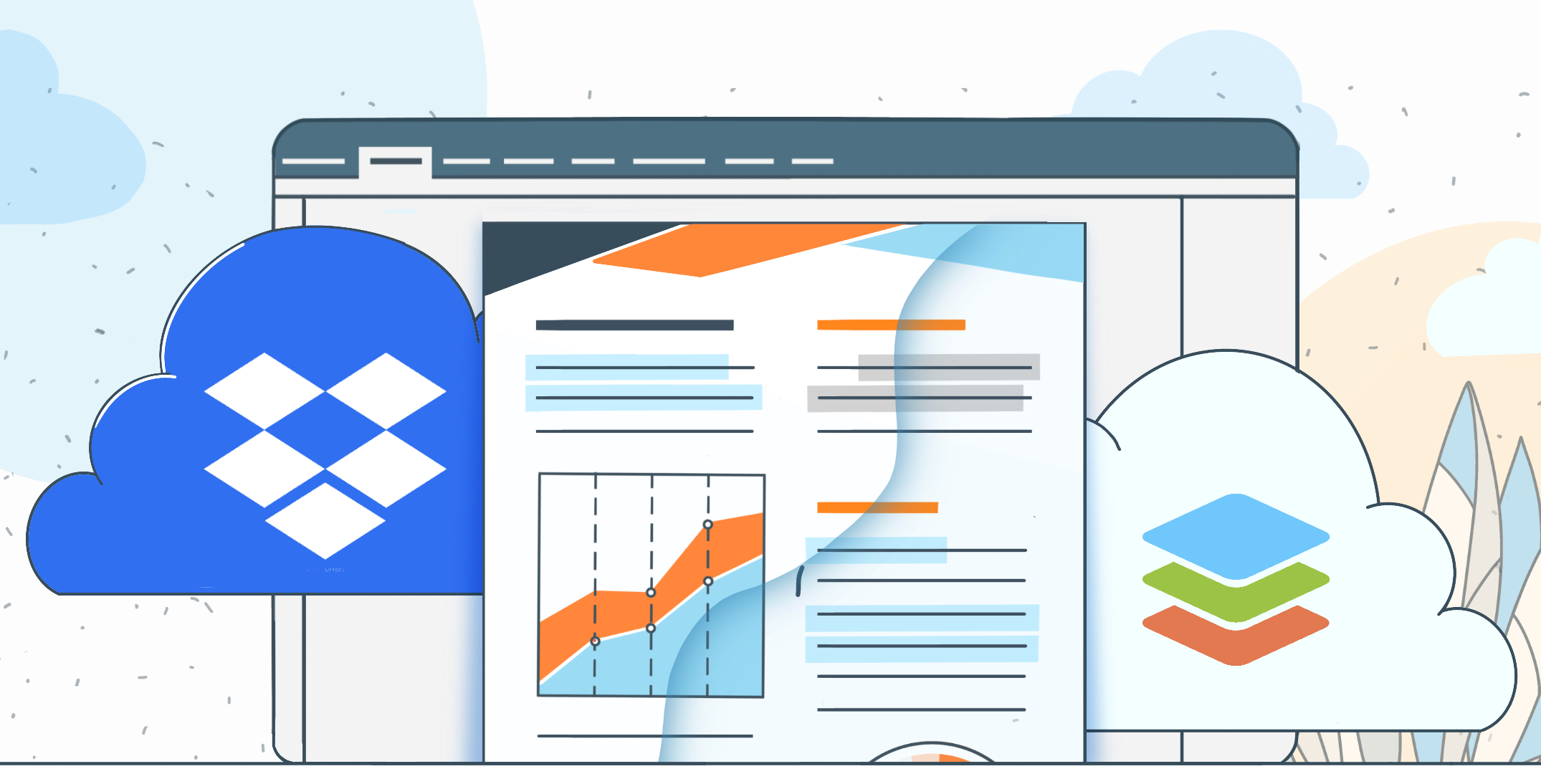
ONLYOFFICE Desktop Editors 9.3 introduces a convenient new feature: Dropbox integration. With this, you can open, edit, and save your Dropbox documents directly from the desktop editor.
This removes the requirements to manually download files, edit them, and upload them back to Dropbox. You can use your system fonts, clipboard, and printers, making it easier to format documents, copy content between apps, and print files without extra steps. Everything occurs in a single place, which makes the workflow smooth and saves time.
Connecting Dropbox to ONLYOFFICE Desktop Editors makes document management easier and more efficient. The benefits of this feature are:
- It saves time: Edit files without constantly switching between Dropbox and your desktop app.
- Keeps documents organized: Changes are automatically saved to Dropbox. This reduces the risks of version issues.
- You can collaborate seamlessly: Share files with your team without worrying about lost or outdated app versions.
How to connect Dropbox to ONLYOFFICE
It is simple to get started. Follow these steps to connect your Dropbox account and start editing your files:
Step 1: Make sure you have a Dropbox account
Ensure you have a Dropbox account. If you do not have a Dropbox account, you can create one for free on the Dropbox website.
Step 2: Launch the desktop app
Launch the desktop app on your computer. Make sure you are using the latest version 9.3 or later to access the Dropbox integration.
Step 3: Connect your Dropbox account
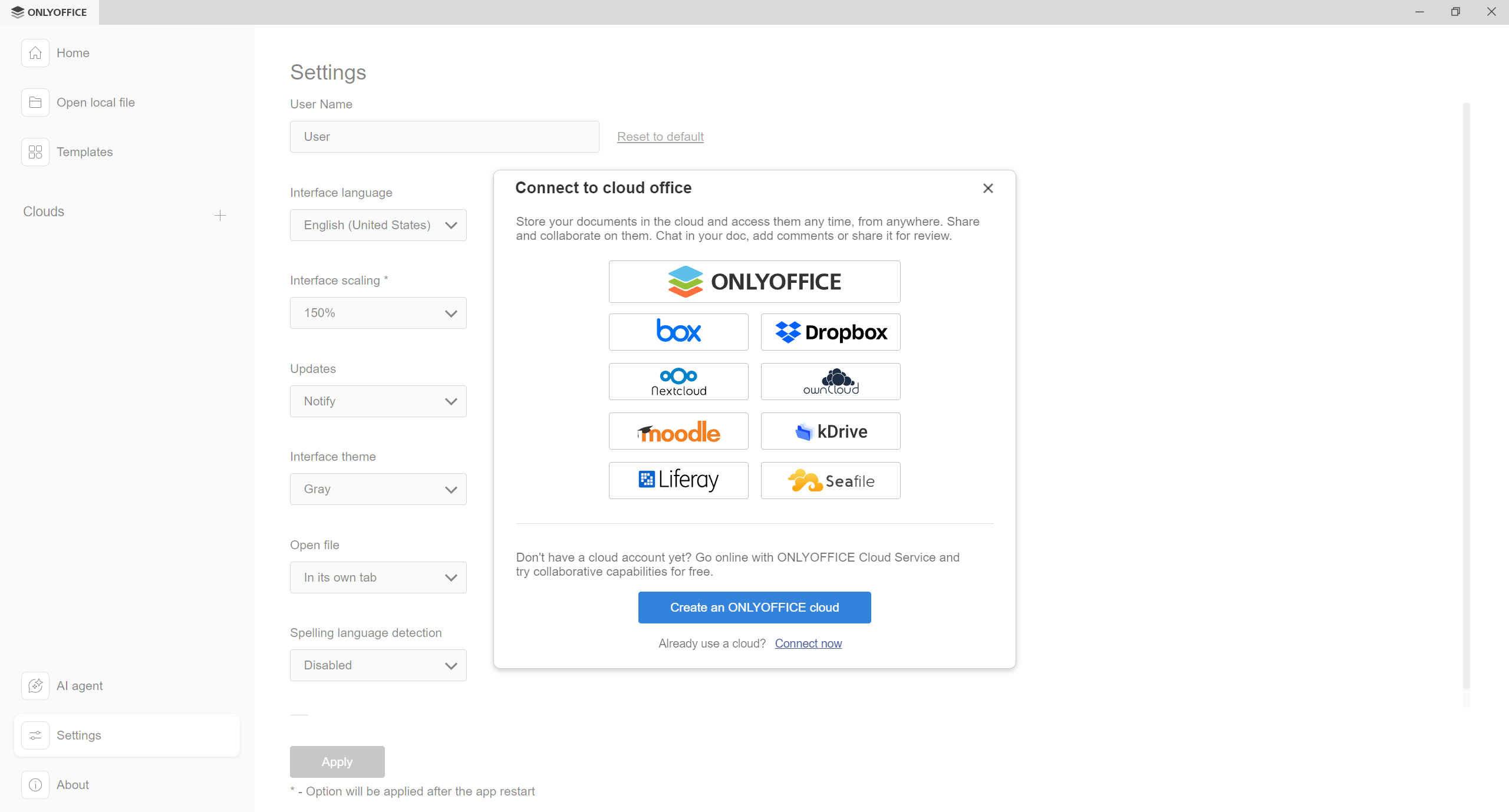
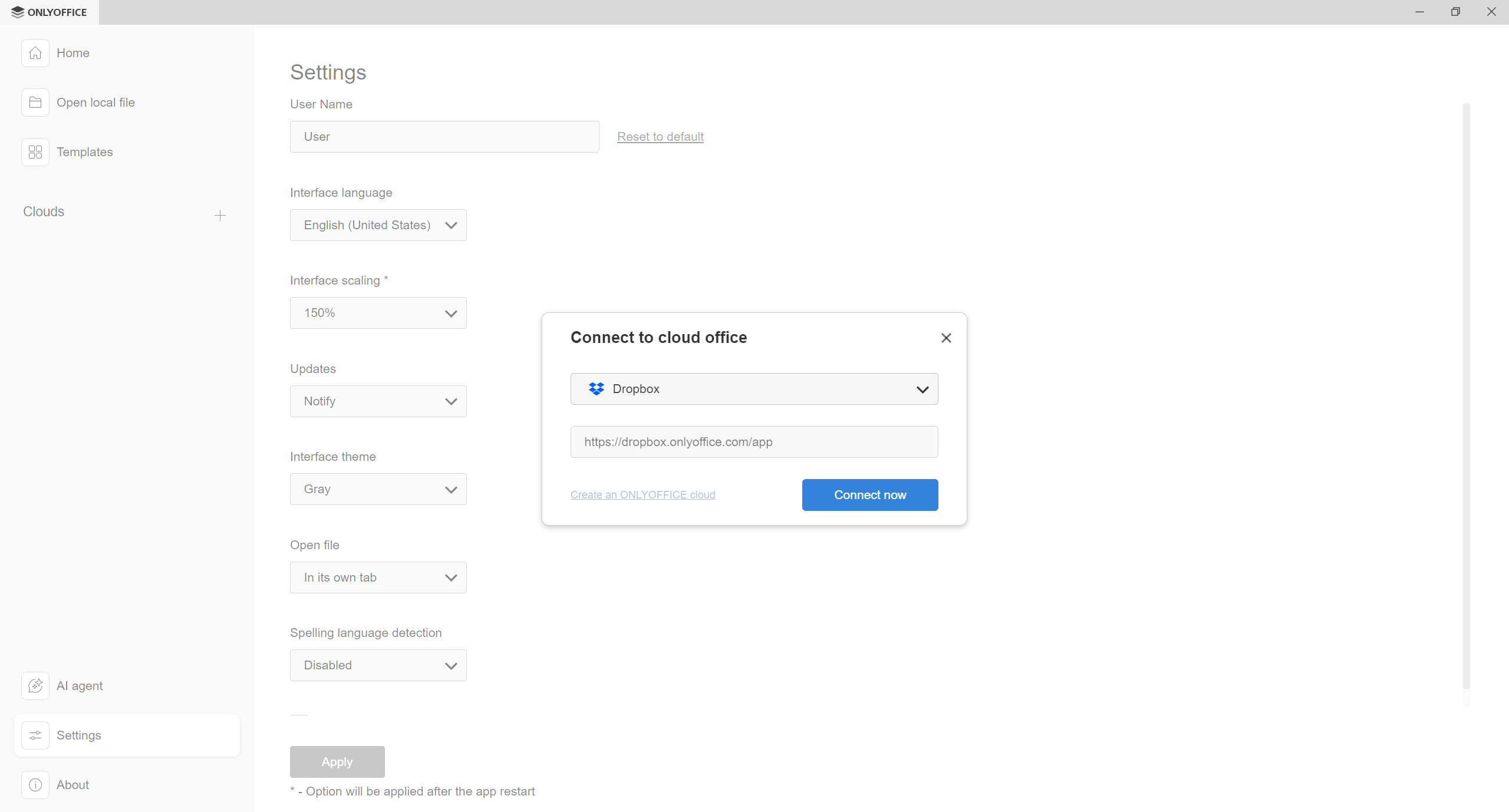
- Click the + button next to the Clouds option on the start window.
- Select Dropbox from the list of all available options.
- Click Connect now on the Connect to cloud office window.
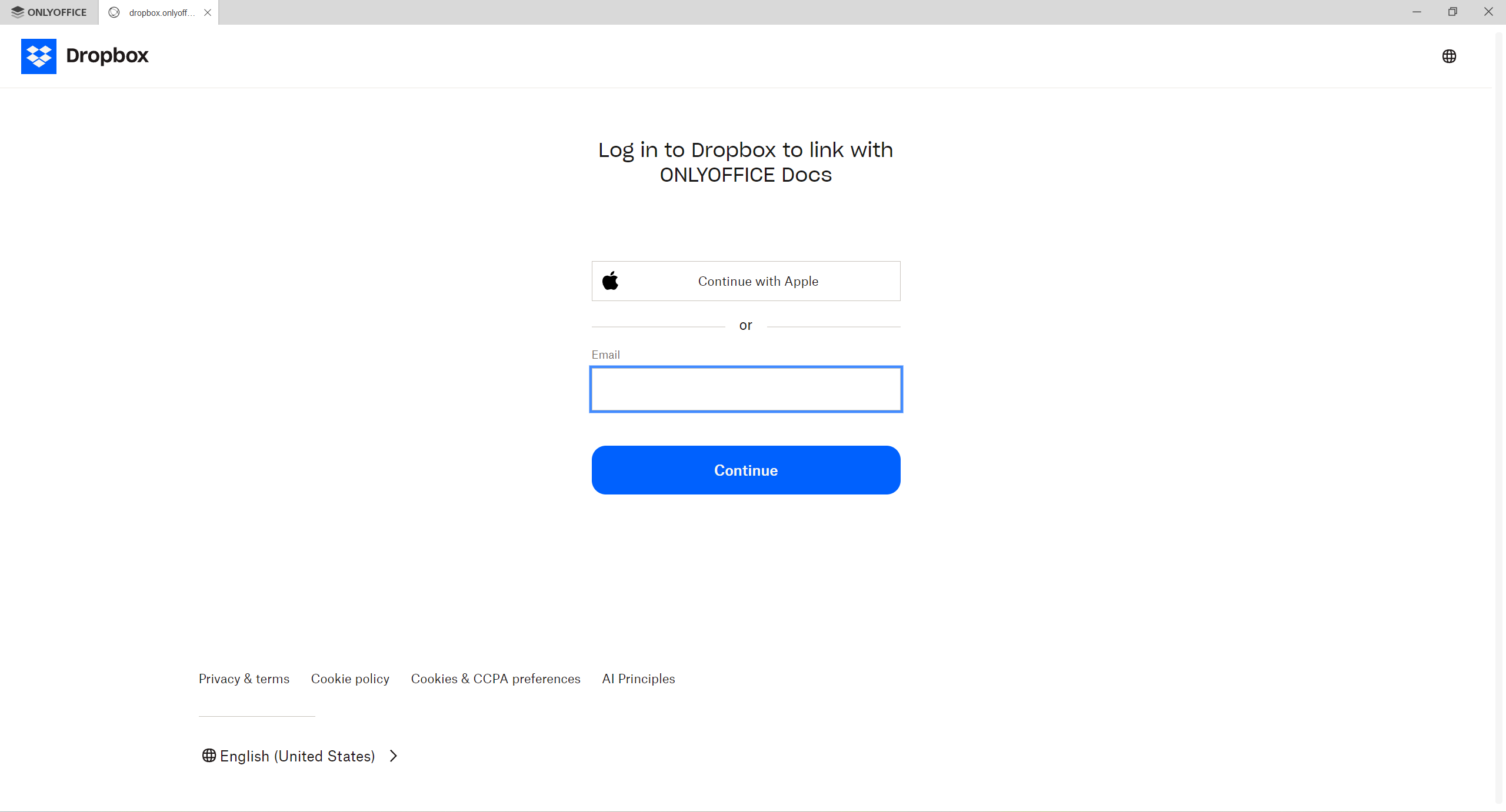
- A pop-up window will appear asking you to log in to your Dropbox account. Enter your credentials and allow ONLYOFFICE to access your files.
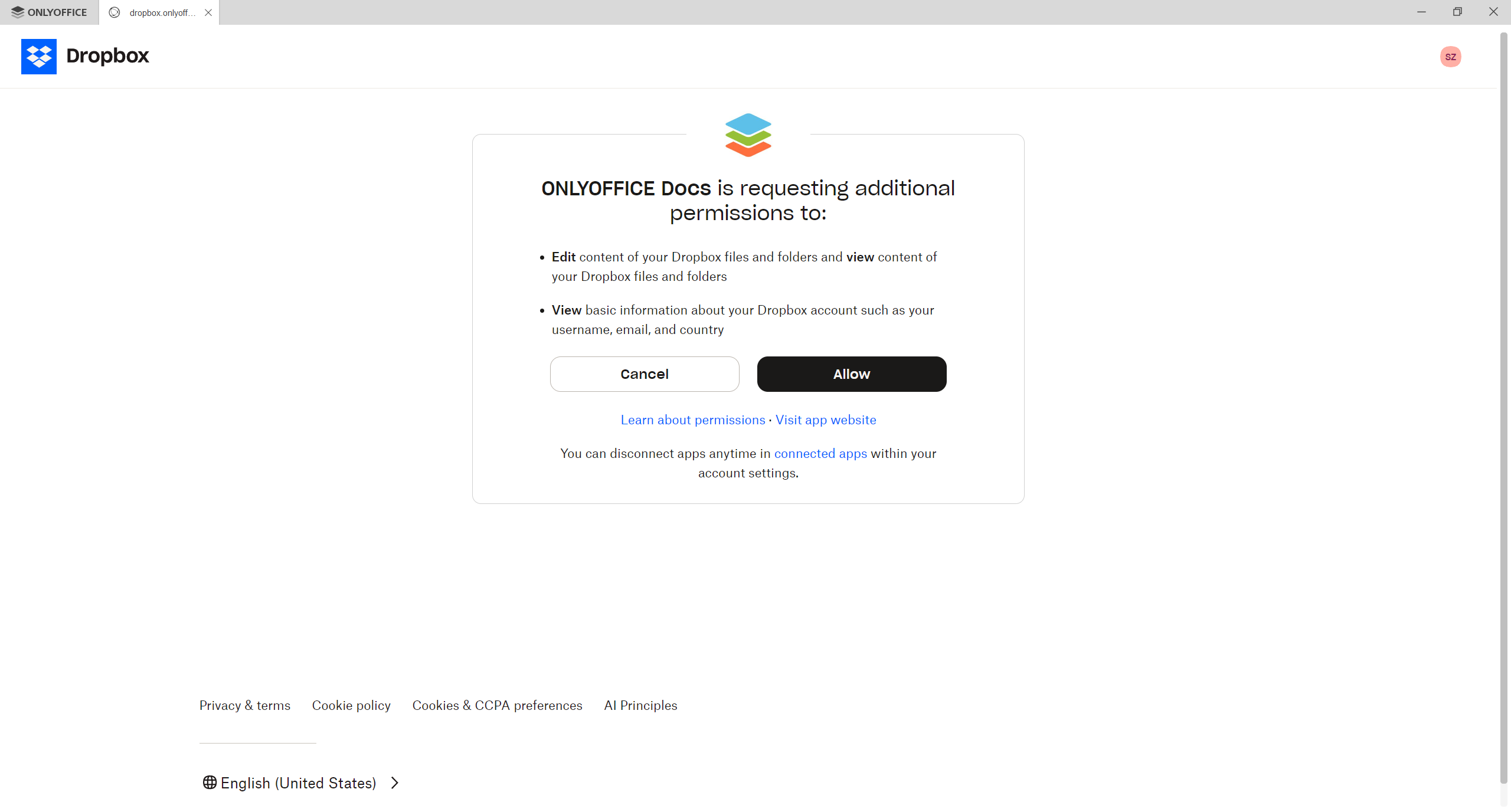
Granting permissions: Dropbox may ask you to review and approve additional permissions. This step allows ONLYOFFICE Desktop Editors to securely access your Dropbox files so you can open, edit, and save documents directly from the app. Click Allow to continue connecting your account.
Note: If additional security settings are enabled in your Dropbox account, some additional actions might be required. Depending on your account configuration, you may be asked to enter a verification code or complete another authentication step. This feature is optional and is not enabled by default.
Step 4: Browse and open your files
Once your account is connected, you can browse your Dropbox folders directly from the ONLYOFFICE interface.
- Navigate to the folder containing the documents and ensure that a file in a format supported by our editor is selected from the list.
- Click the three-dots menu (⋮) to open the file context menu.
- Select Open in → ONLYOFFICE Docs.
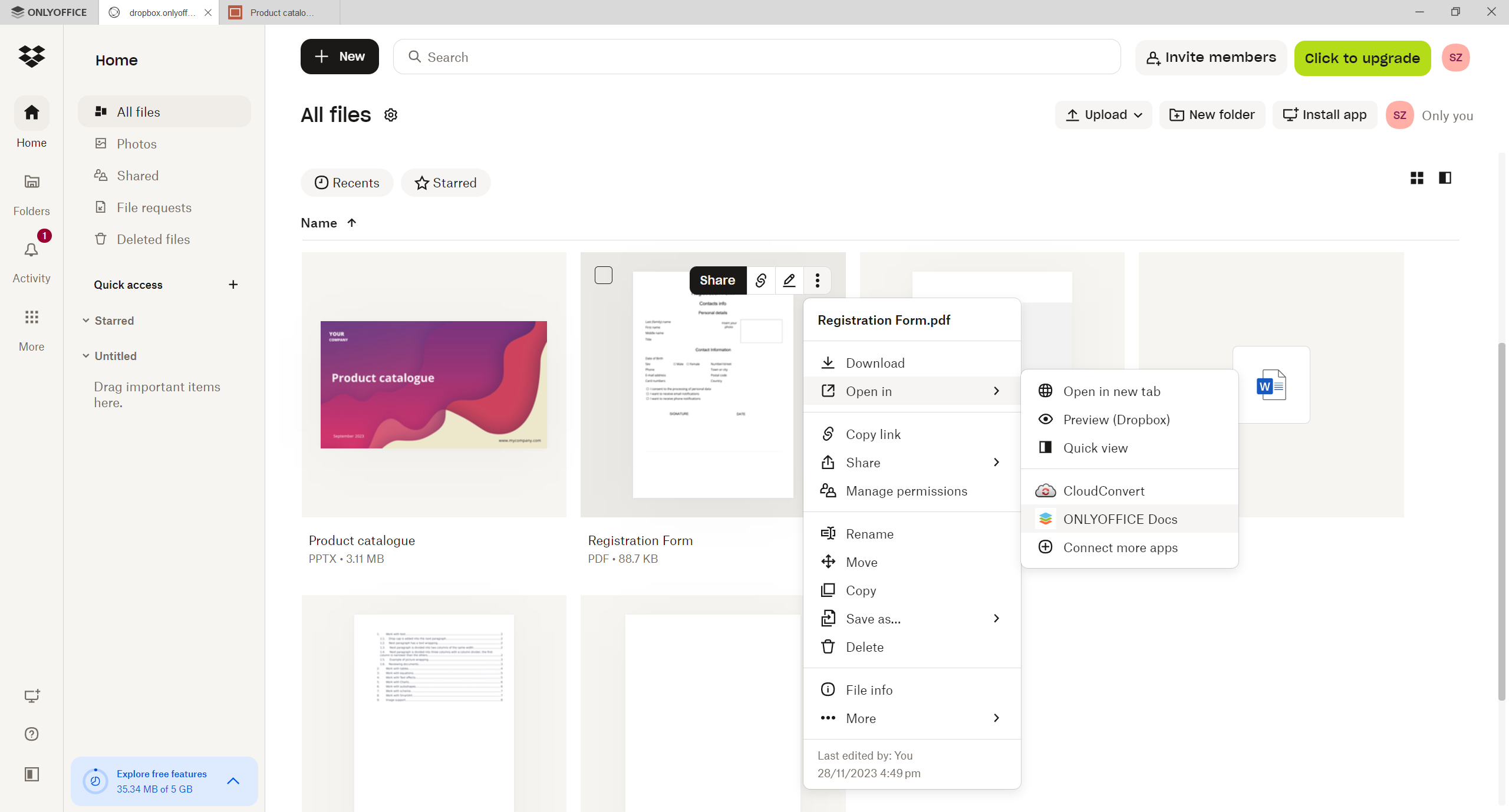
The selected document, spreadsheet, or presentation will open in a new tab.
Step 5: Edit and save documents
You can now edit the document just like any other file on your computer. Any changes you make are automatically saved back to Dropbox. There is no need to download or re-upload files, so your work stays organized and up-to-date.
Get started today
The Dropbox integration in ONLYOFFICE Desktop Editors 9.3 is a minor change that makes a big difference in your workflow.
When you connect your Dropbox account, it allows you to work on documents efficiently because everything is visible in a single place, and you can enjoy the complete editing power of ONLYOFFICE.
Create your free ONLYOFFICE account
View, edit and collaborate on docs, sheets, slides, forms, and PDF files online.