ONLYOFFICE connector for Mattermost updated: mention users in comments, new admin controls, and more
Collaboration in Mattermost just got better. The ONLYOFFICE connector for Mattermost has been updated to version 2.2.0, bringing a set of meaningful improvements to how teams interact with documents directly inside their messaging workspace. From mentioning colleagues in document comments to new admin-level controls over editor behaviour, this release makes the integration more powerful, more flexible, and more secure. Read on to discover what’s new.
Document collaboration for Mattermost: version 2.2.0
For those new to the integration: the ONLYOFFICE connector for Mattermost enables users to open, create, and collaboratively edit office documents: docs, sheets, presentations, and PDFs, without ever leaving their Mattermost workspace.
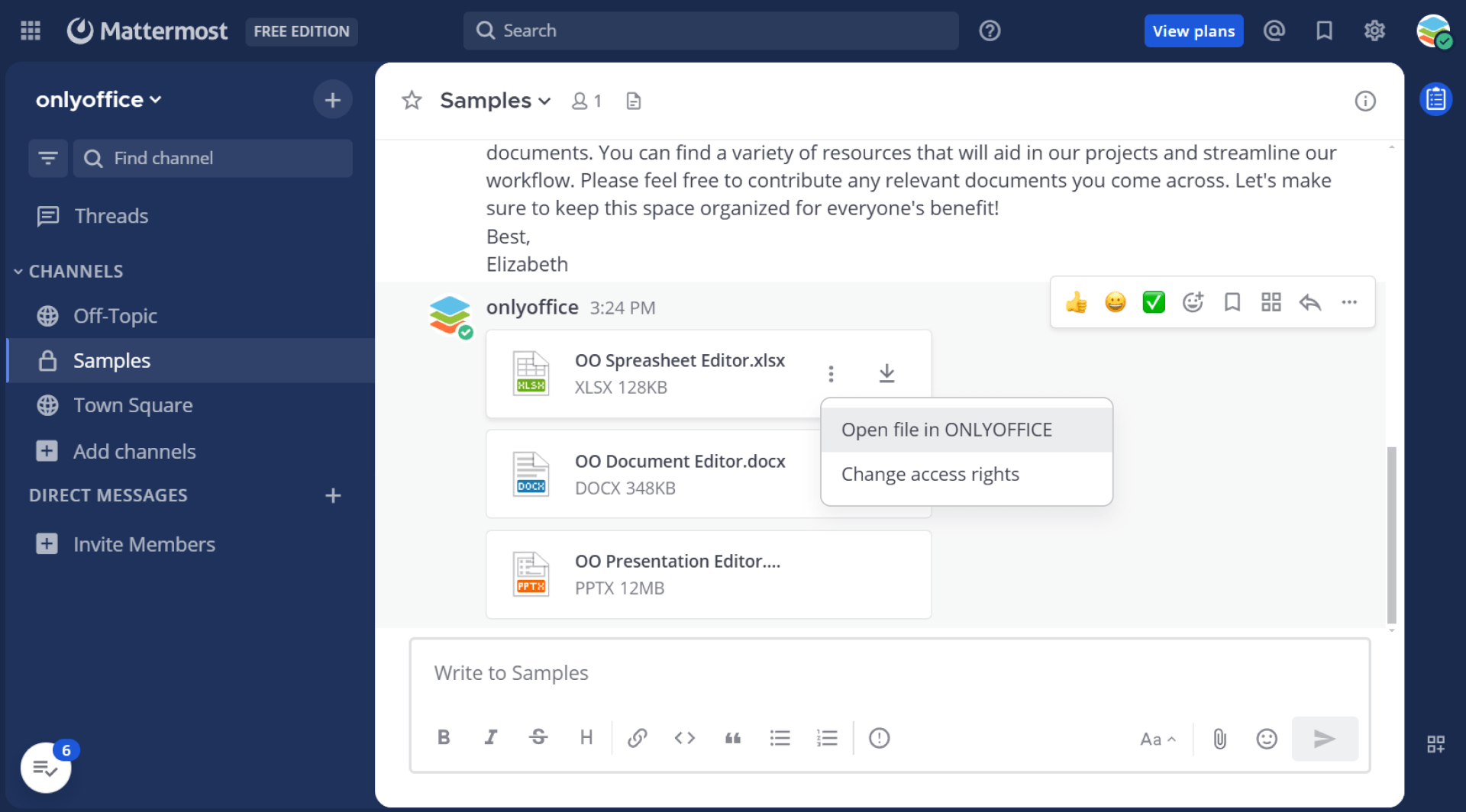
Files shared in personal or group chats can be opened directly in the ONLYOFFICE editors, supporting real-time co-editing, comments, version tracking, and granular access control. The newly released update lets users collaborate even more efficiently and brings several upgrades:
Mention users in comments
One of the most requested collaboration features has landed: you can now @mention other users directly in document comments while working on your file.
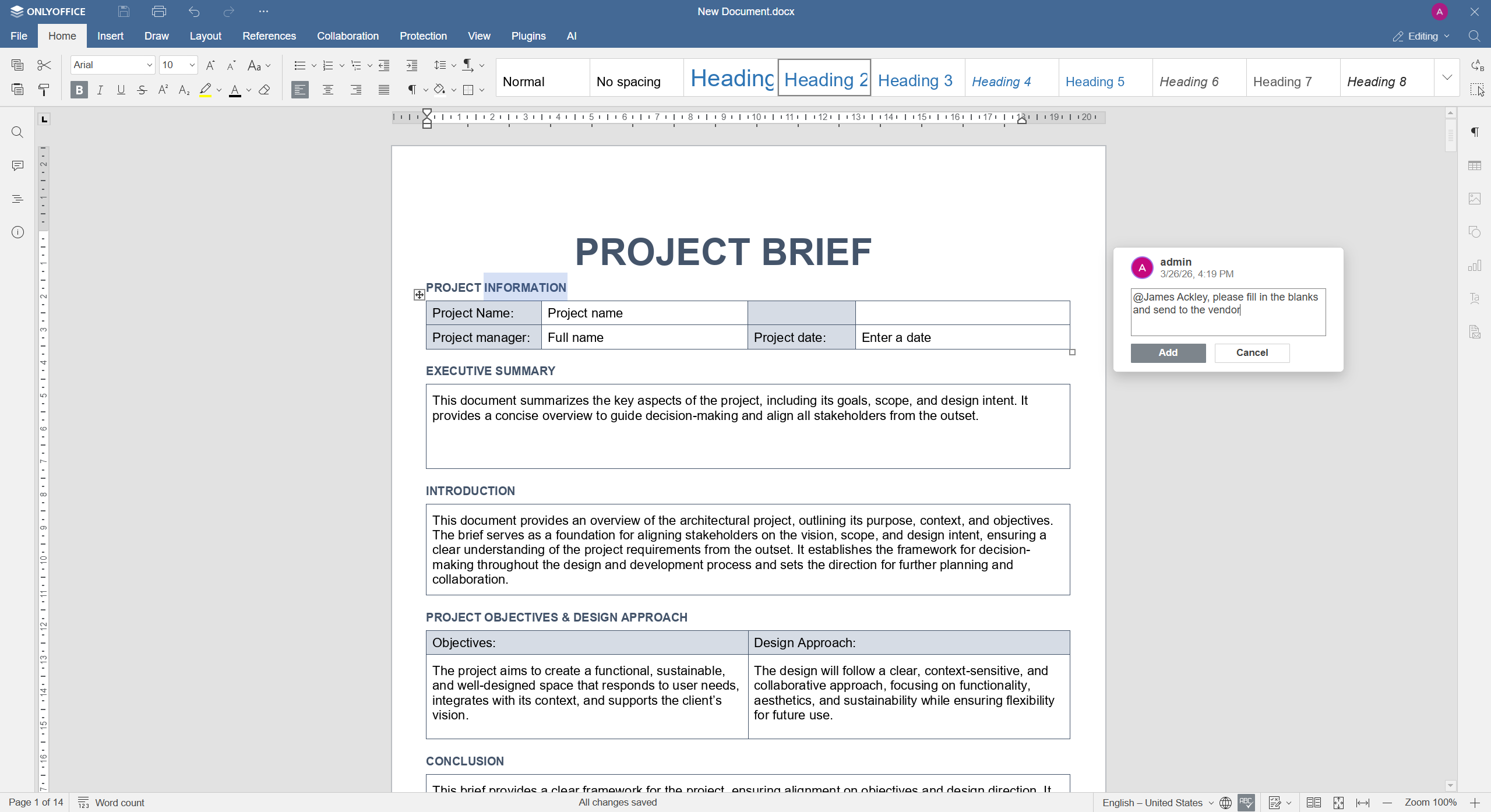
This makes it significantly easier to draw a colleague’s attention to a specific part of a document, request feedback on a passage, or assign a task within the context of the content itself: all without switching to a separate chat window.
Mentions follow a familiar, intuitive pattern for anyone already used to Mattermost’s messaging interface, keeping the collaborative experience consistent across the platform.
Periodic connection check to the editor
Version 2.2.0 introduces a periodic connection check between Mattermost and the ONLYOFFICE Document Server. The integration now automatically monitors the health of the connection to the editor at regular intervals.
This means that connectivity issues, such as a temporarily unreachable Document Server, are detected proactively rather than silently failing at the point a user tries to open a file. It improves the reliability of the integration and makes it easier for administrators to identify and diagnose infrastructure issues before they impact end users.
Admin settings for enabling plugins, macros, and file protection
Administrators now have greater control over how ONLYOFFICE editors behave within their Mattermost environment. Version 2.2.0 adds dedicated admin settings covering three key areas:
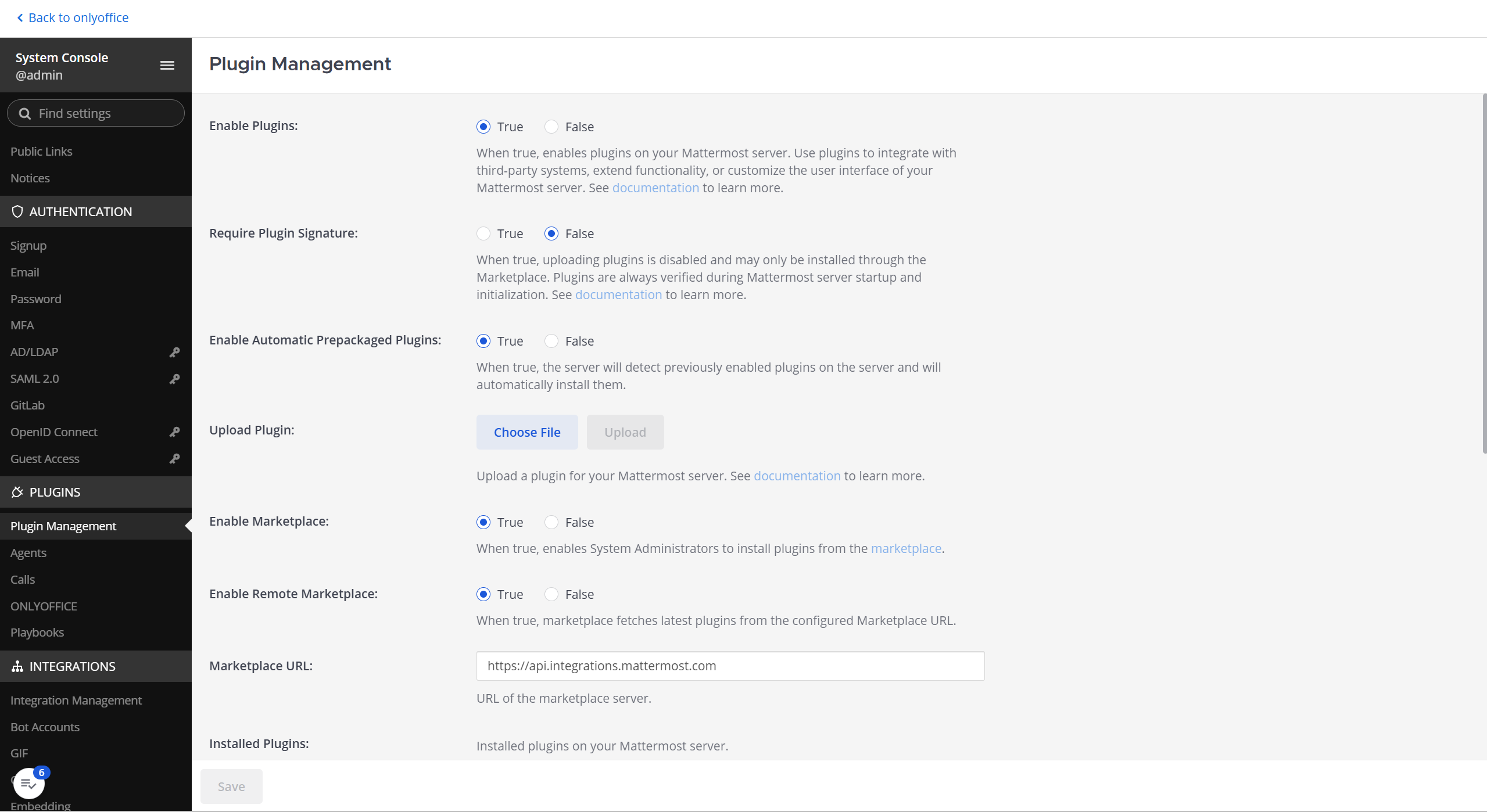
- Plugins: administrators can control whether ONLYOFFICE plugins are enabled for users accessing the editors through Mattermost. This is useful for organizations that want to limit or standardize the tools available within the editor.
- Macros: macro execution can now be enabled or disabled at the admin level, giving IT teams a straightforward way to enforce security policies around automated document actions.
- File protection: Admins can configure file protection settings to restrict actions such as downloading, printing, or copying document content, adding an important layer of control for sensitive documents shared in team channels.
These settings are accessible through the Mattermost System Console under the ONLYOFFICE app configuration panel.
Why use ONLYOFFICE with Mattermost?
Mattermost is a widely adopted open source messaging platform, particularly popular with teams that prioritise data sovereignty, on-premise deployments, and open infrastructure. ONLYOFFICE shares the same philosophy: both solutions are open source, self-hostable, and designed with security and control in mind.
Together, they offer a genuinely integrated, privacy-respecting alternative to cloud-only collaboration suites. Key advantages of the combined setup include:
- Full on-premise deployment: both Mattermost and ONLYOFFICE Docs can run entirely within your own infrastructure, with no data leaving your servers.
- Real-time co-editing: multiple users can work on the same document simultaneously, with changes reflected instantly.
- Broad format support: ONLYOFFICE handles over 50 file formats for viewing and editing, including DOCX, XLSX, PPTX, PDF, and many others.
- Granular access control: file authors can set per-user permissions (view, comment, edit) directly from the Mattermost interface.
- Change tracking and notifications: the ONLYOFFICE bot notifies users in chat whenever document changes are saved, keeping the whole team informed without extra steps.
- JWT security: the integration supports JSON Web Token authentication to secure communication between Mattermost and the Document Server.
How to get started
Getting the ONLYOFFICE connector up and running in Mattermost is straightforward:
- Deploy ONLYOFFICE Docs on your own server (Community or Enterprise Edition) or sign up for ONLYOFFICE Docs Cloud.
- Install the ONLYOFFICE app from the Mattermost Marketplace or build it from source on GitHub.
- Configure the connection in the Mattermost System Console: enter your ONLYOFFICE Docs address, JWT secret, JWT header, and JWT prefix.
- Start opening, creating, and collaborating on documents directly in your Mattermost chats.
If you’re new to ONLYOFFICE and would like to view, edit, and collaborate on docs, sheets, slides, forms, and PDF files online. Create your free ONLYOFFICE account:
FAQ
Is the ONLYOFFICE connector for Mattermost free?
Yes. The connector is free and open source, released under the Apache 2.0 license. You can find the full source code on GitHub. Note that ONLYOFFICE Docs itself has both a free Community Edition and a paid Enterprise Edition: choose the one that fits your team’s needs.
What version of Mattermost is required?
The connector is compatible with recent versions of Mattermost. Check the GitHub repository for the latest compatibility information and minimum version requirements.
Can I use ONLYOFFICE Docs Cloud instead of a self-hosted instance?
Yes. The connector works with both self-hosted ONLYOFFICE Docs deployments and ONLYOFFICE Docs Cloud. If you’d prefer not to manage your own server, ONLYOFFICE Docs Cloud is a quick way to get started.
How does file access control work?
By default, the sender of a file in a Mattermost chat has full editing access, while recipients are granted view-only access. The sender can adjust permissions per user through the file context menu, setting access levels to view, comment, or edit individually.
What file formats are supported for editing?
For editing: DOCM, DOCX, DOTM, DOTX (documents); XLSB, XLSM, XLSX, XLTM, XLTX (spreadsheets); POTM, POTX, PPSM, PPSX, PPTM, PPTX (presentations); and PDF. A much broader range of formats is available for viewing — see the GitHub README for the full list.
Is JWT protection required?
JWT is strongly recommended. Since Mattermost’s security policy blocks external “Authorization” headers, the integration uses a custom JWT header. Make sure this is configured consistently in both the Mattermost plugin settings and your ONLYOFFICE Docs configuration.
Can I disable the built-in chat panel in the editor?
The built-in chat inside the ONLYOFFICE editor has been intentionally disabled for the Mattermost integration. Since Mattermost already provides a full-featured, deeply integrated messaging experience, having a separate chat panel within the document editor would create unnecessary redundancy.
Can I use AI plugin within the editors?
Sure thing, the ONLYOFFICE editors come with full support for the AI plugin, allowing you to bring the power of AI directly into your documents, spreadsheets, and presentations, without leaving Mattermost.
Can I request new features or report bugs?
Absolutely. You can open an issue on the GitHub repository or visit the ONLYOFFICE community forum to share feedback, report problems, or suggest improvements.
Useful links
ONLYOFFICE app on the Mattermost Marketplace
ONLYOFFICE for Mattermost: GitHub repository / product page
ONLYOFFICE Docs: Community Edition / Enterprise Edition / Sign up for Docs Cloud
Create your free ONLYOFFICE account
View, edit and collaborate on docs, sheets, slides, forms, and PDF files online.