How to use Solver in spreadsheets
Spreadsheets are not just for tables and charts. They can also help solve everyday problems, such as budgeting, meal planning, or scheduling. The Solver tool makes this easy, automatically finding the best solution for your problem based on the goals and limits you set.
Whether you want to maximize profits, minimize costs, or optimize your time, Solver can do without manual trial and error.
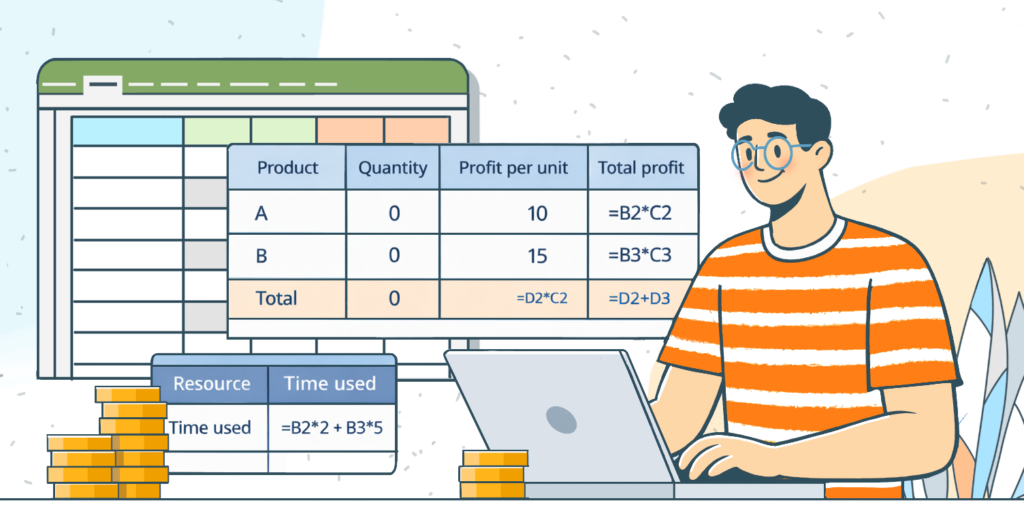
What Solver is
Solver is a tool that calculates the best solution for a problem with multiple variables. This makes it ideal for tasks like budgeting, scheduling, resource allocation, and planning.
Solver allows you to optimize a value in three ways:
- Maximize – find the highest possible value (e.g., maximize total profit).
- Minimize – find the lowest possible value (e.g., minimize total cost or calories).
- Set to a specific value – adjust variables so that a calculation reaches a desired number (e.g., reach exactly 100 units of production).
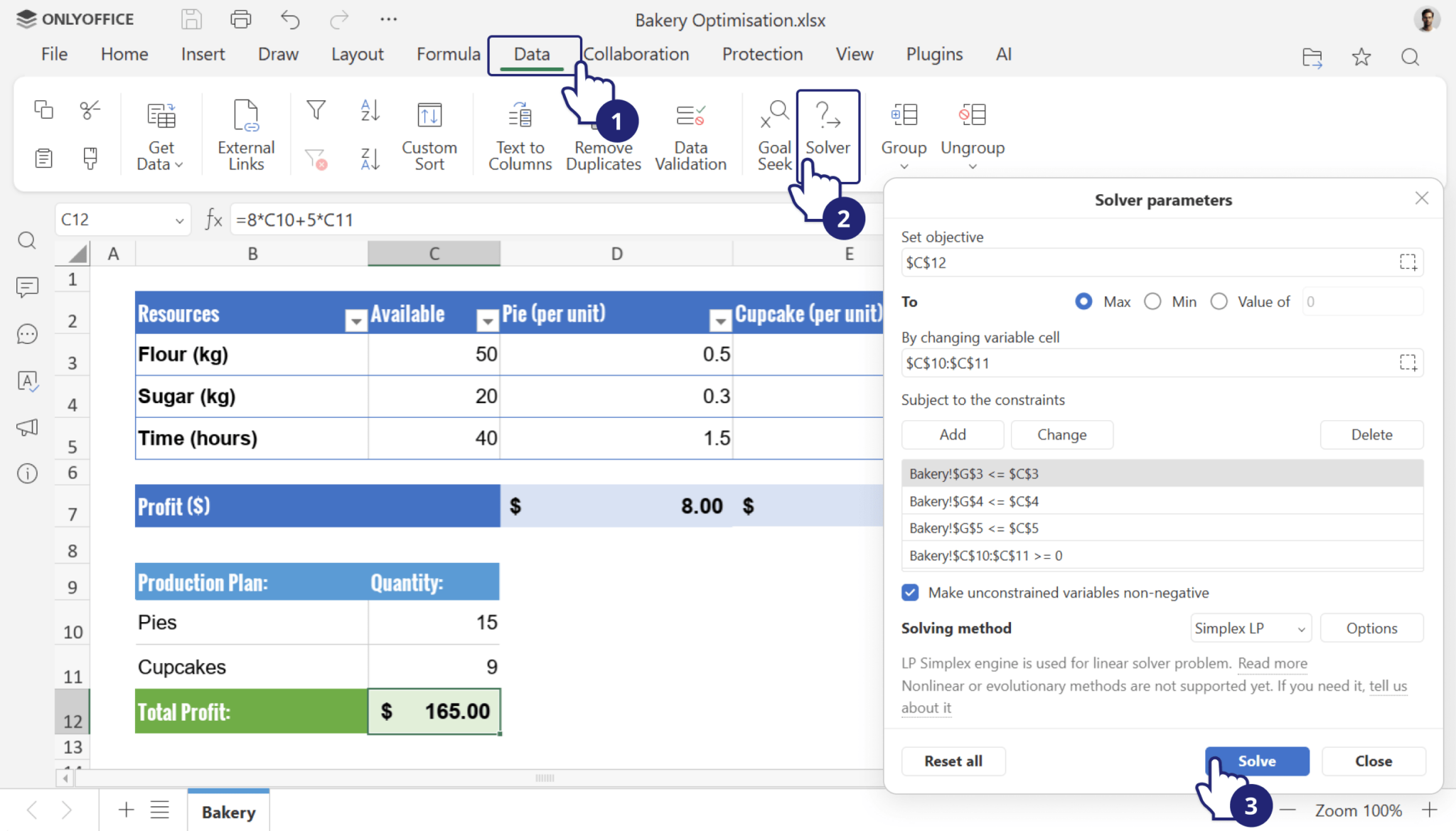
Key components of Solver
To use Solver effectively, you need to understand its three main components:
1. Objective
The objective is the value you want Solver to optimize. It can be a total, a calculation, or a formula.
Examples:
- Maximize total sales from multiple product lines.
- Minimize total expenses for a project.
- Set the number of staff hours to reach a target output.
In your spreadsheet, the objective is a single cell with a formula representing what you want to optimize.
2. Variable cells
Variable cells are the cells Solver can change to achieve the objective.
Examples:
- Quantity of each product to sell.
- Number of hours assigned to tasks.
- Budget allocations for different departments.
In your spreadsheet, it is a cell or a range of cells that Solver adjusts within the limits you set to find the optimal solution.
3. Constraints
Constraints are rules or limits that your solution must follow. They ensure that Solver produces realistic and valid results.
Examples:
- Total cost cannot exceed $500.
- Hours must be positive numbers.
- Quantities must be whole numbers.
You can set multiple constraints depending on your problem. Solver will only consider solutions that meet all these rules.
4. Solving method
ONLYOFFICE Solver uses the Simplex method to solve linear problems. This method is very efficient for optimizing problems where the relationships between variables are linear (straight-line relationships).
If your problem is linear, Solver guarantees the best solution within the defined constraints.
Non-linear or more complex problems may require adjusting the spreadsheet or using multiple Solver runs.
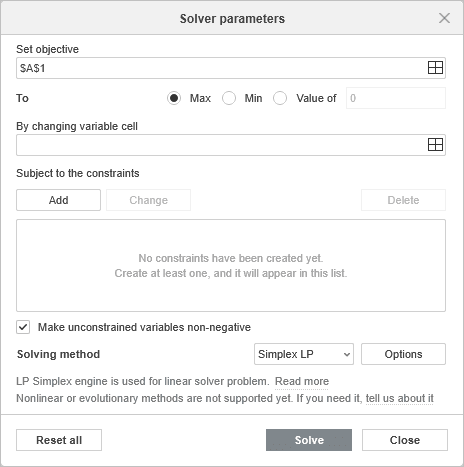
Let’s solve a problem of planning fruit and snack purchases on a limited budget with Solver in ONLYOFFICE Spreadsheet Editor to see it in action.
How to use Solver
Step 1. Prepare your spreadsheet with formulas and calculations
You are going to buy Fruits and Snacks for a small party.
- Fruits cost $4 each
- Snacks cost $2 each
- Budget: $20
- You want to maximize the total number of items without exceeding the budget.
Enter the item names, prices, and leave a column for quantities (these are unknown for now).
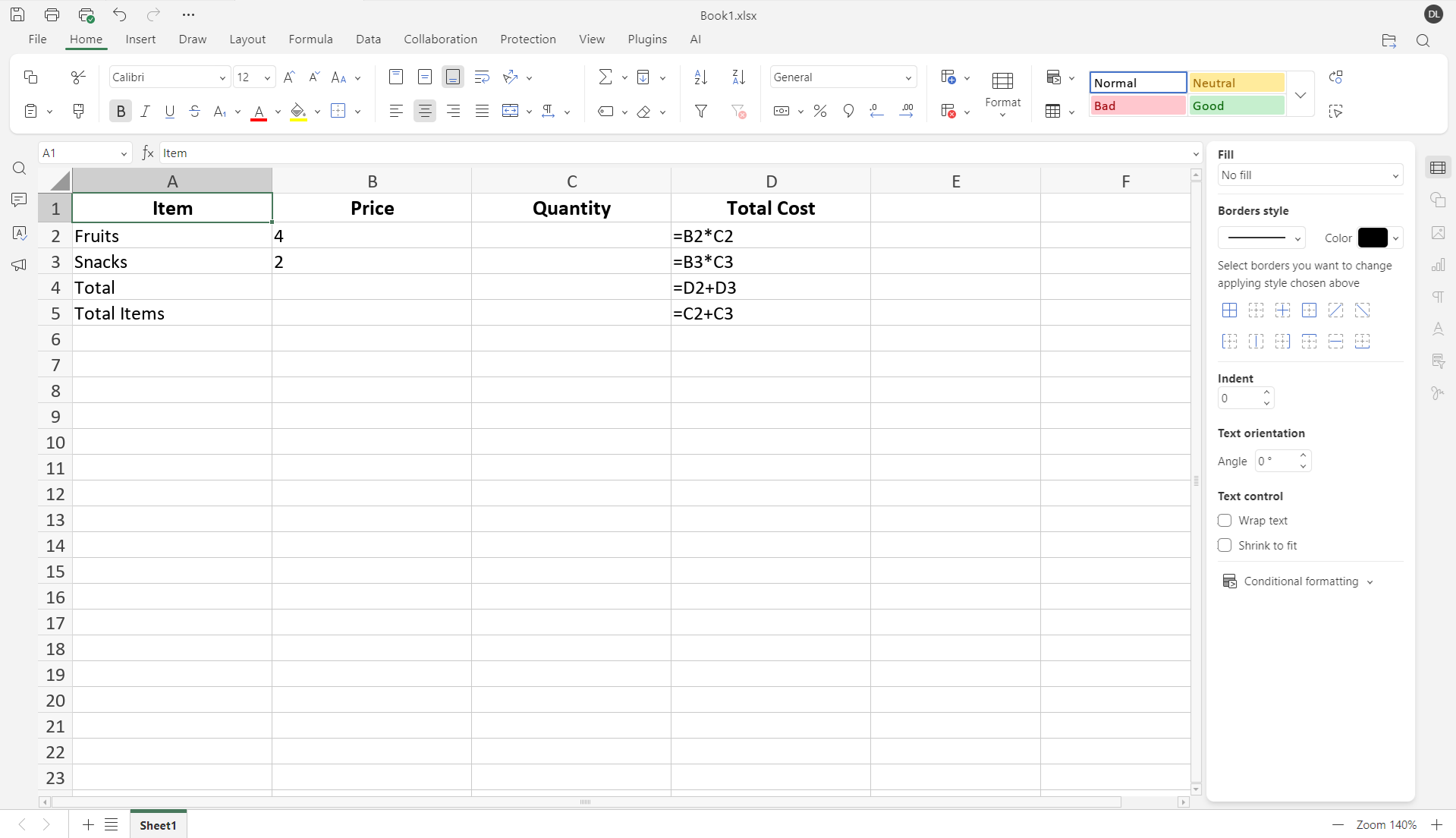
Prices go in column B.
Quantities are unknown, leave them blank (column C).
Total cost formulas are in column D: D2: =B2*C2 D3: =B3*C3
Total cost for both items: D4: =D2+D3
Total items formula: D5: =C2+C3
Step 2. Select the objective cell
Go to the Data tab and click the Solver icon on the top toolbar.

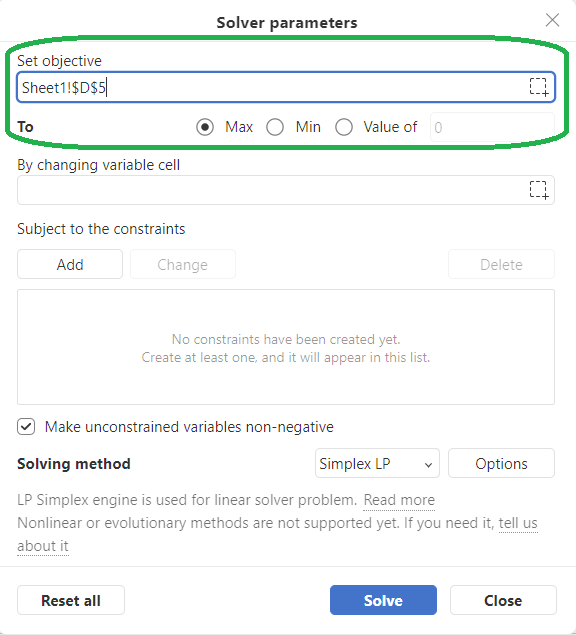
In the opened Solver parameters window, set the objective cell, the value that the Solver will optimize. In this example, it is cell D5 (Total Items). Select the cells by clicking the Select data icon in the right column of the row.
Set the objective type to Max because we want the largest number of items.
Step 3. Select variable cells
Variable cells are the cells Solver can adjust to reach the objective. Here, select C2:C3 (Quantities for Fruits and Snacks).
Step 4. Set constraints
Constraints define the rules that must be followed. To set constraints, click Add, select a cell reference, and enter a constraint.
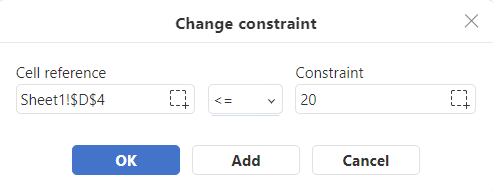
In our case, we will add the following:
Total cost ≤ Budget → D4 ≤ 20
Quantities ≥ 0 → C2 ≥ 1, C3 ≥ 1
You can add more constraints if needed, like maximum quantity limits.
Step 5. Run Solver
Once all the parameters are set, click Solve. Solver will calculate the optimal solution automatically.
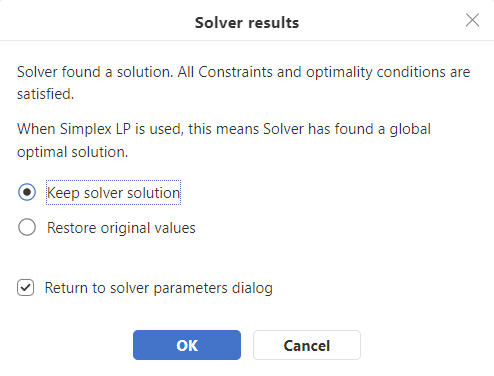
If a solution is found, you will see a message indicating that Solver found a solution that satisfies all constraints.
Choose whether you want to keep the solver solution (you can see it in the spreadsheet in the background) or restore original values.
You can return to the solver parameters dialog to adjust them further by clicking the corresponding checkbox.
Click OK to keep the solution values in your spreadsheet.
Click Cancel to restore the original values before the optimization.
Step 6. Review results
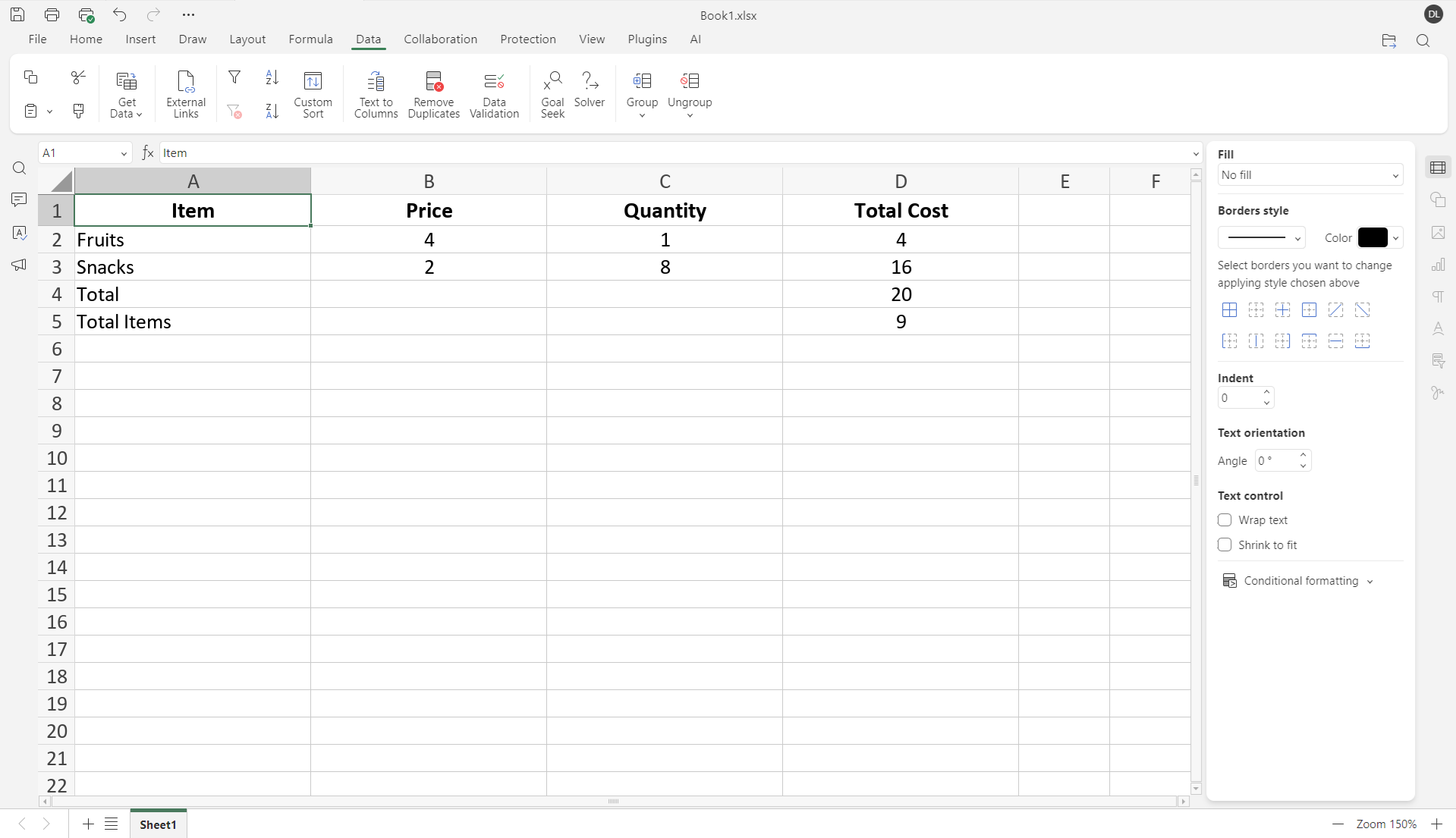
Solver fills in C2:C3 with the quantities that maximize total items.
Check D4 (Total Cost) to ensure it does not exceed $20.
Check D5 (Total Items) to see the maximum total items you can buy.
Please note
The current implementation of Solver in ONLYOFFICE Spreadsheets has several limitations:
- Only the Simplex LP solving method is available, which means that all formulas and relationships in the model must be linear (no multiplication of variable cells, powers, or other non-linear calculations).
- Integer, binary, and differential constraints are not supported. Solver treats all variable cells as continuous values, so the results may include decimal numbers even if your scenario logically requires whole numbers.
Example: healthy meal planning
Imagine you want to plan a meal that meets minimum nutrition requirements while keeping total calories as low as possible.
You need a meal that contains:
- At least 40 g of protein
- At least 20 g of fiber
- As few calories as possible
You can use three foods:
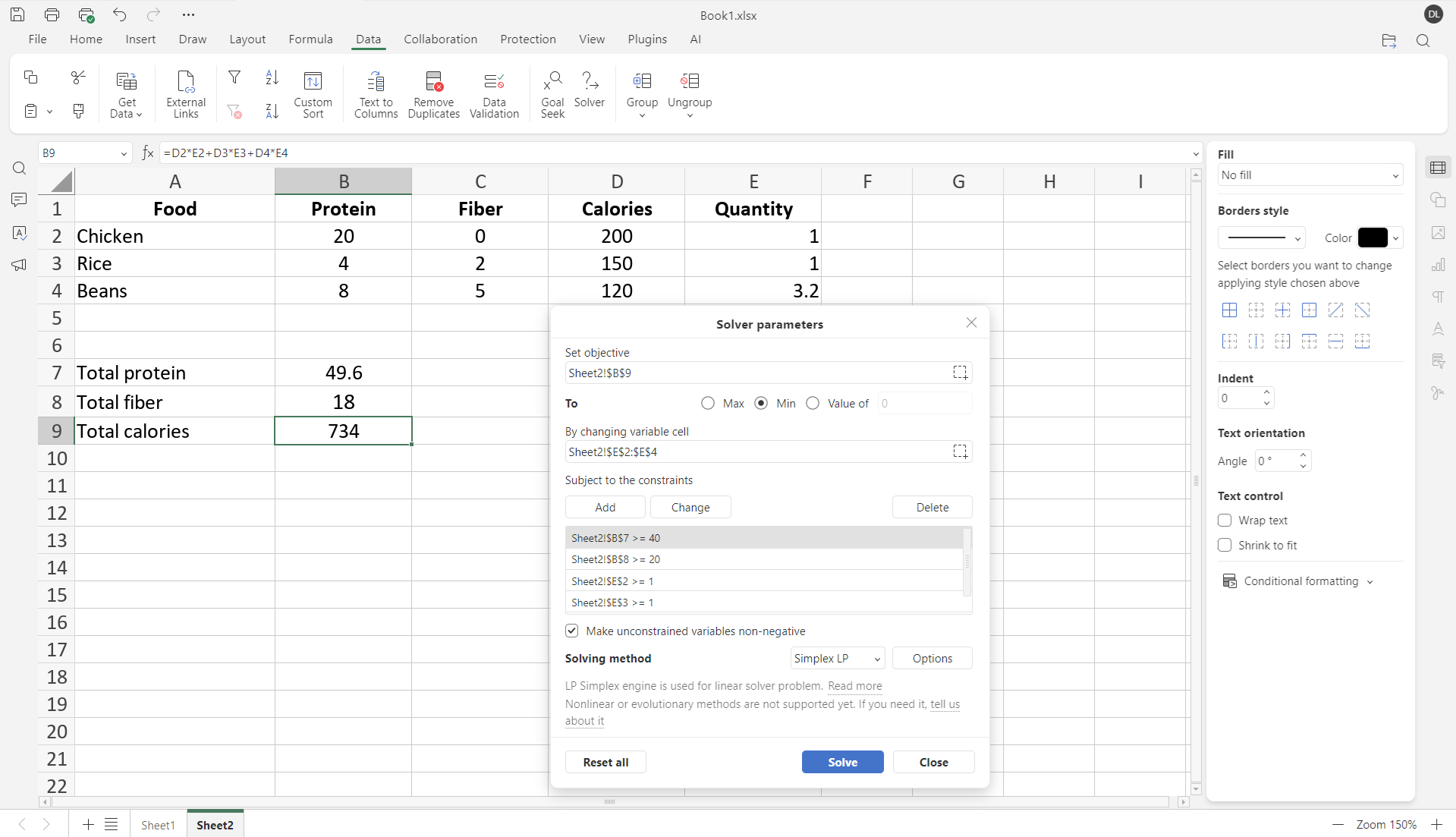
Solver will calculate the combination of foods that:
- meets the nutrition requirements
- produces the lowest possible calorie value
The quantities in E2:E4 will update automatically.
Example: Daily task allocation
Solver can also help with time management problems.
Imagine you have 8 hours in a workday and want to spend them on tasks that produce the highest productivity.
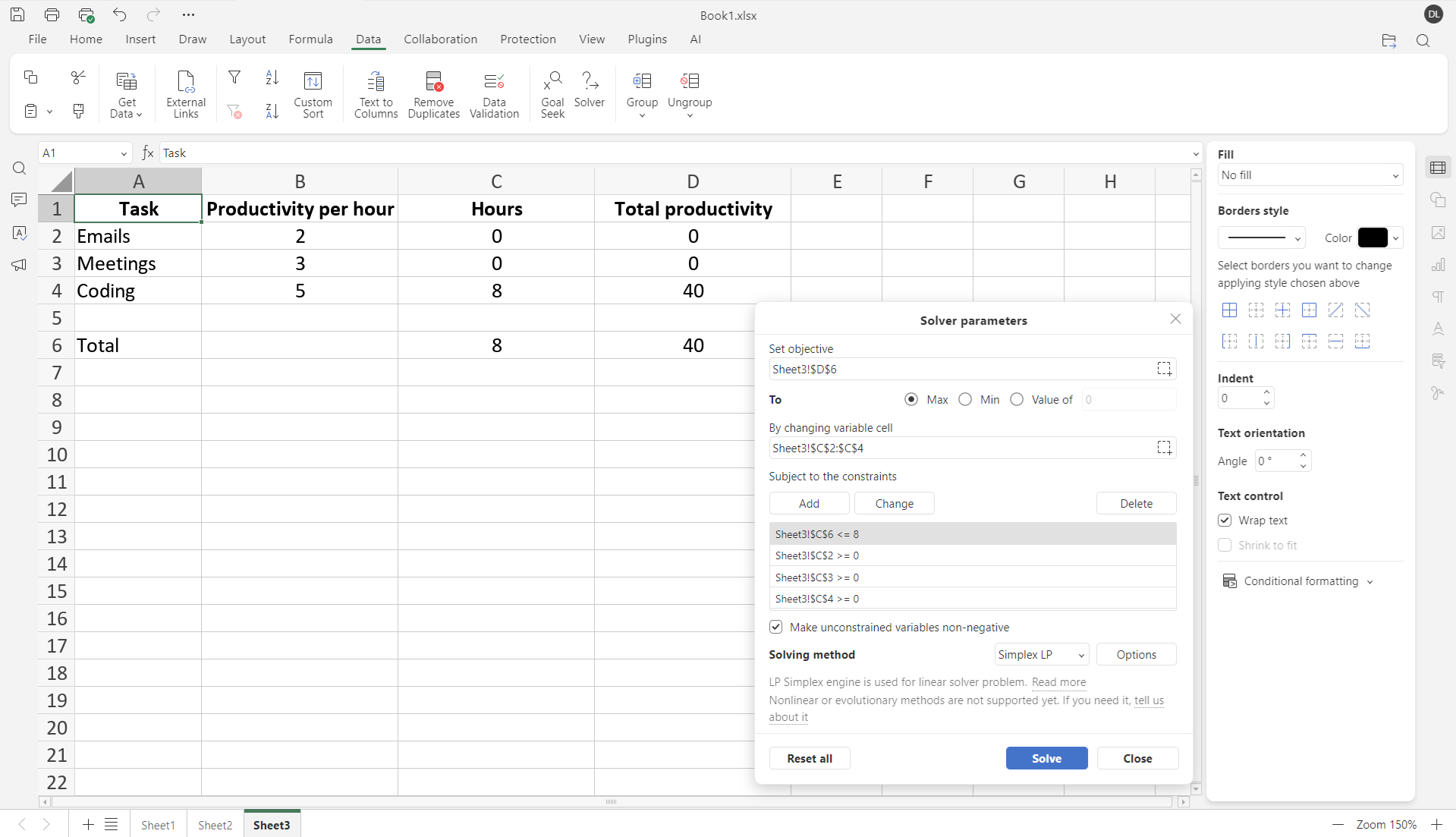
Try Solver in ONLYOFFICE Spreadsheet Editor
Solver in ONLYOFFICE spreadsheets is a powerful tool for optimizing everyday problems. By understanding objectives, variable cells, constraints, and the solving method, you can make smarter decisions faster without guesswork.
Create your free ONLYOFFICE account
View, edit and collaborate on docs, sheets, slides, forms, and PDF files online.