How to connect OpenRouter to ONLYOFFICE
OpenRouter is now supported across ONLYOFFICE editors, DocSpace collaboration platform, and desktop app, giving you access to a wide range of AI models through a single API key. Whether you prefer models from OpenAI, Anthropic, Google, Meta, Mistral, Cohere, or other providers available on OpenRouter, you can integrate them into your ONLYOFFICE workflow for smarter writing, editing, and productivity.
In this guide, discover how to connect OpenRouter to ONLYOFFICE and how to start using AI-powered features on both platforms and editors.
About OpenRouter
OpenRouter is an AI routing platform that gives users access to models from multiple providers under one API instead of managing separate API keys, pricing, and rate limits for each provider.
You can connect a wide range of leading AI models, including:
- OpenAI models (GPT-5.1, GPT-5 Mini, GPT-o series)
- Anthropic Claude models (Claude Opus 4.5, Claude Haiku 4.5, Claude Sonnet 4.5)
- Google models (Gemini 3 Pro Preview, Gemini 2.5 Flash, Gemini 2.5 Pro)
- Llama models (Llama 4, Llama 3, Llama 2 series)
- Mistral models (Ministral 3, Mistral Large 3, Codestral, Mistral Medium 3.1)
- DeepSeek models (DeepSeek V3.2, DeepSeek V3.1 Terminus, DeepSeek R1)
- Qwen models (Qwen 3 series)
- Other specialized or lightweight models from various providers
OpenRouter also allows switching between models at any time, choosing fast or high-quality versions, and comparing models from different companies.
How to connect OpenRouter to DocSpace
With the release of ONLYOFFICE DocSpace 3.6, the platform introduces AI agents — intelligent assistants designed to help you analyze files, create content, search information, organize your workspace, and collaborate more efficiently. AI agents work directly inside DocSpace, offering a dedicated chat environment where you can interact with the assistant, ask questions, and automate routine tasks.
AI agents are fully customizable. You can set instructions, define storage quotas, connect knowledge sources, and select exactly which AI provider powers your assistant — including OpenRouter.
Step 1. Add OpenRouter as your AI provider
To begin, connect an AI provider that will process all requests from your agents.
Go to Settings → AI Settings → AI Providers
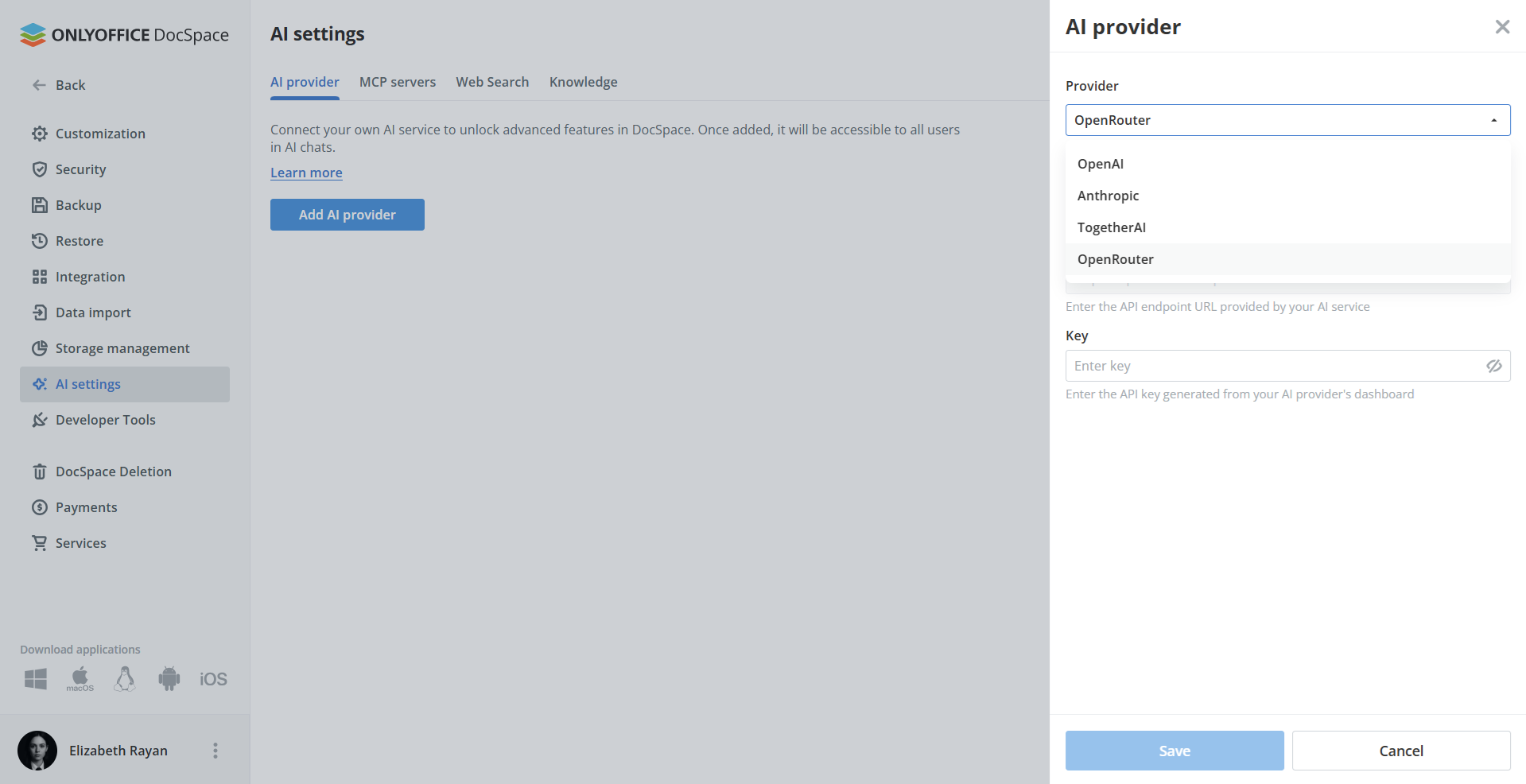
In the Providers list, select OpenRouter. Enter your OpenRouter API key. Click Save.
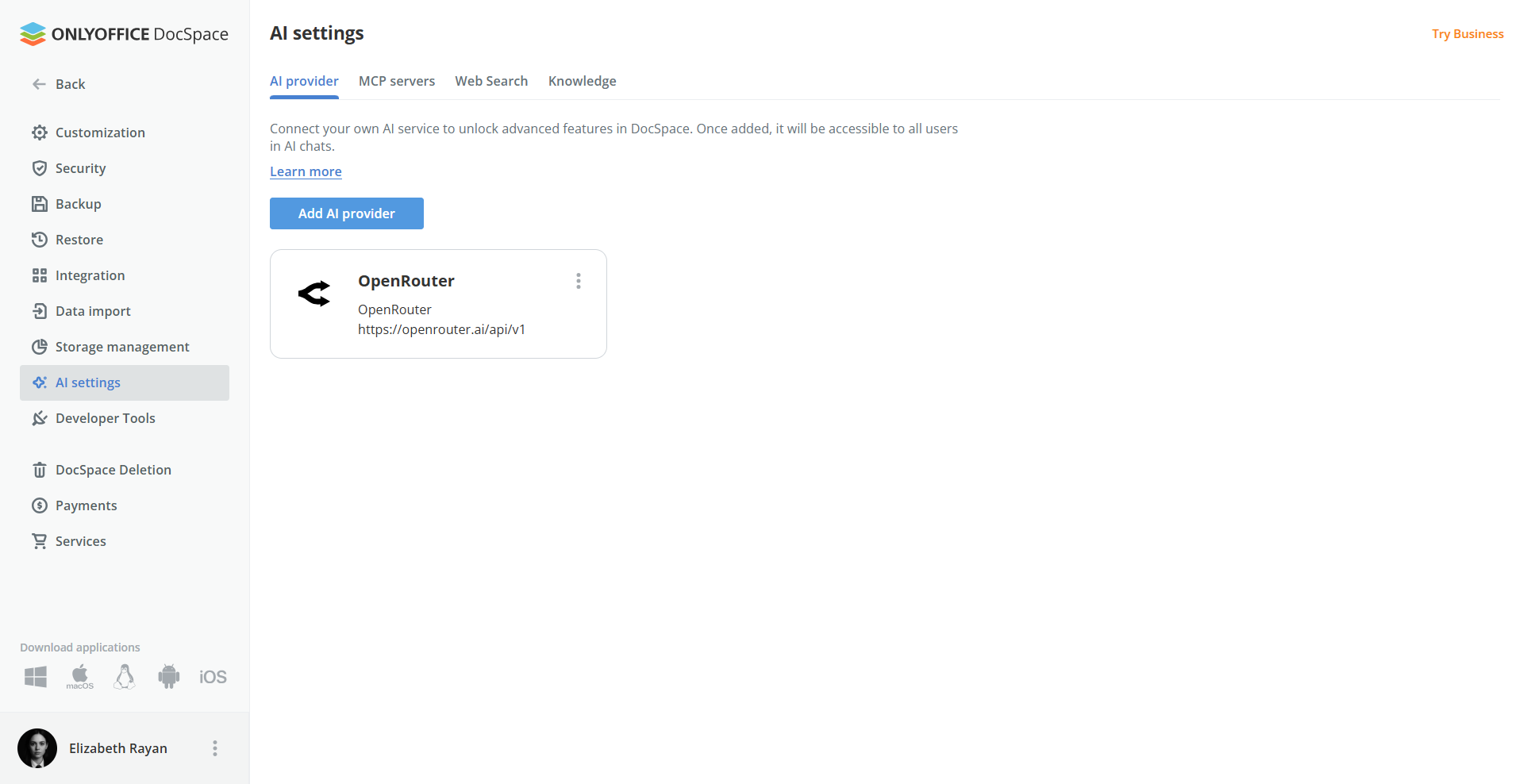
Once saved, OpenRouter becomes available as a model provider for your agents.
Step 2. Enable the MCP server
AI agents require an MCP server to perform actions inside your DocSpace workspace, such as creating rooms, organizing files, or managing users. Add it in the MCP servers section.
You can use the ready-to-use ONLYOFFICE DocSpace MCP Server or connect a custom MCP server if you prefer.
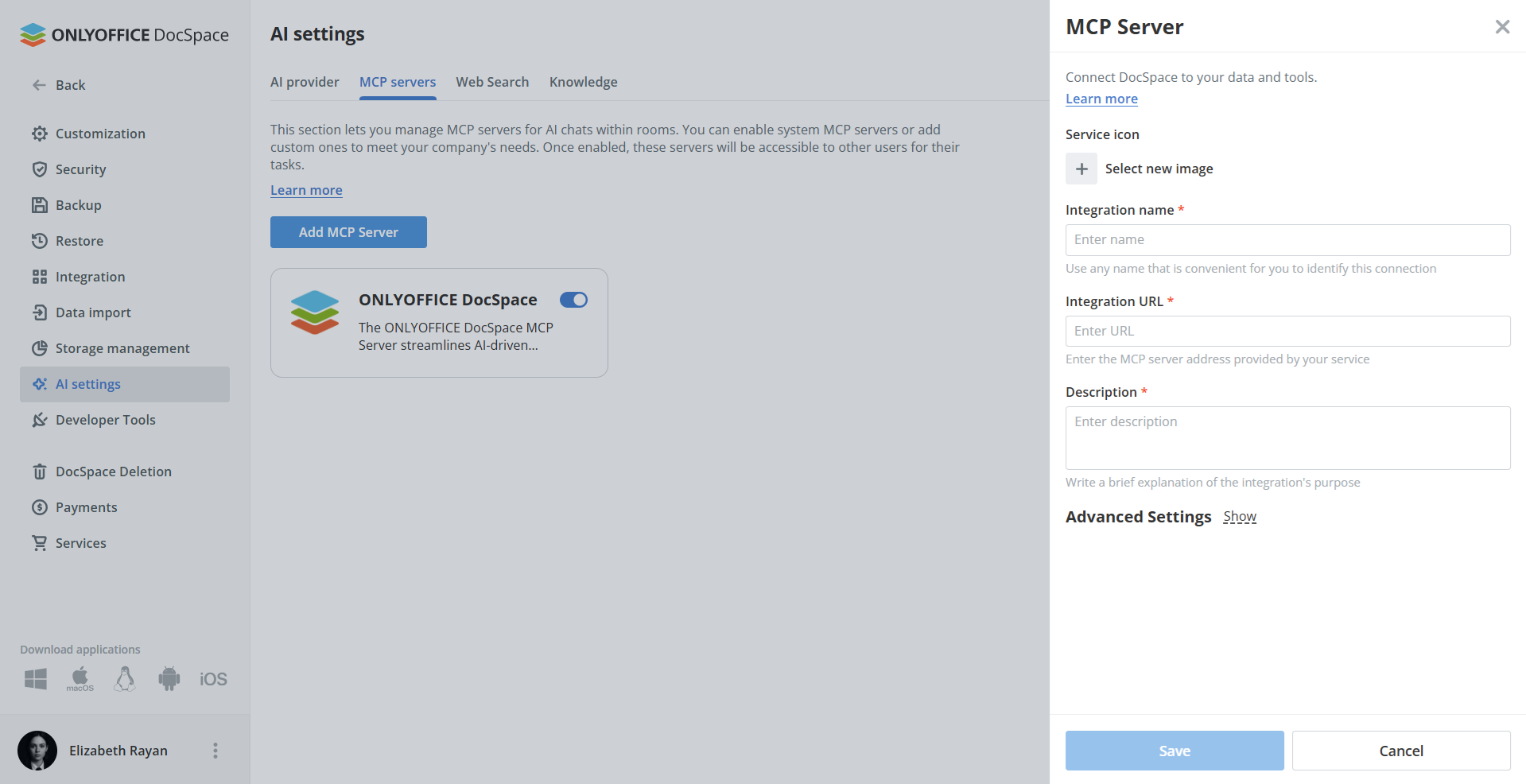
This step allows AI agents to interact with DocSpace beyond simple chat responses.
Step 3. Configure Web Search and Knowledge Base (optional but recommended)
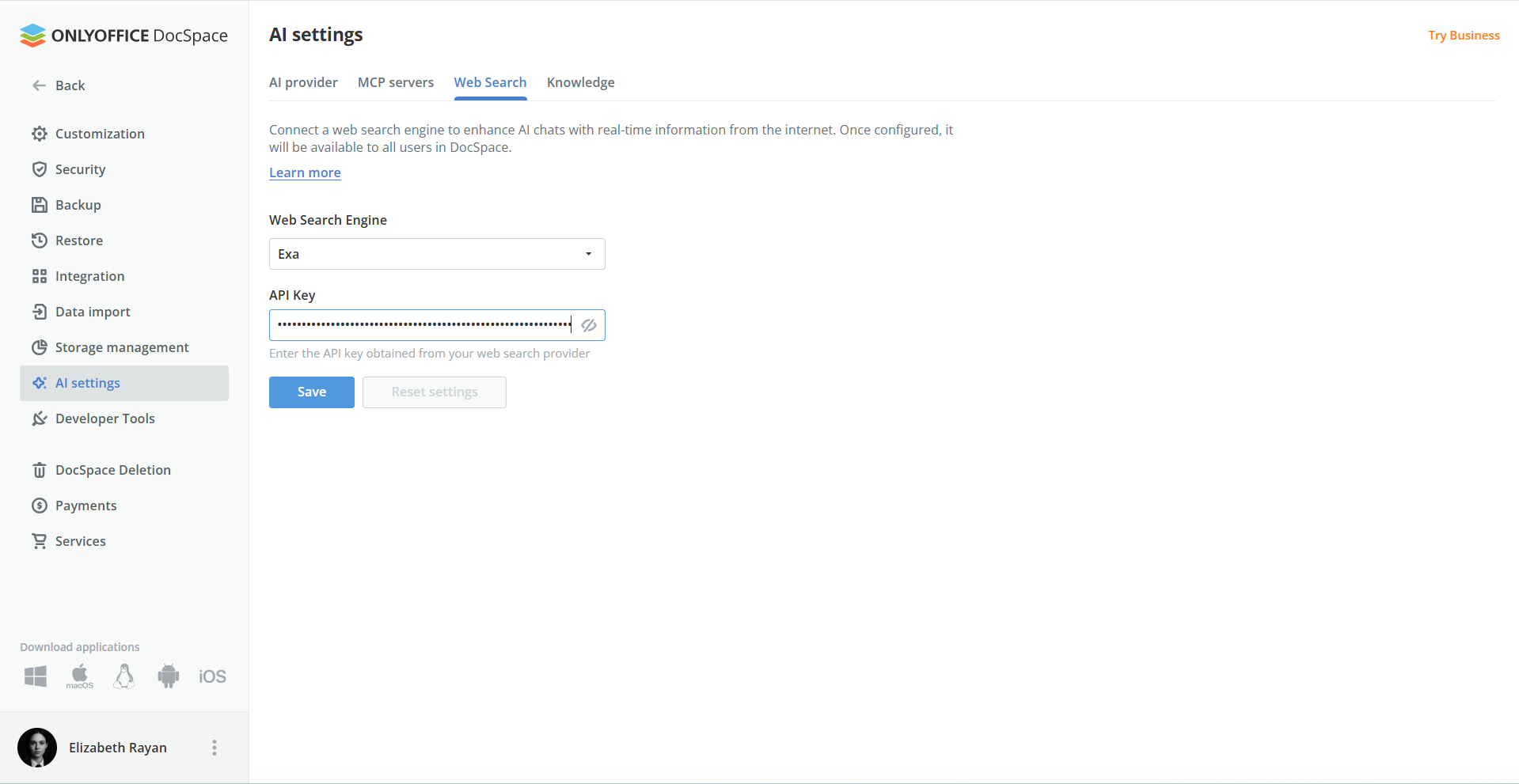
To allow your agents to access real-time internet information, enable a web search provider in Settings → AI Settings → Web Search. The connected web search provider Exa becomes available to all users in the workspace. You will need Exa API key to start.
The knowledge base allows your AI agents to index and search through your documents using embeddings. This feature focuses on finding relevant information but doesn’t generate summaries or perform global analysis. Switch to the Knowledge tab on AI Settings. In the Provider list, choose OpenRouter.
Learn more in our Help Center.
Step 4. Create your AI agent
Once all provider settings are in place, you can build your first agent.
AI Agents → Create Agent
What to set:
- Name
- Cover image
- Tags
- Provider name and AI model
- AI instructions describing the agent’s purpose
- MCP tools
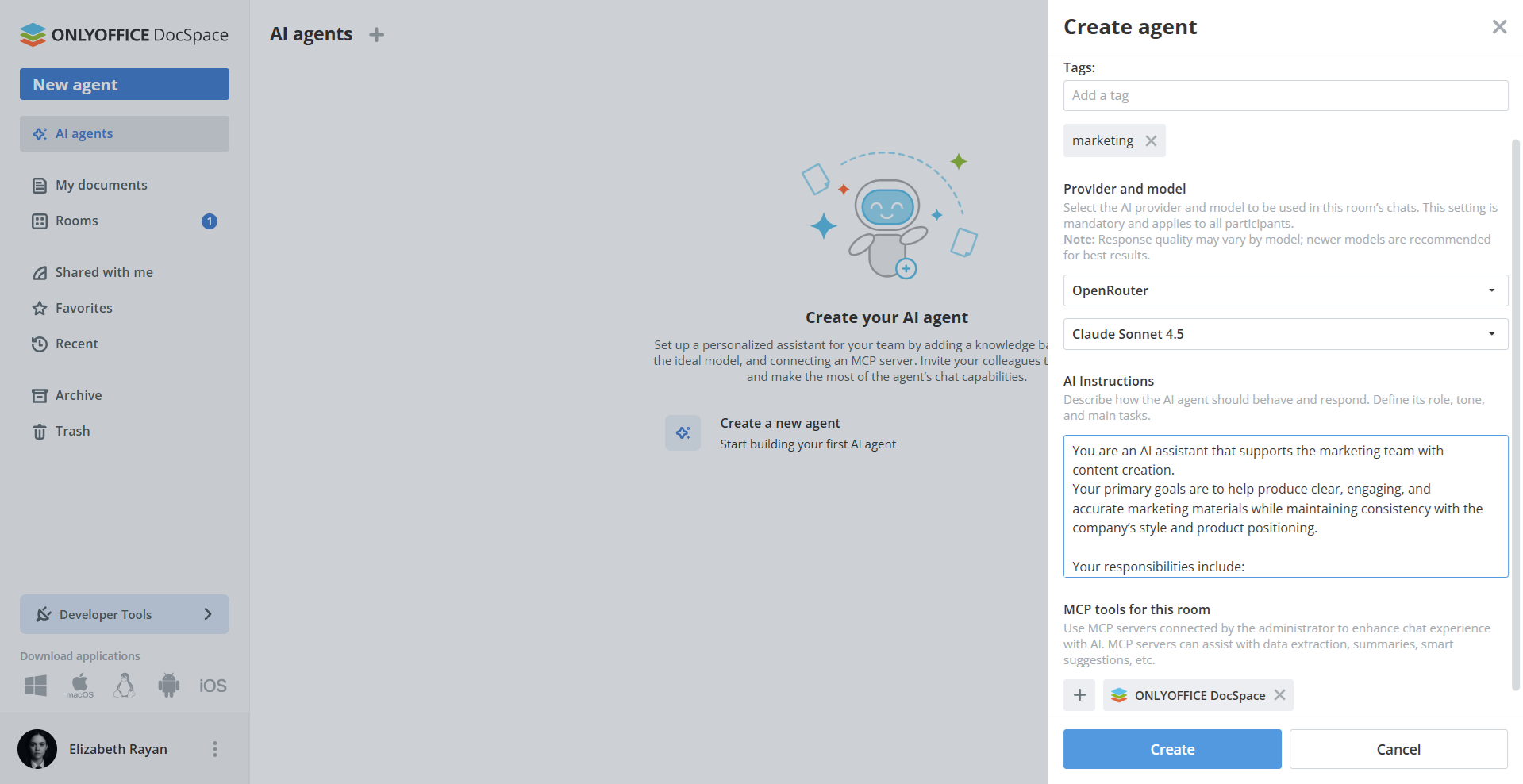
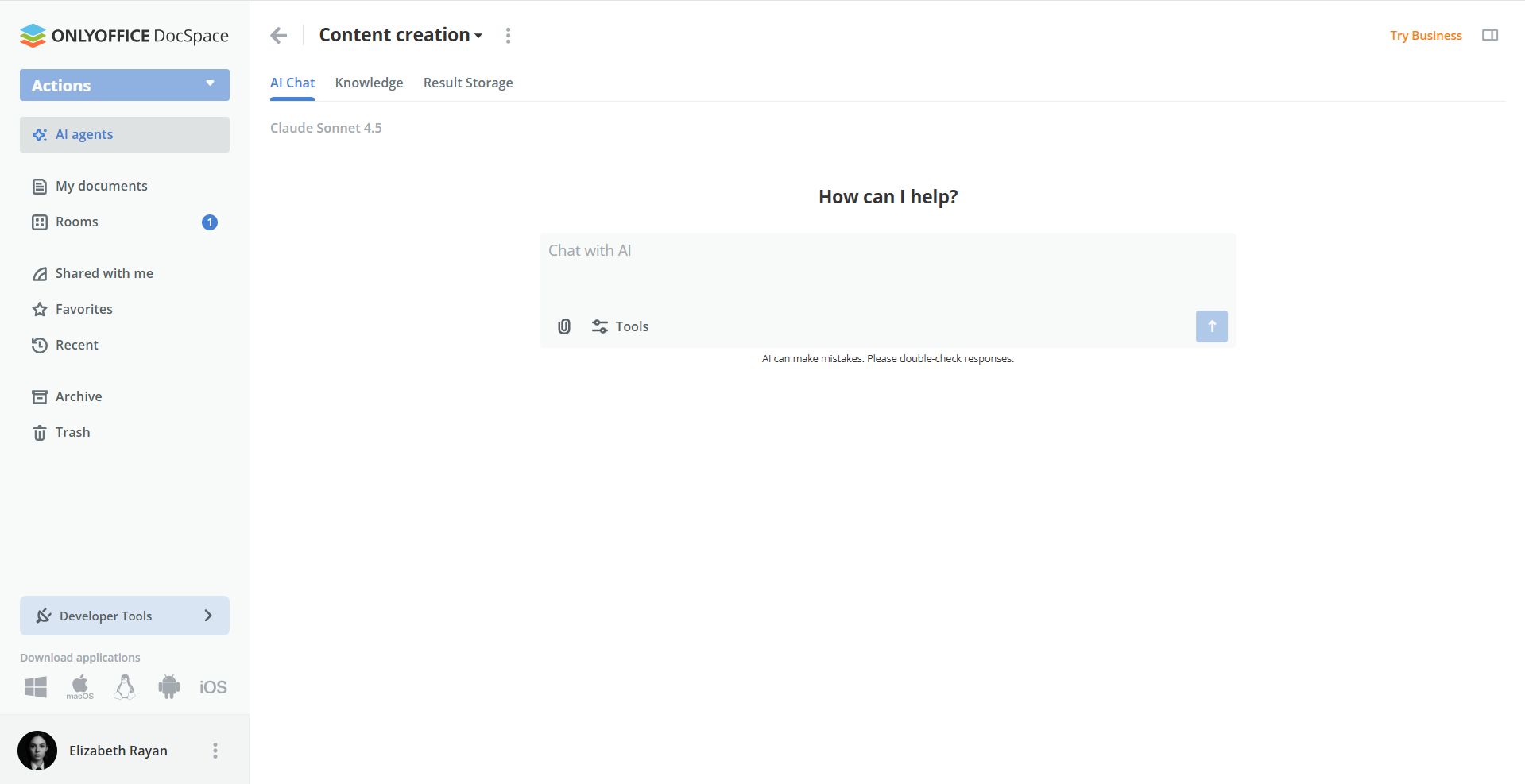
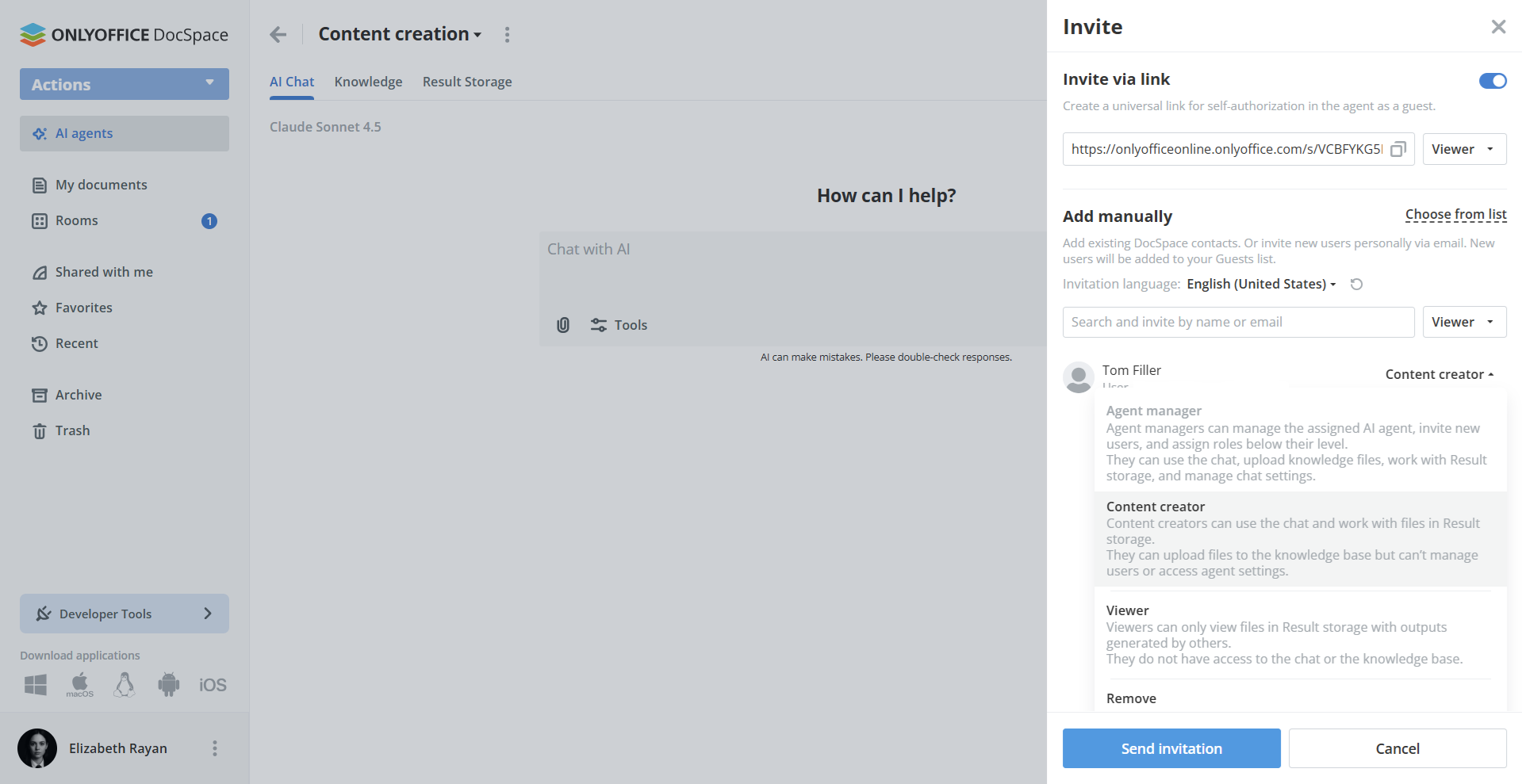
Click Create. OpenRouter is now fully active inside AI agents. To give access, open the agent settings, invite teammates and assign appropriate roles.
How to use OpenRouter in DocSpace
AI agents in DocSpace operate at the platform level — not just inside document editors. This means your AI assistant can interact with files, rooms, knowledge bases, and users.
With OpenRouter connected, your AI agent can:
- Analyze files stored in DocSpace for accuracy, clarity, or key insights
- Generate content, brainstorm ideas, and draft communications
- Search for information across the web and your indexed documents
- Manage your DocSpace, from creating rooms to organizing files
- Invite teammates and collaborate in AI agent
Simply open your team’s AI agent, enter a prompt, and the model connected through OpenRouter will handle the task. All generated outputs can be saved to any location in your DocSpace — with Result Storage offered as the default option — shared with others, or refined further.
Find detailed instructions on AI agents in DocSpace in the Help Center.
How to connect OpenRouter to ONLYOFFICE Desktop Editors
Starting from version 9.2, ONLYOFFICE Desktop Editors also comes with a built-in AI Agent — a powerful tool that helps you generate and summarize documents, manage files, analyze content, and more.
To use the AI agent, you need to connect to an AI provider, including OpenRouter, a platform that gives access to a wide collection of LLMs from different developers.
Below is a step-by-step guide on how to connect OpenRouter and start using its models inside ONLYOFFICE Desktop Editors.
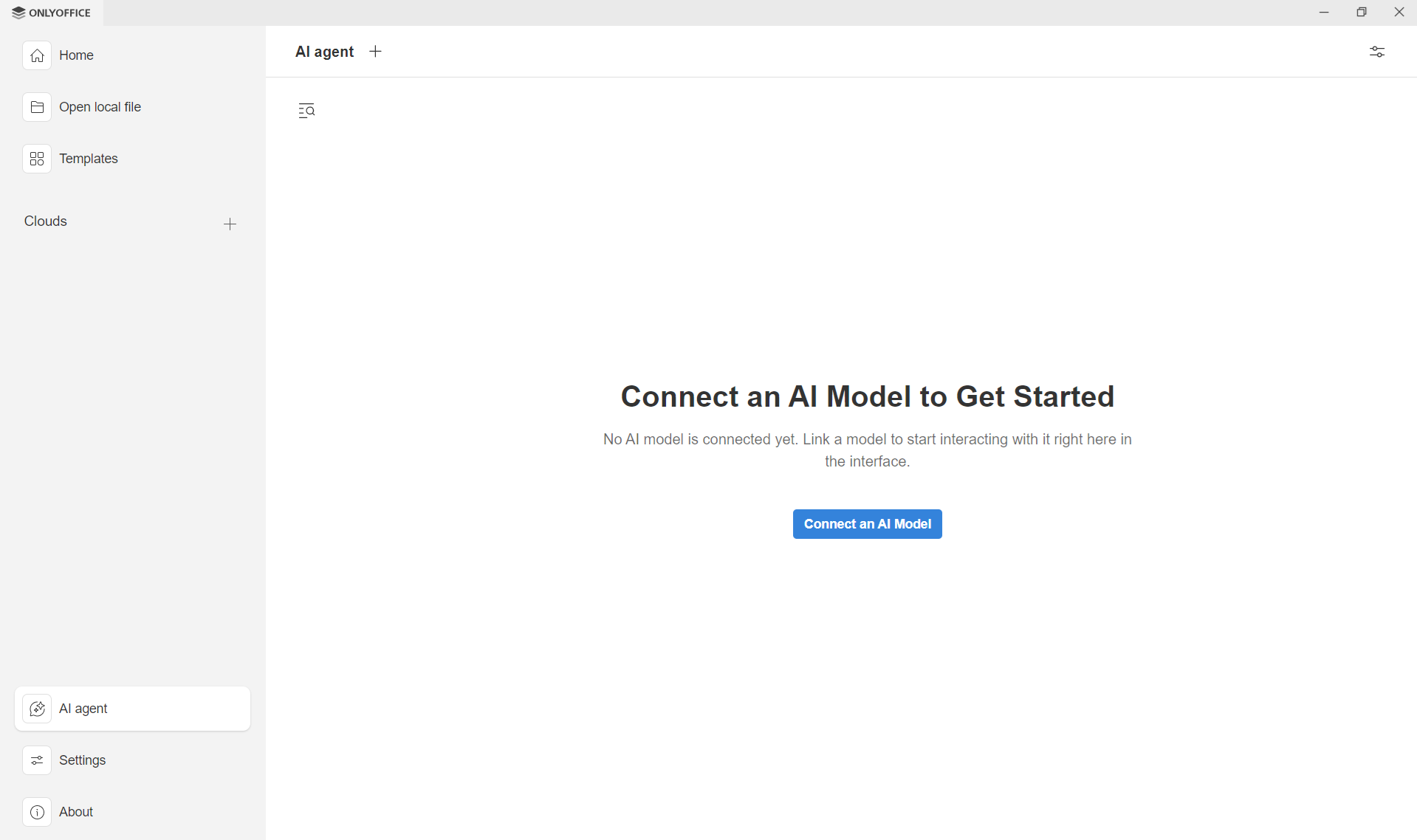
Step 1. Open the AI Agent in ONLYOFFICE Desktop Editors
Switch to the AI Agent section of the start screen in ONLYOFFICE Desktop Editors.
Click Connect an AI model to open the configuration panel. This will take you to the list of providers and model settings.
Step 2. Add OpenRouter as a provider
Click Add provider in the Connection section. In the provider list, choose OpenRouter. The URL field will be filled in automatically based on the selected provider.
In the API Key field, enter your OpenRouter API key. Click Add provider to save the configuration.
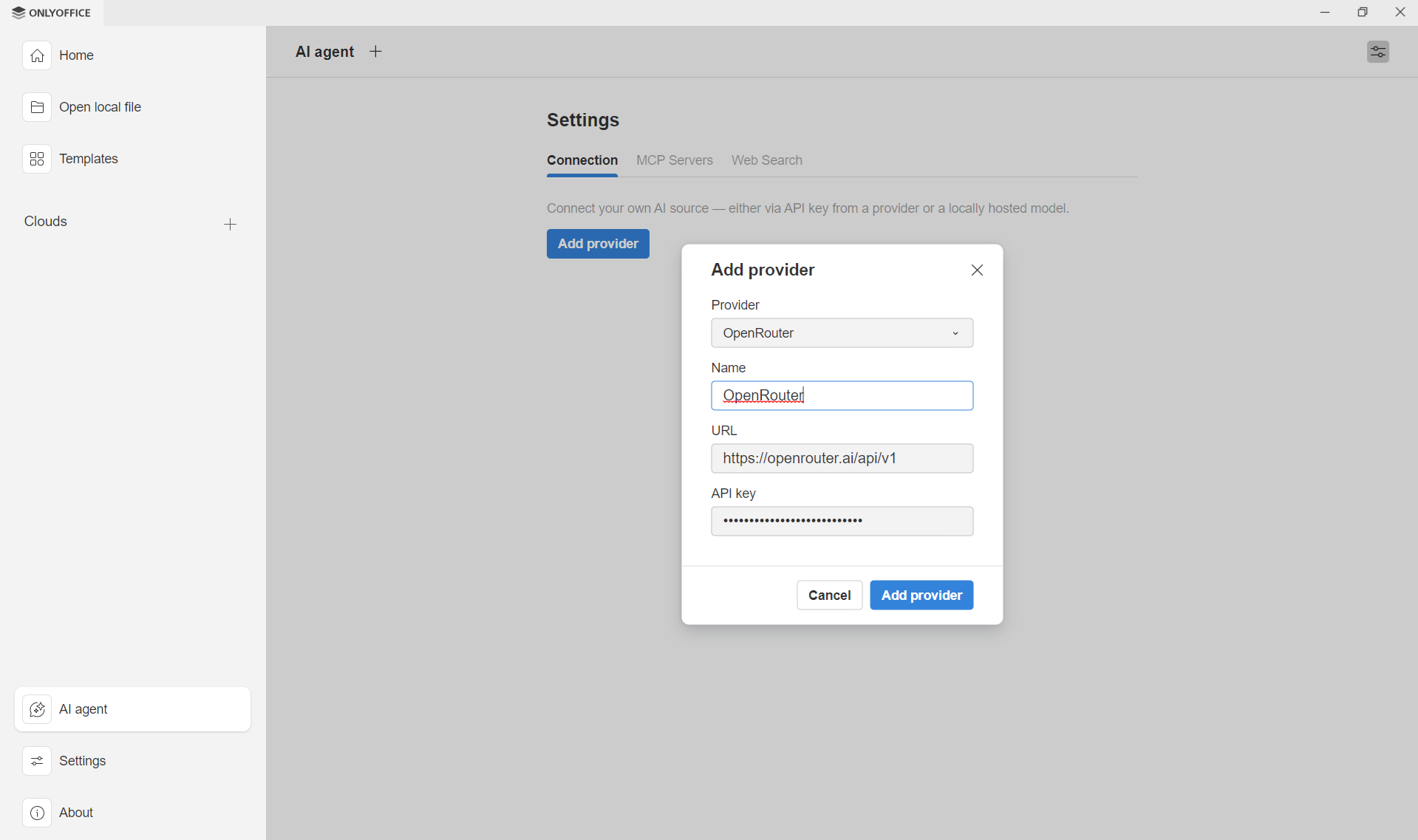
If everything is correct, OpenRouter will appear in your list of connected providers.
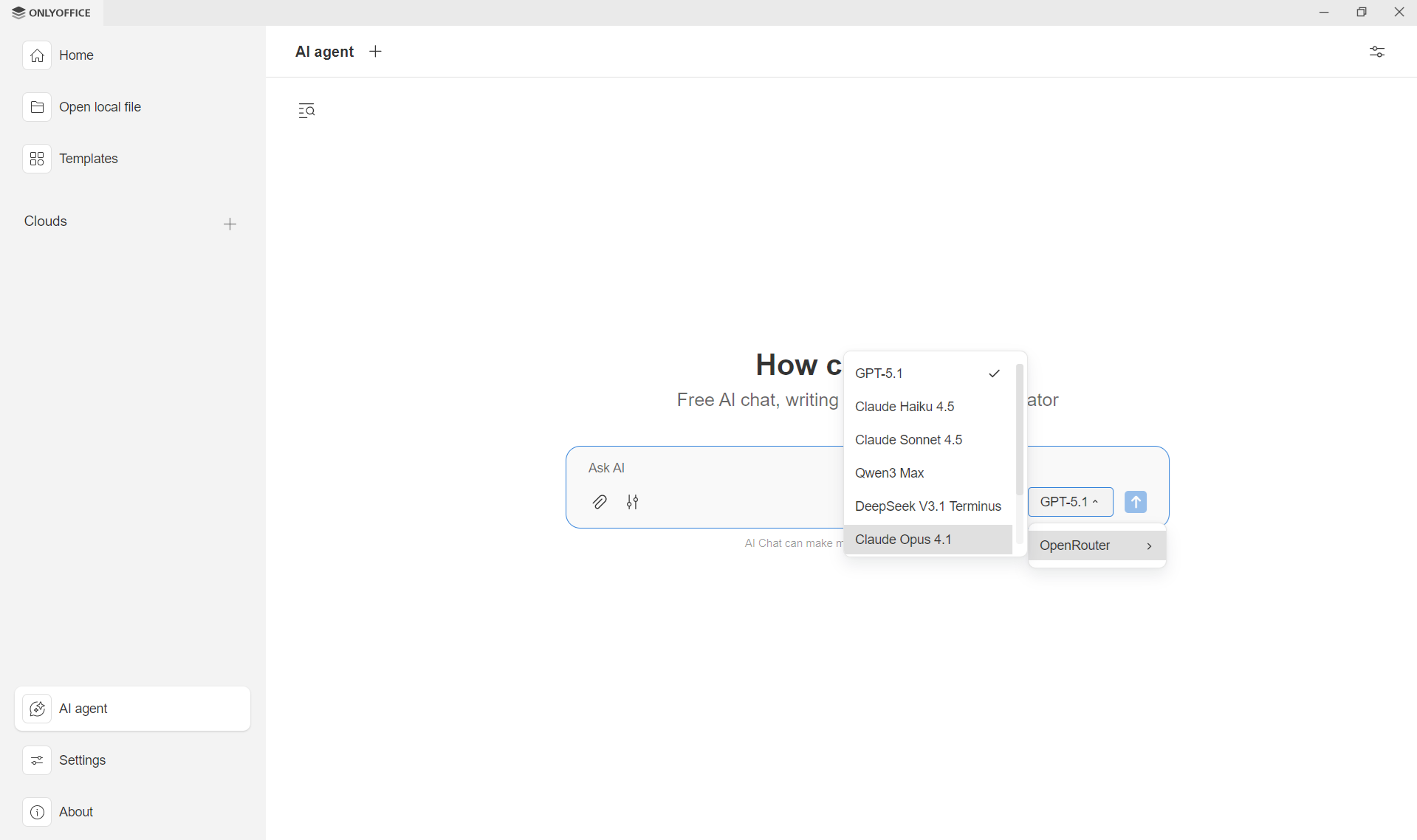
With OpenRouter, you can also switch between different AI models at any time.
Simply open the drop-down menu near the chat field and select the model you want to use — the AI agent will immediately start working with your chosen model.
How to use OpenRouter in Desktop Editors
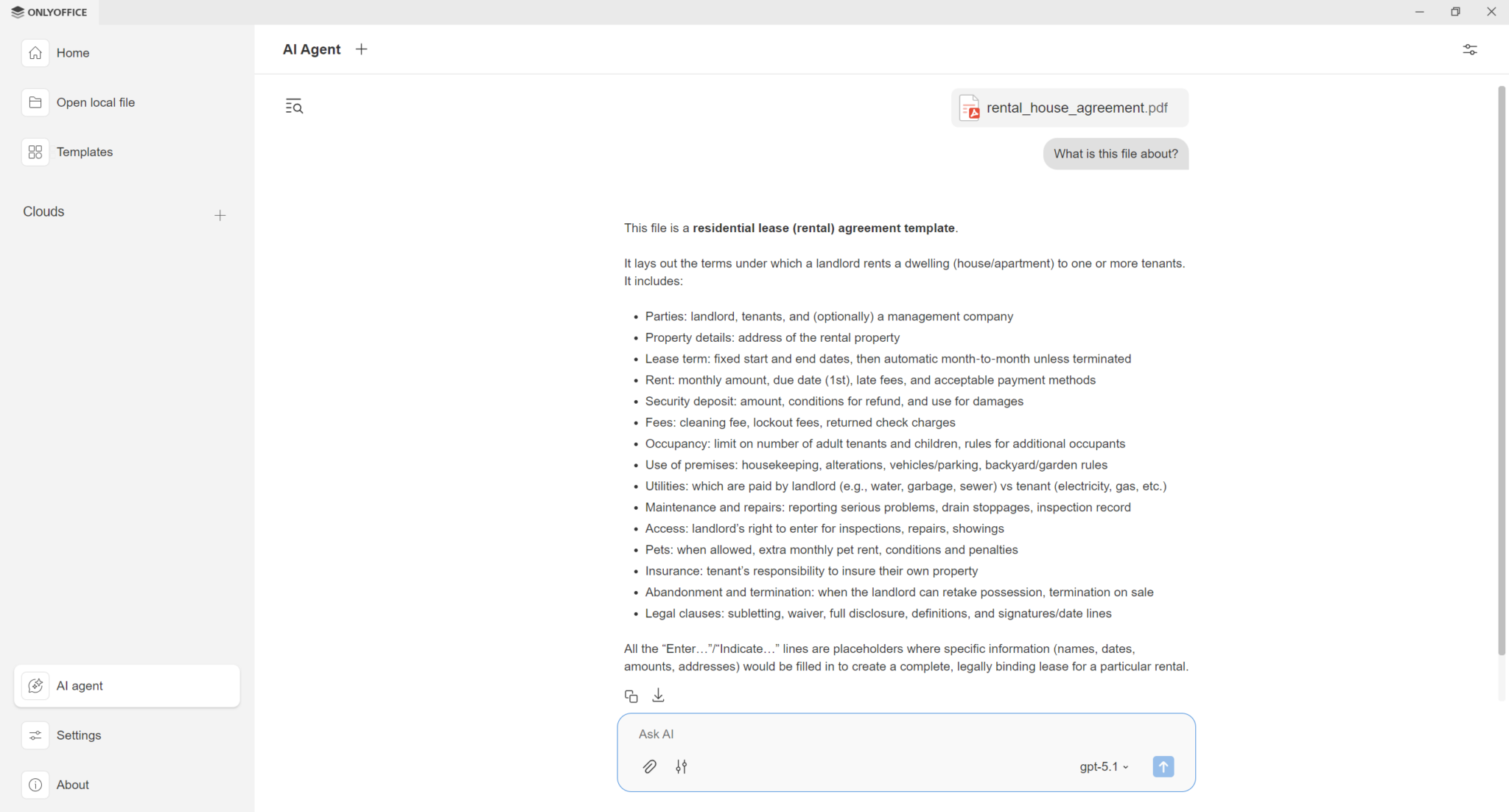
Once the provider is added, you can open the AI agent chat immediately.
Enter your prompts in the chat field and start interacting with the model connected through OpenRouter. Let the agent handle tasks such as:
- Answering questions and helping with writing
- Generating new files (documents, presentations, forms)
- Finding and opening files on your device
- Listing folder contents and showing recent files
- Extracting content from documents without opening them
- Analyzing document structure and detecting fillable fields
- Filling forms automatically based on provided information
Connect OpenRouter in the ONLYOFFICE editors
OpenRouter is also supported inside ONLYOFFICE editors to assist content-related tasks.
To get started:
- Enable the AI plugin in the Plugins tab → Background Plugins. After activation, the AI tab will appear in the top toolbar.
- Go to the AI tab → Settings → Edit AI models.
- Click + to add a new model provider. Select OpenRouter in the Provider name field and paste your OpenRouter API key. Click Update models list to load all models available under your key.
- Select any OpenRouter model (from OpenAI, Anthropic, Meta, DeepSeek, etc.) and assign it to tasks such as text generation, rewriting, summarization, translation, embeddings, coding, or image-related operations. You can add multiple models and use each for different tasks.
From now on, you can:
- Get precise answers to your questions;
- Quickly find relevant information;
- Analyze words and sentences;
- Generate text and keywords;
- Summarize and translate texts;
- Explore the meanings of words and concepts;
- Write, expand, shorten, or rewrite text;
- Explain in comments;
- And much more.
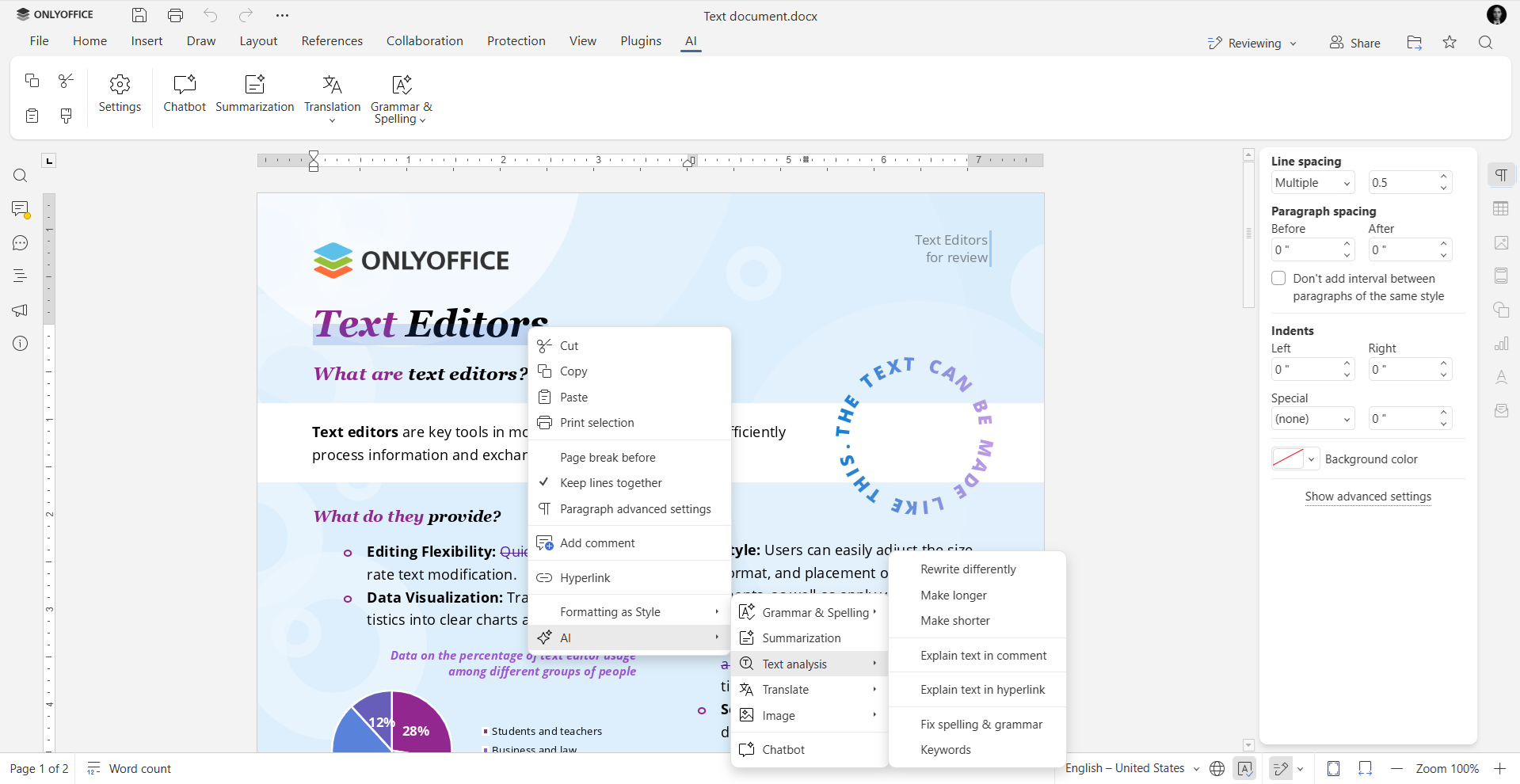
You can also use OpenRouter models with the inline AI agent in the editors, allowing you to generate, rewrite, summarize, or translate text directly inside your documents — simply by describing what you need in plain, natural language.
Try OpenRouter with ONLYOFFICE
Ready to enhance document workflows with multi-model AI? Use OpenRouter in ONLYOFFICE today:
START ONLINE NOW GET DESKTOP EDITORS
Useful links
About ONLYOFFICE Desktop Editors
ONLYOFFICE Desktop Editors v9.2
Related guides: Mistral AI / Groq / Together AI / Ollama / DeepSeek / Google Gemini
Create your free ONLYOFFICE account
View, edit and collaborate on docs, sheets, slides, forms, and PDF files online.