From idea to implementation: Creating a custom AI function for image description
With our AI agent, you can go beyond standard editor actions and add custom functions tailored to your needs. This post walks through the creation of the describeImage function and explains how it turns images into titles, captions, and accessible alt text.
The idea
The goal is simple. Select an image, provide a short instruction, and receive generated text placed exactly where you need it. The function supports common use cases such as image titles, captions, and alt text, while avoiding assumptions about user intent by relying on explicit prompts.
Designing the function
To make the function available to the ONLYOFFICE AI engine, it was defined as a RegisteredFunction. This definition specifies the function name, expected parameters, and example prompts that demonstrate intended usage.
  let func = new RegisteredFunction({
    name: "describeImage",
    description:
      "Allows users to select an image and generate a meaningful title, description, caption, or alt text for it using AI.",
    parameters: {
      type: "object",
      properties: {
        prompt: {
          type: "string",
          description:
            "instruction for the AI (e.g., 'Add a short title for this chart.')",
        },
      },
      required: ["prompt"],
    },
    examples: [
      {
        prompt: "Add a short title for this chart.",
        arguments: { prompt: "Add a short title for this chart." },
      },
      {
        prompt: "Write me a 1-2 sentence description of this photo.",
        arguments: {
          prompt: "Write me a 1-2 sentence description of this photo.",
        },
      },
      {
        prompt: "Generate a descriptive caption for this organizational chart.",
        arguments: {
          prompt:
            "Generate a descriptive caption for this organizational chart.",
        },
      },
      {
        prompt: "Provide accessibility-friendly alt text for this infographic.",
        arguments: {
          prompt:
            "Provide accessibility-friendly alt text for this infographic.",
        },
      },
    ],
  });
This definition serves two purposes:
- It informs the ONLYOFFICE AI engine about the function’s capabilities and expected input.
- It provides usage examples to guide both the AI and end users.
Implementing the logic
The call method contains the actual functionality executed when the user invokes the function:
- Retrieve the selected image – using GetImageDataFromSelection, we fetch the image from the document. We also filter out placeholder images to ensure meaningful AI results.
- Construct the AI prompt – the user’s instruction is combined with the context of the selected image to create a clear and actionable prompt.
- Verify AI model compatibility – only vision-capable models (like GPT-4V or Gemini) can process images. We alert the user if their current model cannot handle images.
- Send request to AI – the image and prompt are sent to the AI engine via chatRequest, collecting the generated text in real time.
- Insert AI-generated text into the document – the function detects whether an image is selected or not, and inserts the result appropriately.
- Error handling – the function gracefully handles missing images, unsupported models, or unexpected AI errors, providing clear messages to the user.
1. Fetching the selected image
In ONLYOFFICE images in a document are referred to as drawings. To process a user-selected image, we use the ONLYOFFICE plugin API:
    let imageData = await new Promise((resolve) => {
        window.Asc.plugin.executeMethod(
          "GetImageDataFromSelection",
          [],
          function (result) {
            resolve(result);
          }
        );
      });
- GetImageDataFromSelection is an ONLYOFFICE plugin method that extracts the currently selected image as a base64-encoded string.
- The result is an object, typically:
{
  "src": "data:image/png;base64,iVBORw0K...",
  "width": 600,
  "height": 400
}
This src string contains the entire image in Base64 format, which can be directly sent to AI models that accept image data.
Key considerations:
- If no image is selected, imageData is null.
- Some users may select placeholder graphics or empty rectangles. For example, ONLYOFFICE uses a tiny white rectangle as a placeholder for empty images. We compare against its base64 representation to filter them out:
   const whiteRectangleBase64 =   "data:image/png;base64,iVBORw0KGgoAAAANSUhEUgAAAAEAAAABCAYAAAAfFcSJAAAADUlEQVR42mP8/5+hHgAHggJ/PchI7wAAAABJRU5ErkJggg==";
      if (imageData.src === whiteRectangleBase64) {
        console.log("describeImage: Image is white placeholder");
        await insertMessage("Please select a valid image first.");
        return;
      }
2. Preparing the image for AI
AI models expect images as URLs or base64-encoded data, typically in a field like image_url. In our function, we pass the image along with a textual prompt in a structured array:
   let messages = [
        {
          role: "user",
          content: [
            { type: "text", text: argPrompt },
            {
              type: "image_url",
              image_url: { url: imageData.src, detail: "high" },
            },
          ],
        },
      ];
- type: “text” provides the prompt instructions (e.g., “Add a descriptive caption”).
- type: “image_url” includes the image itself. The AI engine can then analyze the image and generate relevant text.
- detail: “high” is an optional hint for models to process the image in full resolution.
Transformation logic:
- ONLYOFFICE provides src as a base64 string.
- AI models can accept either base64 data or an accessible URL. Here, we use base64 directly to avoid uploading to an external server.
- We wrap the image in an object compatible with the AI’s chat request API. This structure allows multiple content types in a single message.
3. Sending the request to AI
Once we have the image and the prompt structured, we use the ONLYOFFICE AI plugin engine:
     let requestEngine = AI.Request.create(AI.ActionType.Chat);
      await requestEngine.chatRequest(messages, false, async function (data) {
        console.log("describeImage: chatRequest callback data chunk", data);
        if (data) {
          resultText += data;
        }
      });
- AI.ActionType.Chat allows sending chat-style messages, where the prompt and image are analyzed together.
- The callback collects chunks of AI response text in real time.
- Before sending, we check whether the selected AI model supports vision. Only certain models (GPT-4V, Gemini) can handle images:
 const allowVision = /(vision|gemini|gpt-4o|gpt-4v|gpt-4-vision)/i;
      if (!allowVision.test(requestEngine.modelUI.name)) {
        console.warn("describeImage: Model does not support vision", requestEngine.modelUI.name);
        await insertMessage(
          "⚠ This model may not support images. Please choose a vision-capable model (e.g. GPT-4V, Gemini, etc.)."
        );
        return;
      }
4. Inserting AI output into the document
After receiving the AI output, the text needs to be inserted back into the ONLYOFFICE document. The logic handles two cases:
- Image selected: Insert a paragraph after the image.
- No image selected: Insert a paragraph after the current cursor location.
async function insertMessage(message) {
      console.log("describeImage: insertMessage called", message);
      Asc.scope._message = String(message || "");
      await Asc.Editor.callCommand(function () {
        const msg = Asc.scope._message || "";
        const doc = Api.GetDocument();
        const selected =
          (doc.GetSelectedDrawings && doc.GetSelectedDrawings()) || [];
        if (selected.length > 0) {
          for (let i = 0; i < selected.length; i++) {
            const drawing = selected[i];
            const para = Api.CreateParagraph();
            para.AddText(msg);
            drawing.InsertParagraph(para, "after", true);
          }
        } else {
          const para = Api.CreateParagraph();
          para.AddText(msg);
          let range = doc.GetCurrentParagraph();
          range.InsertParagraph(para, "after", true);
        }
        Asc.scope._message = "";
      }, true);
- Api.GetSelectedDrawings() retrieves currently selected images (drawings).
- Api.CreateParagraph() creates a new paragraph object.
- InsertParagraph(para, “after”, true) inserts the generated text immediately after the selected image or paragraph.
- This ensures seamless integration: the AI output always appears in the right context.
5. Handling edge cases and errors
Some challenges required extra attention:
- No image selected – Prompt the user to select one.
- Unsupported AI model – Warn the user before sending a request.
- Empty AI response – Notify the user that the AI could not generate a description.
- Unexpected errors – Use nested try/catch to safely terminate any ongoing editor actions:
    } catch (e) {
      try {
        await Asc.Editor.callMethod("EndAction", ["GroupActions"]);
        await Asc.Editor.callMethod("EndAction", [
          "Block",
          "AI (describeImage)",
        ]);
      } catch (ee) {

      }
This ensures the document remains stable even if the AI or plugin fails mid-operation.
Final outcome
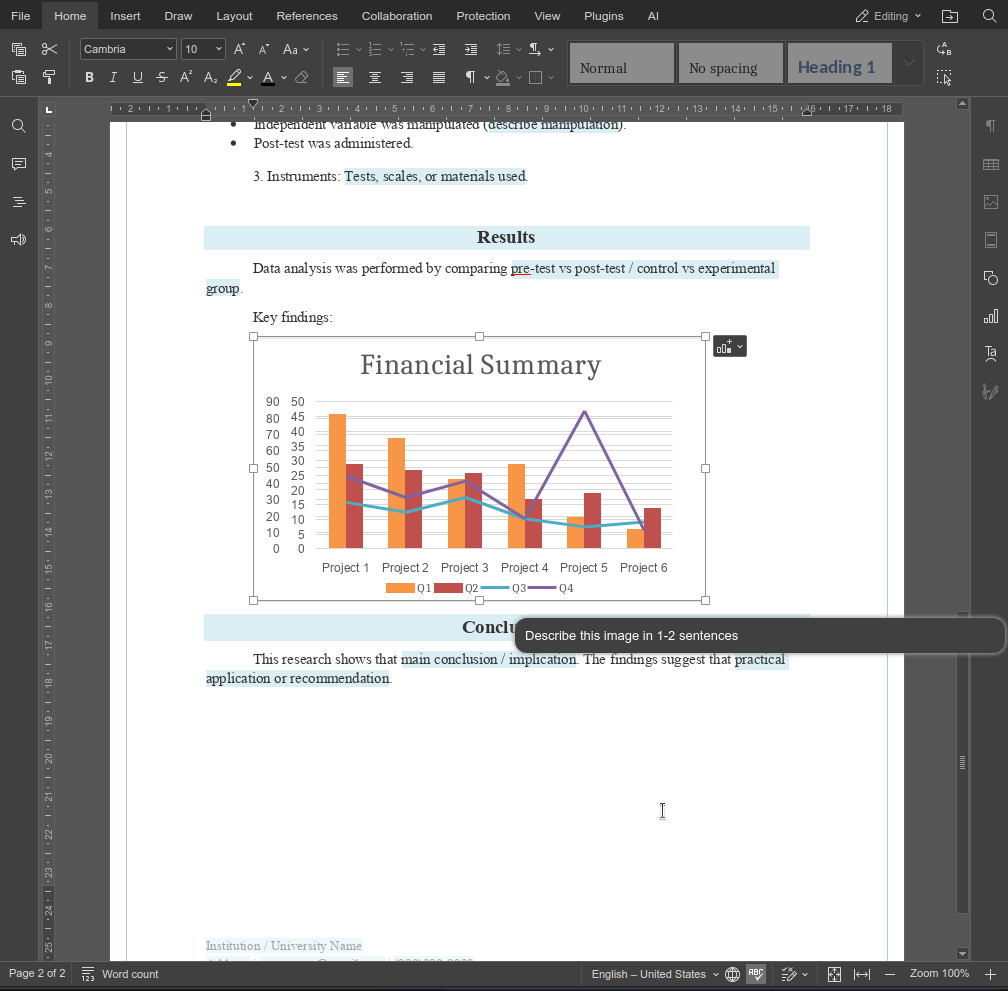
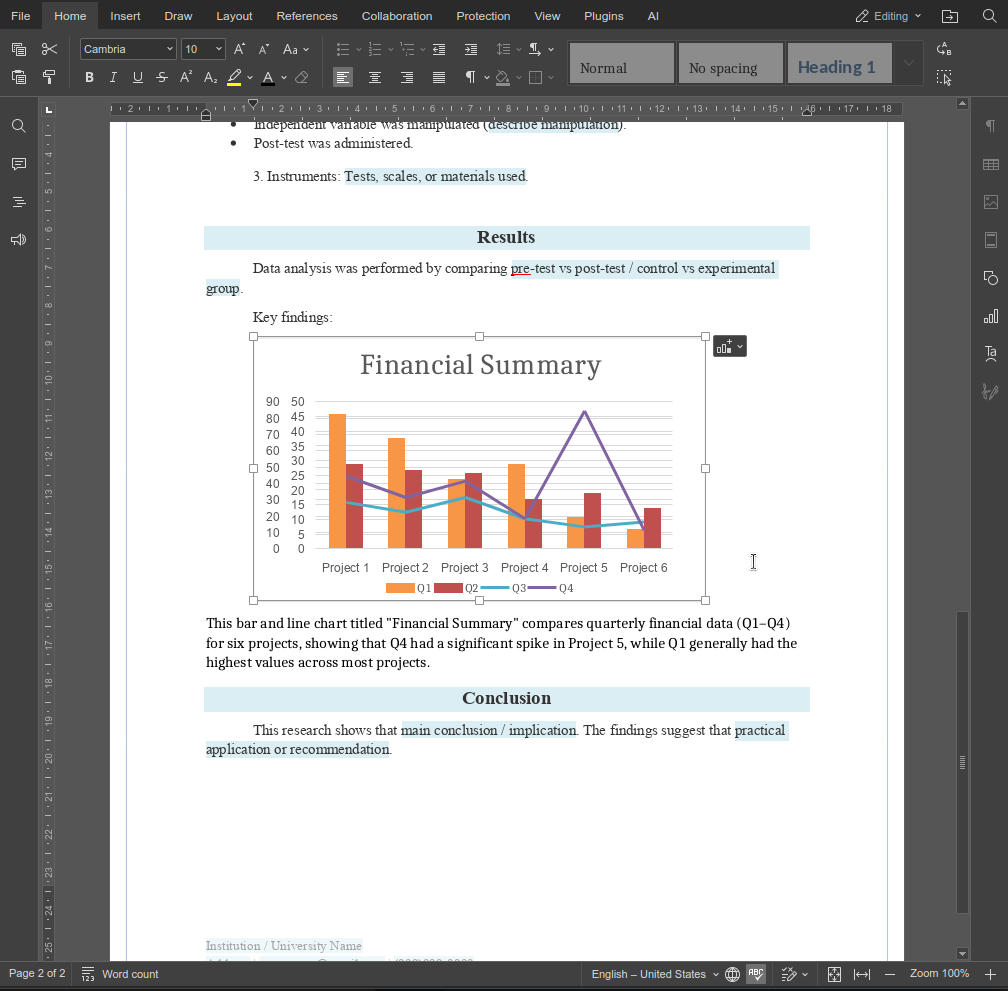
The describeImage function shows how custom functions can extend the AI agent in small but high-impact ways. By combining clear prompts with editor-aware logic, you can build features that fit directly into real workflows instead of generic AI actions.
Try creating your own custom functions to customise the functionality of our AI agent. If you build something useful, feel free to share it with us via the contact page.
Create your free ONLYOFFICE account
View, edit and collaborate on docs, sheets, slides, forms, and PDF files online.